
|
|
|
 |

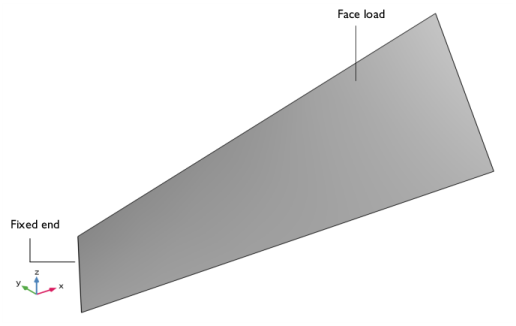
|
G12
|
|
|
G12
|
|
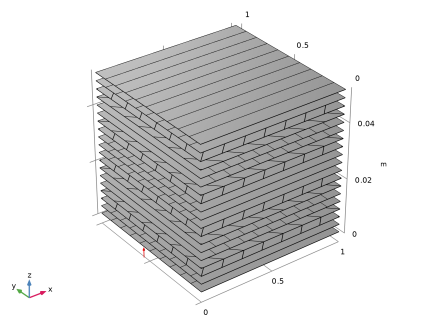
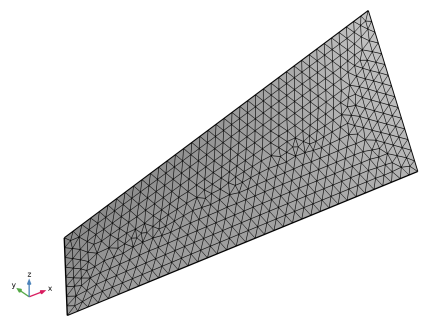
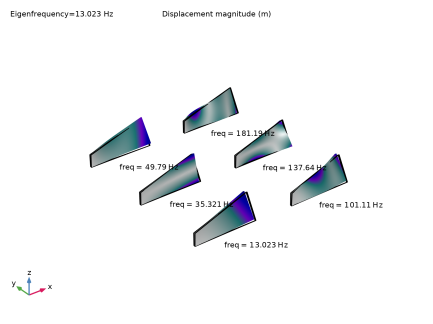
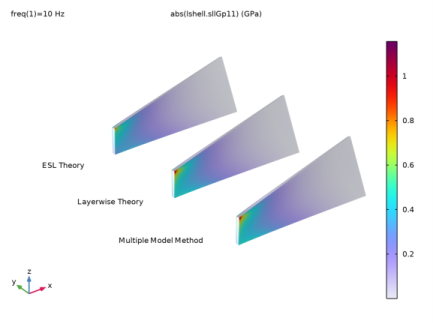
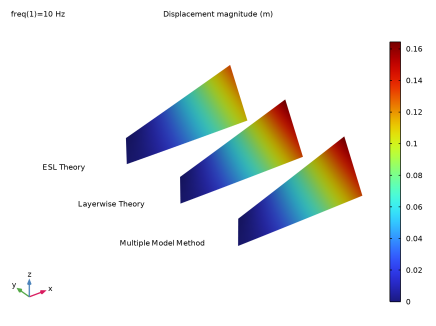
|
•
|
Modeling a composite laminate as a layered shell requires a surface geometry, in general referred to as a base surface, and a Layered Material node which adds an extra dimension (1D) to the base surface geometry in the surface normal direction. You can use the Layered Material functionality to model several layers stacked on top of each other having different thicknesses, material properties, and fiber orientations. You can optionally specify the interface materials between the layers, and control the number of through-thickness mesh elements for each layer.
|
|
•
|
The third direction for the selected coordinate system in the Single Layer Material, Layered Material Link, or Layered Material Stack represents the normal direction of the Layered Shell or Shell physics. This is also the direction in which the layer stacking is interpreted from bottom to top, and therefore, it is crucial to know it during modeling. There are two ways to achieve this:
|
|
-
|
Using physics symbols: Go to the physics settings, find the Physics Symbols section, and select the Enable physics symbols checkbox. Then go to the material feature, for instance, Linear Elastic Material, to see the normal direction represented by green arrows in the geometry.
|
|
-
|
Using result templates: When a solution dataset is available, use the result template Thickness and Orientation to plot the normal direction.
|
|
•
|
To model composites you can use two approaches: You can use either the Layered Shell interface, that uses the layerwise theory, or the Linear Elastic Material, Layered node in the Shell interface, that uses the Equivalent Single Layer (ESL) theory.
|
|
•
|
The multiple model method combines the aforementioned modeling approaches, and in order to combine the Layered Shell and Shell interfaces in the thickness direction, a Layered Shell-Shell Connection multiphysics coupling must be used. You must also use the Layered Material Stack node for the through-thickness coupling between the interfaces.
|
|
•
|
In a situation where Layered Shell and Shell interfaces are coupled in-plane, you must use a Layered Shell-Structural Transition multiphysics coupling. Here, the same Single Layer Material, Layered Material Link or Layered Material Stack node must be used in both interfaces. This modeling approach is also a multiple model method.
|
|
•
|
It is not advised to use the Layered Shell interface for discontinuous layers, as it can create problems in fold-line constraints. No fold-lines exist in the present model, hence the Layered Shell interface used to model the PVC foam and the carbon–epoxy layers.
|
|
1
|
|
2
|
|
3
|
Click Add.
|
|
4
|
|
5
|
Click Add.
|
|
6
|
Click
 Study. Study. |
|
7
|
|
8
|
Click
 Done. Done. |
|
1
|
|
2
|
|
1
|
In the Model Builder window, under Global Definitions right-click Materials and choose Blank Material.
|
|
2
|
|
1
|
|
2
|
|
3
|
Locate the Layer Definition section. In the table, enter the following settings:
|
|
1
|
|
2
|
|
1
|
|
2
|
In the Settings window for Layered Material, type Layered Material: GV-[0/45/-45/90]_s in the Label text field.
|
|
3
|
Locate the Layer Definition section. In the table, enter the following settings:
|
|
4
|
Click
 Add. Add. |
|
6
|
Click to expand the Preview Plot Settings section. In the Thickness-to-width ratio text field, type 0.6.
|
|
7
|
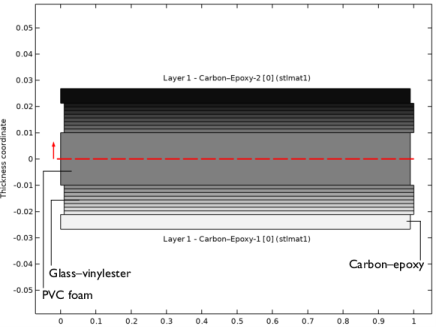
Locate the Layer Definition section. Click Layer Stack Preview in the upper-right corner of the section.
|
|
1
|
|
2
|
|
1
|
|
2
|
|
3
|
Locate the Layer Definition section. In the table, enter the following settings:
|
|
1
|
|
2
|
|
3
|
|
4
|
Click
 Go to Plane Geometry. Go to Plane Geometry. |
|
1
|
|
2
|
|
3
|
|
4
|
|
5
|
|
1
|
|
2
|
|
4
|
Select the Reverse direction checkbox.
|
|
5
|
Click to expand the Scales section. In the table, enter the following settings:
|
|
6
|
Click to expand the Twist Angles section. In the table, enter the following settings:
|
|
7
|
Click
 Build All Objects. Build All Objects. |
|
8
|
|
9
|
|
1
|
In the Model Builder window, expand the Component 1 (comp1) > Definitions node, then click Boundary System 1 (sys1).
|
|
2
|
|
3
|
|
1
|
|
2
|
In the Settings window for Layered Material Link, type Glass-Vinylester-1 [0/45/-45/90]_s in the Label text field.
|
|
3
|
Locate the Link Settings section. From the Material list, choose Layered Material: GV-[0/45/-45/90]_s (lmat2).
|
|
1
|
|
2
|
|
3
|
|
1
|
|
2
|
In the Settings window for Layered Material Link, type Glass-Vinylester-2 [0/45/-45/90]_s in the Label text field.
|
|
3
|
Locate the Link Settings section. From the Material list, choose Layered Material: GV-[0/45/-45/90]_s (lmat2).
|
|
1
|
|
2
|
|
3
|
|
1
|
|
2
|
In the Settings window for Layered Material Stack, click to expand the Preview Plot Settings section.
|
|
3
|
|
4
|
|
5
|
Click Section_bar in the upper-right corner of the Layered Material Settings section. From the menu, choose Layer Stack Preview.
|
|
6
|
|
7
|
|
1
|
|
2
|
In the Settings window for Layered Shell, type Layered Shell (Multiple Model Method) in the Label text field.
|
|
3
|
|
4
|
Click
 Clear All. Clear All. |
|
5
|
In the Selection table, select the checkboxes for Layer 1 - Carbon–Epoxy-1 [0], Layer 1 - PVC Foam [0], and Layer 1 - Carbon–Epoxy-2 [0].
|
|
1
|
In the Model Builder window, under Component 1 (comp1) > Layered Shell (Multiple Model Method) (lshell) click Linear Elastic Material 1.
|
|
2
|
|
3
|
Select the Transversely isotropic checkbox.
|
|
1
|
|
3
|
|
4
|
Select the Use all layers checkbox.
|
|
1
|
|
2
|
|
4
|
|
5
|
|
6
|
|
1
|
|
2
|
|
3
|
|
4
|
In the Show More Options dialog, in the tree, select the checkbox for the node Physics > Advanced Physics Options.
|
|
5
|
Click OK.
|
|
6
|
|
7
|
Clear the Use MITC interpolation checkbox.
|
|
1
|
|
3
|
|
4
|
Clear the Use all layers checkbox.
|
|
5
|
|
6
|
|
7
|
Select the Transversely isotropic checkbox.
|
|
8
|
|
1
|
|
3
|
|
1
|
|
2
|
|
3
|
|
1
|
In the Model Builder window, expand the Component 1 (comp1) > Shell 2 (Multiple Model Method) (shell2) node, then click Linear Elastic Material, Layered 1.
|
|
2
|
|
3
|
|
1
|
In the Model Builder window, under Global Definitions > Materials click Material: Carbon–Epoxy (mat1).
|
|
2
|
|
1
|
|
2
|
|
1
|
|
2
|
 Multiphysics Couplings and choose Boundary > Layered Shell–Shell Connection.
|
1
|
|
2
|
|
3
|
|
1
|
|
2
|
In the Settings window for Study, type Study: Eigenfrequency (Multiple Model Method) in the Label text field.
|
|
3
|
|
1
|
In the Model Builder window, expand the Study: Eigenfrequency (Multiple Model Method) > Solver Configurations > Solution 1 (sol1) node, then click Eigenvalue Solver 1.
|
|
2
|
|
3
|
|
4
|
|
1
|
|
2
|
|
1
|
|
2
|
In the Settings window for 3D Plot Group, type Mode Shapes (Multiple Model Method) in the Label text field.
|
|
3
|
|
4
|
|
5
|
|
6
|
|
7
|
|
1
|
|
2
|
|
3
|
|
1
|
|
2
|
|
3
|
|
4
|
|
1
|
|
2
|
|
3
|
|
4
|
|
5
|
|
6
|
|
1
|
|
2
|
|
3
|
|
4
|
|
5
|
|
1
|
In the Model Builder window, under Results > Mode Shapes (Multiple Model Method) right-click Surface 2 and choose Duplicate.
|
|
2
|
|
3
|
|
1
|
|
2
|
|
3
|
|
4
|
|
5
|
|
1
|
|
2
|
|
3
|
|
4
|
|
5
|
|
6
|
|
7
|
|
8
|
|
1
|
|
2
|
|
3
|
|
1
|
|
2
|
Go to the Add Study window.
|
|
3
|
|
4
|
Click the Add Study button in the window toolbar.
|
|
5
|
|
1
|
|
2
|
|
3
|
|
4
|
In the Settings window for Study, type Study: Frequency (Multiple Model Method) in the Label text field.
|
|
5
|
|
6
|
|
1
|
|
2
|
|
3
|
|
1
|
|
2
|
|
3
|
|
4
|
|
5
|
|
6
|
Clear the Plot dataset edges checkbox.
|
|
1
|
|
2
|
|
3
|
|
4
|
|
5
|
|
1
|
|
2
|
|
3
|
|
4
|
|
1
|
|
2
|
|
3
|
|
4
|
|
5
|
|
1
|
|
2
|
|
3
|
|
1
|
|
2
|
|
3
|
|
4
|
|
5
|
|
1
|
|
2
|
|
3
|
|
1
|
|
2
|
|
1
|
|
2
|
|
3
|
Locate the Data section. From the Dataset list, choose Study: Frequency (Multiple Model Method)/Solution 2 (sol2).
|
|
4
|
|
5
|
Clear the Plot dataset edges checkbox.
|
|
1
|
|
2
|
|
3
|
|
4
|
|
1
|
|
2
|
|
1
|
|
2
|
|
3
|
In the Settings window for Layered Shell, type Layered Shell (Layerwise Theory) in the Label text field.
|
|
4
|
|
1
|
|
2
|
Go to the Add Study window.
|
|
3
|
|
4
|
Click the Add Study button in the window toolbar.
|
|
5
|
|
1
|
In the Settings window for Study, type Study: Eigenfrequency (Layerwise Theory) in the Label text field.
|
|
2
|
|
1
|
In the Model Builder window, under Study: Eigenfrequency (Layerwise Theory) click Step 1: Eigenfrequency.
|
|
2
|
|
3
|
Select the Modify model configuration for study step checkbox.
|
|
4
|
In the tree, select Component 1 (comp1) > Layered Shell (Multiple Model Method) (lshell), Component 1 (comp1) > Shell 1 (Multiple Model Method) (shell), and Component 1 (comp1) > Shell 2 (Multiple Model Method) (shell2).
|
|
5
|
Click
 Disable in Model. Disable in Model. |
|
6
|
In the tree, select Component 1 (comp1) > Multiphysics > Layered Shell–Shell Connection 1 (lssh1) and Component 1 (comp1) > Multiphysics > Layered Shell–Shell Connection 2 (lssh2).
|
|
7
|
Click
 Disable in Model. Disable in Model. |
|
1
|
In the Model Builder window, expand the Study: Eigenfrequency (Layerwise Theory) > Solver Configurations > Solution 3 (sol3) node, then click Eigenvalue Solver 1.
|
|
2
|
|
3
|
|
4
|
|
1
|
In the Model Builder window, under Results > Datasets right-click Layered Material 1 and choose Duplicate.
|
|
2
|
|
3
|
|
1
|
|
2
|
In the Settings window for 3D Plot Group, type Mode Shapes (Layerwise Theory) in the Label text field.
|
|
3
|
|
4
|
|
1
|
In the Model Builder window, under Results > Mode Shapes (Layerwise Theory), Ctrl-click to select Surface 2 and Surface 3.
|
|
2
|
Right-click and choose Delete.
|
|
1
|
|
2
|
|
3
|
|
1
|
|
2
|
|
3
|
|
4
|
|
5
|
|
1
|
|
2
|
|
3
|
|
4
|
|
5
|
|
1
|
|
2
|
Go to the Add Study window.
|
|
3
|
|
4
|
Click the Add Study button in the window toolbar.
|
|
5
|
|
1
|
|
2
|
|
3
|
Locate the Physics and Variables Selection section. Select the Modify model configuration for study step checkbox.
|
|
4
|
In the tree, select Component 1 (comp1) > Layered Shell (Multiple Model Method) (lshell), Component 1 (comp1) > Shell 1 (Multiple Model Method) (shell), and Component 1 (comp1) > Shell 2 (Multiple Model Method) (shell2).
|
|
5
|
Click
 Disable in Model. Disable in Model. |
|
6
|
In the tree, select Component 1 (comp1) > Multiphysics > Layered Shell–Shell Connection 1 (lssh1) and Component 1 (comp1) > Multiphysics > Layered Shell–Shell Connection 2 (lssh2).
|
|
7
|
Click
 Disable in Model. Disable in Model. |
|
8
|
|
9
|
|
10
|
|
11
|
|
1
|
In the Model Builder window, under Results > Datasets right-click Layered Material 2 and choose Duplicate.
|
|
2
|
|
3
|
|
1
|
|
2
|
|
3
|
|
4
|
|
5
|
|
1
|
|
2
|
|
3
|
Select the Manual indexing checkbox.
|
|
1
|
|
2
|
|
3
|
Select the Manual indexing checkbox.
|
|
1
|
|
2
|
|
3
|
|
4
|
|
5
|
|
1
|
|
2
|
|
3
|
|
4
|
|
5
|
|
1
|
|
2
|
|
1
|
|
2
|
|
3
|
|
4
|
|
5
|
|
1
|
In the Model Builder window, under Results > Displacement, Slice right-click Layered Material Slice 1 and choose Duplicate.
|
|
2
|
|
3
|
|
4
|
|
5
|
|
6
|
|
7
|
|
1
|
|
2
|
|
3
|
|
1
|
In the Model Builder window, expand the Component 1 (comp1) > Shell (ESL Theory) (shell3) node, then click Linear Elastic Material, Layered 1.
|
|
2
|
|
3
|
Select the Use all layers checkbox.
|
|
1
|
|
2
|
|
4
|
|
5
|
|
6
|
|
1
|
|
2
|
Go to the Add Study window.
|
|
3
|
|
4
|
Click the Add Study button in the window toolbar.
|
|
5
|
|
1
|
|
2
|
|
1
|
|
2
|
|
3
|
Select the Modify model configuration for study step checkbox.
|
|
4
|
In the tree, select Component 1 (comp1) > Layered Shell (Multiple Model Method) (lshell), Component 1 (comp1) > Shell 1 (Multiple Model Method) (shell), Component 1 (comp1) > Shell 2 (Multiple Model Method) (shell2), and Component 1 (comp1) > Layered Shell (Layerwise Theory) (lshell2).
|
|
5
|
Click
 Disable in Model. Disable in Model. |
|
6
|
In the tree, select Component 1 (comp1) > Multiphysics > Layered Shell–Shell Connection 1 (lssh1) and Component 1 (comp1) > Multiphysics > Layered Shell–Shell Connection 2 (lssh2).
|
|
7
|
Click
 Disable in Model. Disable in Model. |
|
1
|
In the Model Builder window, expand the Study: Eigenfrequency (ESL Theory) > Solver Configurations > Solution 5 (sol5) node, then click Eigenvalue Solver 1.
|
|
2
|
|
3
|
|
4
|
|
1
|
In the Model Builder window, under Results > Datasets right-click Layered Material 1 and choose Duplicate.
|
|
2
|
|
3
|
|
1
|
|
2
|
|
3
|
|
1
|
|
2
|
|
3
|
|
1
|
|
2
|
|
3
|
|
4
|
|
5
|
|
1
|
|
2
|
|
3
|
|
4
|
|
5
|
|
1
|
|
2
|
Go to the Add Study window.
|
|
3
|
|
4
|
Click the Add Study button in the window toolbar.
|
|
5
|
|
1
|
|
2
|
|
3
|
Locate the Physics and Variables Selection section. Select the Modify model configuration for study step checkbox.
|
|
4
|
In the tree, select Component 1 (comp1) > Layered Shell (Multiple Model Method) (lshell), Component 1 (comp1) > Shell 1 (Multiple Model Method) (shell), Component 1 (comp1) > Shell 2 (Multiple Model Method) (shell2), and Component 1 (comp1) > Layered Shell (Layerwise Theory) (lshell2).
|
|
5
|
Click
 Disable in Model. Disable in Model. |
|
6
|
In the tree, select Component 1 (comp1) > Multiphysics > Layered Shell–Shell Connection 1 (lssh1) and Component 1 (comp1) > Multiphysics > Layered Shell–Shell Connection 2 (lssh2).
|
|
7
|
Click
 Disable in Model. Disable in Model. |
|
8
|
|
9
|
|
10
|
|
11
|
|
1
|
In the Model Builder window, under Results > Datasets right-click Layered Material 4 and choose Duplicate.
|
|
2
|
|
3
|
|
1
|
|
2
|
|
3
|
|
4
|
|
5
|
|
1
|
|
2
|
|
3
|
|
4
|
|
5
|
|
1
|
|
2
|
|
3
|
|
5
|
|
6
|
|
7
|
|
1
|
In the Model Builder window, under Results > Displacement, Slice right-click Layered Material Slice 2 and choose Duplicate.
|
|
2
|
|
3
|
|
4
|
|
5
|
|
1
|
|
2
|
|
1
|
|
2
|
|
3
|
|
4
|
|
1
|
|
2
|
|
1
|
|
2
|
|
3
|
|
4
|
Locate the Expressions section. In the table, enter the following settings:
|
|
1
|
|
2
|
|
3
|
|
4
|
Locate the Expressions section. In the table, enter the following settings:
|
|
5
|
|
1
|
|
2
|
In the Settings window for Evaluation Group, type Comparison: Maximum Displacement in the Label text field.
|
|
3
|
|
4
|
|
1
|
|
2
|
|
1
|
|
2
|
|
3
|
|
4
|
Locate the Expressions section. In the table, enter the following settings:
|
|
1
|
|
2
|
|
3
|
|
4
|
Locate the Expressions section. In the table, enter the following settings:
|
|
5
|
|
1
|
|
2
|
In the Settings window for Evaluation Group, type Comparison: Eigenfrequency in the Label text field.
|
|
3
|
|
1
|
|
2
|
|
1
|
|
2
|
|
3
|
|
1
|
|
2
|
|
3
|
|
4
|
|
1
|
In the Model Builder window, under Study: Eigenfrequency (Multiple Model Method) click Step 1: Eigenfrequency.
|
|
2
|
|
3
|
Select the Modify model configuration for study step checkbox.
|
|
4
|
In the tree, select Component 1 (comp1) > Layered Shell (Layerwise Theory) (lshell2) and Component 1 (comp1) > Shell (ESL Theory) (shell3).
|
|
5
|
Click
 Disable in Model. Disable in Model. |
|
1
|
In the Model Builder window, under Study: Frequency (Multiple Model Method) click Step 1: Frequency Domain.
|
|
2
|
|
3
|
Select the Modify model configuration for study step checkbox.
|
|
4
|
In the tree, select Component 1 (comp1) > Layered Shell (Layerwise Theory) (lshell2) and Component 1 (comp1) > Shell (ESL Theory) (shell3).
|
|
5
|
Click
 Disable in Model. Disable in Model. |
|
1
|
In the Model Builder window, under Study: Eigenfrequency (Layerwise Theory) click Step 1: Eigenfrequency.
|
|
2
|
|
3
|
|
4
|
Click
 Disable in Model. Disable in Model. |
|
1
|
In the Model Builder window, under Study: Frequency (Layerwise Theory) click Step 1: Frequency Domain.
|
|
2
|
|
3
|
|
4
|
Click
 Disable in Model. Disable in Model. |


