
PDF

Cross-Flow Mass Transfer in a Thin Domain
Introduction
This application shows how mass transfer out from a thin 3D domain can be approximated using a 2D component with the domain feature Out-of-Plane Flux. This feature is useful when the concentration gradient in the out-of-plane direction (along the thickness) is small, and decreasing the computational time is important.
In this example, the Transport of Concentrated Species and Laminar Flow physics interfaces are used to solve for the mass transfer and fluid flow. The Reacting Flow multiphysics coupling feature is used to couple the physical properties. The out-of-plane thickness, which is constant throughout the domain, is varied from 1 mm to 5 mm. As will be shown, by approximating the thin 3D component with a corresponding 2D component, the solution time decreases without a significant decrease in accuracy.
Model Definition
The geometry has a base rectangular shape with a side length 10 cm and width 5 cm. A symmetry feature is introduced to simplify the geometry and only model half of the channel width. The parametric sweep node solves for three different thicknesses, dz,as follows: 1 mm, 2 mm, and 5 mm. Figure 1 below shows the geometry reduction from 3D to 2D.
Figure 1: Model geometry reduction from 3D to 2D. The upward pointing arrows symbolize the normal of the flux from the domain. In this model there is only flux from the upper boundary into the domain. The upside and downside edges in 3D, for which concentration profiles are plotted in Figure 5 are indicated.
The Laminar Flow interface solves for the velocity and pressure within a gas as it flows through the thin domain. The flow inlet is defined on the thin boundary where x = 0 (3D), and on the corresponding edge in 2D. The gas is compose of three species A, B, and C, whose concentrations are solved for by the Transport of Concentrated Species interface. The total inward flux of species A is defined on the upside boundary of the thickness where z = dz (3D), and on the entire domain in 2D. The stationary mass transfer equation for the 2D problem is defined as follows:
,
where the left-hand side describes diffusion and convection, and the right-hand side is the out-of-plane source term, defined as the sum of the out-of-plane molar flux on the upside, j0,u, and on the downside, j0,d, divided by the out-of-plane thickness dz. Since there is only flux through the upper boundary in this example, the 2D mass transfer equation simplifies as follows:
.
Results and Discussion
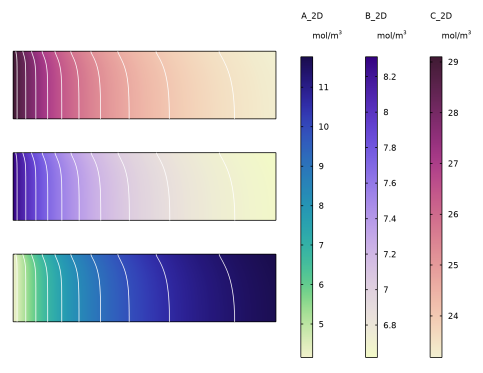
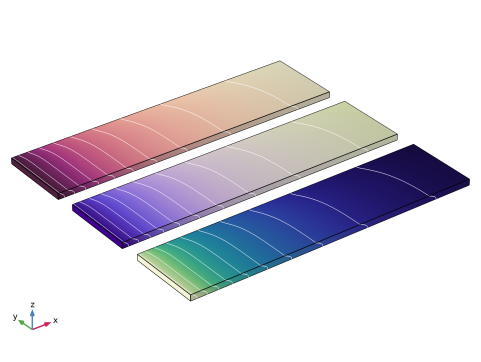
Figure 2 and Figure 3 below show the concentrations of species A, B, and C for the 2D and 3D geometries respectively for a thickness of 2 mm.
Figure 2: Concentration profiles (bottom to top: A, B, C) for 2D geometry for dz = 2 mm. Lines represent the contour plot.
Figure 2 shows that the concentration of species A increases due to the incoming flux which therefore dilutes the concentrations of species B and C. The variation in the concentration close to the outer wall is due to the no-slip condition from the fluid flow.
Additionally, conservation of mass is calculated from the difference between the total flux across the boundary and the total flux across the surface. The absolute difference in mass is normalized with the inlet flux to calculate the relative error, which is below 0.35% for species A and 0.080% for species B. Only the conservation of species A and B are checked since the concentration of species C is not directly solved for and is instead obtained from a mass constraint specification.
Figure 3: Concentration profiles (right to left: A, B, C) for 3D geometry for dz = 2 mm. Lines represent the contour plot. Refer to Figure 2 for the legend.
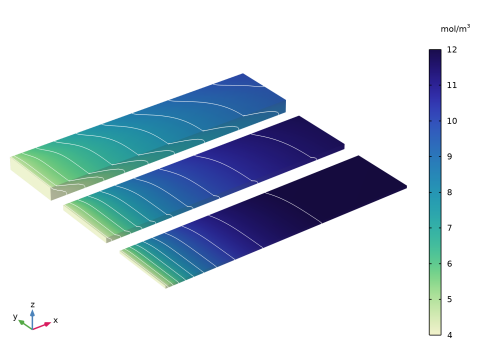
Figure 3 shows the concentration profiles for the 3D component which are similar to the corresponding 2D profiles from Figure 2. In the 3D geometry there is variation in the z-direction concentration profile which can be seen for all three thicknesses for species A in Figure 4 below.
Figure 4: Concentration profile for species A for each thickness solved for (left to right: 5 mm, 2 mm, 1 mm). Lines represent the concentration contour plot.
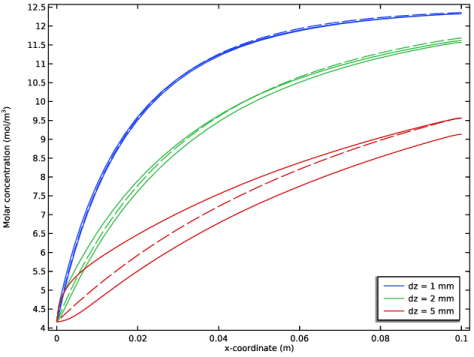
Figure 4 shows that as the thickness increases, there is more variation in the concentration of species A between the upside and downside edges of the 3D component. This variation will affect the accuracy of the 2D approximation as seen in Figure 5, which shows the concentration profile of species A along the center of the channel for all thicknesses and dimensions. For the 3D component, the concentration along both the upside and the downside edges are plotted. The concentration profiles of the 2D approximation is consistent with the 3D results and is most accurate for the smallest thickness, where there is little variation between the upside and downside edge concentration profiles.
The computation time for the parametric sweep decreased from over 2 minutes to just seconds from the 3D to 2D components and the maximum relative error is just above 5% for the largest thickness. Therefore, this approximation is appropriate when the geometric and flow parameters ensure there is little variation in the concentration profile across the thickness and when saving computational time is important.
Figure 5: Concentration profiles of A along the center of channel in 2D and 3D, for all three thicknesses. Dashed lines represent the 2D approximation; Solid lines represent the 3D results along the upside and downside edges.
Application Library path: Chemical_Reaction_Engineering_Module/Tutorials/thin_domain
Modeling Instructions
From the File menu, choose New.
New
In the New window, click  Model Wizard.
Model Wizard
1
In the Model Wizard window, click  2D.
2
In the Select Physics tree, select Chemical Species Transport > Transport of Concentrated Species (tcs).
3
Click Add.
4
In the Number of species text field, type 3.
5
In the Mass fractions (1) table, enter the following settings:
6
In the Select Physics tree, select Fluid Flow > Single-Phase Flow > Laminar Flow (spf).
7
Click Add.
8
Click  Study.
9
In the Select Study tree, select General Studies > Stationary.
10
Start by adding some global parameters.
Global Definitions
Parameters 1
1
In the Model Builder window, under Global Definitions click Parameters 1.
2
In the Settings window for Parameters, locate the Parameters section.
3
Click  Load from File.
4
Build the geometry for the 2D component by using the added global parameters L and W. Since there is symmetry in the x direction, only half of the channel domain will be modeled and a symmetry feature will be introduced to save computational time.
Geometry 1
Rectangle 1 (r1)
1
In the Geometry toolbar, click  Rectangle.
2
In the Settings window for Rectangle, locate the Size and Shape section.
3
In the Width text field, type L.
4
In the Height text field, type W/2.
5
Click  Build Selected.
Either the ribbon or the context menu in the Model Builder can be used when setting up a model. To access the context menu, right-click the node that you want to modify in the Model Builder.
Next, set up the mass-transfer physics.
Transport of Concentrated Species (tcs)
1
In the Model Builder window, under Component 1 (comp1) click Transport of Concentrated Species (tcs).
2
In the Settings window for Transport of Concentrated Species, locate the Out-of-Plane Thickness section.
3
In the dz text field, type dz, one of the parameters in Global Definitions.
Tip: To access the list of global parameters (or other useful things), place the cursor in the text field, press Ctrl+Space, localize the parameter by expanding relevant nodes, and choose the parameter by double-clicking.
4
Locate the Species section. From the From mass constraint list, choose wC_2D.
Species Molar Masses 1
1
In the Model Builder window, under Component 1 (comp1) > Transport of Concentrated Species (tcs) click Species Molar Masses 1.
2
In the Settings window for Species Molar Masses, locate the Molar Mass section.
3
In the MwA2D text field, type MW.
4
In the MwB2D text field, type MW.
5
In the MwC2D text field, type MW.
Next, introduce a symmetry feature to account for the reduced modeling domain.
Symmetry 1
1
In the Physics toolbar, click  Boundaries and choose Symmetry.
2
Selecting boundaries can be done in several ways: either by clicking the boundary in the Graphics window or by using Paste Selection, located in the Boundary Selection section. A third way is to define an Explicit node (right-click Definitions in the Model Builder and choose Explicit under Selections), and select the explicit selection in the Selection list in the Boundary Selection section found in the Concentration settings window.
Inflow 1
1
In the Physics toolbar, click  Boundaries and choose Inflow.
2
In the Settings window for Inflow, locate the Inflow section.
3
In the ω0,wA2D text field, type wA_in.
4
In the ω0,wB2D text field, type wB_in.
5
Outflow 1
1
In the Physics toolbar, click  Boundaries and choose Outflow.
2
Out-of-Plane Flux 1
1
In the Physics toolbar, click  Domains and choose Out-of-Plane Flux.
2
In the Settings window for Out-of-Plane Flux, locate the Upside Inward Flux section.
3
Select the Species wA_2D checkbox.
4
In the j0,u,wA2D text field, type kcw*(wA_wall-wA_2D).
5
Now set up the laminar flow interface with a Use shallow channel approximation; to account for out-of-plane thickness. Previously it was checked (not included in these modeling instructions) that the flow has a sufficiently low Reynolds number to be considered laminar for all three thicknesses that will be modeled.
Laminar Flow (spf)
1
In the Model Builder window, under Component 1 (comp1) click Laminar Flow (spf).
2
In the Settings window for Laminar Flow, locate the Physical Model section.
3
From the Compressibility list, choose Compressible flow (Ma<0.3).
4
Select the Use shallow channel approximation checkbox.
5
In the dz text field, type dz.
Fluid Properties 1
1
In the Model Builder window, under Component 1 (comp1) > Laminar Flow (spf) click Fluid Properties 1.
2
In the Settings window for Fluid Properties, locate the Fluid Properties section.
3
From the μ list, choose User defined. In the associated text field, type visc.
There is no need to define the density now since it will be directly defined from the Transport of Concentrated Species physics interface when the Multiphysics Coupling is added.
Symmetry 1
1
In the Physics toolbar, click  Boundaries and choose Symmetry.
2
Inlet 1
1
In the Physics toolbar, click  Boundaries and choose Inlet.
2
3
In the Settings window for Inlet, locate the Boundary Condition section.
4
From the list, choose Fully developed flow.
5
Locate the Fully Developed Flow section. In the Uav text field, type u0.
Outlet 1
1
In the Physics toolbar, click  Boundaries and choose Outlet.
2
Just as a reminder, save the model from time to time.
Multiphysics
Reacting Flow 1 (nirf1)
In the Physics toolbar, click  Multiphysics Couplings and choose Domain > Reacting Flow.
Having set up the physics interfaces and coupled the relevant interacting physical properties together, now build a mesh.
Mesh 1
1
In the Model Builder window, under Component 1 (comp1) click Mesh 1.
2
In the Settings window for Mesh, locate the Sequence Type section.
3
From the list, choose User-controlled mesh.
Modify the User-controlled mesh; by deleting three of the default nodes, and adding a Mapped node instead.
Corner Refinement 1, Free Triangular 1, Size 1
1
In the Model Builder window, under Component 1 (comp1) > Mesh 1, Ctrl-click to select Size 1, Corner Refinement 1, and Free Triangular 1.
2
Mapped 1
1
In the Mesh toolbar, click  Mapped.
The order of the nodes is of importance so the Mapped node needs to be placed above the Boundary Layers node.
2
Distribution 1
1
Right-click Mapped 1 and choose Distribution.
2
Select Boundaries 2 and 3 only, the two boundaries parallel to the x-axis, that is, in the direction of the incoming flow.
3
In the Settings window for Distribution, locate the Distribution section.
4
From the Distribution type list, choose Predefined.
5
In the Number of elements text field, type 40.
6
In the Element ratio text field, type 10.
7
Select the Symmetric distribution checkbox.
8
Click  Build Selected.
Distribution 2
1
In the Mesh toolbar, click  Distribution.
2
3
In the Settings window for Distribution, locate the Distribution section.
4
From the Distribution type list, choose Predefined.
5
In the Number of elements text field, type 20.
6
In the Element ratio text field, type 5.
7
Select the Reverse direction checkbox.
8
Click  Build Selected.
Boundary Layer Properties 1
1
In the Model Builder window, expand the Component 1 (comp1) > Mesh 1 > Boundary Layers 1 node, then click Boundary Layer Properties 1.
2
In the Settings window for Boundary Layer Properties, locate the Layers section.
3
In the Number of layers text field, type 12.
4
In the Thickness adjustment factor text field, type 1.
Boundary Layers 1
1
In the Model Builder window, click Boundary Layers 1.
2
In the Settings window for Boundary Layers, click to expand the Transition section.
In this model the transition to the interior mesh is handled explicitly by using a mapped mesh. Disable the automatic functionality for producing a smooth transition between the boundary layer mesh and the interior mesh.
3
Clear the Smooth transition to interior mesh checkbox.
4
Click  Build Selected.
The mesh setup is now complete. It is time to solve the model.
Study 1
Use a Parametric Sweep to solve for three different thicknesses dz.
Parametric Sweep
1
In the Study toolbar, click  Parametric Sweep.
2
In the Settings window for Parametric Sweep, locate the Study Settings section.
3
4
5
In the Study toolbar, click  Compute.
Results
Clicking through the default plots gives a picture of the solved system. The velocity profile shows small gradients along the wall parallel to the x-axis due to the no slip boundary condition. The velocity increases slightly along the x-axis since due to the flux of species A. The concentration of species A increases along the x-axis as expected due to the inward flux which also results in a decreasing concentration of species B and C.
Follow the steps below to set up Figure 2 in the model documentation by replacing the default generated plots with another result template to show all three surfaces in the same graphic.
Concentration, A_2D (tcs), Concentration, B_2D (tcs), Concentration, C_2D (tcs)
Right-click and choose Delete.
Result Templates
1
In the Results toolbar, click  Result Templates to open the Result Templates window.
2
Go to the Result Templates window.
3
In the tree, select Study 1/Solution 1 (sol1) > Transport of Concentrated Species > Plot array: Concentrations, A_2D, B_2D, C_2D (tcs).
4
Click the Add Result Template button in the window toolbar.
5
In the Results toolbar, click  Result Templates to close the Result Templates window.
Results
Plot array: Concentrations, A_2D, B_2D, C_2D (tcs)
1
In the Settings window for 2D Plot Group, locate the Data section.
2
From the Parameter value (dz (mm)) list, choose 2.
3
Click to expand the Title section. From the Title type list, choose None.
4
In the Model Builder window, expand the Plot array: Concentrations, A_2D, B_2D, C_2D (tcs) node.
Total Flux, A_2D, Total Flux, B_2D, Total Flux, C_2D
1
In the Model Builder window, under Results > Plot array: Concentrations, A_2D, B_2D, C_2D (tcs), Ctrl-click to select Total Flux, A_2D, Total Flux, B_2D, and Total Flux, C_2D.
2
A_2D
Replace the default generated arrow lines with contours to better understand the variation in concentration on the surface.
Plot array: Concentrations, A_2D, B_2D, C_2D (tcs)
In the Plot array: Concentrations, A_2D, B_2D, C_2D (tcs) toolbar, click  Contour.
A_2D Contour
1
In the Settings window for Contour, type A_2D Contour in the Label text field.
2
Locate the Expression section. In the Expression text field, type tcs.c_wA_2D.
3
Locate the Levels section. In the Total levels text field, type 10.
4
Locate the Coloring and Style section. From the Coloring list, choose Uniform.
5
From the Color list, choose White.
6
Clear the Color legend checkbox.
7
Click to expand the Plot Array section. Select the Manual indexing checkbox.
Repeat the same steps for species B and C.
Plot array: Concentrations, A_2D, B_2D, C_2D (tcs)
In the Plot array: Concentrations, A_2D, B_2D, C_2D (tcs) toolbar, click  Contour.
B_2D Contour
1
In the Settings window for Contour, type B_2D Contour in the Label text field.
2
Locate the Expression section. In the Expression text field, type tcs.c_wB_2D.
3
Locate the Levels section. In the Total levels text field, type 10.
4
Locate the Coloring and Style section. From the Coloring list, choose Uniform.
5
From the Color list, choose White.
6
Clear the Color legend checkbox.
7
Locate the Plot Array section. Select the Manual indexing checkbox.
8
In the Index text field, type 1.
Plot array: Concentrations, A_2D, B_2D, C_2D (tcs)
In the Plot array: Concentrations, A_2D, B_2D, C_2D (tcs) toolbar, click  Contour.
C_2D Contour
1
In the Settings window for Contour, type C_2D Contour in the Label text field.
2
Locate the Expression section. In the Expression text field, type tcs.c_wC_2D.
3
Locate the Levels section. In the Total levels text field, type 10.
4
Locate the Coloring and Style section. From the Coloring list, choose Uniform.
5
From the Color list, choose White.
6
Clear the Color legend checkbox.
7
Locate the Plot Array section. Select the Manual indexing checkbox.
8
In the Index text field, type 2.
Plot array: Concentrations, A_2D, B_2D, C_2D (tcs)
1
In the Model Builder window, click Plot array: Concentrations, A_2D, B_2D, C_2D (tcs).
2
In the Settings window for 2D Plot Group, locate the Color Legend section.
3
From the Position list, choose Right.
4
Click the  Show Grid button in the Graphics toolbar.
5
In the Plot array: Concentrations, A_2D, B_2D, C_2D (tcs) toolbar, click  Plot.
6
Click the  Zoom Extents button in the Graphics toolbar.
A_2D, B_2D, C_2D
1
In the Model Builder window, under Results > Plot array: Concentrations, A_2D, B_2D, C_2D (tcs), Ctrl-click to select A_2D, B_2D, and C_2D.
Next, plot the concentrations of species A, B, and C along the center of the channel.
2
In the Results toolbar, click  1D Plot Group.
Concentrations Along Center
1
In the Settings window for 1D Plot Group, type Concentrations Along Center in the Label text field.
2
Locate the Data section. From the Parameter selection (dz) list, choose From list.
3
In the Parameter values (dz (mm)) list box, select 2.
4
Click to expand the Title section. From the Title type list, choose None.
5
Locate the Grid section. Clear the Show grid checkbox.
A_2D
1
In the Concentrations Along Center toolbar, click  Line Graph.
2
In the Settings window for Line Graph, type A_2D in the Label text field.
3
4
Locate the y-Axis Data section. In the Expression text field, type tcs.c_wA_2D.
5
Locate the x-Axis Data section. From the Parameter list, choose Expression.
6
In the Expression text field, type x.
7
Click to expand the Coloring and Style section. Find the Line style subsection. From the Line list, choose Dashed.
8
Click to expand the Legends section. Select the Show legends checkbox.
9
Find the Include subsection. Clear the Solution checkbox.
10
Find the Prefix and suffix subsection. In the Prefix text field, type A.
Repeat the same steps for species B and C.
Concentrations Along Center
In the Concentrations Along Center toolbar, click  Line Graph.
B_2D
1
In the Settings window for Line Graph, type B_2D in the Label text field.
2
3
Locate the y-Axis Data section. In the Expression text field, type tcs.c_wB_2D.
4
Locate the x-Axis Data section. From the Parameter list, choose Expression.
5
In the Expression text field, type x.
6
Locate the Coloring and Style section. Find the Line style subsection. From the Line list, choose Dashed.
7
Locate the Legends section. Select the Show legends checkbox.
8
Find the Include subsection. Clear the Solution checkbox.
9
Find the Prefix and suffix subsection. In the Prefix text field, type B.
Concentrations Along Center
In the Concentrations Along Center toolbar, click  Line Graph.
C_2D
1
In the Settings window for Line Graph, type C_2D in the Label text field.
2
3
Locate the y-Axis Data section. In the Expression text field, type tcs.c_wC_2D.
4
Locate the x-Axis Data section. From the Parameter list, choose Expression.
5
In the Expression text field, type x.
6
Locate the Coloring and Style section. Find the Line style subsection. From the Line list, choose Dashed.
7
Locate the Legends section. Select the Show legends checkbox.
8
Find the Include subsection. Clear the Solution checkbox.
9
Find the Prefix and suffix subsection. In the Prefix text field, type C.
10
In the Concentrations Along Center toolbar, click  Plot.
Check that mass is conserved using an evaluation group result template. Only species A and B are checked since the concentration of species C is calculated from the mass constraint.
Result Templates
1
In the Results toolbar, click  Result Templates to open the Result Templates window.
2
Go to the Result Templates window.
3
In the tree, select Study 1/Solution 1 (sol1) > Transport of Concentrated Species > Mass Balance, A_2D (tcs) and Study 1/Solution 1 (sol1) > Transport of Concentrated Species > Mass Balance, B_2D (tcs).
4
Click the Add Result Template button in the window toolbar.
5
In the Results toolbar, click  Result Templates to close the Result Templates window.
This evaluation group template calculates the absolute change in mass for each species which should be a value near zero. However, it is often also useful to calculate the relative error which is done by normalizing the absolute change in mass by the defined inflow.
Results
Mass Balance, A_2D (tcs)
1
In the Settings window for Evaluation Group, locate the Transformation section.
2
In the Expression text field, type (-int4+int3)/int1.
3
In the Column header text field, type Relative Error.
4
In the Mass Balance, A_2D (tcs) toolbar, click  Evaluate.
Mass Balance, B_2D (tcs)
1
In the Model Builder window, click Mass Balance, B_2D (tcs).
2
In the Settings window for Evaluation Group, locate the Transformation section.
3
In the Expression text field, type (-int4+int3)/int1.
4
In the Column header text field, type Relative Error.
5
In the Mass Balance, B_2D (tcs) toolbar, click  Evaluate.
Next, introduce a new 3D component and compare the resulting concentration plots for the different space dimensions.
Add Component
In the Model Builder window, right-click the root node and choose Add Component > 3D.
Geometry 2
Block 1 (blk1)
1
In the Geometry toolbar, click  Block.
2
In the Settings window for Block, locate the Size and Shape section.
3
In the Width text field, type L.
4
In the Depth text field, type W/2.
5
In the Height text field, type dz.
6
Click  Build Selected.
Form Union (fin)
1
In the Model Builder window, click Form Union (fin).
2
In the Settings window for Form Union/Assembly, click  Build Selected.
Add Physics
1
In the Home toolbar, click  Add Physics to open the Add Physics window.
2
Go to the Add Physics window.
3
In the tree, select Chemical Species Transport > Transport of Concentrated Species (tcs).
4
Find the Physics interfaces in study subsection. In the table, clear the Solve checkbox for Study 1.
5
Click the Add to Component 2 button in the window toolbar.
6
In the tree, select Fluid Flow > Single-Phase Flow > Laminar Flow (spf).
7
In the table, clear the Solve checkbox for Study 1.
8
Click the Add to Component 2 button in the window toolbar.
9
In the Home toolbar, click  Add Physics to close the Add Physics window.
Transport of Concentrated Species 2 (tcs2)
1
In the Settings window for Transport of Concentrated Species, click to expand the Dependent Variables section.
2
In the Number of species text field, type 3.
3
In the Mass fractions (1) table, enter the following settings:
4
Locate the Species section. From the From mass constraint list, choose wC_3D.
Species Molar Masses 1
1
In the Model Builder window, under Component 2 (comp2) > Transport of Concentrated Species 2 (tcs2) click Species Molar Masses 1.
2
In the Settings window for Species Molar Masses, locate the Molar Mass section.
3
In the MwA3D text field, type MW.
4
In the MwB3D text field, type MW.
5
In the MwC3D text field, type MW.
Symmetry 1
1
In the Physics toolbar, click  Boundaries and choose Symmetry.
2
Inflow 1
1
In the Physics toolbar, click  Boundaries and choose Inflow.
2
In the Settings window for Inflow, locate the Inflow section.
3
In the ω0,wA3D text field, type wA_in.
4
In the ω0,wB3D text field, type wB_in.
5
Outflow 1
1
In the Physics toolbar, click  Boundaries and choose Outflow.
2
Flux 1
1
In the Physics toolbar, click  Boundaries and choose Flux.
2
3
In the Settings window for Flux, locate the Mass Transfer to Other Phases section.
4
Select the Account for Stefan velocity checkbox.
5
Locate the Inward Flux section. Select the Species wA_3D checkbox.
6
In the j0,wA3D text field, type kcw*(wA_wall-wA_3D).
Laminar Flow 2 (spf2)
1
In the Model Builder window, under Component 2 (comp2) click Laminar Flow 2 (spf2).
2
In the Settings window for Laminar Flow, locate the Physical Model section.
3
From the Compressibility list, choose Compressible flow (Ma<0.3).
Fluid Properties 1
1
In the Model Builder window, under Component 2 (comp2) > Laminar Flow 2 (spf2) click Fluid Properties 1.
2
In the Settings window for Fluid Properties, locate the Fluid Properties section.
3
From the μ list, choose User defined. In the associated text field, type visc.
Symmetry 1
1
In the Physics toolbar, click  Boundaries and choose Symmetry.
2
Inlet 1
1
In the Physics toolbar, click  Boundaries and choose Inlet.
2
In the Settings window for Inlet, locate the Boundary Condition section.
3
From the list, choose Fully developed flow.
4
Locate the Fully Developed Flow section. In the Uav text field, type u0.
5
Outlet 1
1
In the Physics toolbar, click  Boundaries and choose Outlet.
2
In the Settings window for Outlet, locate the Pressure Conditions section.
3
Select the Normal flow checkbox.
4
Add Physics
1
In the Physics toolbar, click  Add Physics to open the Add Physics window.
2
Go to the Add Physics window.
3
In the Physics toolbar, click  Add Physics to close the Add Physics window.
Reacting Flow 2 (nirf2)
In the Physics toolbar, click  Multiphysics Couplings and choose Domain > Reacting Flow.
Continue by setting up the mesh. Use the same procedure as for the 2D component.
Mesh 2
1
In the Model Builder window, under Component 2 (comp2) click Mesh 2.
2
In the Settings window for Mesh, locate the Sequence Type section.
3
From the list, choose User-controlled mesh.
Corner Refinement 1, Free Tetrahedral 1, Size 1, Size 2
1
In the Model Builder window, under Component 2 (comp2) > Mesh 2, Ctrl-click to select Size 1, Size 2, Corner Refinement 1, and Free Tetrahedral 1.
2
Mapped 1
1
In the Mesh toolbar, click  More Generators and choose Mapped.
2
Distribution 1
1
Right-click Mapped 1 and choose Distribution.
2
3
In the Settings window for Distribution, locate the Distribution section.
4
From the Distribution type list, choose Predefined.
5
In the Number of elements text field, type 40.
6
In the Element ratio text field, type 10.
7
Select the Symmetric distribution checkbox.
8
Click  Build Selected.
Mapped 1
1
In the Model Builder window, click Mapped 1.
2
Distribution 2
1
In the Model Builder window, under Component 2 (comp2) > Mesh 2 > Mapped 1 right-click Distribution 1 and choose Duplicate.
2
3
In the Settings window for Distribution, locate the Distribution section.
4
In the Number of elements text field, type 20.
5
In the Element ratio text field, type 5.
6
Clear the Symmetric distribution checkbox.
7
Click  Build Selected.
Now add a swept mesh to mesh the thickness of the domain.
Swept 1
In the Mesh toolbar, click  Swept.
Distribution 1
1
Right-click Swept 1 and choose Distribution.
2
In the Settings window for Distribution, locate the Distribution section.
3
From the Distribution type list, choose Predefined.
4
In the Number of elements text field, type 6.
5
In the Element ratio text field, type 2.
6
Select the Symmetric distribution checkbox.
Boundary Layers 1
1
In the Model Builder window, under Component 2 (comp2) > Mesh 2 click Boundary Layers 1.
2
In the Settings window for Boundary Layers, locate the Geometric Entity Selection section.
3
From the Geometric entity level list, choose Entire geometry.
Boundary Layer Properties 1
1
In the Model Builder window, expand the Boundary Layers 1 node, then click Boundary Layer Properties 1.
2
In the Settings window for Boundary Layer Properties, locate the Geometric Entity Selection section.
3
Click  Clear Selection.
4
Boundary Layers 1
1
In the Model Builder window, click Boundary Layers 1.
2
In the Settings window for Boundary Layers, click to expand the Transition section.
3
Clear the Smooth transition to interior mesh checkbox.
4
Click  Build All.
The physics interfaces and the mesh are all done for the 3D component. Now add a study and solve the model.
Add Study
1
In the Home toolbar, click  Add Study to open the Add Study window.
2
Go to the Add Study window.
3
Find the Physics interfaces in study subsection. In the table, clear the Solve checkboxes for Transport of Concentrated Species (tcs) and Laminar Flow (spf).
4
Find the Multiphysics couplings in study subsection. In the table, clear the Solve checkbox for Reacting Flow 1 (nirf1).
5
Find the Studies subsection. In the Select Study tree, select General Studies > Stationary.
6
Click the Add Study button in the window toolbar.
7
In the Home toolbar, click  Add Study to close the Add Study window.
Study 2
Parametric Sweep
1
In the Study toolbar, click  Parametric Sweep.
2
In the Settings window for Parametric Sweep, locate the Study Settings section.
3
4
5
In the Study toolbar, click  Compute.
Results
Looking at the default plots for the 3D component, it is clear that they are quite similar to the corresponding 2D plots. Optionally, edit the default plots.
Surface
1
In the Model Builder window, expand the Velocity (spf) node, then click Surface.
2
In the Settings window for Surface, locate the Coloring and Style section.
3
From the Color table list, choose Metasepia.
4
From the Color table transformation list, choose Reverse.
Surface 1
1
In the Model Builder window, expand the Results > Pressure (spf) node, then click Surface 1.
2
In the Settings window for Surface, locate the Coloring and Style section.
3
From the Color table list, choose Agama.
Multislice 1
1
In the Model Builder window, expand the Velocity (spf2) node, then click Multislice 1.
2
In the Settings window for Multislice, locate the Coloring and Style section.
3
From the Color table list, choose Metasepia.
4
From the Color table transformation list, choose Reverse.
Surface
1
In the Model Builder window, expand the Pressure (spf2) node, then click Surface.
2
In the Settings window for Surface, locate the Coloring and Style section.
3
From the Color table list, choose Agama.
Follow the steps below to set up Figure 3 in the model documentation.
Concentration, A_3D, Streamline (tcs2), Concentration, A_3D, Surface (tcs2), Concentration, B_3D, Streamline (tcs2), Concentration, B_3D, Surface (tcs2), Concentration, C_3D, Streamline (tcs2), Concentration, C_3D, Surface (tcs2)
1
In the Model Builder window, under Results, Ctrl-click to select Concentration, A_3D, Streamline (tcs2), Concentration, A_3D, Surface (tcs2), Concentration, B_3D, Streamline (tcs2), Concentration, B_3D, Surface (tcs2), Concentration, C_3D, Streamline (tcs2), and Concentration, C_3D, Surface (tcs2).
2
Result Templates
1
In the Results toolbar, click  Result Templates to open the Result Templates window.
2
Go to the Result Templates window.
3
In the tree, select Study 2/Parametric Solutions 1 (5) (sol3) > Transport of Concentrated Species 2 > Plot array: Concentrations, A_3D, B_3D, C_3D (tcs2).
4
Click the Add Result Template button in the window toolbar.
5
In the Results toolbar, click  Result Templates to close the Result Templates window.
Results
Plot array: Concentrations, A_3D, B_3D, C_3D (tcs2)
1
In the Settings window for 3D Plot Group, locate the Data section.
2
From the Parameter value (dz (mm)) list, choose 2.
3
Click to expand the Title section. From the Title type list, choose None.
4
Locate the Color Legend section. From the Position list, choose Right.
5
Click to expand the Plot Array section. From the Array axis list, choose y.
6
In the Relative padding text field, type 0.3.
A_3D Contour
1
In the Plot array: Concentrations, A_3D, B_3D, C_3D (tcs2) toolbar, click  Contour.
2
In the Settings window for Contour, type A_3D Contour in the Label text field.
3
Locate the Expression section. In the Expression text field, type tcs2.c_wA_3D.
4
Locate the Levels section. In the Total levels text field, type 10.
5
Locate the Coloring and Style section. From the Coloring list, choose Uniform.
6
From the Color list, choose White.
7
Clear the Color legend checkbox.
8
Click to expand the Plot Array section. Select the Manual indexing checkbox.
9
In the Index text field, type 2.
Plot array: Concentrations, A_3D, B_3D, C_3D (tcs2)
In the Plot array: Concentrations, A_3D, B_3D, C_3D (tcs2) toolbar, click  Contour.
B_3D Contour
1
In the Settings window for Contour, type B_3D Contour in the Label text field.
2
Locate the Expression section. In the Expression text field, type tcs2.c_wB_3D.
3
Locate the Levels section. In the Total levels text field, type 10.
4
Locate the Coloring and Style section. From the Coloring list, choose Uniform.
5
From the Color list, choose White.
6
Clear the Color legend checkbox.
7
Locate the Plot Array section. Select the Manual indexing checkbox.
8
In the Index text field, type 1.
Plot array: Concentrations, A_3D, B_3D, C_3D (tcs2)
In the Plot array: Concentrations, A_3D, B_3D, C_3D (tcs2) toolbar, click  Contour.
C_3D Contour
1
In the Settings window for Contour, type C_3D Contour in the Label text field.
2
Locate the Expression section. In the Expression text field, type tcs2.c_wC_3D.
3
Locate the Levels section. In the Total levels text field, type 10.
4
Locate the Coloring and Style section. From the Coloring list, choose Uniform.
5
From the Color list, choose White.
6
Clear the Color legend checkbox.
7
Locate the Plot Array section. Select the Manual indexing checkbox.
8
In the Plot array: Concentrations, A_3D, B_3D, C_3D (tcs2) toolbar, click  Plot.
9
Click the  Show Grid button in the Graphics toolbar.
Follow the steps below to set up Figure 4 in the model documentation.
Species A_3D
1
In the Results toolbar, click  3D Plot Group.
2
In the Settings window for 3D Plot Group, type Species A_3D in the Label text field.
3
Locate the Data section. From the Dataset list, choose None.
4
Locate the Title section. From the Title type list, choose None.
5
Locate the Color Legend section. Select the Show units checkbox.
6
Locate the Plot Array section. Select the Enable checkbox.
7
From the Array axis list, choose y.
dz = 1 mm
1
In the Species A_3D toolbar, click  Volume.
2
In the Settings window for Volume, type dz = 1 mm in the Label text field.
3
Locate the Data section. From the Dataset list, choose Study 2/Parametric Solutions 1 (5) (sol3).
4
From the Parameter value (dz (mm)) list, choose 1.
5
Locate the Expression section. In the Expression text field, type tcs2.c_wA_3D.
To ensure all three volume plots have the same scale use the manual color range.
6
Click to expand the Range section. Select the Manual color range checkbox.
7
In the Minimum text field, type 4.
8
In the Maximum text field, type 12.
9
Locate the Coloring and Style section. From the Color table list, choose Cynanthus.
10
Click to expand the Plot Array section. Select the Manual indexing checkbox.
Species A_3D
In the Species A_3D toolbar, click  Contour.
dz = 1 mm Contour
1
In the Settings window for Contour, type dz = 1 mm Contour in the Label text field.
2
Locate the Data section. From the Dataset list, choose Study 2/Parametric Solutions 1 (5) (sol3).
3
From the Parameter value (dz (mm)) list, choose 1.
4
Locate the Expression section. In the Expression text field, type tcs2.c_wA_3D.
5
Locate the Levels section. In the Total levels text field, type 10.
6
Locate the Coloring and Style section. From the Coloring list, choose Uniform.
7
From the Color list, choose White.
8
Clear the Color legend checkbox.
9
Locate the Plot Array section. Select the Manual indexing checkbox.
Repeat the same steps for thicknesses 2 mm and 5 mm.
Species A_3D
In the Species A_3D toolbar, click  Volume.
dz = 2 mm
1
In the Settings window for Volume, type dz = 2 mm in the Label text field.
2
Locate the Data section. From the Dataset list, choose Study 2/Parametric Solutions 1 (5) (sol3).
3
From the Parameter value (dz (mm)) list, choose 2.
4
Locate the Expression section. In the Expression text field, type tcs2.c_wA_3D.
5
Locate the Range section. Select the Manual color range checkbox.
6
In the Minimum text field, type 4.
7
In the Maximum text field, type 12.
8
Locate the Coloring and Style section. From the Color table list, choose Cynanthus.
9
Clear the Color legend checkbox.
10
Locate the Plot Array section. Select the Manual indexing checkbox.
11
In the Index text field, type 1.
Species A_3D
In the Species A_3D toolbar, click  Contour.
dz = 2 mm Contour
1
In the Settings window for Contour, type dz = 2 mm Contour in the Label text field.
2
Locate the Data section. From the Dataset list, choose Study 2/Parametric Solutions 1 (5) (sol3).
3
From the Parameter value (dz (mm)) list, choose 2.
4
Locate the Expression section. In the Expression text field, type tcs2.c_wA_3D.
5
Locate the Levels section. In the Total levels text field, type 10.
6
Locate the Coloring and Style section. From the Coloring list, choose Uniform.
7
From the Color list, choose White.
8
Clear the Color legend checkbox.
9
Locate the Plot Array section. Select the Manual indexing checkbox.
10
In the Index text field, type 1.
Species A_3D
In the Species A_3D toolbar, click  Volume.
dz = 5 mm
1
In the Settings window for Volume, type dz = 5 mm in the Label text field.
2
Locate the Data section. From the Dataset list, choose Study 2/Parametric Solutions 1 (5) (sol3).
3
Locate the Expression section. In the Expression text field, type tcs2.c_wA_3D.
4
Locate the Range section. Select the Manual color range checkbox.
5
In the Minimum text field, type 4.
6
In the Maximum text field, type 12.
7
Locate the Coloring and Style section. From the Color table list, choose Cynanthus.
8
Clear the Color legend checkbox.
9
Locate the Plot Array section. Select the Manual indexing checkbox.
10
In the Index text field, type 2.
Species A_3D
In the Species A_3D toolbar, click  Contour.
dz = 5 mm Contour
1
In the Settings window for Contour, type dz = 5 mm Contour in the Label text field.
2
Locate the Data section. From the Dataset list, choose Study 2/Parametric Solutions 1 (5) (sol3).
3
Locate the Expression section. In the Expression text field, type tcs2.c_wA_3D.
4
Locate the Levels section. In the Total levels text field, type 10.
5
Locate the Coloring and Style section. From the Coloring list, choose Uniform.
6
From the Color list, choose White.
7
Clear the Color legend checkbox.
8
Locate the Plot Array section. Select the Manual indexing checkbox.
9
In the Index text field, type 2.
10
In the Species A_3D toolbar, click  Plot.
Next, add the 3D component results to the Concentration Along Center 1D Plot Group created earlier for the 2D geometry. Plot the concentration profile for the upside and downside edge boundaries.
Concentrations Along Center
In the Model Builder window, under Results click Concentrations Along Center.
A_3D
1
Right-click Concentrations Along Center and choose Line Graph.
2
In the Settings window for Line Graph, type A_3D in the Label text field.
3
Locate the Data section. From the Dataset list, choose Study 2/Parametric Solutions 1 (5) (sol3).
4
From the Parameter selection (dz) list, choose From list.
5
In the Parameter values (dz (mm)) list box, select 2.
6
7
Locate the y-Axis Data section. In the Expression text field, type tcs2.c_wA_3D.
8
Locate the x-Axis Data section. From the Parameter list, choose Expression.
9
In the Expression text field, type x.
10
Locate the Coloring and Style section. From the Color list, choose Cycle (reset).
Concentrations Along Center
In the Concentrations Along Center toolbar, click  Line Graph.
B_3D
1
In the Settings window for Line Graph, type B_3D in the Label text field.
2
Locate the Data section. From the Dataset list, choose Study 2/Parametric Solutions 1 (5) (sol3).
3
From the Parameter selection (dz) list, choose From list.
4
In the Parameter values (dz (mm)) list box, select 2.
5
6
Locate the y-Axis Data section. In the Expression text field, type tcs2.c_wB_3D.
7
Locate the x-Axis Data section. From the Parameter list, choose Expression.
8
In the Expression text field, type x.
Concentrations Along Center
In the Concentrations Along Center toolbar, click  Line Graph.
C_3D
1
In the Settings window for Line Graph, type C_3D in the Label text field.
2
Locate the Data section. From the Dataset list, choose Study 2/Parametric Solutions 1 (5) (sol3).
3
From the Parameter selection (dz) list, choose From list.
4
In the Parameter values (dz (mm)) list box, select 2.
5
6
Locate the y-Axis Data section. In the Expression text field, type tcs2.c_wC_3D.
7
Locate the x-Axis Data section. From the Parameter list, choose Expression.
8
In the Expression text field, type x.
9
In the Concentrations Along Center toolbar, click  Plot.
Follow the steps below to set up Figure 5 in the model documentation.
Species A Concentration Along Center
1
In the Results toolbar, click  1D Plot Group.
2
In the Settings window for 1D Plot Group, type Species A Concentration Along Center in the Label text field.
3
Locate the Data section. From the Dataset list, choose None.
4
Locate the Grid section. Clear the Show grid checkbox.
A_2D
1
In the Species A Concentration Along Center toolbar, click  Line Graph.
2
In the Settings window for Line Graph, type A_2D in the Label text field.
3
Locate the Data section. From the Dataset list, choose Study 1/Solution 1 (sol1).
4
5
Locate the y-Axis Data section. In the Expression text field, type tcs.c_wA_2D.
6
Locate the x-Axis Data section. From the Parameter list, choose Expression.
7
In the Expression text field, type x.
8
Locate the Coloring and Style section. Find the Line style subsection. From the Line list, choose Dashed.
Species A Concentration Along Center
In the Species A Concentration Along Center toolbar, click  Line Graph.
A_3D
1
In the Settings window for Line Graph, type A_3D in the Label text field.
2
Locate the Data section. From the Dataset list, choose Study 2/Parametric Solutions 1 (5) (sol3).
3
4
Locate the y-Axis Data section. In the Expression text field, type tcs2.c_wA_3D.
5
Locate the x-Axis Data section. From the Parameter list, choose Expression.
6
In the Expression text field, type x.
7
Locate the Coloring and Style section. From the Color list, choose Cycle (reset).
8
Locate the Legends section. Select the Show legends checkbox.
9
Find the Prefix and suffix subsection. In the Prefix text field, type dz = .
10
In the Species A Concentration Along Center toolbar, click  Plot.
Species A Concentration Along Center
1
In the Model Builder window, click Species A Concentration Along Center.
2
In the Settings window for 1D Plot Group, locate the Title section.
3
From the Title type list, choose None.
4
Locate the Legend section. From the Position list, choose Lower right.
Result Templates
1
In the Results toolbar, click  Result Templates to open the Result Templates window.
2
Go to the Result Templates window.
3
In the tree, select Study 2/Parametric Solutions 1 (5) (sol3) > Transport of Concentrated Species 2 > Mass Balance, A_3D (tcs2) and Study 2/Parametric Solutions 1 (5) (sol3) > Transport of Concentrated Species 2 > Mass Balance, B_3D (tcs2).
4
Click the Add Result Template button in the window toolbar.
Just like for the 2D mass conservation evaluation group, calculate the relative error.
Results
Mass Balance, A_3D (tcs2)
1
In the Settings window for Evaluation Group, locate the Transformation section.
2
In the Expression text field, type (-int4+int3)/int1.
3
In the Column header text field, type Relative Error.
4
In the Mass Balance, A_3D (tcs2) toolbar, click  Evaluate.
Mass Balance, B_3D (tcs2)
1
In the Model Builder window, click Mass Balance, B_3D (tcs2).
2
In the Settings window for Evaluation Group, locate the Transformation section.
3
In the Expression text field, type (-int4+int3)/int1.
4
In the Column header text field, type Relative Error.
5
In the Mass Balance, B_3D (tcs2) toolbar, click  Evaluate.