

PDF

Thermal Decomposition of Beta-Carotene in a Flow Reactor
Introduction
This tutorial illustrates how to use the Uncertainty Quantification (UQ) functionality to answer questions regarding sensitivity and reliability of a flow reactor with thermal decomposition. The tutorial investigates which uncertainties in parameters dominate the survival of a nutrient (β-carotene) during a food-processing step. A fluid carrying the nutrient is injected into the reactor, and is subsequently heated by a downstream cylinder. Because β-carotene is heat sensitive it decomposes into fragments, reducing the nutrient level of the fluid. The model starts with a screening study, followed by a sensitivity analysis, then looks at error propagation, and finally performs a reliability analysis.
Model Definition
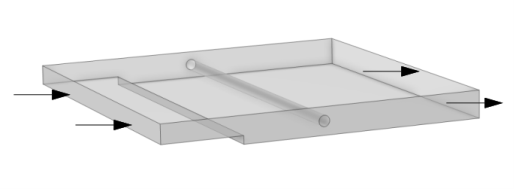
The system models a plate reactor consisting of a channel in which carrot juice is being heated by a cylinder perpendicular to the juice’s direction of flow. The model seeks to answer the question of how much of the nutrient β-carotene is lost due to its thermal decomposition. In this case the outflow rate of remaining β-carotene will be the Quantity of Interest (QoI).
The full 3D representation of the reactor geometry is shown in Figure 1.
Figure 1: 3D geometry of a parallel plate reactor. The reacting fluid is heated as it passes the cylinder.
Chemistry
A heat-sensitive chemical (β-carotene) undergoes thermal decomposition into fragments (byproduct) according to the following unimolecular reaction in water:
The reaction rate, r, is given by
where the rate coefficient k is temperature dependent according to the Arrhenius equation:
(1)
In Equation 1, A is the frequency factor (9.4 × 1013 1/s), E the activation energy (110 × 103 J/mol), Rg the gas constant (8.314 J/(mol·K)), and T the temperature (SI unit: K).
In addition, the decomposition reaction is endothermic, and the rate of energy expelled is given by
where H is the heat of reaction (8.4 kJ/mol).
The reaction kinetics are set up with the Chemistry interface. The conversion of the species β-carotene in the reactor is a function of the residence time; that is, it depends on the detailed fluid flow. Furthermore, the decomposition is influenced by the temperature distribution.
Parameterization
To investigate the performance and reliability of the reactor, a number of parameters in the model setup need to be selected. The uncertainty quantification of the quantity of interest will be evaluated with respect to these inputs. The parameters can, for example, be physical properties of the fluid or the reactor material, such as the fluid viscosity or the heat conductivity of the reactor walls. It can also be parameters defining the reactor configuration, such as the position and radius of the cylinder or the height of the channel. Specific to the field of chemical engineering, parameters used to describe the reaction kinetics, such as reaction rate constants, activation energy, or the enthalpy of reaction, can also be used. Table 1 lists the parameters varied in this model, along with the default values and the respective statistical distributions describing their variation, in this example the distributions are arbitrary and simply used for demonstration purposes. Both the joint effect and the individual sensitivity of the results on these uncertainties will be studied using the study steps provided by the Uncertainty Quantification Module.
Normal, σ/E=0.3%
Normal, σ/A=10%
Normal, σ/D_BetaC_ref=20%
Here, the default values of the Arrhenius parameters are taken from Ref. 1.
The Uncertainty Quantification Studies
The Uncertainty Quantification Module provides four different study types:
-
-
-
-
-
-
-
-
-
For example, what is P(c < cmin), the probability that the outlet concentration is below some minimum value?
For more information, see the Uncertainty Quantification Module User’s Guide.
Surrogate Models
To get statistical data based on a physics model, a lot of simulation results are needed where input parameters are varied according to their probability distributions. For a 3D model, this might be computationally infeasible. To get around this problem, the Uncertainty Quantification Module trains a so-called surrogate model, which is used for sensitivity analysis, uncertainty propagation, and reliability analysis (but not for screening).
This process is typically adaptive and the surrogate model can approximate the original model to a user-defined degree of accuracy. The Uncertainty Quantification Module uses two different types of surrogate models:
-
-
Results and Discussion
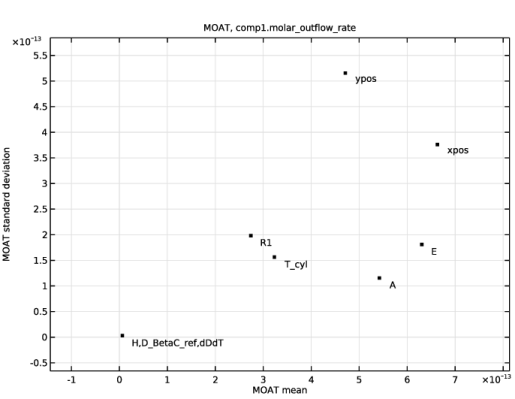
As a first step, a qualitative screening study is performed. Here the most influential parameters are highlighted, along with the information of what parameters have such a small effect that they can be excluded from further analysis. One of the main benefits of the screening study is that it is computationally cheap. The result of the screening study is a so-called MOAT plot shown in Figure 2. The three parameters with the least impact are found in the bottom left of the plot. These three parameters (H, D_BetaC_ref, and dDdT) were excluded from further analysis in order to reduce the overall computational cost.
Figure 2: MOAT (Morris one at-a-time) plot from screening study, indicating general effect on x-axis and nonlinearity on y-axis.
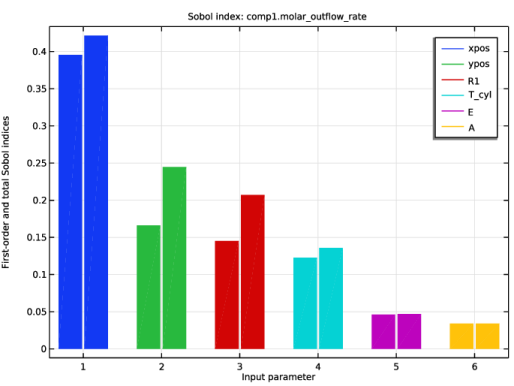
After reducing the number of studied parameters, a more rigorous and quantitative Sensitivity Analysis is performed. In this step a surrogate model is trained automatically by COMSOL, and then used internally for a Monte Carlo simulation to perform a great number of evaluations. The output from this study step are the so-called Sobol sensitivity indices which are presented in a bar chart as seen in Figure 3.
Figure 3: Bar chart of pairs of Sobol indices (first and total order) for each parameter from the sensitivity analysis.
The sum of all first-order Sobol indices (the left bar in each pair) is less than, or equal to, one; only for problems where there are no higher-order interactions between parameters would the value be one. The sum of all total-order Sobol indices (the right bar in each pair) is equal to, or greater than, one. And again, only for additive models would equality hold. The inclusion of higher-order effects in the total index makes differences within pairs useful as an indicator of what parameters interact with the QoI in a nonlinear manner.
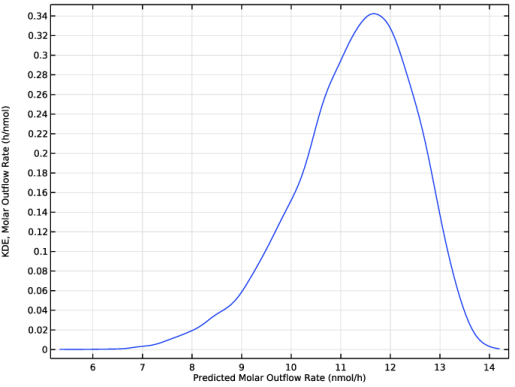
The next step is to compute the probability density of the Quantity of Interest. This will provide information about the joint effect of the uncertainties in all varied parameters. Oftentimes, the probability density approximately takes the shape of the normal distribution (bell curve), but skewness and heavy tails are quite common, and it is therefore valuable to study a plot of the distribution. The probability density function is presented in Figure 4.
Figure 4: Probability density function, visualizing the distribution of the outflow rate of β-carotene from the reactor (the Quantity of Interest).
Finally a reliability analysis is performed, allowing us to quantify tail risks. In our case, we might want to know how big a risk there is of the β-carotene content dropping below a prescribed threshold. In this model, the risk of the outlet flux dropping below 33% of the inlet was found to be 2%. Note that even though we might be tempted to simply integrate the probability density function up to this threshold, we should refrain from doing so since the tails are not sufficiently sampled in the other study types. The reliability analysis intentionally refines the surrogate model by increasing the sampling in the regions of the multidimensional parameter window yielding these off chance conditions.
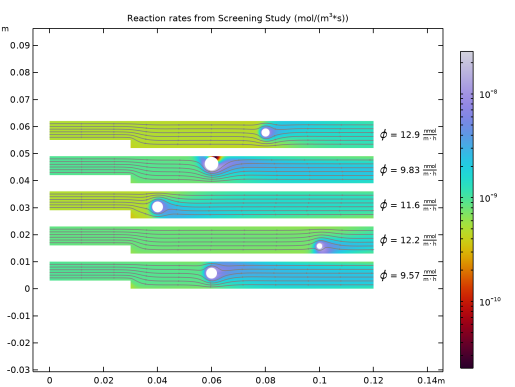
It is possible to keep intermediate solutions from the Uncertainty Quantification studies, and it can be quite instructive to compare a set of such results. An example of a plot with multiple such solutions is shown in Figure 5.
Figure 5: Rate of reaction from a subset of sampled parameters during the screening process.
Reference
1. C. Dhuique-Mayer and others, “Thermal Degradation of Antioxidant Micronutrients in Citrus Juice: Kinetics and Newly Formed Compounds,” J. Agric. Food Chem., vol. 55, pp. 4209–4216, 2007.
Application Library path: Chemical_Reaction_Engineering_Module/Reactors_with_Mass_and_Heat_Transfer/thermal_decomposition_uq
Modeling Instructions
From the File menu, choose New.
New
In the New window, click  Model Wizard.
Model Wizard
1
In the Model Wizard window, click  2D.
2
In the Select Physics tree, select Chemical Species Transport > Reacting Flow > Laminar Flow, Diluted Species.
3
Click Add.
4
In the Added physics interfaces tree, select Transport of Diluted Species (tds).
5
Click  Add Concentration.
6
In the Concentrations (mol/m³) table, enter the following settings:
7
In the Select Physics tree, select Heat Transfer > Heat Transfer in Fluids (ht).
8
Click Add.
9
Click  Study.
10
In the Select Study tree, select General Studies > Stationary.
11
Global Definitions
Parameters 1
1
In the Model Builder window, under Global Definitions click Parameters 1.
2
In the Settings window for Parameters, locate the Parameters section.
3
Click  Load from File.
4
Geometry 1
Rectangle 1 (r1)
1
In the Model Builder window, expand the Component 1 (comp1) > Geometry 1 node.
2
Right-click Geometry 1 and choose Rectangle.
3
In the Settings window for Rectangle, locate the Size and Shape section.
4
In the Width text field, type W1.
5
In the Height text field, type H1.
Rectangle 2 (r2)
1
In the Geometry toolbar, click  Rectangle.
2
In the Settings window for Rectangle, locate the Size and Shape section.
3
In the Width text field, type W2.
4
In the Height text field, type H2.
Circle 1 (c1)
1
In the Geometry toolbar, click  Circle.
2
In the Settings window for Circle, locate the Size and Shape section.
3
In the Radius text field, type R1.
4
Locate the Position section. In the x text field, type xpos.
5
In the y text field, type ypos.
Line Segment 1 (ls1)
1
In the Geometry toolbar, click  More Primitives and choose Line Segment.
2
On the object c1, select Point 3 only.
3
In the Settings window for Line Segment, locate the Endpoint section.
4
From the Specify list, choose Coordinates.
5
In the x text field, type xpos+10*R1.
6
In the y text field, type ypos.
Difference 1 (dif1)
1
In the Geometry toolbar, click  Booleans and Partitions and choose Difference.
2
3
In the Settings window for Difference, locate the Difference section.
4
Click to select the  Activate Selection toggle button for Objects to subtract.
5
Select the objects c1 and r2 only.
Mesh Control Edges 1 (mce1)
1
In the Geometry toolbar, click  Virtual Operations and choose Mesh Control Edges.
2
On the object fin, select Boundary 6 only.
3
In the Geometry toolbar, click  Build All.
Definitions
Inlet
1
In the Model Builder window, expand the Component 1 (comp1) > Definitions node.
2
Right-click Definitions and choose Selections > Explicit.
3
In the Settings window for Explicit, locate the Input Entities section.
4
From the Geometric entity level list, choose Boundary.
5
6
In the Label text field, type Inlet.
Outlet
1
Right-click Inlet and choose Duplicate.
2
In the Settings window for Explicit, type Outlet in the Label text field.
3
Heater
1
Right-click Outlet and choose Duplicate.
2
In the Settings window for Explicit, type Heater in the Label text field.
3
Mesh 1
1
In the Model Builder window, under Component 1 (comp1) right-click Mesh 1 and choose Build All.
2
Right-click Component 1 (comp1) > Mesh 1 and choose Edit Physics-Induced Sequence.
Size 2
1
In the Model Builder window, right-click Mesh 1 and choose Size.
2
Drag and drop Size 2 below Size.
3
In the Settings window for Size, locate the Geometric Entity Selection section.
4
From the Geometric entity level list, choose Boundary.
5
6
Locate the Element Size section. From the Predefined list, choose Extra fine.
7
From the Calibrate for list, choose Fluid dynamics.
Boundary Layer Properties 1
1
In the Model Builder window, expand the Boundary Layers 1 node, then click Boundary Layer Properties 1.
2
In the Settings window for Boundary Layer Properties, locate the Layers section.
3
In the Number of layers text field, type 3.
4
In the Thickness adjustment factor text field, type 4.
Boundary Layer Properties 2
1
Right-click Component 1 (comp1) > Mesh 1 > Boundary Layers 1 > Boundary Layer Properties 1 and choose Duplicate.
2
In the Settings window for Boundary Layer Properties, locate the Boundary Selection section.
3
From the Selection list, choose Heater.
4
Locate the Layers section. In the Number of layers text field, type 5.
5
In the Thickness adjustment factor text field, type 2.
Size
1
In the Model Builder window, under Component 1 (comp1) > Mesh 1 click Size.
2
In the Settings window for Size, click to expand the Element Size Parameters section.
3
In the Maximum element growth rate text field, type 1.1.
4
Click  Build All.
Definitions
Variables 1
1
In the Model Builder window, under Component 1 (comp1) right-click Definitions and choose Variables.
2
In the Settings window for Variables, locate the Variables section.
3
Add Material
1
In the Materials toolbar, click  Add Material to open the Add Material window.
2
Go to the Add Material window.
3
In the Search text field, type water.
4
Click Search.
5
In the tree, select Built-in > Water, liquid.
6
Click the Add to Component button in the window toolbar.
7
In the Materials toolbar, click  Add Material to close the Add Material window.
Laminar Flow (spf)
Inlet 1
1
In the Physics toolbar, click  Boundaries and choose Inlet.
2
Outlet 1
1
In the Physics toolbar, click  Boundaries and choose Outlet.
2
Heat Transfer in Fluids (ht)
Inflow 1
1
In the Physics toolbar, click  Boundaries and choose Inflow.
2
Outflow 1
1
In the Physics toolbar, click  Boundaries and choose Outflow.
2
Inflow 1
1
In the Model Builder window, click Inflow 1.
2
In the Settings window for Inflow, locate the Upstream Properties section.
3
In the Tustr text field, type T_inlet.
Temperature 1
1
In the Physics toolbar, click  Boundaries and choose Temperature.
2
3
In the Settings window for Temperature, locate the Temperature section.
4
In the T0 text field, type T_cyl.
Add Physics
1
In the Home toolbar, click  Add Physics to open the Add Physics window.
2
Go to the Add Physics window.
3
In the tree, select Chemical Species Transport > Chemistry (chem).
4
Click the Add to Component 1 button in the window toolbar.
5
In the Home toolbar, click  Add Physics to close the Add Physics window.
Chemistry (chem)
Reaction 1
1
In the Physics toolbar, click  Domains and choose Reaction.
2
In the Settings window for Reaction, locate the Reaction Formula section.
3
In the Formula text field, type betaCarotene=>byproduct.
4
Locate the Rate Constants section. Select the Use Arrhenius expressions checkbox.
5
In the Af text field, type A.
6
In the Ef text field, type E.
7
Locate the Reaction Thermodynamic Properties section. From the Enthalpy of reaction list, choose User defined.
8
In the H text field, type H.
Species: betaCarotene
1
In the Model Builder window, click Species: betaCarotene.
2
In the Settings window for Species, locate the Chemical Formula section.
3
In the M text field, type Mn_BetaC.
Species: byproduct
1
In the Model Builder window, click Species: byproduct.
2
In the Settings window for Species, locate the Chemical Formula section.
3
In the M text field, type Mn_BetaC.
4
In the Model Builder window, click Chemistry (chem).
5
In the Settings window for Chemistry, locate the Species Matching section.
6
Find the Bulk species subsection. From the Species solved for list, choose Transport of Diluted Species.
7
Heat Transfer in Fluids (ht)
In the Model Builder window, under Component 1 (comp1) click Heat Transfer in Fluids (ht).
Heat Source 1
1
In the Physics toolbar, click  Domains and choose Heat Source.
2
3
In the Settings window for Heat Source, locate the Material Type section.
4
From the Material type list, choose Nonsolid.
5
Locate the Heat Source section. From the Q0 list, choose Heat of reactions (chem).
Multiphysics
Nonisothermal Flow 1 (nitf1)
In the Physics toolbar, click  Multiphysics Couplings and choose Domain > Nonisothermal Flow.
Transport of Diluted Species (tds)
Fluid 1
1
In the Model Builder window, under Component 1 (comp1) > Transport of Diluted Species (tds) click Fluid 1.
2
In the Settings window for Fluid, locate the Diffusion section.
3
In the DcBetaC text field, type D_BetaC.
Inflow 1
1
In the Physics toolbar, click  Boundaries and choose Inflow.
2
3
In the Settings window for Inflow, locate the Concentration section.
4
In the c0,cBetaC text field, type cBetaC_inlet.
Outflow 1
1
In the Physics toolbar, click  Boundaries and choose Outflow.
2
Reactions 1
1
In the Physics toolbar, click  Domains and choose Reactions.
2
3
In the Settings window for Reactions, locate the Reaction Rates section.
4
From the RcBetaC list, choose Reaction rate for species betaCarotene (chem).
5
From the RcByprod list, choose Reaction rate for species byproduct (chem).
Laminar Flow (spf)
Inlet 1
1
In the Model Builder window, under Component 1 (comp1) > Laminar Flow (spf) click Inlet 1.
2
In the Settings window for Inlet, locate the Boundary Condition section.
3
From the list, choose Fully developed flow.
4
Locate the Fully Developed Flow section. In the Uav text field, type v_inlet.
Outlet 1
1
In the Model Builder window, click Outlet 1.
2
In the Settings window for Outlet, locate the Pressure Conditions section.
3
Select the Normal flow checkbox.
Study 1
Step 2: Stationary 1
In the Model Builder window, under Study 1 right-click Step 1: Stationary and choose Duplicate.
Step 1: Stationary
1
In the Settings window for Stationary, locate the Physics and Variables Selection section.
2
In the Solve for column of the table, under Component 1 (comp1), select the checkbox for Laminar Flow (spf).
3
In the Solve for column of the table, under Component 1 (comp1), clear the checkboxes for Transport of Diluted Species (tds), Heat Transfer in Fluids (ht), and Chemistry (chem).
4
In the Study toolbar, click  Compute.
Definitions
Integration over Exit
1
In the Definitions toolbar, click  Nonlocal Couplings and choose Integration.
2
In the Settings window for Integration, locate the Source Selection section.
3
From the Geometric entity level list, choose Boundary.
4
From the Selection list, choose Outlet.
5
In the Label text field, type Integration over Exit.
6
In the Operator name text field, type intop_exit.
Variables 1
1
In the Model Builder window, click Variables 1.
2
In the Settings window for Variables, locate the Variables section.
3
β-carotene outflow
Study 1
In the Model Builder window, right-click Study 1 and choose More Study Extensions > Add Uncertainty Quantification Study Using Study Reference.
Study 2: UQ Screening
In the Settings window for Study, type Study 2: UQ Screening in the Label text field.
Uncertainty Quantification
1
In the Model Builder window, under Study 2: UQ Screening click Uncertainty Quantification.
2
In the Settings window for Uncertainty Quantification, locate the Quantities of Interest section.
3
4
5
Locate the Input Parameters section. Click  Add nine times.
6
7
In the Lower bound text field, type T_cyl-5[K].
8
In the Upper bound text field, type T_cyl+5[K].
9
10
From the Distribution list, choose Normal(μ,σ).
11
In the Mean text field, type E.
12
In the Standard deviation text field, type 0.003*E.
13
14
From the Distribution list, choose Normal(μ,σ).
15
In the Mean text field, type A.
16
In the Standard deviation text field, type 0.1*A.
17
18
In the Lower bound text field, type 0.97*H.
19
In the Upper bound text field, type 1.03*H.
20
21
From the Distribution list, choose Normal(μ,σ).
22
In the Mean text field, type D_BetaC_ref.
23
In the Standard deviation text field, type 0.2*D_BetaC_ref.
24
25
In the Lower bound text field, type 0.5*dDdT.
26
In the Upper bound text field, type 1.5*dDdT.
27
28
In the Lower bound text field, type 4[cm].
29
In the Upper bound text field, type 10[cm].
30
31
In the Lower bound text field, type 2.75[mm].
32
In the Upper bound text field, type 7.25[mm].
33
34
In the Lower bound text field, type 1[mm].
35
In the Upper bound text field, type 2.5[mm].
36
Locate the Output While Solving section. Select the Plot checkbox.
37
38
Locate the Advanced Settings section. From the Error handling list, choose Skip problematic parameters.
39
From the Keep model evaluations in memory list, choose All.
40
In the Study toolbar, click  Compute.
This will produce Figure 2.
Study 2: UQ Screening
Uncertainty Quantification
1
In the Model Builder window, expand the Results > Uncertainty Quantification Graph > MOAT, comp1.molar_outflow_rate node.
2
Right-click Study 2: UQ Screening > Uncertainty Quantification and choose Add New Uncertainty Quantification Study For > Sensitivity Analysis.
Study 3: UQ Sensitivity Analysis
1
In the Model Builder window, click Study 3: Sensitivity Analysis.
2
In the Settings window for Study, type Study 3: UQ Sensitivity Analysis in the Label text field.
1
In the Model Builder window, under Study 3: UQ Sensitivity Analysis click Uncertainty Quantification.
2
In the Settings window for Uncertainty Quantification, locate the Input Parameters section.
3
4
Click  Delete three times.
5
In the Study toolbar, click  Compute.
This will produce Figure 3.
Study 3: UQ Sensitivity Analysis
Uncertainty Quantification
Right-click Uncertainty Quantification and choose Add New Uncertainty Quantification Study For > Uncertainty Propagation.
Study 4: UQ Uncertainty Propagation
1
In the Model Builder window, click Study 4: Uncertainty Propagation.
2
In the Settings window for Study, type Study 4: UQ Uncertainty Propagation in the Label text field.
Uncertainty Quantification 3
In the Study toolbar, click  Compute.
Results
Line Graph 1
1
In the Model Builder window, expand the Results > Uncertainty Quantification Graph 2 > Kernel Density Estimation, QoI1 node, then click Line Graph 1.
2
In the Settings window for Line Graph, locate the y-Axis Data section.
3
In the Expression text field, type Kde/1e9/3600.
4
In the Description text field, type KDE, Molar Outflow Rate (h/nmol).
5
Locate the x-Axis Data section. In the Expression text field, type predicted*1e9*3600.
6
In the Description text field, type Predicted Molar Outflow Rate (nmol/h).
Kernel Density Estimation, QoI1
1
In the Model Builder window, click Kernel Density Estimation, QoI1.
2
In the Settings window for 1D Plot Group, click to expand the Title section.
3
From the Title type list, choose None.
4
In the Kernel Density Estimation, QoI1 toolbar, click  Plot.
This will produce Figure 4.
Study 4: UQ Uncertainty Propagation
Uncertainty Quantification
In the Model Builder window, under Study 4: UQ Uncertainty Propagation right-click Uncertainty Quantification and choose Add New Uncertainty Quantification Study For > Reliability Analysis.
Study 5: UQ Reliability Analysis
1
In the Model Builder window, under Study 5: Reliability Analysis, EGRA click Uncertainty Quantification.
2
In the Settings window for Uncertainty Quantification, locate the Quantities of Interest section.
3
4
In the Model Builder window, click Study 5: Reliability Analysis, EGRA.
5
In the Settings window for Study, type Study 5: UQ Reliability Analysis in the Label text field.
Uncertainty Quantification 4
In the Study toolbar, click  Compute.
Results
In the Model Builder window, expand the Results > Tables node.
Reaction Rate
1
In the Model Builder window, expand the Results > Tables > Reliability Analysis node.
2
Right-click Results and choose 2D Plot Group.
3
In the Settings window for 2D Plot Group, type Reaction Rate in the Label text field.
4
Locate the Data section. From the Dataset list, choose None.
5
Click to expand the Title section. From the Title type list, choose Manual.
6
In the Title text area, type Reaction rates from Screening Study (mol/(m<sup>3</sup>*s)).
7
Click to expand the Plot Array section. From the Array type list, choose Linear.
8
From the Array axis list, choose y.
Surface 1
1
Right-click Reaction Rate and choose Surface.
2
In the Settings window for Surface, locate the Data section.
3
From the Dataset list, choose Study 2: UQ Screening/Parametric Solutions 1 (sol4).
4
From the Parameter value (T_cyl (K),E (J/mol),A (1/s),H (J/mol),...) list, choose 1: T_cyl=360.15 K, E=1.0898E5 J/mol, A=8.996E13 1/s, H=8652 J/mol, D_BetaC_ref=7.9064E-10 m^2/s, dDdT=3.75E-11 m^2/(s*K), xpos=0.06 m, ypos=0.00575 m, R1=0.002 m.
5
Locate the Expression section. In the Expression text field, type -tds.R_cBetaC.
6
Locate the Coloring and Style section. From the Color table list, choose PrismDark.
7
From the Color table transformation list, choose Reverse.
8
From the Scale list, choose Logarithmic.
9
Click to expand the Plot Array section. Select the Manual indexing checkbox.
Surface 2
1
Right-click Surface 1 and choose Duplicate.
2
In the Settings window for Surface, locate the Data section.
3
From the Parameter value (T_cyl (K),E (J/mol),A (1/s),H (J/mol),...) list, choose 10: T_cyl=366.82 K, E=1.1014E5 J/mol, A=1.2305E14 1/s, H=8316 J/mol, D_BetaC_ref=2.2479E-9 m^2/s, dDdT=8.75E-11 m^2/(s*K), xpos=0.1 m, ypos=0.00275 m, R1=0.001 m.
4
Click to expand the Inherit Style section. From the Plot list, choose Surface 1.
5
Locate the Plot Array section. In the Index text field, type 1.
Surface 3
1
Right-click Surface 2 and choose Duplicate.
2
In the Settings window for Surface, locate the Data section.
3
From the Parameter value (T_cyl (K),E (J/mol),A (1/s),H (J/mol),...) list, choose 20: T_cyl=360.15 K, E=1.1102E5 J/mol, A=9.804E13 1/s, H=8652 J/mol, D_BetaC_ref=7.9064E-10 m^2/s, dDdT=3.75E-11 m^2/(s*K), xpos=0.04 m, ypos=0.00425 m, R1=0.002 m.
4
Locate the Plot Array section. In the Index text field, type 2.
Surface 4
1
Right-click Surface 3 and choose Duplicate.
2
In the Settings window for Surface, locate the Data section.
3
From the Parameter value (T_cyl (K),E (J/mol),A (1/s),H (J/mol),...) list, choose 30: T_cyl=370.15 K, E=1.0898E5 J/mol, A=8.996E13 1/s, H=8484 J/mol, D_BetaC_ref=3.3494E-9 m^2/s, dDdT=6.25E-11 m^2/(s*K), xpos=0.06 m, ypos=0.00725 m, R1=0.0025 m.
4
Locate the Plot Array section. In the Index text field, type 3.
Surface 5
1
Right-click Surface 4 and choose Duplicate.
2
In the Settings window for Surface, locate the Data section.
3
From the Parameter value (T_cyl (K),E (J/mol),A (1/s),H (J/mol),...) list, choose 40: T_cyl=363.48 K, E=1.0986E5 J/mol, A=6.4952E13 1/s, H=8148 J/mol, D_BetaC_ref=1.8921E-9 m^2/s, dDdT=1.125E-10 m^2/(s*K), xpos=0.08 m, ypos=0.00575 m, R1=0.0015 m.
4
Locate the Plot Array section. In the Index text field, type 4.
Streamline 1
1
In the Model Builder window, right-click Reaction Rate and choose Streamline.
2
In the Settings window for Streamline, locate the Data section.
3
From the Dataset list, choose Study 2: UQ Screening/Parametric Solutions 1 (sol4).
4
From the Parameter value (T_cyl (K),E (J/mol),A (1/s),H (J/mol),...) list, choose 1: T_cyl=360.15 K, E=1.0898E5 J/mol, A=8.996E13 1/s, H=8652 J/mol, D_BetaC_ref=7.9064E-10 m^2/s, dDdT=3.75E-11 m^2/(s*K), xpos=0.06 m, ypos=0.00575 m, R1=0.002 m.
5
Locate the Streamline Positioning section. From the Entry method list, choose Coordinates.
6
In the x text field, type 0 0 0 0 0 0.
7
In the y text field, type 0.004 0.005 0.006 0.007 0.008 0.009.
8
Locate the Coloring and Style section. Find the Point style subsection. From the Color list, choose Custom.
9
10
Click Define custom colors.
11
12
Click Add to custom colors.
13
Click Show color palette only or OK on the cross-platform desktop.
14
From the Type list, choose Arrow.
15
Click to expand the Plot Array section. Select the Manual indexing checkbox.
Streamline 2
1
Right-click Streamline 1 and choose Duplicate.
2
In the Settings window for Streamline, locate the Data section.
3
From the Parameter value (T_cyl (K),E (J/mol),A (1/s),H (J/mol),...) list, choose 10: T_cyl=366.82 K, E=1.1014E5 J/mol, A=1.2305E14 1/s, H=8316 J/mol, D_BetaC_ref=2.2479E-9 m^2/s, dDdT=8.75E-11 m^2/(s*K), xpos=0.1 m, ypos=0.00275 m, R1=0.001 m.
4
Locate the Plot Array section. In the Index text field, type 1.
Streamline 3
1
Right-click Streamline 2 and choose Duplicate.
2
In the Settings window for Streamline, locate the Data section.
3
From the Parameter value (T_cyl (K),E (J/mol),A (1/s),H (J/mol),...) list, choose 20: T_cyl=360.15 K, E=1.1102E5 J/mol, A=9.804E13 1/s, H=8652 J/mol, D_BetaC_ref=7.9064E-10 m^2/s, dDdT=3.75E-11 m^2/(s*K), xpos=0.04 m, ypos=0.00425 m, R1=0.002 m.
4
Locate the Plot Array section. In the Index text field, type 2.
Streamline 4
1
Right-click Streamline 3 and choose Duplicate.
2
In the Settings window for Streamline, locate the Data section.
3
From the Parameter value (T_cyl (K),E (J/mol),A (1/s),H (J/mol),...) list, choose 30: T_cyl=370.15 K, E=1.0898E5 J/mol, A=8.996E13 1/s, H=8484 J/mol, D_BetaC_ref=3.3494E-9 m^2/s, dDdT=6.25E-11 m^2/(s*K), xpos=0.06 m, ypos=0.00725 m, R1=0.0025 m.
4
Locate the Plot Array section. In the Index text field, type 3.
Streamline 5
1
Right-click Streamline 4 and choose Duplicate.
2
In the Settings window for Streamline, locate the Data section.
3
From the Parameter value (T_cyl (K),E (J/mol),A (1/s),H (J/mol),...) list, choose 40: T_cyl=363.48 K, E=1.0986E5 J/mol, A=6.4952E13 1/s, H=8148 J/mol, D_BetaC_ref=1.8921E-9 m^2/s, dDdT=1.125E-10 m^2/(s*K), xpos=0.08 m, ypos=0.00575 m, R1=0.0015 m.
4
Locate the Plot Array section. In the Index text field, type 4.
Annotation 1
1
In the Model Builder window, right-click Reaction Rate and choose Annotation.
2
In the Settings window for Annotation, locate the Data section.
3
From the Dataset list, choose Study 2: UQ Screening/Parametric Solutions 1 (sol4).
4
From the Parameter value (T_cyl (K),E (J/mol),A (1/s),H (J/mol),...) list, choose 1: T_cyl=360.15 K, E=1.0898E5 J/mol, A=8.996E13 1/s, H=8652 J/mol, D_BetaC_ref=7.9064E-10 m^2/s, dDdT=3.75E-11 m^2/(s*K), xpos=0.06 m, ypos=0.00575 m, R1=0.002 m.
5
Locate the Annotation section. In the Text text field, type $\phi$ = eval(comp1.molar_outflow_rate, nmol/m/h) $\mathrm{\frac{nmol}{m\cdot h}}$.
6
Select the LaTeX markup checkbox.
7
Locate the Position section. In the x text field, type W1.
8
In the y text field, type H1/2.
9
Locate the Coloring and Style section. Clear the Show point checkbox.
10
From the Anchor point list, choose Middle left.
11
Click to expand the Advanced section. In the Precision text field, type 3.
12
Click to expand the Plot Array section. Select the Manual indexing checkbox.
Annotation 2
1
Right-click Annotation 1 and choose Duplicate.
2
In the Settings window for Annotation, locate the Data section.
3
From the Parameter value (T_cyl (K),E (J/mol),A (1/s),H (J/mol),...) list, choose 10: T_cyl=366.82 K, E=1.1014E5 J/mol, A=1.2305E14 1/s, H=8316 J/mol, D_BetaC_ref=2.2479E-9 m^2/s, dDdT=8.75E-11 m^2/(s*K), xpos=0.1 m, ypos=0.00275 m, R1=0.001 m.
4
Locate the Plot Array section. In the Index text field, type 1.
Annotation 3
1
Right-click Annotation 2 and choose Duplicate.
2
In the Settings window for Annotation, locate the Data section.
3
From the Parameter value (T_cyl (K),E (J/mol),A (1/s),H (J/mol),...) list, choose 20: T_cyl=360.15 K, E=1.1102E5 J/mol, A=9.804E13 1/s, H=8652 J/mol, D_BetaC_ref=7.9064E-10 m^2/s, dDdT=3.75E-11 m^2/(s*K), xpos=0.04 m, ypos=0.00425 m, R1=0.002 m.
4
Locate the Plot Array section. In the Index text field, type 2.
Annotation 4
1
Right-click Annotation 3 and choose Duplicate.
2
In the Settings window for Annotation, locate the Data section.
3
From the Parameter value (T_cyl (K),E (J/mol),A (1/s),H (J/mol),...) list, choose 30: T_cyl=370.15 K, E=1.0898E5 J/mol, A=8.996E13 1/s, H=8484 J/mol, D_BetaC_ref=3.3494E-9 m^2/s, dDdT=6.25E-11 m^2/(s*K), xpos=0.06 m, ypos=0.00725 m, R1=0.0025 m.
4
Locate the Plot Array section. In the Index text field, type 3.
Annotation 5
1
Right-click Annotation 4 and choose Duplicate.
2
In the Settings window for Annotation, locate the Data section.
3
From the Parameter value (T_cyl (K),E (J/mol),A (1/s),H (J/mol),...) list, choose 40: T_cyl=363.48 K, E=1.0986E5 J/mol, A=6.4952E13 1/s, H=8148 J/mol, D_BetaC_ref=1.8921E-9 m^2/s, dDdT=1.125E-10 m^2/(s*K), xpos=0.08 m, ypos=0.00575 m, R1=0.0015 m.
4
Locate the Plot Array section. In the Index text field, type 4.
Reaction Rate
This is Figure 5.