
|
|
|



 is the thermal diffusion coefficient (SI unit: kg/(m·s)), and u is the mixture averaged velocity (SI unit: m/s). Species mole fractions and mass fractions are denoted by x and ω respectively, and the mixture density, ρ (SI unit: kg/m3), is a function of the average mixture mole fraction, Mmix (SI unit: kg/mol), according to Equation 2:


|
1
|
|
2
|
In the Select Physics tree, select Chemical Species Transport > Transport of Concentrated Species (tcs).
|
|
3
|
Click Add.
|
|
4
|
Click
 Add Mass Fraction. Add Mass Fraction. |
|
5
|
In the Mass fractions (1) table, enter the following settings:
|
|
6
|
Click
 Study. Study. |
|
7
|
|
8
|
Click
 Done. Done. |
|
1
|
|
2
|
|
3
|
Click
 Load from File. Load from File. |
|
4
|
Browse to the model’s Application Libraries folder and double-click the file stefan_tube_parameters.txt.
|
|
1
|
|
2
|
|
4
|
Click
 Build All Objects. Build All Objects. |
|
1
|
In the Model Builder window, under Component 1 (comp1) click Transport of Concentrated Species (tcs).
|
|
2
|
In the Settings window for Transport of Concentrated Species, locate the Transport Mechanisms section.
|
|
3
|
|
4
|
|
5
|
|
1
|
In the Model Builder window, under Component 1 (comp1) > Transport of Concentrated Species (tcs) click Species Molar Masses 1.
|
|
2
|
|
3
|
|
4
|
|
5
|
|
1
|
|
2
|
|
3
|
|
4
|
|
5
|
|
6
|
Locate the Diffusion section. In the table, enter the following settings:
|
|
1
|
|
2
|
|
3
|
|
4
|
|
1
|
|
3
|
|
4
|
Select the Species w1 checkbox.
|
|
5
|
|
6
|
Select the Species w2 checkbox.
|
|
7
|
|
1
|
|
3
|
|
4
|
Select the Species w1 checkbox.
|
|
5
|
Select the Species w2 checkbox.
|
|
1
|
|
2
|
|
3
|
|
4
|
Click
 Build All. Build All. |
|
1
|
|
2
|
|
3
|
|
4
|
Browse to the model’s Application Libraries folder and double-click the file stefan_tube_exp.csv.
|
|
1
|
|
2
|
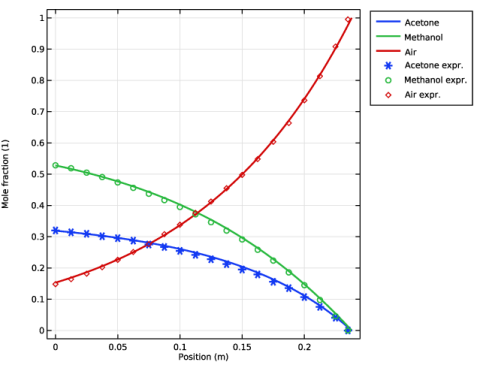
In the Settings window for 1D Plot Group, type Mole Fractions Compared with Experimental Data in the Label text field.
|
|
3
|
Locate the Plot Settings section.
|
|
4
|
|
5
|
|
1
|
|
2
|
|
3
|
|
4
|
Click to expand the Title section. Click Replace Expression in the upper-right corner of the y-Axis Data section. From the menu, choose Component 1 (comp1) > Transport of Concentrated Species > Species w1 > tcs.x_w1 - Mole fraction - 1.
|
|
5
|
|
6
|
|
7
|
|
8
|
|
9
|
|
10
|
|
1
|
|
2
|
In the Settings window for Line Graph, click Replace Expression in the upper-right corner of the y-Axis Data section. From the menu, choose Component 1 (comp1) > Transport of Concentrated Species > Species w2 > tcs.x_w2 - Mole fraction - 1.
|
|
3
|
Locate the Legends section. In the table, enter the following settings:
|
|
1
|
|
2
|
In the Settings window for Line Graph, click Replace Expression in the upper-right corner of the y-Axis Data section. From the menu, choose Component 1 (comp1) > Transport of Concentrated Species > Species w3 > tcs.x_w3 - Mole fraction - 1.
|
|
3
|
Locate the Legends section. In the table, enter the following settings:
|
|
1
|
In the Model Builder window, right-click Mole Fractions Compared with Experimental Data and choose Table Graph.
|
|
2
|
|
3
|
|
4
|
Locate the Coloring and Style section. Find the Line markers subsection. From the Marker list, choose Cycle.
|
|
5
|
|
6
|
|
7
|
|
8
|
|
1
|
|
2
|
|
3
|
|
4
|
|
5
|
|
1
|
|
2
|
|
3
|
|
4
|
|
5
|
|
1
|
|
2
|
|
3
|
|
4
|
|
5
|
|
1
|
|
2
|
|
3
|
Locate the Plot Settings section.
|
|
4
|
|
1
|
|
3
|
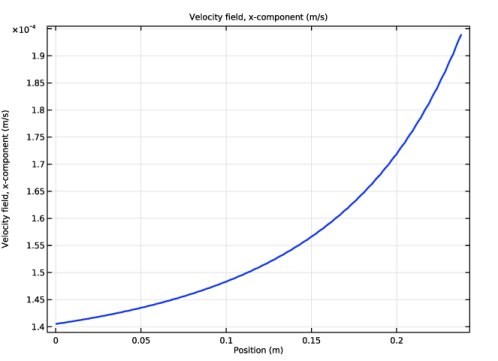
In the Settings window for Line Graph, click Replace Expression in the upper-right corner of the y-Axis Data section. From the menu, choose Component 1 (comp1) > Transport of Concentrated Species > Velocity field - m/s > tcs.u - Velocity field, x-component.
|
|
4
|
|
5
|
|
6
|
|
7
|


