

PDF

Reverse Osmosis Water Desalination
Introduction
This example illustrates how to model the reverse osmosis process used to desalinate seawater. The modeled desalination unit consists of a spirally wound semi-permeable membrane through which the water is forced under high pressure. The membrane retains the salt, such that on the permeate side fresh water is produced and on the concentrate side (also called retentate side) a high salinity brine is obtained. This tutorial shows how to set up the flow and transport equations and assesses the high pressure needed to operate the process.
Note: This model requires the CFD Module.
Model Definition
The desalination unit is built up around a sheet of porous spacer material with on both sides a semi-permeable membrane, which is rolled-up in a spiral manner. The sheet is not rolled-up tightly, but in such a way that there is space (with approximately the same width as the thickness of the sheet) between the windings for the feed flow of sea water. The sheet in the present model measures 1.3 m by 21 cm with a thickness of 2 mm. It is rolled-up along the long side resulting in a cylinder-like shape with a length of 21 cm. Sea water is fed through the spaces in between the rolled-up sheet along the axis of the cylinder at a high pressure such that fresh water is forced through the semi-permeable membranes. The fresh water flows through the porous sheet along the windings to the inside of the spiral where it is collected in a tube running along the center axis of the cylinder.
The sea water is fed into the unit at 27 l/h, of which 30% is forced through the semi-permeable membranes, resulting in a fresh water flow of 8.1 l/h (or 194.4 l/d). The present simulation is designed to determine the pressure needed to operate the process at these flow conditions and also how much salt is still in the permeate stream.
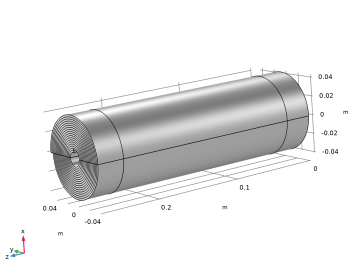
The geometry in the model is created by extruding along the z-axis a tightly wound 2D spiral with two layers drawn in an xy work plane: one layer being the sheet of porous spacer material and the other being the flow domain for the feed flow. See Figure 1 below for a graphic representation of the geometry.
The semi-permeable membrane is modeled as a surface with no thickness and the volumetric water flux Jw (m/s) across the surface is given by
(1)
. .
Figure 1: Geometry of the model, created by extruding a 2D spiral along the x-axis.
where Πr and Πp are the osmotic pressures and pr and pp the pressures on the retentate and permeate side, respectively. The parameter Aw (m/Pa·s) is the resistance of the membrane. The osmotic pressure of a salt solution is given by
(2)
where c is the salt concentration (mol/m3), R the universal gas constant, and T the temperature (K). The pressure jump across the membrane can thus be written as
(3)
where cr and cp are the salt concentrations on the retentate and permeate sides of the membrane. In the case of the high salt concentration in the feed sea water, the contribution to the pressure jump due to the osmotic pressure is expected to be much larger than the contribution due to the membrane flow resistance, so that the following approximation is made for the pressure jump
(4)
The salt flux Js (mol·m/s) across the membrane is given by
(5)
where the parameter As (m/s) is a property of the membrane. See Table 1 for the used value of this parameter and other model parameters.
1.64·10-9 m2/s
10-7 m/s
10-9 m2
7.5·10-3 kg/s
Results and Discussion
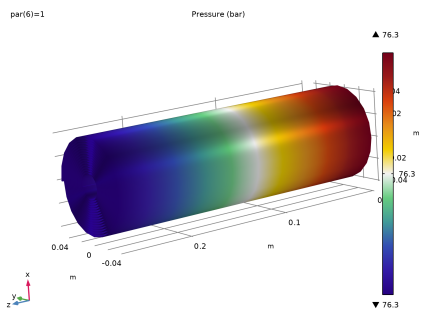
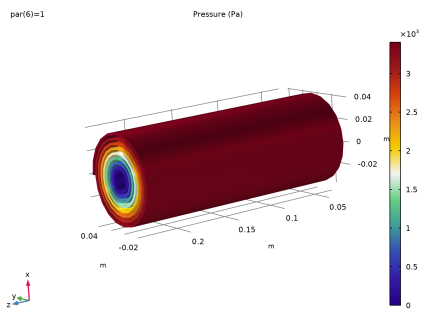
In Figure 2 the pressure of the concentrate flow is plotted. It can be seen that the pressure for the reverse osmosis process under the assumed operating conditions is around 76 bar. Also note that the pressure drop along the desalination unit is small compared to the applied pressure.
In Figure 3 the pressure of the permeate flow through the spirally wound porous material in between the semi-permeable membranes is plotted. The pressure is high at the outside windings of the spiral and lower at the inside windings, indicating that the permeate flows from the outside to the inside of the spiral, as is intended by the design of the unit.
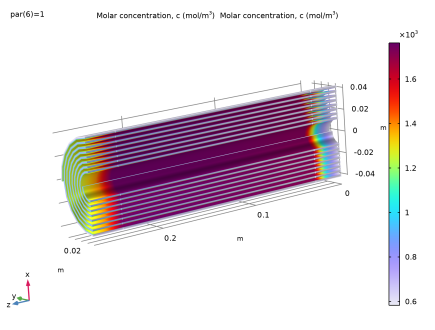
Figure 4 shows the salt concentration in the concentrate flow. At the inlet the concentration is equal to 600 mol/m3, and the concentration increases as the sea water flows in between the spiral sheet, with boundary layers of high salt concentration near the membranes.
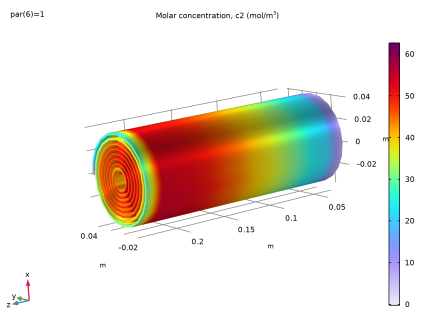
In Figure 5 the salt concentration in the permeate flow is plotted. The concentration here is much lower than in the feed stream, indicating that the membrane does form a barrier for the salt. The average salt concentration at the outlet of the permeate flow is equal to 37.33 mol/m3, which is about 16 times lower than the salt concentration of the sea water that is fed into the unit. In the Modeling Instructions section it will be shown how to obtain this value from the simulation.
Figure 2: The pressure of the concentrate flow.
.
Figure 3: The pressure of the permeate flow through the spirally wound porous material in between the semi-permeable membranes.
Figure 4: The salt concentration in the feed flow.
Figure 5: The salt concentration in the permeate flow.
Notes About the COMSOL Implementation
In this model it is assumed that the density of the water does not depend on the salt concentration. The feed flow in between the spirally wound sheet is modeled using the Laminar Flow interface and the permeate flow in the porous sheet is modeled using the Darcy’s Law interface. These two interface are coupled through the Free and Porous Media Flow Coupling, which allows to include the pressure jump across the semi-permeable membrane due to the osmotic pressure.
The pressure jump condition depending on the salt concentrations makes the model quite nonlinear. To get the simulation to converge under the chosen operating conditions, the diffusion coefficient of the dissolved salt is ramped down to the physical value, starting with a value that is 100,000 times larger.
Application Library path: Chemical_Reaction_Engineering_Module/Mixing_and_Separation/reverse_osmosis_desalination
Modeling Instructions
From the File menu, choose New.
New
In the New window, click  Model Wizard.
Model Wizard
1
In the Model Wizard window, click  3D.
2
In the Select Physics tree, select Fluid Flow > Porous Media and Subsurface Flow > Free and Porous Media Flow, Darcy.
3
Click Add.
4
In the Select Physics tree, select Chemical Species Transport > Transport of Diluted Species (tds).
5
Click Add.
6
In the Select Physics tree, select Chemical Species Transport > Transport of Diluted Species in Porous Media (tds).
7
Click Add.
8
Click  Study.
9
In the Select Study tree, select General Studies > Stationary.
10
Geometry 1
Work Plane 1 (wp1)
In the Geometry toolbar, click  Work Plane.
Work Plane 1 (wp1) > Plane Geometry
In the Model Builder window, click Plane Geometry.
Work Plane 1 (wp1) > Parametric Curve 1 (pc1)
1
In the Work Plane toolbar, click  More Primitives and choose Parametric Curve.
2
In the Settings window for Parametric Curve, locate the Parameter section.
3
In the Minimum text field, type 4*pi.
4
In the Maximum text field, type 20.5*pi.
5
Locate the Expressions section. In the xw text field, type 0.00065*s*cos(s).
6
In the yw text field, type 0.00065*s*sin(s).
Work Plane 1 (wp1) > Thicken 1 (thi1)
1
In the Work Plane toolbar, click  Conversions and choose Thicken.
2
In the Settings window for Thicken, locate the Input section.
3
Select the Keep input objects checkbox.
4
5
Locate the Options section. From the Offset list, choose Asymmetric.
6
In the Upside thickness text field, type 0.00205.
Work Plane 1 (wp1) > Thicken 2 (thi2)
1
Right-click Component 1 (comp1) > Geometry 1 > Work Plane 1 (wp1) > Plane Geometry > Thicken 1 (thi1) and choose Duplicate.
2
In the Settings window for Thicken, locate the Options section.
3
In the Upside thickness text field, type 0.
4
In the Downside thickness text field, type 0.00205.
Extrude 1 (ext1)
1
In the Model Builder window, under Component 1 (comp1) > Geometry 1 right-click Work Plane 1 (wp1) and choose Extrude.
2
In the Settings window for Extrude, locate the Distances section.
3
Work Plane 2 (wp2)
1
In the Geometry toolbar, click  Work Plane.
2
In the Settings window for Work Plane, locate the Plane Definition section.
3
From the Plane list, choose yz-plane.
Partition Objects 1 (par1)
1
In the Geometry toolbar, click  Booleans and Partitions and choose Partition Objects.
2
3
In the Settings window for Partition Objects, locate the Partition Objects section.
4
From the Partition with list, choose Work plane.
Remove Details 1 (rmd1)
1
In the Geometry toolbar, click  Virtual Operations and choose Remove Details.
2
Click  Build All.
Global Definitions
Parameters 1
1
In the Model Builder window, under Global Definitions click Parameters 1.
2
In the Settings window for Parameters, locate the Parameters section.
3
Click  Load from File.
4
Materials
Material 1 (mat1)
1
In the Model Builder window, under Component 1 (comp1) right-click Materials and choose Blank Material.
2
In the Settings window for Material, locate the Material Contents section.
3
Laminar Flow (spf)
1
In the Model Builder window, under Component 1 (comp1) click Laminar Flow (spf).
2
3
In the Settings window for Laminar Flow, locate the Domain Selection section.
4
Click  Create Selection.
5
In the Create Selection dialog, type Laminar flow domain in the Selection name text field.
6
Inlet 1
1
In the Physics toolbar, click  Boundaries and choose Inlet.
2
3
In the Settings window for Inlet, locate the Boundary Selection section.
4
Click  Create Selection.
5
In the Create Selection dialog, type Inlet in the Selection name text field.
6
7
In the Settings window for Inlet, locate the Boundary Condition section.
8
9
Locate the Mass Flow section. In the m text field, type F_fr.
Outlet 1
1
In the Physics toolbar, click  Boundaries and choose Outlet.
2
3
In the Settings window for Outlet, locate the Boundary Selection section.
4
Click  Create Selection.
5
In the Create Selection dialog, type Outlet in the Selection name text field.
6
7
In the Settings window for Outlet, locate the Boundary Condition section.
8
9
Locate the Mass Flow section. In the m text field, type F_fr*(1-R_r).
Wall 2
1
In the Physics toolbar, click  Boundaries and choose Wall.
2
3
In the Settings window for Wall, locate the Boundary Condition section.
4
From the Wall condition list, choose Slip.
5
In the Model Builder window, click Wall 2.
6
Darcy’s Law (dl)
1
In the Model Builder window, under Component 1 (comp1) click Darcy’s Law (dl).
2
3
In the Settings window for Darcy’s Law, locate the Domain Selection section.
4
Click  Create Selection.
5
In the Create Selection dialog, type Porous permeate flow in the Selection name text field.
6
7
Click the  Show More Options button in the Model Builder toolbar.
8
In the Show More Options dialog, in the tree, select the checkbox for the node Physics > Advanced Physics Options.
9
10
In the Model Builder window, click Darcy’s Law (dl).
11
In the Settings window for Darcy’s Law, click to expand the Discretization section.
12
From the Pressure list, choose Linear.
13
Select the Compute boundary fluxes checkbox.
Pressure 1
1
In the Physics toolbar, click  Boundaries and choose Pressure.
2
3
In the Settings window for Pressure, locate the Boundary Selection section.
4
Click  Create Selection.
5
In the Create Selection dialog, type Permeate outlet in the Selection name text field.
6
Multiphysics
Free and Porous Media Flow Coupling 1 (nsd1)
1
In the Model Builder window, under Component 1 (comp1) > Multiphysics click Free and Porous Media Flow Coupling 1 (nsd1).
2
In the Settings window for Free and Porous Media Flow Coupling, locate the Boundary Selection section.
3
Click  Create Selection.
4
In the Create Selection dialog, type Membrane in the Selection name text field.
5
6
In the Settings window for Free and Porous Media Flow Coupling, locate the Coupling Settings section.
7
Select the Include pressure jump across free-porous boundary checkbox.
8
In the pj text field, type 2*R_const*T_w*(c-c2).
Transport of Diluted Species (tds)
1
In the Model Builder window, under Component 1 (comp1) click Transport of Diluted Species (tds).
2
In the Settings window for Transport of Diluted Species, locate the Domain Selection section.
3
From the Selection list, choose Laminar flow domain.
4
In the Model Builder window, click Transport of Diluted Species (tds).
5
Click to expand the Advanced Settings section. From the Material balance form list, choose Conservative.
Fluid 1
1
In the Model Builder window, under Component 1 (comp1) > Transport of Diluted Species (tds) click Fluid 1.
2
In the Settings window for Fluid, locate the Convection section.
3
From the u list, choose Velocity field (spf).
4
Locate the Diffusion section. In the Dc text field, type D_s*par.
Inflow 1
1
In the Physics toolbar, click  Boundaries and choose Inflow.
2
In the Settings window for Inflow, locate the Boundary Selection section.
3
From the Selection list, choose Inlet.
4
Locate the Concentration section. In the c0,c text field, type c_in.
No Flux 1
1
In the Model Builder window, click No Flux 1.
2
In the Settings window for No Flux, locate the Convection section.
3
Select the Include checkbox.
Outflow 1
1
In the Physics toolbar, click  Boundaries and choose Outflow.
2
In the Settings window for Outflow, locate the Boundary Selection section.
3
From the Selection list, choose Outlet.
Flux 1
1
In the Physics toolbar, click  Boundaries and choose Flux.
2
In the Settings window for Flux, locate the Boundary Selection section.
3
From the Selection list, choose Membrane.
4
Locate the Convection section. Select the Include checkbox.
5
Locate the Inward Flux section. Select the Species c checkbox.
6
In the J0,c text field, type -A_s*(c-c2).
Transport of Diluted Species in Porous Media 2 (tds2)
1
In the Model Builder window, under Component 1 (comp1) click Transport of Diluted Species in Porous Media 2 (tds2).
2
In the Settings window for Transport of Diluted Species in Porous Media, locate the Domain Selection section.
3
From the Selection list, choose Porous permeate flow.
4
Click to expand the Advanced Settings section. From the Material balance form list, choose Conservative.
Fluid 1
1
In the Model Builder window, under Component 1 (comp1) > Transport of Diluted Species in Porous Media 2 (tds2) > Porous Medium 1 click Fluid 1.
2
In the Settings window for Fluid, locate the Convection section.
3
From the u list, choose Total Darcy velocity field (dl/porous1).
4
Locate the Diffusion section. In the DF,c2 text field, type D_s*par.
No Flux 1
1
In the Model Builder window, under Component 1 (comp1) > Transport of Diluted Species in Porous Media 2 (tds2) click No Flux 1.
2
In the Settings window for No Flux, locate the Convection section.
3
Select the Include checkbox.
Outflow 1
1
In the Physics toolbar, click  Boundaries and choose Outflow.
2
In the Settings window for Outflow, locate the Boundary Selection section.
3
From the Selection list, choose Permeate outlet.
Flux 1
1
In the Physics toolbar, click  Boundaries and choose Flux.
2
In the Settings window for Flux, locate the Boundary Selection section.
3
From the Selection list, choose Membrane.
4
Locate the Convection section. Select the Include checkbox.
5
Locate the Inward Flux section. Select the Species c2 checkbox.
6
In the J0,c2 text field, type A_s*(c-c2).
Mesh 1
Mapped 1
1
In the Mesh toolbar, click  More Generators and choose Mapped.
2
In the Settings window for Mapped, locate the Boundary Selection section.
3
From the Selection list, choose Inlet.
Distribution 1
1
Right-click Mapped 1 and choose Distribution.
2
3
In the Settings window for Distribution, locate the Distribution section.
4
From the Distribution type list, choose Predefined.
5
In the Number of elements text field, type 10.
6
In the Element ratio text field, type 10.
7
Select the Symmetric distribution checkbox.
Distribution 2
1
In the Model Builder window, right-click Mapped 1 and choose Distribution.
2
In the Settings window for Distribution, locate the Distribution section.
3
In the Number of elements text field, type 10.
4
Distribution 3
1
Right-click Mapped 1 and choose Distribution.
2
Swept 1
1
In the Mesh toolbar, click  Swept.
2
In the Settings window for Swept, locate the Domain Selection section.
3
From the Geometric entity level list, choose Domain.
4
Distribution 1
1
Right-click Swept 1 and choose Distribution.
2
In the Settings window for Distribution, locate the Distribution section.
3
In the Number of elements text field, type 2.
Mapped 2
1
In the Mesh toolbar, click  More Generators and choose Mapped.
2
Distribution 1
1
Right-click Mapped 2 and choose Distribution.
2
3
In the Settings window for Distribution, locate the Distribution section.
4
In the Number of elements text field, type 4.
Distribution 2
1
In the Model Builder window, right-click Mapped 2 and choose Distribution.
2
Swept 2
1
In the Mesh toolbar, click  Swept.
2
In the Settings window for Swept, locate the Domain Selection section.
3
From the Geometric entity level list, choose Domain.
4
Distribution 1
1
Right-click Swept 2 and choose Distribution.
2
In the Settings window for Distribution, locate the Distribution section.
3
In the Number of elements text field, type 13.
Swept 3
1
In the Mesh toolbar, click  Swept.
2
In the Settings window for Swept, locate the Domain Selection section.
3
From the Geometric entity level list, choose Domain.
4
Distribution 1
1
Right-click Swept 3 and choose Distribution.
2
In the Settings window for Distribution, locate the Distribution section.
3
In the Number of elements text field, type 2.
4
Click  Build All.
Study 1
Step 1: Stationary
1
In the Model Builder window, under Study 1 click Step 1: Stationary.
2
In the Settings window for Stationary, click to expand the Study Extensions section.
3
Select the Auxiliary sweep checkbox.
4
5
6
From the Run continuation for list, choose No parameter.
7
From the Reuse solution from previous step list, choose Yes.
Solution 1 (sol1)
1
In the Study toolbar, click  Show Default Solver.
2
In the Model Builder window, expand the Solution 1 (sol1) node.
3
In the Model Builder window, expand the Study 1 > Solver Configurations > Solution 1 (sol1) > Stationary Solver 1 node.
4
Right-click Study 1 > Solver Configurations > Solution 1 (sol1) > Stationary Solver 1 and choose Fully Coupled.
5
In the Model Builder window, expand the Study 1 > Solver Configurations > Solution 1 (sol1) > Dependent Variables 1 node, then click Concentration (comp1.c).
6
In the Settings window for Field, locate the Scaling section.
7
From the Method list, choose Manual.
8
In the Scale text field, type 600.
9
In the Model Builder window, under Study 1 > Solver Configurations > Solution 1 (sol1) > Dependent Variables 1 click Concentration (comp1.c2).
10
In the Settings window for Field, locate the Scaling section.
11
From the Method list, choose Manual.
12
In the Scale text field, type 6.
13
In the Model Builder window, under Study 1 > Solver Configurations > Solution 1 (sol1) > Dependent Variables 1 click Pressure Lagrange Multiplier (comp1.dl.pb_lm).
14
In the Settings window for Field, locate the Scaling section.
15
From the Method list, choose Manual.
16
In the Scale text field, type 100.
17
In the Model Builder window, under Study 1 > Solver Configurations > Solution 1 (sol1) > Dependent Variables 1 click Pressure (comp1.p).
18
In the Settings window for Field, locate the Scaling section.
19
From the Method list, choose Manual.
20
In the Scale text field, type 1e7.
21
In the Model Builder window, under Study 1 > Solver Configurations > Solution 1 (sol1) > Dependent Variables 1 click Pressure (comp1.p2).
22
In the Settings window for Field, locate the Scaling section.
23
From the Method list, choose Manual.
24
In the Scale text field, type 1000.
25
In the Model Builder window, under Study 1 > Solver Configurations > Solution 1 (sol1) > Dependent Variables 1 click Velocity Field (comp1.u).
26
In the Settings window for Field, locate the Scaling section.
27
From the Method list, choose Manual.
28
In the Model Builder window, under Study 1 > Solver Configurations > Solution 1 (sol1) > Dependent Variables 1 click Pressure from mass flow rate (comp1.spf.inl1.Pmf).
29
In the Settings window for State, locate the Scaling section.
30
From the Method list, choose Manual.
31
In the Scale text field, type 1e7.
32
In the Study toolbar, click  Compute.
To create Figure 2, follow the steps below.
Results
Pressure (spf)
1
In the Model Builder window, under Results click Pressure (spf).
2
In the Settings window for 3D Plot Group, locate the Plot Settings section.
3
Clear the Plot dataset edges checkbox.
4
Locate the Color Legend section. Select the Show maximum and minimum values checkbox.
Surface
1
In the Model Builder window, expand the Pressure (spf) node, then click Surface.
2
In the Settings window for Surface, locate the Expression section.
3
From the Unit list, choose bar.
4
Locate the Coloring and Style section. From the Color table type list, choose Continuous.
5
Click the  Zoom Extents button in the Graphics toolbar.
6
In the Pressure (spf) toolbar, click  Plot.
The following steps create Figure 3.
Pressure (dl)
1
In the Model Builder window, under Results click Pressure (dl).
2
In the Settings window for 3D Plot Group, locate the Plot Settings section.
3
Clear the Plot dataset edges checkbox.
Surface
1
In the Model Builder window, expand the Pressure (dl) node, then click Surface.
2
In the Settings window for Surface, locate the Coloring and Style section.
3
From the Color table type list, choose Continuous.
4
Click the  Zoom Extents button in the Graphics toolbar.
5
In the Pressure (dl) toolbar, click  Plot.
For Figure 4 and Figure 5, follow the instructions below.
Concentration, Surface (tds)
1
In the Model Builder window, under Results click Concentration, Surface (tds).
2
In the Settings window for 3D Plot Group, locate the Plot Settings section.
3
Clear the Plot dataset edges checkbox.
Filter 1
1
In the Model Builder window, expand the Concentration, Surface (tds) node.
2
Right-click Surface 1 and choose Filter.
3
In the Settings window for Filter, locate the Element Selection section.
4
In the Logical expression for inclusion text field, type y>0.
Slice 1
1
In the Model Builder window, right-click Concentration, Surface (tds) and choose Slice.
2
In the Settings window for Slice, locate the Plane Data section.
3
From the Plane list, choose zx-planes.
4
In the Planes text field, type 1.
5
Locate the Expression section. In the Expression text field, type c.
6
Click to expand the Inherit Style section. From the Plot list, choose Surface 1.
7
In the Concentration, Surface (tds) toolbar, click  Plot.
Concentration, Surface (tds2)
1
In the Model Builder window, under Results click Concentration, Surface (tds2).
2
In the Settings window for 3D Plot Group, locate the Plot Settings section.
3
Clear the Plot dataset edges checkbox.
4
In the Concentration, Surface (tds2) toolbar, click  Plot.
Velocity, Streamline
The following steps create the plot that is used as the model thumbnail.
1
In the Results toolbar, click  3D Plot Group.
2
Right-click 3D Plot Group 9 and choose Rename.
3
In the Rename 3D Plot Group dialog, type Velocity, Streamline in the New label text field.
4
5
In the Settings window for 3D Plot Group, locate the Plot Settings section.
6
Clear the Plot dataset edges checkbox.
Streamline 1
1
Right-click Velocity, Streamline and choose Streamline.
2
In the Settings window for Streamline, locate the Streamline Positioning section.
3
In the Number text field, type 80.
4
Locate the Selection section. From the Selection list, choose Inlet.
5
Locate the Coloring and Style section. Find the Line style subsection. From the Type list, choose Tube.
Color Expression 1
1
Right-click Streamline 1 and choose Color Expression.
2
In the Settings window for Color Expression, locate the Coloring and Style section.
3
From the Color table list, choose RanaArvalis.
Streamline 2
1
In the Model Builder window, right-click Velocity, Streamline and choose Streamline.
2
In the Settings window for Streamline, click Replace Expression in the upper-right corner of the Expression section. From the menu, choose Component 1 (comp1) > Darcy’s Law > Velocity and pressure > dl.u,dl.v,dl.w - Total Darcy velocity field.
3
Locate the Streamline Positioning section. From the Positioning list, choose Starting-point controlled.
4
Locate the Coloring and Style section. Find the Line style subsection. From the Type list, choose Tube.
Color Expression 1
1
Right-click Streamline 2 and choose Color Expression.
2
In the Settings window for Color Expression, locate the Coloring and Style section.
3
From the Color table list, choose RanaDraytonii.
4
Locate the Expression section. In the Expression text field, type dl.U.
Surface 1
1
In the Model Builder window, right-click Velocity, Streamline and choose Surface.
2
In the Settings window for Surface, locate the Coloring and Style section.
3
From the Coloring list, choose Uniform.
4
From the Color list, choose Gray.
Filter 1
1
Right-click Surface 1 and choose Filter.
2
In the Settings window for Filter, locate the Element Selection section.
3
In the Logical expression for inclusion text field, type (y>0)*(z<0.265).
4
In the Velocity, Streamline toolbar, click  Plot.
5
Click the  Show Legends button in the Graphics toolbar.
6
Click the  Show Grid button in the Graphics toolbar.
7
In the Graphics window toolbar, clicknext to  Scene Light, then choose Ambient Occlusion.
8
In the Graphics window toolbar, clicknext to  Scene Light, then choose Direct Shadows.
Global Evaluation 1
The following instructions check the mass conservation by comparing the mass flow rates at the inlet and outlets.
1
In the Results toolbar, click  Global Evaluation.
2
In the Settings window for Global Evaluation, locate the Data section.
3
From the Parameter selection (par) list, choose Last.
4
Click Add Expression in the upper-right corner of the Expressions section. From the menu, choose Component 1 (comp1) > Laminar Flow > Auxiliary variables > spf.inl1.massFlowRate - Outward mass flow rate across feature selection - kg/s.
5
Locate the Expressions section. In the table, enter the following settings:
6
Click Add Expression in the upper-right corner of the Expressions section. From the menu, choose Component 1 (comp1) > Laminar Flow > Auxiliary variables > spf.out1.massFlowRate - Outward mass flow rate across feature selection - kg/s.
7
Locate the Expressions section. In the table, enter the following settings:
8
Click Add Expression in the upper-right corner of the Expressions section. From the menu, choose Component 1 (comp1) > Darcy’s Law > Mass flow > dl.pr1.Mflow - Mass flow - kg/s.
9
Locate the Expressions section. In the table, enter the following settings:
10
Click  Evaluate.
Note that the sum of the mass flow rates at the outlets matches the mass flow rate at the inlet, indicating the exact mass conservation of the flow.
Global Evaluation 2
The following instructions check the mass conservation of the salt.
1
In the Results toolbar, click  Global Evaluation.
2
In the Settings window for Global Evaluation, locate the Data section.
3
From the Parameter selection (par) list, choose Last.
4
Click Add Expression in the upper-right corner of the Expressions section. From the menu, choose Component 1 (comp1) > Transport of Diluted Species > Inflow 1 > tds.in1.nmflow_c - Normal molar flow rate - mol/s.
5
Locate the Expressions section. In the table, enter the following settings:
6
Click Add Expression in the upper-right corner of the Expressions section. From the menu, choose Component 1 (comp1) > Transport of Diluted Species > Outflow 1 > tds.out1.nmflow_c - Normal molar flow rate - mol/s.
7
Locate the Expressions section. In the table, enter the following settings:
8
Click Add Expression in the upper-right corner of the Expressions section. From the menu, choose Component 1 (comp1) > Transport of Diluted Species in Porous Media 2 > Outflow 1 > tds2.out1.nmflow_c2 - Normal molar flow rate - mol/s.
9
Locate the Expressions section. In the table, enter the following settings:
10
Clicknext to  Evaluate, then choose New Table.
Note that again the sum of the salt mass flow rates at the outlets matches the salt mass flow rate at the inlet, indicating the exact mass conservation of the salt. The following last instructions evaluate the salt concentrations in the inlet and outlet streams.
Global Evaluation 3
1
In the Results toolbar, click  Global Evaluation.
2
In the Settings window for Global Evaluation, locate the Data section.
3
From the Parameter selection (par) list, choose Last.
4
Click Add Expression in the upper-right corner of the Expressions section. From the menu, choose Component 1 (comp1) > Transport of Diluted Species > Inflow 1 > tds.in1.c0_avg_c - Average concentration - mol/m³.
5
Click Add Expression in the upper-right corner of the Expressions section. From the menu, choose Component 1 (comp1) > Transport of Diluted Species > Outflow 1 > tds.out1.c0_avg_c - Average concentration - mol/m³.
6
Click Add Expression in the upper-right corner of the Expressions section. From the menu, choose Component 1 (comp1) > Transport of Diluted Species in Porous Media 2 > Outflow 1 > tds2.out1.c0_avg_c2 - Average concentration - mol/m³.
7
Clicknext to  Evaluate, then choose New Table.
Observe that the average salt concentration of the permeate outlet stream equals 37.33 mol/m3 as reported in the Results section.