
|
|
|




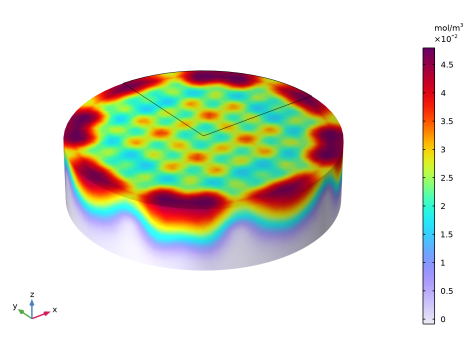
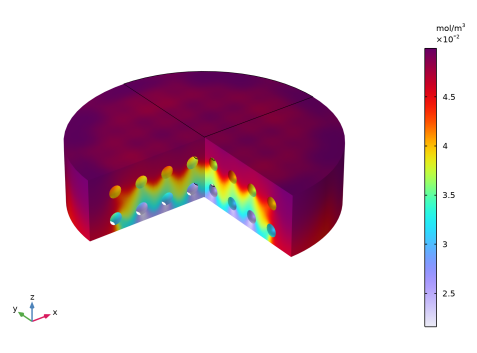
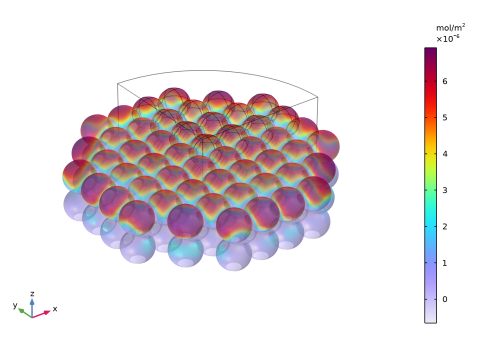
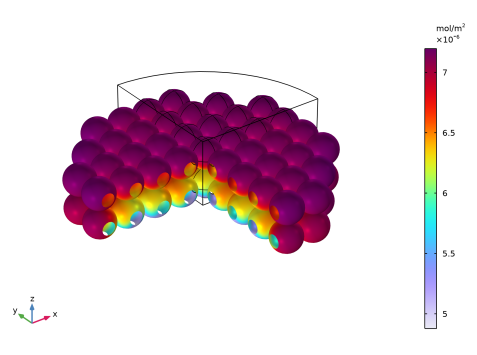
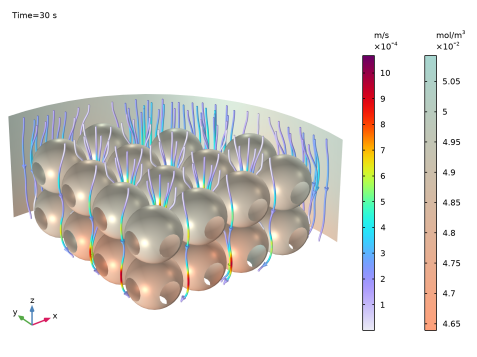
|
1
|
|
2
|
|
3
|
Click Add.
|
|
4
|
Click
 Study. Study. |
|
5
|
|
6
|
Click
 Done. Done. |
|
1
|
|
2
|
|
3
|
Click
 Load from File. Load from File. |
|
4
|
Browse to the model’s Application Libraries folder and double-click the file protein_adsorption_parameters.txt.
|
|
1
|
|
2
|
|
3
|
|
4
|
|
1
|
In the Model Builder window, under Component 1 (comp1) right-click Definitions and choose Variables.
|
|
2
|
|
1
|
|
2
|
|
3
|
|
4
|
|
1
|
|
2
|
|
3
|
|
4
|
Click Apply.
|
|
5
|
|
1
|
|
2
|
|
3
|
Clear the Enable formula checkbox.
|
|
4
|
|
1
|
|
2
|
|
3
|
|
4
|
|
1
|
|
2
|
|
3
|
Clear the Enable formula checkbox.
|
|
4
|
|
5
|
|
1
|
|
2
|
|
3
|
|
1
|
|
2
|
|
3
|
|
4
|
Click Apply.
|
|
5
|
|
1
|
|
2
|
|
3
|
Clear the Enable formula checkbox.
|
|
4
|
|
5
|
|
1
|
|
2
|
|
3
|
Clear the Enable formula checkbox.
|
|
4
|
|
5
|
|
6
|
|
7
|
|
8
|
Locate the Reactor section. Find the Mass balance subsection. From the Volumetric rate list, choose User defined.
|
|
9
|
|
10
|
|
1
|
|
2
|
In the Settings window for Initial Values, click to expand the Surface Species Initial Values section.
|
|
3
|
|
1
|
|
2
|
|
3
|
|
4
|
Locate the Feed Inlet Concentration section. In the table, enter the following settings:
|
|
1
|
|
2
|
|
1
|
|
2
|
|
3
|
|
4
|
|
1
|
|
2
|
|
3
|
|
4
|
Select the y-axis label checkbox. In the associated text field, type Concentration (mol/m<sup>3</sup>) | Surface concentration (mol/m<sup>2</sup>).
|
|
5
|
|
1
|
|
2
|
In the Settings window for Global, click Replace Expression in the upper-right corner of the y-Axis Data section. From the menu, choose Component 1 (comp1) > Reaction Engineering > re.c_A - Concentration - mol/m³.
|
|
3
|
Click Add Expression in the upper-right corner of the y-Axis Data section. From the menu, choose Component 1 (comp1) > Reaction Engineering > re.c_B - Concentration - mol/m³.
|
|
4
|
Click Add Expression in the upper-right corner of the y-Axis Data section. From the menu, choose Component 1 (comp1) > Reaction Engineering > re.c_S - Concentration - mol/m³.
|
|
5
|
Click Add Expression in the upper-right corner of the y-Axis Data section. From the menu, choose Component 1 (comp1) > Reaction Engineering > re.csurf_A_surf - Surface concentration - mol/m².
|
|
6
|
Click Add Expression in the upper-right corner of the y-Axis Data section. From the menu, choose Component 1 (comp1) > Reaction Engineering > re.csurf_B_surf - Surface concentration - mol/m².
|
|
7
|
Click Add Expression in the upper-right corner of the y-Axis Data section. From the menu, choose Component 1 (comp1) > Reaction Engineering > re.csurf_S_surf - Surface concentration - mol/m².
|
|
8
|
Locate the y-Axis Data section. In the table, enter the following settings:
|
|
9
|
|
10
|
|
12
|
|
1
|
|
2
|
|
3
|
|
4
|
|
5
|
|
6
|
|
1
|
|
2
|
|
4
|
|
5
|
In the Settings window for Reaction Engineering, click to expand the Calculate Transport Properties section.
|
|
6
|
Select the Calculate mixture properties checkbox.
|
|
7
|
|
8
|
|
1
|
|
2
|
|
3
|
|
4
|
Locate the Physics Interfaces section. Find the Fluid flow subsection. From the list, choose Laminar Flow: New.
|
|
5
|
|
1
|
|
2
|
|
3
|
Browse to the model’s Application Libraries folder and double-click the file protein_adsorption_geom_sequence.mph.
|
|
4
|
|
5
|
|
1
|
In the Model Builder window, expand the Component 2 (comp2) > Transport of Diluted Species (tds) node, then click Initial Values 1.
|
|
2
|
|
3
|
|
4
|
|
5
|
|
1
|
|
2
|
|
3
|
|
4
|
|
5
|
|
6
|
|
1
|
|
2
|
|
3
|
|
1
|
|
2
|
|
3
|
|
1
|
|
2
|
|
3
|
|
1
|
|
2
|
|
3
|
|
1
|
|
2
|
|
3
|
|
1
|
|
2
|
|
3
|
|
4
|
|
1
|
|
2
|
|
3
|
|
4
|
|
1
|
|
2
|
|
3
|
|
4
|
|
5
|
|
1
|
|
2
|
|
3
|
|
1
|
|
2
|
|
3
|
Click
 Create Selection. Create Selection. |
|
4
|
|
5
|
Click OK.
|
|
1
|
|
2
|
|
3
|
|
1
|
|
2
|
|
3
|
Click the Custom button.
|
|
4
|
Locate the Element Size Parameters section.
|
|
5
|
|
1
|
|
2
|
|
3
|
|
4
|
|
1
|
|
2
|
|
3
|
Click the Custom button.
|
|
4
|
Locate the Element Size Parameters section.
|
|
5
|
|
1
|
|
2
|
|
1
|
|
2
|
|
3
|
Locate the Physics and Variables Selection section. In the Solve for column of the table, under Component 2 (comp2), clear the checkboxes for Chemistry (chem), Transport of Diluted Species (tds), and Surface Reactions (sr).
|
|
1
|
|
2
|
In the Settings window for Time Dependent, type Time Dependent - the Rest of the Interfaces in the Label text field.
|
|
3
|
|
4
|
|
5
|
|
6
|
Locate the Physics and Variables Selection section. In the Solve for column of the table, under Component 2 (comp2), clear the checkbox for Laminar Flow (spf).
|
|
1
|
|
2
|
|
3
|
|
4
|
|
5
|
|
6
|
Right-click Study 2 - Space Dependent > Solver Configurations > Solution 2 (sol2) > Time-Dependent Solver 1 and choose Fully Coupled.
|
|
7
|
|
8
|
|
9
|
|
10
|
|
11
|
Clear the Generate default plots checkbox.
|
|
12
|
|
1
|
|
2
|
|
3
|
|
4
|
Click
 Plot. Plot. |
|
1
|
|
2
|
|
3
|
|
4
|
|
5
|
|
6
|
Click
 Plot. Plot. |
|
1
|
|
2
|
|
3
|
|
1
|
|
2
|
|
3
|
|
4
|
|
5
|
Click Replace Expression in the upper-right corner of the Expression section. From the menu, choose Component 2 (comp2) > Transport of Diluted Species > Species cB > cB - Molar concentration, cB - mol/m³.
|
|
6
|
|
7
|
|
8
|
|
1
|
|
2
|
|
3
|
|
1
|
|
2
|
|
3
|
|
4
|
|
5
|
|
6
|
|
1
|
|
2
|
In the Settings window for 3D Plot Group, type Surface concentration B, 5 s in the Label text field.
|
|
3
|
|
1
|
|
2
|
|
3
|
|
4
|
|
5
|
Click Replace Expression in the upper-right corner of the Expression section. From the menu, choose Component 2 (comp2) > Surface Reactions > Surface species cs_B > cs_B - Surface concentration - mol/m².
|
|
6
|
|
7
|
|
8
|
|
1
|
|
2
|
In the Settings window for 3D Plot Group, type Surface concentration B, 30 s in the Label text field.
|
|
3
|
|
1
|
|
2
|
|
3
|
|
4
|
|
5
|
|
6
|
|
7
|
|
1
|
|
2
|
|
3
|
|
4
|
|
5
|
Clear the Description checkbox.
|
|
6
|
Clear the Unit checkbox.
|
|
7
|
|
8
|
|
1
|
|
2
|
In the Settings window for Streamline, click Replace Expression in the upper-right corner of the Expression section. From the menu, choose Component 2 (comp2) > Laminar Flow > Velocity and pressure > u,v,w - Velocity field.
|
|
3
|
|
4
|
|
5
|
|
6
|
Locate the Coloring and Style section. Find the Point style subsection. From the Type list, choose Arrow.
|
|
7
|
|
1
|
|
2
|
In the Settings window for Color Expression, click Replace Expression in the upper-right corner of the Expression section. From the menu, choose Component 2 (comp2) > Laminar Flow > Velocity and pressure > spf.U - Velocity magnitude - m/s.
|
|
1
|
|
2
|
|
3
|
|
4
|
|
5
|
Click Define custom colors.
|
|
7
|
Click Add to custom colors.
|
|
8
|
|
9
|
|
10
|
Click Define custom colors.
|
|
12
|
Click Add to custom colors.
|
|
13
|
|
1
|
|
2
|
|
3
|
|
4
|
|
1
|
|
2
|
|
1
|
|
2
|
|
3
|
|
4
|
|
1
|
|
2
|
|
3
|
|
4
|
|
5
|
|
1
|
|
2
|
Click in the Graphics window and then press Ctrl+A to select both objects.
|
|
1
|
|
2
|
|
3
|
|
4
|
|
5
|
|
6
|
|
1
|
|
2
|
Select the object sph1 only.
|
|
3
|
|
4
|
|
5
|
|
6
|
|
7
|
|
8
|
|
9
|
|
10
|
Locate the Selections of Resulting Entities section. Select the Resulting objects selection checkbox.
|
|
11
|
|
12
|
Click
 Build Selected. Build Selected. |
|
1
|
|
2
|
|
3
|
Select the objects arr1(3,4,1), arr1(3,4,2), arr1(4,3,1), arr1(4,3,2), arr1(4,4,1), and arr1(4,4,2) only.
|
|
1
|
|
2
|
Select the object int1 only.
|
|
3
|
|
4
|
|
1
|
|
2
|
|
1
|
|
2
|
|
3
|
|
4
|
On the object fin, select Boundary 37 only.
|
|
5
|
|
1
|
|
2
|
|
3
|
|
4
|
On the object fin, select Boundary 4 only.
|
|
1
|
|
2
|
|
3
|
|
4
|
On the object fin, select Boundary 3 only.
|
|
1
|
|
2
|
|
3
|
|
4
|
On the object fin, select Boundaries 1 and 2 only.
|


