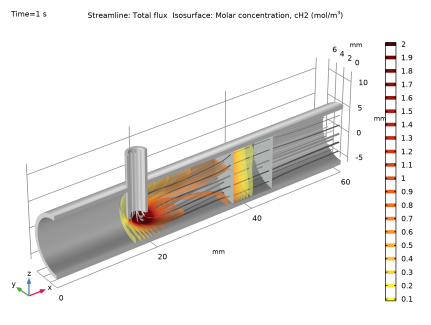
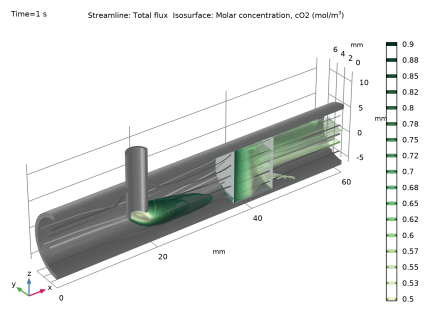
|
|
|

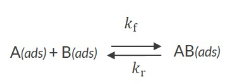



|
•
|
Gaseous H2 being dissociatively adsorbed on two neighboring Rh sites:
|

|
•
|
Gaseous O2 being dissociatively absorbed on two neighboring Rh sites:
|

|
•
|
Gaseous H2O being absorbed on a Rh site:
|




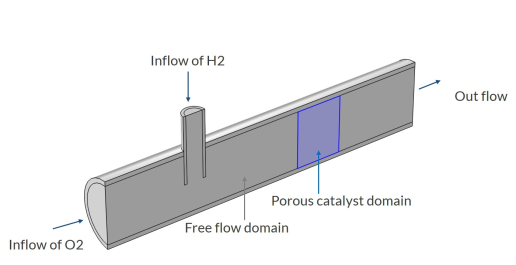


|
•
|
|
•
|
|
•
|
cPmax,i is the maximum adsorbed amount (mol/kg), and
|
|
•
|









|
1
|
|
2
|
|
3
|
Click Add.
|
|
4
|
Click
 Study. Study. |
|
5
|
|
6
|
Click
 Done. Done. |
|
1
|
|
2
|
|
3
|
|
4
|
Browse to the model’s Application Libraries folder and double-click the file porous_reactor_reaction_parameters.txt.
|
|
1
|
|
2
|
|
1
|
|
2
|
|
3
|
|
1
|
|
2
|
|
3
|
|
4
|
Click Apply.
|
|
5
|
|
6
|
|
1
|
|
2
|
|
3
|
|
4
|
Click Apply.
|
|
5
|
|
6
|
|
1
|
|
2
|
|
3
|
|
4
|
Click Apply.
|
|
5
|
|
6
|
|
1
|
|
2
|
|
3
|
|
4
|
Click Apply.
|
|
5
|
|
6
|
|
1
|
|
2
|
|
3
|
|
4
|
Click Apply.
|
|
5
|
|
6
|
|
1
|
|
2
|
|
3
|
|
4
|
Click Apply.
|
|
5
|
|
6
|
|
1
|
|
2
|
|
3
|
|
4
|
|
5
|
|
6
|
|
7
|
|
8
|
|
1
|
|
2
|
|
4
|
|
1
|
|
2
|
|
3
|
|
4
|
|
1
|
|
2
|
In the Rename 1D Plot Group dialog, type Concentration (re), bulk species in the New label text field.
|
|
3
|
Click OK.
|
|
1
|
|
2
|
|
3
|
Click
 Clear Table. Clear Table. |
|
4
|
Click Add Expression in the upper-right corner of the y-Axis Data section. From the menu, choose Component 1 (comp1) > Reaction Engineering > re.c_H2 - Concentration - mol/m³.
|
|
5
|
Click Add Expression in the upper-right corner of the y-Axis Data section. From the menu, choose Component 1 (comp1) > Reaction Engineering > re.c_H2O - Concentration - mol/m³.
|
|
6
|
Click Add Expression in the upper-right corner of the y-Axis Data section. From the menu, choose Component 1 (comp1) > Reaction Engineering > re.c_O2 - Concentration - mol/m³.
|
|
7
|
|
8
|
|
1
|
|
2
|
In the Settings window for 1D Plot Group, type Concentration (re), surface species in the Label text field.
|
|
3
|
|
1
|
|
2
|
|
3
|
Click
 Clear Table. Clear Table. |
|
4
|
Click Add Expression in the upper-right corner of the y-Axis Data section. From the menu, choose Component 1 (comp1) > Reaction Engineering > re.csurf_H_surf - Surface concentration - mol/m².
|
|
5
|
Click Add Expression in the upper-right corner of the y-Axis Data section. From the menu, choose Component 1 (comp1) > Reaction Engineering > re.csurf_O_surf - Surface concentration - mol/m².
|
|
6
|
Click Add Expression in the upper-right corner of the y-Axis Data section. From the menu, choose Component 1 (comp1) > Reaction Engineering > re.csurf_OH_surf - Surface concentration - mol/m².
|
|
7
|
Click Add Expression in the upper-right corner of the y-Axis Data section. From the menu, choose Component 1 (comp1) > Reaction Engineering > re.csurf_H2O_surf - Surface concentration - mol/m².
|
|
8
|
Click Add Expression in the upper-right corner of the y-Axis Data section. From the menu, choose Component 1 (comp1) > Reaction Engineering > re.csurf_Rh_surf - Surface concentration - mol/m².
|
|
9
|
|
10
|
|
11
|
|
12
|
|
1
|
|
2
|
|
3
|
Find the Chemical species transport subsection. From the list, choose Reacting Flow in Porous Media: New.
|
|
4
|
From the list, choose Porous Catalyst.
|
|
5
|
|
6
|
|
1
|
|
2
|
|
3
|
|
4
|
Browse to the model’s Application Libraries folder and double-click the file porous_reactor_catalyst_parameters.txt.
|
|
1
|
|
1
|
In the Model Builder window, expand the Component 2 (comp2) > Geometry 1(3D) node, then click Geometry 1(3D).
|
|
2
|
|
3
|
|
1
|
|
2
|
|
3
|
|
4
|
|
5
|
|
6
|
|
7
|
|
8
|
Click to expand the Layers section. In the table, enter the following settings:
|
|
1
|
|
2
|
|
3
|
|
4
|
|
5
|
|
6
|
|
7
|
|
8
|
|
1
|
|
2
|
|
3
|
|
4
|
|
5
|
|
6
|
Locate the Layers section. In the table, enter the following settings:
|
|
1
|
|
2
|
Select the object cyl1 only.
|
|
3
|
|
4
|
|
5
|
Select the object cyl3 only.
|
|
6
|
Select the Keep objects to subtract checkbox.
|
|
1
|
|
2
|
|
3
|
|
4
|
|
5
|
|
6
|
Click OK.
|
|
1
|
|
2
|
|
3
|
|
4
|
|
5
|
|
6
|
|
7
|
|
1
|
|
2
|
Select the object uni1 only.
|
|
3
|
|
4
|
|
5
|
Select the object blk1 only.
|
|
1
|
|
2
|
On the object fin, select Boundaries 19 and 20 only.
|
|
1
|
|
2
|
|
3
|
|
4
|
|
5
|
Click OK.
|
|
6
|
|
1
|
|
2
|
|
3
|
|
1
|
|
2
|
|
3
|
|
1
|
|
2
|
|
3
|
|
1
|
|
2
|
|
3
|
|
1
|
|
2
|
|
3
|
|
1
|
|
2
|
|
3
|
|
4
|
|
5
|
|
6
|
|
7
|
|
8
|
|
1
|
|
2
|
|
1
|
|
2
|
|
3
|
|
4
|
|
5
|
Click OK.
|
|
1
|
|
2
|
|
3
|
|
4
|
|
5
|
Click OK.
|
|
6
|
|
7
|
|
1
|
|
2
|
|
3
|
|
4
|
|
5
|
Click OK.
|
|
1
|
|
2
|
|
3
|
|
4
|
|
5
|
Click OK.
|
|
1
|
|
2
|
|
3
|
|
4
|
|
5
|
|
6
|
Click OK.
|
|
7
|
|
8
|
|
9
|
|
10
|
Click OK.
|
|
1
|
|
2
|
|
3
|
|
4
|
Click
 Paste Selection. Paste Selection. |
|
5
|
|
6
|
Click OK.
|
|
1
|
|
2
|
Go to the Add Material window.
|
|
3
|
|
4
|
Click the Add to Component button in the window toolbar.
|
|
1
|
|
2
|
|
3
|
Locate the Material Contents section. In the table, enter the following settings:
|
|
4
|
|
1
|
|
1
|
In the Model Builder window, expand the Porous Material 1 (pmat1) node, then click Fluid 1 (pmat1.fluid1).
|
|
2
|
|
3
|
|
1
|
|
2
|
|
3
|
|
1
|
|
2
|
|
1
|
In the Model Builder window, under Component 2 (comp2) click Transport of Diluted Species in Porous Catalysts (tds).
|
|
2
|
In the Settings window for Transport of Diluted Species in Porous Catalysts, locate the Domain Selection section.
|
|
3
|
|
4
|
|
5
|
In the Show More Options dialog, in the tree, select the checkbox for the node Physics > Advanced Physics Options.
|
|
6
|
Click OK.
|
|
7
|
In the Settings window for Transport of Diluted Species in Porous Catalysts, click to expand the Advanced Settings section.
|
|
8
|
|
1
|
In the Model Builder window, expand the Transport of Diluted Species in Porous Catalysts (tds) node, then click Porous Catalyst 1.
|
|
2
|
|
3
|
Clear the Adsorption/Desorption of bulk species checkbox.
|
|
4
|
Locate the Surface Species section. In the table, enter the following settings:
|
|
1
|
|
2
|
|
3
|
|
4
|
|
5
|
|
6
|
|
1
|
In the Model Builder window, under Component 2 (comp2) right-click Definitions and choose Variables.
|
|
2
|
In the Settings window for Variables, type Variables 1, bulk concentration defined from surface concentration in the Label text field.
|
|
3
|
|
5
|
|
6
|
Browse to the model’s Application Libraries folder and double-click the file porous_reactor_variables.txt.
|
|
1
|
In the Model Builder window, under Component 2 (comp2) > Transport of Diluted Species in Porous Catalysts (tds) click Initial Values 1.
|
|
2
|
|
3
|
|
4
|
|
1
|
|
3
|
|
4
|
|
5
|
|
6
|
|
7
|
|
1
|
|
2
|
|
3
|
|
1
|
|
2
|
|
3
|
|
4
|
|
1
|
|
2
|
|
3
|
|
4
|
|
1
|
|
2
|
|
3
|
|
1
|
|
2
|
|
3
|
|
4
|
|
5
|
|
1
|
|
1
|
|
2
|
|
3
|
|
4
|
|
5
|
|
1
|
|
2
|
|
3
|
|
4
|
|
5
|
|
1
|
|
2
|
|
3
|
|
1
|
|
2
|
|
3
|
|
1
|
|
2
|
|
3
|
|
4
|
|
6
|
|
7
|
|
1
|
|
2
|
|
3
|
|
4
|
|
1
|
|
2
|
|
3
|
|
4
|
Click
 Paste Selection. Paste Selection. |
|
5
|
|
6
|
Click OK.
|
|
7
|
|
8
|
|
9
|
|
1
|
|
2
|
|
3
|
|
1
|
|
2
|
|
3
|
|
4
|
|
1
|
|
2
|
|
3
|
|
4
|
Click
 Paste Selection. Paste Selection. |
|
5
|
|
6
|
Click OK.
|
|
7
|
|
8
|
|
9
|
Click the Custom button.
|
|
10
|
Locate the Element Size Parameters section.
|
|
11
|
|
1
|
|
2
|
|
3
|
|
4
|
|
1
|
|
2
|
|
3
|
|
4
|
|
1
|
|
2
|
|
3
|
|
5
|
|
6
|
|
7
|
Click OK.
|
|
1
|
|
2
|
|
3
|
|
4
|
Click
 Paste Selection. Paste Selection. |
|
5
|
|
6
|
Click OK.
|
|
7
|
|
8
|
|
1
|
|
2
|
|
3
|
|
4
|
Click
 Paste Selection. Paste Selection. |
|
5
|
|
6
|
Click OK.
|
|
7
|
|
8
|
|
9
|
Click the Custom button.
|
|
10
|
Locate the Element Size Parameters section.
|
|
11
|
|
1
|
|
2
|
|
3
|
|
4
|
|
5
|
Click to expand the Corner Settings section. From the Handling of sharp edges list, choose Trimming.
|
|
1
|
|
2
|
|
3
|
Click
 Paste Selection. Paste Selection. |
|
4
|
|
5
|
Click OK.
|
|
6
|
|
7
|
|
8
|
|
9
|
|
1
|
|
2
|
|
3
|
|
4
|
|
5
|
|
6
|
|
1
|
|
2
|
|
3
|
Click
 Paste Selection. Paste Selection. |
|
4
|
|
5
|
Click OK.
|
|
6
|
|
7
|
|
8
|
|
9
|
|
10
|
Click
 Build All. Build All. |
|
1
|
|
2
|
|
3
|
In the Solve for column of the table, under Component 2 (comp2), clear the checkbox for Transport of Diluted Species in Porous Catalysts (tds).
|
|
4
|
In the Solve for column of the table, under Component 2 (comp2) > Multiphysics, clear the checkbox for Reacting Flow, Diluted Species 1 (rfd1).
|
|
5
|
|
1
|
|
2
|
|
3
|
|
4
|
Locate the Physics and Variables Selection section. In the Solve for column of the table, under Component 2 (comp2), clear the checkbox for Brinkman Equations (br).
|
|
1
|
|
2
|
In the Settings window for Time Dependent, click to expand the Values of Dependent Variables section.
|
|
3
|
Find the Values of variables not solved for subsection. From the Settings list, choose User controlled.
|
|
1
|
|
2
|
In the Model Builder window, expand the Study 2 > Solver Configurations > Solution 2 (sol2) > Dependent Variables 2 node, then click Concentration (comp2.cH2).
|
|
3
|
|
4
|
|
5
|
In the Model Builder window, under Study 2 > Solver Configurations > Solution 2 (sol2) > Dependent Variables 2 click Concentration (comp2.cH2O).
|
|
6
|
|
7
|
|
8
|
In the Model Builder window, under Study 2 > Solver Configurations > Solution 2 (sol2) > Dependent Variables 2 click Concentration (comp2.cO2).
|
|
9
|
|
10
|
|
11
|
In the Model Builder window, under Study 2 > Solver Configurations > Solution 2 (sol2) > Dependent Variables 2 click Surface Concentration (comp2.tds.csurf_H).
|
|
12
|
|
13
|
|
14
|
|
15
|
In the Model Builder window, under Study 2 > Solver Configurations > Solution 2 (sol2) > Dependent Variables 2 click Surface Concentration (comp2.tds.csurf_H2O).
|
|
16
|
|
17
|
|
18
|
|
19
|
In the Model Builder window, under Study 2 > Solver Configurations > Solution 2 (sol2) > Dependent Variables 2 click Surface Concentration (comp2.tds.csurf_O).
|
|
20
|
|
21
|
|
22
|
|
23
|
In the Model Builder window, under Study 2 > Solver Configurations > Solution 2 (sol2) > Dependent Variables 2 click Surface Concentration (comp2.tds.csurf_OH).
|
|
24
|
|
25
|
|
26
|
|
27
|
In the Model Builder window, under Study 2 > Solver Configurations > Solution 2 (sol2) > Dependent Variables 2 click Surface Concentration (comp2.tds.csurf_Rh).
|
|
28
|
|
29
|
|
30
|
|
31
|
In the Model Builder window, under Study 2 > Solver Configurations > Solution 2 (sol2) click Time-Dependent Solver 1.
|
|
32
|
|
33
|
|
34
|
Click to expand the Time Stepping section. Find the Algebraic variable settings subsection. From the Error estimation list, choose Exclude algebraic.
|
|
35
|
Right-click Study 2 > Solver Configurations > Solution 2 (sol2) > Time-Dependent Solver 1 and choose Segregated.
|
|
36
|
|
37
|
|
38
|
|
39
|
|
40
|
|
41
|
Right-click Study 2 > Solver Configurations > Solution 2 (sol2) > Time-Dependent Solver 1 > Segregated 1 and choose Segregated Step.
|
|
42
|
|
43
|
|
44
|
In the Add dialog, in the Variables list, choose Concentration (comp2.cH2), Concentration (comp2.cH2O), and Concentration (comp2.cO2).
|
|
45
|
Click OK.
|
|
46
|
|
47
|
|
48
|
|
49
|
|
50
|
|
51
|
|
52
|
In the Add dialog, in the Variables list, choose Surface Concentration (comp2.tds.csurf_H), Surface Concentration (comp2.tds.csurf_H2O), Surface Concentration (comp2.tds.csurf_O), Surface Concentration (comp2.tds.csurf_OH), and Surface Concentration (comp2.tds.csurf_Rh).
|
|
53
|
Click OK.
|
|
54
|
|
55
|
|
56
|
|
57
|
In the Model Builder window, under Study 2 > Solver Configurations > Solution 2 (sol2) > Time-Dependent Solver 1 > Segregated 1 right-click Segregated Step and choose Delete.
|
|
58
|
Right-click Study 2 > Solver Configurations > Solution 2 (sol2) > Time-Dependent Solver 1 > Segregated 1 and choose Lower Limit.
|
|
59
|
|
60
|
In the Lower limits (field variables) text field, type comp2.tds.csurf_Rh 1e-16 comp2.tds.csurf_H 1e-16 comp2.tds.csurf_H2O 1e-16 comp2.tds.csurf_O 1e-16 comp2.tds.csurf_OH 1e-16.
|
|
61
|
|
1
|
|
2
|
|
3
|
|
4
|
|
5
|
|
1
|
|
2
|
|
3
|
|
4
|
|
1
|
|
2
|
|
3
|
Select the Show units checkbox.
|
|
1
|
|
2
|
|
3
|
|
4
|
|
5
|
|
6
|
|
1
|
|
2
|
|
3
|
|
1
|
|
2
|
|
3
|
|
4
|
|
5
|
|
1
|
|
2
|
|
3
|
|
1
|
|
2
|
|
3
|
|
1
|
|
2
|
|
3
|
|
4
|
|
5
|
|
6
|
|
7
|
|
8
|
|
9
|
|
10
|
|
1
|
|
2
|
|
3
|
|
4
|
|
5
|
|
1
|
|
2
|
|
3
|
|
4
|
|
1
|
In the Model Builder window, expand the Concentration, H2, Surface (tds) node, then click Surface 1.
|
|
2
|
|
3
|
|
4
|
|
5
|
|
6
|
|
1
|
|
2
|
|
3
|
|
1
|
|
2
|
|
3
|
|
4
|
|
5
|
|
6
|
|
1
|
|
2
|
|
3
|
|
1
|
|
2
|
|
3
|
|
4
|
|
1
|
|
2
|
|
3
|
|
4
|
|
5
|
|
6
|
Click OK.
|
|
7
|
|
8
|
|
9
|
|
10
|
|
1
|
|
2
|
|
3
|
|
4
|
|
5
|
|
1
|
|
2
|
|
3
|
|
1
|
In the Model Builder window, expand the Results > Concentration, H2O, Surface (tds) node, then click Surface 1.
|
|
2
|
|
3
|
|
1
|
|
2
|
|
3
|
|
4
|
|
1
|
In the Model Builder window, expand the Concentration, O2, Surface (tds) node, then click Surface 1.
|
|
2
|
|
3
|
|
4
|
|
5
|
|
6
|
|
1
|
|
2
|
|
3
|
|
1
|
|
2
|
|
3
|
|
4
|
|
1
|
|
2
|
|
3
|
|
1
|
|
2
|
|
3
|
|
4
|
|
1
|
|
2
|
|
3
|
|
4
|
|
5
|
|
6
|
|
7
|
|
8
|
|
9
|
Click OK.
|
|
10
|
|
11
|
|
12
|
|
13
|
|
1
|
|
2
|
|
3
|
|
4
|
|
5
|
|
6
|
|
7
|
|
1
|
|
2
|
|
3
|
|
1
|
|
2
|
|
3
|
|
4
|
|
5
|
|
6
|
|
7
|
Locate the Legends section. Find the Include in automatic mode subsection. Clear the Point checkbox.
|
|
8
|
Clear the Solution checkbox.
|
|
9
|
Select the Expression checkbox.
|
|
10
|
Clear the Headers checkbox.
|
|
1
|
|
2
|
|
3
|
|
4
|
|
5
|
|
6
|
|
7
|
Locate the Plot Settings section.
|
|
8
|
Select the y-axis label checkbox. In the associated text field, type Concentration (mol/m<sup>3</sup>).
|
|
9
|
Click to expand the Style Configuration section. From the Configuration list, choose Graph Plot Style 1.
|
|
1
|
|
2
|
|
3
|
|
1
|
|
2
|
|
3
|
|
1
|
|
2
|
|
3
|
|
4
|
|
5
|
|
6
|
|
1
|
|
2
|
|
3
|
In the Settings window for 1D Plot Group, type Porous domain: surface species in the Label text field.
|
|
1
|
|
2
|
|
3
|
|
1
|
|
2
|
|
3
|
|
1
|
|
2
|
|
3
|
|
1
|
|
2
|
|
3
|
|
4
|
|
5
|
|
6
|
|
1
|
|
2
|
|
3
|
|
4
|
|
5
|
|
6
|
|
1
|
|
2
|
|
1
|
|
2
|
|
1
|
|
2
|
|
1
|
In the Model Builder window, under Results > Porous domain: all species, Ctrl-click to select Bulk: cO2 and Bulk: cH2O.
|
|
2
|
Right-click and choose Duplicate.
|
|
1
|
|
2
|
|
1
|
|
2
|
|
3
|
|
1
|
In the Model Builder window, under Results > Porous domain: all species, Ctrl-click to select Surface: cs_Rh and Surface: cs_H.
|
|
2
|
Right-click and choose Duplicate.
|
|
1
|
|
2
|
|
1
|
|
2
|
|
3
|
|
1
|
|
2
|
|
3
|
|
4
|
|
5
|
|
6
|