

PDF

Fine Chemical Production in a Plate Reactor
Introduction
Plate reactors operating under continuous conditions have potential to replace batch reactors, primarily in fine chemicals and pharmaceuticals production. An advantage of the plate reactor design is that it allows for efficient temperature control of the reacting fluid. For instance, this means that the heat released from strongly exothermic reactions can be readily dissipated and more concentrated reaction mixtures can be run through the system. Plate reactors show promise to improve energy-efficiency at small scales.
The model presented here shows you how to set up and solve the coupled flow, mass, and energy transport equations describing the reacting flow in a plate reactor.
Model Definition
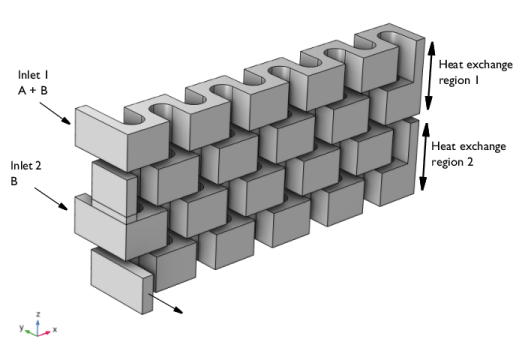
A plate reactor is similar to a heat exchanger in design, where reactor plates and cooling/heating plates are stacked on top of one another. Figure 1 shows the winding interior of a reactor plate treated in the present model. Reactants enter the system through two inlet streams. Two heat exchange zones affect the outer boundaries.
Figure 1: 3D geometry of a reactor plate. Two inlet streams are indicated as are the two heat exchange zones.
Chemistry
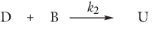
Two exothermic chemical reactions take place in aqueous solution. The first reaction generates the desired product D. In the second reaction the desired product proceeds to react with B to generate the unwanted product U.
The reaction rates (mol/(m3·s)) are given by:
where the rate constants for reaction j are temperature dependent according to the Arrhenius equation as follows:
(1)
Both reactions are exothermic, and the rate of energy released is given by:
(2)
The Arrhenius parameters and heat of reactions are summarized in Table 1.
1·104(m3/mol/s)
4·104 (J/mol)
-1.1·105 (J/mol)
1·107(m3/mol/s)
6·104 (J/mol)
-1·106 (J/mol)
The higher activation energy of reaction 2 makes the reaction rate more temperature sensitive compared to reaction 1. As both reactions are exothermic there is a risk that elevated temperatures will make the second reaction dominant, producing the unwanted product U. From this point of view, it is important to dissipate the heat of the reaction in such a way that the temperature allows for reaction 1 to proceed at a reasonable rate while reaction 2 is inhibited. In the present model, the second half of the reactor exchanges heat with a cooling medium that is at a lower temperature compared to the first half.
Momentum, Energy, and Mass Transport
The model accounts for coupled momentum, energy, and mass transport within the plate reactor:
The boundary conditions utilized in the three interfaces are listed in Table 2.
Results and Discussion
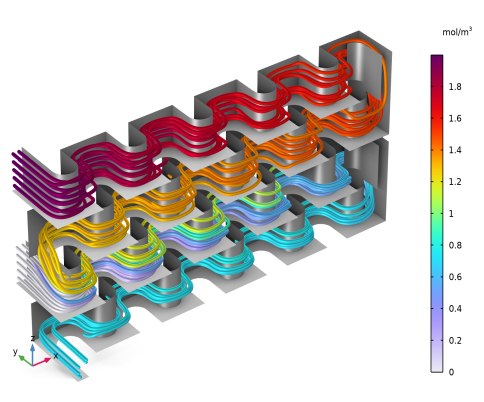
Figure 2 shows the streamlines of the fluid flow in the reactor plate. The color scale indicates the concentration of reactant A.
Figure 2: Streamlines of the fluid flow with the concentration of reactant A indicated by the color scale.
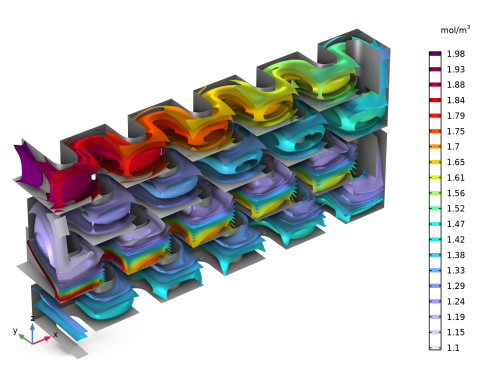
The isosurfaces for the concentration of reactant B are shown in Figure 3. The chemical reactions clearly consume the reactant along the entire reactor volume. The injection stream at the second inlet port mixes with the main stream, in effect making the distribution of B more uniform in the second part of the reactor.
Figure 3: The concentration of reactant B (mol/m3) across the reactor volume.
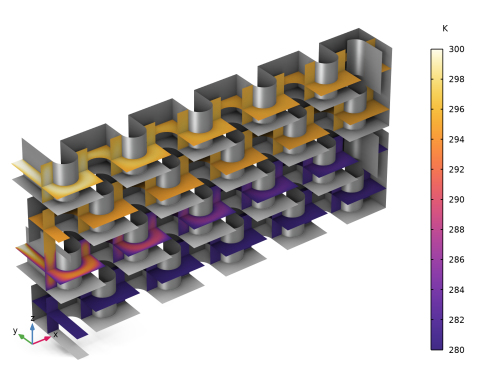
Figure 4 shows the temperature distribution, represented by horizontal and vertical cut planes.
Figure 4: Temperature distribution in the reactor plate.
Heat expelled by the reactions is seen to be quenched by the cooling in all parts of the reactor.
Application Library path: Chemical_Reaction_Engineering_Module/Reactors_with_Mass_and_Heat_Transfer/plate_reactor
Modeling Instructions
From the File menu, choose New.
New
In the New window, click  Model Wizard.
Model Wizard
1
In the Model Wizard window, click  3D.
2
In the Select Physics tree, select Fluid Flow > Single-Phase Flow > Laminar Flow (spf).
3
Click Add.
4
In the Select Physics tree, select Chemical Species Transport > Chemistry (chem).
5
Click Add.
6
In the Select Physics tree, select Heat Transfer > Heat Transfer in Fluids (ht).
7
Click Add.
8
In the Select Physics tree, select Chemical Species Transport > Transport of Diluted Species (tds).
9
Click Add.
10
In the Number of species text field, type 4.
11
In the Concentrations (mol/m³) table, enter the following settings:
12
Click  Study.
13
In the Select Study tree, select General Studies > Stationary.
14
Global Definitions
Load the model parameters from a text file.
Parameters 1
1
In the Model Builder window, under Global Definitions click Parameters 1.
2
In the Settings window for Parameters, locate the Parameters section.
3
Click  Load from File.
4
Geometry 1
Insert the geometry sequence.
1
In the Geometry toolbar, click Insert Sequence and choose Insert Sequence.
2
3
In the Geometry toolbar, click  Build All.
Disable the analysis of the geometry as the remaining small geometric details can be kept.
4
In the Model Builder window, click Geometry 1.
5
In the Settings window for Geometry, locate the Cleanup section.
6
Clear the Automatic detection of small details checkbox.
Add a selection which will be used later for visualizing the results.
Definitions
Cylinder 1
1
In the Definitions toolbar, click  Cylinder.
2
In the Settings window for Cylinder, locate the Geometric Entity Level section.
3
From the Level list, choose Boundary.
4
Locate the Size and Shape section. In the Outer radius text field, type 3.
5
In the Bottom distance text field, type 0.1.
6
In the Start angle text field, type 90.
7
In the End angle text field, type 270.
8
Locate the Position section. In the y text field, type 20.
9
Locate the Axis section. From the Axis type list, choose x-axis.
10
Locate the Output Entities section. From the Include entity if list, choose Entity intersects cylinder.
Cylinder 2
1
Right-click Cylinder 1 and choose Duplicate.
2
In the Settings window for Cylinder, locate the Position section.
3
In the z text field, type 18.
Cylinder 3
1
Right-click Cylinder 2 and choose Duplicate.
2
In the Settings window for Cylinder, locate the Position section.
3
In the x text field, type 6.
4
In the z text field, type 18*2.
Cylinder 4
1
Right-click Cylinder 3 and choose Duplicate.
2
In the Settings window for Cylinder, locate the Position section.
3
In the z text field, type 18*3.
Cylinder 5
1
Right-click Cylinder 4 and choose Duplicate.
2
In the Settings window for Cylinder, locate the Size and Shape section.
3
In the Outer radius text field, type 0.5.
4
In the Top distance text field, type 10.
5
In the Start angle text field, type 1.
6
In the End angle text field, type 360.
7
Locate the Position section. In the x text field, type 1.
8
In the z text field, type 18*2-1.
Explicit 1
1
In the Definitions toolbar, click  Explicit.
2
In the Settings window for Explicit, locate the Input Entities section.
3
From the Geometric entity level list, choose Boundary.
4
Wall selection
1
In the Definitions toolbar, click  Union.
2
In the Settings window for Union, type Wall selection in the Label text field.
3
Locate the Geometric Entity Level section. From the Level list, choose Boundary.
4
Locate the Input Entities section. Under Selections to add, click  Add.
5
In the Add dialog, in the Selections to add list, choose Cylinder 1, Cylinder 2, Cylinder 3, Cylinder 4, Cylinder 5, and Explicit 1.
6
Add Material
1
In the Materials toolbar, click  Add Material to open the Add Material window.
2
Go to the Add Material window.
3
In the tree, select Liquids and Gases > Liquids > Water.
4
Click the Add to Component button in the window toolbar.
5
In the Materials toolbar, click  Add Material to close the Add Material window.
Laminar Flow (spf)
Since the operating fluid is aqueous, the flow is assumed to be incompressible.
Inlet 1
1
In the Physics toolbar, click  Boundaries and choose Inlet.
2
In the Settings window for Inlet, locate the Boundary Selection section.
3
From the Selection list, choose Inlet 1.
4
Locate the Boundary Condition section. From the list, choose Fully developed flow.
5
Locate the Fully Developed Flow section. In the Uav text field, type U1.
Inlet 2
1
In the Physics toolbar, click  Boundaries and choose Inlet.
2
In the Settings window for Inlet, locate the Boundary Selection section.
3
From the Selection list, choose Inlet 2.
4
Locate the Boundary Condition section. From the list, choose Fully developed flow.
5
Locate the Fully Developed Flow section. In the Uav text field, type U2.
Outlet 1
1
In the Physics toolbar, click  Boundaries and choose Outlet.
2
In the Settings window for Outlet, locate the Boundary Selection section.
3
From the Selection list, choose Outlet.
Activate normal flow to model that the channel is continuous after the outlet.
4
Locate the Pressure Conditions section. Select the Normal flow checkbox.
Chemistry (chem)
1
In the Model Builder window, under Component 1 (comp1) click Chemistry (chem).
2
In the Settings window for Chemistry, locate the Model Input section.
3
From the T list, choose Temperature (ht).
Reaction 1
1
In the Physics toolbar, click  Domains and choose Reaction.
2
In the Settings window for Reaction, locate the Reaction Formula section.
3
In the Formula text field, type A+B=>D.
4
Click Apply.
5
Locate the Rate Constants section. Select the Use Arrhenius expressions checkbox.
6
In the Af text field, type Af1.
7
In the Ef text field, type Ef1.
8
Locate the Reaction Thermodynamic Properties section. From the Enthalpy of reaction list, choose User defined.
9
In the H text field, type H1.
Species: A
1
In the Model Builder window, click Species: A.
2
In the Settings window for Species, locate the Chemical Formula section.
3
In the M text field, type Mn_A.
Species: B
1
In the Model Builder window, click Species: B.
2
In the Settings window for Species, locate the Chemical Formula section.
3
In the M text field, type Mn_B.
Species: D
1
In the Model Builder window, click Species: D.
2
In the Settings window for Species, locate the Chemical Formula section.
3
In the M text field, type Mn_D.
Reaction 2
1
In the Physics toolbar, click  Domains and choose Reaction.
2
In the Settings window for Reaction, locate the Reaction Formula section.
3
In the Formula text field, type D+B=>U.
4
Click Apply.
5
Locate the Rate Constants section. Select the Use Arrhenius expressions checkbox.
6
In the Af text field, type Af2.
7
In the Ef text field, type Ef2.
8
Locate the Reaction Thermodynamic Properties section. From the Enthalpy of reaction list, choose User defined.
9
In the H text field, type H2.
Species: U
As for B, U does not correspond to uranium, but to the unwanted product. Therefore, it is necessary to clear the box in Enable formula.
1
In the Model Builder window, click Species: U.
2
In the Settings window for Species, locate the Chemical Formula section.
3
Clear the Enable formula checkbox.
4
In the M text field, type Mn_U.
Species 1
1
In the Physics toolbar, click  Domains and choose Species.
2
In the Settings window for Species, locate the Name section.
3
Since H2O corresponds to water, the function Enable formula can be used, which provides you with the correct density and molecular weight for water.
4
Locate the Chemical Formula section. Select the Enable formula checkbox.
5
In the Model Builder window, click Chemistry (chem).
6
In the Settings window for Chemistry, locate the Species Matching section.
7
Find the Bulk species subsection. From the Species solved for list, choose Transport of Diluted Species.
8
9
Click to expand the Mixture Properties section. From the Phase list, choose Liquid.
Heat Transfer in Fluids (ht)
Initial Values 1
1
In the Model Builder window, under Component 1 (comp1) > Heat Transfer in Fluids (ht) click Initial Values 1.
2
In the Settings window for Initial Values, locate the Initial Values section.
3
In the T text field, type T0.
Heat Source 1
1
In the Physics toolbar, click  Domains and choose Heat Source.
2
In the Settings window for Heat Source, locate the Heat Source section.
3
From the Q0 list, choose Heat of reactions (chem).
4
Locate the Domain Selection section. From the Selection list, choose All domains.
Inflow 1
1
In the Physics toolbar, click  Boundaries and choose Inflow.
2
In the Settings window for Inflow, locate the Boundary Selection section.
3
From the Selection list, choose Inlet 1.
4
Locate the Upstream Properties section. In the Tustr text field, type T0.
Inflow 2
1
Right-click Inflow 1 and choose Duplicate.
2
In the Settings window for Inflow, locate the Boundary Selection section.
3
From the Selection list, choose Inlet 2.
Outflow 1
1
In the Physics toolbar, click  Boundaries and choose Outflow.
2
In the Settings window for Outflow, locate the Boundary Selection section.
3
From the Selection list, choose Outlet.
Heat Flux 1
1
In the Physics toolbar, click  Boundaries and choose Heat Flux.
2
In the Settings window for Heat Flux, locate the Boundary Selection section.
3
From the Selection list, choose Heat Exchanger 1.
4
Locate the Heat Flux section. From the Flux type list, choose Convective heat flux.
5
In the h text field, type hx.
6
In the Text text field, type T0-5[K].
Heat Flux 2
1
In the Physics toolbar, click  Boundaries and choose Heat Flux.
2
In the Settings window for Heat Flux, locate the Boundary Selection section.
3
From the Selection list, choose Heat Exchanger 2.
4
Locate the Heat Flux section. From the Flux type list, choose Convective heat flux.
5
In the h text field, type hx.
6
In the Text text field, type T0-20[K].
Transport of Diluted Species (tds)
Fluid 1
1
In the Model Builder window, under Component 1 (comp1) > Transport of Diluted Species (tds) click Fluid 1.
2
In the Settings window for Fluid, locate the Diffusion section.
3
In the DcA text field, type D.
4
In the DcB text field, type D.
5
In the DcD text field, type D.
6
In the DcU text field, type D.
Reactions 1
1
In the Physics toolbar, click  Domains and choose Reactions.
2
In the Settings window for Reactions, locate the Domain Selection section.
3
From the Selection list, choose All domains.
4
Locate the Reaction Rates section. From the RcA list, choose Reaction rate for species A (chem).
5
From the RcB list, choose Reaction rate for species B (chem).
6
From the RcD list, choose Reaction rate for species D (chem).
7
From the RcU list, choose Reaction rate for species U (chem).
Inflow 1
1
In the Physics toolbar, click  Boundaries and choose Inflow.
2
In the Settings window for Inflow, locate the Boundary Selection section.
3
From the Selection list, choose Inlet 1.
4
Locate the Concentration section. In the c0,cA text field, type cA1.
5
In the c0,cB text field, type cB1.
Inflow 2
1
In the Physics toolbar, click  Boundaries and choose Inflow.
2
In the Settings window for Inflow, locate the Boundary Selection section.
3
From the Selection list, choose Inlet 2.
4
Locate the Concentration section. In the c0,cB text field, type cB2.
Outflow 1
1
In the Physics toolbar, click  Boundaries and choose Outflow.
2
In the Settings window for Outflow, locate the Boundary Selection section.
3
From the Selection list, choose Outlet.
Multiphysics
Couple all interfaces except the Chemistry node with the Multiphysics node.
Nonisothermal Flow 1 (nitf1)
In the Physics toolbar, click  Multiphysics Couplings and choose Domain > Nonisothermal Flow.
Reacting Flow, Diluted Species 1 (rfd1)
In the Physics toolbar, click  Multiphysics Couplings and choose Domain > Reacting Flow, Diluted Species.
Mesh 1
Free Triangular 1
1
In the Mesh toolbar, click  More Generators and choose Free Triangular.
2
Size
1
In the Model Builder window, click Size.
2
In the Settings window for Size, locate the Element Size section.
3
Click the Custom button.
4
Locate the Element Size Parameters section. In the Maximum element size text field, type 1.
5
In the Minimum element size text field, type 0.5.
6
In the Resolution of narrow regions text field, type 0.2.
Swept 1
1
In the Mesh toolbar, click  Swept.
2
In the Settings window for Swept, locate the Domain Selection section.
3
From the Geometric entity level list, choose Domain.
4
5
Click  Build Selected.
Free Triangular 2
1
In the Model Builder window, under Component 1 (comp1) > Mesh 1 right-click Free Triangular 1 and choose Duplicate.
2
In the Settings window for Free Triangular, locate the Boundary Selection section.
3
Click  Clear Selection.
4
5
Click  Build Selected.
Swept 2
1
In the Mesh toolbar, click  Swept.
2
In the Settings window for Swept, click  Build All.
Study 1
Step 2: Stationary 2
In the Study toolbar, click  Stationary.
Stationary - Laminar Flow
1
In the Model Builder window, click Step 1: Stationary.
2
In the Settings window for Stationary, type Stationary - Laminar Flow in the Label text field.
3
Locate the Physics and Variables Selection section. In the Solve for column of the table, under Component 1 (comp1), clear the checkboxes for Chemistry (chem), Heat Transfer in Fluids (ht), and Transport of Diluted Species (tds).
4
In the Solve for column of the table, under Component 1 (comp1) > Multiphysics, clear the checkbox for Reacting Flow, Diluted Species 1 (rfd1).
Stationary - Heat and Mass Transfer
1
In the Model Builder window, under Study 1 click Step 2: Stationary 2.
2
In the Settings window for Stationary, type Stationary - Heat and Mass Transfer in the Label text field.
3
Locate the Physics and Variables Selection section. In the Solve for column of the table, under Component 1 (comp1), clear the checkbox for Laminar Flow (spf).
4
In the Study toolbar, click  Compute.
Results
Velocity field
1
In the Results toolbar, click  3D Plot Group.
2
In the Settings window for 3D Plot Group, type Velocity field in the Label text field.
3
Locate the Plot Settings section. Clear the Plot dataset edges checkbox.
4
Locate the Color Legend section. Select the Show units checkbox.
Streamline 1
1
Right-click Velocity field and choose Streamline.
2
3
In the Settings window for Streamline, locate the Coloring and Style section.
4
Find the Line style subsection. From the Type list, choose Tube.
5
In the Tube radius expression text field, type 5e-4.
6
Click the  Go to Default View button in the Graphics toolbar.
Color Expression 1
1
Right-click Streamline 1 and choose Color Expression.
2
In the Settings window for Color Expression, click Replace Expression in the upper-right corner of the Expression section. From the menu, choose Component 1 (comp1) > Transport of Diluted Species > Species cA > cA - Molar concentration, cA - mol/m³.
3
Click to expand the Title section. From the Title type list, choose None.
4
Locate the Coloring and Style section. From the Color table list, choose Prism.
Velocity field
Right-click Color Expression 1 and choose Surface.
Surface 1
1
In the Settings window for Surface, click to expand the Title section.
2
From the Title type list, choose None.
Material Appearance 1
1
Right-click Surface 1 and choose Material Appearance.
2
In the Settings window for Material Appearance, locate the Appearance section.
3
From the Appearance list, choose Custom.
4
From the Material type list, choose Steel (anodized).
Surface 1
In the Model Builder window, click Surface 1.
Selection 1
1
In the Velocity field toolbar, click  Selection.
2
In the Settings window for Selection, locate the Selection section.
3
From the Selection list, choose Wall selection.
4
In the Velocity field toolbar, click  Plot.
5
Click the  Zoom Extents button in the Graphics toolbar.
Temperature
1
In the Results toolbar, click  3D Plot Group.
2
In the Settings window for 3D Plot Group, type Temperature in the Label text field.
3
Locate the Plot Settings section. Clear the Plot dataset edges checkbox.
4
Locate the Color Legend section. Select the Show units checkbox.
Slice 1
1
Right-click Temperature and choose Slice.
2
In the Settings window for Slice, click Replace Expression in the upper-right corner of the Expression section. From the menu, choose Component 1 (comp1) > Heat Transfer in Fluids > Temperature > T - Temperature - K.
3
Locate the Plane Data section. From the Plane list, choose xy-planes.
4
In the Planes text field, type 4.
5
Click to expand the Range section. Select the Manual color range checkbox.
6
In the Minimum text field, type 280.
7
In the Maximum text field, type 300.
8
Locate the Coloring and Style section. From the Color table list, choose HeatCameraLight.
Slice 2
1
In the Model Builder window, right-click Temperature and choose Slice.
2
In the Settings window for Slice, click to expand the Title section.
3
From the Title type list, choose None.
4
Click Replace Expression in the upper-right corner of the Expression section. From the menu, choose Component 1 (comp1) > Heat Transfer in Fluids > Temperature > T - Temperature - K.
5
Locate the Plane Data section. From the Plane list, choose zx-planes.
6
In the Planes text field, type 1.
7
Click to expand the Inherit Style section. From the Plot list, choose Slice 1.
Temperature
In the Temperature toolbar, click  Surface.
Surface 1
1
In the Settings window for Surface, click to expand the Title section.
2
From the Title type list, choose None.
Material Appearance 1
1
In the Temperature toolbar, click  Material Appearance.
2
In the Settings window for Material Appearance, locate the Appearance section.
3
From the Appearance list, choose Custom.
4
From the Material type list, choose Steel (anodized).
Surface 1
In the Model Builder window, click Surface 1.
Selection 1
1
In the Temperature toolbar, click  Selection.
2
In the Settings window for Selection, locate the Selection section.
3
From the Selection list, choose Wall selection.
4
In the Temperature toolbar, click  Plot.
5
Click the  Zoom Extents button in the Graphics toolbar.
Concentration B
1
In the Results toolbar, click  3D Plot Group.
2
In the Settings window for 3D Plot Group, type Concentration B in the Label text field.
3
Locate the Plot Settings section. Clear the Plot dataset edges checkbox.
4
Locate the Color Legend section. Select the Show units checkbox.
Isosurface 1
1
Right-click Concentration B and choose Isosurface.
2
In the Settings window for Isosurface, click Replace Expression in the upper-right corner of the Expression section. From the menu, choose Component 1 (comp1) > Transport of Diluted Species > Species cB > cB - Molar concentration, cB - mol/m³.
3
Locate the Levels section. In the Total levels text field, type 20.
4
Locate the Coloring and Style section. From the Color table list, choose Prism.
Concentration B
In the Concentration B toolbar, click  Surface.
Surface 1
1
In the Settings window for Surface, click to expand the Title section.
2
From the Title type list, choose None.
Material Appearance 1
1
In the Concentration B toolbar, click  Material Appearance.
2
In the Settings window for Material Appearance, locate the Appearance section.
3
From the Appearance list, choose Custom.
4
From the Material type list, choose Steel (anodized).
Surface 1
In the Model Builder window, click Surface 1.
Selection 1
1
In the Concentration B toolbar, click  Selection.
2
In the Settings window for Selection, locate the Selection section.
3
From the Selection list, choose Wall selection.
4
In the Concentration B toolbar, click  Plot.
5
Click the  Zoom Extents button in the Graphics toolbar.
Improve the concentration surface plots.
Concentration, A, Surface (tds)
1
In the Model Builder window, under Results click Concentration, A, Surface (tds).
2
In the Settings window for 3D Plot Group, locate the Plot Settings section.
3
Clear the Plot dataset edges checkbox.
Surface 1
1
In the Model Builder window, expand the Concentration, A, Surface (tds) node, then click Surface 1.
2
In the Settings window for Surface, locate the Coloring and Style section.
3
From the Color table list, choose Prism.
Process the surface plots for species B, D, and U in the same manner.
Check the mass conservation using Results Templates for the mole balances.
Result Templates
1
In the Results toolbar, click  Result Templates to open the Result Templates window.
2
Go to the Result Templates window.
3
In the tree, select Study 1/Solution 1 (sol1) > Transport of Diluted Species > Mole Balance, A (tds), Study 1/Solution 1 (sol1) > Transport of Diluted Species > Mole Balance, B (tds), Study 1/Solution 1 (sol1) > Transport of Diluted Species > Mole Balance, D (tds), and Study 1/Solution 1 (sol1) > Transport of Diluted Species > Mole Balance, U (tds).
4
Click the Add Result Template button in the window toolbar.
5
In the Results toolbar, click  Result Templates to close the Result Templates window.
Results
Mole Balance, A (tds)
1
In the Settings window for Evaluation Group, locate the Transformation section.
2
In the Expression text field, type (-int4+int3)/int1.
3
In the Column header text field, type Mole balance, relative error.
4
In the Mole Balance, A (tds) toolbar, click  Evaluate.
Mole Balance, B (tds)
1
In the Model Builder window, click Mole Balance, B (tds).
2
In the Settings window for Evaluation Group, locate the Transformation section.
3
In the Expression text field, type (-int4+int3)/int1.
4
In the Column header text field, type Mole balance, relative error.
5
In the Mole Balance, B (tds) toolbar, click  Evaluate.
Mole Balance, D (tds)
1
In the Model Builder window, click Mole Balance, D (tds).
2
In the Settings window for Evaluation Group, locate the Transformation section.
3
In the Expression text field, type (-int4+int3)/int2.
4
In the Column header text field, type Mole balance, relative error.
5
In the Mole Balance, D (tds) toolbar, click  Evaluate.
Mole Balance, U (tds)
1
In the Model Builder window, click Mole Balance, U (tds).
2
In the Settings window for Evaluation Group, locate the Transformation section.
3
In the Expression text field, type (-int4+int3)/int2.
4
In the Column header text field, type Mole balance, relative error.
5
In the Mole Balance, U (tds) toolbar, click  Evaluate.
Appendix — Geometry Modeling Instructions
From the File menu, choose New.
New
In the New window, click  Blank Model.
Add Component
In the Home toolbar, click  Add Component and choose 3D.
Geometry 1
1
In the Settings window for Geometry, locate the Units section.
2
From the Length unit list, choose mm.
Block 1 (blk1)
1
In the Geometry toolbar, click  Block.
2
In the Settings window for Block, locate the Size and Shape section.
3
In the Width text field, type 155.
4
In the Depth text field, type 20.
5
In the Height text field, type 15.
Block 2 (blk2)
1
In the Geometry toolbar, click  Block.
2
In the Settings window for Block, locate the Size and Shape section.
3
In the Width text field, type 10.
4
In the Depth text field, type 10.
5
In the Height text field, type 15.
6
Locate the Position section. In the x text field, type 5.
Cylinder 1 (cyl1)
1
In the Geometry toolbar, click  Cylinder.
2
In the Settings window for Cylinder, locate the Size and Shape section.
3
In the Radius text field, type 5.
4
In the Height text field, type 15.
5
Locate the Position section. In the x text field, type 10.
6
In the y text field, type 10.
Array 1 (arr1)
1
In the Geometry toolbar, click  Transforms and choose Array.
2
Select the objects blk2 and cyl1 only.
3
In the Settings window for Array, locate the Size section.
4
In the x size text field, type 5.
5
Locate the Displacement section. In the x text field, type 30.
6
Locate the Selections of Resulting Entities section. Find the Cumulative selection subsection. Click New.
7
In the New Cumulative Selection dialog, type Object to subtract in the Name text field.
8
Mirror 1 (mir1)
1
In the Geometry toolbar, click  Transforms and choose Mirror.
2
In the Settings window for Mirror, locate the Input section.
3
From the Input objects list, choose Object to subtract.
4
Select the Keep input objects checkbox.
5
Locate the Selections of Resulting Entities section. Select the Resulting objects selection checkbox.
6
Locate the Point on Plane of Reflection section. In the y text field, type 10.
7
Locate the Normal Vector to Plane of Reflection section. In the y text field, type 1.
8
In the z text field, type 0.
9
Locate the Selections of Resulting Entities section. Find the Cumulative selection subsection. From the Contribute to list, choose Object to subtract.
Move 1 (mov1)
1
In the Geometry toolbar, click  Transforms and choose Move.
2
In the Settings window for Move, locate the Input section.
3
From the Input objects list, choose Mirror 1.
4
Locate the Selections of Resulting Entities section. Find the Cumulative selection subsection. From the Contribute to list, choose Object to subtract.
5
Locate the Displacement section. In the x text field, type 15.
Difference 1 (dif1)
1
In the Geometry toolbar, click  Booleans and Partitions and choose Difference.
2
3
In the Settings window for Difference, locate the Difference section.
4
From the Objects to subtract list, choose Object to subtract.
Partition Domains 1 (pard1)
1
In the Geometry toolbar, click  Booleans and Partitions and choose Partition Domains.
2
On the object dif1, select Domain 1 only.
3
In the Settings window for Partition Domains, locate the Partition Domains section.
4
From the Partition with list, choose Extended faces.
5
On the object dif1, select Boundaries 6 and 54 only.
6
Block 3 (blk3)
1
In the Geometry toolbar, click  Block.
2
In the Settings window for Block, locate the Size and Shape section.
3
In the Width text field, type 5.
4
In the Depth text field, type 20.
5
In the Height text field, type 3.
6
Locate the Position section. In the x text field, type 150.
7
In the z text field, type 15.
Array 2 (arr2)
1
In the Geometry toolbar, click  Transforms and choose Array.
2
3
In the Settings window for Array, locate the Size section.
4
In the z size text field, type 4.
5
Locate the Displacement section. In the z text field, type 18.
Mirror 2 (mir2)
1
In the Geometry toolbar, click  Transforms and choose Mirror.
2
Select the objects arr2(1,1,2) and arr2(1,1,4) only.
3
In the Settings window for Mirror, locate the Point on Plane of Reflection section.
4
In the x text field, type 77.5.
5
Locate the Normal Vector to Plane of Reflection section. In the x text field, type 1.
6
In the z text field, type 0.
Block 4 (blk4)
1
In the Geometry toolbar, click  Block.
2
In the Settings window for Block, locate the Size and Shape section.
3
In the Width text field, type 5.
4
In the Depth text field, type 20.
5
In the Height text field, type 3.
6
Locate the Position section. In the x text field, type 150.
7
In the z text field, type 51.
Block 5 (blk5)
1
In the Geometry toolbar, click  Block.
2
In the Settings window for Block, locate the Size and Shape section.
3
In the Width text field, type 5.
4
In the Depth text field, type 20.
5
In the Height text field, type 3.
6
Locate the Position section. In the z text field, type 33.
Extrude 1 (ext1)
1
In the Geometry toolbar, click  Extrude.
2
On the object mir2(1), select Boundary 63 only.
3
On the object mir2(2), select Boundary 63 only.
4
In the Settings window for Extrude, locate the Distances section.
5
6
Click  Build Selected.
Extrude 2 (ext2)
1
Right-click Extrude 1 (ext1) and choose Duplicate.
2
On the object arr2(1,1,1), select Boundary 2 only.
3
In the Settings window for Extrude, click  Build Selected.
Form Union (fin)
1
In the Model Builder window, click Form Union (fin).
2
In the Settings window for Form Union/Assembly, click  Build Selected.
Inlet 1
1
In the Geometry toolbar, click  Selections and choose Explicit Selection.
2
In the Settings window for Explicit Selection, type Inlet in the Label text field.
3
Locate the Entities to Select section. From the Geometric entity level list, choose Boundary.
4
On the object fin, select Boundary 35 only.
5
In the Label text field, type Inlet 1.
Inlet 2
1
In the Geometry toolbar, click  Selections and choose Explicit Selection.
2
In the Settings window for Explicit Selection, type Inlet 2 in the Label text field.
3
Locate the Entities to Select section. From the Geometric entity level list, choose Boundary.
4
On the object fin, select Boundary 34 only.
Outlet
1
In the Geometry toolbar, click  Selections and choose Explicit Selection.
2
In the Settings window for Explicit Selection, type Outlet in the Label text field.
3
Locate the Entities to Select section. From the Geometric entity level list, choose Boundary.
4
On the object fin, select Boundary 2 only.
Box Selection - Heat Exchanger 1
1
In the Geometry toolbar, click  Selections and choose Box Selection.
2
In the Settings window for Box Selection, type Box Selection - Heat Exchanger 1 in the Label text field.
3
Locate the Box Limits section. In the z minimum text field, type 33.1.
4
Locate the Output Entities section. From the Include entity if list, choose Entity inside box.
Box Selection - Heat Exchanger 2
1
In the Geometry toolbar, click  Selections and choose Box Selection.
2
In the Settings window for Box Selection, type Box Selection - Heat Exchanger 2 in the Label text field.
3
Locate the Box Limits section. In the z maximum text field, type 33.
4
Locate the Output Entities section. From the Include entity if list, choose Entity inside box.
Box Selection - Heat Exchanger Connection
1
Right-click Box Selection - Heat Exchanger 2 and choose Duplicate.
2
In the Settings window for Box Selection, type Box Selection - Heat Exchanger Connection in the Label text field.
3
Locate the Geometric Entity Level section. From the Level list, choose Boundary.
4
Locate the Box Limits section. In the z minimum text field, type 34.
5
In the z maximum text field, type 35.
6
Click  Build Selected.
7
Locate the Output Entities section. From the Include entity if list, choose Entity intersects box.
Adjacent Selection - Heat Exchanger 1
1
In the Geometry toolbar, click  Selections and choose Adjacent Selection.
2
In the Settings window for Adjacent Selection, type Adjacent Selection - Heat Exchanger 1 in the Label text field.
3
Locate the Input Entities section. Click  Add.
4
In the Add dialog, select Box Selection - Heat Exchanger 1 in the Input selections list.
5
Adjacent Selection - Heat Exchanger 2
1
In the Geometry toolbar, click  Selections and choose Adjacent Selection.
2
In the Settings window for Adjacent Selection, type Adjacent Selection - Heat Exchanger 2 in the Label text field.
3
Locate the Input Entities section. Click  Add.
4
In the Add dialog, select Box Selection - Heat Exchanger 2 in the Input selections list.
5
Heat Exchanger 1
1
In the Geometry toolbar, click  Selections and choose Difference Selection.
2
In the Settings window for Difference Selection, type Heat Exchanger 1 in the Label text field.
3
Locate the Geometric Entity Level section. From the Level list, choose Boundary.
4
Locate the Input Entities section. Click the  Add button for Selections to add.
5
In the Add dialog, select Adjacent Selection - Heat Exchanger 1 in the Selections to add list.
6
7
In the Settings window for Difference Selection, locate the Input Entities section.
8
Click the  Add button for Selections to subtract.
9
In the Add dialog, select Inlet 1 in the Selections to subtract list.
10
Heat Exchanger 2
1
In the Geometry toolbar, click  Selections and choose Difference Selection.
2
In the Settings window for Difference Selection, type Heat Exchanger 2 in the Label text field.
3
Locate the Geometric Entity Level section. From the Level list, choose Boundary.
4
Locate the Input Entities section. Click the  Add button for Selections to add.
5
In the Add dialog, select Adjacent Selection - Heat Exchanger 2 in the Selections to add list.
6
7
In the Settings window for Difference Selection, locate the Input Entities section.
8
Click the  Add button for Selections to subtract.
9
In the Add dialog, in the Selections to subtract list, choose Inlet 2 and Outlet.
10
Exterior Walls
1
In the Geometry toolbar, click  Selections and choose Union Selection.
2
In the Settings window for Union Selection, type Exterior Walls in the Label text field.
3
Locate the Geometric Entity Level section. From the Level list, choose Boundary.
4
Locate the Input Entities section. Click  Add.
5
In the Add dialog, in the Selections to add list, choose Box Selection - Heat Exchanger Connection, Heat Exchanger 1, and Heat Exchanger 2.
6
Interior boundaries Heat Exchanger 1
1
In the Geometry toolbar, click  Selections and choose Adjacent Selection.
2
In the Settings window for Adjacent Selection, locate the Input Entities section.
3
4
In the Add dialog, select Box Selection - Heat Exchanger 1 in the Input selections list.
5
6
In the Settings window for Adjacent Selection, locate the Output Entities section.
7
From the Exterior boundaries list, choose None.
8
Select the Interior boundaries checkbox.
9
In the Label text field, type Interior boundaries Heat Exchanger 1.
10
Click  Build Selected.
Interior boundaries Heat Exchanger 2
1
Right-click Interior boundaries Heat Exchanger 1 and choose Duplicate.
2
In the Settings window for Adjacent Selection, type Interior boundaries Heat Exchanger 2 in the Label text field.
3
Locate the Input Entities section. In the Input selections list box, select Box Selection - Heat Exchanger 1.
4
Click  Delete.
5
6
In the Add dialog, select Box Selection - Heat Exchanger 2 in the Input selections list.
7
8
In the Settings window for Adjacent Selection, click  Build Selected.
All interior boundaries
1
In the Geometry toolbar, click  Selections and choose Union Selection.
2
In the Settings window for Union Selection, locate the Geometric Entity Level section.
3
From the Level list, choose Boundary.
4
In the Label text field, type All interior boundaries.
5
Locate the Input Entities section. Click  Add.
6
In the Add dialog, in the Selections to add list, choose Interior boundaries Heat Exchanger 1 and Interior boundaries Heat Exchanger 2.
7
Mesh Control Faces 1 (mcf1)
1
In the Geometry toolbar, click  Virtual Operations and choose Mesh Control Faces.
2
In the Settings window for Mesh Control Faces, locate the Input section.
3
From the Faces to include list, choose All interior boundaries.
4
Click  Build Selected.