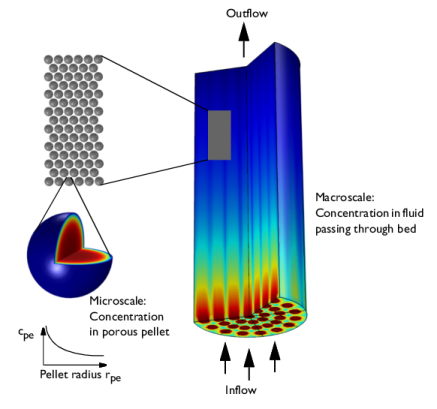
|
|
|
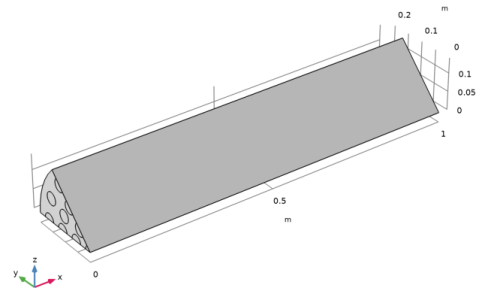


 ,
,

 ,
,  ,
,|
1 [m]
|
||
|
1[mol/m3]
|
||
|
1[mol/m3]
|
||
|
0[mol/m3]
|
||
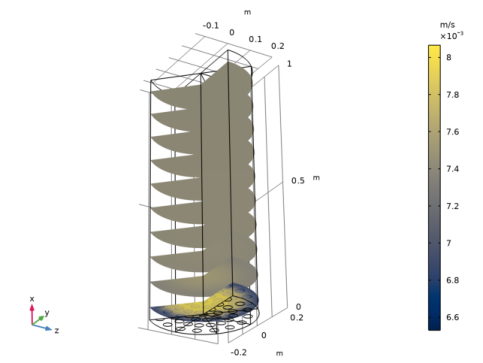
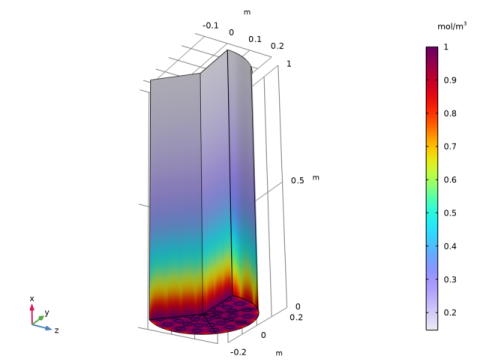
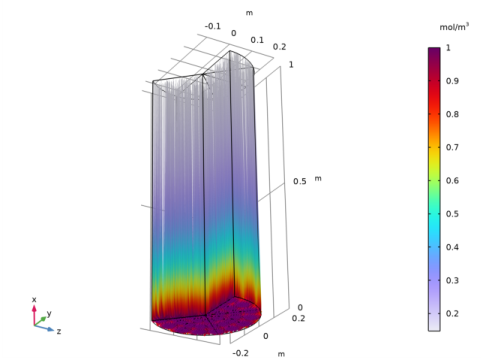
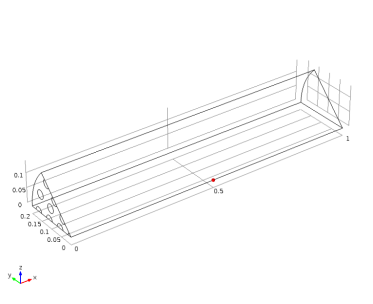
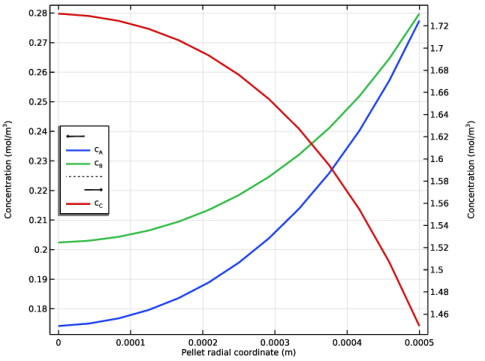
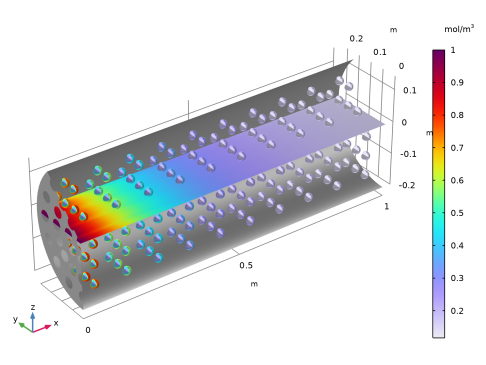
|
1
|
|
2
|
|
3
|
Click Add.
|
|
4
|
In the Select Physics tree, select Chemical Species Transport > Transport of Diluted Species in Porous Media (tds).
|
|
5
|
Click Add.
|
|
6
|
|
7
|
In the Concentrations (mol/m³) table, enter the following settings:
|
|
8
|
In the Select Physics tree, select Fluid Flow > Porous Media and Subsurface Flow > Darcy’s Law (dl).
|
|
9
|
Click Add.
|
|
10
|
Click
 Study. Study. |
|
11
|
|
12
|
Click
 Done. Done. |
|
1
|
|
2
|
|
3
|
Click
 Load from File. Load from File. |
|
4
|
Browse to the model’s Application Libraries folder and double-click the file packed_bed_reactor_3d_parameters.txt.
|
|
1
|
|
2
|
|
3
|
Browse to the model’s Application Libraries folder and double-click the file packed_bed_reactor_3d_geom_sequence.mph.
|
|
4
|
|
5
|
|
1
|
|
2
|
Go to the Add Material window.
|
|
3
|
|
4
|
Click the Add to Global Materials button in the window toolbar.
|
|
5
|
|
1
|
|
2
|
|
3
|
|
4
|
|
5
|
|
6
|
|
7
|
|
8
|
|
1
|
|
2
|
|
3
|
|
1
|
|
2
|
|
3
|
|
1
|
|
2
|
|
3
|
|
4
|
Click Apply.
|
|
5
|
|
6
|
Select the Use Arrhenius expressions checkbox.
|
|
7
|
|
8
|
|
9
|
|
10
|
|
1
|
|
2
|
|
3
|
|
1
|
|
2
|
|
3
|
|
1
|
|
2
|
|
3
|
|
1
|
|
2
|
|
3
|
|
4
|
|
5
|
|
6
|
|
7
|
|
8
|
|
9
|
Select the Define variables for porous pellets checkbox.
|
|
10
|
Locate the Species Matching section. Find the Bulk species subsection. From the Species solved for list, choose Transport of Diluted Species in Porous Media.
|
|
1
|
In the Model Builder window, under Component 1 (comp1) > Transport of Diluted Species in Porous Media (tds) > Packed Bed 1 click Fluid 1.
|
|
2
|
|
3
|
|
4
|
|
5
|
|
6
|
|
7
|
|
1
|
In the Model Builder window, under Component 1 (comp1) > Transport of Diluted Species in Porous Media (tds) > Packed Bed 1 > Pellets 1 click Diffusion 1.
|
|
2
|
|
3
|
|
4
|
|
5
|
|
6
|
|
1
|
|
2
|
|
3
|
|
4
|
|
5
|
|
6
|
|
1
|
|
2
|
|
3
|
|
4
|
|
1
|
|
2
|
|
3
|
|
4
|
|
5
|
|
6
|
|
1
|
|
2
|
|
3
|
|
1
|
In the Model Builder window, under Component 1 (comp1) > Darcy’s Law (dl) > Porous Medium 1 click Porous Matrix 1.
|
|
2
|
|
3
|
|
1
|
|
2
|
|
3
|
|
1
|
|
2
|
|
3
|
|
4
|
|
1
|
|
2
|
|
3
|
|
1
|
|
2
|
|
3
|
|
1
|
|
2
|
|
3
|
|
4
|
|
5
|
|
6
|
Click
 Build All. Build All. |
|
1
|
|
2
|
|
3
|
|
4
|
Locate the Physics and Variables Selection section. In the Solve for column of the table, under Component 1 (comp1), clear the checkbox for Darcy’s Law (dl).
|
|
1
|
|
2
|
|
3
|
In the Solve for column of the table, under Component 1 (comp1), clear the checkboxes for Chemistry (chem) and Transport of Diluted Species in Porous Media (tds).
|
|
4
|
|
5
|
|
1
|
|
2
|
|
3
|
|
4
|
Click OK.
|
|
1
|
|
2
|
|
1
|
|
2
|
|
1
|
|
2
|
|
3
|
|
4
|
|
5
|
|
6
|
|
1
|
|
2
|
|
3
|
|
4
|
|
5
|
|
6
|
|
7
|
|
8
|
|
1
|
|
2
|
|
3
|
|
4
|
|
5
|
|
6
|
|
1
|
|
2
|
|
3
|
|
4
|
|
5
|
|
6
|
|
1
|
|
2
|
In the Settings window for Slice, click Replace Expression in the upper-right corner of the Expression section. From the menu, choose Component 1 (comp1) > Darcy’s Law > Velocity and pressure > dl.U - Total Darcy velocity magnitude - m/s.
|
|
3
|
|
4
|
|
5
|
|
6
|
|
1
|
|
2
|
|
3
|
|
4
|
|
5
|
|
6
|
|
7
|
|
8
|
|
1
|
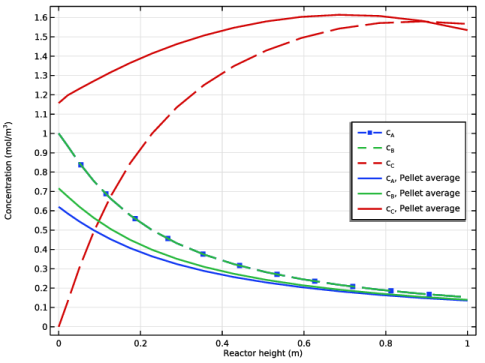
In the Model Builder window, expand the Results > Pellet Concentration at (0.075[m], 0.098953[m], 0.040988[m]) (tds) node, then click Pellet Concentration at (0.075[m], 0.098953[m], 0.040988[m]) (tds).
|
|
2
|
In the Settings window for 1D Plot Group, type Pellet Concentration at (0.5[m], 0[m], 0[m]) (tds) in the Label text field.
|
|
3
|
|
4
|
|
5
|
|
6
|
|
7
|
|
1
|
|
2
|
|
3
|
|
4
|
|
5
|
Click to expand the Legends section. Find the Prefix and suffix subsection. In the Prefix text field, type c<sub>A</sub>.
|
|
1
|
|
2
|
|
3
|
|
4
|
|
5
|
Locate the Legends section. Find the Prefix and suffix subsection. In the Prefix text field, type c<sub>B</sub>.
|
|
1
|
|
2
|
|
3
|
|
4
|
|
5
|
Locate the Legends section. Find the Prefix and suffix subsection. In the Prefix text field, type c<sub>C</sub>.
|
|
6
|
|
1
|
|
2
|
|
3
|
|
1
|
|
2
|
|
3
|
|
4
|
|
5
|
|
1
|
|
2
|
|
3
|
|
4
|
|
5
|
Locate the Coloring and Style section.
|
|
6
|
|
1
|
|
2
|
In the Settings window for 3D Plot Group, type Pellet and Bed Concentration, A in the Label text field.
|
|
3
|
|
1
|
|
2
|
|
3
|
|
1
|
|
1
|
|
2
|
|
3
|
|
1
|
|
2
|
|
3
|
|
4
|
|
5
|
|
6
|
|
1
|
|
1
|
|
2
|
|
3
|
|
4
|
|
5
|
|
1
|
|
2
|
|
3
|
In the Settings window for 3D Plot Group, type Pellet and Bed Concentration, B in the Label text field.
|
|
1
|
|
2
|
In the Settings window for Pellets, click Replace Expression in the upper-right corner of the Expression section. From the menu, choose Component 1 (comp1) > Transport of Diluted Species in Porous Media > Packed bed, pellet variables > tds.cpe_cB - Concentration in pellet - mol/m³.
|
|
1
|
|
2
|
|
3
|
|
1
|
|
2
|
In the Settings window for 3D Plot Group, type Pellet and Bed Concentration, C in the Label text field.
|
|
1
|
|
2
|
In the Settings window for Pellets, click Replace Expression in the upper-right corner of the Expression section. From the menu, choose Component 1 (comp1) > Transport of Diluted Species in Porous Media > Packed bed, pellet variables > tds.cpe_cC - Concentration in pellet - mol/m³.
|
|
1
|
|
2
|
|
3
|
|
4
|
|
1
|
|
2
|
|
3
|
|
4
|
|
5
|
|
6
|
Locate the Plot Settings section.
|
|
7
|
|
8
|
Select the y-axis label checkbox. In the associated text field, type Concentration (mol/m<sup>3</sup>).
|
|
9
|
|
1
|
|
2
|
|
3
|
Locate the Coloring and Style section. Find the Line style subsection. From the Line list, choose Dashed.
|
|
4
|
|
5
|
|
6
|
|
7
|
|
8
|
|
9
|
|
1
|
|
2
|
|
3
|
|
4
|
Locate the Coloring and Style section. Find the Line markers subsection. From the Marker list, choose None.
|
|
5
|
Locate the Legends section. In the table, enter the following settings:
|
|
1
|
|
2
|
|
3
|
|
4
|
Locate the Legends section. In the table, enter the following settings:
|
|
1
|
|
2
|
|
3
|
|
4
|
Locate the Coloring and Style section. Find the Line style subsection. From the Line list, choose Solid.
|
|
5
|
|
6
|
Locate the Legends section. In the table, enter the following settings:
|
|
1
|
|
2
|
|
3
|
|
4
|
|
5
|
Locate the Legends section. In the table, enter the following settings:
|
|
1
|
|
2
|
|
3
|
|
4
|
Locate the Legends section. In the table, enter the following settings:
|
|
5
|
|
6
|
|
1
|
|
2
|
|
3
|
|
4
|
|
5
|
|
6
|
|
1
|
|
2
|
|
3
|
|
4
|
|
5
|
|
1
|
In the Model Builder window, under Results > Bed Concentration, A, Streamline (tds) click Streamline 1.
|
|
2
|
|
3
|
|
4
|
|
5
|
Locate the Coloring and Style section. Find the Line style subsection. From the Type list, choose Tube.
|
|
6
|
|
7
|
|
8
|
|
9
|
|
10
|
|
1
|
|
2
|
Click
 Done. Done. |
|
1
|
|
2
|
|
3
|
|
4
|
Locate the Selections of Resulting Entities section. Find the Cumulative selection subsection. Click New.
|
|
5
|
|
6
|
Click OK.
|
|
7
|
|
1
|
|
2
|
|
3
|
|
4
|
|
5
|
Click
 Build Selected. Build Selected. |
|
1
|
Right-click Component 1 (comp1) > Geometry 1 > Work Plane 1 (wp1) > Plane Geometry > Circle 1 (c1) and choose Duplicate.
|
|
2
|
|
3
|
|
4
|
|
1
|
Right-click Component 1 (comp1) > Geometry 1 > Work Plane 1 (wp1) > Plane Geometry > Circle 2 (c2) and choose Duplicate.
|
|
2
|
|
3
|
|
1
|
Right-click Component 1 (comp1) > Geometry 1 > Work Plane 1 (wp1) > Plane Geometry > Circle 3 (c3) and choose Duplicate.
|
|
2
|
|
3
|
|
1
|
Right-click Component 1 (comp1) > Geometry 1 > Work Plane 1 (wp1) > Plane Geometry > Circle 4 (c4) and choose Duplicate.
|
|
2
|
|
3
|
|
4
|
|
1
|
Right-click Component 1 (comp1) > Geometry 1 > Work Plane 1 (wp1) > Plane Geometry > Circle 5 (c5) and choose Duplicate.
|
|
2
|
|
3
|
|
1
|
Right-click Component 1 (comp1) > Geometry 1 > Work Plane 1 (wp1) > Plane Geometry > Circle 6 (c6) and choose Duplicate.
|
|
2
|
|
3
|
|
4
|
|
5
|
|
1
|
|
2
|
|
3
|
|
4
|
|
5
|
Click
 Build Selected. Build Selected. |
|
1
|
In the Model Builder window, under Component 1 (comp1) > Geometry 1 > Work Plane 1 (wp1) > Plane Geometry right-click Circle 7 (c7) and choose Duplicate.
|
|
2
|
|
3
|
|
4
|
|
5
|
|
6
|
Click
 Build Selected. Build Selected. |
|
1
|
Right-click Component 1 (comp1) > Geometry 1 > Work Plane 1 (wp1) > Plane Geometry > Circle 8 (c8) and choose Duplicate.
|
|
2
|
|
3
|
|
4
|
Click
 Build Selected. Build Selected. |
|
1
|
|
2
|
|
3
|
|
4
|
|
5
|
Click
 Build Selected. Build Selected. |
|
1
|
|
2
|
|
3
|
|
4
|
Locate the Selections of Resulting Entities section. Find the Cumulative selection subsection. Click New.
|
|
5
|
|
6
|
Click OK.
|
|
1
|
|
2
|
|
3
|
|
4
|
|
5
|
Click
 Build Selected. Build Selected. |
|
1
|
|
2
|
|
3
|
|
4
|
|
5
|
|
6
|
|
1
|
|
2
|
|
3
|
|
4
|
On the object ext1, select Boundaries 2 and 3 only.
|
|
5
|
|
1
|
|
2
|
|
3
|
Locate the Entities to Select section. Click to select the
 Activate Selection toggle button for Entities to select. Activate Selection toggle button for Entities to select. |
|
4
|
|
5
|
|
6
|
On the object ext1, select Boundary 5 only.
|
|
7
|
Click
 Build All Objects. Build All Objects. |