









PDF

Optimal Cooling of a Tubular Reactor
Introduction
Maximizing product yield is a main task in chemical reaction engineering. This can be especially challenging if the desired product, once formed, can be consumed by further reactions. The following example investigates such a series reaction as it occurs in a tubular reactor. This starts by setting up the tightly coupled mass and energy balance equations describing the reactor applying predefined physics interfaces within the Chemical Reaction Engineering Module. This is followed by the addition of an Optimization Study node to compute the temperature conditions in the reactor that maximize the production of the intermediary product.
Note: This application requires the Optimization Module.
Model Definition
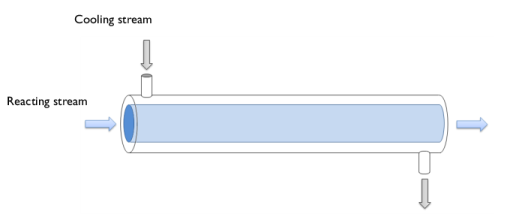
Two consecutive reactions take place in a tubular reactor. A heat exchanger jacket, run in cocurrent mode, is used to control the reaction rates and hence the product distribution in the reactor. The setup is shown in Figure 1.
Figure 1: Reactions occur in a tubular reactor equipped with a heat exchanger jacket, run in cocurrent mode.
Temperature control in the reactor involves a delicate balance, where on the one hand, energy has to be supplied to the system to achieve acceptable reaction rates. On the other hand, the energy transfer to the reacting stream must be limited so that the desired intermediate product is not consumed by further reaction. The situation is further complicated by the fact that the temperature of the reacting stream is not only affected by the heat transfer from the heat exchanger jacket, but also by the endothermic nature of the reactions. The idea for this challenge in reactor optimization is taken from a literature example (Ref. 1), although the present reactor model is considerably more detailed.
The model is set up in 1D, coupling mass and energy balances in the reactor tube with an energy balance for the heat exchanger jacket. Streams in both the tube and jacket are treated as plug flows.
Chemistry
Two consecutive reaction occur in water (hydrolysis), where the desired product is species B:
The following rate equations apply:
where the rate constants are temperature dependent according to the Arrhenius relation:
The kinetic parameters are summarized in the table below:
Mass transport
The mass transport is modeled by the convection–diffusion equation at steady-state using the Transport of Diluted Species interface:
In this equation, ci denotes the concentration (SI unit: mol/m3) and Di is the diffusivity (SI unit: m2 /s). Ri is the rate expression for species i (SI unit: mol/(m3·s)). The velocity u (SI unit: m/s) of the fluid in the reactor is represented by a constant profile:
At the inlet, the concentration of the reactant A is 700 mol/m3. At the outlet, it is assumed that convective mass transport is dominant:
Energy transport - reactor
The energy transport in the reactor is modeled with the Heat Transfer in Fluids interface in which the following equation is solved:
Above, k is the thermal conductivity (SI unit: W/(m·K)) and T the temperature of the reacting stream (SI unit: K). ρ is the density (SI unit: kg/m3) and Cp the heat capacity (SI unit: J/(kg·K)). The reacting species are diluted in water, and hence, the physical properties of the reacting mixture are assumed to be those of water.
The heat source due to reaction, Qrxn (SI unit: W/m3), is calculated from the reaction rates and the enthalpies of reaction:
Both reactions are endothermic, with ΔH1 = 200 kJ/mol and ΔH2 =  100 kJ/mol. Furthermore, the heat transferred from the reactor to the cooling jacket is given by:
Here, U is the overall heat transfer coefficient (SI unit: J/(K·m2·s)), and A represents the heat exchange area per unit volume (SI unit: m2/m3).
The temperature of the reacting fluid at the inlet is 400 K. At the outlet, it is assumed that convective heat transport is dominant:
Energy transport - cooling jacket
Water serves as the cooling medium in the jacket, and the energy transport is given by the following equation, which is set up and solved with the Heat Transfer in Fluids interface:
The cooling stream is assumed to have plug flow character, and hence a constant velocity profile:
The optimal temperature of the cooling fluid at the inlet is to be found such that the maximum concentration of species B is achieved at the outlet.
Results and Discussion
In a first simulation, the inlet temperatures of the jacket stream and the reacting stream are set to be equal, at 400 K. In a second simulation, an optimization calculation is performed to find the inlet temperature of the jacket stream that maximizes the concentration of the desired intermediary product (B) at the reactor outlet. Comparisons between the two cases follow below.
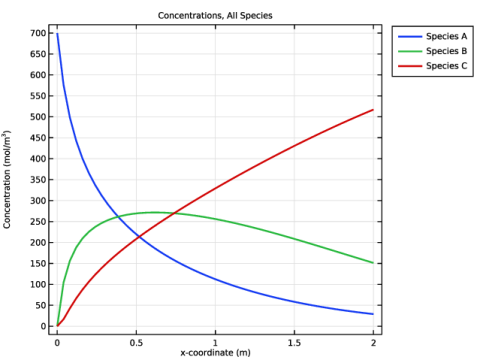
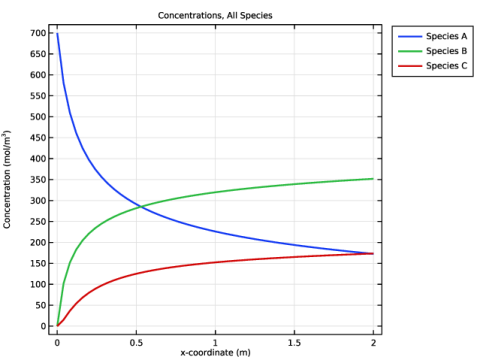
Figure 2 shows the concentration of reacting species as a function of the reactor length when the inlet temperature of the jacket stream is 400 K. Figure 3 shows concentration curves for the optimal inlet temperature of the jacket stream, found to be 335 K. Clearly, when the inlet temperature is 400 K the conversion of reactant A is high, but at the same time, the selectivity for the desired product B is unfavorable. Under the optimized conditions, the concentration of B at the reactor outlet is 352 mol/m3, to be compared to a concentration of 153 mol/m3 when the inlet temperature is 400 K.
Figure 2: Species concentrations (blue c_A, green c_B, red c_C) as function of reactor position when the inlet temperature of the cooling fluid is 400 K.
Figure 3: Species concentrations (blue c_A, green c_B, red c_C) as function of reactor position when the inlet temperature of the cooling fluid is 335 K.
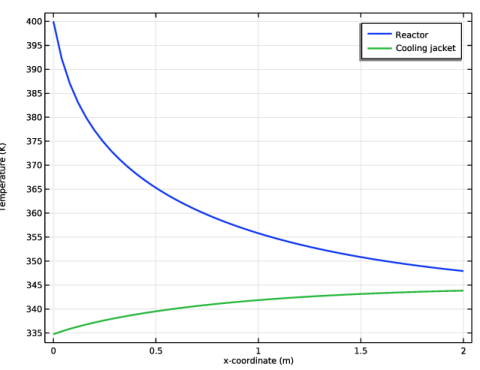
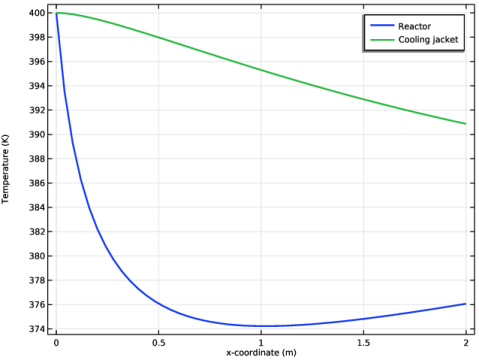
Plots of reacting stream and jacket stream temperatures are shown in Figure 4 and Figure 5. The jacket stream heats up the reacting stream when its inlet temperature is kept at 400 K.
Figure 4: Temperature distribution for the reacting stream (blue) and jacket stream (green) when the inlet temperature of the jacket stream is 400 K.
In contrast, the jacket stream cools the reacting stream when its inlet temperature is 334 K.
Figure 5: Temperature distribution for the reacting stream (blue) and jacket stream (green) when the inlet temperature of the jacket stream is 334 K.
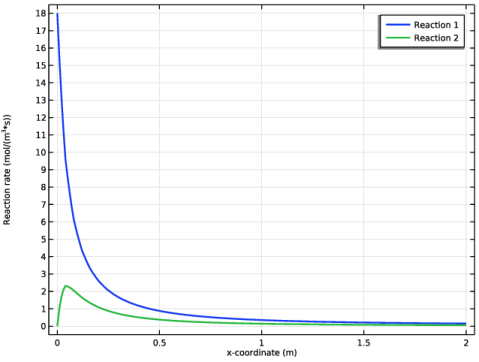
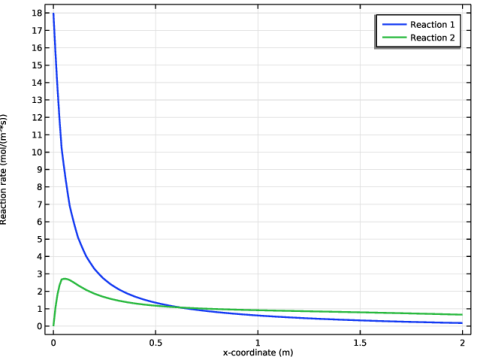
The reaction rates are illustrated in Figure 6 and Figure 7. When the inlet temperature of the jacket stream is 400 K, the rate at which B is consumed (r2) dominates over the production rate (r1) from a point approximately 0.65 m down the reactor. This effect is due to heat being transferred from the jacket stream, counteracting the cooling effect of the endothermic reactions.
Figure 6: Rate of the production r1 (blue) and rate consumption r2 (green) of species B when the inlet temperature of the cooling fluid is 400 K.
At an inlet temperature of 334 K, the combined effect of cooling by the jacket stream and energy consumption due to reaction work together to quench the system, resulting in increased concentrations levels of B at the outlet.
Figure 7: Rate of the production r1 (blue) and rate consumption r2 (green) of species B when the inlet temperature of the cooling fluid is 335 K.
Reference
1. T.F. Edgar and D.M. Himmelblau, Optimization of Chemical Processes, McGraw Hill, 1988.
Application Library path: Chemical_Reaction_Engineering_Module/Reactors_with_Mass_and_Heat_Transfer/optimal_cooling
Modeling Instructions
From the File menu, choose New.
New
In the New window, click  Model Wizard.
Model Wizard
1
In the Model Wizard window, click  1D.
2
In the Select Physics tree, select Chemical Species Transport > Chemistry (chem).
3
Click Add.
4
In the Select Physics tree, select Chemical Species Transport > Transport of Diluted Species (tds).
5
Click Add.
6
In the Number of species text field, type 3.
7
In the Concentrations (mol/m³) table, enter the following settings:
8
In the Select Physics tree, select Heat Transfer > Heat Transfer in Fluids (ht).
9
Click Add.
10
In the Select Physics tree, select Heat Transfer > Heat Transfer in Fluids (ht).
11
Click Add.
12
In the Temperature (K) text field, type Tj.
13
Click  Study.
14
In the Select Study tree, select General Studies > Stationary.
15
Global Definitions
Parameters 1
1
In the Model Builder window, under Global Definitions click Parameters 1.
2
In the Settings window for Parameters, locate the Parameters section.
3
Click  Load from File.
4
Geometry 1
Interval 1 (i1)
1
In the Model Builder window, under Component 1 (comp1) right-click Geometry 1 and choose Interval.
2
In the Settings window for Interval, locate the Interval section.
3
4
Click  Build Selected.
Definitions
Integration 1 (intop1)
1
In the Definitions toolbar, click  Nonlocal Couplings and choose Integration.
2
In the Settings window for Integration, locate the Source Selection section.
3
From the Geometric entity level list, choose Boundary.
4
Variables 1
1
In the Definitions toolbar, click  Local Variables.
2
In the Settings window for Variables, locate the Variables section.
3
Add Material
1
In the Materials toolbar, click  Add Material to open the Add Material window.
2
Go to the Add Material window.
3
In the tree, select Liquids and Gases > Liquids > Water.
4
Click the Add to Component button in the window toolbar.
5
In the Materials toolbar, click  Add Material to close the Add Material window.
Chemistry (chem)
1
In the Settings window for Chemistry, locate the Model Input section.
2
From the T list, choose Temperature (ht).
3
Click to expand the Mixture Properties section. From the Phase list, choose Liquid.
Reaction 1
1
In the Physics toolbar, click  Domains and choose Reaction.
2
In the Settings window for Reaction, locate the Reaction Formula section.
3
In the Formula text field, type A=>B.
4
Click Apply.
5
Locate the Rate Constants section. Select the Use Arrhenius expressions checkbox.
6
In the Af text field, type A1.
7
In the Ef text field, type E1.
8
Locate the Reaction Thermodynamic Properties section. From the Enthalpy of reaction list, choose User defined.
9
In the H text field, type H1.
Species: A
1
In the Model Builder window, click Species: A.
2
In the Settings window for Species, locate the Chemical Formula section.
3
In the M text field, type Mn_A.
Species: B
1
In the Model Builder window, click Species: B.
2
In the Settings window for Species, locate the Chemical Formula section.
3
In the M text field, type Mn_B.
Reaction 2
1
In the Physics toolbar, click  Domains and choose Reaction.
2
In the Settings window for Reaction, locate the Reaction Formula section.
3
In the Formula text field, type B=>C.
4
Click Apply.
5
Locate the Rate Constants section. Select the Use Arrhenius expressions checkbox.
6
In the Af text field, type A2.
7
In the Ef text field, type E2.
8
Locate the Reaction Thermodynamic Properties section. From the Enthalpy of reaction list, choose User defined.
9
In the H text field, type H2.
Species: C
As for B, species C does not correspond to carbon and it is therefore necessary to clear the box in Enable formula
1
In the Model Builder window, click Species: C.
2
In the Settings window for Species, locate the Chemical Formula section.
3
Clear the Enable formula checkbox.
4
In the M text field, type Mn_C.
Species 1
1
In the Physics toolbar, click  Domains and choose Species.
2
In the Settings window for Species, locate the Name section.
3
4
Click Apply.
5
Locate the Type section. From the list, choose Solvent.
6
Locate the Chemical Formula section. In the M text field, type Mn_H2O.
7
In the Model Builder window, click Chemistry (chem).
8
In the Settings window for Chemistry, locate the Species Matching section.
9
Find the Bulk species subsection. From the Species solved for list, choose Transport of Diluted Species.
10
Transport of Diluted Species (tds)
Fluid 1
1
In the Model Builder window, under Component 1 (comp1) > Transport of Diluted Species (tds) click Fluid 1.
2
In the Settings window for Fluid, locate the Convection section.
3
Set the x-component of u to u.
4
Locate the Diffusion section. In the DcA text field, type D.
5
In the DcB text field, type D.
6
In the DcC text field, type D.
Inflow 1
1
In the Physics toolbar, click  Boundaries and choose Inflow.
2
3
In the Settings window for Inflow, locate the Concentration section.
4
In the c0,cA text field, type cA_in.
Outflow 1
1
In the Physics toolbar, click  Boundaries and choose Outflow.
2
Reactions 1
1
In the Physics toolbar, click  Domains and choose Reactions.
2
Select the Chemistry to which this Reactions feature is coupled. With the Chemistry being selected, all species reaction rates are automatically set according to the species match table in the Chemistry interface.
3
In the Settings window for Reactions, locate the Reaction Rates section.
4
From the Chemistry list, choose Chemistry (chem).
Heat Transfer in Fluids - Reactor
1
In the Model Builder window, under Component 1 (comp1) click Heat Transfer in Fluids (ht).
2
In the Settings window for Heat Transfer in Fluids, type Heat Transfer in Fluids - Reactor in the Label text field.
Fluid 1
1
In the Model Builder window, under Component 1 (comp1) > Heat Transfer in Fluids - Reactor (ht) click Fluid 1.
2
In the Settings window for Fluid, locate the Heat Convection section.
3
Set the x-component of u to u.
Temperature 1
1
In the Physics toolbar, click  Boundaries and choose Temperature.
2
3
In the Settings window for Temperature, locate the Temperature section.
4
In the T0 text field, type T_in.
Outflow 1
1
In the Physics toolbar, click  Boundaries and choose Outflow.
2
Heat Source 1
1
In the Physics toolbar, click  Domains and choose Heat Source.
2
3
In the Settings window for Heat Source, locate the Heat Source section.
4
In the Q0 text field, type -UA*(T-Tj)+chem.Qtot.
Heat Transfer in Fluids - Cooling jacket
1
In the Model Builder window, under Component 1 (comp1) click Heat Transfer in Fluids 2 (ht2).
2
In the Settings window for Heat Transfer in Fluids, type Heat Transfer in Fluids - Cooling jacket in the Label text field.
Fluid 1
1
In the Model Builder window, under Component 1 (comp1) > Heat Transfer in Fluids - Cooling jacket (ht2) click Fluid 1.
2
In the Settings window for Fluid, locate the Heat Convection section.
3
Set the x-component of u to uj.
Temperature 1
1
In the Physics toolbar, click  Boundaries and choose Temperature.
2
3
In the Settings window for Temperature, locate the Temperature section.
4
In the T0 text field, type Tj_in.
Outflow 1
1
In the Physics toolbar, click  Boundaries and choose Outflow.
2
Heat Source 1
1
In the Physics toolbar, click  Domains and choose Heat Source.
2
3
In the Settings window for Heat Source, locate the Heat Source section.
4
In the Q0 text field, type UA*(T-Tj).
Mesh 1
Edge 1
In the Mesh toolbar, click  Edge.
Size
1
In the Model Builder window, click Size.
2
In the Settings window for Size, locate the Element Size section.
3
From the Predefined list, choose Extra fine.
4
Click  Build All.
Study 1
In the Study toolbar, click  Compute.
Results
Concentrations, All Species (tds)
Go through the steps below to save a copy of the solution where the coolant temperature is 400 K at the inlet.
Study 1
Solution 1 (sol1)
1
In the Model Builder window, expand the Study 1 > Solver Configurations node.
2
Right-click Solution 1 (sol1) and choose Solution > Copy.
Tj_in=400K
1
In the Model Builder window, under Study 1 > Solver Configurations click Solution 1 - Copy 1 (sol2).
2
In the Settings window for Solution, type Tj_in=400K in the Label text field.
Add a Graph Plot Style node to define plot settings. This can be used to update plot settings across multiple plot groups.
Results
Graph Plot Style 1
1
In the Results toolbar, click  Configurations and choose Graph Plot Style.
2
In the Settings window for Graph Plot Style, locate the Coloring and Style section.
3
Find the Line style subsection. From the Width list, choose 2.
4
From the Color list, choose Cycle.
5
Locate the Legends section. Find the Include in automatic mode subsection. Select the Label checkbox.
6
Clear the Point checkbox.
7
Clear the Solution checkbox.
8
Clear the Headers checkbox.
Concentrations for Tj_in=400K
1
In the Model Builder window, under Results click Concentrations, All Species (tds).
2
In the Settings window for 1D Plot Group, type Concentrations for Tj_in=400K in the Label text field.
3
Locate the Data section. From the Dataset list, choose Study 1/Tj_in=400K (sol2).
4
Locate the Plot Settings section.
5
Select the x-axis label checkbox. In the associated text field, type x-coordinate (m).
6
Click to expand the Style Configuration section. From the Configuration list, choose Graph Plot Style 1.
7
Locate the Legend section. From the Layout list, choose Outside graph axis area.
8
In the Concentrations for Tj_in=400K toolbar, click  Plot.
Temperature for Tj_in=400K
1
In the Model Builder window, under Results click Temperature (ht).
2
In the Settings window for 1D Plot Group, type Temperature for Tj_in=400K in the Label text field.
3
Locate the Data section. From the Dataset list, choose Study 1/Tj_in=400K (sol2).
4
Locate the Style Configuration section. From the Configuration list, choose Graph Plot Style 1.
Reactor
1
In the Model Builder window, expand the Temperature for Tj_in=400K node, then click Line Graph 1.
2
In the Settings window for Line Graph, type Reactor in the Label text field.
3
Click to expand the Title section. From the Title type list, choose None.
4
Click to expand the Coloring and Style section. Click to expand the Legends section. Select the Show legends checkbox.
Cooling jacket
1
Right-click Reactor and choose Duplicate.
2
In the Settings window for Line Graph, type Cooling jacket in the Label text field.
3
Click Replace Expression in the upper-right corner of the y-Axis Data section. From the menu, choose Component 1 (comp1) > Heat Transfer in Fluids - Cooling jacket > Temperature > Tj - Temperature - K.
4
In the Temperature for Tj_in=400K toolbar, click  Plot.
Production Rates for Tj_in=400K
1
In the Model Builder window, under Results click Temperature (ht2).
2
In the Settings window for 1D Plot Group, type Production Rates for Tj_in=400K in the Label text field.
3
Locate the Data section. From the Dataset list, choose Study 1/Tj_in=400K (sol2).
4
Locate the Style Configuration section. From the Configuration list, choose Graph Plot Style 1.
Reaction 1
1
In the Model Builder window, expand the Production Rates for Tj_in=400K node, then click Line Graph 1.
2
In the Settings window for Line Graph, type Reaction 1 in the Label text field.
3
Locate the Title section. From the Title type list, choose None.
4
Click Replace Expression in the upper-right corner of the y-Axis Data section. From the menu, choose Component 1 (comp1) > Chemistry > chem.r_1 - Reaction rate - mol/(m³·s).
5
Locate the Legends section. Select the Show legends checkbox.
Reaction 2
1
Right-click Reaction 1 and choose Duplicate.
2
In the Settings window for Line Graph, type Reaction 2 in the Label text field.
3
Click Replace Expression in the upper-right corner of the y-Axis Data section. From the menu, choose Component 1 (comp1) > Chemistry > chem.r_2 - Reaction rate - mol/(m³·s).
4
In the Production Rates for Tj_in=400K toolbar, click  Plot.
Now, solve the optimization problem.
Study 1
General Optimization
1
In the Study toolbar, click  Optimization and choose General Optimization.
2
In the Settings window for General Optimization, locate the Optimization Solver section.
3
From the Method list, choose BOBYQA.
4
Locate the Objective Function section. In the table, enter the following settings:
5
From the Type list, choose Maximization.
6
Locate the Control Variables and Parameters section. Click  Add.
7
Prescribing scales for the estimation parameters increases the efficiency of the optimization procedure. A good starting point is to use scales of the same order as the initial values.
8
In the Model Builder window, click Study 1.
9
In the Settings window for Study, locate the Study Settings section.
10
Clear the Generate default plots checkbox.
11
In the Study toolbar, click  Compute.
Results
Concentrations for Optimized Tj_in
1
In the Model Builder window, right-click Concentrations for Tj_in=400K and choose Duplicate.
2
In the Settings window for 1D Plot Group, type Concentrations for Optimized Tj_in in the Label text field.
3
Locate the Data section. From the Dataset list, choose Study 1/Parametric Solutions 1 (sol3).
4
In the Concentrations for Optimized Tj_in toolbar, click  Plot.
Temperature Tj_in for Optimized Tj_in
1
In the Model Builder window, right-click Temperature for Tj_in=400K and choose Duplicate.
2
In the Settings window for 1D Plot Group, type Temperature Tj_in for Optimized Tj_in in the Label text field.
3
Locate the Data section. From the Dataset list, choose Study 1/Parametric Solutions 1 (sol3).
4
In the Temperature Tj_in for Optimized Tj_in toolbar, click  Plot.
Production Rates for Optimized Tj_in
1
In the Model Builder window, right-click Production Rates for Tj_in=400K and choose Duplicate.
2
In the Settings window for 1D Plot Group, type Production Rates for Optimized Tj_in in the Label text field.
3
Locate the Data section. From the Dataset list, choose Study 1/Parametric Solutions 1 (sol3).
4
In the Production Rates for Optimized Tj_in toolbar, click  Plot.
Results
Objective Table 2
Scroll down the table to find the resulting values of the inlet temperature.