








PDF

Nonisothermal Plug-Flow Reactor
Introduction
This example considers the thermal cracking of acetone, which is a key step in the production of acetic anhydride. The gas phase reaction takes place under nonisothermal conditions in a plug-flow reactor. As the cracking chemistry is endothermic, control over the temperature in the reactor is essential in order to achieve reasonable conversion. Furthermore, it is illustrated how to affect the conversion of acetone by means of a heat exchanger supplying energy to the system, and how the conversion of acetone is affected by mixing inert into the feed inlet stream.
The example details the use of the predefined Plug flow reactor type in the Reaction Engineering interface of the Chemical Reaction Engineering Module. This model reproduces the results in Ref. 1.
Model Definition
The model simulates the step in the gas-phase production of acetic anhydride where cracking of acetone (A) into ketene (K) and methane (M) occurs:
The rate of reaction is
where the rate constant is given by the Arrhenius expression
For the decomposition of acetone described above, the frequency factor is A1 = 8.2·1014 (SI unit: 1/s), and the activation energy is E1 = 284.5 (SI unit: kJ/mol). Together with the reacting species, nitrogen can also be present as an inert in the system.
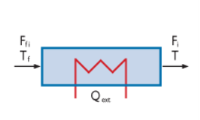
The chemical reaction takes place under nonisothermal conditions in a plug-flow reactor, illustrated schematically in Figure 1.
Figure 1: The Plug-flow reactor.
Species mass balances are set up as
(1)
where Fi is the species molar flow rate (SI unit: mol/s), V is the reactor volume (SI unit: m3), and Ri is the species rate expression (SI unit: mol/(m3·s)). Concentrations needed to evaluate rate expressions are described by
where v is the volumetric flow rate (SI unit: m3/s). By default, the Reaction Engineering interface treats gas phase reacting mixtures as being ideal. Under this assumption the volumetric flow rate is given by
where p is the pressure (Pa), Rg denotes the ideal gas constant (8.314 J/(mol·K)), and T is the temperature (SI unit: K).
The reactor energy balance is
(2)
In Equation 2, Cp,i represents the species molar heat capacity (SI unit: J/(mol·K)), and ws is the shaft work per unit volume (SI unit: J/(m3·s)). Q denotes the heat due to chemical reaction (SI unit: J/(m3·s)) and is described by
where Hj is the heat produced by reaction j. The term Qext represents external heat added or removed from the reactor. The present model treats both adiabatic reactor conditions, that is
and the situation where the reactor is equipped with a heat exchanger jacket. In the latter case Qext is given by
where U is the overall heat transfer coefficient (SI unit: J/(m2·s·K)), a is the effective heat transfer area per unit of reactor volume (SI unit: 1/m), and Tamb is the temperature of the heat exchanger medium (SI unit: K). The Reaction Engineering interface automatically sets up and solves Equation 1 and Equation 2 as the predefined Plug flow reactor type is selected. As input to the balance equations you need to supply the chemical reaction formula, the Arrhenius parameters, the species thermodynamic properties, as well as the inlet molar feed of reactants.
Working with Thermodynamic Polynomials
The Reaction Engineering interface uses the following set of polynomials as default expressions describing species thermodynamic properties:
(3)
(4)
(5)
Here, Cp,i denotes the species’ heat capacity (SI unit: J/(mol·K)), T the temperature (K), and Rg the ideal gas constant, 8.314 (J/(mol·K)). Further, hi is the species’ molar enthalpy (SI unit: J/mol), and si represents its molar entropy (SI unit: J/(mol·K)). A set of seven coefficients per species are taken as input for the polynomials above. The coefficients a1 through a5 relate to the species heat capacity, the coefficient a6 is associated with the species enthalpy of formation (at 0 K), and the coefficient a7 comes from the species entropy of formation (at 0 K).
The format outlined by Equation 3, Equation 4, and Equation 5 is referred to as CHEMKIN or NASA format (Ref. 2). This is a well-established format, and database resources list the needed coefficients for different temperature intervals. Many web-based data resources exist for CHEMKIN thermodynamic data and otherwise. For a collection of databases, see Ref. 3. It is therefore often a straightforward task to assemble the thermodynamic data required and then import it into your reaction model.
Creating a Thermodynamic Data File
CHEMKIN thermodynamic files typically contain blocks of data, one block for each species. Such a data block is illustrated in Figure 2 for gas phase acetone.
Figure 2: Thermodynamic data block on the CHEMKIN format.
The first line starts with the species label, given with a maximum of 18 characters, followed by a 6 character comment space. Then follows a listing of the type and number of atoms that constitute the species. The G indicates gas phase data. The line ends with listing of three temperatures, defining two temperature intervals. Lines 2 through 4 contain two sets of the polynomial coefficients, a1 through a7. The first set of coefficients is valid for the upper temperature interval, and the second for the lower interval.
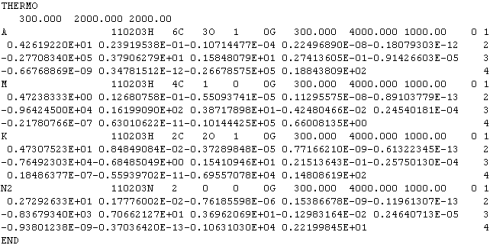
A complete CHEMKIN thermodynamics file has the structure illustrated in Figure 3.
Figure 3: Thermodynamic data file on the CHEMKIN format.
The keyword thermo always starts the text file. The subsequent line lists three temperatures, defining two temperature intervals. These intervals are used if no intervals are provided in the species specific data. Then follows the species data blocks, in any order. The keyword end is the last entry in the file.
The data file reproduced in Figure 3 is used in the model. It was constructed by creating a text-file with species data blocks from the Sandia National Labs Thermodynamics Resource.
Using Subsets of Thermodynamic Coefficients
In some instances, not all coefficients a1 through a7 are available. Coefficients may also be on a format differing from the NASA or CHEMKIN style. Input parameters can still be put on the form of Equation 3, Equation 4, and Equation 5, as illustrated below.
For species A, K, M, and N2, Ref. 1 lists polynomials for the heat capacity on the form:
Furthermore, the species enthalpies of formation at Tref = 298 K are provided:
a1'
a2'
a3'
h(298)
The data in the table above can be correlated with the polynomials given by Equation 3 and Equation 4 by noting the relations:
(6)
(7)
Using Equation 6 and Equation 7, you find the coefficients to enter in the Reaction Engineering interface.
a1
a2
a3
a6
Read more about how to work with thermodynamic data in the section Transport Properties in the Chemical Reaction Engineering Module User’s Guide.
Results and Discussion
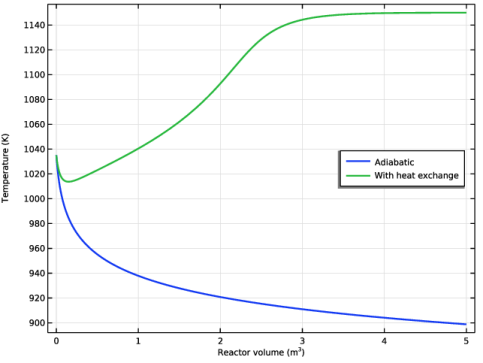
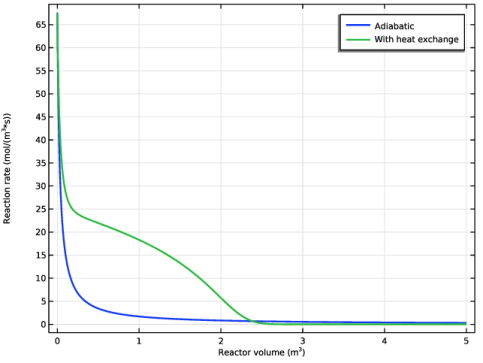
A 5 m3 plug-flow reactor is simulated both for adiabatic conditions and with heat exchange. The reactor is fed with pure acetone at 1035 K. 18.8 mol/m3 acetone is set to enter with a volumetric flow of 2 m3/s. Figure 4 shows the reactor temperature as a function of the reactor volume for both cases. In the adiabatic case, with no additional heating, the reactor temperature decreases along the reactor length since the cracking reaction is endothermic. On the other hand, the temperature profile as a heat exchanger supplies energy increases after first passing through a minimum. This is explained by Figure 5 where the reaction rates are shown. The minimum is due to the energy demand of the cracking reaction being dominant initially. However, as the reaction rate drops off, the heat exchanger starts to heat up the system. The heating rate decreases with the temperature difference between the heat exchanger medium and reacting fluid.
Figure 4: The reactor temperature (K) as a function of reactor volume (m3) for the two investigated cases.
Figure 5: The reaction rates (mol/(m3·s)) as functions of reactor volume (m3) for the two investigated cases.
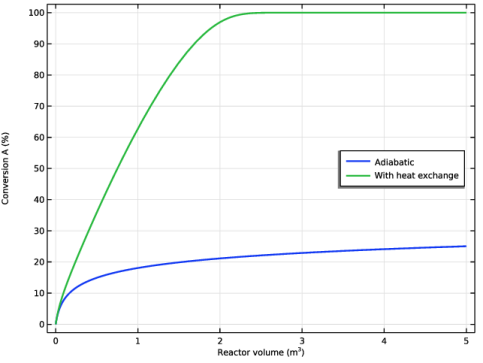
Figure 6 shows the conversion of acetone. The reactor conversion is considerably lower at the reactor outlet in the adiabatic case than with heat exchange.
Figure 6: The conversion of acetone (%) as a function of reactor volume (m3) for the two investigated cases.
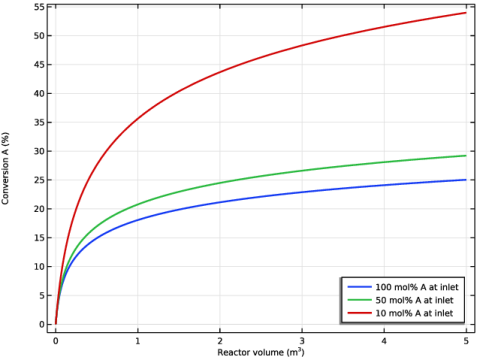
If the feed inlet stream contains an additional amount of nitrogen inert the conversion of A becomes more efficient at adiabatic conditions. This is shown for three different molar fractions of acetone in the inlet in Figure 7. The explanation is that the inert acts as a heat supply to the endothermic reaction.
Figure 7: The conversion of acetone (%) as a function of reactor volume (m3) for 100 mol%, 50 mol%, and 10 mol% of acetone in the feed inlet stream.
References
1. H.S. Fogler, Elements of Chemical Reaction Engineering, 3rd ed., Prentice Hall PTR, example 8-7, pp. 462–468, 1999.
2. S. Gordon and B.J. McBride, Computer Program for Calculation of Complex Chemical Equilibrium Compositions, Rocket Performance, Incident and Reflected Shocks, and Chapman-Jouquet Detonations, NASA-SP-273, 1971.
3. See, for example https://www.comsol.com/chemical-reaction-engineering-module#specs
Application Library path: Chemical_Reaction_Engineering_Module/Tutorials/nonisothermal_plug_flow
Modeling Instructions
From the File menu, choose New.
New
In the New window, click  Model Wizard.
Model Wizard
1
In the Model Wizard window, click  0D.
2
In the Select Physics tree, select Chemical Species Transport > Reaction Engineering (re).
3
Click Add.
4
Click  Study.
5
In the Select Study tree, select Preset Studies for Selected Physics Interfaces > Stationary Plug Flow.
6
Global Definitions
Add a set of model parameters by importing their definitions from a data text file provided with the Application Library.
Parameters 1
1
In the Model Builder window, under Global Definitions click Parameters 1.
2
In the Settings window for Parameters, locate the Parameters section.
3
Click  Load from File.
4
Reaction Engineering (re)
1
In the Model Builder window, under Component 1 (comp1) click Reaction Engineering (re).
2
In the Settings window for Reaction Engineering, locate the Reactor section.
3
From the Reactor type list, choose Plug flow.
4
Locate the Energy Balance section. From the Energy balance list, choose Include.
5
Click to expand the Mixture Properties section. In the p text field, type P_reactor.
Reaction 1
1
In the Reaction Engineering toolbar, click  Reaction.
2
In the Settings window for Reaction, locate the Reaction Formula section.
3
In the Formula text field, type A=>K+M.
4
Locate the Rate Constants section. Select the Use Arrhenius expressions checkbox.
5
In the Af text field, type Af_reaction.
6
In the Ef text field, type Ef_reaction.
Species 1
1
In the Reaction Engineering toolbar, click  Species.
2
In the Settings window for Species, locate the Name section.
3
Set inlet properties derived from the volumetric flow and concentration of A at the inlet.
Initial Values 1
1
In the Model Builder window, click Initial Values 1.
2
In the Settings window for Initial Values, locate the General Parameters section.
3
In the T0,in text field, type T_inlet.
4
Locate the Volumetric Species Initial Values section. In the table, enter the following settings:
Import material and thermal properties for the reaction with the CHEMKIN Import for Species property.
5
In the Model Builder window, click Reaction Engineering (re).
6
In the Settings window for Reaction Engineering, click to expand the CHEMKIN Import for Species Properties section.
7
Click  Browse.
8
9
Click  Import.
Also add a variable expression for monitoring the conversion of A. This will be used later on when postprocessing the solution.
Definitions
Variables 1
1
In the Model Builder window, under Component 1 (comp1) right-click Definitions and choose Variables.
2
In the Settings window for Variables, locate the Variables section.
3
Solve first for adiabatic conditions.
Study 1
Step 1: Stationary Plug Flow
1
In the Model Builder window, under Study 1 click Step 1: Stationary Plug Flow.
2
In the Settings window for Stationary Plug Flow, locate the Study Settings section.
3
In the Output volumes text field, type range(0,0.05,5).
4
In the Study toolbar, click  Compute.
Save a copy of the adiabatic solution.
Solution 1 (sol1)
1
In the Model Builder window, expand the Study 1 > Solver Configurations node.
2
Right-click Solution 1 (sol1) and choose Solution > Copy.
Adiabatic
1
In the Model Builder window, under Study 1 > Solver Configurations click Solution 1 - Copy 1 (sol2).
2
In the Settings window for Solution, type Adiabatic in the Label text field.
Add a heat source from a heat exchanger.
Reaction Engineering (re)
1
In the Model Builder window, under Component 1 (comp1) click Reaction Engineering (re).
2
In the Settings window for Reaction Engineering, locate the Energy Balance section.
3
In the Q text field, type Ua*(T_x-re.T).
Solve for the heat exchanged plug flow reactor.
Study 1
In the Study toolbar, click  Compute.
Solution 1 (sol1)
In the Model Builder window, under Study 1 > Solver Configurations right-click Solution 1 (sol1) and choose Solution > Copy.
With heat exchange
1
In the Model Builder window, under Study 1 > Solver Configurations click Solution 1 - Copy 1 (sol3).
2
In the Settings window for Solution, type With heat exchange in the Label text field.
Remove the heat exchange and solve for a Parametric Sweep of three molar fractions of A, 0 mol%, 50 mol%, and 90 mol%, at the inlet at adiabatic conditions.
Reaction Engineering (re)
1
In the Model Builder window, under Component 1 (comp1) click Reaction Engineering (re).
2
In the Settings window for Reaction Engineering, locate the Energy Balance section.
3
In the Q text field, type 0.
Study 1
Parametric Sweep
1
In the Study toolbar, click  Parametric Sweep.
2
In the Settings window for Parametric Sweep, locate the Study Settings section.
3
4
5
In the Study toolbar, click  Compute.
Parametric Solutions 1 (sol4)
In the Model Builder window, under Study 1 > Solver Configurations right-click Parametric Solutions 1 (sol4) and choose Solution > Copy.
With inert
1
In the Model Builder window, under Study 1 > Solver Configurations click Parametric Solutions 1 - Copy 1 (sol8).
2
In the Settings window for Solution, type With inert in the Label text field.
Start with Figure 4, where the temperature change is displayed for the adiabatic and heat exchanged cases.
Results
The following instructions generate Figure 4 through Figure 7.
Temperature (re)
1
In the Model Builder window, under Results click Temperature (re).
2
In the Settings window for 1D Plot Group, click to expand the Title section.
3
From the Title type list, choose None.
4
Locate the Legend section. From the Position list, choose Middle right.
Global 1
1
In the Model Builder window, expand the Temperature (re) node, then click Global 1.
2
In the Settings window for Global, locate the Data section.
3
From the Dataset list, choose Study 1/Adiabatic (sol2).
4
Click to expand the Coloring and Style section. From the Width list, choose 2.
5
Click to expand the Legends section. From the Legends list, choose Manual.
6
Global 2
1
Right-click Results > Temperature (re) > Global 1 and choose Duplicate.
2
In the Settings window for Global, locate the Data section.
3
From the Dataset list, choose Study 1/With heat exchange (sol3).
4
Locate the Legends section. In the table, enter the following settings:
5
In the Temperature (re) toolbar, click  Plot.
Continue with Figure 5, displaying the reaction rate for the adiabatic and heat exchanged cases.
1D Plot Group 5
In the Results toolbar, click  1D Plot Group.
Reaction rate (re)
1
In the Model Builder window, under Results click Molar Flow Rate (re) 1.
2
In the Settings window for 1D Plot Group, type Reaction rate (re) in the Label text field.
3
Locate the Title section. From the Title type list, choose None.
Global 2
Right-click Reaction rate (re) and choose Global.
Global 1
1
In the Settings window for Global, locate the Data section.
2
From the Dataset list, choose Study 1/Adiabatic (sol2).
3
Click Replace Expression in the upper-right corner of the y-Axis Data section. From the menu, choose Component 1 (comp1) > Reaction Engineering > re.r_1 - Reaction rate - mol/(m³·s).
4
Locate the Coloring and Style section. From the Width list, choose 2.
5
Locate the Legends section. From the Legends list, choose Manual.
6
Global 2
1
In the Model Builder window, click Global 2.
2
In the Settings window for Global, locate the Data section.
3
From the Dataset list, choose Study 1/With heat exchange (sol3).
4
Click Replace Expression in the upper-right corner of the y-Axis Data section. From the menu, choose Component 1 (comp1) > Reaction Engineering > re.r_1 - Reaction rate - mol/(m³·s).
5
Locate the Coloring and Style section. From the Width list, choose 2.
6
Locate the Legends section. From the Legends list, choose Manual.
7
8
In the Reaction rate (re) toolbar, click  Plot.
Next is Figure 6 illustrating the conversion of acetone for the adiabatic and heat exchanged cases.
Conversion A (re)
1
In the Model Builder window, under Results click Molar Flow Rate (re).
2
In the Settings window for 1D Plot Group, type Conversion A (re) in the Label text field.
3
Locate the Title section. From the Title type list, choose None.
4
Locate the Plot Settings section.
5
Select the y-axis label checkbox. In the associated text field, type Conversion A (%).
6
Locate the Legend section. From the Position list, choose Middle right.
Global 1
1
In the Model Builder window, expand the Conversion A (re) node, then click Global 1.
2
In the Settings window for Global, locate the Data section.
3
From the Dataset list, choose Study 1/Adiabatic (sol2).
4
Click Replace Expression in the upper-right corner of the y-Axis Data section. From the menu, choose Component 1 (comp1) > Definitions > Variables > X_A - Conversion, A - 1.
5
Locate the Coloring and Style section. From the Width list, choose 2.
6
Locate the Legends section. From the Legends list, choose Manual.
7
Global 2
1
Right-click Results > Conversion A (re) > Global 1 and choose Duplicate.
2
In the Settings window for Global, locate the Data section.
3
From the Dataset list, choose Study 1/With heat exchange (sol3).
4
Locate the Legends section. In the table, enter the following settings:
5
In the Conversion A (re) toolbar, click  Plot.
Last set up Figure 7 to plot the conversion of acetone with varied inlet molar fractions of inert for the adiabatic case.
Conversion A with inert (re)
1
In the Model Builder window, under Results click 1D Plot Group 5.
2
In the Settings window for 1D Plot Group, type Conversion A with inert (re) in the Label text field.
3
Locate the Title section. From the Title type list, choose None.
4
Locate the Plot Settings section.
5
Select the x-axis label checkbox. In the associated text field, type Reactor volume (m<sup>3</sup>).
6
Select the y-axis label checkbox. In the associated text field, type Conversion A (%).
7
Locate the Legend section. From the Position list, choose Lower right.
Global 1
1
Right-click Conversion A with inert (re) and choose Global.
2
In the Settings window for Global, locate the Data section.
3
From the Dataset list, choose Study 1/With inert (sol8).
4
Click Replace Expression in the upper-right corner of the y-Axis Data section. From the menu, choose Component 1 (comp1) > Definitions > Variables > X_A - Conversion, A - 1.
5
Locate the Coloring and Style section. From the Width list, choose 2.
6
Locate the Legends section. From the Legends list, choose Evaluated.
7
In the Legend text field, type eval(A_frac*100) mol% A at inlet.
8
In the Conversion A with inert (re) toolbar, click  Plot.
Temperature (re) 1
In the Model Builder window, under Results right-click Temperature (re) 1 and choose Delete.