

PDF

Multicomponent Tubular Reactor with Isothermal Cooling
Introduction
This example uses the Chemical Reaction Engineering Module to study an elementary, exothermic, irreversible reaction in a tubular reactor (liquid phase, laminar flow regime). The reactor uses a constant temperature cooling jacket to keep its temperature down. The steady-state behavior of the reactor is investigated. The reaction kinetics and physical properties of the species are modeled with the Chemistry interface, which is available in the Chemical Reaction Engineering Module.
The Model Definition section provides a general description of the complete reactor model, whereas the Modeling Instructions details how to set up and solve the model.
Model Definition
Reaction
The reaction is a reversible liquid phase conversion of propylene oxide and water into propylene glycol in the manner of
(1)
In the species named the prefix “p” stands for propylene. Water is in excess and is modeled as a solvent. The reaction kinetics is first order with respect to the concentration of propylene oxide:
(2)
Geometry
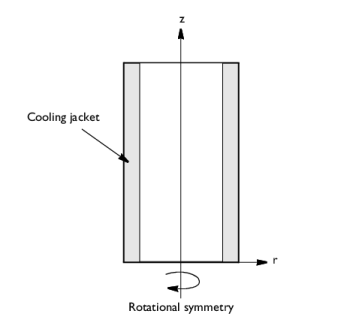
Figure 1 illustrates the tubular reactor geometry.
Figure 1: Model geometry for the 2-dimensional rotationally symmetric models.
The system is described by a set of differential equations on a 2D surface that represents a cross section of the tubular reactor in the rz-plane. That 2D surface’s borders represent the inlet, the outlet, the reactor wall, and the centerline. The reactor model uses the following differential equations: mass balances for the species, a heat balance, combined with momentum and mass balance for the fluid flow. Due to rotational symmetry, the software need only to solve these equations for half of the domain as shown in Figure 1.
Model Equations
You describe the mass balances and heat balances in the reactors with partial differential equations (PDEs). The equations are defined as follows.
Mass Balance
(3)
where Di denotes the diffusion coefficient of species i, Ci is the concentration, u the flow velocity vector, and Rx is the reaction rate.
Using a two-dimensional axially symmetric geometry, and a constant diffusion coefficient, this equation corresponds to
(4)
where u and w denote the radial and axial velocity component respectively.
The mass balance equations are set up and solved for using the Transport of Diluted Species interface.
Mass Balance Boundary Conditions
Inlet (z = 0)
The boundary condition selected for the outlet states that convection dominates transport out of the reactor. Thus this condition keeps the outlet boundary open and does not set any restrictions on the concentration.
Outlet (z = L)
where L denotes the length of the reactor.
Energy Balance Inside the Reactor
(5)
where ρ denotes the density, CP equals the heat capacity, k is the thermal conductivity, T the temperature, and ΔHRx is the reaction enthalpy.
Using a two-dimensional axially symmetric geometry, and a constant thermal conductivity, this equation corresponds to
(6)
The energy balance is solved for by the Heat Transfer in Fluids interface.
Energy Balance Boundary Conditions
Inlet (z = 0)
where Ta denotes the constant temperature in the cooling jacket, and Uk is an overall heat transfer coefficient.
Mass Balance
As for the mass balance, choose the boundary condition at the outlet for the energy balance such that it keeps the outlet boundary open. This condition sets only one restriction, that the heat transport out of the reactor is convective.
Outlet (z = L)
Momentum Balance
The fluid flow is modeled with the Laminar flow interface that solves the Navier–Stokes equations computing the velocity and pressure. At the inlet, a fully developed laminar flow profile with an average flow velocity is prescribed. At the outlet, the pressure is prescribed.
Model Parameters
Below is a list of the model’s input data. You define them either as constants or as expressions involving other constants. In defining each parameter in COMSOL Multiphysics, for the constant’s Name, use the left side of the equality in the following list and use the value on the right side of the equality for the Expression that defines it. Type the unit inside brackets, like this [mol/m^3].
The constants in the model are:
Activation energy, E = 75362 J/mol
Frequency factor, A = 16.96E12 1/h
Heat of reaction, ΔHRx, dHrx = -84666 J/mol
Total flow rate, v0 = 0.1[mol/s]/cpoxide0
Average flow velocity, u0 = v0/(pi*Ra^2)
Concentration of propylene oxide at inlet, cpoxide0 = rho_poxide/M_poxide/9[1]
Concentration of water, cwater0 = rho_H2O/M_H2O*(7/9)[1]
Molar heat capacity of water, cpm_H2O = 74.5 J/(mol·K)
Molar weight of propylene oxide, M_poxide = 58.095 g/mol
Molar weight of water, M_H2O = 18 g/mol
Molar weight of propylene glycol, M_pglycol = 76.095 g/mol
Density of propylene oxide, rho_poxide = 830 kg/m3
Density of water, rho_H2O = 1000 kg/m3
Density of propylene glycol, rho_pglycol = 1040 kg/m3
Molar heat capacity of water, cpm_H2O = 75.36 J/mol/K
All necessary reaction kinetics and mass transport properties are incorporated into the model with the Chemistry interface.
Results
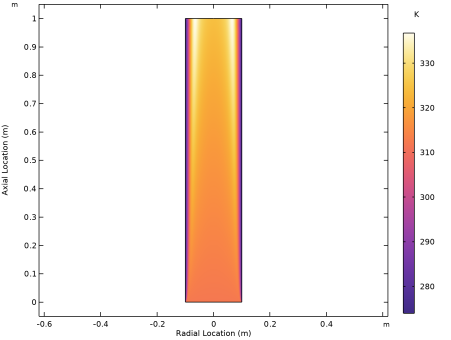
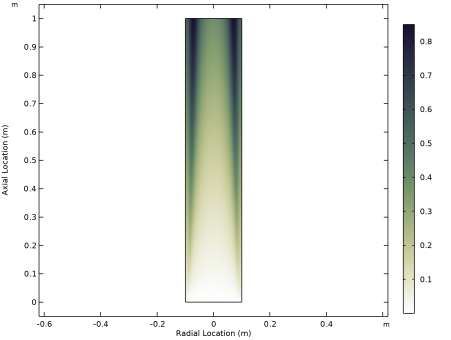
Surface plots for the surface temperature and conversion are shown in Figure 2 and Figure 4. These figures show that where the temperature is low, little conversion takes place and vice versa. This occurs because the rate of the reaction is temperature dependent. The low temperature closest to the wall is due to the coolant.
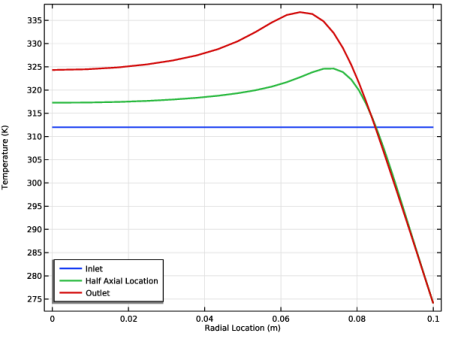
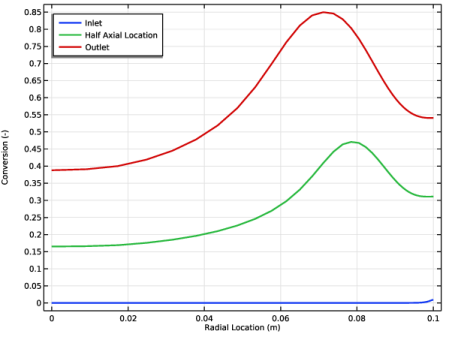
Figure 3 and Figure 5 show the temperature and conversion surface profiles at three locations along the length of the reactor. The further along the reactor the reactants travel, the more reaction takes place and the higher the temperature becomes. The impact of the coolant are shown in these figures as well.
Figure 2: Temperature in the reactor.
Figure 3: Radial temperature profiles.
.
Figure 4: Conversion of propylene oxide in the reactor.
Figure 5: Radial conversion profiles for propylene oxide.
Exercises
Some example exercises below can easily be performed with the model to understand the system better.
1
2
3
4
References
1. S. Fogler, Elements of Chemical Reaction Engineering 4th ed., p. 557, Example 8-12 Radial Effects in Tubular Reactor, Prentice Hall, 2005.
Application Library path: Chemical_Reaction_Engineering_Module/Tutorials/multicomponent_tubular_reactor
Modeling Instructions
Starting COMSOL Multiphysics you are greeted by the Model Wizard. Here you choose the dimension of your model geometry as well as the physics interfaces required. You can return to the Model Wizard later in the modeling process should you want to expand your model to include additional physics interfaces.
From the File menu, choose New.
New
In the New window, click  Model Wizard.
Model Wizard
1
In the Model Wizard window, click  2D Axisymmetric.
2
In the Select Physics tree, select Chemical Species Transport > Chemistry (chem).
This interface can be used to calculate reaction kinetics and thermal and mass transport properties.
3
Click Add.
4
In the Select Physics tree, select Chemical Species Transport > Transport of Diluted Species (tds).
This sets up the required mass balance equation for propylene oxide and propylene glycol. Water is a solvent and is not accounted for here.
5
Click Add.
6
In the Number of species text field, type 2.
7
In the Concentrations (mol/m³) table, enter the following settings:
cpoxide and cpglycol are the dependent variable names, where p stands for propylene.
8
In the Select Physics tree, select Heat Transfer > Heat Transfer in Fluids (ht).
Selecting this physics interface adds an energy balance to the model.
9
Click Add.
Also, set up the Laminar Flow interface to describe the fluid flow in the reactor.
1
In the Select Physics tree, select Fluid Flow > Single-Phase Flow > Laminar Flow (spf).
2
Click Add.
3
Click  Study.
4
In the Select Study tree, select General Studies > Stationary.
The Stationary analysis type lets you investigate the steady-state behavior of the reactor.
5
Global Definitions
Parameters 1
Start by adding the Parameters. You can type in constant names and their values in the Parameters dialog. Note that you can enter units enclosed in brackets after the constant values. This can be very useful as the software is able to keep track of unit consistency throughout the model setup procedure.
In this case, the model parameters are available in a text file that is imported.
1
In the Model Builder window, under Global Definitions click Parameters 1.
2
In the Settings window for Parameters, locate the Parameters section.
3
Click  Load from File.
4
Geometry 1
Now, move on to define the reactor geometry. In 2D axisymmetry, the representation of the tubular reactor is reduced to a simple rectangle.
Rectangle 1 (r1)
In the Geometry toolbar, click  Rectangle.
The geometry is automatically drawn as you leave the Geometry node. You can also click the Build All button in the Settings toolbar.
1
In the Settings window for Rectangle, locate the Size and Shape section.
2
In the Width text field, type Ra.
3
In the Height text field, type L.
4
Click  Build All Objects.
Add a variable computing the conversion of propylene oxide.
Definitions
Variables 1
1
In the Definitions toolbar, click  Local Variables.
2
In the Settings window for Variables, locate the Variables section.
3
Select the mixture type and enable transport mixture properties to be computed.
Chemistry (chem)
First the reaction kinetics and mixture properties will be set up, this is done in the Chemistry interface.
1
In the Model Builder window, under Component 1 (comp1) click Chemistry (chem).
2
In the Settings window for Chemistry, locate the Model Input section.
3
From the T list, choose Temperature (ht).
4
Locate the Mixture Properties section. From the Phase list, choose Liquid.
5
Click to expand the Calculate Transport Properties section.
Reaction 1
1
In the Physics toolbar, click  Domains and choose Reaction.
The reaction is irreversible and contains three species: propylene oxide (poxide), water, and propylene glycol (pglycol).
2
In the Settings window for Reaction, locate the Reaction Formula section.
3
In the Formula text field, type poxide+H2O=>pglycol.
4
Click Apply.
5
Locate the Reaction Rate section. From the list, choose User defined.
6
In the rj text field, type chem.kf_1*chem.c_poxide.
7
Locate the Reaction Orders section. Find the Volumetric overall reaction order subsection. In the Forward text field, type 1.
Define the reaction expression and use the in-built Arrhenius expression for calculation of the reaction rate constant.
8
Locate the Rate Constants section. Select the Use Arrhenius expressions checkbox.
9
In the Af text field, type A.
10
In the Ef text field, type E.
11
Locate the Reaction Thermodynamic Properties section. From the Heat source of reaction list, choose User defined.
12
In the Q text field, type -chem.r_1*dHrx.
Under each species, their respective chemical formulas can be entered. Entering a chemical formula gives the species’ molar mass and enables balancing the reaction.
Species: poxide
1
In the Model Builder window, click Species: poxide.
2
In the Settings window for Species, locate the Chemical Formula section.
3
Select the Enable formula checkbox.
4
5
In the ρ text field, type rho_poxide.
Species: H2O
Since the species’ name (H2O) is a chemical formula, the chemical formula field is already filled in. As a result, so is the molar mass.
1
In the Model Builder window, click Species: H2O.
2
In the Settings window for Species, locate the Type section.
3
4
Locate the Chemical Formula section. In the ρ text field, type rho_H2O.
5
Click to expand the Transport Expressions section. In the k text field, type ke.
6
Click to expand the Thermodynamic Expressions section. From the list, choose User defined.
7
In the Cp text field, type cpm_H2O.
Species: pglycol
1
In the Model Builder window, click Species: pglycol.
2
In the Settings window for Species, locate the Chemical Formula section.
3
Select the Enable formula checkbox.
4
5
In the ρ text field, type rho_pglycol.
1: poxide + H2O => pglycol
1
In the Model Builder window, click 1: poxide + H2O => pglycol.
2
In the Settings window for Reaction, locate the Reaction Formula section.
3
Click Balance in the upper-right corner of the section.
As can be seen, no coefficients appeared in front of any of the species when balancing the reaction, which means that 1 mole of propylene oxide and water is needed to form 1 mole of propylene glycol.
4
In the Model Builder window, click Chemistry (chem).
5
In the Settings window for Chemistry, locate the Species Matching section.
6
Find the Bulk species subsection. From the Species solved for list, choose Transport of Diluted Species.
7
8
Locate the Calculate Transport Properties section. In the μref text field, type myref_H2O.
9
In the Tref text field, type Tref_my.
Transport of Diluted Species (tds)
In the next step of the model setup you will specify the parameters and source terms needed for the mass balance equation defined for propylene oxide and propylene glycol. As you click the Transport of Diluted Species node the Equation section of the Settings window will tell you which equations are solved for. The Domain Selection shows a list of the geometry domains to which the equations apply. Note that you can change the mass transport mechanisms included in the mass balance equation through selections in the Transport Mechanisms section. This can be done at any time in the modeling process.
Moving on to the Fluid node, you are expected to provide diffusivity of propylene oxide and propylene glycol. The variable names you type in have previously been defined in the Variables and Parameters lists. Here, it is also possible to couple the interface to other interfaces. In this example, you instead use the Multiphysics node to do this.
Fluid 1
1
In the Model Builder window, under Component 1 (comp1) > Transport of Diluted Species (tds) click Fluid 1.
2
In the Settings window for Fluid, locate the Diffusion section.
3
In the Dcpoxide text field, type chem.D_poxide.
4
In the Dcpglycol text field, type chem.D_pglycol.
Reactions 1
In the Physics toolbar, click  Domains and choose Reactions.
The reaction rates are selected from the Chemistry interface.
1
2
In the Settings window for Reactions, locate the Reaction Rates section.
3
From the Chemistry list, choose Chemistry (chem).
Inflow 1
1
In the Physics toolbar, click  Boundaries and choose Inflow.
2
3
In the Settings window for Inflow, locate the Concentration section.
4
In the c0,cpoxide text field, type cpoxide0.
Selecting the Danckwerts boundary condition is a manner to speed up the computation and improve the solution.
5
Locate the Boundary Condition Type section. From the list, choose Flux (Danckwerts).
Outflow 1
1
In the Physics toolbar, click  Boundaries and choose Outflow.
2
Assigning the Outflow condition to the outlet boundary imposes n*Dgrad(c)=0, that is, the transport of mass across the boundary is dominated by convection. Note that the mathematical representation of the boundary conditions are displayed in the Equation section of the Settings window. The boundary conditions for the axis of symmetry as well as the no flux condition for the reactor wall are set by default.
This concludes the definition of the mass balance for propylene oxide and propylene glycol. Now, move on to set up the Heat Transfer in Fluids interface.
Heat Transfer in Fluids (ht)
Fluid 1
The Heat Transfer in Fluids feature asks for the thermal conductivity, density, and heat capacity of the fluid mixture. These are taken from the Chemistry interface.
1
In the Model Builder window, under Component 1 (comp1) > Heat Transfer in Fluids (ht) click Fluid 1.
2
In the Settings window for Fluid, locate the Heat Conduction, Fluid section.
3
From the k list, choose Thermal conductivity (chem).
4
Locate the Thermodynamics, Fluid section. From the Fluid type list, choose Gas/Liquid.
5
From the ρ list, choose Density (chem).
6
From the Cp list, choose Heat capacity at constant pressure (chem).
7
From the γ list, choose User defined.
Initial Values 1
1
In the Model Builder window, click Initial Values 1.
2
In the Settings window for Initial Values, locate the Initial Values section.
3
In the T text field, type T0.
Heat Source 1
1
In the Physics toolbar, click  Domains and choose Heat Source.
Add a Heat Source feature to include the effect of the exothermic reactions as defined in the Transport of Diluted Species interface to the heat balance.
2
3
In the Settings window for Heat Source, locate the Heat Source section.
4
From the Q0 list, choose Heat source (tds).
Next, add the boundary conditions specifying a temperature at the inlet, the heat flux between reactor and cooling jacket, and an outflow condition at the outlet.
Temperature 1
1
In the Physics toolbar, click  Boundaries and choose Temperature.
2
3
In the Settings window for Temperature, locate the Temperature section.
4
In the T0 text field, type T0.
Heat Flux 1
1
In the Physics toolbar, click  Boundaries and choose Heat Flux.
2
3
In the Settings window for Heat Flux, locate the Heat Flux section.
4
From the Flux type list, choose Convective heat flux.
5
In the h text field, type Uk.
6
In the Text text field, type Ta0.
Outflow 1
1
In the Physics toolbar, click  Boundaries and choose Outflow.
2
Now, move on to the Laminar Flow interface.
Laminar Flow (spf)
Fluid Properties 1
1
In the Model Builder window, under Component 1 (comp1) > Laminar Flow (spf) click Fluid Properties 1.
2
In the Settings window for Fluid Properties, locate the Fluid Properties section.
3
From the ρ list, choose Density (chem).
4
From the μ list, choose Dynamic viscosity (chem).
Assume that the flow has a Fully developed flow pattern as it enters the reactor.
Inlet 1
1
In the Physics toolbar, click  Boundaries and choose Inlet.
2
3
In the Settings window for Inlet, locate the Boundary Condition section.
4
From the list, choose Fully developed flow.
5
Locate the Fully Developed Flow section. In the Uav text field, type u0.
Outlet 1
1
In the Physics toolbar, click  Boundaries and choose Outlet.
2
Last, couple the interfaces with the Multiphysics node.
Multiphysics
Nonisothermal Flow 1 (nitf1)
In the Physics toolbar, click  Multiphysics Couplings and choose Domain > Nonisothermal Flow.
Reacting Flow, Diluted Species 1 (rfd1)
In the Physics toolbar, click  Multiphysics Couplings and choose Domain > Reacting Flow, Diluted Species.
This completes the setup of the physics interfaces. The next step of the modeling process involves meshing.
Mesh 1
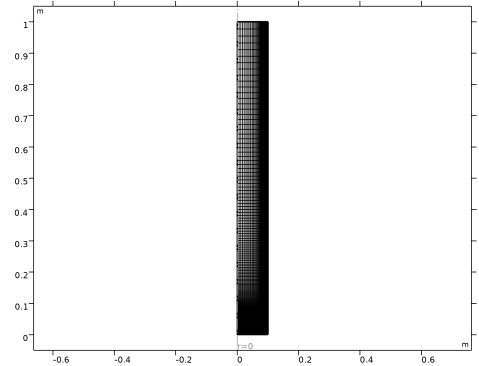
Following the steps below you will discretize the geometry with a Mesh. The software uses the mesh when applying the finite element method to numerically solve the partial differential equations. In this particular model you will create a Mapped mesh. This meshing technique is often a good choice for simple geometries as it allows detailed control over the mesh distribution. The mesh is dense near the reactor inlet and reactor outer wall. This is needed to resolve sharp concentration and temperature gradients expected when the reactor is run under nonisothermal conditions.
Mapped 1
In the Mesh toolbar, click  Mapped.
Distribution 1
1
Right-click Mapped 1 and choose Distribution.
First set up 50 vertical mesh lines by selecting the inlet and outlet boundaries and using predefined distribution settings. Then, in the same fashion, set up the horizontal lines to complete the Mapped mesh.
2
3
In the Settings window for Distribution, locate the Distribution section.
4
From the Distribution type list, choose Predefined.
5
In the Number of elements text field, type 50.
6
In the Element ratio text field, type 0.01.
7
From the Growth rate list, choose Exponential.
8
Select the Reverse direction checkbox.
Distribution 2
1
In the Model Builder window, right-click Mapped 1 and choose Distribution.
2
3
In the Settings window for Distribution, locate the Distribution section.
4
From the Distribution type list, choose Predefined.
5
In the Number of elements text field, type 200.
6
In the Element ratio text field, type 0.01.
7
From the Growth rate list, choose Exponential.
8
Select the Reverse direction checkbox.
9
In the Model Builder window, right-click Mesh 1 and choose Build All.
The figure below shows the created mesh.
Study 1
Solve the model.
1
In the Study toolbar, click  Compute.
The following instructions produce Figure 2 through Figure 5.
Two of these require setting up two kinds of datasets: Cut Line 2D and Mirror 2D datasets.
Results
Cut Line 2D 1
1
In the Results toolbar, click  Cut Line 2D.
2
In the Settings window for Cut Line 2D, locate the Line Data section.
3
In row Point 2, set r to Ra.
4
Select the Additional parallel lines checkbox.
5
In the Distances text field, type 0.5*L 1*L.
Mirror 2D 1
1
In the Results toolbar, click  More Datasets and choose Mirror 2D.
2
In the Settings window for Mirror 2D, click to expand the Advanced section.
3
Find the Space variables subsection. Select the Remove elements on the symmetry axis checkbox.
This setting removes the symmetry axis in the figure and makes the resulting plots look cleaner.
4
Start with the Mirror 2D plots. Proceed as follows to create a mirrored temperature 2D plot (Figure 2).
Temperature, surface (mirrored)
1
In the Results toolbar, click  2D Plot Group.
2
In the Settings window for 2D Plot Group, locate the Data section.
3
From the Dataset list, choose Mirror 2D 1.
4
In the Label text field, type Temperature, surface (mirrored).
5
Click to expand the Title section. From the Title type list, choose None.
6
Locate the Color Legend section. Select the Show units checkbox.
7
Locate the Plot Settings section.
8
Select the x-axis label checkbox. In the associated text field, type Radial Location (m).
9
Select the y-axis label checkbox. In the associated text field, type Axial Location (m).
Surface 1
1
Right-click Temperature, surface (mirrored) and choose Surface.
2
In the Settings window for Surface, click Replace Expression in the upper-right corner of the Expression section. From the menu, choose Component 1 (comp1) > Heat Transfer in Fluids > Temperature > T - Temperature - K.
3
Locate the Coloring and Style section. From the Color table list, choose HeatCameraLight.
4
Click the  Zoom Extents button in the Graphics toolbar.
5
In the Temperature, surface (mirrored) toolbar, click  Plot.
Duplicate the Temperature, surface Mirror 2D plot to make the Conversion, surface Mirror 2D plot, Figure 4.
Conversion, surface (mirrored)
1
In the Model Builder window, right-click Temperature, surface (mirrored) and choose Duplicate.
2
In the Settings window for 2D Plot Group, type Conversion, surface (mirrored) in the Label text field.
Surface 1
1
In the Model Builder window, expand the Conversion, surface (mirrored) node, then click Surface 1.
2
In the Settings window for Surface, click Replace Expression in the upper-right corner of the Expression section. From the menu, choose Component 1 (comp1) > Definitions > Variables > Xpoxide - Conversion of propylene oxide - 1.
3
Locate the Coloring and Style section. From the Color table list, choose Lichen.
4
Click the  Zoom Extents button in the Graphics toolbar.
5
In the Conversion, surface (mirrored) toolbar, click  Plot.
Concentration, poxide, 3D (tds)
1
In the Model Builder window, under Results click Concentration, poxide, 3D (tds).
2
In the Settings window for 3D Plot Group, click to expand the Title section.
3
From the Title type list, choose None.
4
Locate the Color Legend section. Select the Show units checkbox.
Surface 1
1
In the Model Builder window, expand the Concentration, poxide, 3D (tds) node, then click Surface 1.
2
In the Settings window for Surface, locate the Coloring and Style section.
3
From the Color table list, choose Cynanthus.
Concentration, pglycol, 3D (tds)
1
In the Model Builder window, under Results click Concentration, pglycol, 3D (tds).
2
In the Settings window for 3D Plot Group, click to expand the Title section.
3
From the Title type list, choose None.
4
Locate the Color Legend section. Select the Show units checkbox.
Surface 1
1
In the Model Builder window, expand the Concentration, pglycol, 3D (tds) node, then click Surface 1.
2
In the Settings window for Surface, locate the Coloring and Style section.
3
From the Color table list, choose Bryophyta.
Temperature (ht)
1
In the Model Builder window, under Results click Temperature (ht).
2
In the Settings window for 2D Plot Group, locate the Title section.
3
From the Title type list, choose Manual.
4
In the Title text area, type Surface: Temperature.
5
Locate the Color Legend section. Select the Show units checkbox.
Velocity (spf)
1
In the Model Builder window, click Velocity (spf).
2
In the Settings window for 2D Plot Group, locate the Title section.
3
From the Title type list, choose Manual.
4
In the Title text area, type Contour: Temperature.
5
Locate the Color Legend section. Select the Show units checkbox.
6
Locate the Title section. In the Title text area, type Surface: Velocity Magnitude.
Pressure (spf)
1
In the Model Builder window, click Pressure (spf).
2
In the Settings window for 2D Plot Group, locate the Title section.
3
From the Title type list, choose Manual.
4
In the Title text area, type Contour: Pressure.
5
Locate the Color Legend section. Select the Show units checkbox.
Velocity, 3D (spf)
1
In the Model Builder window, click Velocity, 3D (spf).
2
In the Settings window for 3D Plot Group, locate the Title section.
3
From the Title type list, choose Manual.
4
In the Title text area, type Surface: Velocity Magnitude.
5
Locate the Color Legend section. Select the Show units checkbox.
Surface
1
In the Model Builder window, expand the Velocity, 3D (spf) node, then click Surface.
2
In the Settings window for Surface, locate the Coloring and Style section.
3
From the Color table list, choose Metasepia.
4
From the Color table transformation list, choose Reverse.
Temperature profiles
In the Results toolbar, click  1D Plot Group.
Continue with the Cut Line 2D plots. First create the temperature plot with a 1D Plot Group with a Line Graph, Figure 3.
1
In the Settings window for 1D Plot Group, type Temperature profiles in the Label text field.
2
Locate the Data section. From the Dataset list, choose Cut Line 2D 1.
3
Click to expand the Title section. From the Title type list, choose None.
4
Locate the Plot Settings section.
5
Select the x-axis label checkbox. In the associated text field, type Radial Location (m).
6
Select the y-axis label checkbox. In the associated text field, type Temperature (K).
7
Locate the Legend section. From the Layout list, choose Inside graph axis area.
8
From the Position list, choose Lower left.
Line Graph 1
1
Right-click Temperature profiles and choose Line Graph.
2
In the Settings window for Line Graph, click Replace Expression in the upper-right corner of the y-Axis Data section. From the menu, choose Component 1 (comp1) > Heat Transfer in Fluids > Temperature > T - Temperature - K.
3
Click to expand the Coloring and Style section. From the Width list, choose 2.
4
Click to expand the Legends section. Select the Show legends checkbox.
5
From the Legends list, choose Manual.
6
7
In the Temperature profiles toolbar, click  Plot.
Duplicate the Temperature profiles Cut Line 2D plot to create a Conversion profiles Cut Line 2D plot, Figure 5.
Conversion profiles
1
In the Model Builder window, right-click Temperature profiles and choose Duplicate.
2
In the Settings window for 1D Plot Group, type Conversion profiles in the Label text field.
3
Locate the Plot Settings section. In the y-axis label text field, type Conversion (-).
4
Locate the Legend section. From the Position list, choose Upper left.
Line Graph 1
1
In the Model Builder window, expand the Conversion profiles node, then click Line Graph 1.
2
In the Settings window for Line Graph, click Replace Expression in the upper-right corner of the y-Axis Data section. From the menu, choose Component 1 (comp1) > Definitions > Variables > Xpoxide - Conversion of propylene oxide - 1.
3
In the Conversion profiles toolbar, click  Plot.
Optionally, delete plots that are not needed.
Concentration, pglycol (tds), Concentration, poxide (tds), Temperature (ht), Temperature and Fluid Flow (nitf1), Velocity (spf)
1
In the Model Builder window, under Results, Ctrl-click to select Concentration, poxide (tds), Concentration, pglycol (tds), Temperature (ht), Velocity (spf), and Temperature and Fluid Flow (nitf1).
2