
|
|
|
 ,
, ,
, .
. .
. ,
, .
. .
. ,
, .
.




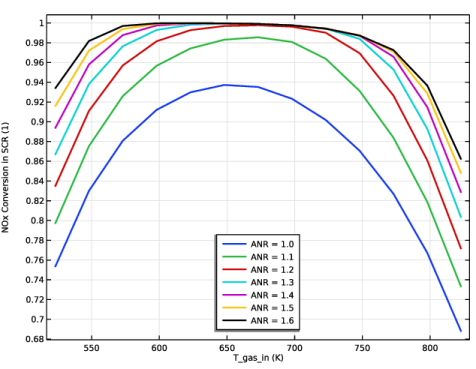
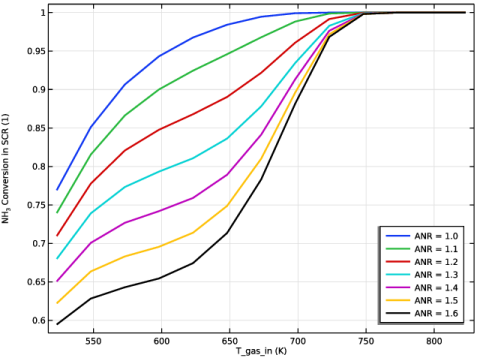
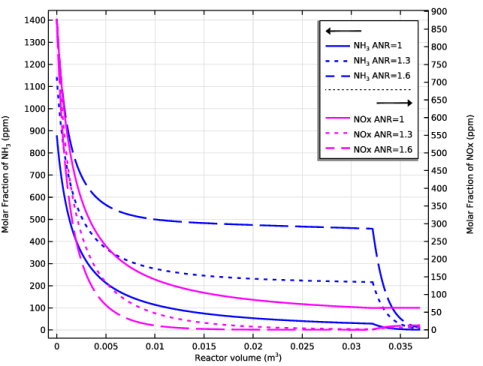
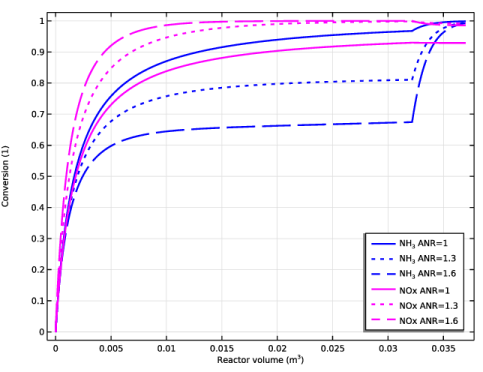
|
1
|
|
2
|
|
3
|
Click Add.
|
|
4
|
Click
 Study. Study. |
|
5
|
In the Select Study tree, select Preset Studies for Selected Physics Interfaces > Stationary Plug Flow.
|
|
6
|
Click
 Done. Done. |
|
1
|
|
2
|
|
3
|
Click
 Load from File. Load from File. |
|
4
|
Browse to the model’s Application Libraries folder and double-click the file monolith_kinetics_engine_load_cases_parameters.txt.
|
|
5
|
|
1
|
|
2
|
|
3
|
Locate the Parameters section. In the table, enter the following settings:
|
|
4
|
|
5
|
|
6
|
Locate the Parameters section. In the table, enter the following settings:
|
|
7
|
|
8
|
|
9
|
|
10
|
|
11
|
Locate the Parameters section. In the table, enter the following settings:
|
|
1
|
|
2
|
In the Settings window for Parameters, type Parameters: Temperature and Monolith Parameters in the Label text field.
|
|
3
|
|
4
|
Browse to the model’s Application Libraries folder and double-click the file monolith_kinetics_temperature_monolith_parameters.txt.
|
|
1
|
|
2
|
In the Settings window for Parameters, type Parameters: Flow and Composition in the Label text field.
|
|
3
|
|
4
|
Browse to the model’s Application Libraries folder and double-click the file monolith_kinetics_flow_composition_parameters.txt.
|
|
1
|
|
2
|
|
3
|
|
4
|
Browse to the model’s Application Libraries folder and double-click the file monolith_kinetics_kinetic_parameters.txt.
|
|
1
|
In the Model Builder window, under Component 1 (comp1) right-click Definitions and choose Variables.
|
|
2
|
In the Settings window for Variables, type Variables: Reaction Kinetics SCR in the Label text field.
|
|
3
|
|
4
|
Browse to the model’s Application Libraries folder and double-click the file monolith_kinetics_SCR_kinetics_variables.txt.
|
|
1
|
|
2
|
In the Settings window for Variables, type Variables: Reaction Kinetics ASC in the Label text field.
|
|
3
|
|
4
|
Browse to the model’s Application Libraries folder and double-click the file monolith_kinetics_ASC_kinetics_variables.txt.
|
|
1
|
|
2
|
|
3
|
|
4
|
Browse to the model’s Application Libraries folder and double-click the file monolith_kinetics_postprocessing_variables.txt.
|
|
1
|
|
2
|
Browse to the model’s Application Libraries folder and double-click the file dissociation_thermo_system.xml.
|
|
1
|
In the Model Builder window, expand the Global Definitions > Thermodynamics > User-Defined Species node.
|
|
2
|
|
3
|
|
1
|
Go to the Select System window.
|
|
2
|
Click the Next button in the window toolbar.
|
|
1
|
Go to the Select Species window.
|
|
2
|
|
3
|
|
4
|
Click
 Add Selected. Add Selected. |
|
5
|
|
6
|
|
7
|
Click
 Add Selected. Add Selected. |
|
8
|
|
9
|
Click
 Add Selected. Add Selected. |
|
10
|
|
11
|
Click
 Add Selected. Add Selected. |
|
12
|
|
13
|
Click
 Add Selected. Add Selected. |
|
14
|
|
15
|
Click
 Add Selected. Add Selected. |
|
16
|
Click the Next button in the window toolbar.
|
|
1
|
Go to the Select Thermodynamic Model window.
|
|
2
|
Click the Finish button in the window toolbar.
|
|
1
|
|
2
|
|
3
|
|
4
|
|
5
|
|
6
|
Locate the Reaction Orders section. Find the Volumetric overall reaction order subsection. In the Forward text field, type 3.
|
|
7
|
|
8
|
|
9
|
|
10
|
|
1
|
|
2
|
|
3
|
|
4
|
|
5
|
|
6
|
|
7
|
|
8
|
|
9
|
|
10
|
Locate the Reaction Orders section. Find the Volumetric overall reaction order subsection. In the Forward text field, type 3.
|
|
1
|
|
2
|
|
3
|
|
4
|
|
5
|
|
6
|
|
7
|
|
8
|
|
9
|
|
10
|
Locate the Reaction Orders section. Find the Volumetric overall reaction order subsection. In the Forward text field, type 2.
|
|
1
|
|
2
|
|
3
|
|
4
|
|
5
|
|
6
|
Select the Use Arrhenius expressions checkbox.
|
|
7
|
|
8
|
|
9
|
|
10
|
|
11
|
Select the Thermodynamics checkbox.
|
|
12
|
Locate the Species Matching section. In the table, enter the following settings:
|
|
1
|
|
2
|
|
3
|
|
4
|
|
5
|
|
6
|
|
7
|
|
8
|
|
9
|
|
10
|
Locate the Reaction Orders section. Find the Volumetric overall reaction order subsection. In the Forward text field, type 2.
|
|
1
|
|
2
|
|
3
|
|
4
|
|
5
|
|
6
|
|
7
|
|
8
|
|
9
|
|
10
|
Locate the Reaction Orders section. Find the Volumetric overall reaction order subsection. In the Forward text field, type 2.
|
|
11
|
|
12
|
In the Settings window for Reaction Engineering, type Selective Catalytic Reduction Catalyst (SCR) in the Label text field.
|
|
13
|
|
1
|
|
2
|
|
3
|
|
4
|
Locate the Volumetric Species Initial Values section. In the table, enter the following settings:
|
|
1
|
|
2
|
Go to the Add Physics window.
|
|
3
|
|
4
|
Click the Add to Component 1 button in the window toolbar.
|
|
5
|
|
1
|
In the Settings window for Reaction Engineering, type Ammonia Slip Catalyst (ASC) in the Label text field.
|
|
2
|
|
3
|
|
1
|
|
2
|
|
3
|
|
4
|
|
5
|
|
6
|
|
7
|
|
8
|
|
9
|
|
10
|
Locate the Reaction Orders section. Find the Volumetric overall reaction order subsection. In the Forward text field, type 2.
|
|
1
|
|
2
|
|
3
|
|
4
|
|
5
|
|
6
|
|
7
|
|
8
|
|
9
|
|
10
|
Locate the Reaction Orders section. Find the Volumetric overall reaction order subsection. In the Forward text field, type 2.
|
|
1
|
|
2
|
|
3
|
|
4
|
|
5
|
|
6
|
Select the Use Arrhenius expressions checkbox.
|
|
7
|
|
8
|
|
1
|
|
2
|
|
3
|
|
4
|
|
5
|
|
6
|
|
7
|
|
8
|
|
9
|
|
10
|
Locate the Reaction Orders section. Find the Volumetric overall reaction order subsection. In the Forward text field, type 2.
|
|
11
|
|
12
|
|
13
|
Select the Thermodynamics checkbox.
|
|
14
|
Locate the Species Matching section. In the table, enter the following settings:
|
|
1
|
|
2
|
|
3
|
|
4
|
Locate the Volumetric Species Initial Values section. In the table, enter the following settings:
|
|
1
|
|
2
|
|
3
|
|
4
|
Locate the Physics and Variables Selection section. In the Solve for column of the table, under Component 1 (comp1), clear the checkbox for Ammonia Slip Catalyst (ASC) (re2).
|
|
5
|
|
6
|
Click
 Add. Add. |
|
1
|
|
2
|
|
3
|
|
4
|
|
5
|
|
6
|
In the Settings window for Study, type Study 1: SCR Temperature Operating Window, ANR = 1.3, Case 2 in the Label text field.
|
|
7
|
|
1
|
In the Settings window for 1D Plot Group, type Conversion Along Reactor Axis in the Label text field.
|
|
2
|
|
3
|
|
1
|
|
2
|
|
3
|
Click
 Clear Table. Clear Table. |
|
5
|
|
6
|
|
7
|
|
8
|
|
9
|
|
10
|
|
11
|
|
1
|
|
2
|
|
3
|
In the Settings window for 1D Plot Group, type Temperature Increase Along Reactor Axis in the Label text field.
|
|
1
|
|
2
|
|
4
|
|
5
|
|
1
|
|
2
|
In the Settings window for Evaluation Group, type Temperature Operating Window in the Label text field.
|
|
3
|
|
1
|
|
2
|
|
3
|
Click
 Clear Table. Clear Table. |
|
5
|
|
1
|
Go to the Temperature Operating Window window.
|
|
2
|
Click the Table Graph button in the window toolbar.
|
|
1
|
|
2
|
|
3
|
|
4
|
|
1
|
|
2
|
In the Settings window for 1D Plot Group, type Temperature Operating Window in the Label text field.
|
|
3
|
|
4
|
|
1
|
In the Model Builder window, under Results, Ctrl-click to select Conversion Along Reactor Axis, Temperature Increase Along Reactor Axis, and Temperature Operating Window.
|
|
2
|
Right-click and choose Group.
|
|
1
|
|
2
|
Go to the Add Study window.
|
|
3
|
Find the Studies subsection. In the Select Study tree, select Preset Studies for Selected Physics Interfaces > Stationary Plug Flow.
|
|
4
|
Click the Add Study button in the window toolbar.
|
|
5
|
|
1
|
|
2
|
Click
 Add. Add. |
|
4
|
|
5
|
Locate the Study Settings section. In the Output volumes text field, type range(0, V_SCR/10, V_SCR).
|
|
6
|
|
7
|
|
8
|
Clear the Generate default plots checkbox.
|
|
9
|
|
1
|
|
2
|
|
3
|
|
4
|
|
5
|
In the Model Builder window, under Study 2: SCR Temperature Operating Window, ANR Effect, Case 2 > Solver Configurations > Solution 2 (sol2) click Plug Flow Solver 1.
|
|
6
|
|
7
|
|
1
|
|
2
|
|
3
|
Select the Only plot when requested checkbox.
|
|
1
|
|
2
|
In the Settings window for Evaluation Group, type Temperature Operating Window and ANR Effect, NOx Conversion in the Label text field.
|
|
3
|
|
1
|
In the Model Builder window, expand the Temperature Operating Window and ANR Effect, NOx Conversion node, then click Global Evaluation 1.
|
|
2
|
|
3
|
From the Dataset list, choose Study 2: SCR Temperature Operating Window, ANR Effect, Case 2/Solution 2 (sol2).
|
|
4
|
|
5
|
|
6
|
|
7
|
|
1
|
Right-click Results > Temperature Operating Window and ANR Effect, NOx Conversion > Global Evaluation 1 and choose Duplicate.
|
|
2
|
|
3
|
|
1
|
|
2
|
|
3
|
|
1
|
|
2
|
|
3
|
|
1
|
|
2
|
|
3
|
|
1
|
|
2
|
|
3
|
|
1
|
|
2
|
|
3
|
|
1
|
|
2
|
|
1
|
Go to the Temperature Operating Window and ANR Effect, NOx Conversion window.
|
|
2
|
Click the Table Graph button in the window toolbar.
|
|
1
|
|
2
|
|
3
|
|
4
|
|
5
|
|
6
|
|
7
|
Clear the Headers checkbox.
|
|
1
|
|
2
|
|
3
|
|
1
|
|
2
|
|
3
|
|
1
|
|
2
|
|
3
|
|
1
|
|
2
|
|
3
|
|
1
|
|
2
|
|
3
|
|
1
|
|
2
|
|
3
|
|
1
|
|
2
|
|
3
|
Locate the Plot Settings section.
|
|
4
|
|
5
|
|
6
|
|
7
|
|
1
|
In the Model Builder window, right-click Temperature Operating Window and ANR Effect, NOx Conversion and choose Duplicate.
|
|
2
|
|
3
|
In the Settings window for Evaluation Group, type Temperature Operating Window and ANR Effect, NH3 Conversion in the Label text field.
|
|
1
|
|
2
|
|
1
|
|
2
|
|
1
|
|
2
|
|
1
|
|
2
|
|
1
|
|
2
|
|
1
|
|
2
|
|
1
|
|
2
|
|
1
|
|
2
|
|
1
|
|
2
|
|
3
|
|
4
|
Locate the Plot Settings section.
|
|
5
|
Select the y-axis label checkbox. In the associated text field, type NH<sub>3</sub> Conversion in SCR (1).
|
|
6
|
|
1
|
|
2
|
|
3
|
|
1
|
|
2
|
|
3
|
|
1
|
|
2
|
|
3
|
|
1
|
|
2
|
|
3
|
|
1
|
|
2
|
|
3
|
|
1
|
|
2
|
|
3
|
|
1
|
|
2
|
|
3
|
|
4
|
|
5
|
|
1
|
In the Model Builder window, under Results, Ctrl-click to select NOx Conversion in SCR and NH3 Conversion in SCR.
|
|
2
|
Right-click and choose Group.
|
|
1
|
In the Settings window for Group, type SCR Temperature Operating Window and ANR Effect, Case 2 in the Label text field.
|
|
2
|
|
3
|
|
4
|
Clear the Only plot when requested checkbox.
|
|
1
|
|
2
|
Go to the Add Study window.
|
|
3
|
Find the Studies subsection. In the Select Study tree, select Preset Studies for Selected Physics Interfaces > Stationary Plug Flow.
|
|
4
|
Click the Add Study button in the window toolbar.
|
|
5
|
|
1
|
In the Settings window for Stationary Plug Flow, type Stationary Plug Flow, SCR in the Label text field.
|
|
2
|
|
3
|
Locate the Physics and Variables Selection section. In the Solve for column of the table, under Component 1 (comp1), clear the checkbox for Ammonia Slip Catalyst (ASC) (re2).
|
|
1
|
|
2
|
In the Settings window for Stationary Plug Flow, type Stationary Plug Flow, ASC in the Label text field.
|
|
3
|
|
4
|
Locate the Physics and Variables Selection section. In the Solve for column of the table, under Component 1 (comp1), select the checkbox for Ammonia Slip Catalyst (ASC) (re2).
|
|
5
|
In the Solve for column of the table, under Component 1 (comp1), clear the checkbox for Selective Catalytic Reduction Catalyst (SCR) (re).
|
|
6
|
|
7
|
In the Settings window for Study, type Study 3: Single Channel Model, Influence of ANR, Case 2 in the Label text field.
|
|
8
|
Locate the Study Settings section. Select the Store solution for all intermediate study steps checkbox.
|
|
9
|
Clear the Generate default plots checkbox.
|
|
10
|
|
11
|
|
12
|
In the Settings window for Stationary Plug Flow, click to expand the Values of Dependent Variables section.
|
|
13
|
Find the Initial values of variables solved for subsection. From the Settings list, choose User controlled.
|
|
14
|
|
15
|
|
16
|
Find the Values of variables not solved for subsection. From the Settings list, choose User controlled.
|
|
17
|
|
1
|
In the Model Builder window, expand the Study 3: Single Channel Model, Influence of ANR, Case 2 > Solver Configurations > Solution 3 (sol3) node, then click Dependent Variables 1.
|
|
2
|
|
3
|
|
4
|
|
5
|
|
6
|
|
1
|
|
2
|
|
3
|
Click
 Add. Add. |
|
5
|
|
1
|
|
2
|
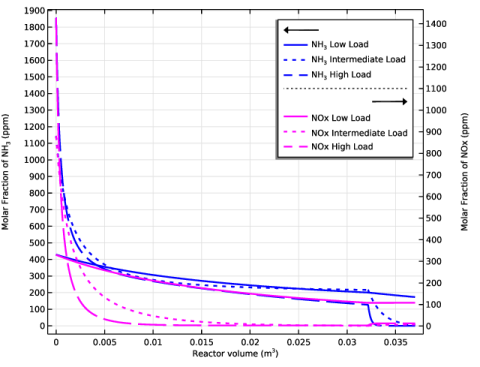
In the Settings window for 1D Plot Group, type Molar Fraction of NH3 and NOx in the Label text field.
|
|
3
|
Locate the Data section. From the Dataset list, choose Study 3: Single Channel Model, Influence of ANR, Case 2/Parametric Solutions 2 (sol6).
|
|
1
|
|
2
|
|
3
|
|
4
|
Click Replace Expression in the upper-right corner of the y-Axis Data section. From the menu, choose Component 1 (comp1) > Definitions > Variables > yNH3_SCR - Molar fraction of NH3 in SCR catalytic bed - 1.
|
|
5
|
Locate the y-Axis Data section. In the table, enter the following settings:
|
|
6
|
Locate the Coloring and Style section. Find the Line style subsection. From the Line list, choose Cycle.
|
|
7
|
|
8
|
|
9
|
|
1
|
|
2
|
|
3
|
Locate the Data section. From the Dataset list, choose Study 3: Single Channel Model, Influence of ANR, Case 2/Parametric Solutions 1 (sol5).
|
|
4
|
Locate the y-Axis Data section. In the table, enter the following settings:
|
|
5
|
Locate the Coloring and Style section. Find the Line style subsection. From the Line list, choose Cycle (reset).
|
|
6
|
|
7
|
|
8
|
|
1
|
|
2
|
|
3
|
Locate the y-Axis Data section. In the table, enter the following settings:
|
|
4
|
Locate the Coloring and Style section. Find the Line style subsection. From the Line list, choose Cycle (reset).
|
|
5
|
|
1
|
|
2
|
|
3
|
Locate the Data section. From the Dataset list, choose Study 3: Single Channel Model, Influence of ANR, Case 2/Parametric Solutions 1 (sol5).
|
|
4
|
Locate the y-Axis Data section. In the table, enter the following settings:
|
|
5
|
|
6
|
|
7
|
Clear the Expression checkbox.
|
|
1
|
|
2
|
|
3
|
|
4
|
Locate the Plot Settings section.
|
|
5
|
Select the x-axis label checkbox. In the associated text field, type Reactor volume (m<sup>3</sup>).
|
|
6
|
Select the y-axis label checkbox. In the associated text field, type Molar Fraction of NH<sub>3</sub> (ppm).
|
|
7
|
Select the Two y-axes checkbox.
|
|
9
|
Select the Secondary y-axis label checkbox. In the associated text field, type Molar Fraction of NOx (ppm).
|
|
10
|
|
11
|
|
1
|
|
2
|
|
3
|
|
4
|
|
5
|
Clear the Two y-axes checkbox.
|
|
6
|
|
1
|
|
2
|
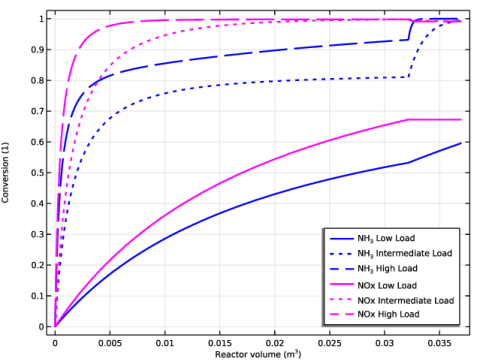
In the Settings window for Global, click Replace Expression in the upper-right corner of the y-Axis Data section. From the menu, choose Component 1 (comp1) > Definitions > Variables > X_NH3_SCR - NH3 Conversion in SCR - 1.
|
|
3
|
Locate the y-Axis Data section. In the table, enter the following settings:
|
|
1
|
|
2
|
|
1
|
|
2
|
|
1
|
|
2
|
|
4
|
|
5
|
|
1
|
In the Model Builder window, under Results, Ctrl-click to select Molar Fraction of NH3 and NOx and Conversion of NH3 and NOx.
|
|
2
|
Right-click and choose Group.
|
|
1
|
|
2
|
Go to the Add Study window.
|
|
3
|
Find the Studies subsection. In the Select Study tree, select Preset Studies for Selected Physics Interfaces > Stationary Plug Flow.
|
|
4
|
Click the Add Study button in the window toolbar.
|
|
5
|
|
1
|
In the Model Builder window, under Study 3: Single Channel Model, Influence of ANR, Case 2, Ctrl-click to select Parametric Sweep, Step 1: Stationary Plug Flow, SCR, and Step 2: Stationary Plug Flow, ASC.
|
|
2
|
Right-click and choose Copy.
|
|
1
|
|
2
|
In the Settings window for Study, type Study 4: Single Channel Model, ANR = 1.3, All Cases in the Label text field.
|
|
3
|
Locate the Study Settings section. Select the Store solution for all intermediate study steps checkbox.
|
|
4
|
Clear the Generate default plots checkbox.
|
|
1
|
In the Model Builder window, under Study 4: Single Channel Model, ANR = 1.3, All Cases click Parametric Sweep.
|
|
2
|
|
3
|
|
4
|
Click
 Add. Add. |
|
1
|
|
2
|
|
3
|
|
4
|
|
5
|
In the Model Builder window, under Study 4: Single Channel Model, ANR = 1.3, All Cases > Solver Configurations > Solution 13 (sol13) click Dependent Variables 2.
|
|
6
|
|
7
|
|
1
|
In the Model Builder window, under Study 4: Single Channel Model, ANR = 1.3, All Cases click Step 2: Stationary Plug Flow, ASC.
|
|
2
|
|
3
|
Find the Initial values of variables solved for subsection. From the Study list, choose Study 4: Single Channel Model, ANR = 1.3, All Cases, Stationary Plug Flow, SCR.
|
|
4
|
|
5
|
Find the Values of variables not solved for subsection. From the Study list, choose Study 4: Single Channel Model, ANR = 1.3, All Cases, Stationary Plug Flow, SCR.
|
|
6
|
|
7
|
|
1
|
In the Model Builder window, right-click Single Channel Model, Influence of ANR, Case 2 and choose Duplicate.
|
|
2
|
In the Settings window for Group, type Single Channel Model, ANR = 1.3, All Cases in the Label text field.
|
|
1
|
In the Model Builder window, expand the Single Channel Model, ANR = 1.3, All Cases node, then click Molar Fraction of NH3 and NOx 1.
|
|
2
|
In the Settings window for 1D Plot Group, type Molar Fraction of NH3 and NOx, All Cases in the Label text field.
|
|
3
|
Locate the Data section. From the Dataset list, choose Study 4: Single Channel Model, ANR = 1.3, All Cases/Parametric Solutions 4 (sol16).
|
|
1
|
In the Model Builder window, expand the Molar Fraction of NH3 and NOx, All Cases node, then click NH3.
|
|
2
|
|
3
|
From the Dataset list, choose Study 4: Single Channel Model, ANR = 1.3, All Cases/Parametric Solutions 3 (sol15).
|
|
1
|
|
2
|
|
3
|
From the Dataset list, choose Study 4: Single Channel Model, ANR = 1.3, All Cases/Parametric Solutions 3 (sol15).
|
|
4
|
|
5
|
|
1
|
In the Model Builder window, under Results > Single Channel Model, ANR = 1.3, All Cases click Conversion of NH3 and NOx 1.
|
|
2
|
In the Settings window for 1D Plot Group, type Conversion of NH3 and NOx, All Cases in the Label text field.
|
|
3
|
Locate the Data section. From the Dataset list, choose Study 4: Single Channel Model, ANR = 1.3, All Cases/Parametric Solutions 4 (sol16).
|
|
1
|
|
2
|
|
3
|
From the Dataset list, choose Study 4: Single Channel Model, ANR = 1.3, All Cases/Parametric Solutions 3 (sol15).
|
|
1
|
|
2
|
|
3
|
From the Dataset list, choose Study 4: Single Channel Model, ANR = 1.3, All Cases/Parametric Solutions 3 (sol15).
|
|
4
|
|
5
|
|
1
|
|
2
|
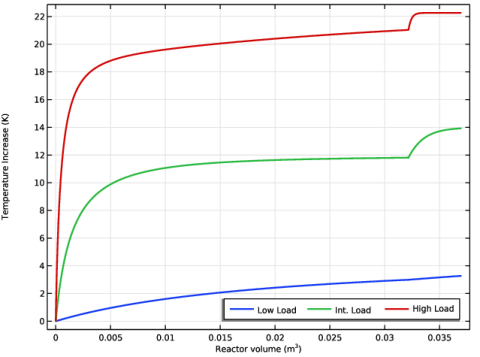
In the Settings window for 1D Plot Group, type Temperature Increase Along Reactor Axis, All Cases in the Label text field.
|
|
3
|
|
4
|
|
1
|
In the Model Builder window, under Results > Single Channel Model, ANR = 1.3, All Cases > Temperature Increase Along Reactor Axis, All Cases, Ctrl-click to select NOx SCR and NOx.
|
|
2
|
Right-click and choose Delete.
|
|
1
|
In the Model Builder window, under Results > Single Channel Model, ANR = 1.3, All Cases > Temperature Increase Along Reactor Axis, All Cases click NH3 SCR.
|
|
2
|
|
3
|
Locate the y-Axis Data section. In the table, enter the following settings:
|
|
4
|
Locate the Coloring and Style section. Find the Line style subsection. From the Line list, choose Solid.
|
|
5
|
|
1
|
In the Model Builder window, under Results > Single Channel Model, ANR = 1.3, All Cases > Temperature Increase Along Reactor Axis, All Cases click NH3.
|
|
2
|
|
3
|
Locate the y-Axis Data section. In the table, enter the following settings:
|
|
4
|
Locate the Coloring and Style section. Find the Line style subsection. From the Line list, choose Solid.
|
|
5
|
|
6
|
|
1
|
|
2
|
|
3
|
|
4
|
|
5
|
|
6
|
 .
. .
. .
. .
. .
. .
. .
. .
. ,
, .
. .
.


