






PDF

Charging of a Metal Hydride Tank
Introduction
Metal hydride tanks offer high volumetric energy density storage of hydrogen, compared to compressed gas tanks and liquid hydrogen (Ref. 1). This is a result of hydrogen being absorbed into the matrix of a metal alloy. The metal hydride resulting from such absorption is a solid-state storage system. These systems are relatively safe since there is a low risk of gas leaks due to the chemically bound hydrogen.
The operation principle for metal hydride tanks is simple: let hydrogen gas absorb into a porous metal alloy at increased pressure. This results in a metal hydride. The absorption process releases heat that should be removed to increase the charging rate and storage capacity. When the gas is needed, the hydrogen is released from the solid matrix by decreasing the pressure while heating the tank.
The capacity of metal alloys is usually expressed as the number of hydrogen atoms (H) that can be absorbed into the matrix per metal site (M). The metal alloy used in this model is based on LaNi5 and has a theoretical H/M ratio of 6 (Ref. 2).
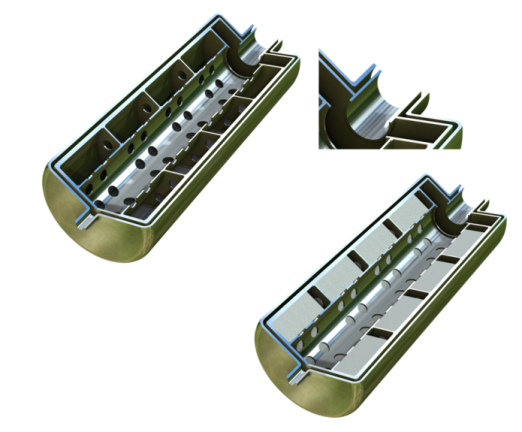
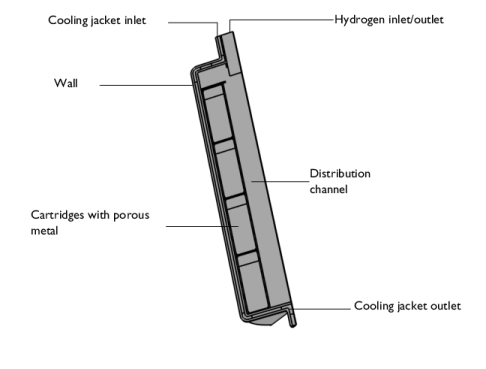
Figure 1 illustrates the tank studied in this model. The tank is cylindrical and equipped with a water filled cooling jacket. The porous metal alloy is placed in cartridges that can be reached by the gas from a central distribution channel. The gas, in this case hydrogen with low amounts of nitrogen, enters the reactor from the top.
Figure 1: Tank reactor design used in this example.
This model describes the coupled reaction kinetics, fluid, heat, and mass transfer during the charging process. Models like this can be used to design storage systems, and to optimize operation conditions (gas composition, pressure, and temperature). Examples of system design parameters are metal composition, porosity, and geometric dimensions.
Model Definition
Figure 2 shows the modeled domain which consists of 1/8 of the tank geometry. This simplification can be made due to the geometric symmetry of the cartridges. To further simplify the geometry, and to save computational memory, the porous metal is modeled as a porous medium. This means that the pore structure is not resolved.
Figure 2: Model geometry including the domain and boundary labels.
The model is based on the following assumptions:
Absorption of Hydrogen
During charging, hydrogen atoms absorb into the solid metal matrix to form metal hydride. This can be described with the following chemical equation for the gas phase
(1)
The absorption rate of hydrogen atoms δXH/δt (1/s) has been defined as (Ref. 2, Ref. 3)
(2)
where XH (mol/mol) is the number of absorbed hydrogen atoms per metal atom site
XHmax is the maximum number of hydrogen atoms that can be absorbed per metal site, Ca is a pre-exponential factor, Ea is the activation energy, pH2 is the partial pressure of hydrogen, and peq is the equilibrium hydrogen pressure. The equilibrium pressure is related to the temperature as described by the van´t Hoff equation (Ref. 4):
(3)
where ΔH (J/mol) is the enthalpy change due to absorption. The hydrogen pressure at isothermal conditions, piso, and the resulting absorbed hydrogen content (XH) comes from experimental data (Ref. 5).
The reaction rate of forming metal hydride RMH (mol H /(m3·s)) (Reaction (1)) can be expressed as a function of the absorption rate in Equation 2
(4)
cM is the concentration of metal sites (M) in the solid phase that hydrogen atoms can react with (mol M/m3)
(5)
From stoichiometry, the reaction rate for H2 (mol H2/(m3·s)) is
(6)
As hydrogen is absorbed and metal hydride is formed, heat (W/m3) is released according to
(7)
Finally, the maximum mass fraction of hydrogen atoms in the modeled alloy (M) is derived as follows:
(8)
where Mi is the molar mass for species i and XHmax is 6 (mol H/mol M).
Fluid Flow
The fluid flow of water in the cooling jacket is modeled as incompressible laminar flow. The inlet flow is assumed to be fully developed and an average inlet velocity is given. There is no slip at the jacket walls. The outlet has a pressure boundary condition with a static relative pressure equal to zero. There is no backflow at the outlet.
The fluid flow of hydrogen gas is modeled as a compressible, laminar flow, and described by the Navier-Stokes equations in the free flow parts, and the Brinkman equations in the porous material domain. The Porous slip formulation is used on boundaries adjacent to solid walls. This introduces slip velocity and relaxes the need for resolving the thin shear layer at the wall. A Darcian flow model is used in the porous domain.
The inlet of the gas has a pressure boundary condition. Normal flow and no backflow is enforced. The inlet pressure is gradually increased by 6 atm over 5 minutes. This improves the convergence rate.
Symmetry boundary conditions are applied on each side of the modeled geometry.
Mass transfer
The incoming gas consists of mainly hydrogen. As absorption progresses, the hydrogen is removed from the gas, until mainly nitrogen remains. Since the gas phase consists of two species with comparative mole fractions, the system is described by the Transport of Concentrated Species in Porous Media interface. This interface solves for the mass transfer in the free flow domains and the porous domains. In the porous domains the conservation equations for hydrogen and nitrogen are:
(9),
where εp is the porosity, ωi is the mass fraction of species i, ji is the mass flux (kg/m3), u is the velocity vector (m/s), and  Qmass is the mass source (kg/(m3·s)) due to absorption (see Equation 10). The terms in the mass conservation equations for the free flow domains are the same as for the porous domain except that the porosity is one and there are no mass sources.
The mass flux in the system consists of convective and diffusive flux. The diffusive flux is described with the Mixture-averaged diffusion model. This model is a simplification of the Maxwell-Stefan model, and it is suitable when the multicomponent diffusion can be assumed to be constant as a function of partial pressure and temperature. In the porous domain the diffusivity is affected by the porosity. The resulting effective diffusivity is described by the Bruggeman model.
As mentioned, the reaction source is only defined in the porous domain. The mass source (kg H2/(m3·s) of hydrogen gas being absorbed into the solid matrix is
(10)
where ε is the porosity of the alloy, and RH2 is given by Equation 6. This mass source is automatically added as a mass source to the fluid flow interface by the Reacting Flow multiphysics coupling.
The gas inflow has a given mole fraction as the boundary condition. As for the fluid flow description, symmetry boundaries for the mass transfer are used to reduce the modeling domain.
Heat Transfer
Heat transfer through convection and conduction is modeled by the Heat Transfer In Porous Media interface. In the porous domains, Local thermal equilibrium is assumed, which means that the temperatures of the solid and the fluid are assumed to be the same. The energy balance for the system is
(11)
where ρf (kg/m3) is the fluid density, Cpf (J/(kg·K)) is the fluid heat capacity, (ρCp)eff (J/(m3·K)) is the effective volumetric heat capacity, and keff (W/(m·K)) is the effective thermal conductivity. Furthermore, u (m/s) is the fluid velocity field, derived by the fluid flow interface. Qabs (W/m3) is the heat released as hydrogen is absorbed into the solid alloy and reacts to form metal hydride (Equation 7). This heat source is automatically added to the heat transfer interface by the Reacting Flow multiphysics coupling.
The effective conductivity of the solid-fluid system, keff, is related to the conductivity of the solid, ks, and to the conductivity of the fluid, kf, by
Here Θs denotes the solid material’s volume fraction, which is related to the volume fraction of the fluid Θf (or porosity) by:
The heat transfer interface sets up Equation 11 in the gas and porous media domains. For the solid alloy in the tank, only heat transfer by conduction applies:
(12)
where ks (SI unit: W/(m·K)) is the thermal conductivity of the solid.
To increase the absorption rate, the reactor is cooled by a water filled cooling jacket. Inflow and Outflow boundary conditions define this flow. The initial temperature in the tank is 15°C, while the inflow temperature in the cooling jacket is 5.5°C.
Results and Discussion
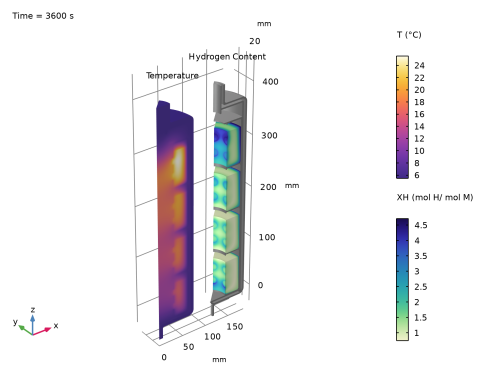
Figure 3 shows the temperature and the absorbed hydrogen content in the reactor after 3600 s of charging. The absorbed hydrogen content is highest in the top bed closest to the gas inlet due to the highest concentration of hydrogen gas here. Since absorption releases heat, the temperature is also highest in this region. In each bed the absorption is uneven. As the central part of the beds are not cooled down as efficiently as the beds’ edges, the absorbed hydrogen content is lower at the centers.
Figure 3: Temperature and hydrogen content XH at 3600 s.
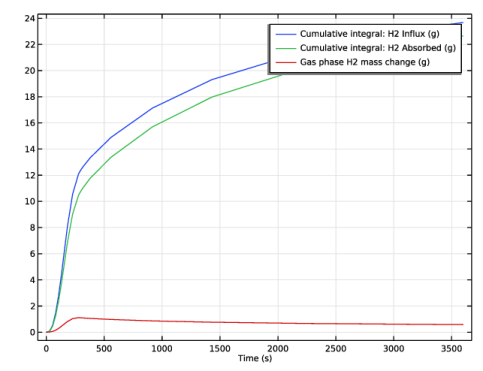
Figure 4 shows the mass profile of hydrogen over time in the gas as well as in the solid phase. During the ramp up of the gas inflow pressure, the hydrogen content is increasing despite concurrent absorption. After 300 s when the ramping is complete, the gas phase concentration and the absorption rate both decrease. At the end of the simulation 23 g of hydrogen has been absorbed into the metal alloy.
Figure 4: Hydrogen mass profile over time in the gas as well as in the solid phase.
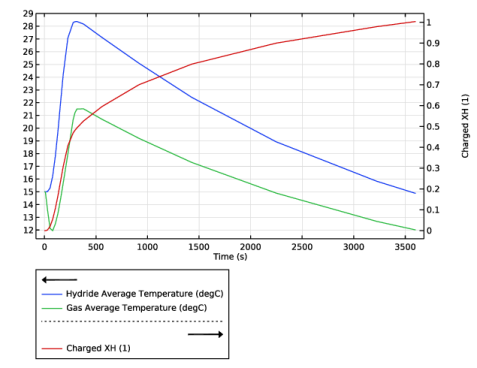
Figure 5 shows the gas phase temperature, the bed temperature, and the charged hydrogen content XH over time. All three quantities are averaged over the respective domains. The hydride temperature increases throughout the loading. The gas temperature on the other initially decreases due to the water cooling. After about 12 s the temperature rises in the gas too. The average temperature in the hydride reaches 28ºC, and the temperature in the gas reaches 22ºC, before both start to level off after the pressure loading finishes at 300 s.
Figure 5: Gas phase temperature, bed temperature, and charged hydrogen content XH over time.
References
1. N. Klopcic and others, “A review on Metal Hydride Materials for Hydrogen Storage,” J. Energy Storage, vol. 72 Part B, 108456, 2023.
2. D.O. Lazarev and K.B. Minko, “Simulation of Hydrogen Desorption Processes in the Metal-Hydride Accumulator-Fuel Cell System,” Therm. Eng., vol. 57, no. 14, pp. 1222–1226, 2010.
3. U. Mayer, M. Groll, and W. Supper, “Heat and Mass Transfer in Metal Hydride Reaction Beds: Experimental and Theoretical Results,” J. Less-Common Met., vol. 131, pp. 235–244, 1987.
4. D. Lazarev and others, “Numerical Simulation of Heat and Mass Transfer in Metal Hydride Hydrogen Accumulators of Different Complex Designs,” Proc. 14th Int’l Heat Transfer Conf. (IHTC14), vol. 6, IHTC14-22561, pp. 921–930, 2010.
5. V.N. Verbetsky and others, “Metal Hydrides: Properties and Practical Applications. Review of the Works in CIS-Countries,” Int. J. Hydrogen Energy, vol. 23, no. 12, pp. 1165–1177, 1998
Application Library path: Chemical_Reaction_Engineering_Module/Reactors_with_Mass_and_Heat_Transfer/metal_hydride_tank
Modeling Instructions
From the File menu, choose New.
New
In the New window, click  Model Wizard.
Model Wizard
1
In the Model Wizard window, click  3D.
2
In the Select Physics tree, select Fluid Flow > Single-Phase Flow > Laminar Flow (spf).
3
Click Add.
4
In the Velocity field (m/s) text field, type u_c.
5
In the Velocity field components table, enter the following settings:
6
In the Pressure (Pa) text field, type p_c.
7
In the Select Physics tree, select Mathematics > ODE and DAE Interfaces > Domain ODEs and DAEs (dode).
8
Click Add.
9
In the Field name (1) text field, type XH.
10
In the Dependent variables (1) table, enter the following settings:
11
Click  Define Source Term Unit.
12
In the Source term quantity table, enter the following settings:
13
In the Select Physics tree, select Chemical Species Transport > Nonisothermal Reacting Flow > Porous Media Flow > Brinkman Equations.
14
Click Add.
15
In the Added physics interfaces tree, select Transport of Concentrated Species in Porous Media (tcs).
16
In the Mass fractions (1) table, enter the following settings:
17
Click  Study.
18
In the Select Study tree, select General Studies > Stationary.
19
Global Definitions
Model Parameters
1
In the Model Builder window, under Global Definitions click Parameters 1.
2
In the Settings window for Parameters, type Model Parameters in the Label text field.
3
Locate the Parameters section. Click  Load from File.
4
Notice that some of the loaded parameters contain constants that has not yet been defined in the model. These will be added later.
Kinetic Model Parameters
1
In the Home toolbar, click  Parameters and choose Add > Parameters.
2
In the Settings window for Parameters, type Kinetic Model Parameters in the Label text field.
3
Locate the Parameters section. Click  Load from File.
4
p_iso(Tiso,XH) (Experimental pressure-composition-isotherm curve at 20 degC)
1
In the Home toolbar, click  Functions and choose Global > Interpolation.
Load experimental data that will be used to derive the equilibrium hydrogen pressure as a function of temperature and absorption degree.
2
In the Settings window for Interpolation, type p_iso(Tiso,XH) (Experimental pressure-composition-isotherm curve at 20 degC) in the Label text field.
3
Locate the Definition section. In the Function name text field, type p_iso.
4
Click  Load from File.
5
6
Locate the Interpolation and Extrapolation section. From the Extrapolation list, choose Linear.
7
Locate the Units section. In the Function table, enter the following settings:
8
In the Argument table, enter the following settings:
Add a function for the equilibrium hydrogen pressure as a function of temperature and absorbed amount hydrogen.
p_eq(T,XH) (Equilibrium Hydrogen Pressure)
1
In the Home toolbar, click  Functions and choose Global > Analytic.
2
In the Settings window for Analytic, type p_eq(T,XH) (Equilibrium Hydrogen Pressure) in the Label text field.
3
In the Function name text field, type p_eq.
4
Locate the Definition section. In the Expression text field, type p_iso(XH)*exp(deltaH/R_const*(1/T-1/293.15[K])).
5
In the Arguments text field, type XH, T.
6
Locate the Units section. In the Function text field, type Pa.
7
Geometry 1
Import a file with the reactor geometry. Symmetry reduces the modeling domain to 1/8th of the real tank geometry.
1
In the Geometry toolbar, click Insert Sequence and choose Insert Sequence.
2
3
In the Geometry toolbar, click  Build All.
Add materials to the model. The materials that will be added are: Structural steel, Gas mixture, Water (liquid), and Intermetallic Alloy (the metal hydride).
Add Material
1
In the Materials toolbar, click  Add Material to open the Add Material window.
2
Go to the Add Material window.
3
In the Search text field, type structural steel.
4
Click Search.
5
In the tree, select Built-in > Structural steel.
6
Click the Add to Component button in the window toolbar.
7
In the Materials toolbar, click  Add Material to close the Add Material window.
Materials
Structural steel (mat1)
1
In the Settings window for Material, locate the Geometric Entity Selection section.
2
From the Selection list, choose Tank Walls.
Gas Mixture
1
In the Materials toolbar, click  Blank Material.
2
In the Settings window for Material, type Gas Mixture in the Label text field.
3
Locate the Geometric Entity Selection section. From the Selection list, choose Gas.
4
In the Model Builder window, expand the Component 1 (comp1) > Materials > Gas Mixture (mat2) node, then click Basic (def).
5
In the Settings window for Basic, locate the Output Properties section.
6
Click  Select Quantity.
7
In the Physical Quantity dialog, type dynam in the text field.
8
In the tree, select Transport > Dynamic viscosity (Pa*s).
9
10
In the Settings window for Basic, locate the Output Properties section.
11
12
Click  Select Quantity.
13
In the Physical Quantity dialog, type heat in the text field.
14
In the tree, select Transport > Heat capacity at constant pressure (J/(kg*K)).
15
16
In the Settings window for Basic, locate the Output Properties section.
17
18
Click  Select Quantity.
19
In the Physical Quantity dialog, type thermal in the text field.
20
In the tree, select Transport > Thermal conductivity (W/(m*K)).
21
22
In the Settings window for Basic, locate the Output Properties section.
23
Intermetallic Alloy
1
In the Model Builder window, under Component 1 (comp1) > Materials click Porous Material 1 (pmat1).
2
In the Settings window for Porous Material, type Intermetallic Alloy in the Label text field.
3
Locate the Geometric Entity Selection section. From the Selection list, choose Metal Hydride.
Fluid 1 (pmat1.fluid1)
1
Right-click Intermetallic Alloy and choose Fluid.
2
In the Settings window for Fluid, locate the Fluid Properties section.
3
From the Material list, choose Gas Mixture (mat2).
Solid (pmat1.solid)
1
In the Model Builder window, click Solid (pmat1.solid).
2
In the Settings window for Solid, locate the Solid Properties section.
3
In the θs text field, type 1-porM.
4
In the Model Builder window, expand the Solid (pmat1.solid) node, then click Basic (def).
5
In the Settings window for Basic, locate the Output Properties section.
6
Click  Select Quantity.
7
In the Physical Quantity dialog, type density in the text field.
8
In the tree, select General > Density (kg/m^3).
9
10
In the Settings window for Basic, locate the Output Properties section.
11
12
Click  Select Quantity.
13
In the Physical Quantity dialog, type heat capa in the text field.
14
In the tree, select Transport > Heat capacity at constant pressure (J/(kg*K)).
15
16
In the Settings window for Basic, locate the Output Properties section.
17
18
Click  Select Quantity.
19
In the Physical Quantity dialog, type mean in the text field.
20
In the tree, select Transport > Mean molar mass (kg/mol).
21
22
In the Settings window for Basic, locate the Output Properties section.
23
24
Locate the Local Properties section. In the Local properties table, enter the following settings:
Intermetallic Alloy (pmat1)
1
In the Model Builder window, click Basic (def).
2
In the Settings window for Basic, locate the Output Properties section.
3
Click  Select Quantity.
4
In the Physical Quantity dialog, type ther in the text field.
5
In the tree, select Transport > Thermal conductivity (W/(m*K)).
6
7
In the Settings window for Basic, locate the Output Properties section.
8
Add Material
1
In the Materials toolbar, click  Add Material to open the Add Material window.
2
Go to the Add Material window.
3
In the Search text field, type water, liquid.
4
Click Search.
5
In the tree, select Built-in > Water, liquid.
6
Click the Add to Component button in the window toolbar.
7
In the Materials toolbar, click  Add Material to close the Add Material window.
Materials
Water, liquid (mat3)
1
In the Settings window for Material, locate the Geometric Entity Selection section.
2
From the Selection list, choose Cooling Channel.
Definitions (comp1)
XH_source (Absorption rate)
1
In the Model Builder window, expand the Component 1 (comp1) > Definitions node.
2
Right-click Component 1 (comp1) > Definitions and choose Local Variables.
Add an expression for the absorption rate.
3
In the Settings window for Variables, type XH_source (Absorption rate) in the Label text field.
4
Locate the Variables section. Click  Load from File.
5
Step 1 (step1)
1
In the Definitions toolbar, click  More Functions and choose Step.
2
In the Settings window for Step, click to expand the Smoothing section.
3
In the Size of transition zone text field, type t_ramp_gas.
4
From the Location definition list, choose Beginning of step.
Step 2 (step2)
1
In the Definitions toolbar, click  More Functions and choose Step.
2
In the Settings window for Step, locate the Smoothing section.
3
From the Location definition list, choose Beginning of step.
4
In the Size of transition zone text field, type t_ramp_liquid.
To define this model, several thermodynamic properties needs to be defined. All of the needed properties could be provided by adding a Thermodynamic System. By adding such a system and plotting the property functions, we saw that these properties are practically constant for the modeled process conditions. Therefore, a Thermodynamic System is not used in this model. By using constant values for the properties, the computational time is decreased.
Set up the chemistry interface that declares the reaction rate and thermodynamic properties.
Chemistry (chem)
Reaction 1
1
In the Physics toolbar, click  Domains and choose Reaction.
The chemical equation for formation of metal hydride could be described as hydrogen atoms disappearing from the gas phase. The reaction rate of forming metal hydride is expressed as the concentration of metal that can absorb hydrogen atoms times the hydrogen atom absorption rate.
2
In the Settings window for Reaction, locate the Reaction Formula section.
3
In the Formula text field, type 0.5 H2 => 0 H2.
4
Click Apply.
5
Locate the Reaction Rate section. In the rj text field, type pmat1.solid.def.cM*XH_source.
6
Locate the Reaction Thermodynamic Properties section. From the Enthalpy of reaction list, choose User defined.
7
In the H text field, type deltaH.
Species: H2
1
In the Model Builder window, click Species: H2.
2
In the Settings window for Species, click to expand the Transport Expressions section.
3
From the Thermal conductivity list, choose User defined.
4
In the k text field, type kH2.
5
Click to expand the Thermodynamic Expressions section. From the list, choose User defined.
6
In the Cp text field, type CpH2.
Species 1
1
In the Physics toolbar, click  Domains and choose Species.
2
In the Settings window for Species, locate the Name section.
3
4
Locate the Transport Expressions section. From the Thermal conductivity list, choose User defined.
5
In the k text field, type kN2.
6
Locate the Thermodynamic Expressions section. From the list, choose User defined.
7
In the Cp text field, type CpN2.
Match the species in Chemistry with the same species in the mass transfer interface, and define the mass transfer parameters for the gas mixture.
8
In the Model Builder window, click Chemistry (chem).
9
In the Settings window for Chemistry, locate the Species Matching section.
10
Find the Bulk species subsection. From the Species solved for list, choose Transport of Concentrated Species in Porous Media.
11
12
Click to expand the Calculate Transport Properties section. From the Ratio of specific heats list, choose User defined.
13
In the γ text field, type 1.4.
14
From the Dynamic viscosity list, choose User defined.
15
In the μ text field, type visc.
Define the expression for the absorption rate of hydrogen atoms per metal atom (1/s), and set the initial value.
Absorbed Hydrogen Atoms Per Metal Atom, XH
1
In the Model Builder window, under Component 1 (comp1) click Domain ODEs and DAEs (dode).
2
In the Settings window for Domain ODEs and DAEs, type Absorbed Hydrogen Atoms Per Metal Atom, XH in the Label text field.
3
Locate the Domain Selection section. From the Selection list, choose Metal Hydride.
4
Locate the Units section. In the Source term quantity table, enter the following settings:
5
Click to expand the Discretization section. From the Shape function type list, choose Lagrange.
6
From the Element order list, choose Linear.
Distributed ODE 1
1
In the Model Builder window, under Component 1 (comp1) > Absorbed Hydrogen Atoms Per Metal Atom, XH (dode) click Distributed ODE 1.
2
In the Settings window for Distributed ODE, locate the Source Term section.
3
In the f text field, type XH_source.
Initial Values 1
1
In the Model Builder window, click Initial Values 1.
2
In the Settings window for Initial Values, locate the Initial Values section.
3
In the XH text field, type XH0.
The chemical properties of the gas system, the absorption rate of hydrogen, the metal hydride formation, as well as the material properties has been defined. Continue by defining the fluid flow in the tank. The Brinkman Equations interface is used to describe the gas flow both in the fluid domains, and in the porous domains.
Brinkman Equations (br)
1
In the Model Builder window, under Component 1 (comp1) click Brinkman Equations (br).
2
In the Settings window for Brinkman Equations, locate the Domain Selection section.
3
From the Selection list, choose Flow Region.
4
Locate the Physical Model section. From the Compressibility list, choose Compressible flow (Ma<0.3).
5
Clear the Neglect inertial term (Stokes flow) checkbox.
6
In the pref text field, type P0.
7
Click to expand the Discretization section. From the Discretization of fluids list, choose P1+P1.
Fluid Properties 1
1
In the Physics toolbar, click  Domains and choose Fluid Properties.
2
In the Settings window for Fluid Properties, locate the Domain Selection section.
3
From the Selection list, choose Gas.
Porous Matrix 1
1
In the Model Builder window, under Component 1 (comp1) > Brinkman Equations (br) > Porous Medium 1 click Porous Matrix 1.
2
In the Settings window for Porous Matrix, locate the Matrix Properties section.
3
From the Permeability model list, choose Kozeny–Carman.
4
In the dp text field, type pmat1.solid.def.dp.
Inlet 1
1
In the Physics toolbar, click  Boundaries and choose Inlet.
2
In the Settings window for Inlet, locate the Boundary Condition section.
3
4
Locate the Boundary Selection section. From the Selection list, choose Gas Inflow.
5
Locate the Pressure Conditions section. In the p0 text field, type Pin*step1(t).
Symmetry 1
1
In the Physics toolbar, click  Boundaries and choose Symmetry.
2
In the Settings window for Symmetry, locate the Boundary Selection section.
3
From the Selection list, choose Symmetry.
Heat Transfer in Porous Media (ht)
Porous Medium 1
1
In the Model Builder window, under Component 1 (comp1) > Heat Transfer in Porous Media (ht) click Porous Medium 1.
2
In the Settings window for Porous Medium, locate the Porous Medium section.
3
From the Effective thermal conductivity list, choose Equivalent thermal conductivity.
Initial Values 1
1
In the Model Builder window, click Initial Values 1.
2
In the Settings window for Initial Values, locate the Initial Values section.
3
In the T text field, type T0.
Fluid 1
1
In the Physics toolbar, click  Domains and choose Fluid.
2
In the Settings window for Fluid, locate the Domain Selection section.
3
From the Selection list, choose Gas.
Solid 1
1
In the Physics toolbar, click  Domains and choose Solid.
2
In the Settings window for Solid, locate the Domain Selection section.
3
From the Selection list, choose Tank Walls.
Inflow 1
1
In the Physics toolbar, click  Boundaries and choose Inflow.
2
In the Settings window for Inflow, locate the Boundary Selection section.
3
From the Selection list, choose Gas Inflow.
4
Locate the Upstream Properties section. In the Tustr text field, type T0.
Define the heat transfer in the system.
Heat Flux 1
1
In the Physics toolbar, click  Boundaries and choose Heat Flux.
2
In the Settings window for Heat Flux, locate the Boundary Selection section.
3
From the Selection list, choose Tank Shell.
4
Locate the Heat Flux section. From the Flux type list, choose Convective heat flux.
5
In the h text field, type 2[W(m^2/K)].
6
In the Text text field, type T0.
Symmetry 1
1
In the Physics toolbar, click  Boundaries and choose Symmetry.
2
In the Settings window for Symmetry, locate the Boundary Selection section.
3
From the Selection list, choose Symmetry.
Fluid 2
1
In the Physics toolbar, click  Domains and choose Fluid.
2
In the Settings window for Fluid, locate the Domain Selection section.
3
From the Selection list, choose Cooling Channel.
4
Locate the Model Input section. Click Make All Model Inputs Editable in the upper-right corner of the section.
5
Locate the Heat Convection section. From the u list, choose Velocity field (spf).
6
Locate the Thermodynamics, Fluid section. From the Fluid type list, choose Gas/Liquid.
7
From the γ list, choose User defined. In the associated text field, type 1.4.
Cooling Water Inflow
1
In the Physics toolbar, click  Boundaries and choose Inflow.
2
In the Settings window for Inflow, type Cooling Water Inflow in the Label text field.
3
Locate the Boundary Selection section. From the Selection list, choose Cooling Water Inflow.
4
Locate the Upstream Properties section. In the Tustr text field, type Tcooling*step2(t)+T0*(1-step2(t)).
Cooling Water Outflow
1
In the Physics toolbar, click  Boundaries and choose Outflow.
2
In the Settings window for Outflow, type Cooling Water Outflow in the Label text field.
3
Locate the Boundary Selection section. From the Selection list, choose Cooling Water Outflow.
Now define the mass transfer in the system. This is done with a Transport of Concentrated Species in Porous Media interface.
Transport of Concentrated Species in Porous Media (tcs)
1
In the Model Builder window, under Component 1 (comp1) click Transport of Concentrated Species in Porous Media (tcs).
2
In the Settings window for Transport of Concentrated Species in Porous Media, locate the Domain Selection section.
3
From the Selection list, choose Flow Region.
Fluid 1
1
In the Model Builder window, under Component 1 (comp1) > Transport of Concentrated Species in Porous Media (tcs) > Porous Medium 1 click Fluid 1.
2
In the Settings window for Fluid, locate the Diffusion section.
3
4
From the Effective diffusivity model list, choose Bruggeman model.
Initial Values 1
1
In the Model Builder window, under Component 1 (comp1) > Transport of Concentrated Species in Porous Media (tcs) click Initial Values 1.
2
In the Settings window for Initial Values, locate the Initial Values section.
3
From the Mixture specification list, choose Mole fractions.
4
In the x0,wN2 text field, type x0_N2.
Fluid 1
1
In the Physics toolbar, click  Domains and choose Fluid.
2
In the Settings window for Fluid, locate the Diffusion section.
3
4
Locate the Domain Selection section. From the Selection list, choose Gas.
Reaction Sources 1
1
In the Physics toolbar, click  Domains and choose Reaction Sources.
Define the mass source of hydrogen leaving the gas phase in the pores.
2
In the Settings window for Reaction Sources, locate the Domain Selection section.
3
From the Selection list, choose Metal Hydride.
4
Locate the Reactions section. From the Chemistry list, choose Chemistry (chem).
5
Select the Mass transfer to other phases checkbox.
Inflow 1
1
In the Physics toolbar, click  Boundaries and choose Inflow.
2
In the Settings window for Inflow, locate the Boundary Selection section.
3
From the Selection list, choose Gas Inflow.
4
Locate the Inflow section. From the Mixture specification list, choose Mole fractions.
5
In the x0,wN2 text field, type x0_N2.
Symmetry 1
1
In the Physics toolbar, click  Boundaries and choose Symmetry.
2
In the Settings window for Symmetry, locate the Boundary Selection section.
3
From the Selection list, choose Symmetry.
Use the Laminar Flow interface to define the flow of cooling water.
Laminar Flow - Cooling
1
In the Model Builder window, under Component 1 (comp1) click Laminar Flow (spf).
2
In the Settings window for Laminar Flow, type Laminar Flow - Cooling in the Label text field.
3
Locate the Domain Selection section. From the Selection list, choose Cooling Channel.
Inlet 1
1
In the Physics toolbar, click  Boundaries and choose Inlet.
2
In the Settings window for Inlet, locate the Boundary Selection section.
3
From the Selection list, choose Cooling Water Inflow.
4
Locate the Boundary Condition section. From the list, choose Fully developed flow.
5
Locate the Fully Developed Flow section. In the Uav text field, type Vcooling.
Outlet 1
1
In the Physics toolbar, click  Boundaries and choose Outlet.
2
In the Settings window for Outlet, locate the Boundary Selection section.
3
From the Selection list, choose Cooling Water Outflow.
Symmetry 1
1
In the Physics toolbar, click  Boundaries and choose Symmetry.
2
In the Settings window for Symmetry, locate the Boundary Selection section.
3
From the Selection list, choose Symmetry.
The cooling flow simulation is sensitive to disturbances during the solution. Use pseudo time-stepping for a more robust solution process. To enable this, use the Show more option button and select to show Advanced Physics Options.
4
Click the  Show More Options button in the Model Builder toolbar.
5
In the Show More Options dialog, in the tree, select the checkbox for the node Physics > Advanced Physics Options.
6
Enable pseudo time-stepping in the Advanced Settings section.
7
In the Model Builder window, click Laminar Flow - Cooling (spf).
8
In the Settings window for Laminar Flow, click to expand the Advanced Settings section.
9
Find the Pseudo time stepping subsection. From the Use pseudo time stepping for stationary equation form list, choose On.
Now move on to mesh the geometry.
Mesh 1
1
In the Model Builder window, under Component 1 (comp1) click Mesh 1.
2
In the Settings window for Mesh, locate the Physics-Controlled Mesh section.
3
From the Element size list, choose Fine.
4
Right-click Component 1 (comp1) > Mesh 1 and choose Edit Physics-Induced Sequence.
Size - Gas Domains
1
In the Model Builder window, under Component 1 (comp1) > Mesh 1 click Size 1.
2
In the Settings window for Size, locate the Geometric Entity Selection section.
3
From the Selection list, choose Flow Region.
4
In the Label text field, type Size - Gas Domains.
Size - Gas Wall Boundaries
1
In the Model Builder window, click Size 2.
2
In the Settings window for Size, locate the Geometric Entity Selection section.
3
From the Selection list, choose Metal Hydride and Wall Boundary.
4
In the Label text field, type Size - Gas Wall Boundaries.
5
Locate the Element Size section. Click the Predefined button.
6
From the Predefined list, choose Fine.
7
Click the Custom button.
8
Locate the Element Size Parameters section.
9
Select the Maximum element size checkbox. In the associated text field, type 3.5.
10
Select the Minimum element size checkbox. In the associated text field, type 0.76.
11
Select the Maximum element growth rate checkbox.
12
Select the Curvature factor checkbox.
13
Select the Resolution of narrow regions checkbox.
14
Click  Build Selected.
Size - Metal Hydride Domains
1
In the Model Builder window, click Size 3.
2
In the Settings window for Size, locate the Geometric Entity Selection section.
3
From the Geometric entity level list, choose Domain.
4
From the Selection list, choose Metal Hydride.
5
In the Label text field, type Size - Metal Hydride Domains.
6
Locate the Element Size section. Click the Predefined button.
7
From the Predefined list, choose Normal.
8
Click the Custom button.
9
Locate the Element Size Parameters section.
10
Select the Maximum element size checkbox. In the associated text field, type 2.5.
11
Click  Build Selected.
Size - Metal Hydride Boundaries
1
In the Model Builder window, right-click Size - Gas Wall Boundaries and choose Duplicate.
2
In the Settings window for Size, locate the Geometric Entity Selection section.
3
From the Selection list, choose Metal Hydride Boundary.
4
Locate the Element Size Parameters section. In the Maximum element size text field, type 2.0.
5
Clear the Minimum element size checkbox.
6
In the Maximum element growth rate text field, type 1.1.
7
Clear the Curvature factor checkbox.
8
Clear the Resolution of narrow regions checkbox.
9
In the Label text field, type Size - Metal Hydride Boundaries.
10
Click  Build Selected.
Size - Cooling Channel Outlet
1
In the Model Builder window, right-click Size - Gas Domains and choose Duplicate.
2
In the Settings window for Size, type Size - Cooling Channel Outlet in the Label text field.
3
Locate the Geometric Entity Selection section. Click  Clear Selection.
4
5
Locate the Element Size section. Click the Predefined button.
6
From the Predefined list, choose Extra fine.
7
Click the Custom button.
8
Locate the Element Size Parameters section.
9
Select the Maximum element size checkbox. In the associated text field, type 1.3.
10
Select the Minimum element size checkbox. In the associated text field, type 0.11.
11
Select the Maximum element growth rate checkbox.
12
Select the Curvature factor checkbox.
13
Select the Resolution of narrow regions checkbox.
14
Click  Build Selected.
Mapped 1
1
In the Mesh toolbar, click  More Generators and choose Mapped.
2
Distribution 1
1
In the Mesh toolbar, click  Distribution.
2
3
In the Settings window for Distribution, locate the Distribution section.
4
In the Number of elements text field, type 6.
Distribution 2
1
In the Mesh toolbar, click  Distribution.
2
3
In the Settings window for Distribution, locate the Distribution section.
4
From the Distribution type list, choose Predefined.
5
In the Number of elements text field, type 15.
6
In the Element ratio text field, type 3.
7
Click  Build Selected.
Mapped 2
1
In the Mesh toolbar, click  More Generators and choose Mapped.
2
Distribution 1
1
In the Mesh toolbar, click  Distribution.
2
3
In the Settings window for Distribution, locate the Distribution section.
4
In the Number of elements text field, type 6.
Distribution 2
1
In the Mesh toolbar, click  Distribution.
2
3
In the Settings window for Distribution, locate the Distribution section.
4
From the Distribution type list, choose Predefined.
5
In the Number of elements text field, type 150.
6
In the Element ratio text field, type 6.
7
Select the Symmetric distribution checkbox.
8
Click  Build Selected.
Mapped 3
1
In the Mesh toolbar, click  More Generators and choose Mapped.
2
Distribution 1
1
In the Mesh toolbar, click  Distribution.
2
3
In the Settings window for Distribution, locate the Distribution section.
4
In the Number of elements text field, type 6.
Distribution 2
1
In the Mesh toolbar, click  Distribution.
2
3
In the Settings window for Distribution, locate the Distribution section.
4
From the Distribution type list, choose Predefined.
5
In the Number of elements text field, type 45.
6
In the Element ratio text field, type 5.
7
Select the Symmetric distribution checkbox.
8
Click  Build Selected.
Free Triangular 1
1
In the Mesh toolbar, click  More Generators and choose Free Triangular.
2
Size 1
1
In the Mesh toolbar, click Size Attribute and choose Finer.
2
In the Settings window for Size, locate the Element Size section.
3
From the Calibrate for list, choose Fluid dynamics.
4
Click the Custom button.
5
Locate the Element Size Parameters section. Select the Maximum element size checkbox.
6
Click in the Maximum element size text field, then press Ctrl+Space. From the menu, choose Parameters > dCoolingChannel - Thickness, cooling channel - m.
7
In the Maximum element size text field, type dCoolingChannel/5.
8
Select the Minimum element size checkbox. In the associated text field, type 0.32.
9
Select the Maximum element growth rate checkbox.
10
Select the Curvature factor checkbox.
11
Select the Resolution of narrow regions checkbox.
12
Click  Build Selected.
Swept 1
1
In the Mesh toolbar, click  Swept.
2
In the Settings window for Swept, locate the Domain Selection section.
3
From the Geometric entity level list, choose Domain.
4
Distribution 1
1
Right-click Swept 1 and choose Distribution.
2
In the Settings window for Distribution, locate the Distribution section.
3
In the Number of elements text field, type 15.
4
Click  Build Selected.
Free Tetrahedral 1
1
In the Model Builder window, under Component 1 (comp1) > Mesh 1 click Free Tetrahedral 1.
2
In the Settings window for Free Tetrahedral, locate the Domain Selection section.
3
From the Geometric entity level list, choose Domain.
4
From the Selection list, choose Metal Hydride.
5
Click  Build Selected.
Swept 2
1
In the Mesh toolbar, click  Swept.
2
In the Settings window for Swept, locate the Domain Selection section.
3
From the Geometric entity level list, choose Domain.
4
From the Selection list, choose Hole Domains.
Distribution 1
1
In the Mesh toolbar, click  Distribution.
2
In the Settings window for Distribution, locate the Distribution section.
3
In the Number of elements text field, type 4.
4
Click  Build Selected.
Free Tetrahedral 2
1
In the Mesh toolbar, click  Free Tetrahedral.
2
In the Settings window for Free Tetrahedral, click  Build Selected.
Boundary Layers 1
1
In the Model Builder window, click Boundary Layers 1.
2
In the Settings window for Boundary Layers, locate the Geometric Entity Selection section.
3
From the Selection list, choose Cooling Channel.
Boundary Layer Properties 1
1
In the Model Builder window, expand the Boundary Layers 1 node, then click Boundary Layer Properties 1.
2
In the Settings window for Boundary Layer Properties, locate the Boundary Selection section.
3
From the Selection list, choose Cooling Channel Walls.
Boundary Layer Properties 2
In the Model Builder window, right-click Boundary Layer Properties 2 and choose Delete.
Boundary Layer Properties 1
1
In the Settings window for Boundary Layer Properties, locate the Layers section.
2
In the Number of layers text field, type 6.
3
In the Thickness adjustment factor text field, type 2.
4
Click  Build Selected.
Boundary Layers 2
1
In the Model Builder window, under Component 1 (comp1) > Mesh 1 right-click Boundary Layers 1 and choose Duplicate.
2
In the Settings window for Boundary Layers, locate the Geometric Entity Selection section.
3
From the Selection list, choose Metal Hydride.
Boundary Layer Properties 1
1
In the Model Builder window, expand the Boundary Layers 2 node, then click Boundary Layer Properties 1.
2
In the Settings window for Boundary Layer Properties, locate the Boundary Selection section.
3
From the Selection list, choose Metal Hydride Boundary.
4
Locate the Layers section. In the Number of layers text field, type 5.
5
Click  Build Selected.
Boundary Layers 2
In the Model Builder window, right-click Boundary Layers 2 and choose Build Selected.
Boundary Layers 3
1
Right-click Component 1 (comp1) > Mesh 1 > Boundary Layers 2 and choose Duplicate.
2
In the Settings window for Boundary Layers, locate the Geometric Entity Selection section.
3
From the Selection list, choose Gas.
Boundary Layer Properties 1
1
In the Model Builder window, expand the Boundary Layers 3 node, then click Boundary Layer Properties 1.
2
In the Settings window for Boundary Layer Properties, locate the Boundary Selection section.
3
From the Selection list, choose Metal Hydride and Wall Boundary.
4
Locate the Layers section. In the Number of layers text field, type 3.
5
In the Thickness adjustment factor text field, type 4.
6
Click  Build Selected.
Compute the first study solving for the cooling flow inside the walls of the reactor.
Compute the first study that solves for the water flow inside the cooling jacket.
Study 1: Cooling Flow
1
In the Model Builder window, click Study 1.
2
In the Settings window for Study, type Study 1: Cooling Flow in the Label text field.
Step 1: Stationary
1
In the Model Builder window, under Study 1: Cooling Flow click Step 1: Stationary.
2
In the Settings window for Stationary, locate the Physics and Variables Selection section.
3
In the Solve for column of the table, under Component 1 (comp1), clear the checkboxes for Absorbed Hydrogen Atoms Per Metal Atom, XH (dode), Chemistry (chem), Transport of Concentrated Species in Porous Media (tcs), Brinkman Equations (br), and Heat Transfer in Porous Media (ht).
4
In the Solve for column of the table, under Component 1 (comp1) > Multiphysics, clear the checkbox for Reacting Flow 1 (nirf1).
5
In the Study toolbar, click  Compute.
Results
Streamline 1
1
In the Model Builder window, expand the Results > Velocity (spf) node.
2
Right-click Velocity (spf) and choose Streamline.
3
In the Settings window for Streamline, locate the Selection section.
4
From the Selection list, choose Cooling Water Inflow.
5
Locate the Coloring and Style section. Find the Line style subsection. From the Type list, choose Tube.
6
In the Tube radius expression text field, type 0.15.
7
Select the Radius scale factor checkbox.
8
Find the Point style subsection. From the Type list, choose Arrow.
Color Expression 1
Right-click Streamline 1 and choose Color Expression.
Multislice 1
In the Model Builder window, under Results > Velocity (spf) right-click Multislice 1 and choose Delete.
Volume 1
1
In the Model Builder window, right-click Velocity (spf) and choose Volume.
2
In the Settings window for Volume, locate the Expression section.
3
In the Expression text field, type 1.
Selection 1
1
Right-click Volume 1 and choose Selection.
2
Material Appearance 1
In the Model Builder window, right-click Volume 1 and choose Material Appearance.
Velocity (spf)
1
In the Settings window for 3D Plot Group, locate the Plot Settings section.
2
Clear the Plot dataset edges checkbox.
3
In the Velocity (spf) toolbar, click  Plot.
Pressure (spf), Velocity (spf)
1
In the Model Builder window, under Results, Ctrl-click to select Velocity (spf) and Pressure (spf).
2
Cooling Flow
1
In the Settings window for Group, type Cooling Flow in the Label text field.
2
Add a second study that solves for the absorption.
Add Study
1
In the Study toolbar, click  Add Study to open the Add Study window.
2
Go to the Add Study window.
3
Find the Studies subsection. In the Select Study tree, select General Studies > Time Dependent.
4
Click the Add Study button in the window toolbar.
5
In the Study toolbar, click  Add Study to close the Add Study window.
Study 2: Absorption
In the Settings window for Study, type Study 2: Absorption in the Label text field.
Step 1: Time Dependent
1
In the Model Builder window, under Study 2: Absorption click Step 1: Time Dependent.
2
In the Settings window for Time Dependent, locate the Study Settings section.
3
In the Output times text field, type 0 3600.
4
Locate the Physics and Variables Selection section. In the Solve for column of the table, under Component 1 (comp1), clear the checkbox for Laminar Flow - Cooling (spf).
5
Click to expand the Values of Dependent Variables section. Find the Values of variables not solved for subsection. From the Settings list, choose User controlled.
6
From the Method list, choose Solution.
7
From the Study list, choose Study 1: Cooling Flow, Stationary.
Use Get Initial Value to generate the default solver, and derive the initial values.
8
In the Model Builder window, click Study 2: Absorption.
9
In the Settings window for Study, locate the Study Settings section.
10
Clear the Generate default plots checkbox.
11
In the Study toolbar, click  Get Initial Value.
For a time dependent analysis it is a good practice to use manual scales for the dependent variables that has known magnitude. Give manual scales for those variables.
Solution 2 (sol2)
1
In the Model Builder window, expand the Solver Configurations node.
2
In the Model Builder window, expand the Solution 2 (sol2) node.
3
In the Model Builder window, expand the Study 2: Absorption > Solver Configurations > Solution 2 (sol2) > Dependent Variables 1 node, then click Pressure (comp1.p).
4
In the Settings window for Field, locate the Scaling section.
5
From the Method list, choose Manual.
6
In the Scale text field, type P0.
7
In the Model Builder window, click Temperature (comp1.T).
8
In the Settings window for Field, locate the Scaling section.
9
From the Method list, choose Manual.
10
In the Scale text field, type T0.
11
In the Model Builder window, click Velocity Field (comp1.u).
12
In the Settings window for Field, locate the Scaling section.
13
From the Method list, choose Manual.
14
In the Model Builder window, click Mass Fraction (comp1.wN2).
15
In the Settings window for Field, locate the Scaling section.
16
From the Method list, choose Manual.
17
In the Model Builder window, click Dependent Variable XH (comp1.XH).
18
In the Settings window for Field, locate the Scaling section.
19
From the Method list, choose Manual.
20
In the Model Builder window, click Time-Dependent Solver 1.
21
In the Settings window for Time-Dependent Solver, locate the General section.
22
From the Times to store list, choose Steps taken by solver.
23
In the Store every Nth step text field, type 4.
24
Click to expand the Time Stepping section.
25
Select the Initial step checkbox. In the associated text field, type 0.1.
Results
1
In the Model Builder window, click Results.
2
In the Settings window for Results, locate the Update of Results section.
3
Select the Only plot when requested checkbox.
4
Locate the Save Data in the Model section. From the Save plot data list, choose On.
U, H2, pA, T, XH
1
In the Results toolbar, click  3D Plot Group.
Set up a plot group that can be used to inspect the computations while solving. An array plot is convenient as it makes it possible to study several fields at the same time.
2
In the Settings window for 3D Plot Group, type U, H2, pA, T, XH in the Label text field.
3
Locate the Data section. From the Dataset list, choose Study 2: Absorption/Solution 2 (sol2).
4
Click to expand the Title section. From the Title type list, choose Manual.
5
In the Parameter indicator text field, type Time = eval(t) s.
6
Locate the Plot Settings section. Clear the Plot dataset edges checkbox.
7
Locate the Color Legend section. Select the Show titles checkbox.
8
From the Position list, choose Right double.
9
Click to expand the Plot Array section. From the Array type list, choose Linear.
10
In the Relative padding text field, type 0.5.
spf.U
1
In the U, H2, pA, T, XH toolbar, click  Surface.
2
In the Settings window for Surface, type spf.U in the Label text field.
3
Locate the Coloring and Style section. In the Color legend title text field, type Water (m/s).
4
From the Color table list, choose Acanthaster.
br.U
1
Right-click spf.U and choose Duplicate.
2
In the Settings window for Surface, click Replace Expression in the upper-right corner of the Expression section. From the menu, choose Component 1 (comp1) > Brinkman Equations > Velocity and pressure > br.U - Velocity magnitude - m/s.
3
In the Label text field, type br.U.
4
Locate the Coloring and Style section. In the Color legend title text field, type Gas (m/s).
5
From the Color table list, choose Passiflora.
6
Click to expand the Plot Array section. Select the Manual indexing checkbox.
Velocity
1
In the Model Builder window, right-click U, H2, pA, T, XH and choose Annotation.
2
In the Settings window for Annotation, type Velocity in the Label text field.
3
Locate the Annotation section. In the Text text field, type Velocity.
4
Locate the Position section. In the x text field, type rTank*0.5.
5
In the z text field, type 1.2*hTank.
6
Locate the Coloring and Style section. Clear the Show point checkbox.
7
From the Anchor point list, choose Lower middle.
8
Click to expand the Plot Array section. Select the Manual indexing checkbox.
U, H2, pA, T, XH
In the U, H2, pA, T, XH toolbar, click  Volume.
Walls
1
In the Settings window for Volume, type Walls in the Label text field.
2
Locate the Expression section. In the Expression text field, type 1.
3
Click to expand the Plot Array section. Select the Manual indexing checkbox.
Selection 1
1
In the U, H2, pA, T, XH toolbar, click  Selection.
2
In the Settings window for Selection, locate the Selection section.
3
From the Selection list, choose Tank Walls.
Walls
In the Model Builder window, click Walls.
Material Appearance 1
1
In the U, H2, pA, T, XH toolbar, click  Material Appearance.
2
In the Settings window for Material Appearance, locate the Appearance section.
3
From the Appearance list, choose Custom.
4
From the Material type list, choose Steel (anodized).
5
From the Color list, choose Gray.
6
In the U, H2, pA, T, XH toolbar, click  Plot.
U, H2, pA, T, XH
In the U, H2, pA, T, XH toolbar, click  Surface.
tcs.x_wH2
1
In the Settings window for Surface, click Replace Expression in the upper-right corner of the Expression section. From the menu, choose Component 1 (comp1) > Transport of Concentrated Species in Porous Media > Species wH2 > tcs.x_wH2 - Mole fraction - 1.
2
In the Label text field, type tcs.x_wH2.
3
Locate the Coloring and Style section. In the Color legend title text field, type x_H2 (1).
4
From the Color table list, choose Prionace.
Gas Phase H2
1
In the Model Builder window, right-click Velocity and choose Duplicate.
2
In the Settings window for Annotation, type Gas Phase H2 in the Label text field.
3
Locate the Annotation section. In the Text text field, type Gas Phase H2.
4
Locate the Plot Array section. In the Index text field, type 1.
Walls 1
1
In the Model Builder window, right-click Walls and choose Duplicate.
2
In the Settings window for Volume, locate the Plot Array section.
3
In the Index text field, type 1.
4
In the U, H2, pA, T, XH toolbar, click  Plot.
U, H2, pA, T, XH
In the U, H2, pA, T, XH toolbar, click  Surface.
br.pA
1
In the Settings window for Surface, locate the Expression section.
2
In the Expression text field, type br.pA.
3
In the Label text field, type br.pA.
4
Locate the Coloring and Style section. In the Color legend title text field, type pA (Pa).
5
From the Color table list, choose Cividis.
6
From the Color table transformation list, choose Reverse.
Gas Phase H2, Walls 1
1
In the Model Builder window, under Results > U, H2, pA, T, XH, Ctrl-click to select Gas Phase H2 and Walls 1.
2
Pressure
1
In the Settings window for Annotation, type Pressure in the Label text field.
2
Locate the Annotation section. In the Text text field, type Pressure.
3
Locate the Plot Array section. In the Index text field, type 2.
Walls 1.1
1
In the Model Builder window, click Walls 1.1.
2
In the Settings window for Volume, locate the Plot Array section.
3
In the Index text field, type 2.
4
In the U, H2, pA, T, XH toolbar, click  Plot.
U, H2, pA, T, XH
In the U, H2, pA, T, XH toolbar, click  Surface.
T
1
In the Settings window for Surface, click Replace Expression in the upper-right corner of the Expression section. From the menu, choose Default > T - Temperature - K.
2
In the Label text field, type T.
3
Locate the Expression section. From the Unit list, choose °C.
4
Locate the Coloring and Style section. In the Color legend title text field, type T (°C).
5
From the Color table list, choose HeatCameraLight.
Temperature
1
In the Model Builder window, right-click Pressure and choose Duplicate.
2
In the Settings window for Annotation, type Temperature in the Label text field.
3
Locate the Annotation section. In the Text text field, type Temperature.
4
Locate the Plot Array section. In the Index text field, type 3.
5
In the U, H2, pA, T, XH toolbar, click  Plot.
U, H2, pA, T, XH
In the U, H2, pA, T, XH toolbar, click  Surface.
XH
1
In the Settings window for Surface, click Replace Expression in the upper-right corner of the Expression section. From the menu, choose Default > XH - Dependent variable XH.
2
In the Label text field, type XH.
3
Locate the Coloring and Style section. In the Color legend title text field, type XH (mol H/ mol M).
4
From the Color table list, choose Cynanthus.
Pressure, Walls 1.1
1
In the Model Builder window, under Results > U, H2, pA, T, XH, Ctrl-click to select Pressure and Walls 1.1.
2
Hydrogen Content
1
In the Settings window for Annotation, type Hydrogen Content in the Label text field.
2
Locate the Annotation section. In the Text text field, type Hydrogen Content.
3
Locate the Plot Array section. In the Index text field, type 4.
Walls 1.1.1
1
In the Model Builder window, click Walls 1.1.1.
2
In the Settings window for Volume, locate the Plot Array section.
3
In the Index text field, type 4.
4
In the U, H2, pA, T, XH toolbar, click  Plot.
Compute the second study that solves for the complete system. Turn on plot while solving and select the prepared plot.
Study 2: Absorption
Step 1: Time Dependent
1
In the Model Builder window, under Study 2: Absorption click Step 1: Time Dependent.
2
In the Settings window for Time Dependent, click to expand the Results While Solving section.
3
Select the Plot checkbox.
4
5
In the Study toolbar, click  Compute.
Results
U, H2, pA, T, XH
Set up result plots and evaluation groups. Begin with the gas phase concentrations.
Result Templates
1
In the Home toolbar, click  Windows and choose Result Templates.
2
Go to the Result Templates window.
3
In the tree, select Study 2: Absorption/Solution 2 (sol2) > Transport of Concentrated Species in Porous Media > Plot array: Concentrations, H2, N2 (tcs).
4
Click the Add Result Template button in the window toolbar.
Results
Concentrations, H2, N2 (tcs)
1
In the Settings window for 3D Plot Group, type Concentrations, H2, N2 (tcs) in the Label text field.
2
Click the  Zoom Extents button in the Graphics toolbar.
3
In the Concentrations, H2, N2 (tcs) toolbar, click  Plot.
Continue with the temperature and the absorbed ratio XH.
Temperature and XH
1
In the Model Builder window, right-click U, H2, pA, T, XH and choose Duplicate.
2
In the Model Builder window, click U, H2, pA, T, XH 1.
3
In the Settings window for 3D Plot Group, type Temperature and XH in the Label text field.
Gas Phase H2, Pressure, Velocity, Walls, Walls 1, Walls 1.1, br.U, br.pA, spf.U, tcs.x_wH2
1
In the Model Builder window, under Results > Temperature and XH, Ctrl-click to select spf.U, br.U, Velocity, Walls, tcs.x_wH2, Gas Phase H2, Walls 1, br.pA, Pressure, and Walls 1.1.
2
T
1
In the Settings window for Surface, locate the Plot Array section.
2
Select the Manual indexing checkbox.
Temperature
1
In the Model Builder window, click Temperature.
2
In the Settings window for Annotation, locate the Plot Array section.
3
In the Index text field, type 0.
XH
1
In the Model Builder window, click XH.
2
In the Settings window for Surface, locate the Plot Array section.
3
Select the Manual indexing checkbox.
4
In the Index text field, type 1.
Hydrogen Content
1
In the Model Builder window, click Hydrogen Content.
2
In the Settings window for Annotation, locate the Plot Array section.
3
In the Index text field, type 1.
Walls 1.1.1
1
In the Model Builder window, click Walls 1.1.1.
2
In the Settings window for Volume, locate the Plot Array section.
3
In the Index text field, type 1.
Selection 1
1
Click the  Zoom Extents button in the Graphics toolbar.
2
In the Model Builder window, expand the Walls 1.1.1 node, then click Selection 1.
3
In the Settings window for Selection, locate the Selection section.
4
Click to select the  Activate Selection toggle button.
5
Temperature and XH
1
Click the  Zoom Extents button in the Graphics toolbar.
2
In the Model Builder window, under Results click Temperature and XH.
3
In the Temperature and XH toolbar, click  Plot.
Set up an Evaluation Group that can be used to illustrate the absorption process in the tank over time.
Evaluation Group, H2 Absorption
1
In the Results toolbar, click  Evaluation Group.
2
In the Settings window for Evaluation Group, locate the Data section.
3
From the Dataset list, choose Study 2: Absorption/Solution 2 (sol2).
4
In the Label text field, type Evaluation Group, H2 Absorption.
H2 Influx
1
Right-click Evaluation Group, H2 Absorption and choose Integration > Surface Integration.
2
In the Settings window for Surface Integration, type H2 Influx in the Label text field.
3
Locate the Selection section. From the Selection list, choose Gas Inflow.
4
Click Replace Expression in the upper-right corner of the Expressions section. From the menu, choose Component 1 (comp1) > Transport of Concentrated Species in Porous Media > Species wH2 > Fluxes > tcs.ntflux_wH2 - Normal total flux - kg/(m²·s).
5
Locate the Expressions section. In the table, enter the following settings:
6
Locate the Data Series Operation section. From the Transformation list, choose Integral.
7
Select the Cumulative checkbox.
Evaluation Group, H2 Absorption
Right-click H2 Influx and choose Volume Integration.
H2 Absorbed
1
In the Settings window for Volume Integration, type H2 Absorbed in the Label text field.
2
Locate the Selection section. From the Selection list, choose Metal Hydride.
3
Locate the Expressions section. Click  Clear Table.
4
Click Replace Expression in the upper-right corner of the Expressions section. From the menu, choose Component 1 (comp1) > Transport of Concentrated Species in Porous Media > Species wH2 > tcs.R_wH2 - Total rate expression - kg/(m³·s).
5
Locate the Expressions section. In the table, enter the following settings:
6
Locate the Data Series Operation section. From the Transformation list, choose Integral.
7
Select the Cumulative checkbox.
Gas phase H2 mass change
1
In the Model Builder window, right-click Evaluation Group, H2 Absorption and choose Integration > Volume Integration.
2
In the Settings window for Volume Integration, type Gas phase H2 mass change in the Label text field.
3
Locate the Selection section. From the Selection list, choose Flow Region.
4
Locate the Expressions section. Click  Clear Table.
5
Evaluation Group, H2 Absorption
1
In the Model Builder window, click Evaluation Group, H2 Absorption.
2
In the Evaluation Group, H2 Absorption toolbar, click  Evaluate.
Evaluation Group, H2 Absorption
1
Go to the Evaluation Group, H2 Absorption window.
2
Click the Table Graph button in the window toolbar.
Results
Table Graph 1
1
In the Settings window for Table Graph, locate the Data section.
2
From the Plot columns list, choose Manual.
3
In the Columns list box, select Cumulative integral: H2 Influx (g).
4
Click to expand the Legends section. Select the Show legends checkbox.
Table Graph 2
1
Right-click Results > 1D Plot Group 6 > Table Graph 1 and choose Duplicate.
2
In the Settings window for Table Graph, locate the Data section.
3
In the Columns list box, select Cumulative integral: H2 Absorbed (g).
Table Graph 3
1
Right-click Table Graph 2 and choose Duplicate.
2
In the Settings window for Table Graph, locate the Data section.
3
In the Columns list box, select Gas phase H2 mass change (g).
4
In the 1D Plot Group 6 toolbar, click  Plot.
H2 Absorption
1
In the Model Builder window, under Results click 1D Plot Group 6.
2
In the Settings window for 1D Plot Group, type H2 Absorption in the Label text field.
3
Locate the Plot Settings section. Select the Two y-axes checkbox.
4
5
Locate the Legend section. From the Position list, choose Lower right.
6
In the H2 Absorption toolbar, click  Plot.
Set up another Evaluation Group to illustrate the temperature and increase of XH in the tank over time.
Evaluation Group 2
1
In the Results toolbar, click  Evaluation Group.
2
In the Settings window for Evaluation Group, locate the Data section.
3
From the Dataset list, choose Study 2: Absorption/Solution 2 (sol2).
Hydride Average Temperature
1
Right-click Evaluation Group 2 and choose Average > Volume Average.
2
In the Settings window for Volume Average, locate the Selection section.
3
From the Selection list, choose Metal Hydride.
4
Locate the Expressions section. Click  Clear Table.
5
6
In the Label text field, type Hydride Average Temperature.
Gas Average Temperature
1
Right-click Hydride Average Temperature and choose Duplicate.
2
In the Settings window for Volume Average, locate the Selection section.
3
From the Selection list, choose Gas.
4
Locate the Expressions section. In the table, enter the following settings:
5
In the Label text field, type Gas Average Temperature.
Charged XH
1
Right-click Gas Average Temperature and choose Duplicate.
2
In the Settings window for Volume Average, locate the Selection section.
3
From the Selection list, choose Metal Hydride.
4
Locate the Expressions section. In the table, enter the following settings:
5
In the Label text field, type Charged XH.
Evaluation Group, Average Temperature and Charged XH
1
In the Model Builder window, under Results click Evaluation Group 2.
2
In the Settings window for Evaluation Group, type Evaluation Group, Average Temperature and Charged XH in the Label text field.
3
In the Evaluation Group, Average Temperature and Charged XH toolbar, click  Evaluate.
Evaluation Group, Average Temperature and Charged XH
1
Go to the Evaluation Group, Average Temperature and Charged XH window.
2
Click the Table Graph button in the window toolbar.
Results
Average Temperature and Charged XH
1
In the Model Builder window, under Results click 1D Plot Group 7.
2
In the Settings window for 1D Plot Group, type Average Temperature and Charged XH in the Label text field.
Table Graph 1
1
In the Model Builder window, click Table Graph 1.
2
In the Settings window for Table Graph, locate the Data section.
3
From the Plot columns list, choose Manual.
4
In the Columns list, choose Hydride Average Temperature (degC) and Gas Average Temperature (degC).
5
Locate the Legends section. Select the Show legends checkbox.
Table Graph 2
1
Right-click Results > Average Temperature and Charged XH > Table Graph 1 and choose Duplicate.
2
In the Settings window for Table Graph, locate the Data section.
3
In the Columns list box, select Charged XH (1).
Average Temperature and Charged XH
1
In the Model Builder window, click Average Temperature and Charged XH.
2
In the Settings window for 1D Plot Group, locate the Plot Settings section.
3
Select the Two y-axes checkbox.
4
5
Locate the Legend section. From the Layout list, choose Outside graph axis area.
6
From the Position list, choose Bottom.
7
In the Number of rows text field, type 2.
8
In the Average Temperature and Charged XH toolbar, click  Plot.
Check that the results are reasonable by performing some quick calculations in a Parameters node. For convenience, the parameters have been added to a file. Load the text-file and enter the values from the evaluation groups.
Global Definitions
Control Calculations
1
In the Home toolbar, click  Parameters and choose Add > Parameters.
2
In the Settings window for Parameters, type Control Calculations in the Label text field.
3
Locate the Parameters section. Click the Load button. From the menu, choose Load from File.
4
Make sure that the values for mabsH2 and XHcharged correspond to the values at 3600 s in the evaluation groups.
Finally, set up graphics that illustrate the metal tank with and without metal hydride beds. Begin by adding the necessary datasets.
Results
Study 1: Cooling Flow/Solution 1 (3) (sol1)
In the Results toolbar, click  More Datasets and choose Solution.
Study 1: Cooling Flow/Solution 1 (4) (sol1)
In the Results toolbar, click  More Datasets and choose Solution.
Tank Walls
1
In the Model Builder window, under Results > Datasets click Study 1: Cooling Flow/Solution 1 (3) (sol1).
2
In the Settings window for Solution, locate the Solution section.
3
From the Solution list, choose Solution 2 (sol2).
4
In the Label text field, type Tank Walls.
Selection
1
In the Results toolbar, click  Attributes and choose Selection.
2
In the Settings window for Selection, locate the Geometric Entity Selection section.
3
From the Geometric entity level list, choose Domain.
4
From the Selection list, choose Tank Walls.
Tank Walls, 4/8 Sectors
1
In the Results toolbar, click  More Datasets and choose Sector 3D.
2
In the Settings window for Sector 3D, locate the Data section.
3
From the Dataset list, choose Tank  Walls (sol2).
4
Locate the Symmetry section. In the Number of sectors text field, type 8.
5
From the Sectors to include list, choose Manual.
6
In the Number of sectors to include text field, type 4.
7
8
In the Label text field, type Tank Walls, 4/8 Sectors.
Tank Walls, 5/8 Sectors
1
Right-click Tank Walls, 4/8 Sectors and choose Duplicate.
2
In the Settings window for Sector 3D, type Tank Walls, 5/8 Sectors in the Label text field.
3
Locate the Symmetry section. In the Number of sectors to include text field, type 5.
Tank, 4/8 Sectors
1
Right-click Tank Walls, 5/8 Sectors and choose Duplicate.
2
In the Settings window for Sector 3D, type Tank, 4/8 Sectors in the Label text field.
3
Locate the Data section. From the Dataset list, choose Study 2: Absorption/Solution 2 (sol2).
Tank, 5/8 Sectors
1
Right-click Tank, 4/8 Sectors and choose Duplicate.
2
In the Settings window for Sector 3D, type Tank, 5/8 Sectors in the Label text field.
Add a plot for the tank geometry.
Tank Geometry
1
In the Results toolbar, click  3D Plot Group.
2
In the Settings window for 3D Plot Group, type Tank Geometry in the Label text field.
3
Locate the Data section. From the Dataset list, choose Tank Walls, 5/8 Sectors.
Surface 1
1
In the Tank Geometry toolbar, click  Surface.
2
In the Settings window for Surface, locate the Expression section.
3
In the Expression text field, type 1.
Material Appearance 1
1
Right-click Surface 1 and choose Material Appearance.
2
In the Settings window for Material Appearance, locate the Appearance section.
3
From the Appearance list, choose Custom.
4
From the Material type list, choose Chrome.
5
In the Tank Geometry toolbar, click  Plot.
Tank Geometry
1
In the Model Builder window, under Results click Tank Geometry.
2
In the Settings window for 3D Plot Group, locate the Plot Settings section.
3
Clear the Plot dataset edges checkbox.
Use a dedicated view to visualize the tank without the need to zoom repeatedly.
4
From the View list, choose New view.
5
In the Tank Geometry toolbar, click  Plot to create the view. Now give it a suitable name.
6
Click  Go to Source.
View Tank
1
In the Model Builder window, under Results > Views click View 3D 8.
2
In the Settings window for View 3D, type View Tank in the Label text field.
Modify the camera according to your preferences. An example of settings for the added view can be seen by opening the Application Library model.
Tank Geometry
1
In the Model Builder window, under Results click Tank Geometry.
2
In the Tank Geometry toolbar, click  Plot.
Now visualize the metal hydride beds in the reactor.
Tank Geometry with Beds
1
Right-click Tank Geometry and choose Duplicate.
2
In the Model Builder window, click Tank Geometry 1.
3
In the Settings window for 3D Plot Group, type Tank Geometry with Beds in the Label text field.
Volume 1
1
Right-click Tank Geometry with Beds and choose Volume.
2
In the Settings window for Volume, locate the Data section.
3
From the Dataset list, choose Tank, 5/8 Sectors.
4
Locate the Expression section. In the Expression text field, type XH.
5
Locate the Coloring and Style section. From the Color table list, choose Cynanthus.
Surface 1
1
In the Model Builder window, click Surface 1.
2
In the Settings window for Surface, locate the Data section.
3
From the Dataset list, choose Tank Walls, 4/8 Sectors.
4
In the Tank Geometry with Beds toolbar, click  Plot.