PDF

Acid-Base Equilibria and Copper Speciation in Ammonia Solution
Introduction
Cupric ions show a strong affinity to ammonia in aqueous solutions, forming strongly colored deep blue complexes. The relative amounts of the different ammine ligand complexes, with varying coordination numbers, are governed by the stability constants of the equilibria forming the coordination compounds. By entering a series of equilibrium reactions, and an external source of ammonia, the Time Dependent study can be used to produce a speciation diagram, which shows how the concentration of the different complexes vary with the total concentration of added ammonia.
Model Definition
A 0D component employing the Reaction Engineering interface is used to describe the system. The equilibria for a simplified model is entered as Reaction features in the interface. The equilibria used in this model are presented in Table 1, together with approximate equilibrium constants at room temperature, partially derived from Ref. 1.
Equilibrium constant1

1
The autoprotolysis constant of water uses an explicit concentration of water rather than the common assumption of setting its activity to one.

No solid phases are accounted for, nor any ionic strength effects. Instead, focus is on initialization and mass conservation. By adding an Additional Source feature, a parameter sweep is modeled by setting a constant rate of addition for one or more components, and use the time-dependent solver to adaptively step through the specified range of values. For initial values, a total concentration of copper is given as the initial value of free cupric ions, the bulk density of water gives its concentration, and a small value is assigned to the swept species which represents the initial value of the sweep. Under the Equilibria section of the Initial Values feature, the Mass-preserving initialization functionality is enabled. This tells the solver to first solve the equilibria, while ignoring any kinetic reactions, in a mass-consistent manner prior to the time-stepping phase, which in turn allows for specifying initial values far from equilibrium. Note that mass-preserving initialization requires all components to be present (that is, larger than zero) for the set of initial values. This is due the initializer working with a log-transformed version of the problem, in which a concentration of zero cannot be represented by a finite number. For this model, this requirement is already fulfilled, but for other models a reasonable amount might be some fraction of what is expected to be produced during the first time step.
Results and Discussion
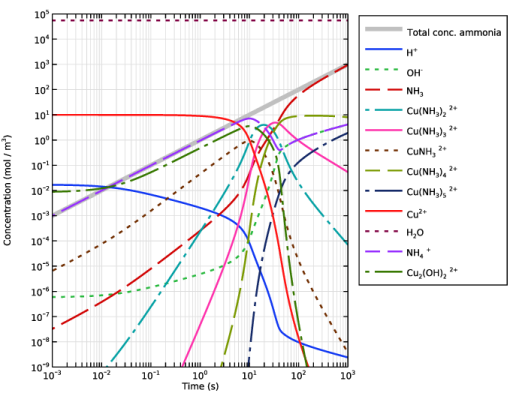
The evolution of concentrations, as total concentration of ammonia is increased, is presented in Figure 1. As might be expected, ammonia is primarily present as ammonium at low total concentrations of ammonia, and primarily as the free base at high total concentration. In the transition region, when the total concentration of ammonia is similar to the total concentration of copper(II) ions in the system, the picture is more complicated, and ammine complexes of different coordination numbers form.
Figure 1: Concentration of species versus time. The constant source of ammonia gives a linear relationship between total concentration ammonia and time.
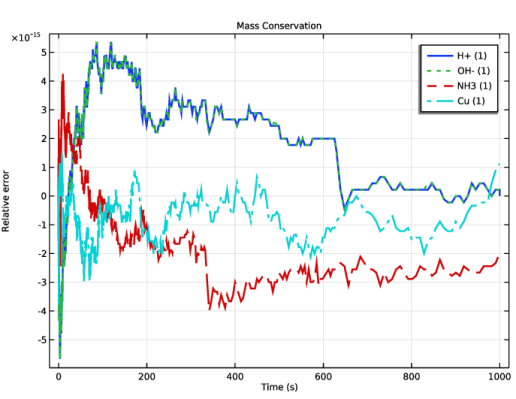
Since mass-preserving initialization was enabled, it may be interesting to study how the mass conservation is upheld throughout the time stepping. The results for conservation of protons, hydroxide ions, ammonia moieties, and copper are presented in Figure 2.
Figure 2: Mass conservation of the constituents in the model. Note that the number of invariants here equal the difference between number of species and equilibria.
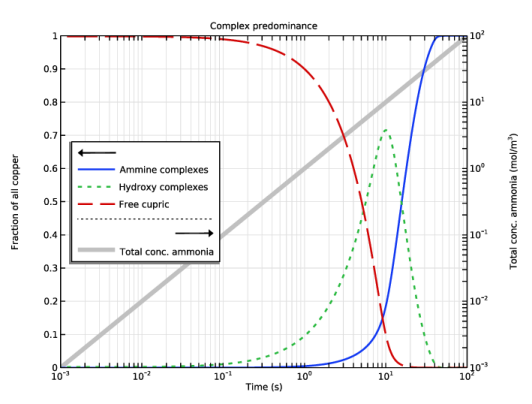
An instructive plot can be made over the predominance of the different groups of complexes. By looking at the weighted sum with respect to copper content we can see in Figure 3 how the addition of ammonia alters the speciation of the cupric ion.
Figure 3: Relative speciation of copper (II) ions into different classes of complexes, and their variation versus total concentration of ammonia.
The early onset of change is due to the basicity ammonia, where the uptake of protons yields a net increase of available hydroxide ion, which forms a binuclear complex of cupric ions with bridging hydroxide. Eventually, as the total availability of ammonia increases, ammine complexes outcompete the hydroxide, yielding a mixture of mononuclear ammines of increasing coordination index as the concentration of ammonia increases.
Reference
1. P. Djurdjevic and others, “Metal Ammine Formation in Solution. XXIV. The Copper (II) — and Some Other Metal (II) — Mono-and Diethanolamine Systems,” Acta. Chem. Scand., vol. 37, pp. 881–890, 1983.
Application Library path: Chemical_Reaction_Engineering_Module/Tutorials/ion_speciation
Modeling Instructions
From the File menu, choose New.
New
In the New window, click  Model Wizard.
Model Wizard
1
In the Model Wizard window, click  0D.
2
In the Select Physics tree, select Chemical Species Transport > Reaction Engineering (re).
3
Click Add.
4
Click  Study.
5
In the Select Study tree, select General Studies > Time Dependent.
6
Reaction Engineering (re)
Reaction 1
1
In the Reaction Engineering toolbar, click  Reaction.
2
In the Settings window for Reaction, locate the Reaction Formula section.
3
In the Formula text field, type H2O=H++OH-.
4
Locate the Equilibrium Settings section. In the Keq0j text field, type 1.80505415e-16[M].
Reaction 2
1
In the Reaction Engineering toolbar, click  Reaction.
2
In the Settings window for Reaction, locate the Reaction Formula section.
3
In the Formula text field, type NH4+=H++NH3.
4
Locate the Equilibrium Settings section. In the Keq0j text field, type 5.49540874e-10[M].
Reaction 3
1
In the Reaction Engineering toolbar, click  Reaction.
2
In the Settings window for Reaction, locate the Reaction Formula section.
3
In the Formula text field, type CuNH3++=NH3+Cu++.
4
Locate the Equilibrium Settings section. In the Keq0j text field, type 5.01187234e-05[M].
Reaction 4
1
In the Reaction Engineering toolbar, click  Reaction.
2
In the Settings window for Reaction, locate the Reaction Formula section.
3
In the Formula text field, type Cu(NH3)2++=NH3+CuNH3++.
4
Locate the Equilibrium Settings section. In the Keq0j text field, type 5.01187234e-05[M].
Reaction 5
1
In the Reaction Engineering toolbar, click  Reaction.
2
In the Settings window for Reaction, locate the Reaction Formula section.
3
In the Formula text field, type Cu(NH3)3++=NH3+Cu(NH3)2++.
4
Locate the Equilibrium Settings section. In the Keq0j text field, type 0.00125893[M].
Reaction 6
1
In the Reaction Engineering toolbar, click  Reaction.
2
In the Settings window for Reaction, locate the Reaction Formula section.
3
In the Formula text field, type Cu(NH3)4++=NH3+Cu(NH3)3++.
4
Locate the Equilibrium Settings section. In the Keq0j text field, type 0.00630957[M].
Reaction 7
1
In the Reaction Engineering toolbar, click  Reaction.
2
In the Settings window for Reaction, locate the Reaction Formula section.
3
In the Formula text field, type Cu(NH3)5++=NH3+Cu(NH3)4++.
4
Locate the Equilibrium Settings section. In the Keq0j text field, type 3.98107171[M].
Reaction 8
1
In the Reaction Engineering toolbar, click  Reaction.
2
In the Settings window for Reaction, locate the Reaction Formula section.
3
In the Formula text field, type 2Cu++ + OH- + H2O = Cu2(OH)2++ + H+.
4
Locate the Equilibrium Settings section. In the Keq0j text field, type 45.34091032[M^-2].
Definitions
Variables 1
In the Model Builder window, under Component 1 (comp1) right-click Definitions and choose Variables.
Global Definitions
Parameters 1
1
In the Settings window for Parameters, locate the Parameters section.
2
Definitions
Variables 1
1
In the Model Builder window, under Component 1 (comp1) > Definitions click Variables 1.
2
In the Settings window for Variables, locate the Variables section.
3
Reaction Engineering (re)
Initial Values 1
1
In the Model Builder window, under Component 1 (comp1) > Reaction Engineering (re) click Initial Values 1.
2
In the Settings window for Initial Values, locate the Volumetric Species Initial Values section.
3
4
Locate the Equilibria section. Select the Mass-preserving initialization checkbox.
Additional Source 1
1
In the Reaction Engineering toolbar, click  Additional Source.
2
In the Settings window for Additional Source, locate the Additional Rate Expression section.
3
In the Volumetric species table, enter the following settings:
Study 1
Step 1: Time Dependent
1
In the Model Builder window, under Study 1 click Step 1: Time Dependent.
2
In the Settings window for Time Dependent, locate the Study Settings section.
3
In the Output times text field, type 10^range(log10(t0/1[s]),0.5,log10(tend/1[s])).
4
From the Tolerance list, choose User controlled.
5
In the Relative tolerance text field, type 1e-6.
Solution 1 (sol1)
1
In the Study toolbar, click  Show Default Solver.
2
In the Model Builder window, expand the Solution 1 (sol1) node, then click Time-Dependent Solver 1.
3
In the Settings window for Time-Dependent Solver, click to expand the Time Stepping section.
4
Select the Initial step checkbox. In the associated text field, type 0.1*t0.
5
Find the Algebraic variable settings subsection. From the Consistent initialization list, choose Off.
Thanks to mass-preserving initialization we already have a consistent starting point.
6
In the Study toolbar, click  Compute.
Results
Concentration (re)
1
In the Settings window for 1D Plot Group, click to expand the Title section.
2
From the Title type list, choose None.
3
Locate the Plot Settings section.
4
Select the y-axis label checkbox. In the associated text field, type Concentration (mol / m<sup>3</sup>).
5
Locate the Axis section. Select the Manual axis limits checkbox.
6
In the x minimum text field, type 1e-3.
7
In the x maximum text field, type 1e3.
8
In the y minimum text field, type 1e-9.
9
In the y maximum text field, type 1e5.
10
Select the x-axis log scale checkbox.
11
Select the y-axis log scale checkbox.
12
Locate the Legend section. From the Layout list, choose Outside graph axis area.
Species concentrations
1
In the Model Builder window, expand the Concentration (re) node, then click Global 1.
2
In the Settings window for Global, type Species concentrations in the Label text field.
3
Click to expand the Legends section. From the Legends list, choose Manual.
4
5
Click to expand the Coloring and Style section. Find the Line style subsection. From the Line list, choose Cycle.
6
From the Color cycle list, choose Long.
7
From the Width list, choose 2.
Concentration (re)
Right-click Results > Concentration (re) > Species concentrations and choose Global.
Total conc. ammonia
1
In the Settings window for Global, type Total conc. ammonia in the Label text field.
2
Locate the y-Axis Data section. Click  Clear Table.
3
4
Locate the Coloring and Style section. From the Color list, choose Gray.
5
From the Width list, choose 5.
6
Drag and drop above Species concentrations.
7
Locate the Legends section. Find the Include subsection. Select the Description checkbox.
8
Clear the Expression checkbox.
This is Figure 1.
9
In the Concentration (re) toolbar, click  Plot.
Evaluation Group 1
In the Results toolbar, click  Evaluation Group.
Relative Conservation Errors
1
Right-click Evaluation Group 1 and choose Global Evaluation.
2
In the Settings window for Global Evaluation, type Relative Conservation Errors in the Label text field.
3
Locate the Expressions section. Click  Clear Table.
4
5
In the Evaluation Group 1 toolbar, click  Evaluate.
Evaluation Group 1
1
Go to the Evaluation Group 1 window.
2
Click the Clear Table button in the window toolbar.
Results
1
In the Model Builder window, click Relative Conservation Errors.
2
In the Evaluation Group 1 toolbar, click  Evaluate.
3
In the Settings window for Global Evaluation, click the Table Graph button in the window toolbar.
Mass Conservation
1
In the Model Builder window, under Results click 1D Plot Group 2.
2
In the Settings window for 1D Plot Group, type Mass Conservation in the Label text field.
3
Locate the Title section. From the Title type list, choose Label.
4
Locate the Plot Settings section.
5
Select the y-axis label checkbox. In the associated text field, type Relative error.
Table Graph 1
1
In the Model Builder window, click Table Graph 1.
2
In the Settings window for Table Graph, locate the Coloring and Style section.
3
Find the Line style subsection. From the Line list, choose Cycle.
4
From the Width list, choose 2.
5
Click to expand the Legends section. Select the Show legends checkbox.
This is Figure 2.
Complex predominance
1
In the Home toolbar, click  Add Plot Group and choose 1D Plot Group.
2
In the Settings window for 1D Plot Group, type Complex predominance in the Label text field.
3
Click to expand the Title section. From the Title type list, choose Label.
4
Locate the Plot Settings section. Select the Two y-axes checkbox.
5
Select the y-axis label checkbox. In the associated text field, type Fraction of all copper.
6
Locate the Axis section. Select the x-axis log scale checkbox.
7
Select the Secondary y-axis log scale checkbox.
8
Select the Manual axis limits checkbox.
9
In the x minimum text field, type 1e-3.
10
In the x maximum text field, type 1e2.
11
In the y minimum text field, type 0.
12
In the Secondary y minimum text field, type 1e-3.
13
In the Secondary y maximum text field, type 1e2.
14
Locate the Legend section. From the Position list, choose Middle left.
Total conc. ammonia
1
Right-click Complex predominance and choose Global.
2
In the Settings window for Global, type Total conc. ammonia in the Label text field.
3
Locate the y-Axis Data section. Click  Clear Table.
4
5
Locate the y-Axis section. Select the Plot on secondary y-axis checkbox.
6
Locate the Coloring and Style section. From the Color list, choose Gray.
7
From the Width list, choose 5.
8
Locate the Legends section. Find the Include subsection. Select the Description checkbox.
9
Clear the Expression checkbox.
Complex predominance
Right-click Total conc. ammonia and choose Global.
Complex classes
1
In the Settings window for Global, type Complex classes in the Label text field.
2
Locate the y-Axis Data section. Click  Clear Table.
3
4
Locate the Coloring and Style section. Find the Line style subsection. From the Line list, choose Cycle.
5
From the Width list, choose 2.
6
Locate the Legends section. Find the Include subsection. Select the Description checkbox.
7
Clear the Expression checkbox.
This is Figure 3.
8
In the Complex predominance toolbar, click  Plot.