|
|
|









|
3
|
Growth of GaAs at the surface by the adsorption of gas phase species and the subsequent reaction of the surface-bonded molecular fragments. These surface reactions involve the Ga and As species. SA and SG represent surface sites, corresponding to dangling bonds of As or Ga atoms, respectively.
|














 and
and  denote the forward and reverse rate constants, respectively. The concentration of species i is denoted ci (SI unit: mol/m3). The stoichiometric coefficients are denoted νij, and are defined as negative for reactants and positive for products. The temperature dependence of the reaction rates is included through Arrhenius expressions for the rate constants:
 , where α is the order of the reaction.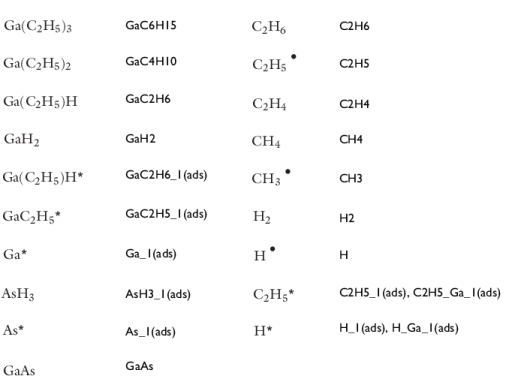
|
1
|
|
2
|
|
3
|
Click Add.
|
|
4
|
Click
 Study. Study. |
|
5
|
|
6
|
Click
 Done. Done. |
|
1
|
|
2
|
|
3
|
Click
 Load from File. Load from File. |
|
4
|
Browse to the model’s Application Libraries folder and double-click the file gaas_cvd_parameters.txt.
|
|
1
|
|
2
|
In the Settings window for Reaction Engineering, type Reaction Engineering - Gas Phase Reactions, Full Set (re) in the Label text field.
|
|
1
|
|
2
|
In the Settings window for Reversible Reaction Group, click to expand the CHEMKIN Import for Kinetics section.
|
|
3
|
Select the Import CHEMKIN data checkbox.
|
|
4
|
Click
 Browse. Browse. |
|
5
|
Browse to the model’s Application Libraries folder and double-click the file gaas_cvd_reaction_kinetics.txt.
|
|
6
|
Click
 Import. Import. |
|
1
|
In the Model Builder window, expand the Component 1 (comp1) > Reaction Engineering - Gas Phase Reactions, Full Set (re) (re) > Species Group 1 node, then click Component 1 (comp1) > Reaction Engineering - Gas Phase Reactions, Full Set (re) (re).
|
|
2
|
|
3
|
|
1
|
|
2
|
In the Settings window for Reversible Reaction Group, locate the CHEMKIN Import for Kinetics section.
|
|
3
|
Clear the Import CHEMKIN data checkbox.
|
|
4
|
Click to expand the Move Reaction and Species section. In the Move reaction (with the number) from table text field, type 9.
|
|
5
|
Click
 Create Reaction. Create Reaction. |
|
1
|
|
2
|
|
3
|
From the list, choose Solvent.
|
|
1
|
|
2
|
|
1
|
|
2
|
|
3
|
|
1
|
In the Model Builder window, expand the Gas Phase Concentrations, Full Set (re) node, then click Global 1.
|
|
2
|
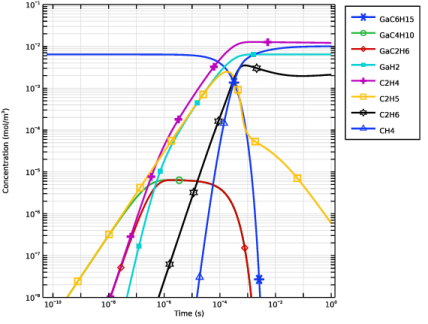
In the Settings window for Global, click Replace Expression in the upper-right corner of the y-Axis Data section. From the menu, choose Component 1 (comp1) > Reaction Engineering - Gas Phase Reactions, Full Set (re) > re.c_GaC6H15 - Concentration - mol/m³.
|
|
3
|
Click Add Expression in the upper-right corner of the y-Axis Data section. From the menu, choose Component 1 (comp1) > Reaction Engineering - Gas Phase Reactions, Full Set (re) > re.c_GaC4H10 - Concentration - mol/m³.
|
|
4
|
Click Add Expression in the upper-right corner of the y-Axis Data section. From the menu, choose Component 1 (comp1) > Reaction Engineering - Gas Phase Reactions, Full Set (re) > re.c_GaC2H6 - Concentration - mol/m³.
|
|
5
|
Click Add Expression in the upper-right corner of the y-Axis Data section. From the menu, choose Component 1 (comp1) > Reaction Engineering - Gas Phase Reactions, Full Set (re) > re.c_GaH2 - Concentration - mol/m³.
|
|
6
|
Click Add Expression in the upper-right corner of the y-Axis Data section. From the menu, choose Component 1 (comp1) > Reaction Engineering - Gas Phase Reactions, Full Set (re) > re.c_C2H4 - Concentration - mol/m³.
|
|
7
|
Click Add Expression in the upper-right corner of the y-Axis Data section. From the menu, choose Component 1 (comp1) > Reaction Engineering - Gas Phase Reactions, Full Set (re) > re.c_C2H5 - Concentration - mol/m³.
|
|
8
|
Click Add Expression in the upper-right corner of the y-Axis Data section. From the menu, choose Component 1 (comp1) > Reaction Engineering - Gas Phase Reactions, Full Set (re) > re.c_C2H6 - Concentration - mol/m³.
|
|
9
|
Click Add Expression in the upper-right corner of the y-Axis Data section. From the menu, choose Component 1 (comp1) > Reaction Engineering - Gas Phase Reactions, Full Set (re) > re.c_CH4 - Concentration - mol/m³.
|
|
10
|
|
11
|
|
12
|
|
14
|
|
15
|
|
1
|
|
2
|
|
3
|
|
4
|
|
5
|
|
6
|
|
7
|
|
8
|
|
1
|
|
2
|
|
3
|
In the Settings window for Reaction Engineering, type Reaction Engineering - Gas Phase Reactions, Reduced Set (re2) in the Label text field.
|
|
1
|
In the Model Builder window, expand the Component 1 (comp1) > Reaction Engineering - Gas Phase Reactions, Reduced Set (re2) (re2) node.
|
|
2
|
|
1
|
|
2
|
Go to the Add Study window.
|
|
3
|
Find the Physics interfaces in study subsection. In the table, clear the Solve checkbox for Reaction Engineering - Gas Phase Reactions, Full Set (re) (re).
|
|
4
|
|
5
|
Click the Add Study button in the window toolbar.
|
|
6
|
|
1
|
|
2
|
|
1
|
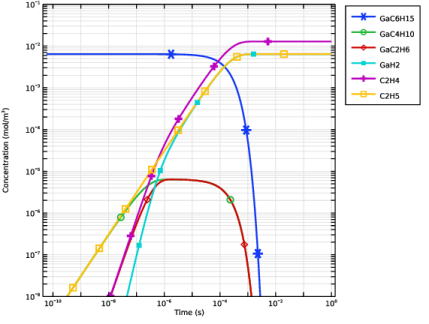
In the Settings window for 1D Plot Group, type Gas Phase Concentrations, Reduced Set (re2) in the Label text field.
|
|
1
|
In the Model Builder window, expand the Gas Phase Concentrations, Reduced Set (re2) node, then click Global 1.
|
|
2
|
In the Settings window for Global, click Replace Expression in the upper-right corner of the y-Axis Data section. From the menu, choose Component 1 (comp1) > Reaction Engineering - Gas Phase Reactions, Reduced Set (re2) > re2.c_GaC6H15 - Concentration - mol/m³.
|
|
3
|
Click Add Expression in the upper-right corner of the y-Axis Data section. From the menu, choose Component 1 (comp1) > Reaction Engineering - Gas Phase Reactions, Reduced Set (re2) > re2.c_GaC4H10 - Concentration - mol/m³.
|
|
4
|
Click Add Expression in the upper-right corner of the y-Axis Data section. From the menu, choose Component 1 (comp1) > Reaction Engineering - Gas Phase Reactions, Reduced Set (re2) > re2.c_GaC2H6 - Concentration - mol/m³.
|
|
5
|
Click Add Expression in the upper-right corner of the y-Axis Data section. From the menu, choose Component 1 (comp1) > Reaction Engineering - Gas Phase Reactions, Reduced Set (re2) > re2.c_GaH2 - Concentration - mol/m³.
|
|
6
|
Click Add Expression in the upper-right corner of the y-Axis Data section. From the menu, choose Component 1 (comp1) > Reaction Engineering - Gas Phase Reactions, Reduced Set (re2) > re2.c_C2H4 - Concentration - mol/m³.
|
|
7
|
Click Add Expression in the upper-right corner of the y-Axis Data section. From the menu, choose Component 1 (comp1) > Reaction Engineering - Gas Phase Reactions, Reduced Set (re2) > re2.c_C2H5 - Concentration - mol/m³.
|
|
8
|
|
9
|
|
10
|
|
12
|
|
13
|
|
1
|
|
2
|
|
3
|
|
4
|
|
5
|
|
6
|
|
7
|
|
8
|
|
1
|
|
2
|
|
3
|
|
4
|
|
5
|
|
6
|
Click
 Build Selected. Build Selected. |
|
1
|
|
2
|
|
3
|
|
4
|
|
5
|
|
6
|
|
7
|
Click
 Build Selected. Build Selected. |
|
1
|
|
2
|
Select the object r1 only.
|
|
3
|
|
4
|
|
5
|
|
6
|
Select the object r2 only.
|
|
1
|
|
2
|
Go to the Add Physics window.
|
|
3
|
|
4
|
Find the Physics interfaces in study subsection. In the table, clear the Solve checkboxes for Study (re) and Study (re2).
|
|
5
|
Click the Add to Component 2 button in the window toolbar.
|
|
6
|
|
1
|
|
2
|
In the Settings window for Reversible Reaction Group, click to expand the CHEMKIN Import for Kinetics section.
|
|
3
|
Select the Import CHEMKIN data checkbox.
|
|
4
|
Click
 Browse. Browse. |
|
5
|
Browse to the model’s Application Libraries folder and double-click the file gaas_cvd_reaction_kinetics.txt.
|
|
6
|
Click
 Import. Import. |
|
1
|
|
2
|
Click
 Browse. Browse. |
|
3
|
Browse to the model’s Application Libraries folder and double-click the file gaas_cvd_transp.txt.
|
|
4
|
Click
 Import. Import. |
|
1
|
|
2
|
In the Settings window for Species Thermodynamics, click to expand the CHEMKIN Import for Thermodynamic Data section.
|
|
3
|
Click
 Browse. Browse. |
|
4
|
Browse to the model’s Application Libraries folder and double-click the file gaas_cvd_thermo.txt.
|
|
5
|
Click
 Import. Import. |
|
1
|
In the Model Builder window, under Component 2 (comp2) > Chemistry (chem) click Reversible Reaction Group 1.
|
|
2
|
In the Settings window for Reversible Reaction Group, locate the CHEMKIN Import for Kinetics section.
|
|
3
|
Clear the Import CHEMKIN data checkbox.
|
|
4
|
Click to expand the Move Reaction and Species section. In the Move reaction (with the number) from table text field, type 9.
|
|
5
|
Click
 Create Reaction. Create Reaction. |
|
1
|
|
2
|
|
3
|
From the list, choose Solvent.
|
|
1
|
|
2
|
|
3
|
Select the Keep concentration/activity constant checkbox.
|
|
4
|
|
1
|
|
2
|
Go to the Add Physics window.
|
|
3
|
|
4
|
Find the Physics interfaces in study subsection. In the table, clear the Solve checkboxes for Study (re) and Study (re2).
|
|
5
|
Click the Add to Component 2 button in the window toolbar.
|
|
6
|
|
1
|
|
2
|
|
3
|
|
4
|
Click OK.
|
|
5
|
In the Settings window for Transport of Diluted Species, click to expand the Advanced Settings section.
|
|
6
|
|
7
|
|
8
|
In the Concentrations (mol/m³) table, enter the following settings:
|
|
1
|
|
2
|
|
3
|
Find the Bulk species subsection. From the Species solved for list, choose Transport of Diluted Species.
|
|
5
|
Find the Surface species subsection. In the table, enter the following settings:
|
|
1
|
In the Model Builder window, under Component 2 (comp2) > Transport of Diluted Species (tds) click Fluid 1.
|
|
2
|
|
3
|
|
4
|
|
5
|
|
6
|
|
7
|
|
8
|
|
9
|
|
10
|
|
11
|
|
1
|
|
2
|
|
3
|
|
4
|
Locate the Reaction Rates section. From the RcGaC4H10 list, choose Reaction rate for species GaC4H10 (chem).
|
|
5
|
|
6
|
|
7
|
|
8
|
|
9
|
|
10
|
|
11
|
|
1
|
|
3
|
|
4
|
|
5
|
|
6
|
|
7
|
|
8
|
|
9
|
|
10
|
|
11
|
|
1
|
|
3
|
|
4
|
|
5
|
|
1
|
|
1
|
|
2
|
|
3
|
|
4
|
|
1
|
|
2
|
Go to the Add Physics window.
|
|
3
|
|
4
|
Find the Physics interfaces in study subsection. In the table, clear the Solve checkboxes for Study (re) and Study (re2).
|
|
5
|
Click the Add to Component 2 button in the window toolbar.
|
|
6
|
|
1
|
|
2
|
|
3
|
|
4
|
|
5
|
|
6
|
|
1
|
|
3
|
|
4
|
|
1
|
|
3
|
|
4
|
|
1
|
|
3
|
|
4
|
|
1
|
|
1
|
|
2
|
|
3
|
|
1
|
|
2
|
Go to the Add Physics window.
|
|
3
|
|
4
|
Find the Physics interfaces in study subsection. In the table, clear the Solve checkboxes for Study (re) and Study (re2).
|
|
5
|
Click the Add to Component 2 button in the window toolbar.
|
|
6
|
|
1
|
|
2
|
|
3
|
|
1
|
In the Model Builder window, under Component 2 (comp2) > Laminar Flow (spf) click Fluid Properties 1.
|
|
2
|
|
3
|
|
4
|
|
1
|
|
3
|
|
4
|
From the list, choose Fully developed flow.
|
|
5
|
|
1
|
|
3
|
|
4
|
|
5
|
Select the Normal flow checkbox.
|
|
1
|
|
2
|
|
3
|
|
1
|
|
2
|
|
3
|
|
4
|
|
5
|
|
6
|
 Multiphysics Couplings and choose Domain > Reacting Flow, Diluted Species.
|
1
|
|
2
|
|
3
|
In the Solve for column of the table, under Component 2 (comp2) > Multiphysics, clear the checkboxes for Nonisothermal Flow 1 (nitf1) and Reacting Flow, Diluted Species 1 (rfd1).
|
|
1
|
|
2
|
|
3
|
In the Solve for column of the table, under Component 2 (comp2) > Multiphysics, clear the checkboxes for Nonisothermal Flow 1 (nitf1) and Reacting Flow, Diluted Species 1 (rfd1).
|
|
1
|
|
2
|
|
3
|
|
4
|
Click
 Build All. Build All. |
|
1
|
|
2
|
Go to the Add Study window.
|
|
3
|
Find the Physics interfaces in study subsection. In the table, clear the Solve checkboxes for Reaction Engineering - Gas Phase Reactions, Full Set (re) (re) and Reaction Engineering - Gas Phase Reactions, Reduced Set (re2) (re2).
|
|
4
|
|
5
|
Click the Add Study button in the window toolbar.
|
|
6
|
|
1
|
|
2
|
|
1
|
|
2
|
|
3
|
|
4
|
|
5
|
|
6
|
|
7
|
|
1
|
|
2
|
|
3
|
|
4
|
|
5
|
Select the Show units checkbox.
|
|
6
|
|
7
|
|
1
|
|
2
|
|
3
|
|
4
|
|
5
|
Select the Show units checkbox.
|
|
6
|
|
7
|
|
1
|
|
2
|
|
3
|
|
4
|
|
1
|
|
2
|
|
3
|
|
4
|
|
5
|
Click
 Plot. Plot. |
|
1
|
|
2
|
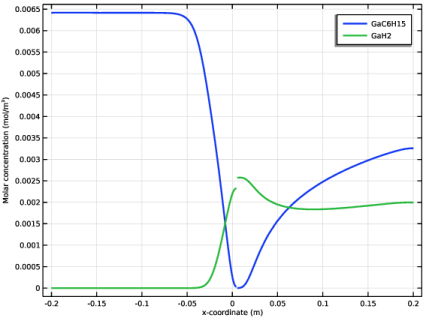
In the Settings window for 1D Plot Group, type Concentration Profiles GaC6H15 and GaH2 in the Label text field.
|
|
3
|
|
1
|
|
2
|
|
3
|
Click Replace Expression in the upper-right corner of the y-Axis Data section. From the menu, choose Component 2 (comp2) > Transport of Diluted Species > Species cGaC6H15 > cGaC6H15 - Molar concentration, cGaC6H15 - mol/m³.
|
|
4
|
Click Replace Expression in the upper-right corner of the x-Axis Data section. From the menu, choose Component 2 (comp2) > Geometry > Coordinate > x - x-coordinate.
|
|
5
|
|
6
|
|
7
|
|
8
|
Clear the Solution checkbox.
|
|
1
|
In the Model Builder window, right-click Concentration Profiles GaC6H15 and GaH2 and choose Line Graph.
|
|
2
|
|
3
|
Click Replace Expression in the upper-right corner of the y-Axis Data section. From the menu, choose Component 2 (comp2) > Transport of Diluted Species > Species cGaH2 > cGaH2 - Molar concentration, cGaH2 - mol/m³.
|
|
4
|
Click Replace Expression in the upper-right corner of the x-Axis Data section. From the menu, choose Component 2 (comp2) > Geometry > Coordinate > x - x-coordinate.
|
|
5
|
|
6
|
|
7
|
|
8
|
Clear the Solution checkbox.
|
|
1
|
|
2
|
|
3
|
|
4
|
Locate the Plot Settings section.
|
|
5
|
Select the y-axis label checkbox. In the associated text field, type Molar concentration (mol/m<sup>3</sup>).
|
|
6
|
|
7
|
|
1
|
|
2
|
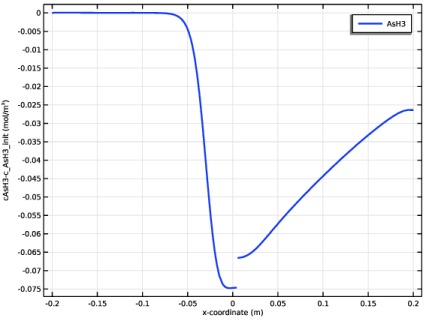
In the Settings window for 1D Plot Group, type Concentration Profile AsH3 Change in the Label text field.
|
|
3
|
|
1
|
|
2
|
In the Settings window for Line Graph, click Replace Expression in the upper-right corner of the y-Axis Data section. From the menu, choose Component 2 (comp2) > Transport of Diluted Species > Species cAsH3 > cAsH3 - Molar concentration, cAsH3 - mol/m³.
|
|
3
|
|
4
|
|
5
|
In the Title text area, type Change in arsine, AsH<sub>3</sub>, concentration compared to initial conditions in the reactor.
|
|
6
|
Click Replace Expression in the upper-right corner of the x-Axis Data section. From the menu, choose Component 2 (comp2) > Geometry > Coordinate > x - x-coordinate.
|
|
7
|
|
8
|
|
9
|
|
11
|
|
1
|
|
2
|
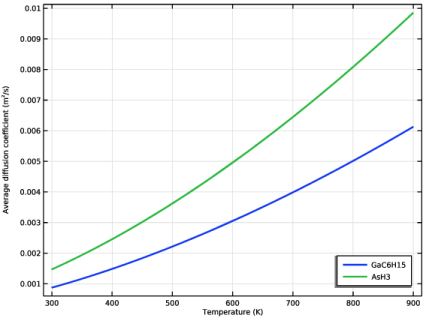
In the Settings window for 1D Plot Group, type Diffusivities vs. Temperature in the Label text field.
|
|
3
|
|
4
|
|
1
|
|
2
|
|
3
|
Click Replace Expression in the upper-right corner of the y-Axis Data section. From the menu, choose Component 2 (comp2) > Transport of Diluted Species > Species cGaC6H15 > tds.Dav_cGaC6H15 - Average diffusion coefficient - m²/s.
|
|
4
|
|
5
|
Click Replace Expression in the upper-right corner of the x-Axis Data section. From the menu, choose Component 2 (comp2) > Heat Transfer in Fluids > Temperature > T - Temperature - K.
|
|
6
|
|
7
|
|
8
|
|
9
|
Clear the Solution checkbox.
|
|
10
|
|
1
|
|
2
|
|
3
|
Click Replace Expression in the upper-right corner of the y-Axis Data section. From the menu, choose Component 2 (comp2) > Transport of Diluted Species > Species cAsH3 > tds.Dav_cAsH3 - Average diffusion coefficient - m²/s.
|
|
4
|
|
5
|
Click Replace Expression in the upper-right corner of the x-Axis Data section. From the menu, choose Component 2 (comp2) > Heat Transfer in Fluids > Temperature > T - Temperature - K.
|
|
6
|
|
7
|
|
8
|
|
9
|
Clear the Solution checkbox.
|
|
1
|
|
2
|
|
3
|
|
4
|
|
5
|
|
6
|
|
7
|
|
1
|
|
2
|
|
3
|
|
4
|
|
1
|
|
2
|
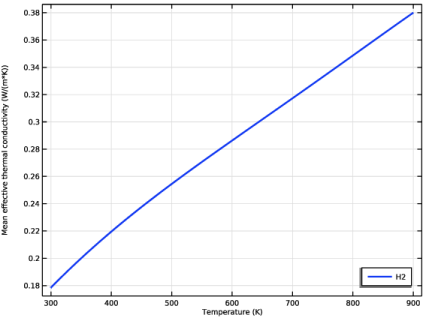
In the Settings window for Line Graph, click Replace Expression in the upper-right corner of the y-Axis Data section. From the menu, choose Component 2 (comp2) > Heat Transfer in Fluids > Material properties > ht.kmean - Mean effective thermal conductivity - W/(m·K).
|
|
3
|
|
4
|
Click Replace Expression in the upper-right corner of the x-Axis Data section. From the menu, choose Component 2 (comp2) > Heat Transfer in Fluids > Temperature > T - Temperature - K.
|
|
5
|
|
6
|
|
7
|
|
1
|
|
2
|
|
3
|
|
4
|
|
1
|
|
2
|
Go to the Result Templates window.
|
|
3
|
In the tree, select Study 2D Model/Solution 3 (4) (sol3) > Transport of Diluted Species > Plot array: Concentrations, GaC4H10, C2H5, H, C2H4 (tds) and Study 2D Model/Solution 3 (4) (sol3) > Transport of Diluted Species > Plot array: Concentrations, AsH3, GaH2, GaC2H6, GaC6H15 (tds).
|
|
4
|
Click the Add Result Template button in the window toolbar.
|
|
1
|
In the Model Builder window, expand the Plot array: Concentrations, AsH3, GaH2, GaC2H6, GaC6H15 (tds) node, then click Surface, GaC2H6.
|
|
2
|
|
3
|
|
1
|
|
2
|
|
3
|
|
1
|
In the Model Builder window, expand the Results > Plot array: Concentrations, GaC4H10, C2H5, H, C2H4 (tds) node, then click Surface, GaC4H10.
|
|
2
|
|
3
|
|
1
|
|
2
|
|
3
|
|
1
|
|
2
|
|
3
|
|
1
|
|
2
|
|
3
|
|
1
|
In the Model Builder window, under Results, Ctrl-click to select Concentration, GaC4H10 (tds), Concentration, C2H5 (tds), Concentration, H (tds), Concentration, C2H4 (tds), Concentration, AsH3 (tds), Concentration, GaH2 (tds), and Concentration, GaC2H6 (tds).
|
|
2
|
Right-click and choose Delete.
|