



PDF

Evaporation of Ethanol and Water from a Wine Glass
Introduction
Wine shows are events that involve trying and judging different wines. When this is performed formally, the samples that are not assessed immediately are covered to avoid exposure to air. The air exposure would lead to evaporation of, for example, ethanol from the wine, which would affect the tasting experience. Occasionally, the event may involve more than 30 different samples of wine, where the wine is poured prior to judging. If the samples are uncovered, the latter ones will have been exposed for air for a longer time than the first ones. Inspired by the paper Wollan and others (Ref. 1), this model simulates the evaporation and transport of ethanol and water from a wine glass into an ambient air domain. Four different compositions in terms of the alcohol by volume are solved for: 0.01, 0.15, 0.4, and 0.99. Evaporation of multiple species from a nonideal liquid mixture is modeled using the Vapor–Liquid Interface feature. Evaporation at the liquid surface induces free convection in the surrounding vapor phase, both due to the change in composition and due to the heat of vaporization. The model is set up in a 2D axially symmetric model using coupled Laminar Flow, Transport of Concentrated Species in Vapor, and Heat Transfer in Fluids interfaces. Accurate thermodynamic data are provided by the Thermodynamics functionality.
Model Definition
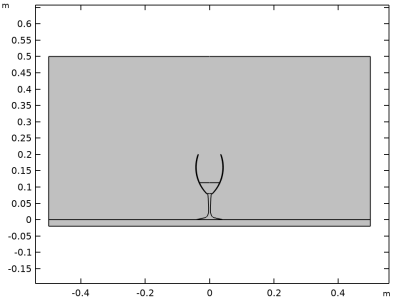
The model geometry consists of a partially filled wine glass, placed on a table, and surrounded by a gas phase domain, which is initially filled with air. The relative humidity in the air domain is set to 30%, a value typical of indoor environments, and the temperature to 23°C. The regular geometry of the glass allows for a 2D axially symmetric geometry to be used (see Figure 1). The specific chemical composition of different wines varies, but in this model, it is assumed that only ethanol and water are present in the liquid. Evaporation of both species is accounted for by computing the equilibrium vapor phase mole fractions, and applying them at the liquid surface. The Reacting Flow multiphysics interface is used to solve for coupled fluid flow, mass transport, and heat transfer in the vapor region inside of the glass and around it. Heat transfer by conduction is solved for in the glass and the table. Assuming that the influence of convection in the liquid is small, it is assumed stationary and subjected to heat transfer by conduction only. In order to study how the alcohol content influences the evaporation, four different liquid compositions characterized by the alcohol by volume (abv): 0.01, 0.15, 0.4, and 0.99, are solved for. An abv of 0.01 implies that out of the total liquid volume, 1% is ethanol and the 99% is water.
Figure 1: The model geometry, a wine glass placed on a table in a domain initially filled with air at a relative humidity of 30%.
Vapor–Liquid Equilibrium
To model the evaporation of ethanol and water from the glass of wine, the vapor-liquid equilibrium at the surface of the beverage must be described. The condition of thermodynamic equilibrium for a species i is given by
(1)
where fiL is the liquid phase fugacity and fiV is vapor phase fugacity. The fugacities in each phase depend on the temperature and pressure, T and p, as well as the mass fraction in the liquid phase, ωl,i, and the mass fraction in the vapor phase, ωv,i, respectively.
The thermodynamic functions for fugacity fi (fiL = fiV) will be created automatically when all species are coupled to a Thermodynamics system. In this model, phases are considered ideal, based on the assumption of fi being equal to the equilibrium partial pressure (peq,i). The molar concentration (ceq,i) can then be expressed as
(2)
where R is the ideal gas constant, 8.314 J/(mol·K).
The mass fraction at the vapor–liquid surface at equilibrium is
(3)
This is the boundary condition at the vapor–liquid surface under the Transport of Concentrated Species in Vapor.
Modeling Evaporation
In the model, the mass fraction of ethanol and water vapor are prescribed at the vapor-liquid interface using Equation 3. This sets up diffusive transport of each species to or from the surface. The ethanol concentration in the vapor is initially zero implying that ethanol is transported from the surface into the vapor phase. To account for the assumption that the liquid surface does not move due to the evaporation, the fluid velocity normal to the surface is defined from the Stefan velocity
(4)
Here, the sum on the right-hand side contains the total mass flux of all species for which the mass fraction is specified at the surface. The Stefan velocity implies that the mass flux of the species which is not controlled, nitrogen, is zero across the liquid surface. Since the vapor composition changes due to evaporation, the vapor phase is also subjected to natural convection. When the density changes due to evaporation, the vapor phase in the glass will start moving due to buoyancy.
The heat of evaporation at the liquid surface is
(5)
Here N is the normal mass flux across the liquid surface, ΔHvap is the species heat of vaporization (J/kg). The Qb is contributed from both the ethanol (index ‘e’) and water (index ‘w’). The heat of evaporation can be picked up by a Boundary Heat Source feature under the Heat Transfer in Fluids interface.
The evaporation causes a heat loss at the liquid surface. The density in the vapor increases due to the lower temperature, which in turn induces or counteracts free convection.
Results and Discussion
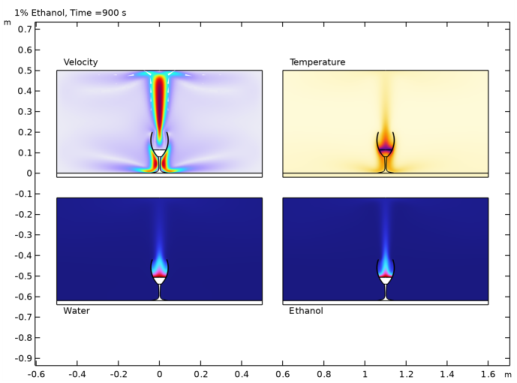
For each of the four alcohol cases, the model is solved for 900 s of evaporation. In Figure 2, a composite plot showing the resulting velocity, temperature, and mass fractions of the evaporated species at the final time step for the case of abv = 0.01, is seen. It is evident from the velocity field that the vapor produced at the liquid surface is lighter than the surrounding air. The reason for this is that mostly water vapor is evaporated. As a consequence the vapor rises straight up from the glass. It can also be noted from the temperature field that the evaporation causes a temperature reduction close the liquid surface. Due to conduction in the glass, this also cools the ambient air on the outside of the glass, produces a downward motion in the air around the glass.
Figure 2: Velocity, temperature, and vapor phase mass fractions at t = 900 s for abv = 0.01.
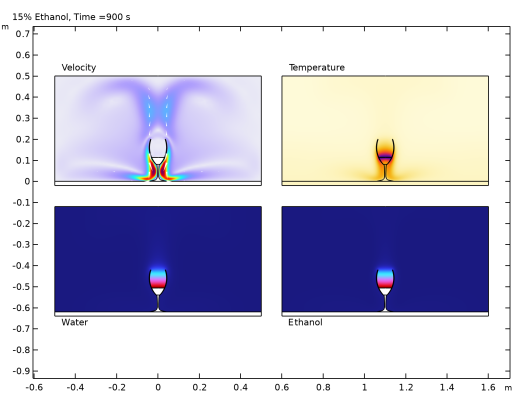
The same type of figure for abv = 0.15, corresponding to an alcohol content similar to that of wine, is seen in Figure 3. In this case, a significantly higher ethanol concentration in the vapor is produced. Ethanol vapor has a higher density than air and the vapor inside the glass becomes heavier than the surrounding air and does not rise. Instead, the glass fills up with ethanol and water vapor from the liquid surface and up. Once the ethanol vapor reaches the brim of the glass it passes over and travels down on the outside of the glass.
Figure 3: Velocity, temperature, and vapor phase mass fractions at t = 900 s for abv = 0.15.
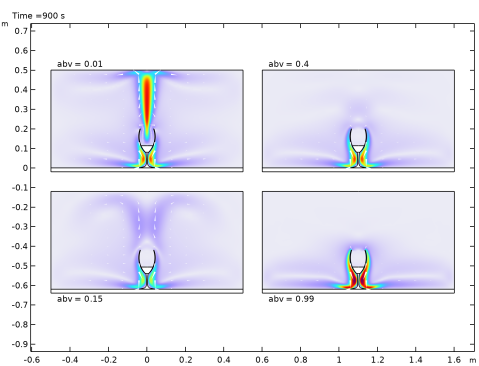
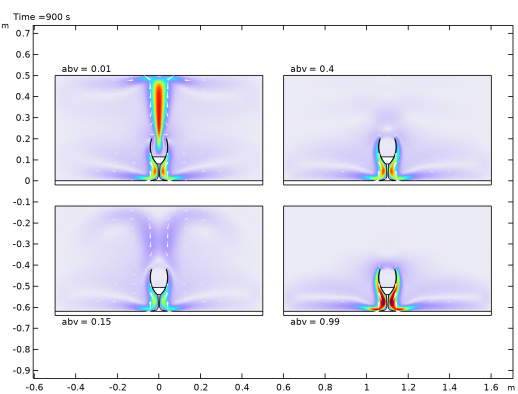
Figure 4 shows the vapor velocity in the last time step for all four compositions computed. The development noted above continues also for the two higher alcohol content cases. Higher concentrations of ethanol in the vapor phase leads to higher velocities in the vapor as it passes over the brim and down along the glass.
Figure 4: Vapor phase velocity at t = 900 s for all compositions.
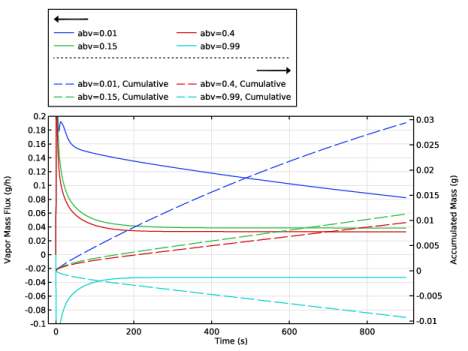
Figure 5 shows the vapor mass flux, and accumulated mass, of water in the vapor phase for each abv. The vapor mass flux changes rapidly in the start but reaches an approximately linear development after around 200 s. The highest mass flux is seen for abv = 0.01. This case was noted above to be characterized by a rising convective stream due to buoyancy, which aids the transports vapor out of the glass. The mass flux for abv = 0.15 and abv = 0.4 are similar. But for the highest alcohol content, abv = 0.99, the vapor mass flux of water is negative throughout the entire time span. This implies that the water content in the air, due the relative humidity, is higher than the equilibrium vapor concentration at the liquid surface, leading to condensation of water into the liquid.
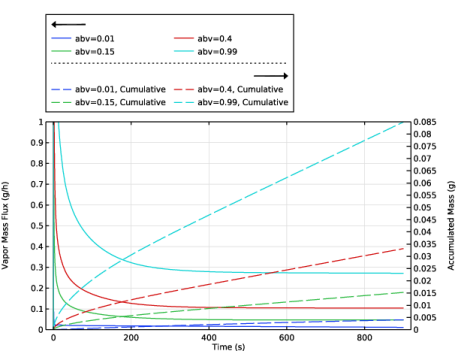
The vapor mass flux and accumulated mass ethanol is shown in Figure 6. The mass flux to the vapor phase is seen to strictly increase with the alcohol content in the liquid. This is in line with the fact that no ethanol is present in the air prior to the evaporation. It can also be noted that the accumulated mass of ethanol transported to the vapor is higher than that of water for all but the lowest alcohol content case.
Figure 5: Vapor mass flux (solid lines) and accumulated mass (dashed lines) of water.
Figure 6: Vapor mass flux (solid lines) and accumulated mass (dashed lines) of ethanol.
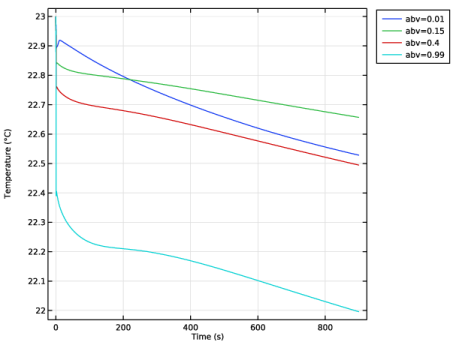
The temperature at the center of the liquid surface is presented in Figure 7. For all ethanol contents, the temperature is reduced by the evaporation. The temperature reduction increases with alcohol content, except for the lowest alcohol case, for which the temperature eventually drops below the two intermediate cases (abv = 0.15, 0.4). This is attributed to the different flow field, as seen in Figure 2, where the cooled vapor travels along the surface to the center of the glass before is rises.
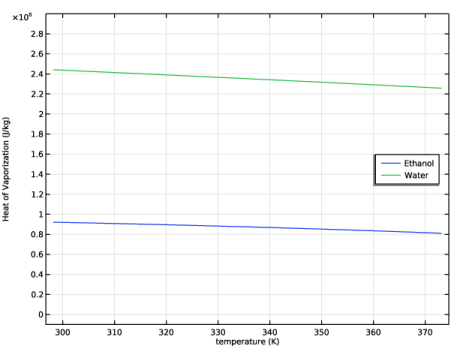
The heat of vaporization of ethanol and water is compared in Figure 8. It can be seen that water has a significantly higher heat of vaporization than ethanol. On a molar basis, the heat of vaporization is similar for the two species, with water having a 4% higher value at 25°C. On a mass basis, as in Figure 8, it is evident that water, despite being a small molecule, has an unusually high heat of vaporization. This can be attributed to the hydrogen bonds of water.
Figure 7: Temperature at the surface center for each abv.
Figure 8: The heat of vaporization for ethanol and water varying with temperature.
References
1. D. Wollan, D.T. Pham, and K.L.Wilkinson, “Changes in Wine Ethanol Content Due to Evaporation from Wine Glasses and Implications for Sensory Analysis,” J. Agric. Food Chem., vol. 64, no. 40, pp. 7569–7575, 2016.
Application Library path: Chemical_Reaction_Engineering_Module/Thermodynamics/ethanol_water_evaporation
Modeling Instructions
From the File menu, choose New.
New
In the New window, click  Model Wizard.
Model Wizard
1
In the Model Wizard window, click  2D Axisymmetric.
2
In the Select Physics tree, select Chemical Species Transport > Vapor–Liquid Equilibrium > Laminar Vapor Flow.
3
Click Add.
4
In the Number of species text field, type 3.
5
In the Mass fractions (1) table, enter the following settings:
6
In the Select Physics tree, select Heat Transfer > Heat Transfer in Fluids (ht).
7
Click Add.
8
Click  Study.
9
In the Select Study tree, select General Studies > Time Dependent.
10
Import model parameters from a file.
Global Definitions
Parameters 1
1
In the Model Builder window, under Global Definitions click Parameters 1.
2
In the Settings window for Parameters, locate the Parameters section.
3
Click  Load from File.
4
In this model, a Vapor-Liquid System that contains compounds of water, ethanol, and nitrogen will be added from Thermodynamics. Thermodynamics functions from both vapor and liquid phases are created automatically based on requirements of mass transport and the saturated vapor from the vapor-liquid equilibrium on the boundary.
In the Physics toolbar, click  Thermodynamics and choose Thermodynamic System.
Select System
1
Go to the Select System window.
2
From the Phase list, choose Vapor–liquid.
3
Click the Next button in the window toolbar.
Select Species
1
Go to the Select Species window.
2
In the Species list box, select ethanol (64-17-5, C2H6O).
3
Click  Add Selected.
4
In the Species list box, select nitrogen (7727-37-9, N2).
5
Click  Add Selected.
6
In the Species list box, select water (7732-18-5, H2O).
7
Click  Add Selected.
8
Click the Next button in the window toolbar.
Select the UNIQUAC for the Liquid phase model, keep the default model Soave-Redlich Kwong for the Gas phase model.
Select Thermodynamic Model
1
Go to the Select Thermodynamic Model window.
2
3
Click the Finish button in the window toolbar.
Global Definitions
Vapor–Liquid System 1 (pp1)
A Chemistry node can be generated from Vapor-Liquid System 1.
1
Right-click Global Definitions > Thermodynamics > Vapor–Liquid System 1 (pp1) and choose Generate Chemistry.
Select Species
1
Go to the Select Species window.
2
Click  Add All.
3
Click the Next button in the window toolbar.
Chemistry Settings
1
Go to the Chemistry Settings window.
2
From the Mass transfer list, choose Concentrated species.
3
Click the Finish button in the window toolbar.
Chemistry (chem)
1
In the Model Builder window, under Component 1 (comp1) click Chemistry (chem).
2
In the Settings window for Chemistry, locate the Species Matching section.
3
Find the Bulk species subsection. From the Species solved for list, choose Transport of Concentrated Species in Vapor.
4
Geometry 1
Now, define the Geometry by inserting it from a file.
1
In the Geometry toolbar, click Insert Sequence and choose Insert Sequence.
2
3
In the Geometry toolbar, click  Build All.
Multiphysics
The Chemistry interface can be coupled to Heat Transfer in Fluids by the Reacting Flow Multiphysics Coupling.
Reacting Flow 1 (nirf1)
1
In the Model Builder window, expand the Component 1 (comp1) > Multiphysics node, then click Reacting Flow 1 (nirf1).
2
In the Settings window for Reacting Flow, locate the Coupled Interfaces section.
3
From the Chemistry (optional) list, choose Chemistry (chem).
4
From the Heat transfer (optional, requires Chemistry) list, choose Heat Transfer in Fluids (ht).
Add an average function on the boundary where a Vapor-Liquid Interface feature will be added later.
Definitions
Average 1 (aveop1)
1
In the Definitions toolbar, click  Nonlocal Couplings and choose Average.
2
In the Settings window for Average, locate the Source Selection section.
3
From the Geometric entity level list, choose Boundary.
4
Import variable definitions from a file.
Vapor-liquid interface variables
1
In the Model Builder window, right-click Definitions and choose Variables.
2
In the Settings window for Variables, type Vapor-liquid interface variables in the Label text field.
3
Locate the Variables section. Click the Load button. From the menu, choose Load from File.
4
At this stage, the variable expressions are colored yellow. The variable definitions will appear normal when the Vapor-Liquid Interface feature is set later. The average functionaveop1 turns the local variable (at the boundary) to a global expression. Then, the expression is defined as a variable on the entire model.
Global Definitions
Vapor–Liquid System 1 (pp1)
Now it is time to generate the materials. First, generate the materials that the beverage consists of. These could be generated from Vapor-Liquid System 1 under Thermodynamics.
1
In the Model Builder window, under Global Definitions > Thermodynamics right-click Vapor–Liquid System 1 (pp1) and choose Generate Material.
Select Phase
1
Go to the Select Phase window.
2
3
Click the Next button in the window toolbar.
The beverage contains two species only: water and ethanol.
Select Species
1
Go to the Select Species window.
2
Click  Remove All.
3
In the list, choose ethanol and water.
4
Click  Add Selected.
5
Find the Material composition subsection. Click the Mass fraction button.
6
Click the Next button in the window toolbar.
Select Properties
1
Go to the Select Properties window.
2
Click the Next button in the window toolbar.
Define Material
1
Go to the Define Material window.
2
Click the Finish button in the window toolbar.
Materials
Liquid: ethanol-water 1 (pp1mat1)
1
In the Model Builder window, expand the Component 1 (comp1) > Materials node, then click Liquid: ethanol-water 1 (pp1mat1).
2
In the Settings window for Material, locate the Geometric Entity Selection section.
3
From the Selection list, choose Beverage.
4
Locate the Material Contents section. Find the Local properties subsection. In the table, enter the following settings:
The glass is made of silica glass, while the table is made of wood. These materials are found in the Material Library.
Add Material
1
In the Materials toolbar, click  Add Material to open the Add Material window.
2
Go to the Add Material window.
3
In the Search text field, type silica glass.
4
Click Search.
5
In the tree, select Built-in > Silica glass.
6
Click the Add to Component button in the window toolbar.
7
In the Search text field, type wood (pine).
8
Click Search.
9
In the tree, select Building > Wood (pine).
10
Click the Add to Component button in the window toolbar.
11
In the Materials toolbar, click  Add Material to close the Add Material window.
Materials
Silica glass (mat1)
1
In the Settings window for Material, locate the Geometric Entity Selection section.
2
From the Selection list, choose Glass.
Wood (pine) (mat2)
1
In the Model Builder window, click Wood (pine) (mat2).
2
In the Settings window for Material, locate the Geometric Entity Selection section.
3
From the Selection list, choose Table.
Transport of Concentrated Species in Vapor (tcs)
1
In the Model Builder window, under Component 1 (comp1) click Transport of Concentrated Species in Vapor (tcs).
2
In the Settings window for Transport of Concentrated Species in Vapor, locate the Domain Selection section.
3
From the Selection list, choose Vapor/Air.
4
Locate the Species section. From the From mass constraint list, choose wN2.
Fluid 1
1
In the Model Builder window, expand the Transport of Concentrated Species in Vapor (tcs) node, then click Fluid 1.
2
In the Settings window for Fluid, locate the Density section.
3
From the ρ list, choose Density (chem).
4
Locate the Diffusion section. In the table, enter the following settings:
Initial Values 1
1
In the Model Builder window, click Initial Values 1.
2
In the Settings window for Initial Values, locate the Initial Values section.
3
In the ω0,wEth text field, type wEth0.
4
In the ω0,wW text field, type wW0.
Remove the default feature Vapor Inflow because there is no vapor inflow in this model.
Vapor Inflow 1
In the Model Builder window, right-click Vapor Inflow 1 and choose Delete.
Vapor–Liquid Interface 1
1
2
In the Settings window for Vapor–Liquid Interface, locate the Vapor Equilibrium section.
3
From the Liquid list, choose Thermochemistry coupling.
4
From the Chemistry list, choose Chemistry (chem).
5
Find the Evaporating/condensing species subsection. Select the wEth, C2H6O (ethanol) checkbox.
6
Select the wW, H2O (water) checkbox.
7
Locate the Liquid Phase section. From the Liquid phase concentration type list, choose Volume fraction.
8
9
Click the  Show More Options button in the Model Builder toolbar.
10
In the Show More Options dialog, in the tree, select the checkbox for the node Physics > Advanced Physics Options.
11
12
In the Settings window for Vapor–Liquid Interface, click to expand the Constraint Settings section.
13
From the Constraint list, choose Weak constraints.
Laminar Flow (spf)
1
In the Model Builder window, under Component 1 (comp1) click Laminar Flow (spf).
2
In the Settings window for Laminar Flow, locate the Domain Selection section.
3
From the Selection list, choose Vapor/Air.
4
Locate the Physical Model section. From the Compressibility list, choose Compressible flow (Ma<0.3).
The compressible flow for Ma less than 0.3 indicates that the inlet and outlet conditions may not be suitable for transonic or supersonic flow.
5
Select the Include gravity checkbox.
6
In the pref text field, type p0.
A Vapor-Liquid Slip at the surface interface should be accounted for.
Vapor-Liquid Slip
1
In the Physics toolbar, click  Boundaries and choose Wall.
2
In the Settings window for Wall, type Vapor-Liquid Slip in the Label text field.
3
4
Locate the Boundary Condition section. From the Wall condition list, choose Navier slip.
Heat Transfer in Fluids (ht)
Initial Values 1
1
In the Model Builder window, expand the Component 1 (comp1) > Heat Transfer in Fluids (ht) node, then click Initial Values 1.
2
In the Settings window for Initial Values, locate the Initial Values section.
3
In the T text field, type T0.
Solid 1
1
In the Physics toolbar, click  Domains and choose Solid.
Choosing a Solid domain creates a difference in heat transfer between beverage, glass, table, and air.
2
To demonstrate the evaporation heat from the surface of the beverage, a Boundary Heat Source is used.
Boundary Heat Source 1
1
In the Physics toolbar, click  Boundaries and choose Boundary Heat Source.
2
In the Settings window for Boundary Heat Source, locate the Boundary Selection section.
3
From the Selection list, choose Vapor-Liquid Surface.
4
Locate the Boundary Heat Source section. From the Qb list, choose Heat of evaporation (tcs/vl1).
Temperature 1
1
In the Physics toolbar, click  Boundaries and choose Temperature.
2
3
In the Settings window for Temperature, locate the Temperature section.
4
In the T0 text field, type T0.
Now, create the Mesh.
Mesh 1
1
In the Model Builder window, under Component 1 (comp1) click Mesh 1.
2
In the Settings window for Mesh, locate the Sequence Type section.
3
From the list, choose User-controlled mesh.
Size 3
1
Right-click Component 1 (comp1) > Mesh 1 and choose Size.
2
Drag and drop Size 3 below Size 2.
3
In the Settings window for Size, locate the Geometric Entity Selection section.
4
From the Geometric entity level list, choose Boundary.
5
6
Locate the Element Size section. From the Calibrate for list, choose Fluid dynamics.
7
From the Predefined list, choose Finer.
8
Click the Custom button.
9
Locate the Element Size Parameters section.
10
Select the Maximum element size checkbox. In the associated text field, type 0.01.
Size 4
1
In the Model Builder window, right-click Mesh 1 and choose Size.
2
Drag and drop Size 4 below Size 3.
3
In the Settings window for Size, locate the Geometric Entity Selection section.
4
From the Geometric entity level list, choose Boundary.
5
6
Locate the Element Size section. From the Calibrate for list, choose Fluid dynamics.
7
From the Predefined list, choose Finer.
8
Click the Custom button.
9
Locate the Element Size Parameters section.
10
Select the Maximum element size checkbox. In the associated text field, type 0.75[cm].
Size 1
1
In the Model Builder window, right-click Free Triangular 1 and choose Size.
2
In the Settings window for Size, locate the Geometric Entity Selection section.
3
From the Geometric entity level list, choose Domain.
4
5
Locate the Element Size section. From the Calibrate for list, choose Fluid dynamics.
6
From the Predefined list, choose Coarse.
7
Click the Custom button.
8
Locate the Element Size Parameters section.
9
Select the Maximum element growth rate checkbox. In the associated text field, type 1.15.
Boundary Layers 1
1
In the Model Builder window, under Component 1 (comp1) > Mesh 1 click Boundary Layers 1.
2
Boundary Layer Properties 1
1
In the Model Builder window, expand the Boundary Layers 1 node, then click Boundary Layer Properties 1.
2
3
In the Settings window for Boundary Layer Properties, locate the Layers section.
4
In the Number of layers text field, type 4.
5
In the Thickness adjustment factor text field, type 2.
6
Click  Build Selected.
Size 1
In the Model Builder window, under Component 1 (comp1) > Mesh 1 right-click Size 1 and choose Delete.
Size 2
1
2
In the Settings window for Size, locate the Element Size section.
3
From the Calibrate for list, choose Fluid dynamics.
4
From the Predefined list, choose Extra fine.
Size 5
1
In the Model Builder window, right-click Mesh 1 and choose Size.
2
Drag and drop Size 5 below Size 4.
3
In the Settings window for Size, locate the Geometric Entity Selection section.
4
From the Geometric entity level list, choose Boundary.
5
6
Locate the Element Size section. From the Calibrate for list, choose Fluid dynamics.
7
From the Predefined list, choose Extra fine.
Free Triangular 2
1
In the Mesh toolbar, click  Free Triangular.
2
3
In the Settings window for Free Triangular, locate the Domain Selection section.
4
From the Geometric entity level list, choose Domain.
5
Size 1
1
Right-click Free Triangular 2 and choose Size.
2
In the Settings window for Size, locate the Element Size section.
3
From the Calibrate for list, choose Fluid dynamics.
4
From the Predefined list, choose Extra fine.
5
Click the Custom button.
6
Locate the Element Size Parameters section.
7
Select the Maximum element size checkbox. In the associated text field, type 0.0015.
Size 2
1
In the Model Builder window, right-click Free Triangular 2 and choose Size.
2
In the Settings window for Size, locate the Geometric Entity Selection section.
3
From the Geometric entity level list, choose Point.
4
5
Locate the Element Size section. From the Calibrate for list, choose Fluid dynamics.
6
From the Predefined list, choose Extra fine.
7
Click the Custom button.
8
Locate the Element Size Parameters section.
9
Select the Maximum element size checkbox. In the associated text field, type 3e-4.
10
Click  Build Selected.
Size 3
1
Right-click Free Triangular 2 and choose Size.
2
In the Settings window for Size, locate the Geometric Entity Selection section.
3
From the Geometric entity level list, choose Boundary.
4
5
Locate the Element Size section. Click the Custom button.
6
Locate the Element Size Parameters section.
7
Select the Curvature factor checkbox. In the associated text field, type 0.1.
8
Click  Build Selected.
9
Click  Build All.
By using a Parametric Sweep, the results can be observed for several abv values.
Study 1
Parametric Sweep
1
In the Study toolbar, click  Parametric Sweep.
2
In the Model Builder window, expand the Study 1 node, then click Parametric Sweep.
3
In the Settings window for Parametric Sweep, locate the Study Settings section.
4
5
Solution 1 (sol1)
In the Study toolbar, click  Show Default Solver.
Step 1: Time Dependent
1
In the Model Builder window, expand the Study 1 node, then click Step 1: Time Dependent.
2
In the Settings window for Time Dependent, locate the Study Settings section.
3
In the Output times text field, type range(0,0.1,1) range(1.25,0.25,4) range(5,1,20) range(25,5,120) range(130,10,240) range(270,30,900).
Solution 1 (sol1)
1
In the Model Builder window, expand the Study 1 > Solver Configurations > Solution 1 (sol1) > Dependent Variables 1 node, then click Temperature (comp1.T).
2
In the Settings window for Field, locate the Scaling section.
3
From the Method list, choose Manual.
4
In the Scale text field, type T0.
5
In the Model Builder window, under Study 1 > Solver Configurations > Solution 1 (sol1) > Dependent Variables 1 click Velocity Field (comp1.u).
6
In the Settings window for Field, locate the Scaling section.
7
From the Method list, choose Manual.
8
In the Scale text field, type 0.01.
9
In the Model Builder window, under Study 1 > Solver Configurations > Solution 1 (sol1) > Dependent Variables 1 click Mass Fraction (comp1.wEth).
10
In the Settings window for Field, locate the Scaling section.
11
From the Method list, choose Manual.
12
In the Model Builder window, under Study 1 > Solver Configurations > Solution 1 (sol1) > Dependent Variables 1 click Mass Fraction (comp1.wW).
13
In the Settings window for Field, locate the Scaling section.
14
From the Method list, choose Manual.
Use an initial time step of 1 ms. This is small compared to the time scale and will make it easy for the transient solver to start.
1
In the Model Builder window, under Study 1 > Solver Configurations > Solution 1 (sol1) click Time-Dependent Solver 1.
2
In the Settings window for Time-Dependent Solver, click to expand the Time Stepping section.
3
Select the Initial step checkbox.
4
In the Study toolbar, click  Get Initial Value to generate the default datasets and plots. This means that a plot to be shown while solving can be chosen as well. For that purpose, create a Plot Group showing both velocity, temperature, and mass fractions.
Results
2D Plot Group 11
In the Results toolbar, click  2D Plot Group.
Mirror 2D 1
1
In the Results toolbar, click  More Datasets and choose Mirror 2D.
2
In the Settings window for Mirror 2D, click to expand the Advanced section.
3
Find the Space variables subsection. Select the Remove elements on the symmetry axis checkbox.
Set default units for result presentation.
Preferred Units 1
1
In the Results toolbar, click  Configurations and choose Preferred Units.
2
In the Settings window for Preferred Units, locate the Units section.
3
Click  Add Physical Quantity.
4
In the Physical Quantity dialog, type tem in the text field.
5
In the tree, select General > Temperature (K).
6
7
In the Settings window for Preferred Units, locate the Units section.
8
9
Click  Apply.
Array: Velocity, Temperature, and Mass Fractions
1
In the Model Builder window, under Results click 2D Plot Group 11.
2
In the Settings window for 2D Plot Group, type Array: Velocity, Temperature, and Mass Fractions in the Label text field.
3
Locate the Data section. From the Dataset list, choose Mirror 2D 1.
4
Click to expand the Title section. Locate the Color Legend section. Select the Show maximum and minimum values checkbox.
5
Select the Show units checkbox.
6
Click to expand the Number Format section. Select the Manual color legend settings checkbox.
7
From the Notation list, choose Scientific.
8
Click to expand the Plot Array section. From the Array type list, choose Square.
9
From the Order list, choose Column-major.
10
In the Relative row padding text field, type 0.1.
11
In the Relative column padding text field, type 0.1.
Velocity
1
Right-click Array: Velocity, Temperature, and Mass Fractions and choose Surface.
2
In the Settings window for Surface, type Velocity in the Label text field.
3
Click to expand the Expression section. In the Expression text field, type spf.U.
Mass Fraction, Water
1
Right-click Array: Velocity, Temperature, and Mass Fractions and choose Surface.
2
In the Settings window for Surface, type Mass Fraction, Water in the Label text field.
3
Locate the Expression section. In the Expression text field, type wW.
4
Locate the Coloring and Style section. From the Color table list, choose Disco.
5
Click to expand the Plot Array section. Select the Manual indexing checkbox.
6
In the Row index text field, type -1.
Temperature
1
Right-click Array: Velocity, Temperature, and Mass Fractions and choose Surface.
2
In the Settings window for Surface, type Temperature in the Label text field.
3
Locate the Expression section. In the Expression text field, type T.
4
Locate the Coloring and Style section. From the Color table list, choose HeatCamera.
5
Locate the Plot Array section. Select the Manual indexing checkbox.
6
In the Column index text field, type 1.
Mass Fraction, Ethanol
1
In the Model Builder window, right-click Mass Fraction, Water and choose Duplicate.
2
In the Settings window for Surface, type Mass Fraction, Ethanol in the Label text field.
3
Locate the Expression section. In the Expression text field, type wEth.
4
Locate the Plot Array section. Select the Manual indexing checkbox.
5
In the Column index text field, type 1.
6
In the Array: Velocity, Temperature, and Mass Fractions toolbar, click  Plot.
Array: Velocity, Temperature, and Mass Fractions
1
In the Model Builder window, click Array: Velocity, Temperature, and Mass Fractions.
2
In the Settings window for 2D Plot Group, locate the Color Legend section.
3
From the Position list, choose Right double.
Arrow Surface 1
1
In the Model Builder window, right-click Array: Velocity, Temperature, and Mass Fractions and choose Arrow Surface.
2
In the Settings window for Arrow Surface, locate the Arrow Positioning section.
3
Find the x grid points subsection. In the Points text field, type 12.
4
Find the y grid points subsection. In the Points text field, type 12.
5
Locate the Coloring and Style section. From the Arrow type list, choose Cone.
6
From the Arrow length list, choose Logarithmic.
7
In the Range quotient text field, type 20.
8
From the Color list, choose White.
9
Click to expand the Plot Array section. Select the Manual indexing checkbox.
10
In the Array: Velocity, Temperature, and Mass Fractions toolbar, click  Plot.
Annotation: Velocity
1
In the Model Builder window, right-click Array: Velocity, Temperature, and Mass Fractions and choose Annotation.
2
In the Settings window for Annotation, type Annotation: Velocity in the Label text field.
3
Locate the Annotation section. In the Text text field, type Velocity.
4
Locate the Position section. In the x text field, type -0.5.
5
In the y text field, type 0.5.
6
Locate the Coloring and Style section. Clear the Show point checkbox.
7
Click to expand the Plot Array section. Clear the Belongs to array checkbox.
8
Locate the Coloring and Style section. From the Anchor point list, choose Lower left.
Annotation: Temperature
1
Right-click Annotation: Velocity and choose Duplicate.
2
In the Settings window for Annotation, type Annotation: Temperature in the Label text field.
3
Locate the Annotation section. In the Text text field, type Temperature.
4
Locate the Position section. In the x text field, type 0.6.
Annotation: Water
1
Right-click Annotation: Temperature and choose Duplicate.
2
In the Settings window for Annotation, type Annotation: Water in the Label text field.
3
Locate the Annotation section. In the Text text field, type Water.
4
Locate the Position section. In the x text field, type -0.5.
5
In the y text field, type -0.7.
Annotation: Ethanol
1
Right-click Annotation: Water and choose Duplicate.
2
In the Settings window for Annotation, type Annotation: Ethanol in the Label text field.
3
Locate the Annotation section. In the Text text field, type Ethanol.
4
Locate the Position section. In the x text field, type 0.6.
5
Click the  Zoom Extents button in the Graphics toolbar.
Study 1
Step 1: Time Dependent
1
In the Model Builder window, under Study 1 click Step 1: Time Dependent.
2
In the Settings window for Time Dependent, click to expand the Results While Solving section.
3
Select the Plot checkbox.
4
5
From the Update at list, choose Time steps taken by solver.
Parametric Sweep
1
In the Model Builder window, click Parametric Sweep.
2
In the Settings window for Parametric Sweep, locate the Output While Solving section.
3
Select the Plot checkbox.
4
Now compute the solutions for the four different alcohol contents.
In the Study toolbar, click  Compute.
Point the mirror dataset to the parametric solutions to be able to plot results from all compositions.
Results
Mirror 2D 1
1
In the Model Builder window, under Results > Datasets click Mirror 2D 1.
2
In the Settings window for Mirror 2D, locate the Data section.
3
From the Dataset list, choose Study 1/Parametric Solutions 1 (sol2).
Now create a plot that shows the velocity in the vapor phase for all four compositions at the same time step.
Array: Velocity all cases
1
In the Results toolbar, click  2D Plot Group.
2
In the Settings window for 2D Plot Group, type Array: Velocity all cases in the Label text field.
3
Locate the Data section. From the Dataset list, choose Mirror 2D 1.
4
Click to expand the Title section. From the Title type list, choose Manual.
5
In the Parameter indicator text field, type Time =eval(t) s.
6
Click to expand the Plot Array section. From the Array type list, choose Square.
7
In the Relative row padding text field, type 0.1.
8
In the Relative column padding text field, type 0.1.
abv = 0.01
1
Right-click Array: Velocity all cases and choose Surface.
2
In the Settings window for Surface, type abv = 0.01 in the Label text field.
3
Locate the Expression section. In the Expression text field, type withsol('sol2',spf.U,setval(abv,0.01,t,t)).
4
Click to expand the Plot Array section. In the Array: Velocity all cases toolbar, click  Plot.
abv = 0.15
1
Right-click abv = 0.01 and choose Duplicate.
2
In the Settings window for Surface, type abv = 0.15 in the Label text field.
3
Locate the Expression section. In the Expression text field, type withsol('sol2',spf.U,setval(abv,0.15,t,t)).
4
Locate the Plot Array section. Select the Manual indexing checkbox.
5
In the Row index text field, type -1.
6
Click to expand the Inherit Style section. From the Plot list, choose abv = 0.01.
7
In the Array: Velocity all cases toolbar, click  Plot.
abv = 0.4
1
Right-click abv = 0.15 and choose Duplicate.
2
In the Settings window for Surface, type abv = 0.4 in the Label text field.
3
Locate the Expression section. In the Expression text field, type withsol('sol2',spf.U,setval(abv,0.4,t,t)).
4
Locate the Plot Array section. In the Row index text field, type 0.
5
In the Column index text field, type 1.
6
In the Array: Velocity all cases toolbar, click  Plot.
abv = 0.99
1
Right-click abv = 0.4 and choose Duplicate.
2
In the Settings window for Surface, type abv = 0.99 in the Label text field.
3
Locate the Expression section. In the Expression text field, type withsol('sol2',spf.U,setval(abv,0.99,t,t)).
4
Locate the Plot Array section. In the Row index text field, type -1.
5
In the Array: Velocity all cases toolbar, click  Plot.
Arrow Surface: abv = 0.01
1
In the Model Builder window, right-click Array: Velocity all cases and choose Arrow Surface.
2
In the Settings window for Arrow Surface, type Arrow Surface: abv = 0.01 in the Label text field.
3
Locate the Expression section. In the x-component text field, type withsol('sol2',u,setval(abv,0.01,t,t)).
4
In the y-component text field, type withsol('sol2',w,setval(abv,0.01,t,t)).
5
Locate the Arrow Positioning section. Find the x grid points subsection. In the Points text field, type 12.
6
Find the y grid points subsection. In the Points text field, type 12.
7
Locate the Coloring and Style section. From the Arrow type list, choose Cone.
8
From the Arrow length list, choose Logarithmic.
9
In the Range quotient text field, type 20.
10
From the Color list, choose White.
11
Locate the Plot Array section. Select the Manual indexing checkbox.
Arrow Surface: abv = 0.15
1
Right-click Arrow Surface: abv = 0.01 and choose Duplicate.
2
In the Settings window for Arrow Surface, type Arrow Surface: abv = 0.15 in the Label text field.
3
Locate the Expression section. In the x-component text field, type withsol('sol2',u,setval(abv,0.15,t,t)).
4
In the y-component text field, type withsol('sol2',w,setval(abv,0.15,t,t)).
5
Locate the Plot Array section. In the Row index text field, type -1.
Arrow Surface: abv = 0.4
1
Right-click Arrow Surface: abv = 0.15 and choose Duplicate.
2
In the Settings window for Arrow Surface, type Arrow Surface: abv = 0.4 in the Label text field.
3
Locate the Expression section. In the x-component text field, type withsol('sol2',u,setval(abv,0.4,t,t)).
4
In the y-component text field, type withsol('sol2',w,setval(abv,0.4,t,t)).
5
Locate the Plot Array section. In the Row index text field, type 0.
6
In the Column index text field, type 1.
Arrow Surface: abv = 0.99
1
Right-click Arrow Surface: abv = 0.4 and choose Duplicate.
2
In the Settings window for Arrow Surface, type Arrow Surface: abv = 0.99 in the Label text field.
3
Locate the Expression section. In the x-component text field, type withsol('sol2',u,setval(abv,0.99,t,t)).
4
In the y-component text field, type withsol('sol2',w,setval(abv,0.99,t,t)).
5
Locate the Plot Array section. In the Row index text field, type -1.
6
In the Array: Velocity all cases toolbar, click  Plot.
7
Click the  Zoom Extents button in the Graphics toolbar.
abv = 0.15
1
In the Model Builder window, click abv = 0.15.
2
In the Settings window for Surface, click to expand the Inherit Style section.
3
From the Plot list, choose abv = 0.01.
4
In the Array: Velocity all cases toolbar, click  Plot.
5
Click the  Zoom Extents button in the Graphics toolbar.
Annotation: abv = 0.01
1
In the Model Builder window, right-click Array: Velocity all cases and choose Annotation.
2
In the Settings window for Annotation, type Annotation: abv = 0.01 in the Label text field.
3
Locate the Annotation section. In the Text text field, type abv = 0.01.
4
Locate the Position section. In the x text field, type -0.5.
5
In the y text field, type 0.5.
6
Locate the Coloring and Style section. Clear the Show point checkbox.
7
From the Anchor point list, choose Lower left.
8
Locate the Plot Array section. Clear the Belongs to array checkbox.
9
In the Array: Velocity all cases toolbar, click  Plot.
Annotation: abv = 0.4
1
Right-click Annotation: abv = 0.01 and choose Duplicate.
2
In the Settings window for Annotation, type Annotation: abv = 0.4 in the Label text field.
3
Locate the Annotation section. In the Text text field, type abv = 0.4.
4
Locate the Position section. In the x text field, type 0.6.
5
In the Array: Velocity all cases toolbar, click  Plot.
Annotation: abv = 0.15
1
Right-click Annotation: abv = 0.4 and choose Duplicate.
2
In the Settings window for Annotation, type Annotation: abv = 0.15 in the Label text field.
3
Locate the Annotation section. In the Text text field, type abv = 0.15.
4
Locate the Position section. In the x text field, type -0.5.
5
In the y text field, type -0.7.
6
In the Array: Velocity all cases toolbar, click  Plot.
Annotation: abv = 0.99
1
Right-click Annotation: abv = 0.15 and choose Duplicate.
2
In the Settings window for Annotation, type Annotation: abv = 0.99 in the Label text field.
3
Locate the Annotation section. In the Text text field, type abv = 0.99.
4
Locate the Position section. In the x text field, type 0.6.
5
In the Array: Velocity all cases toolbar, click  Plot.
Now, create line graphs evaluating the mass flux due to evaporation. To obtain these, integrate the normal total fluxes of ethanol and water along the vapor-liquid surface.
Evaluation: Water Flux
1
In the Results toolbar, click  Evaluation Group.
2
In the Settings window for Evaluation Group, type Evaluation: Water Flux in the Label text field.
3
Locate the Data section. From the Dataset list, choose Study 1/Parametric Solutions 1 (sol2).
Line Integration 1
1
Right-click Evaluation: Water Flux and choose Integration > Line Integration.
2
In the Settings window for Line Integration, locate the Data section.
3
From the Table columns list, choose abv.
4
Locate the Selection section. From the Selection list, choose Vapor-Liquid Surface.
5
Locate the Expressions section. In the table, enter the following settings:
6
In the Evaluation: Water Flux toolbar, click  Evaluate.
Line Integration 2
1
Right-click Line Integration 1 and choose Duplicate.
2
In the Settings window for Line Integration, locate the Data Series Operation section.
3
From the Transformation list, choose Integral.
4
Select the Cumulative checkbox.
5
In the Evaluation: Water Flux toolbar, click  Evaluate.
1D Plot Group 13
In the Results toolbar, click  1D Plot Group.
Table Graph 1
1
Right-click 1D Plot Group 13 and choose Table Graph.
2
In the Settings window for Table Graph, locate the Data section.
3
From the Source list, choose Evaluation group.
4
From the Evaluation group list, choose Evaluation: Water Flux.
5
From the Plot columns list, choose Manual.
6
In the Columns list, choose abv=0.01, -tcs.ntflux_wW (g/h), abv=0.15, -tcs.ntflux_wW (g/h), abv=0.4, -tcs.ntflux_wW (g/h), and abv=0.99, -tcs.ntflux_wW (g/h).
7
In the 1D Plot Group 13 toolbar, click  Plot.
Table Graph 2
Right-click Table Graph 1 and choose Duplicate.
Water Mass Flux
1
In the Settings window for 1D Plot Group, type Water Mass Flux in the Label text field.
2
Locate the Data section. From the Dataset list, choose None.
3
Locate the Plot Settings section.
4
Select the y-axis label checkbox. In the associated text field, type Vapor Mass Flux (g/h).
5
Select the Two y-axes checkbox.
6
Select the Secondary y-axis label checkbox. In the associated text field, type Accumulated Mass (g).
7
In the table, select the Plot on secondary y-axis checkbox for Table Graph 2.
8
Locate the Legend section. From the Layout list, choose Outside graph axis area.
9
From the Position list, choose Top.
10
In the Number of rows text field, type 2.
Table Graph 2
1
In the Model Builder window, click Table Graph 2.
2
In the Settings window for Table Graph, locate the Data section.
3
In the Columns list, choose abv=0.01, Cumulative integral: -tcs.ntflux_wW (g), abv=0.15, Cumulative integral: -tcs.ntflux_wW (g), abv=0.4, Cumulative integral: -tcs.ntflux_wW (g), and abv=0.99, Cumulative integral: -tcs.ntflux_wW (g).
4
Locate the Coloring and Style section. Find the Line style subsection. From the Line list, choose Dashed.
5
From the Color list, choose Cycle (reset).
6
In the Water Mass Flux toolbar, click  Plot.
Water Mass Flux
1
In the Model Builder window, click Water Mass Flux.
2
In the Settings window for 1D Plot Group, locate the Axis section.
3
Select the Manual axis limits checkbox.
4
In the y minimum text field, type -0.1.
5
In the y maximum text field, type 0.2.
6
In the Water Mass Flux toolbar, click  Plot.
Evaluation: Ethanol Flux
1
In the Model Builder window, right-click Evaluation: Water Flux and choose Duplicate.
2
In the Model Builder window, click Evaluation: Water Flux 1.
3
In the Settings window for Evaluation Group, type Evaluation: Ethanol Flux in the Label text field.
Line Integration 1
1
In the Model Builder window, click Line Integration 1.
2
In the Settings window for Line Integration, click Replace Expression in the upper-right corner of the Expressions section. From the menu, choose Component 1 (comp1) > Transport of Concentrated Species in Vapor > Species wEth > Fluxes > tcs.ntflux_wEth - Normal total flux - kg/(m²·s).
3
Locate the Expressions section. In the table, enter the following settings:
Line Integration 2
1
In the Model Builder window, click Line Integration 2.
2
In the Settings window for Line Integration, click Replace Expression in the upper-right corner of the Expressions section. From the menu, choose tcs.ntflux_wEth - Normal total flux - kg/(m²·s).
3
Locate the Expressions section. In the table, enter the following settings:
4
In the Evaluation: Ethanol Flux toolbar, click  Evaluate.
Ethanol Mass Flux
1
In the Model Builder window, right-click Water Mass Flux and choose Duplicate.
2
In the Settings window for 1D Plot Group, type Ethanol Mass Flux in the Label text field.
Table Graph 1
1
In the Model Builder window, expand the Ethanol Mass Flux node, then click Table Graph 1.
2
In the Settings window for Table Graph, locate the Data section.
3
From the Evaluation group list, choose Evaluation: Ethanol Flux.
Table Graph 2
1
In the Model Builder window, click Table Graph 2.
2
In the Settings window for Table Graph, locate the Data section.
3
From the Evaluation group list, choose Evaluation: Ethanol Flux.
4
In the Ethanol Mass Flux toolbar, click  Plot.
Ethanol Mass Flux
1
In the Model Builder window, click Ethanol Mass Flux.
2
In the Settings window for 1D Plot Group, locate the Axis section.
3
Select the Manual axis limits checkbox.
4
In the y minimum text field, type 0.
5
In the y maximum text field, type 1.
6
In the Secondary y minimum text field, type 0.
7
In the Secondary y maximum text field, type 0.085.
Evaluation: Kinetic Energy
1
In the Results toolbar, click  Evaluation Group.
2
In the Settings window for Evaluation Group, type Evaluation: Kinetic Energy in the Label text field.
3
Locate the Data section. From the Dataset list, choose Study 1/Parametric Solutions 1 (sol2).
Surface Integration 1
1
Right-click Evaluation: Kinetic Energy and choose Integration > Surface Integration.
2
In the Settings window for Surface Integration, locate the Data section.
3
From the Table columns list, choose abv.
4
Locate the Selection section. From the Selection list, choose Vapor/Air.
5
Locate the Expressions section. In the table, enter the following settings:
6
In the Evaluation: Kinetic Energy toolbar, click  Evaluate.
Kinetic Energy
1
In the Results toolbar, click  1D Plot Group.
2
In the Settings window for 1D Plot Group, type Kinetic Energy in the Label text field.
3
Locate the Data section. From the Dataset list, choose None.
4
Locate the Plot Settings section.
5
Select the y-axis label checkbox. In the associated text field, type Kinetic Energy (N*s).
6
Locate the Legend section. From the Layout list, choose Outside graph axis area.
Table Graph 1
1
Right-click Kinetic Energy and choose Table Graph.
2
In the Settings window for Table Graph, locate the Data section.
3
From the Source list, choose Evaluation group.
4
From the Evaluation group list, choose Evaluation: Kinetic Energy.
5
From the Plot columns list, choose All excluding x-axis.
6
Click to expand the Legends section. Select the Show legends checkbox.
7
In the Kinetic Energy toolbar, click  Plot.
8
Surface Temperature
1
In the Results toolbar, click  1D Plot Group.
2
In the Settings window for 1D Plot Group, type Surface Temperature in the Label text field.
3
Locate the Data section. From the Dataset list, choose Study 1/Parametric Solutions 1 (sol2).
4
Locate the Legend section. From the Layout list, choose Outside graph axis area.
Point Graph 1
1
In the Model Builder window, right-click Surface Temperature and choose Point Graph.
2
3
In the Settings window for Point Graph, locate the y-Axis Data section.
4
In the Expression text field, type T.
5
Click to expand the Legends section. Select the Show legends checkbox.
6
From the Legends list, choose Automatic.
7
Find the Include subsection. Clear the Point checkbox.
8
In the Surface Temperature toolbar, click  Plot.
Surface Concentration Ethanol
1
In the Model Builder window, right-click Surface Temperature and choose Duplicate.
2
In the Settings window for 1D Plot Group, type Surface Concentration Ethanol in the Label text field.
Point Graph 1
1
In the Model Builder window, expand the Surface Concentration Ethanol node, then click Point Graph 1.
2
In the Settings window for Point Graph, locate the Selection section.
3
Click to select the  Activate Selection toggle button.
4
5
Click Replace Expression in the upper-right corner of the y-Axis Data section. From the menu, choose Component 1 (comp1) > Transport of Concentrated Species in Vapor > Species wEth > tcs.c_wEth - Molar concentration - mol/m³.
6
In the Surface Concentration Ethanol toolbar, click  Plot.
To show the figure of Glass and Table .
Study 1/Solution 1 (3) (sol1)
1
In the Results toolbar, click  More Datasets and choose Solution.
2
In the Settings window for Solution, locate the Solution section.
3
From the Solution list, choose Parametric Solutions 1 (sol2).
Selection
1
In the Results toolbar, click  Attributes and choose Selection.
2
In the Settings window for Selection, locate the Geometric Entity Selection section.
3
From the Geometric entity level list, choose Domain.
4
From the Selection list, choose Glass.
Revolution Glass
1
In the Results toolbar, click  More Datasets and choose Revolution 2D.
2
In the Settings window for Revolution 2D, type Revolution Glass in the Label text field.
3
Locate the Data section. From the Dataset list, choose Study 1/Parametric Solutions 1 (3) (sol2).
4
Click to expand the Revolution Layers section. In the Start angle text field, type -90.
Glass and Table
1
In the Results toolbar, click  3D Plot Group.
2
In the Settings window for 3D Plot Group, locate the Data section.
3
From the Dataset list, choose Revolution Glass.
4
In the Label text field, type Glass and Table.
5
Locate the Data section. From the Parameter value (abv) list, choose 0.15.
6
From the Time (s) list, choose 100.
7
Locate the Plot Settings section. Clear the Plot dataset edges checkbox.
Volume 1
1
Right-click Glass and Table and choose Volume.
2
In the Settings window for Volume, locate the Data section.
3
From the Dataset list, choose Revolution Glass.
4
Click to expand the Title section. From the Title type list, choose None.
5
Locate the Expression section. In the Expression text field, type 1.
Material Appearance 1
1
Right-click Volume 1 and choose Material Appearance.
2
In the Settings window for Material Appearance, locate the Appearance section.
3
From the Appearance list, choose Custom.
4
From the Material type list, choose Custom.
5
Click Define custom colors.
6
7
Click Add to custom colors.
8
Click Show color palette only or OK on the cross-platform desktop.
9
From the Diffuse color list, choose Custom.
10
Click Define custom colors.
11
12
Click Add to custom colors.
13
Click Show color palette only or OK on the cross-platform desktop.
14
From the Ambient color list, choose Custom.
15
Click Define custom colors.
16
17
Click Add to custom colors.
18
Click Show color palette only or OK on the cross-platform desktop.
19
Select the Normal mapping checkbox.
20
In the Normal vector noise scale text field, type 0.1.
21
In the Normal vector noise frequency text field, type 30.
22
Select the Additional color checkbox.
23
In the Noise scale text field, type 1.
24
In the Noise frequency text field, type 10.
25
In the Color blend text field, type 0.55.
26
Click Define custom colors.
27
28
Click Add to custom colors.
29
Click Show color palette only or OK on the cross-platform desktop.
30
In the Transparency text field, type 0.5.
31
In the Reflectance at normal incidence text field, type 0.9.
32
In the Surface roughness text field, type 0.25.
33
In the Metallic text field, type 0.85.
34
In the Pearl text field, type 0.05.
35
In the Diffuse wrap text field, type 0.45.
36
In the Clear coat text field, type 0.3.
37
In the Reflectance text field, type 0.75.
Study 1/Parametric Solutions 1 (4) (sol2)
In the Model Builder window, under Results > Datasets right-click Study 1/Parametric Solutions 1 (3) (sol2) and choose Duplicate.
Selection
1
In the Model Builder window, expand the Study 1/Parametric Solutions 1 (4) (sol2) node, then click Selection.
2
Revolution Table
1
In the Model Builder window, right-click Revolution Glass and choose Duplicate.
2
In the Settings window for Revolution 2D, type Revolution Table in the Label text field.
3
Locate the Data section. From the Dataset list, choose Study 1/Parametric Solutions 1 (4) (sol2).
Volume 2
1
In the Model Builder window, right-click Glass and Table and choose Volume.
2
In the Settings window for Volume, locate the Data section.
3
From the Dataset list, choose Revolution Table.
4
Locate the Expression section. In the Expression text field, type 1.
5
Click to expand the Title section. From the Title type list, choose None.
Material Appearance 1
1
Right-click Volume 2 and choose Material Appearance.
2
In the Settings window for Material Appearance, locate the Appearance section.
3
From the Appearance list, choose Custom.
4
From the Material type list, choose Wood.
Cut Plane 1
1
In the Results toolbar, click  Cut Plane.
2
In the Settings window for Cut Plane, locate the Data section.
3
From the Dataset list, choose Revolution 2D 1.
Surface 1
1
In the Model Builder window, right-click Glass and Table and choose Surface.
2
In the Settings window for Surface, locate the Data section.
3
From the Dataset list, choose Cut Plane 1.
4
From the Solution parameters list, choose From parent.
5
Locate the Expression section. In the Expression text field, type spf.U.
Transparency 1
1
Right-click Surface 1 and choose Transparency.
2
In the Settings window for Transparency, locate the Transparency section.
3
Find the Transparency subsection. In the Transparency text field, type 0.4.
4
In the Glass and Table toolbar, click  Plot.
Arrow Surface 1
1
In the Model Builder window, right-click Glass and Table and choose Arrow Surface.
2
In the Settings window for Arrow Surface, locate the Data section.
3
From the Dataset list, choose Cut Plane 1.
4
From the Solution parameters list, choose From parent.
5
Locate the Expression section. In the r-component text field, type u.
6
In the phi-component text field, type v.
7
In the z-component text field, type w.
8
Locate the Arrow Positioning section. In the Number of arrows text field, type 300.
9
Locate the Coloring and Style section. From the Arrow length list, choose Logarithmic.
10
From the Color list, choose Black.
11
In the Glass and Table toolbar, click  Plot.
Create a plot that evaluates the heat of vaporization of water and ethanol.
Global Definitions
In the Model Builder window, expand the Global Definitions > Thermodynamics node.
Vapor–Liquid System 1 (pp1)
In the Model Builder window, expand the Global Definitions > Thermodynamics > Vapor–Liquid System 1 (pp1) node.
Heat of vaporization 1 (chempp1dHvap_ethanol, chempp1dHvap_ethanol_Dtemperature)
1
In the Model Builder window, expand the Global Definitions > Thermodynamics > Vapor–Liquid System 1 (pp1) > ethanol node, then click Heat of vaporization 1 (chempp1dHvap_ethanol, chempp1dHvap_ethanol_Dtemperature).
2
In the Settings window for Species Property, click  Create Plot.
Global Definitions
Heat of vaporization 2 (chempp1dHvap_water, chempp1dHvap_water_Dtemperature)
1
In the Model Builder window, expand the Global Definitions > Thermodynamics > Vapor–Liquid System 1 (pp1) > water node, then click Heat of vaporization 2 (chempp1dHvap_water, chempp1dHvap_water_Dtemperature).
2
In the Settings window for Species Property, click  Create Plot.
Results
1D Plot Group 19
In the Model Builder window, expand the Results > 1D Plot Group 19 node.
Function 1
In the Model Builder window, expand the Results > 1D Plot Group 20 node, then click Function 1.
Water
1
Drag and drop below 1D Plot Group 19 > Function 1.
2
In the Settings window for Function, type Water in the Label text field.
3
Click to expand the Legends section. Select the Show legends checkbox.
4
From the Legends list, choose Manual.
5
Ethanol
1
In the Model Builder window, under Results > 1D Plot Group 19 click Function 1.
2
In the Settings window for Function, type Ethanol in the Label text field.
3
Locate the Legends section. Select the Show legends checkbox.
4
From the Legends list, choose Manual.
5
Heat of Vaporization
1
In the Model Builder window, under Results click 1D Plot Group 19.
2
In the Settings window for 1D Plot Group, type Heat of Vaporization in the Label text field.
3
Click to expand the Title section. From the Title type list, choose None.
4
Locate the Plot Settings section.
5
Select the y-axis label checkbox. In the associated text field, type Heat of Vaporization (J/kg).
6
Locate the Legend section. From the Position list, choose Middle right.
7
Locate the Axis section. Select the Manual axis limits checkbox.
8
In the y minimum text field, type -1e5.
9
In the y maximum text field, type 3e6.
10
In the Heat of Vaporization toolbar, click  Plot.
Appendix — Geometry Modeling Instructions
From the File menu, choose New.
New
In the New window, click  Blank Model.
Add Component
In the Home toolbar, click  Add Component and choose 2D Axisymmetric.
Global Definitions
Parameters 1
1
In the Model Builder window, under Global Definitions click Parameters 1.
2
In the Settings window for Parameters, locate the Parameters section.
3
Click  Clear Table.
4
Geometry 1
Rectangle 1 (r1)
1
In the Geometry toolbar, click  Rectangle.
2
In the Settings window for Rectangle, locate the Size and Shape section.
3
In the Width text field, type Wvdom.
4
In the Height text field, type Hvdom.
Point 1 (pt1)
1
In the Geometry toolbar, click  Point.
2
In the Settings window for Point, locate the Point section.
3
In the r text field, type 0.008.
4
In the z text field, type 0.08.
Point 2 (pt2)
1
In the Geometry toolbar, click  Point.
2
In the Settings window for Point, locate the Point section.
3
In the r text field, type 0.042.
4
In the z text field, type 0.145.
Point 1 (pt1), Point 2 (pt2)
1
In the Model Builder window, under Component 1 (comp1) > Geometry 1, Ctrl-click to select Point 1 (pt1) and Point 2 (pt2).
2
Point 3 (pt3)
1
In the Geometry toolbar, click  Point.
2
In the Settings window for Point, locate the Point section.
3
In the r text field, type 0.034.
4
In the z text field, type 0.2.
Point 4 (pt4)
1
In the Geometry toolbar, click  Point.
2
In the Settings window for Point, locate the Point section.
3
In the r text field, type 0.036.
4
In the z text field, type 0.2.
Point 5 (pt5)
1
Right-click Point 4 (pt4) and choose Duplicate.
2
In the Settings window for Point, locate the Point section.
3
In the r text field, type 0.04.
4
In the z text field, type 0.145.
Point 6 (pt6)
1
Right-click Point 5 (pt5) and choose Duplicate.
2
In the Settings window for Point, locate the Point section.
3
In the r text field, type 0.01.
4
In the z text field, type 0.08.
Point 7 (pt7)
1
Right-click Point 6 (pt6) and choose Duplicate.
2
In the Settings window for Point, locate the Point section.
3
In the r text field, type 0.003.
4
In the z text field, type 0.038.
Point 8 (pt8)
1
Right-click Point 7 (pt7) and choose Duplicate.
2
In the Settings window for Point, locate the Point section.
3
In the r text field, type 0.042.
4
In the z text field, type 0.
Point 9 (pt9)
1
Right-click Point 8 (pt8) and choose Duplicate.
2
In the Settings window for Point, locate the Point section.
3
In the r text field, type 0.
4
In the z text field, type 0.08.
Group 1: Points
1
In the Model Builder window, click Group 1.
2
In the Settings window for Group, type Group 1: Points in the Label text field.
3
Click  Build All Objects.
Polygon 1 (pol1)
1
In the Geometry toolbar, click  Polygon.
2
In the Settings window for Polygon, locate the Object Type section.
3
From the Type list, choose Open curve.
4
Locate the Coordinates section. In the table, enter the following settings:
Circular Arc 1 (ca1)
1
In the Geometry toolbar, click  More Primitives and choose Circular Arc.
2
In the Settings window for Circular Arc, locate the Properties section.
3
From the Specify list, choose Endpoints and radius.
4
Locate the Starting Point section. In the r text field, type 0.008.
5
In the z text field, type 0.08.
6
Locate the Endpoint section. In the r text field, type 0.034.
7
In the z text field, type 0.2.
8
Locate the Radius section. In the Radius text field, type 0.11446.
Line Segment 1 (ls1)
1
In the Geometry toolbar, click  More Primitives and choose Line Segment.
2
In the Settings window for Line Segment, locate the Starting Point section.
3
From the Specify list, choose Coordinates.
4
In the r text field, type 0.034.
5
In the z text field, type 0.2.
6
Locate the Endpoint section. From the Specify list, choose Coordinates.
7
In the r text field, type 0.036.
8
In the z text field, type 0.2.
Circular Arc 2 (ca2)
1
In the Model Builder window, under Component 1 (comp1) > Geometry 1 right-click Circular Arc 1 (ca1) and choose Duplicate.
2
In the Settings window for Circular Arc, locate the Starting Point section.
3
In the r text field, type 0.01.
4
Locate the Endpoint section. In the r text field, type 0.036.
Union 1 (uni1)
1
In the Geometry toolbar, click  Booleans and Partitions and choose Union.
2
Select the objects ca1, ca2, ls1, and pol1 only.
3
In the Settings window for Union, click  Build All Objects.
Convert to Solid 1 (csol1)
1
In the Geometry toolbar, click  Conversions and choose Convert to Solid.
2
3
In the Settings window for Convert to Solid, click  Build All Objects.
Fillet 1 (fil1)
1
In the Geometry toolbar, click  Fillet.
2
On the object csol1, select Points 16 and 17 only.
3
In the Settings window for Fillet, locate the Radius section.
4
In the Radius text field, type 0.9[mm].
Polygon 2 (pol2)
1
In the Geometry toolbar, click  Polygon.
2
In the Settings window for Polygon, locate the Coordinates section.
3
Difference 1 (dif1)
1
In the Geometry toolbar, click  Booleans and Partitions and choose Difference.
2
3
In the Settings window for Difference, locate the Difference section.
4
Click to select the  Activate Selection toggle button for Objects to subtract.
5
6
Select the Keep objects to subtract checkbox.
Polygon 3 (pol3)
1
In the Geometry toolbar, click  Polygon.
2
In the Settings window for Polygon, locate the Coordinates section.
3
Difference 2 (dif2)
1
In the Model Builder window, under Component 1 (comp1) > Geometry 1 right-click Difference 1 (dif1) and choose Duplicate.
2
In the Settings window for Difference, locate the Difference section.
3
Click to select the  Activate Selection toggle button for Objects to add.
4
Rectangle 2 (r2)
1
In the Geometry toolbar, click  Rectangle.
2
In the Settings window for Rectangle, locate the Size and Shape section.
3
In the Width text field, type Wvdom.
4
In the Height text field, type Ttable.
5
Locate the Position section. In the z text field, type -Ttable.
Line Segment 2 (ls2)
1
In the Geometry toolbar, click  More Primitives and choose Line Segment.
2
In the Settings window for Line Segment, locate the Starting Point section.
3
From the Specify list, choose Coordinates.
4
In the r text field, type 0.017.
5
In the z text field, type 0.21.
6
Locate the Endpoint section. From the Specify list, choose Coordinates.
7
In the r text field, type 0.017.
8
In the z text field, type Hvdom*0.98.
Line Segment 3 (ls3)
1
In the Geometry toolbar, click  More Primitives and choose Line Segment.
2
In the Settings window for Line Segment, locate the Starting Point section.
3
From the Specify list, choose Coordinates.
4
In the r text field, type 0.05.
5
In the z text field, type 0.05.
6
Locate the Endpoint section. From the Specify list, choose Coordinates.
7
In the r text field, type Wvdom*0.97.
8
In the z text field, type 0.05.
Delete Entities 1 (del1)
1
In the Model Builder window, right-click Geometry 1 and choose Delete Entities.
2
In the Settings window for Delete Entities, locate the Entities or Objects to Delete section.
3
From the Geometric entity level list, choose Point.
4
On the object pt3, select Point 1 only.
5
On the object pt4, select Point 1 only.
6
Click  Build All Objects.
Form Union (fin)
In the Geometry toolbar, click  Build All.
Merge Vertices 1 (mrv1)
1
In the Geometry toolbar, click  Virtual Operations and choose Merge Vertices.
2
In the Settings window for Merge Vertices, locate the Vertex to Keep section.
3
Click to select the  Activate Selection toggle button for Selections.
4
On the object fin, select Point 25 only.
5
Locate the Vertex to Remove section. Click to select the  Activate Selection toggle button for Selections.
6
On the object fin, select Point 26 only.
7
In the Geometry toolbar, click  Build All.
Mesh Control Edges 1 (mce1)
1
In the Geometry toolbar, click  Virtual Operations and choose Mesh Control Edges.
2
On the object mrv1, select Boundaries 10, 24, and 26 only.
Beverage
1
In the Geometry toolbar, click  Selections and choose Explicit Selection.
2
In the Settings window for Explicit Selection, type Beverage in the Label text field.
3
On the object mce1, select Domain 3 only.
Glass
1
In the Geometry toolbar, click  Selections and choose Explicit Selection.
2
In the Settings window for Explicit Selection, type Glass in the Label text field.
3
On the object mce1, select Domain 2 only.
Vapor/Air
1
In the Geometry toolbar, click  Selections and choose Explicit Selection.
2
In the Settings window for Explicit Selection, type Vapor/Air in the Label text field.
3
On the object mce1, select Domain 4 only.
Table
1
In the Geometry toolbar, click  Selections and choose Explicit Selection.
2
In the Settings window for Explicit Selection, type Table in the Label text field.
3
On the object mce1, select Domain 1 only.
Vapor-Liquid Surface
1
In the Geometry toolbar, click  Selections and choose Explicit Selection.
2
In the Settings window for Explicit Selection, type Vapor-Liquid Surface in the Label text field.
3
Locate the Entities to Select section. From the Geometric entity level list, choose Boundary.
4
On the object mce1, select Boundary 8 only.
5
In the Geometry toolbar, click  Build All.