




PDF

Convective Evaporation of a Water–Acetone Droplet
Introduction
In this model the evaporation of a water-acetone droplet on a marble substrate is studied in detail. The droplet consists of a concentrated aqueous solution that initially contains 20% acetone by weight. The model describes the coupled phenomena of mass and heat transfer across the vapor–liquid interface, and accounts for multiphase flow by solving for the velocity in both the vapor and the liquid. As the droplet evaporates, the model tracks the position of the vapor–liquid interface.
Practical applications where detailed modeling of evaporation is valuable are found over a wide range of industries such as the pharmaceutical industry, fine chemicals production, and other industries where separation and drying processes need to be investigated.
Model Definition
The droplet rests on a marble substrate inside a channel. The droplet is subjected to an impinging gas jet with a specified relative humidity. At the studied conditions, the vapor pressures of acetone and water are higher than that of the impinging jet. This results in evaporation of both species. The evaporation is accelerated by the gas jet which transports vapor along the droplet surface and subsequently away from the droplet. The heat of evaporation is included, giving a decrease in the droplet temperature during evaporation. Due to its higher vapor pressure, acetone evaporates faster than water. This results in a change in acetone concentration over time. The droplet decreases in size until most of the acetone has evaporated from the droplet. When mainly water remains, the evaporation continues at a lower rate.
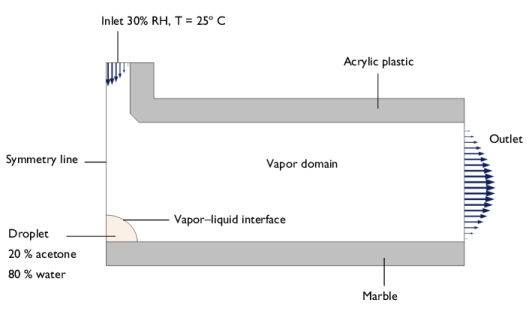
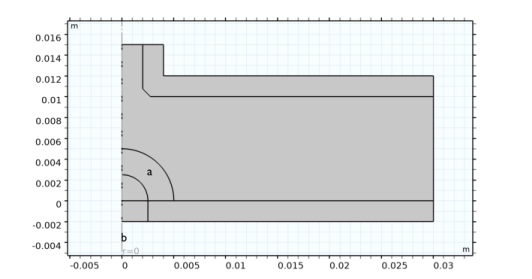
The model setup including the inlet and initial conditions are seen in is seen in Figure 1. As the system is symmetric a 2D axially symmetric geometry is used. The droplet surface is modeled as being infinitely thin and represented as an interior boundary on a moving mesh. In order to refine the mesh just outside and below the droplet, two interior boundaries seen in Figure 2 are included. This also allows for solving for the mesh only in the droplet and the vapor domain next to it, keeping the mesh fixed in the rest of the geometry. These extra interior boundaries are not part of the physical geometry and are hidden when evaluating the results.
Figure 1: The droplet and channel geometry including the system conditions.
Figure 2: The model geometry includes two interior boundaries, indicated “a” and “b”, which are used to refine the mesh in the vicinity of the droplet.
COMSOL Implementation
The current model is built by combining functionality for vapor–liquid equilibria, fluid flow, heat transfer, and moving mesh. A Transport of Concentrated Species in Vapor interface is used to solve for the mass transport in both the vapor and the droplet. It includes a Vapor–Liquid-Mixture Interface feature prescribing vapor–liquid equilibrium conditions at the droplet surface. Functions for the vapor pressures, obtained using a Thermodynamic System feature, accounts for the temperature, pressure, and liquid composition along the droplet surface. A Laminar Flow interface is used to solve for the fluid flow in the vapor and the droplet. It includes a Fluid-Fluid Interface feature which, together with a Moving Mesh interface, tracks the droplet surface position as it moves due to the evaporative mass transfer. A constant Contact Angle is used, but the contact angle can also be an expression that varies with concentration or time. Finally, a Heat Transfer in Fluids interface is used to solve for the temperature in the vapor, liquid, and the channel structure, including the substrate on which the droplet rests. Composition-dependent properties are used both in the vapor and in the liquid. The equations and boundary conditions used are described in the sections below.
Chemistry and Thermodynamics
The Chemistry interface defines properties of the species, and the thermodynamic properties of the gas phase. The chemical species present are water, acetone, and nitrogen. By coupling the chemistry interface to a vapor–liquid Thermodynamic System, both the species properties and the gas phase properties are defined from the thermodynamic system. Examples of species properties defined are the molar mass, the thermal conductivity, and the enthalpy of formation. Properties of the gas phase are for example the density, viscosity and heat capacity. The liquid droplet consist of water and acetone. A material feature defining the droplet properties is generated from the vapor–liquid thermodynamic system. Both the gas phase and the liquid phase are modeled as being ideal.
Fluid Flow
The pressure differences are assumed small and the fluid flow in both phases is defined as weakly compressible meaning that the density of the fluid is evaluated at a reference pressure.
This gives the following form of the momentum equations
and the continuity equation
The momentum equations includes gravity, ρg, since this affects the droplet shape. As will be seen in the results, buoyancy drives a circulating flow in the droplet. The buoyancy is caused by both the heat of evaporation and the variation in the composition.
A Navier slip boundary condition is used on the boundary between the shrinking droplet and the solid table. This boundary condition allows the edge of drop to slide along the solid, but also accounts for the tangential wall stress that acts to retard the flow. The drop shrinks due to evaporation. This is modeled by specifying the resulting evaporative mass flux (caused by the vapor–liquid equilibrium) as the mass transfer across the droplet surface.
Vapor–Liquid Equilibrium
To model the evaporation of acetone and water from the droplet, a vapor–liquid equilibrium condition is prescribed at the surface of the droplet. For a solution, thermodynamic equilibrium is reached when the fugacities are the same in both phases (for each species i)
(1)
Here, fiV denotes the vapor phase fugacity, and fiL is the liquid phase fugacity. The fugacity is a measure of the chemical potential and relates to the tendency of a substance to prefer one of the phases over the other. In general, the fugacity in each phase depends on the temperature, T, the absolute pressure, P, as well as composition. The composition is usually expressed by the molar fractions in each phase, yi and xi, respectively. When accounting for nonideal behavior, the fugacity equality in Equation 1 can be formulated as (see Ref. 1)
(2)
Here the fugacity coefficient accounts for nonideality in the gas, while the activity coefficient γi, accounts for nonideality in the liquid phase. Both these coefficients are functions of the temperature, pressure, and fraction of species i in the respective solutions. For the liquid, and denote the fugacity coefficient and the vapor pressure, both for a pure species i. The superscript ‘sat’ indicates saturation conditions. The exponential term on the right hand side is the Poynting correction factor, including the molar liquid volume. Here, Mi is the molar mass of species i. The correction factor describes the effect of pressure on the liquid fugacity. For low pressures, the Poynting correction factor is close to one, and two simplified relations can be formulated.
(3)
(4)
Assuming that the thermodynamic equilibrium prevails at the vapor–liquid interface, the molar fraction to prescribe on the vapor side of the interface is in general (from Equation 2)
(5)
The Vapor–Liquid-Mixture Interface feature used in this model introduces separate composition variables for the two phases along the droplet surface. To enforce a thermodynamic equilibrium, the composition on the vapor side is prescribed from Equation 5 using the liquid composition, the temperature, and the pressure at the surface. When the feature is coupled to a thermodynamics system, functions for both the liquid phase fugacity, and the vapor phase fugacity are available.
In the Vapor–Liquid-Mixture Interface feature it is also possible to prescribe a vapor pressure for each species. In this case, the system is assumed ideal and the vapor molar fraction is
(6)
The Transport of Concentrated Species in Vapor interface solves for the mass fractions ω. The boundary condition applied on the vapor side of the droplet surface is for species i
(7)
where MVn is the mean molar mass of the vapor.
Using the ideal gas law of the form
(8)
the vapor side concentration corresponds to
(9)
Modeling Evaporation
In this model example, the acetone and water mass fractions are prescribed on the vapor side of the droplet surface according to Equation 7. This results in a mass flux of each species through the phase boundary. As the acetone concentration in the vapor is initially zero, acetone is transported from the liquid surface into the vapor phase. As the vapor pressure of water at the surface is higher than the ambient vapor pressure, water also evaporates from the droplet. In cases where the droplet vapor pressure decreases below the ambient pressure, for example due to a decrease in temperature, vapor will instead condense at the droplet surface.
The total vapor mass flux (kg/(m2·s)) across the droplet surface corresponds to the sum of the water and acetone mass fluxes in the vapor
(10)
Here, jVw and jVa denote the diffusive mass transfer in the vapor, resulting from enforcing the equilibrium conditions in Equation 7, and n is the surface normal. It can be noted that the total mass flux corresponds to an equivalent Stefan velocity for the vapor phase
(11)
To conserve mass during phase transfer, the normal mass flux on the liquid side must be equal to the normal mass flux of vapor from the phase boundary. The normal diffusive mass fluxes on the liquid side are thus defined as
(12)
to enforce that the mass fraction on the liquid side is adjusted with the corresponding evaporating mass fraction
(13)
The Fluid-Fluid Interface feature in the Laminar Flow interface specifies boundary conditions for the fluid flow at the droplet surface. It includes surface tension and describes the velocity of the phase boundary in combination with the Moving Mesh interface. Similar to the corresponding feature for mass transfer, the Fluid-Fluid Interface feature introduces separate velocity and pressure variables in the vapor and the liquid.
The relationship governing the velocities of the vapor and the liquid at the surface is
(14)
where the mass transfer across the interface corresponds to the total vapor mass flux jV. It can be noted that a nonzero mass flux is necessary for the phase velocities to differ. The difference is prescribed in the normal direction of the surface. Furthermore, if the densities of both phases are the same, the phase velocities are also identical.
The relationship between the mesh velocity and the liquid velocity is
(15)
The mesh velocity is the velocity of the fluid-fluid interface. In a situation without evaporation, the normal mesh velocity equals the normal liquid velocity. For a non-zero mass flux on the other hand, the surface normal mesh velocity differs from that of the liquid phase.
The heat of evaporation at the fluid-fluid interface (W/m2) is defined as
(16)
Here, jVi is the normal mass flux across the liquid surface for species i (acetone or water) from Equation 7, and ΔHvap,i is the species heat of evaporation (J/kg). When coupled to a thermodynamic system, functions for the heat of evaporation are added automatically. The resulting heat of evaporation is defined by the Vapor–Liquid-Mixture Interface feature. This heat source is then applied to the droplet surface using a Boundary Heat Source feature in the Heat Transfer in Fluids interface.
Results and Discussion
This model contains two studies. The first study is used to initialize the droplet shape. Here, the fluid flow and moving mesh are solved for. Gravity, surface tension, and the flowing gas will affect the droplet shape.
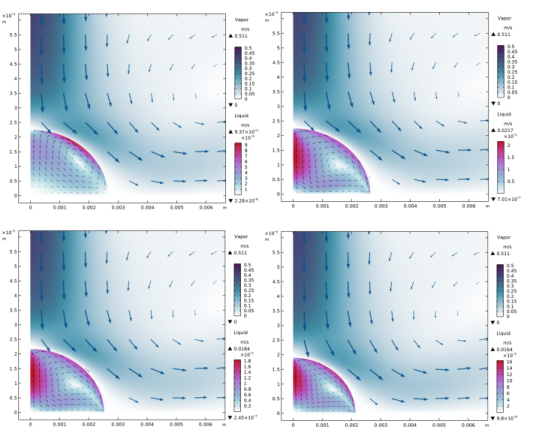
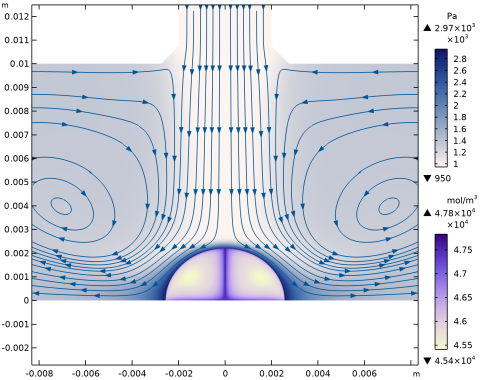
The second study solves for the evaporation process. Figure 3 illustrates the fluid velocity at four different times, both in the droplet and in the vapor. The change in droplet size due to evaporation is also visible.
Figure 3: Velocity in the vapor and the liquid droplet at t = 0 s (upper left), t = 10 s (upper right), t = 100 s (lower left), and t = 1000 s (lower right).
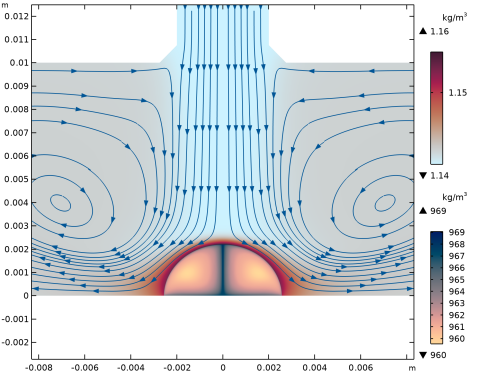
The vapor phase flow is not varying with time, but the droplet flow velocity goes through some interesting phases. Initially, the liquid is moving in clockwise direction due to the shear stress from the vapor flow. After 0.5 s, the flow begins to change direction, starting at the edge of the drop resting on the table. This flow reversal process lasts for approximately one second. After this, the flow field does not change significantly, but the velocity decreases with decreased acetone concentration. The flow field direction inside the droplet results from the density gradient in the drop during the evaporation. Figure 4 illustrates the density in the system after 60 s.
As acetone evaporates, the density of the liquid increases. The evaporative mass flux is highest close the droplet top, since the driving force is highest here. The high driving force at the top is a result of two things. Firstly the vapor flow rate is at its highest here, and secondly, the low concentration of upstream acetone. The density in the liquid will increase the most at this position, creating a downward flow of liquid in the center of the drop, as seen in Figure 3.
Figure 4: Vapor and liquid density after 60 s.
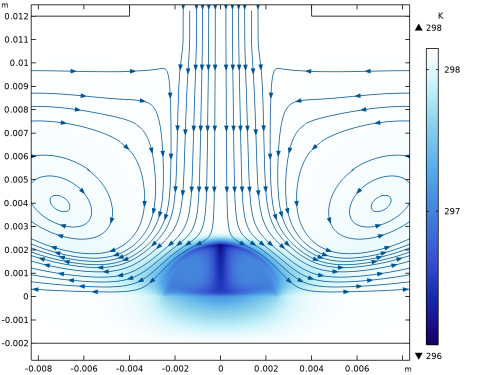
The decrease in temperature due to evaporation increases the liquid density further as it passes along the surface. The temperature in the system after 60 s is seen in Figure 5.
Figure 5: The temperature in the system after 60 s.
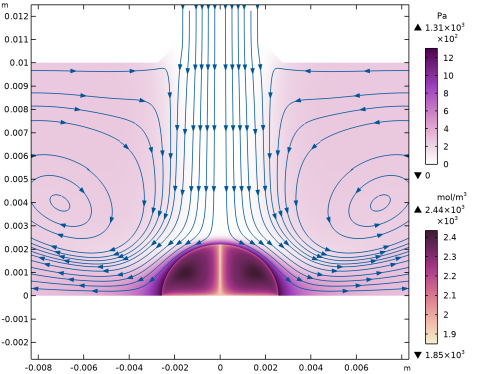
Initially the vapor phase surrounding the droplet is free from acetone, and the droplet has no concentration gradients. Figure 6 illustrates the partial pressure, and molar concentration of acetone in the system after 60 s. The acetone concentration in the liquid close to the surface decreases due to phase transfer to the surrounding vapor. The low diffusion rate in the liquid causes sharp gradients. The acetone-free vapor flow from above increases the evaporation rate and prevents an equilibrium. As a consequence, the drop will eventually consist of pure water. The comparatively thin boundary layer on the vapor side, at the droplet top, is a result of the flow of vapor.
Figure 6: Acetone vapor pressure and concentration, together with vapor velocity streamlines after 60 s of evaporation.
The water vapor pressure and concentration at 60 s is seen in Figure 7. The concentration of water in the liquid is increased at the surface of the droplet due to the higher evaporation rate of acetone.
Figure 7: Water vapor pressure and concentration, together with vapor velocity streamlines after 60 s of evaporation.
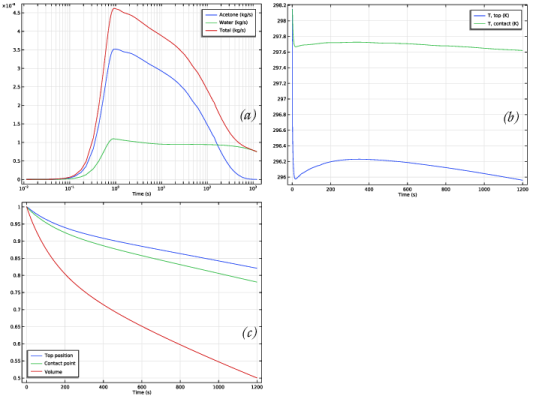
The total evaporation rate along the fluid-fluid interface, the droplet temperature at two positions, and the total droplet shrinkage over time is illustrated in Figure 8.
Figure 8: (a) Total evaporation rates for each species along the fluid-fluid interface, (b) the temperature at the top and edge of the droplet, and (c) the shrinkage of the droplet over time.
Figure 8 (a) shows that the evaporation rate is reaching a maximum after a few seconds. Initially, the gas phase is free from acetone, and the concentration in the droplet is homogeneous, giving a maximum evaporation rate. After time, the concentration of acetone in the liquid close to the surface is depleted, and the partial pressure of acetone is significant. These two factors, together with the decrease in temperature, decrease the driving force, and thus the evaporation rate. When the evaporation rate decreases, the temperature of the drop increases slightly, before decreasing again, as seen in Figure 8 (b). Figure 8 (c) shows that the drop volume is reduced to half its original volume during the time studied.
Notes About the COMSOL Implementation
The geometry is united using the Form Assembly method. This is used to introduce different meshes at the droplet bottom and top the solid under it, such that the droplet surface can slide along the solid. The identity pairs needed to connect the domains and get a continuous temperature field are added automatically. For efficiency, the mesh is only solved for in the droplet domain and the small vapor domain adjacent to it.
The model includes two studies. The first study is used to initialize the droplet shape. Here, only the fluid flow and moving mesh are solved for. The gravity is introduced gradually over time. This is done to progress the droplet smoothly from the initial circular shape to the shape where the droplet weight is balanced by surface tension.
In the second step the droplet shape is initialized from the first study, and evaporation is modeled by solving for all coupled physics interfaces as well as tracking the interface.
Reference
1. B.E. Poling, J.M. Prausnitz, and J.P. O’Connell, The Properties of Gases and Liquids, 5th ed., McGraw Hill, 2000.
Application Library path: Chemical_Reaction_Engineering_Module/Thermodynamics/droplet_evaporation_water_acetone
Modeling Instructions
From the File menu, choose New.
New
1
In the New window, Start by adding the individual physics interfaces for mass transfer, fluid flow, and heat transfer in fluids.
2
click  Model Wizard.
Model Wizard
1
In the Model Wizard window, click  2D Axisymmetric.
2
In the Select Physics tree, select Chemical Species Transport > Chemistry (chem).
3
Click Add.
4
In the Select Physics tree, select Chemical Species Transport > Vapor–Liquid Equilibrium > Laminar Two-Phase Flow.
5
Click Add.
6
In the Added physics interfaces tree, select Transport of Concentrated Species in Vapor (tcs).
7
In the Number of species text field, type 3.
8
In the Mass fractions (1) table, enter the following settings:
9
In the Select Physics tree, select Heat Transfer > Heat Transfer in Fluids (ht).
10
Click Add.
11
Click  Study.
12
In the Select Study tree, select General Studies > Time Dependent.
13
Add parameters by loading them from files. Optionally, enter parameters manually.
Global Definitions
Model Parameters
1
In the Model Builder window, under Global Definitions click Parameters 1.
2
In the Settings window for Parameters, locate the Parameters section.
3
Click  Load from File.
4
Browse to the model’s Application Libraries folder and double-click the file droplet_evaporation_water_acetone_model_parameters.txt.
5
In the Label text field, type Model Parameters.
Geometry Parameters
1
In the Home toolbar, click  Parameters and choose Add > Parameters.
2
In the Settings window for Parameters, type Geometry Parameters in the Label text field.
3
Locate the Parameters section. Click  Load from File.
4
Browse to the model’s Application Libraries folder and double-click the file droplet_evaporation_water_acetone_geometry_parameters.txt.
Add a Thermodynamics system that describes the thermodynamic properties in the model.
5
In the Physics toolbar, click  Thermodynamics and choose Thermodynamic System.
Select System
1
Go to the Select System window.
2
From the Phase list, choose Vapor–liquid.
3
Click the Next button in the window toolbar.
Select Species
1
Go to the Select Species window.
2
In the Species list box, select acetone (67-64-1, C3H6O).
3
Click  Add Selected.
4
In the Species list box, select nitrogen (7727-37-9, N2).
5
Click  Add Selected.
6
In the Species list box, select water (7732-18-5, H2O).
7
Click  Add Selected.
8
Click the Next button in the window toolbar.
Select Thermodynamic Model
1
Go to the Select Thermodynamic Model window.
2
From the list, choose Ideal solution.
3
From the Gas-phase model list, choose Ideal gas.
4
Click the Finish button in the window toolbar.
Continue by building the geometry for the system.
Geometry 1
Rectangle 1 (r1)
1
In the Geometry toolbar, click  Rectangle.
2
In the Settings window for Rectangle, locate the Size and Shape section.
3
In the Width text field, type Dc.
4
In the Height text field, type Hc.
Rectangle 2 (r2)
1
In the Geometry toolbar, click  Rectangle.
2
In the Settings window for Rectangle, locate the Size and Shape section.
3
In the Width text field, type Dinj+Tw.
4
In the Height text field, type Hinj.
5
Locate the Position section. In the z text field, type Hc.
Union 1 (uni1)
1
In the Geometry toolbar, click  Booleans and Partitions and choose Union.
2
Click the  Zoom Extents button in the Graphics toolbar.
3
Click in the Graphics window and then press Ctrl+A to select both objects.
4
In the Settings window for Union, locate the Union section.
5
Clear the Keep interior boundaries checkbox.
Circle 1 (c1)
1
In the Geometry toolbar, click  Circle.
2
In the Settings window for Circle, locate the Size and Shape section.
3
In the Radius text field, type rd.
4
In the Sector angle text field, type 90.
Circle 2 (c2)
1
In the Geometry toolbar, click  Circle.
2
In the Settings window for Circle, locate the Size and Shape section.
3
In the Radius text field, type 2*rd.
4
In the Sector angle text field, type 90.
Union 2 (uni2)
1
In the Geometry toolbar, click  Booleans and Partitions and choose Union.
2
Click in the Graphics window and then press Ctrl+A to select all objects.
Rectangle 3 (r3)
1
In the Geometry toolbar, click  Rectangle.
2
In the Settings window for Rectangle, locate the Size and Shape section.
3
In the Width text field, type Dc-Dinj-Tw.
4
In the Height text field, type Tw.
5
Locate the Position section. In the r text field, type Dinj+Tw.
6
In the z text field, type Hc.
Rectangle 4 (r4)
1
In the Geometry toolbar, click  Rectangle.
2
In the Settings window for Rectangle, locate the Size and Shape section.
3
In the Width text field, type Tw.
4
In the Height text field, type Hinj.
5
Locate the Position section. In the r text field, type Dinj.
6
In the z text field, type Hc.
Union 3 (uni3)
1
In the Geometry toolbar, click  Booleans and Partitions and choose Union.
2
Select the objects r3 and r4 only.
3
In the Settings window for Union, locate the Union section.
4
Clear the Keep interior boundaries checkbox.
Chamfer 1 (cha1)
1
In the Geometry toolbar, click  Chamfer.
2
On the object uni3, select Point 1 only.
3
In the Settings window for Chamfer, locate the Distance section.
4
In the Distance from vertex text field, type 0.75[mm].
Union 4 (uni4)
1
In the Geometry toolbar, click  Booleans and Partitions and choose Union.
2
Click in the Graphics window and then press Ctrl+A to select both objects.
Rectangle 5 (r5)
1
In the Geometry toolbar, click  Rectangle.
2
In the Settings window for Rectangle, locate the Size and Shape section.
3
In the Width text field, type Dc.
4
In the Height text field, type Tw.
5
Locate the Position section. In the z text field, type -Tw.
6
Click to expand the Layers section. In the table, enter the following settings:
7
Select the Layers to the right checkbox.
8
Clear the Layers on bottom checkbox.
Form Union (fin)
1
In the Model Builder window, under Component 1 (comp1) > Geometry 1 click Form Union (fin).
2
In the Settings window for Form Union/Assembly, locate the Form Union/Assembly section.
3
From the Action list, choose Form an assembly.
Ignore Edges 1 (ige1)
1
In the Geometry toolbar, click  Virtual Operations and choose Ignore Edges.
2
On the object fin, select Boundary 19 only.
3
In the Geometry toolbar, click  Build All.
There are boundaries in the geometry that were added to enable building a fine mesh around the droplet. Hiding these boundaries removes them from the graphics window, but they are still present, and available for meshing.
Definitions
Hide for Physics 1
1
In the Model Builder window, expand the Definitions node.
2
Right-click View 1 and choose Hide for Physics.
3
In the Settings window for Hide for Physics, locate the Geometric Entity Selection section.
4
From the Geometric entity level list, choose Boundary.
5
Add four materials. One material for the liquid phase, one for the vapor phase, one for the plastic channel roof, and one for the marble table.
Global Definitions
Vapor–Liquid System 1 (pp1)
In the Model Builder window, under Global Definitions > Thermodynamics right-click Vapor–Liquid System 1 (pp1) and choose Generate Material.
Select Phase
1
Go to the Select Phase window.
2
3
Click the Next button in the window toolbar.
Select Species
1
Go to the Select Species window.
2
Click  Remove All.
3
4
Click  Add Selected.
5
6
Click  Add Selected.
7
Find the Material composition subsection. Click the Mass fraction button.
8
Click the Next button in the window toolbar.
Select Properties
1
Go to the Select Properties window.
2
Click the Next button in the window toolbar.
Define Material
1
Go to the Define Material window.
2
Click the Finish button in the window toolbar.
Global Definitions
Inspect the material and add it to the proper selection.
Materials
Liquid: acetone-water 1 (pp1mat1)
1
In the Model Builder window, expand the Component 1 (comp1) > Materials node, then click Liquid: acetone-water 1 (pp1mat1).
2
In the Settings window for Material, locate the Geometric Entity Selection section.
3
Click  Clear Selection.
4
5
Locate the Material Contents section. Find the Local properties subsection. In the table, enter the following settings:
Add the vapor phase material. Use the nitrogen material already defined in a material library.
Add Material
1
In the Materials toolbar, click  Add Material to open the Add Material window.
2
Go to the Add Material window.
3
In the tree, select Liquids and Gases > Gases > Nitrogen.
4
Click the Add to Component button in the window toolbar.
Materials
Nitrogen (mat1)
Select Domains 4 and 5 only.
The plastic material for the channel roof is available as a built in material.
Add Material
1
Go to the Add Material window.
2
In the tree, select Built-in > Acrylic plastic.
3
Click the Add to Component button in the window toolbar.
4
In the Materials toolbar, click  Add Material to close the Add Material window.
Materials
Acrylic plastic (mat2)
Select Domain 6 only.
The marble material is available is the Material Library, included depending on license. For this example, define it manually.
Marble, Solid
1
In the Model Builder window, right-click Materials and choose Blank Material.
2
In the Settings window for Material, type Marble, Solid in the Label text field.
3
4
In the Model Builder window, expand the Component 1 (comp1) > Materials > Marble, Solid (mat3) node, then click Basic (def).
5
In the Settings window for Basic, locate the Output Properties section.
6
Click  Select Quantity.
7
In the Physical Quantity dialog, type thermal in the text field.
8
In the tree, select Transport > Thermal conductivity (W/(m*K)).
9
10
In the Settings window for Basic, locate the Output Properties section.
11
12
Click  Select Quantity.
13
In the Physical Quantity dialog, select General > Density (kg/m^3) in the tree.
14
15
In the Settings window for Basic, locate the Output Properties section.
16
17
Click  Select Quantity.
18
In the Physical Quantity dialog, type heat in the text field.
19
In the tree, select Transport > Heat capacity at constant pressure (J/(kg*K)).
20
21
In the Settings window for Basic, locate the Output Properties section.
22
Piecewise 1 (pw1)
1
In the Home toolbar, click  Functions and choose Global > Piecewise.
2
In the Settings window for Piecewise, type k_solid_average in the Function name text field.
3
Locate the Definition section. In the Argument text field, type T.
4
Find the Intervals subsection. In the table, enter the following settings:
5
Locate the Units section. In the Arguments text field, type K.
6
In the Function text field, type W/m/K.
Add selections to the Deforming Domain and Symmetry Roller subfeatures in the Moving Mesh feature. This is needed to model the shrinkage of the droplet as a result of the evaporation.
Moving Mesh
Deforming Domain 1
1
In the Model Builder window, under Component 1 (comp1) > Moving Mesh click Deforming Domain 1.
2
In the Settings window for Deforming Domain, locate the Domain Selection section.
3
Click  Clear Selection.
4
Symmetry/Roller 1
1
In the Moving Mesh toolbar, click  Symmetry/Roller.
2
Before setting up the physics of the system, add some selections. These are useful when setting up the physics.
Definitions
Vapor
1
In the Definitions toolbar, click  Explicit.
2
In the Settings window for Explicit, type Vapor in the Label text field.
3
Liquid
1
In the Definitions toolbar, click  Explicit.
2
In the Settings window for Explicit, type Liquid in the Label text field.
3
Walls
1
In the Definitions toolbar, click  Explicit.
2
In the Settings window for Explicit, type Walls in the Label text field.
3
Inflow
1
In the Definitions toolbar, click  Explicit.
2
In the Settings window for Explicit, locate the Input Entities section.
3
From the Geometric entity level list, choose Boundary.
4
5
In the Label text field, type Inflow.
Outflow
1
In the Definitions toolbar, click  Explicit.
2
In the Settings window for Explicit, type Outflow in the Label text field.
3
Locate the Input Entities section. From the Geometric entity level list, choose Boundary.
4
Vapor-Liquid Interface
1
In the Definitions toolbar, click  Explicit.
2
In the Settings window for Explicit, type Vapor-Liquid Interface in the Label text field.
3
Locate the Input Entities section. From the Geometric entity level list, choose Boundary.
4
Fluids
1
In the Definitions toolbar, click  Union.
2
In the Settings window for Union, type Fluids in the Label text field.
3
Locate the Input Entities section. Under Selections to add, click  Add.
4
In the Add dialog, in the Selections to add list, choose Vapor and Liquid.
5
Now, define the chemistry and physics of the model. Begin by adding chemical species to the Chemistry interface. Then connect this interface, and the Transport of Concentrated Species in Vapor interface to Thermodynamics.
Chemistry (chem)
Species 1
1
In the Physics toolbar, click  Domains and choose Species.
2
In the Settings window for Species, locate the Name section.
3
4
Locate the Chemical Formula section. Select the Enable formula checkbox.
5
6
In the Physics toolbar, click  Domains and choose Species.
1
In the Settings window for Species, locate the Name section.
2
3
Locate the Chemical Formula section. Select the Enable formula checkbox.
4
5
In the Physics toolbar, click  Domains and choose Species.
1
In the Settings window for Species, locate the Name section.
2
3
In the Model Builder window, click Chemistry (chem).
4
In the Settings window for Chemistry, locate the Mixture Properties section.
5
From the Type list, choose Concentrated species.
6
Select the Thermodynamics checkbox.
7
Locate the Species Matching section. Find the Bulk species subsection. In the table, enter the following settings:
8
From the Species solved for list, choose Transport of Concentrated Species in Vapor.
9
Define the mass transfer in the system.
Transport of Concentrated Species in Vapor (tcs)
1
In the Model Builder window, under Component 1 (comp1) click Transport of Concentrated Species in Vapor (tcs).
2
In the Settings window for Transport of Concentrated Species in Vapor, locate the Domain Selection section.
3
From the Selection list, choose Fluids.
4
Locate the Species section. From the From mass constraint list, choose wN.
Fluid - Vapor
1
In the Model Builder window, under Component 1 (comp1) > Transport of Concentrated Species in Vapor (tcs) click Fluid 1.
2
In the Settings window for Fluid, type Fluid - Vapor in the Label text field.
3
Locate the Model Input section. Click Make All Model Inputs Editable in the upper-right corner of the section.
4
From the pA list, choose Absolute pressure (spf).
5
From the T list, choose Temperature (nirf1).
Fluid - Liquid
1
In the Physics toolbar, click  Domains and choose Fluid.
2
In the Settings window for Fluid, type Fluid - Liquid in the Label text field.
3
Locate the Domain Selection section. From the Selection list, choose Liquid.
4
Locate the Density section. From the ρ list, choose User defined. In the associated text field, type pp1mat1.def.rho.
5
Locate the Diffusion section. In the table, enter the following settings:
Add the initial mass fractions in the system. The vapor phase consists of pure nitrogen, while the drop consists of only water and acetone. For numerical reasons, the mass fraction of nitrogen in the drop cannot be zero, and is therefor set to a very low value.
Initial Values - Vapor
1
In the Model Builder window, click Initial Values 1.
2
In the Settings window for Initial Values, locate the Initial Values section.
3
In the ω0,wW text field, type 0.
4
In the ω0,wA text field, type 0.
5
In the Label text field, type Initial Values - Vapor.
Initial Values - Liquid
1
In the Physics toolbar, click  Domains and choose Initial Values.
2
In the Settings window for Initial Values, type Initial Values - Liquid in the Label text field.
3
Locate the Domain Selection section. From the Selection list, choose Liquid.
4
Locate the Initial Values section. In the ω0,wW text field, type 0.799.
5
In the ω0,wA text field, type 0.2009.
Specify the inlet conditions in the Vapor Inflow feature.
Vapor Inflow 1
1
In the Model Builder window, click Vapor Inflow 1.
2
In the Settings window for Vapor Inflow, locate the Boundary Selection section.
3
From the Selection list, choose Inflow.
4
Locate the Vapor Inflow section. Select the Relative humidity checkbox.
5
In the ϕw text field, type 0.3.
6
Find the Upstream properties subsection. In the TVap text field, type T0.
7
Locate the Transient Initialization section. Select the Enable checkbox.
8
From the Duration list, choose User defined. In the Δt text field, type 1.
Add an Outflow boundary condition.
Outflow 1
1
In the Physics toolbar, click  Boundaries and choose Outflow.
2
In the Settings window for Outflow, locate the Boundary Selection section.
3
From the Selection list, choose Outflow.
Vapor–Liquid-Solution Interface 1
1
In the Model Builder window, click Vapor–Liquid-Solution Interface 1.
2
In the Settings window for Vapor–Liquid-Solution Interface, locate the Boundary Selection section.
3
From the Selection list, choose Vapor-Liquid Interface.
4
Locate the Vapor Equilibrium section. From the Liquid list, choose Thermochemistry coupling.
5
From the Chemistry list, choose Chemistry (chem).
6
Find the Evaporating/condensing species subsection. Select the wW, H2O (water) checkbox.
7
Select the wA, C3H6O (acetone) checkbox.
8
Locate the Liquid Side section. Select the Reverse direction checkbox.
9
Locate the Transient Initialization section. From the Duration list, choose User defined. In the Δt text field, type 1.
10
Click to expand the Constraint Settings section.
The VaporLiquid Interface node is for interfaces where the liquid side composition is assumed constant. It is not used in this model and can be deleted.
Vapor–Liquid Interface 1
In the Model Builder window, right-click Vapor–Liquid Interface 1 and choose Delete.
The mass transfer part of the system has been defined. Now, define the fluid flow in the system.
Laminar Flow (spf)
1
In the Model Builder window, under Component 1 (comp1) click Laminar Flow (spf).
2
In the Settings window for Laminar Flow, locate the Domain Selection section.
3
From the Selection list, choose Fluids.
4
Locate the Physical Model section. Select the Include gravity checkbox.
5
In the pref text field, type p0.
Fluid Properties - Vapor
1
In the Model Builder window, under Component 1 (comp1) > Laminar Flow (spf) click Fluid Properties 1.
2
In the Settings window for Fluid Properties, type Fluid Properties - Vapor in the Label text field.
Add a Step function that can be used to initialize the study.
Definitions
Step 1 (step1)
1
In the Definitions toolbar, click  More Functions and choose Step.
2
In the Settings window for Step, type gStep in the Function name text field.
3
Locate the Parameters section. In the Location text field, type 0.5*tgInit.
4
Click to expand the Smoothing section. In the Size of transition zone text field, type tgInit.
Laminar Flow (spf)
Initial Values 1
1
In the Model Builder window, under Component 1 (comp1) > Laminar Flow (spf) click Initial Values 1.
2
In the Settings window for Initial Values, locate the Initial Values section.
3
Clear the Compensate for hydrostatic pressure approximation checkbox.
Gravity 1
1
In the Model Builder window, click Gravity 1.
2
In the Settings window for Gravity, locate the Acceleration of Gravity section.
3
Specify the g vector as
Wall 2
1
In the Physics toolbar, click  Boundaries and choose Wall.
2
3
In the Settings window for Wall, locate the Boundary Condition section.
4
From the Wall condition list, choose Navier slip.
Fluid Properties - Liquid
1
In the Physics toolbar, click  Domains and choose Fluid Properties.
2
In the Settings window for Fluid Properties, type Fluid Properties - Liquid in the Label text field.
3
Locate the Domain Selection section. From the Selection list, choose Liquid.
4
Locate the Model Input section. Click Make All Model Inputs Editable in the upper-right corner of the section.
5
In the pA text field, type p0.
Fluid-Fluid Interface 1
1
In the Model Builder window, click Fluid-Fluid Interface 1.
2
In the Settings window for Fluid-Fluid Interface, locate the Boundary Selection section.
3
From the Selection list, choose Vapor-Liquid Interface.
4
Locate the Normal Direction section. Select the Reverse normal direction checkbox.
5
Locate the Mass Flux section. From the Mf list, choose Total evaporative mass flux (tcs/vlm1).
Contact Angle 1
1
In the Model Builder window, expand the Fluid-Fluid Interface 1 node, then click Contact Angle 1.
2
In the Settings window for Contact Angle, locate the Contact Angle section.
3
In the θw text field, type theta.
Inlet 1
1
In the Physics toolbar, click  Boundaries and choose Inlet.
2
In the Settings window for Inlet, locate the Boundary Selection section.
3
From the Selection list, choose Inflow.
4
Locate the Boundary Condition section. From the list, choose Fully developed flow.
5
Locate the Fully Developed Flow section. In the Uav text field, type Uin*(gStep(t)*init+(1-init)).
Outlet 1
1
In the Physics toolbar, click  Boundaries and choose Outlet.
2
In the Settings window for Outlet, locate the Boundary Selection section.
3
From the Selection list, choose Outflow.
4
Locate the Pressure Conditions section. Select the Normal flow checkbox.
Continue by defining the heat transfer in the system.
Heat Transfer in Fluids (ht)
Fluid - Vapor
1
In the Model Builder window, under Component 1 (comp1) > Heat Transfer in Fluids (ht) click Fluid 1.
2
In the Settings window for Fluid, type Fluid - Vapor in the Label text field.
Initial Values 1
1
In the Model Builder window, click Initial Values 1.
2
In the Settings window for Initial Values, locate the Initial Values section.
3
In the T text field, type T0.
Fluid - Liquid
1
In the Physics toolbar, click  Domains and choose Fluid.
2
In the Settings window for Fluid, type Fluid - Liquid in the Label text field.
3
Locate the Domain Selection section. From the Selection list, choose Liquid.
4
Locate the Model Input section. Click Make All Model Inputs Editable in the upper-right corner of the section.
5
From the T list, choose Temperature (ht).
6
From the pA list, choose Absolute pressure (spf).
7
Locate the Heat Convection section. From the u list, choose Velocity field (spf).
Solid 1
1
In the Physics toolbar, click  Domains and choose Solid.
2
In the Settings window for Solid, locate the Domain Selection section.
3
From the Selection list, choose Walls.
Boundary Heat Source 1
1
In the Physics toolbar, click  Boundaries and choose Boundary Heat Source.
2
In the Settings window for Boundary Heat Source, locate the Boundary Selection section.
3
From the Selection list, choose Vapor-Liquid Interface.
4
Locate the Boundary Heat Source section. From the Qb list, choose Heat of evaporation (tcs/vlm1).
Inflow 1
1
In the Physics toolbar, click  Boundaries and choose Inflow.
2
In the Settings window for Inflow, locate the Boundary Selection section.
3
From the Selection list, choose Inflow.
4
Locate the Upstream Properties section. In the Tustr text field, type T0.
Temperature 1
1
In the Physics toolbar, click  Boundaries and choose Temperature.
2
3
In the Settings window for Temperature, locate the Temperature section.
4
In the T0 text field, type T0.
Set up the mesh.
Mesh 1
1
In the Model Builder window, under Component 1 (comp1) click Mesh 1.
2
In the Settings window for Mesh, locate the Sequence Type section.
3
From the list, choose User-controlled mesh.
Size
1
In the Model Builder window, under Component 1 (comp1) > Mesh 1 click Size.
2
In the Settings window for Size, locate the Element Size section.
3
From the Predefined list, choose Extra fine.
Size 1
1
In the Model Builder window, click Size 1.
2
In the Settings window for Size, locate the Geometric Entity Selection section.
3
From the Selection list, choose Vapor.
4
Locate the Element Size section. From the Predefined list, choose Fine.
Size 2
1
In the Model Builder window, click Size 2.
2
3
In the Settings window for Size, locate the Element Size section.
4
From the Predefined list, choose Extra fine.
Edge 1
1
In the Mesh toolbar, click  More Generators and choose Edge.
2
In the Settings window for Edge, locate the Boundary Selection section.
3
From the Selection list, choose Vapor-Liquid Interface.
Distribution 1
1
Right-click Edge 1 and choose Distribution.
2
In the Settings window for Distribution, locate the Distribution section.
3
From the Distribution type list, choose Predefined.
4
In the Number of elements text field, type 100.
5
In the Element ratio text field, type 2.
Free Triangular 1
1
In the Model Builder window, under Component 1 (comp1) > Mesh 1 click Free Triangular 1.
2
In the Settings window for Free Triangular, locate the Domain Selection section.
3
From the Geometric entity level list, choose Domain.
4
From the Selection list, choose Fluids.
Size: Evaporation Zone
1
Right-click Free Triangular 1 and choose Size.
2
In the Settings window for Size, type Size: Evaporation Zone in the Label text field.
3
4
Locate the Element Size section. From the Calibrate for list, choose Fluid dynamics.
5
Click the Custom button.
6
Locate the Element Size Parameters section.
7
Select the Maximum element size checkbox. In the associated text field, type 2.6E-4.
8
Select the Maximum element growth rate checkbox. In the associated text field, type 1.05.
Size: Interface
1
Right-click Free Triangular 1 and choose Size.
2
In the Settings window for Size, type Size: Interface in the Label text field.
3
Locate the Geometric Entity Selection section. From the Geometric entity level list, choose Boundary.
4
From the Selection list, choose Vapor-Liquid Interface.
5
Locate the Element Size section. From the Calibrate for list, choose Fluid dynamics.
6
Click the Custom button.
7
Locate the Element Size Parameters section.
8
Select the Maximum element size checkbox. In the associated text field, type 1E-4.
Size: Droplet Top
1
Right-click Free Triangular 1 and choose Size.
2
In the Settings window for Size, type Size: Droplet Top in the Label text field.
3
Locate the Geometric Entity Selection section. From the Geometric entity level list, choose Point.
4
5
Locate the Element Size section. From the Calibrate for list, choose Fluid dynamics.
6
Click the Custom button.
7
Locate the Element Size Parameters section.
8
Select the Maximum element size checkbox. In the associated text field, type 0.1E-4.
Size: Droplet Edge
1
Right-click Free Triangular 1 and choose Size.
2
In the Settings window for Size, locate the Geometric Entity Selection section.
3
From the Geometric entity level list, choose Point.
4
5
In the Label text field, type Size: Droplet Edge.
6
Locate the Element Size section. From the Calibrate for list, choose Fluid dynamics.
7
Click the Custom button.
8
Locate the Element Size Parameters section.
9
Select the Maximum element size checkbox. In the associated text field, type 0.5E-4.
Size: Droplet
1
Right-click Free Triangular 1 and choose Size.
2
In the Settings window for Size, type Size: Droplet in the Label text field.
3
Locate the Geometric Entity Selection section. From the Selection list, choose Liquid.
4
Locate the Element Size section. From the Calibrate for list, choose Fluid dynamics.
5
Click the Custom button.
6
Locate the Element Size Parameters section.
7
Select the Maximum element size checkbox. In the associated text field, type 1E-4.
Size: Droplet Center
1
Right-click Free Triangular 1 and choose Size.
2
In the Settings window for Size, type Size: Droplet Center in the Label text field.
3
Locate the Geometric Entity Selection section. From the Geometric entity level list, choose Point.
4
5
Locate the Element Size section. Click the Custom button.
6
Locate the Element Size Parameters section.
7
Select the Maximum element size checkbox. In the associated text field, type 0.5e-4.
Free Triangular 2
1
In the Mesh toolbar, click  Free Triangular.
2
Drag and drop below Free Triangular 1.
Size 1
1
Right-click Free Triangular 2 and choose Size.
2
In the Settings window for Size, locate the Geometric Entity Selection section.
3
From the Geometric entity level list, choose Boundary.
4
5
Locate the Element Size section. From the Calibrate for list, choose Fluid dynamics.
6
Click the Custom button.
7
Locate the Element Size Parameters section.
8
Select the Maximum element size checkbox. In the associated text field, type 1E-4.
Size 2
1
In the Model Builder window, right-click Free Triangular 2 and choose Size.
2
In the Settings window for Size, locate the Geometric Entity Selection section.
3
From the Geometric entity level list, choose Point.
4
5
Locate the Element Size section. From the Calibrate for list, choose Fluid dynamics.
6
Click the Custom button.
7
Locate the Element Size Parameters section.
8
Select the Maximum element size checkbox. In the associated text field, type 0.25E-4.
Boundary Layers 1
1
In the Mesh toolbar, click  Boundary Layers.
2
In the Settings window for Boundary Layers, locate the Domain Selection section.
3
From the Geometric entity level list, choose Domain.
4
From the Selection list, choose Fluids.
Boundary Layer Properties
1
In the Model Builder window, click Boundary Layer Properties.
2
3
In the Settings window for Boundary Layer Properties, locate the Layers section.
4
In the Number of layers text field, type 3.
5
In the Thickness adjustment factor text field, type 5.
Boundary Layer Properties 1
1
In the Mesh toolbar, click  More Attributes and choose Boundary Layer Properties.
2
3
In the Settings window for Boundary Layer Properties, locate the Layers section.
4
In the Number of layers text field, type 6.
5
In the Thickness adjustment factor text field, type 2.5.
Boundary Layers 2
1
In the Mesh toolbar, click  Boundary Layers.
2
In the Settings window for Boundary Layers, locate the Domain Selection section.
3
From the Geometric entity level list, choose Domain.
4
Boundary Layer Properties
1
In the Model Builder window, click Boundary Layer Properties.
2
3
In the Settings window for Boundary Layer Properties, locate the Layers section.
4
In the Number of layers text field, type 3.
5
In the Thickness adjustment factor text field, type 3.
Edge 1
1
In the Model Builder window, click Edge 1.
2
3
In the Home toolbar, click  Build All.
Set up the study.
Study 1: Droplet Initialization
1
In the Model Builder window, click Study 1.
2
In the Settings window for Study, type Study 1: Droplet Initialization in the Label text field.
Step 1: Time Dependent
1
In the Model Builder window, under Study 1: Droplet Initialization click Step 1: Time Dependent.
2
In the Settings window for Time Dependent, locate the Study Settings section.
3
In the Output times text field, type range(0,0.05,1)*tgInit range(2,1,5).
4
Locate the Physics and Variables Selection section. In the Solve for column of the table, under Component 1 (comp1), clear the checkboxes for Transport of Concentrated Species in Vapor (tcs) and Heat Transfer in Fluids (ht).
5
Click to expand the Study Extensions section. Select the Auxiliary sweep checkbox.
6
7
Edit the default scale for the velocity to improve the convergence rate.
Solution 1 (sol1)
1
In the Study toolbar, click  Show Default Solver.
2
In the Model Builder window, expand the Solution 1 (sol1) node, then click Dependent Variables 1.
3
In the Settings window for Dependent Variables, locate the Residual Scaling section.
4
From the Method list, choose Manual.
5
In the Model Builder window, expand the Study 1: Droplet Initialization > Solver Configurations > Solution 1 (sol1) > Dependent Variables 1 node, then click Velocity Field (Spatial Frame) (comp1.u).
6
In the Settings window for Field, locate the Scaling section.
7
From the Method list, choose Manual.
8
Click in the Scale text field, then press Ctrl+Space. From the menu, choose Uin - Inlet velocity - m/s.
Now compute the study.
9
In the Study toolbar, click  Compute.
Results
Velocity (spf)
Inspect the resulting default plots, then add a second study that solves for not only the fluid dynamics, but also the mass and heat transfer. Use the results from the first study as a starting point.
Add Study
1
In the Study toolbar, click  Add Study to open the Add Study window.
2
Go to the Add Study window.
3
Find the Studies subsection. In the Select Study tree, select General Studies > Time Dependent.
4
Click the Add Study button in the window toolbar.
5
In the Study toolbar, click  Add Study to close the Add Study window.
Study 2
Step 1: Time Dependent
1
In the Settings window for Time Dependent, locate the Study Settings section.
2
In the Output times text field, type 0 1200.
3
Click to expand the Values of Dependent Variables section. Find the Initial values of variables solved for subsection. From the Settings list, choose User controlled.
4
From the Method list, choose Solution.
5
From the Study list, choose Study 1: Droplet Initialization, Time Dependent.
6
From the Selection list, choose Last.
Rename the study. Also apply an initial time step, define manual scales, and change the Jacobian update strategy.
7
In the Model Builder window, click Study 2.
8
In the Settings window for Study, type Study 2: Evaporation in the Label text field.
Solution 2 (sol2)
1
In the Study toolbar, click  Show Default Solver.
Use an initial time step that is short compared to the 1 s of initialization used for the vapor–liquid equilibrium.
2
In the Model Builder window, expand the Solution 2 (sol2) node, then click Time-Dependent Solver 1.
3
In the Settings window for Time-Dependent Solver, locate the General section.
4
From the Times to store list, choose Steps taken by solver.
5
In the Store every Nth step text field, type 2.
6
Click to expand the Time Stepping section.
7
Select the Initial step checkbox. In the associated text field, type 0.01.
A recommended modeling practice for time-dependent models is to define manual scales. This allows the solver to time step efficiently while maintaining the required accuracy. Here the velocity and pressure scales are taken from the previous study and the initial temperature is used. For the mass fractions the scales are set to 0.01.
8
In the Model Builder window, expand the Study 2: Evaporation > Solver Configurations > Solution 2 (sol2) > Dependent Variables 1 node, then click Pressure (comp1.p).
9
In the Settings window for Field, locate the Scaling section.
10
From the Method list, choose Initial-value based.
11
In the Model Builder window, under Study 2: Evaporation > Solver Configurations > Solution 2 (sol2) > Dependent Variables 1 click Temperature (comp1.T).
12
In the Settings window for Field, locate the Scaling section.
13
From the Method list, choose Manual.
14
In the Scale text field, type T0.
15
In the Model Builder window, under Study 2: Evaporation > Solver Configurations > Solution 2 (sol2) > Dependent Variables 1 click Velocity Field (Spatial Frame) (comp1.u).
16
In the Settings window for Field, locate the Scaling section.
17
From the Method list, choose Initial-value based.
18
In the Model Builder window, under Study 2: Evaporation > Solver Configurations > Solution 2 (sol2) > Dependent Variables 1 click Mass Fraction (comp1.wA).
19
In the Settings window for Field, locate the Scaling section.
20
From the Method list, choose Manual.
21
In the Scale text field, type 0.01.
22
In the Model Builder window, under Study 2: Evaporation > Solver Configurations > Solution 2 (sol2) > Dependent Variables 1 click Mass Fraction (comp1.wW).
23
In the Settings window for Field, locate the Scaling section.
24
From the Method list, choose Manual.
25
In the Scale text field, type 0.01.
26
In the Model Builder window, expand the Study 2: Evaporation > Solver Configurations > Solution 2 (sol2) > Time-Dependent Solver 1 node.
The current model includes a number of nonlinear couplings across the vapor–liquid interface. Change to update the Jacobian in every iteration for a more robust simulation. This is more time consuming, but on the other hand a higher damping factor can be used.
27
In the Model Builder window, expand the Study 2: Evaporation > Solver Configurations > Solution 2 (sol2) > Time-Dependent Solver 1 > Segregated 1 node, then click Reacting Flow.
28
In the Settings window for Segregated Step, click to expand the Method and Termination section.
29
From the Jacobian update list, choose On every iteration.
30
In the Damping factor text field, type 0.8.
Compute the study.
31
In the Study toolbar, click  Compute.
Results
Vapor Pressure, W (tcs)
Add the result nodes from the first study to a group.
Moving Mesh, Pressure (spf), Velocity (spf), Velocity, 3D (spf)
1
In the Model Builder window, under Results, Ctrl-click to select Velocity (spf), Pressure (spf), Velocity, 3D (spf), and Moving Mesh.
2
Droplet Initialization
In the Settings window for Group, type Droplet Initialization in the Label text field.
Inspect the default plots, then modify them to your preferences. Start by adding custom datasets.
Study 2: Evaporation: All Phases
1
In the Model Builder window, expand the Results > Datasets node, then click Study 2: Evaporation/Solution 2 (sol2).
2
In the Settings window for Solution, type Study 2: Evaporation: All Phases in the Label text field.
Study 2: Evaporation: Vapor
1
Right-click Study 2: Evaporation: All Phases and choose Duplicate.
2
In the Settings window for Solution, type Study 2: Evaporation: Vapor in the Label text field.
Selection
1
In the Results toolbar, click  Attributes and choose Selection.
2
In the Settings window for Selection, locate the Geometric Entity Selection section.
3
From the Geometric entity level list, choose Domain.
4
From the Selection list, choose Vapor.
Study 2: Evaporation: Liquid
1
In the Model Builder window, under Results > Datasets right-click Study 2: Evaporation: Vapor (sol2) and choose Duplicate.
2
In the Model Builder window, click Study 2: Evaporation: Vapor 1 (sol2).
3
In the Settings window for Solution, type Study 2: Evaporation: Liquid in the Label text field.
Selection
1
In the Model Builder window, click Selection.
2
In the Settings window for Selection, locate the Geometric Entity Selection section.
3
From the Selection list, choose Liquid.
Study 2: Evaporation: Table
1
In the Model Builder window, under Results > Datasets right-click Study 2: Evaporation: Liquid (sol2) and choose Duplicate.
2
In the Model Builder window, click Study 2: Evaporation: Liquid 1 (sol2).
3
In the Settings window for Solution, type Study 2: Evaporation: Table in the Label text field.
Selection
1
In the Model Builder window, click Selection.
2
Use these datasets to create Revolution datasets.
Revolution 2D 4
In the Model Builder window, under Results > Datasets right-click Revolution 2D 2 and choose Duplicate.
Revolution: Vapor
1
In the Settings window for Revolution 2D, type Revolution: Vapor in the Label text field.
2
Locate the Data section. From the Dataset list, choose Study 2: Evaporation: Vapor (sol2).
Revolution: Vapor 1
Right-click Revolution: Vapor and choose Duplicate.
Revolution: Liquid
1
In the Settings window for Revolution 2D, type Revolution: Liquid in the Label text field.
2
Locate the Data section. From the Dataset list, choose Study 2: Evaporation: Liquid (sol2).
Revolution: Liquid 1
Right-click Revolution: Liquid and choose Duplicate.
Revolution: Table
1
In the Settings window for Revolution 2D, type Revolution: Table in the Label text field.
2
Locate the Data section. From the Dataset list, choose Study 2: Evaporation: Table (sol2).
Finally, add a Cut Plane and a Mirror dataset.
Cut Plane: Vapor
1
In the Results toolbar, click  Cut Plane.
2
In the Settings window for Cut Plane, type Cut Plane: Vapor in the Label text field.
3
Locate the Data section. From the Dataset list, choose Revolution: Vapor.
Mirror 2D 1
1
In the Results toolbar, click  More Datasets and choose Mirror 2D.
2
In the Settings window for Mirror 2D, locate the Data section.
3
From the Dataset list, choose Study 2: Evaporation: All Phases (sol2).
Set up a plot of the fluid velocity in the system. Use the default plot as the starting point.
Vapor and Liquid Flow
1
In the Model Builder window, under Results click Velocity (spf) 1.
2
In the Settings window for 2D Plot Group, type Vapor and Liquid Flow in the Label text field.
3
Click to expand the Title section. From the Title type list, choose None.
4
Locate the Plot Settings section. Clear the Plot dataset edges checkbox.
5
Locate the Color Legend section. Select the Show maximum and minimum values checkbox.
6
Select the Show titles checkbox.
7
Select the Show units checkbox.
8
From the Position list, choose Right double.
Velocity in Vapor
1
In the Model Builder window, expand the Vapor and Liquid Flow node, then click Surface.
2
In the Settings window for Surface, type Velocity in Vapor in the Label text field.
3
Locate the Coloring and Style section. From the Color table list, choose Pelagic.
4
In the Color legend title text field, type Vapor.
Selection 1
1
Right-click Velocity in Vapor and choose Selection.
2
In the Settings window for Selection, locate the Selection section.
3
From the Selection list, choose Vapor.
Velocity in Liquid
1
Right-click Velocity in Vapor and choose Duplicate.
2
In the Settings window for Surface, type Velocity in Liquid in the Label text field.
3
Locate the Coloring and Style section. From the Color table list, choose Acanthaster.
4
In the Color legend title text field, type Liquid.
Selection 1
1
In the Model Builder window, expand the Velocity in Liquid node, then click Selection 1.
2
In the Settings window for Selection, locate the Selection section.
3
From the Selection list, choose Liquid.
Arrow Surface 1
1
In the Model Builder window, right-click Vapor and Liquid Flow and choose Arrow Surface.
2
In the Settings window for Arrow Surface, locate the Expression section.
3
In the r-component text field, type u.
4
In the z-component text field, type w.
5
Locate the Arrow Positioning section. Find the r grid points subsection. In the Points text field, type 40.
6
Locate the Coloring and Style section. From the Arrow length list, choose Logarithmic.
7
From the Color list, choose Custom.
8
9
Click Define custom colors.
10
11
Click Add to custom colors.
12
Click Show color palette only or OK on the cross-platform desktop.
Selection 1
1
Right-click Arrow Surface 1 and choose Selection.
2
In the Settings window for Selection, locate the Selection section.
3
From the Selection list, choose Vapor.
Arrow Surface 2
1
In the Model Builder window, under Results > Vapor and Liquid Flow right-click Arrow Surface 1 and choose Duplicate.
2
In the Settings window for Arrow Surface, locate the Arrow Positioning section.
3
Find the r grid points subsection. In the Points text field, type 12.
4
Find the z grid points subsection. In the Points text field, type 12.
5
Locate the Coloring and Style section. From the Color list, choose Black.
Selection 1
1
In the Model Builder window, expand the Arrow Surface 2 node, then click Selection 1.
2
In the Settings window for Selection, locate the Selection section.
3
From the Selection list, choose Liquid.
4
In the Vapor and Liquid Flow toolbar, click  Plot.
Vapor and Liquid Flow
Use a dedicated view to visualize the droplet without the need to zoom repeatedly.
1
In the Model Builder window, under Results click Vapor and Liquid Flow.
2
In the Settings window for 2D Plot Group, locate the Plot Settings section.
3
From the View list, choose New view.
4
In the Vapor and Liquid Flow toolbar, click  Plot to create the view. Now give it a suitable name.
5
Click  Go to Source.
View Flow
1
In the Model Builder window, under Results > Views click View 2D 2.
2
In the Settings window for View 2D, type View Flow in the Label text field.
Modify the camera according to your preferences. An example of settings for the added view can be seen by opening the Application Library model.
Vapor and Liquid Flow
Edit the time to see the shrinkage of the drop.
1
In the Model Builder window, under Results click Vapor and Liquid Flow.
2
In the Settings window for 2D Plot Group, click  Plot First.
3
Click  Plot Next.
Create a plot that illustrates the mass fraction and partial pressure of acetone in the system.
Acetone
1
In the Model Builder window, under Results click Vapor Pressure, A (tcs).
2
In the Settings window for 2D Plot Group, type Acetone in the Label text field.
3
Locate the Data section. From the Dataset list, choose Mirror 2D 1.
4
From the Time (s) list, choose Interpolation.
5
In the Time text field, type 60.
6
Locate the Title section. From the Title type list, choose None.
7
Locate the Color Legend section. Select the Show maximum and minimum values checkbox.
8
Select the Show units checkbox.
9
From the Position list, choose Right double.
Vapor Pressure
1
In the Model Builder window, expand the Acetone node, then click Surface 1.
2
In the Settings window for Surface, type Vapor Pressure in the Label text field.
3
Locate the Coloring and Style section. From the Color table list, choose Amethyst.
Selection 1
1
Right-click Vapor Pressure and choose Selection.
2
In the Settings window for Selection, locate the Selection section.
3
From the Selection list, choose Vapor.
Liquid Concentration
1
Right-click Vapor Pressure and choose Duplicate.
2
In the Settings window for Surface, type Liquid Concentration in the Label text field.
3
Locate the Expression section. In the Expression text field, type tcs.c_wA.
4
Locate the Coloring and Style section. From the Color table list, choose Arctium.
Selection 1
1
In the Model Builder window, expand the Liquid Concentration node, then click Selection 1.
2
In the Settings window for Selection, locate the Selection section.
3
From the Selection list, choose Liquid.
Arrow Surface 1
In the Model Builder window, under Results > Acetone right-click Arrow Surface 1 and choose Delete.
Streamline 1
1
In the Model Builder window, right-click Acetone and choose Streamline.
2
In the Settings window for Streamline, locate the Expression section.
3
In the x-component text field, type u.
4
In the y-component text field, type w.
5
Locate the Streamline Positioning section. From the Positioning list, choose Uniform density.
6
In the Density level text field, type 7.8.
7
From the Advanced parameters list, choose Manual.
8
In the Terminating distance factor text field, type 0.1.
9
Locate the Coloring and Style section. Find the Point style subsection. From the Type list, choose Arrow.
10
Select the Number of arrows checkbox. In the associated text field, type 300.
11
Select the Scale factor checkbox. In the associated text field, type 0.002.
12
From the Color list, choose Custom.
13
14
Click Define custom colors.
15
16
Click Add to custom colors.
17
Click Show color palette only or OK on the cross-platform desktop.
Selection 1
1
Right-click Streamline 1 and choose Selection.
2
In the Settings window for Selection, locate the Selection section.
3
From the Selection list, choose Vapor.
Add a View, and hide the dataset edges.
View Mirror
1
In the Model Builder window, under Results right-click Views and choose View 2D.
2
In the Settings window for View 2D, type View Mirror in the Label text field.
Acetone
1
In the Model Builder window, expand the View Mirror node, then click Results > Acetone.
2
In the Settings window for 2D Plot Group, locate the Plot Settings section.
3
From the View list, choose View Mirror.
4
Clear the Plot dataset edges checkbox.
5
In the Acetone toolbar, click  Plot.
Add a plot of the temperature in the drop.
Temperature
1
Right-click Acetone and choose Duplicate.
2
In the Model Builder window, click Acetone 1.
3
In the Settings window for 2D Plot Group, type Temperature in the Label text field.
Temperature
1
In the Model Builder window, under Results > Temperature click Vapor Pressure.
2
In the Settings window for Surface, type Temperature in the Label text field.
3
Locate the Expression section. In the Expression text field, type T.
4
Locate the Coloring and Style section. From the Color table list, choose Kyanite.
5
From the Color table transformation list, choose Reverse.
Liquid Concentration
In the Model Builder window, right-click Liquid Concentration and choose Delete.
Selection 1
1
In the Model Builder window, expand the Results > Temperature > Temperature node, then click Selection 1.
2
In the Settings window for Selection, locate the Selection section.
3
From the Selection list, choose All domains.
Line 1
1
In the Model Builder window, right-click Temperature and choose Line.
2
In the Settings window for Line, locate the Expression section.
3
In the Expression text field, type 1.
4
Locate the Coloring and Style section. From the Coloring list, choose Uniform.
5
From the Color list, choose Black.
Selection 1
1
Right-click Line 1 and choose Selection.
2
Temperature
1
In the Model Builder window, under Results click Temperature.
2
In the Temperature toolbar, click  Plot.
Add a plot of the density in the system.
Density
1
In the Model Builder window, right-click Acetone and choose Duplicate.
2
In the Model Builder window, click Acetone 1.
3
In the Settings window for 2D Plot Group, type Density in the Label text field.
Vapor Density
1
In the Model Builder window, under Results > Density click Vapor Pressure.
2
In the Settings window for Surface, type Vapor Density in the Label text field.
3
Locate the Expression section. In the Expression text field, type tcs.rho.
4
Locate the Coloring and Style section. From the Color table list, choose MetasepiaBlue.
Liquid Density
1
In the Model Builder window, under Results > Density click Liquid Concentration.
2
In the Settings window for Surface, type Liquid Density in the Label text field.
3
Locate the Expression section. In the Expression text field, type tcs.rho.
4
Locate the Coloring and Style section. From the Color table list, choose Agama.
5
In the Density toolbar, click  Plot.
Make a plot showing the water partial pressure and the water concentration in the drop.
Water
1
In the Model Builder window, right-click Acetone and choose Duplicate.
2
In the Model Builder window, click Acetone 1.
3
In the Settings window for 2D Plot Group, type Water in the Label text field.
Vapor Pressure
1
In the Model Builder window, click Vapor Pressure.
2
In the Settings window for Surface, locate the Expression section.
3
In the Expression text field, type tcs.p_wW.
4
Locate the Coloring and Style section. From the Color table list, choose Prionace.
Liquid Concentration
1
In the Model Builder window, click Liquid Concentration.
2
In the Settings window for Surface, locate the Expression section.
3
In the Expression text field, type tcs.c_wW.
4
Locate the Coloring and Style section. From the Color table list, choose Baptisia.
5
In the Water toolbar, click  Plot.
Make an animation to see the changes without the need to change the time manually.
Water
In the Model Builder window, click Water.
Animation 1
1
In the Water toolbar, click  Animation and choose Player.
2
In the Settings window for Animation, click  Show Frame.
3
Click the  Play button in the Graphics toolbar.
Set up some line graphs that illustrate the evaporation rate, the droplet temperature, the shrinkage, and the top position of the drop. Add an Evaluation Group to derive the evaporation rate.
Evaluation Group: Evaporation Rate
1
In the Results toolbar, click  Evaluation Group.
2
In the Settings window for Evaluation Group, type Evaluation Group: Evaporation Rate in the Label text field.
3
Locate the Data section. From the Dataset list, choose Study 2: Evaporation: All Phases (sol2).
Line Integration 1
1
Right-click Evaluation Group: Evaporation Rate and choose Integration > Line Integration.
2
3
In the Settings window for Line Integration, locate the Expressions section.
4
Line Integration 2
1
Right-click Line Integration 1 and choose Duplicate.
2
In the Settings window for Line Integration, locate the Expressions section.
3
Line Integration 3
1
Right-click Line Integration 2 and choose Duplicate.
2
In the Settings window for Line Integration, locate the Expressions section.
3
Evaluate the integrals and plot the data using a Table Graph.
4
In the Evaluation Group: Evaporation Rate toolbar, click  Evaluate.
Evaluation Group: Evaporation Rate
1
Go to the Evaluation Group: Evaporation Rate window.
2
Click the Table Graph button in the window toolbar.
Results
Table Graph 1
1
In the Settings window for Table Graph, click to expand the Legends section.
2
Select the Show legends checkbox.
3
From the Legends list, choose Manual.
4
5
Click the  x-Axis Log Scale button in the Graphics toolbar.
Evaporation Rate
1
In the Model Builder window, under Results click 1D Plot Group 19.
2
In the Settings window for 1D Plot Group, type Evaporation Rate in the Label text field.
3
In the Evaporation Rate toolbar, click  Plot.
Plot the temperature in the drop.
Evaluation Group: Droplet Temperature
1
In the Results toolbar, click  Evaluation Group.
2
In the Settings window for Evaluation Group, type Evaluation Group: Droplet Temperature in the Label text field.
3
Locate the Data section. From the Dataset list, choose Study 2: Evaporation: All Phases (sol2).
T, Top
1
Right-click Evaluation Group: Droplet Temperature and choose Point Evaluation.
2
In the Settings window for Point Evaluation, type T, Top in the Label text field.
3
4
Locate the Expressions section. In the table, enter the following settings:
T, Contact
1
In the Model Builder window, right-click Evaluation Group: Droplet Temperature and choose Point Evaluation.
2
In the Settings window for Point Evaluation, type T, Contact in the Label text field.
3
4
Locate the Expressions section. In the table, enter the following settings:
Evaluation Group: Droplet Temperature
1
In the Model Builder window, click Evaluation Group: Droplet Temperature.
2
In the Evaluation Group: Droplet Temperature toolbar, click  Evaluate.
Evaluation Group: Droplet Temperature
1
Go to the Evaluation Group: Droplet Temperature window.
2
Click the Table Graph button in the window toolbar.
Results
Table Graph 1
1
In the Settings window for Table Graph, locate the Legends section.
2
Select the Show legends checkbox.
3
From the Legends list, choose Manual.
4
5
In the 1D Plot Group 20 toolbar, click  Plot.
Droplet Temperature
1
In the Model Builder window, under Results click 1D Plot Group 20.
2
In the Settings window for 1D Plot Group, type Droplet Temperature in the Label text field.
Add a graph that illustrates the droplet shrinkage.
Evaluation Group: Droplet Shrinkage
1
In the Model Builder window, right-click Evaluation Group: Droplet Temperature and choose Duplicate.
2
In the Model Builder window, click Evaluation Group: Droplet Temperature 1.
3
In the Settings window for Evaluation Group, type Evaluation Group: Droplet Shrinkage in the Label text field.
rd, Top
1
In the Model Builder window, under Results > Evaluation Group: Droplet Shrinkage click T, Top.
2
In the Settings window for Point Evaluation, type rd, Top in the Label text field.
3
Locate the Expressions section. In the table, enter the following settings:
4
Locate the Data Series Operation section. From the Normalization list, choose First.
rd, Contact
1
In the Model Builder window, under Results > Evaluation Group: Droplet Shrinkage click T, Contact.
2
In the Settings window for Point Evaluation, type rd, Contact in the Label text field.
3
Locate the Expressions section. In the table, enter the following settings:
4
Locate the Data Series Operation section. From the Normalization list, choose First.
Surface Integration 1
1
In the Model Builder window, right-click Evaluation Group: Droplet Shrinkage and choose Integration > Surface Integration.
2
3
In the Settings window for Surface Integration, locate the Expressions section.
4
5
Locate the Data Series Operation section. From the Normalization list, choose First.
Evaluation Group: Droplet Shrinkage
1
In the Model Builder window, click Evaluation Group: Droplet Shrinkage.
2
In the Evaluation Group: Droplet Shrinkage toolbar, click  Evaluate.
Evaluation Group: Droplet Shrinkage
1
Go to the Evaluation Group: Droplet Shrinkage window.
2
Click the Table Graph button in the window toolbar.
Results
Table Graph 1
1
In the Settings window for Table Graph, locate the Legends section.
2
Select the Show legends checkbox.
3
From the Legends list, choose Manual.
4
Droplet Shrinkage
1
In the Model Builder window, under Results click 1D Plot Group 21.
2
In the Settings window for 1D Plot Group, type Droplet Shrinkage in the Label text field.
3
Locate the Legend section. From the Position list, choose Lower left.
4
In the Droplet Shrinkage toolbar, click  Plot.
The steps below describes how to set up the plot Acetone Mass Fraction and Partial Pressure.
Acetone Mass Fraction and Partial Pressure
1
In the Results toolbar, click  3D Plot Group.
2
In the Settings window for 3D Plot Group, type Acetone Mass Fraction and Partial Pressure in the Label text field.
3
Locate the Data section. From the Dataset list, choose Revolution: Liquid.
4
From the Time (s) list, choose Interpolation.
5
In the Time text field, type 300.
6
Click to expand the Title section. From the Title type list, choose None.
7
Locate the Plot Settings section. Clear the Plot dataset edges checkbox.
Isosurface 1
1
Right-click Acetone Mass Fraction and Partial Pressure and choose Isosurface.
2
In the Settings window for Isosurface, locate the Expression section.
3
In the Expression text field, type wA.
4
Locate the Coloring and Style section. From the Color table list, choose Arctium.
5
Locate the Levels section. In the Total levels text field, type 9.
Acetone Mass Fraction and Partial Pressure
1
In the Model Builder window, click Acetone Mass Fraction and Partial Pressure.
2
In the Settings window for 3D Plot Group, locate the Plot Settings section.
3
From the View list, choose View 3D 5.
Surface 1
1
Right-click Acetone Mass Fraction and Partial Pressure and choose Surface.
2
In the Settings window for Surface, locate the Data section.
3
From the Dataset list, choose Revolution: Table.
4
Locate the Expression section. In the Expression text field, type T.
5
Locate the Coloring and Style section. From the Color table list, choose Kyanite.
6
From the Color table transformation list, choose Reverse.
Material Appearance 1
1
Right-click Surface 1 and choose Material Appearance.
2
In the Settings window for Material Appearance, locate the Appearance section.
3
From the Appearance list, choose Custom.
4
From the Material type list, choose Concrete.
5
Locate the Color section. Select the Use the plot’s color checkbox.
Acetone Mass Fraction and Partial Pressure
1
In the Model Builder window, under Results click Acetone Mass Fraction and Partial Pressure.
2
In the Settings window for 3D Plot Group, locate the Color Legend section.
3
Select the Show units checkbox.
Streamline Surface 1
1
In the Acetone Mass Fraction and Partial Pressure toolbar, click  More Plots and choose Streamline Surface.
2
In the Settings window for Streamline Surface, locate the Data section.
3
From the Dataset list, choose Cut Plane: Vapor.
4
From the Solution parameters list, choose From parent.
5
Locate the Expression section. In the x-component text field, type u.
6
In the y-component text field, type 0.
7
In the z-component text field, type w.
8
Locate the Streamline Positioning section. From the Positioning list, choose Magnitude controlled.
9
In the Minimum density level text field, type 7.2.
10
In the Maximum density level text field, type 10.9.
11
Locate the Coloring and Style section. Find the Line style subsection. From the Type list, choose Tube.
12
In the Tube radius expression text field, type 0.05[mm].
13
Select the Radius scale factor checkbox.
14
Find the Point style subsection. From the Type list, choose Arrow.
15
Select the Number of arrows checkbox. In the associated text field, type 100.
16
Select the Scale factor checkbox. In the associated text field, type 0.0025.
Color Expression 1
1
Right-click Streamline Surface 1 and choose Color Expression.
2
In the Settings window for Color Expression, locate the Expression section.
3
In the Expression text field, type tcs.p_wA.
4
Locate the Coloring and Style section. From the Color table list, choose Amethyst.
5
In the Acetone Mass Fraction and Partial Pressure toolbar, click  Plot.
Finally, delete result nodes that are not needed, and group the remaining ones.
Moving Mesh 1, Pressure (spf) 1, Temperature (ht), Vapor Pressure, A, 3D (tcs), Vapor Pressure, N (tcs), Vapor Pressure, N, 3D (tcs), Vapor Pressure, W (tcs), Vapor Pressure, W, 3D (tcs), Velocity, 3D (spf) 1
1
In the Model Builder window, under Results, Ctrl-click to select Vapor Pressure, W (tcs), Vapor Pressure, W, 3D (tcs), Vapor Pressure, N (tcs), Vapor Pressure, N, 3D (tcs), Vapor Pressure, A, 3D (tcs), Pressure (spf) 1, Velocity, 3D (spf) 1, Temperature (ht), and Moving Mesh 1.
2
Acetone Mass Fraction and Partial Pressure
In the Model Builder window, collapse the Results > Acetone Mass Fraction and Partial Pressure node.
Acetone, Acetone Mass Fraction and Partial Pressure, Density, Droplet Shrinkage, Droplet Temperature, Evaporation Rate, Temperature, Vapor and Liquid Flow, Water
1
In the Model Builder window, under Results, Ctrl-click to select Acetone, Vapor and Liquid Flow, Temperature, Density, Water, Evaporation Rate, Droplet Temperature, Droplet Shrinkage, and Acetone Mass Fraction and Partial Pressure.
2
Evaporation
In the Settings window for Group, type Evaporation in the Label text field.