
PDF

Degradation of DNA in Plasma
Introduction
Gene therapy is one biotechnology example of a clinical application where it is possible to produce proteins in vivo, using the body’s own mechanisms for protein production. Major issues in gene delivery involve the transport of plasmid DNA (pDNA) to target sites and the conversion between different forms of pDNA.
This example uses the Parameter Estimation interface to find the rate constants of three consecutive reactions involved in a DNA degradation process, as well as the initial concentration of the pDNA.
Model Description
pDNA can be used to express proteins in the human body, proteins that can have therapeutic effects. pDNA exists in three forms — a supercoiled form (SC), an open-circular form (OC), and a linear form (L) — each with varying protein-expression rates. These pDNA-forms interconvert and degrade with time, which means a patient’s therapy benefits from knowledge about the distribution of pDNA-forms over time.
The protein expression rate for the SC form is greater than the one for the OC form, which in turn is significantly greater than that for the L form. The kinetic model in this study assumes that the pDNA-forms interconvert and decompose according to the mechanism in Figure 1.
Figure 1: Kinetic model of plasmid DNA interconversion and decomposition. Supercoiled pDNA (SC) converts to an open-circular form (OC), which in turn converts to a linear form (L). The linear pDNA decomposes to form linear fragments (F).
This example proposes a set of irreversible reactions in which an SC-form pDNA converts to the OC form and then to the L form. Then the L-form decomposes into a number of linear fragments, collectively denoted as F.
The reaction rate expressions in three irreversible reactions in Figure 1 are:
The rate constants k1 through k3 will be determined by parameter estimation, making use of the experimental data summarized in the table:
cSC (ng/μl)
cOC (ng/μl)
cL (ng/μl)
The concentration unit for the experimental data in the able above is [ng/μl], while the concentration unit in Reaction Engineering is [mol/m3]. The mass concentration [ng/μl] is converted to the molar concentration [mol/m3] by divided the former with the plasmid DNA molecular weight M_pDNA (1.95·106 [g/mol]).
Results and Discussion
The following rate constants are calculated from the experimental data and proposed reaction mechanism: k1 9.5·10-3 (1/s), k2 5.2·10-4 (1/s), and k1.0·10-3 (1/s). In addition, the initial concentration of the SC species is estimated to 9.9 ng/μl.
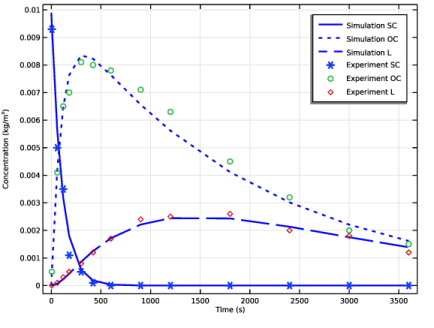
Figure 2 shows the experimental values in the same plot as the simulation results. Clearly, the assumptions of the kinetic model are in agreement with the experimental findings.
Figure 2: Experimental concentration data compared to simulation results.
The estimated rate constants show that the supercoiled pDNA rapidly transforms into the open-circular form with a half-life of approximately 1.2 minutes:
The open-circular and linear pDNA decay with half-lives of 22 and 11 minutes, respectively. As mentioned, the supercoiled pDNA has the highest protein-expression rate of the three forms. However, because the SC form has a half-life of only 1.2 minutes, it is likely that it decomposes during transport to the therapeutic target sites. These findings imply that you have to find ways to hinder the relatively fast decay of SC.
Reference
1. B.E. Houk, G. Hochhaus, and J.A. Hughes, “Kinetic modeling of plasmid DNA degradation in rat plasma,” AAPS Pharmsci, vol. 1, no. 3, pp. 15–20, 1999.
Application Library path: Chemical_Reaction_Engineering_Module/Ideal_Tank_Reactors/dna_degradation
Modeling Instructions
From the File menu, choose New.
New
In the New window, click  Model Wizard.
Model Wizard
1
In the Model Wizard window, click  0D.
2
In the Select Physics tree, select Chemical Species Transport > Reaction Engineering (re).
3
Click Add.
4
Click  Study.
5
In the Select Study tree, select General Studies > Time Dependent.
6
Global Definitions
Read model parameters from a text file.
Parameters 1
1
In the Model Builder window, under Global Definitions click Parameters 1.
2
In the Settings window for Parameters, locate the Parameters section.
3
Click  Load from File.
4
Start by entering the reaction properties in the Reaction Engineering interface.
Reaction Engineering (re)
The main fluid for DNA degradation in plasma consists of water. Set the Phase to "Liquid".
1
In the Model Builder window, under Component 1 (comp1) click Reaction Engineering (re).
2
In the Settings window for Reaction Engineering, locate the Mixture Properties section.
3
From the Phase list, choose Liquid.
Reaction 1
1
In the Reaction Engineering toolbar, click  Reaction.
2
In the Settings window for Reaction, locate the Reaction Formula section.
3
In the Formula text field, type SC=>OC.
4
Locate the Rate Constants section. In the kf text field, type k1.
Species: SC
1
In the Model Builder window, click Species: SC.
2
In the Settings window for Species, locate the Chemical Formula section.
3
Clear the Enable formula checkbox.
Species: OC
1
In the Model Builder window, click Species: OC.
2
In the Settings window for Species, locate the Chemical Formula section.
3
Clear the Enable formula checkbox.
Reaction 2
1
In the Reaction Engineering toolbar, click  Reaction.
2
In the Settings window for Reaction, locate the Reaction Formula section.
3
In the Formula text field, type OC=>L.
4
Locate the Rate Constants section. In the kf text field, type k2.
Reaction 3
1
In the Reaction Engineering toolbar, click  Reaction.
2
In the Settings window for Reaction, locate the Reaction Formula section.
3
In the Formula text field, type L=>F.
4
Locate the Rate Constants section. In the kf text field, type k3.
Species: F
1
In the Model Builder window, click Species: F.
2
In the Settings window for Species, locate the Chemical Formula section.
3
Clear the Enable formula checkbox.
Species 1
The species are dissolved in water. Add water as a solvent (the solvent water does not affect the final result).
1
In the Reaction Engineering toolbar, click  Species.
2
In the Settings window for Species, locate the Name section.
3
4
Locate the Type section. From the list, choose Solvent.
Enter the initial values for the species in the system.
Initial Values 1
1
In the Model Builder window, click Initial Values 1.
2
In the Settings window for Initial Values, locate the Volumetric Species Initial Values section.
3
Component 1 (comp1)
Add a Parameter Estimation interface to optimize the three reaction rate constants, and the initial concentration of pDNA.
Least-Squares Objective 1
1
In the Model Builder window, right-click Component 1 (comp1) and choose Parameter Estimation.
2
In the Settings window for Least-Squares Objective, locate the Experimental Data section.
3
Click  Browse.
4
5
Click  Import.
6
Locate the Data Column Settings section. In the table, click to select the cell at row number 2 and column number 1.
7
In the Model expression text field, type re.c_SC*M_pDNA.
8
In the Column name text field, type SC.
Note that the concentration unit in the imported data file is ng/μl. Enter unit ng/ul in the Unit field.
9
In the Unit text field, type ng/ul.
10
11
In the Model expression text field, type re.c_OC*M_pDNA.
12
In the Column name text field, type OC.
13
In the Unit text field, type ng/ul.
14
15
In the Model expression text field, type re.c_L*M_pDNA.
16
In the Column name text field, type L.
17
In the Unit text field, type ng/ul.
Study 1
Solve the model to get a solution with the initial values, without optimization.
Step 1: Time Dependent
1
In the Model Builder window, under Study 1 click Step 1: Time Dependent.
2
In the Settings window for Time Dependent, locate the Study Settings section.
3
In the Output times text field, type 0 3600.
4
In the Study toolbar, click  Compute.
Parameter Estimation
Now add a Parameter Estimation study step.
1
In the Study toolbar, click  Optimization and choose Parameter Estimation.
Select the parameters to be estimated and provide an initial guess. The parameter c_SC_init will be used to estimate the initial concentration of the species SC. Also provide scales for the estimated parameters. Prescribing scales for the estimation parameters increases the efficiency of the optimization procedure. A good starting point is to use scales of the same order as the initial values.
2
In the Settings window for Parameter Estimation, locate the Estimated Parameters section.
3
Click  Add four times.
4
5
Locate the Parameter Estimation Method section. In the Optimality tolerance text field, type 0.0001.
Use Output While Solving to visualize the impact of the optimization on the model. Prepare a plot for this by modifying the default plot created in the last computation.
Results
Concentration (re)
1
In the Model Builder window, under Results click Concentration (re).
2
In the Settings window for 1D Plot Group, click to expand the Title section.
3
From the Title type list, choose None.
4
Locate the Plot Settings section. Select the x-axis label checkbox.
5
Select the y-axis label checkbox. In the associated text field, type Concentration (kg/m<sup>3</sup>).
Simulation Data
1
In the Model Builder window, expand the Concentration (re) node, then click Global 1.
2
In the Settings window for Global, type Simulation Data in the Label text field.
3
Locate the y-Axis Data section. In the table, enter the following settings:
4
Click to expand the Coloring and Style section. Find the Line style subsection. From the Line list, choose Cycle.
5
From the Width list, choose 2.
6
From the Color list, choose Blue.
7
Click to expand the Legends section. Find the Include subsection. Select the Description checkbox.
8
Clear the Solution checkbox.
9
Clear the Expression checkbox.
10
Find the Prefix and suffix subsection. In the Prefix text field, type Simulation .
Add a table with the experimental data, and then plot that data together with the data from the simulation. Remember the unit of the experimental data. Divide the data with 1000 to get it in kg/m^3, which is the same as the data plotted from the simulation.
Table 1
1
In the Results toolbar, click  Table.
2
In the Settings window for Table, locate the Data section.
3
Click  Import.
4
Experimental Data
1
In the Model Builder window, right-click Concentration (re) and choose Table Graph.
2
In the Settings window for Table Graph, type Experimental Data in the Label text field.
3
Click to expand the Preprocessing section. Find the y-axis columns subsection. From the Transformation list, choose Linear.
4
In the Scaling text field, type 1/1000.
5
Locate the Coloring and Style section. Find the Line style subsection. From the Line list, choose None.
6
Find the Line markers subsection. From the Marker list, choose Cycle.
7
Click to expand the Legends section. Select the Show legends checkbox.
8
From the Legends list, choose Manual.
9
The plot to use for Output While Solving is prepared. Time to solve the model.
Study 1
Parameter Estimation
1
In the Model Builder window, under Study 1 click Parameter Estimation.
2
In the Settings window for Parameter Estimation, click to expand the Output section.
3
Select the Plot checkbox.
4
In the Study toolbar, click  Compute.
Results
Concentration (re)
1
In the Concentration (re) toolbar, click  Plot.
2
Click the  Zoom Extents button in the Graphics toolbar.
Objective Probe Table 2
The values of the estimated parameters are found in table Objective Probe Table 2.