
|
|
|












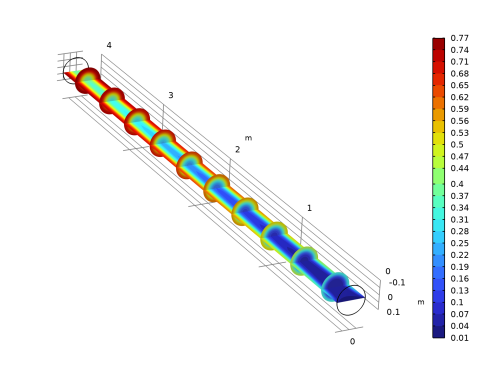
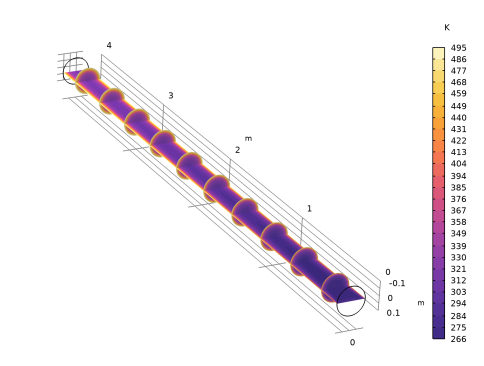
|
1
|
In the New window, Start by adding the individual physics interfaces for mass transfer, fluid flow, and heat transfer in fluids.
|
|
2
|
click
 Model Wizard. Model Wizard. |
|
1
|
|
2
|
In the Select Physics tree, select Chemical Species Transport > Transport of Concentrated Species (tcs).
|
|
3
|
Click Add.
|
|
4
|
In the Mass fractions (1) table, enter the following settings:
|
|
5
|
|
6
|
Click Add.
|
|
7
|
|
8
|
Click Add.
|
|
9
|
Click
 Study. Study. |
|
10
|
|
11
|
Click
 Done. Done. |
|
1
|
|
2
|
|
3
|
Click
 Load from File. Load from File. |
|
4
|
Browse to the model’s Application Libraries folder and double-click the file dissociation_parameters.txt.
|
|
1
|
|
2
|
Browse to the model’s Application Libraries folder and double-click the file dissociation_thermo_system.xml.
|
|
1
|
|
2
|
|
3
|
|
4
|
|
5
|
Click
 Build All Objects. Build All Objects. |
|
6
|
|
1
|
|
2
|
|
3
|
|
1
|
Go to the Select Species window.
|
|
2
|
Click
 Add All. Add All. |
|
3
|
Click the Next button in the window toolbar.
|
|
1
|
Go to the Chemistry Settings window.
|
|
2
|
|
3
|
Click the Finish button in the window toolbar.
|
|
1
|
|
2
|
|
3
|
|
4
|
Click Apply.
|
|
5
|
|
6
|
|
7
|
|
8
|
|
9
|
|
10
|
Find the Bulk species subsection. From the Species solved for list, choose Transport of Concentrated Species.
|
|
12
|
|
1
|
|
2
|
|
3
|
|
4
|
|
1
|
|
3
|
|
4
|
From the list, choose Fully developed flow.
|
|
5
|
|
1
|
|
3
|
|
4
|
Select the Normal flow checkbox.
|
|
1
|
In the Model Builder window, under Component 1 (comp1) click Transport of Concentrated Species (tcs).
|
|
2
|
In the Settings window for Transport of Concentrated Species, locate the Transport Mechanisms section.
|
|
3
|
|
4
|
|
1
|
In the Model Builder window, under Component 1 (comp1) > Transport of Concentrated Species (tcs) click Species Molar Masses 1.
|
|
2
|
|
3
|
|
4
|
|
1
|
|
2
|
|
1
|
|
3
|
|
4
|
|
1
|
|
3
|
|
4
|
|
1
|
|
1
|
|
3
|
|
4
|
|
5
|
|
6
|
|
1
|
|
3
|
|
4
|
|
5
|
|
6
|
|
1
|
In the Model Builder window, under Component 1 (comp1) > Multiphysics click Reacting Flow 1 (nirf1).
|
|
2
|
|
3
|
|
4
|
|
1
|
|
2
|
|
3
|
|
1
|
|
2
|
|
3
|
In the Solve for column of the table, under Component 1 (comp1), clear the checkbox for Heat Transfer in Fluids (ht).
|
|
4
|
|
1
|
|
2
|
|
3
|
|
5
|
|
1
|
|
2
|
|
1
|
|
2
|
|
3
|
|
4
|
|
5
|
|
6
|
|
1
|
|
2
|
In the Settings window for 3D Plot Group, type Mass fraction, B, isothermal in the Label text field.
|
|
1
|
|
2
|
In the Settings window for Multislice, click Replace Expression in the upper-right corner of the Expression section. From the menu, choose Component 1 (comp1) > Transport of Concentrated Species > Species wB > wB - Mass fraction, wB - 1.
|
|
3
|
|
4
|
|
5
|
|
1
|
|
2
|
Go to the Add Study window.
|
|
3
|
|
4
|
Click the Add Study button in the window toolbar.
|
|
5
|
|
1
|
|
3
|
|
4
|
|
1
|
|
3
|
|
4
|
|
1
|
In the Model Builder window, under Component 1 (comp1) > Multiphysics click Reacting Flow 1 (nirf1).
|
|
2
|
|
3
|
|
1
|
|
2
|
|
3
|
Clear the Generate default plots checkbox.
|
|
4
|
|
1
|
In the Model Builder window, under Results > Derived Values right-click Global Evaluation 1 and choose Duplicate.
|
|
2
|
|
3
|
|
4
|
|
1
|
|
2
|
|
3
|
|
1
|
|
2
|
|
3
|
|
4
|
|
1
|
|
2
|
|
3
|
In the Settings window for 3D Plot Group, type Mass fraction B, nonisothermal in the Label text field.
|
|
4
|
|
5
|
|
6
|
|
7
|
|
1
|
|
2
|
|
3
|
|
1
|
|
2
|
In the Settings window for Multislice, click Replace Expression in the upper-right corner of the Expression section. From the menu, choose Component 1 (comp1) > Heat Transfer in Fluids > Temperature > T - Temperature - K.
|
|
3
|
|
4
|
|
5
|
|
1
|
Go to the Enter Name and Formula window.
|
|
2
|
In the text field, type N2O4.
|
|
3
|
In the text field, type 10544-72-6.
|
|
4
|
In the text field, type N2O4.
|
|
5
|
Click the Next button in the window toolbar.
|
|
1
|
Go to the Enter Parameters window.
|
|
2
|
Find the Constants subsection. In the table, enter the following settings:
|
|
3
|
Find the Model parameters subsection. In the table, enter the following settings:
|
|
4
|
Click the Next button in the window toolbar.
|
|
1
|
Go to the Define Properties window.
|
|
2
|
|
3
|
In the Ideal gas table, enter the following settings:
|
|
4
|
Click
 Add. Add. |
|
5
|
In the Ideal gas table, enter the following settings:
|
|
6
|
Click
 Add. Add. |
|
7
|
In the Ideal gas table, enter the following settings:
|
|
8
|
Click
 Add. Add. |
|
9
|
In the Ideal gas table, enter the following settings:
|
|
10
|
Click
 Add. Add. |
|
11
|
In the Ideal gas table, enter the following settings:
|
|
12
|
Click
 Add. Add. |
|
13
|
In the Ideal gas table, enter the following settings:
|
|
14
|
Find the Saturated liquid density (mol/m^3) subsection. In the Natural logarithm liquid viscosity table, enter the following settings:
|
|
15
|
|
16
|
In the Vapor table, enter the following settings:
|
|
17
|
|
18
|
In the Vapor viscosity table, enter the following settings:
|
|
19
|
Click
 Add. Add. |
|
20
|
In the Vapor viscosity table, enter the following settings:
|
|
21
|
Click
 Add. Add. |
|
22
|
In the Vapor viscosity table, enter the following settings:
|
|
23
|
Click the Finish button in the window toolbar.
|
|
1
|
Go to the Enter Name and Formula window.
|
|
2
|
|
3
|
In the text field, type 10102-44-0.
|
|
4
|
|
5
|
Click the Next button in the window toolbar.
|
|
1
|
Go to the Enter Parameters window.
|
|
2
|
Find the Constants subsection. In the table, enter the following settings:
|
|
3
|
Find the Model parameters subsection. In the table, enter the following settings:
|
|
4
|
Click the Next button in the window toolbar.
|
|
1
|
Go to the Define Properties window.
|
|
2
|
|
3
|
In the Ideal gas table, enter the following settings:
|
|
4
|
Click
 Add. Add. |
|
5
|
In the Ideal gas table, enter the following settings:
|
|
6
|
Click
 Add. Add. |
|
7
|
In the Ideal gas table, enter the following settings:
|
|
8
|
Click
 Add. Add. |
|
9
|
In the Ideal gas table, enter the following settings:
|
|
10
|
Find the Saturated liquid density (mol/m^3) subsection. In the Natural logarithm liquid viscosity table, enter the following settings:
|
|
11
|
Click
 Add. Add. |
|
12
|
In the Natural logarithm liquid viscosity table, enter the following settings:
|
|
13
|
Click
 Add. Add. |
|
14
|
In the Natural logarithm liquid viscosity table, enter the following settings:
|
|
15
|
Click
 Add. Add. |
|
16
|
In the Natural logarithm liquid viscosity table, enter the following settings:
|
|
17
|
Click
 Add. Add. |
|
18
|
In the Natural logarithm liquid viscosity table, enter the following settings:
|
|
19
|
Click
 Add. Add. |
|
20
|
In the Natural logarithm liquid viscosity table, enter the following settings:
|
|
21
|
Click
 Add. Add. |
|
22
|
In the Natural logarithm liquid viscosity table, enter the following settings:
|
|
23
|
Click
 Add. Add. |
|
24
|
In the Natural logarithm liquid viscosity table, enter the following settings:
|
|
25
|
Click
 Add. Add. |
|
26
|
In the Natural logarithm liquid viscosity table, enter the following settings:
|
|
27
|
Click
 Add. Add. |
|
28
|
In the Natural logarithm liquid viscosity table, enter the following settings:
|
|
29
|
Click
 Add. Add. |
|
30
|
In the Natural logarithm liquid viscosity table, enter the following settings:
|
|
31
|
|
32
|
In the Vapor table, enter the following settings:
|
|
33
|
Click
 Add. Add. |
|
34
|
In the Vapor table, enter the following settings:
|
|
35
|
Click
 Add. Add. |
|
36
|
In the Vapor table, enter the following settings:
|
|
37
|
Click
 Add. Add. |
|
38
|
In the Vapor table, enter the following settings:
|
|
39
|
Click
 Add. Add. |
|
40
|
In the Vapor table, enter the following settings:
|
|
41
|
Click
 Add. Add. |
|
42
|
In the Vapor table, enter the following settings:
|
|
43
|
Click
 Add. Add. |
|
44
|
In the Vapor table, enter the following settings:
|
|
45
|
|
46
|
In the Vapor viscosity table, enter the following settings:
|
|
47
|
Click
 Add. Add. |
|
48
|
In the Vapor viscosity table, enter the following settings:
|
|
49
|
Click
 Add. Add. |
|
50
|
In the Vapor viscosity table, enter the following settings:
|
|
51
|
Click
 Add. Add. |
|
52
|
In the Vapor viscosity table, enter the following settings:
|
|
53
|
Click
 Add. Add. |
|
54
|
In the Vapor viscosity table, enter the following settings:
|
|
55
|
Click
 Add. Add. |
|
56
|
In the Vapor viscosity table, enter the following settings:
|
|
57
|
Click the Finish button in the window toolbar.
|
|
1
|
Go to the Select System window.
|
|
2
|
Click the Next button in the window toolbar.
|
|
1
|
Go to the Select Species window.
|
|
2
|
|
3
|
Click
 Add All. Add All. |
|
4
|
Click the Next button in the window toolbar.
|
|
1
|
Go to the Select Thermodynamic Model window.
|
|
2
|
Click the Finish button in the window toolbar.
|
|
1
|
Right-click Global Definitions > Thermodynamics > Gas System 1 (pp1) and choose Export Thermodynamic System.
|
|
2
|
Browse to a suitable folder, enter the filename dissociation_thermo_system.xml, and then click Save.
|
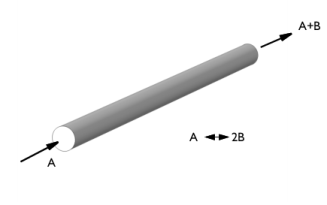


 next to


 next to


