
|
|
|



|
3.485·10-5
|
|||
|
1·108
|
|||
|
3.7·10-10
|
|
1
|
In the Model Wizard window, The model utilizes the Reaction Engineering interface with a time-dependent study.
|
|
2
|
click
 0D. 0D. |
|
3
|
|
4
|
Click Add.
|
|
5
|
Click
 Study. Study. |
|
6
|
|
7
|
Click
 Done. Done. |
|
1
|
|
2
|
|
3
|
Click
 Load from File. Load from File. |
|
4
|
Browse to the model’s Application Libraries folder and double-click the file chlorine_scrubber_parameters.txt.
|
|
1
|
|
2
|
|
3
|
|
4
|
|
1
|
|
2
|
|
3
|
|
4
|
Click Apply.
|
|
5
|
|
6
|
|
7
|
|
1
|
|
2
|
|
3
|
|
4
|
Click Apply.
|
|
5
|
|
6
|
|
1
|
|
2
|
|
3
|
From the list, choose Solvent.
|
|
1
|
|
2
|
|
3
|
|
4
|
Click Apply.
|
|
5
|
|
6
|
|
1
|
|
2
|
|
3
|
|
4
|
Click Apply.
|
|
5
|
|
6
|
|
7
|
|
1
|
|
2
|
|
1
|
|
2
|
Select the x-axis log scale checkbox.
|
|
3
|
Select the y-axis log scale checkbox.
|
|
4
|
|
1
|
|
2
|
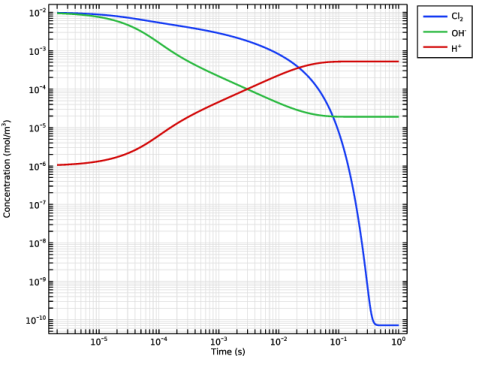
In the Settings window for Global, click Replace Expression in the upper-right corner of the y-Axis Data section. From the menu, choose Component 1 (comp1) > Reaction Engineering > re.c_Cl2 - Concentration - mol/m³.
|
|
3
|
Click Add Expression in the upper-right corner of the y-Axis Data section. From the menu, choose Component 1 (comp1) > Reaction Engineering > re.c_OH_1m - Concentration - mol/m³.
|
|
4
|
Click Add Expression in the upper-right corner of the y-Axis Data section. From the menu, choose Component 1 (comp1) > Reaction Engineering > re.c_H_1p - Concentration - mol/m³.
|
|
5
|
|
6
|
|
1
|
|
2
|
|
3
|


