








PDF

Fermentation in Beer Brewing
Introduction
An important step in brewing beer is the fermentation process. In this step, sugars are converted to alcohol as well as various flavor substances in the presence of yeast. The initial sugar content, temperature, and yeast type dictate how the fermentation proceeds.
In this example, the fermentation process is efficiently modeled using the Reaction Engineering interface, assuming that the reaction rate is neither mass- nor heat-transfer limited, that is, the system is perfectly mixed. The example reproduces results in Ref. 1 and Ref. 2.
Model Definition
When brewing beer, the fermentation step is subsequent to the malting and mashing steps, and involves the conversion of sugars to alcohol. The previous steps cover wetting and drying of barley grains to form malt, followed by boiling and mixing the malt, to create a sugary liquid called wort. The fermentation starts as soon as the wort has been cooled down (< 20°C) and yeast has been added.
The fermentation usually takes place in a closed tank under anaerobic conditions. The time frame for the fermentation is weeks, but may vary considerably depending on the yeast type and fermentation temperature. The sugar content is mainly made up of three types of sugars: maltose, glucose, and maltotriose. Of these, the maltose content is predominant. Selecting the yeast type is sometimes a bit tricky, but most important is that it should be able to catalyze the fermentation reactions at the chosen process temperature. The type studied in this example thrives at temperatures near 12°C, which is ideal for brewing lager.
Reaction Kinetics
The irreversible reactions taking place during the fermentation process can be written in the following simplified form:
(1)
(2)
(3)
where G, M, and N denote glucose, maltose, and maltotriose, respectively. Furthermore, E represents ethanol and CO2 represents the carbon dioxide dissolved in the wort. The X notation shows the presence of yeast. Aside from carbon dioxide and ethanol, different flavoring components are formed. This tutorial accounts for two types of flavors: ethyl acetate (EtAc) and acetaldehyde (AcA). The former, an ester, gives a desirable taste, the latter, an aldehyde, gives an undesirable taste.
The fermentation kinetics for reactions 1, 2, and 3 are as follows:
where ki is the reaction rate constant (SI unit: s1) and cx is the concentration of yeast. The reaction rate constant can be described using Michaelis–Menten kinetics as follows:
Reactions 2 and 3 are also inhibited by high sugar concentrations and therefore the respective reaction rate constants are defined as follows:
where kG, kM, and kN are the maximum velocities (SI unit: s1), K the Michaelis–Menten constant, and K' an inhibition constant for the fermentation reaction. These three properties are temperature dependent as defined by the Arrhenius equation:
where A is the frequency factor and E is the activation energy.
As a result of the simplified reaction description, yield coefficients, Y, are used to compute the product concentrations. The yeast concentration is modeled as a free species, with the following reaction rate:
where kx is the reaction rate constant, which depends on the reaction constant of the three governing reactions and the fact that a high yeast concentration inhibits its production:
where YX is the yeast yield coefficient, KX is the yeast growth inhibition constant, and cx0 the initial yeast concentration in the tank.
The alcohol production needs to be corrected with yield coefficients as well, giving the following total reaction rate:
Similarly, the production of the ethyl acetate flavor compound is calculated as follows:
The acetaldehyde flavor, on the other hand, also decomposes, as given by:
where kAcA is the rate constant for the decomposition of acetaldehyde and is defined with the Arrhenius equation.
Both the gaseous and dissolved carbon dioxide are considered in the example. The reaction rate of the gaseous species is described by:
where KGL is the gas to liquid mass transfer coefficient of carbon dioxide and cCO2(sat) is the maximum solubility concentration of carbon dioxide in water.
For the dissolved species, the reaction rate becomes as follows:
The reaction data required to simulate the fermentation reactions are tabulated in Table 1.
EG
9.46·104 J/mol
AHG
1.36·1010 mol/m3
EM
4.73·104 J/mol
AHM
1.42·1024 mol/m3
EN
3.00·104 J/mol
AAcA
9.13 m3/(s·mol)
EHG
-2.87·105 J/mol
YX1
EHM
-6.03·104 J/mol
YX2
EHN
-8.33·104 J/mol
E'HG
4.27·104 J/mol
YE1
E'HM
1.10·105 J/mol
YE2
EAcA
4.64·104 J/mol
YE3
AG
9.51·1011 1/s
YEtAc
AM
YAcA
AN
KX
3.65·105 mol2/m6
AHG
2.09·10-53 mol/m3
KGL
1.94·10-5 1/s
AHM
3.40·10-9 mol/m3
cCO2(sat)
3.90·102 mol/m3
AHN
2.34·10-12 mol/m3
The perfectly mixed model is solved with the Reaction Engineering interface using the Batch, constant volume, reactor type at nonisothermal conditions.
For the three reactions, reactions heats are available: ΔH1 = −91.2 kJ/mol, ΔH2 = −226.3 kJ/mol, and ΔH3 = −361.3 kJ/mol. The wort mixture is assumed to have similar thermal properties as water, that is, water is included as solvent. An external cooling medium removes heat from the fermentation process as follows:
where Qext is the total heat removed from the reactor (SI unit: W), qv is the cooling capacity (SI unit: W/(m3·K)), VR is the reactor volume (SI unit: m3), and TC is the cooling medium temperature (SI unit: K). The cooling media temperature and the initial tank temperature are both 12°C. The cooling capacity is 8 W/(m3·K).
Results and Discussion
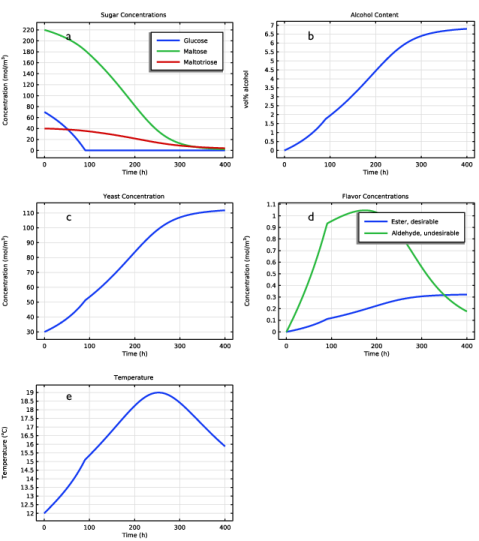
The results are shown in Figure 1.
Figure 1: Concentration and temperature profiles over time.
As seen in Figure 1a, the concentration of all three sugars decrease with time and the glucose is completely consumed after 90 hours. Figure 1b shows that over the fermentation process the alcohol content reaches more than 6.5 vol%. Unfortunately, this beer will contain a considerable amount of aldehydes and therefore likely taste bad as seen in Figure 1d. After reaching a maximum, the aldehyde concentration decreases and it is therefore important to continue the fermentation process long enough to allow the concentration to decrease to more acceptable levels. Alternatively, a higher initial yeast concentration is one approach to decrease the aldehyde content more quickly.
The temperature profile shown in Figure 1e shows that the rate of the temperature increase slows down slightly after 90 hours which corresponds to when all of the glucose has been consumed as seen in Figure 1a.
References
1. D.A. Gee and W.F. Ramirez, “A Flavour Model for Beer Fermentation,” J. Inst. Brew., vol. 100, pp. 321–329, 1994.
2. W.F. Ramirez and J. Maciejowski, “Optimal Beer Fermentation,” J. Inst. Brew., vol. 113, no. 3, pp. 325–333, 2007.
Application Library path: Chemical_Reaction_Engineering_Module/Reactors_with_Mass_and_Heat_Transfer/beer_fermentation
Modeling Instructions
Setting up 0D (perfectly mixed) model using the Reaction Engineering interface.
From the File menu, choose New.
New
In the New window, click  Model Wizard.
Model Wizard
1
In the Model Wizard window, click  0D.
2
In the Select Physics tree, select Chemical Species Transport > Reaction Engineering (re).
3
Click Add.
4
Click  Study.
5
In the Select Study tree, select General Studies > Time Dependent.
6
Reaction Engineering (re)
Load model parameters and variables from text files.
Global Definitions
Parameters 1
1
In the Model Builder window, under Global Definitions click Parameters 1.
2
In the Settings window for Parameters, locate the Parameters section.
3
Click  Load from File.
4
Definitions
Variables 1
1
In the Model Builder window, under Component 1 (comp1) right-click Definitions and choose Variables.
2
In the Settings window for Variables, locate the Variables section.
3
Click  Load from File.
4
Reaction Engineering (re)
Use the Batch, constant volume, reactor type (the default) and model nonisothermal conditions by including the Energy Balance.
1
In the Model Builder window, under Component 1 (comp1) click Reaction Engineering (re).
2
In the Settings window for Reaction Engineering, locate the Energy Balance section.
3
From the Energy balance list, choose Include.
4
In the Qext text field, type -qv*(re.T-Tc)*re.Vr.
5
Locate the Mixture Properties section. From the Phase list, choose Liquid.
Continue by entering free species, reactions, and a solvent.
Species 1
1
In the Reaction Engineering toolbar, click  Species.
2
In the Settings window for Species, locate the Name section.
3
Most reaction products do not fully follow the reaction stoichiometry, therefore enter, where necessary, user defined reaction rates in their respective species nodes.
4
Click to expand the Reaction Rate section. From the list, choose User defined.
5
In the Ri text field, type (YXG*kf1+YXM*kf2+YXN*kf3)*re.c_X*KX/(KX+(re.c_X-c0X)^2).
Reaction 1
1
In the Reaction Engineering toolbar, click  Reaction.
2
In the Settings window for Reaction, locate the Reaction Formula section.
3
In the Formula text field, type G=>E+CO2+EtAc+AcA.
4
Locate the Reaction Rate section. From the list, choose User defined.
5
In the rj text field, type kf1*re.c_X.
6
Locate the Reaction Thermodynamic Properties section. From the Enthalpy of reaction list, choose User defined.
7
In the H text field, type HG.
Continue to enter user defined reaction rates in the respective species nodes where necessary.
Species: E
1
In the Model Builder window, click Species: E.
2
In the Settings window for Species, locate the Chemical Formula section.
3
Select the Enable formula checkbox.
4
5
Locate the Reaction Rate section. From the list, choose User defined.
6
In the Ri text field, type (YEG*kf1+YEM*kf2+YEN*kf3)*re.c_X.
Species: CO2
1
In the Model Builder window, click Species: CO2.
2
In the Settings window for Species, locate the Reaction Rate section.
3
4
In the Ri text field, type hCO2*(Csat_CO2-re.c_CO2).
Species: EtAc
1
In the Model Builder window, click Species: EtAc.
2
In the Settings window for Species, locate the Chemical Formula section.
3
Select the Enable formula checkbox.
4
5
Locate the Reaction Rate section. From the list, choose User defined.
6
In the Ri text field, type YEtAc*(kf1+kf2+kf3)*re.c_X.
Species: AcA
1
In the Model Builder window, click Species: AcA.
2
In the Settings window for Species, locate the Chemical Formula section.
3
Select the Enable formula checkbox.
4
5
Locate the Reaction Rate section. From the list, choose User defined.
6
In the Ri text field, type YAcA*(kf1+kf2+kf3)*re.c_X-kAcA*re.c_AcA*re.c_X.
Reaction 2
1
In the Reaction Engineering toolbar, click  Reaction.
2
In the Settings window for Reaction, locate the Reaction Formula section.
3
In the Formula text field, type M=>E+CO2+EtAc+AcA.
4
Click Apply.
5
Locate the Reaction Rate section. From the list, choose User defined.
6
In the rj text field, type kf2*re.c_X.
7
Locate the Reaction Thermodynamic Properties section. From the Enthalpy of reaction list, choose User defined.
8
In the H text field, type HM.
Reaction 3
1
In the Reaction Engineering toolbar, click  Reaction.
2
In the Settings window for Reaction, locate the Reaction Formula section.
3
In the Formula text field, type N=>E+CO2+EtAc+AcA.
4
Click Apply.
5
Locate the Reaction Rate section. From the list, choose User defined.
6
In the rj text field, type kf3*re.c_X.
7
Locate the Reaction Thermodynamic Properties section. From the Enthalpy of reaction list, choose User defined.
8
In the H text field, type HN.
Species 1
In the Reaction Engineering toolbar, click  Species.
Species: N
1
In the Model Builder window, click Species: N.
2
In the Settings window for Species, locate the Chemical Formula section.
3
Clear the Enable formula checkbox.
Species 1
1
In the Model Builder window, under Component 1 (comp1) > Reaction Engineering (re) click Species 1.
2
In the Settings window for Species, locate the Name section.
3
4
Locate the Type section. From the list, choose Solvent.
5
Click to expand the Thermodynamic Expressions section. From the list, choose User defined.
6
In the Cp text field, type CpH2O.
7
In the Reaction Engineering toolbar, click  Species.
1
In the Settings window for Species, locate the Name section.
2
3
Locate the Reaction Rate section. From the list, choose User defined.
4
In the Ri text field, type max((YXG*kf1+YXM*kf2+YXN*kf3)*re.c_X-hCO2*(Csat_CO2-re.c_CO2),eps).
Initial Values 1
1
In the Model Builder window, click Initial Values 1.
2
In the Settings window for Initial Values, locate the General Parameters section.
3
In the T0 text field, type T0.
4
Locate the Volumetric Species Initial Values section. In the table, enter the following settings:
Solve the model for 400 h.
Study 1
Step 1: Time Dependent
1
In the Model Builder window, under Study 1 click Step 1: Time Dependent.
2
In the Settings window for Time Dependent, locate the Study Settings section.
3
From the Time unit list, choose h.
4
In the Output times text field, type range(0,1,400).
5
From the Tolerance list, choose User controlled.
6
In the Relative tolerance text field, type 1e-6.
Solution 1 (sol1)
1
In the Study toolbar, click  Show Default Solver.
2
In the Model Builder window, expand the Solution 1 (sol1) node, then click Time-Dependent Solver 1.
3
In the Settings window for Time-Dependent Solver, click to expand the Absolute Tolerance section.
4
From the Tolerance method list, choose Manual.
5
In the Absolute tolerance text field, type 1.0E-7.
6
Notice the warning node that appeared under the Compile Equations node in the solver sequence. The warning appeared since there are species in the model without defined heat capacity and molar enthalpy. Modeling nonisothermal conditions requires specifying these thermodynamic properties, usually for each species. In this model though, the properties are not given on a species basis; the heat capacity is defined for the solvent, and the heat of reactions are defined by user defined expressions for each reaction. Therefore, all the required information has been defined, and the warning can be disregarded.
Results
Sugars
First, create 2a in Figure 1.
1
In the Settings window for 1D Plot Group, type Sugars in the Label text field.
Global 1
1
In the Model Builder window, expand the Sugars node, then click Global 1.
2
In the Settings window for Global, click Replace Expression in the upper-right corner of the y-Axis Data section. From the menu, choose Component 1 (comp1) > Reaction Engineering > re.c_G - Concentration - mol/m³.
3
Click Add Expression in the upper-right corner of the y-Axis Data section. From the menu, choose Component 1 (comp1) > Reaction Engineering > re.c_M - Concentration - mol/m³.
4
Click Add Expression in the upper-right corner of the y-Axis Data section. From the menu, choose Component 1 (comp1) > Reaction Engineering > re.c_N - Concentration - mol/m³.
5
Click to expand the Title section. From the Title type list, choose Manual.
6
In the Title text area, type Sugar Concentrations.
7
Click to expand the Coloring and Style section. From the Width list, choose 2.
8
Click to expand the Legends section. From the Legends list, choose Manual.
9
10
In the Sugars toolbar, click  Plot.
Continue with 2b in Figure 1.
Alcohol
1
In the Model Builder window, right-click Sugars and choose Duplicate.
2
In the Settings window for 1D Plot Group, type Alcohol in the Label text field.
3
Locate the Plot Settings section.
4
Select the y-axis label checkbox. In the associated text field, type vol% alcohol.
Global 1
1
In the Model Builder window, expand the Alcohol node, then click Global 1.
2
In the Settings window for Global, click Replace Expression in the upper-right corner of the y-Axis Data section. From the menu, choose Component 1 (comp1) > Definitions > Variables > Evol - vol% alcohol - 1.
3
Locate the Title section. In the Title text area, type Alcohol Content.
4
Locate the Legends section. Clear the Show legends checkbox.
5
In the Alcohol toolbar, click  Plot.
The yeast concentration plot (2c in Figure 1) is set up following these steps:
Yeast
1
In the Model Builder window, right-click Alcohol and choose Duplicate.
2
In the Settings window for 1D Plot Group, type Yeast in the Label text field.
3
Locate the Plot Settings section. In the y-axis label text field, type Concentration (mol/m<sup>3</sup>).
Global 1
1
In the Model Builder window, expand the Yeast node, then click Global 1.
2
In the Settings window for Global, click Replace Expression in the upper-right corner of the y-Axis Data section. From the menu, choose Component 1 (comp1) > Reaction Engineering > re.c_X - Concentration - mol/m³.
3
Locate the Title section. In the Title text area, type Yeast Concentration.
4
In the Yeast toolbar, click  Plot.
The flavors plot (2d) in Figure 1 is set up following these steps:
Flavors
1
In the Model Builder window, right-click Sugars and choose Duplicate.
2
In the Settings window for 1D Plot Group, type Flavors in the Label text field.
Global 1
1
In the Model Builder window, expand the Flavors node, then click Global 1.
2
In the Settings window for Global, click Replace Expression in the upper-right corner of the y-Axis Data section. From the menu, choose Component 1 (comp1) > Reaction Engineering > re.c_EtAc - Concentration - mol/m³.
3
Click Add Expression in the upper-right corner of the y-Axis Data section. From the menu, choose Component 1 (comp1) > Reaction Engineering > re.c_AcA - Concentration - mol/m³.
4
Locate the Title section. In the Title text area, type Flavor Concentrations.
5
Locate the Legends section. In the table, enter the following settings:
6
In the Flavors toolbar, click  Plot.
Last, create the temperature plot 2e in Figure 1.
Temperature (re)
1
In the Model Builder window, under Results click Temperature (re).
2
In the Settings window for 1D Plot Group, locate the Plot Settings section.
3
Select the y-axis label checkbox. In the associated text field, type Temperature (<sup>o</sup>C).
Global 1
1
In the Model Builder window, expand the Temperature (re) node, then click Global 1.
2
In the Settings window for Global, locate the y-Axis Data section.
3
4
Locate the Title section. From the Title type list, choose Manual.
5
In the Title text area, type Temperature.
6
Locate the Coloring and Style section. From the Width list, choose 2.
7
Locate the Legends section. Clear the Show legends checkbox.
8
In the Temperature (re) toolbar, click  Plot.