PDF

Viscous Catenary
Introduction
The word catenary is derived from the Latin word catena, which means chain. The catenary is the geometrical shape that corresponds to the curve followed by an idealized chain or cable supported at both ends and hanging under its own weight. This shape played an important role in the history of mathematics and physics, highlighting the relationships that occur between geometry and mechanics. It is also important in structural engineering. Robert Hooke first realized that the shape represents the optimal form of an arch of constant cross section and this discovery was likely employed by Christopher Wren in the rebuilding of St Paul’s Cathedral in London. Despite announcing his achievement to the Royal Society in 1671 and publishing it in an encrypted form as a Latin anagram in 1675, the anagram’s meaning was not revealed until after Hooke’s executor published it posthumously in 1705. Although aware that the catenary shape was not a parabola, Hooke could not derive its mathematical form.This was ultimately discovered independently by Gottfried Leibniz, Christiaan Huygens, and Johann Bernoulli in response to a challenge issued by Jakob Bernoulli in 1690.
The viscous catenary problem describes the motion of a cylinder of highly viscous fluid, supported at its ends as it flows under gravity. In the last decade this problem has generated significant theoretical and experimental interest in the academic community. Solutions to the problem in one dimension have been derived (Ref. 1 and Ref. 2). The rich phenomena that occur in this apparently simple problem are industrially important in a range of applications such as filament spinning and glass manufacture.
Model Definition
The model consists of a cylinder of Newtonian fluid, with initial diameter 0.6 mm and length 21.5 mm, falling under its own weight. The fluid density is 1000 kg/m3 and its viscosity is 100 Pa·s. The surface tension of the fluid is 22 mN/m. The capillary number of the flow is high, so the contact angle of the fluid with the supporting surfaces is unimportant — here a nominal value of 90° is used. At the surfaces of the cylinder, the Navier slip boundary condition is used, this means that the supporting edges of the cylinder can move slightly. This displacement is small compared to the overall displacement of the catenary, and can be subtracted from the results if necessary.
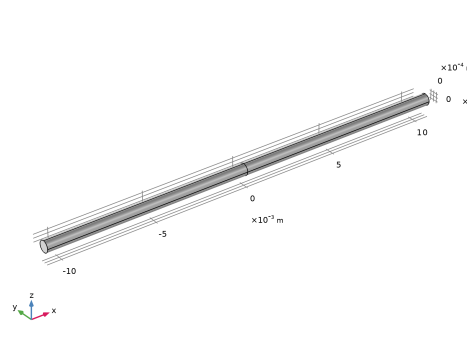
Figure 1: Model geometry.
The model geometry is shown in Figure 1. The cylinder is split into two halves to set up points at its center that can be used to compute the height of the lowest point on the catenary.
Results and Discussion
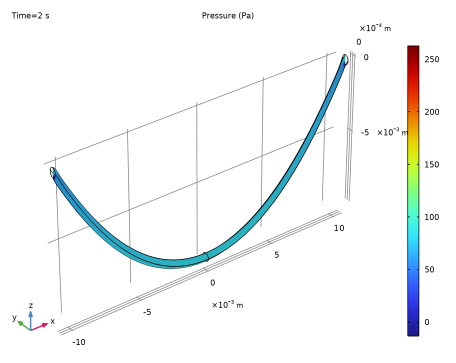
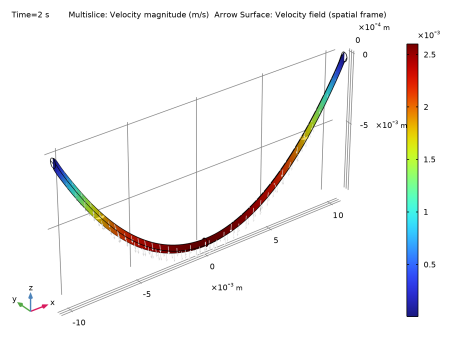
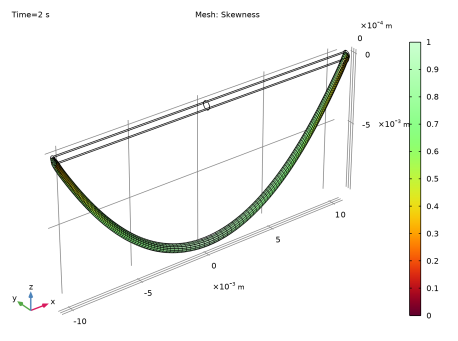
Figure 2 shows the fluid velocity within the catenary after 2 s of falling. The arrows show that the fluid velocity is predominantly vertical. The pressure within the catenary is shown in Figure 3. The pressure variations occur mainly in the small region adjacent to the anchors, where the radius of curvature of the surface is greatest. The deformed mesh is shown in Figure 4. The mesh deformation is large in the region close to the anchor, and the mesh quality is consequently undesirably low. Ideally the model should be stopped at approximately 1 s and a re-meshed before the solver is allowed to run on.
Figure 2: Velocity in the center plane of the catenary after 2s.
Figure 3: Pressure in the center plane of the catenary after 2 s.
Figure 4: Plot showing the deformed mesh after 2 s. The mesh quality in the regions adjacent to the anchors is undesirably low.
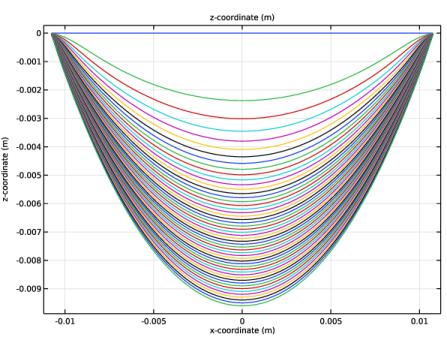
Figure 5: Plot showing the position of the centerline of the catenary at 0.02 s intervals during the simulation.
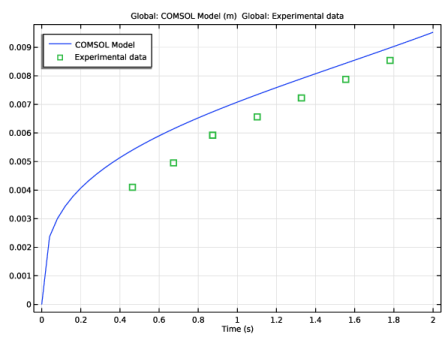
Figure 6: Displacement of the center of the catenary, relative to the anchors, as a function of time. The results are compared to experimental data from Ref. 2, which has an estimated error of approximately 15% (not shown in the plot).
Figure 5 shows the location of the midplane of the catenary as a function of time. The parabolic profile of the catenary for the central part of its length is clearly apparent. This is predicted by the 1-dimensional theory for intermediate time scales (in this model these occur after approximately 0.1 s; see Ref. 1 and Ref. 2).
Figure 6 shows the vertical distance between the midpoint of the catenary and its anchors, as a function of time. This is compared with experimental data from Ref. 2. The agreement between the two datasets is within experimental error, without the scaling factor employed by the authors to obtain agreement with their theory. An additional parametric sweep performed on the surface tension coefficient shows that the surface tension is related to this scaling factor (surface tension was neglected in the theoretical treatments of Ref. 1 and Ref. 2). This example shows how COMSOL can provide fundamental insights into complex problems — having the flexibility to solve the problem without assumptions can give valuable insight into validity of assumptions made in simpler, lower-dimensional models.
References
1. J. Teichman and L. Mahadevan, “The Viscous Catenary,” J. Fluid Mech., vol. 478, pp. 71–80, 2003.
2. J.P. Koulakis, C.D. Mitescu, F. Brouchard-Wyart, P.-G. De Gennes, and E. Guyon, “The Viscous Catenary Revisited: Experiments and Theory,” J. Fluid Mech., vol. 609, pp. 87–110, 2008.
Application Library path: CFD_Module/Multiphase_Flow/viscous_catenary
Modeling Instructions
From the File menu, choose New.
New
In the New window, click  Model Wizard.
Model Wizard
1
In the Model Wizard window, click  3D.
2
In the Select Physics tree, select Fluid Flow > Multiphase Flow > Two-Phase Flow, Moving Mesh > Laminar Two-Phase Flow, Moving Mesh.
3
Click Add.
4
Click  Study.
5
In the Select Study tree, select General Studies > Time Dependent.
6
Set up the model parameters.
Global Definitions
Parameters 1
1
In the Model Builder window, under Global Definitions click Parameters 1.
2
In the Settings window for Parameters, locate the Parameters section.
3
Set up an interpolating function for the results of Koulakis and others Ref. 2.
Interpolation 1 (int1)
1
In the Home toolbar, click  Functions and choose Global > Interpolation.
2
In the Settings window for Interpolation, locate the Definition section.
3
From the Data source list, choose File.
4
Click  Browse.
5
6
Click  Import.
7
Locate the Interpolation and Extrapolation section. From the Extrapolation list, choose Specific value.
8
In the Value outside range text field, type NaN.
This prevents COMSOL from extrapolating the experimental data beyond its range.
9
Locate the Units section. In the Argument table, enter the following settings:
10
In the Function table, enter the following settings:
Define the model geometry.
Geometry 1
Cylinder 1 (cyl1)
1
In the Geometry toolbar, click  Cylinder.
2
In the Settings window for Cylinder, locate the Size and Shape section.
3
In the Radius text field, type D0/2.
4
In the Height text field, type L0.
5
Locate the Position section. In the x text field, type -L0/2.
6
Locate the Axis section. From the Axis type list, choose Cartesian.
7
In the x text field, type 1.
8
In the z text field, type 0.
9
Click to expand the Layers section. In the table, enter the following settings:
10
Select the Layers on bottom checkbox.
11
Clear the Layers on side checkbox.
12
Click  Build All Objects.
13
Click the  Zoom Extents button in the Graphics toolbar.
Set up integration component couplings to evaluate the displacement at a point in the results processing.
Definitions
Integration 1 (intop1)
1
In the Definitions toolbar, click  Nonlocal Couplings and choose Integration.
2
In the Settings window for Integration, locate the Source Selection section.
3
From the Geometric entity level list, choose Point.
4
Integration 2 (intop2)
1
In the Definitions toolbar, click  Nonlocal Couplings and choose Integration.
2
In the Settings window for Integration, locate the Source Selection section.
3
From the Geometric entity level list, choose Point.
4
Set the material properties to those defined in the Parameters section.
Materials
Material 1 (mat1)
1
In the Model Builder window, under Component 1 (comp1) right-click Materials and choose Blank Material.
2
In the Settings window for Material, locate the Material Contents section.
3
Laminar Flow (spf)
1
In the Model Builder window, under Component 1 (comp1) click Laminar Flow (spf).
2
In the Settings window for Laminar Flow, locate the Physical Model section.
3
Select the Include gravity checkbox.
The Navier Slip wall boundary condition should be used on boundaries that the two-phase contact touches. The Translational velocity of the wall is set to Zero (Fixed wall).
Wall 1
1
In the Model Builder window, under Component 1 (comp1) > Laminar Flow (spf) click Wall 1.
2
In the Settings window for Wall, locate the Boundary Condition section.
3
From the Wall condition list, choose Navier slip.
4
Click to expand the Wall Movement section. From the Translational velocity list, choose Zero (Fixed wall).
Use the Free Surface boundary condition to model the free surface of the fluid.
Free Surface 1
1
In the Physics toolbar, click  Boundaries and choose Free Surface.
2
3
In the Settings window for Free Surface, locate the Surface Tension section.
4
From the Surface tension coefficient list, choose User defined. In the σ text field, type sigma0.
Show more options and turn on the equation based contributions so a point constraint can be set on the mesh displacement.
5
Click the  Show More Options button in the Model Builder toolbar.
6
In the Show More Options dialog, in the tree, select the checkbox for the node Physics > Equation Contributions.
7
Pointwise Constraint 1
1
In the Physics toolbar, click  Points and choose Pointwise Constraint.
2
3
In the Settings window for Pointwise Constraint, locate the Pointwise Constraint section.
4
In the Constraint expression text field, type y-Y.
5
Click to expand the Discretization section. Find the Base geometry subsection. From the Element order list, choose Linear.
Add displacement boundary conditions for the mesh movement.
Moving Mesh
Deforming Domain 1
1
In the Model Builder window, under Component 1 (comp1) > Moving Mesh click Deforming Domain 1.
2
In the Settings window for Deforming Domain, locate the Smoothing section.
3
From the Mesh smoothing type list, choose Winslow.
Symmetry/Roller 1
1
In the Moving Mesh toolbar, click  Symmetry/Roller.
2
Set up a swept mesh.
Mesh 1
Free Quad 1
1
In the Mesh toolbar, click  More Generators and choose Free Quad.
2
Swept 1
In the Mesh toolbar, click  Swept.
Distribution 1
1
Right-click Swept 1 and choose Distribution.
2
In the Settings window for Distribution, locate the Distribution section.
3
From the Distribution type list, choose Predefined.
4
In the Number of elements text field, type 80.
5
In the Element ratio text field, type 3.
6
Select the Reverse direction checkbox.
Size
1
In the Model Builder window, under Component 1 (comp1) > Mesh 1 click Size.
2
In the Settings window for Size, locate the Element Size section.
3
From the Calibrate for list, choose Fluid dynamics.
4
From the Predefined list, choose Coarser.
5
Click  Build All.
6
Click the  Zoom Extents button in the Graphics toolbar.
Study 1
Step 1: Time Dependent
1
In the Model Builder window, under Study 1 click Step 1: Time Dependent.
2
In the Settings window for Time Dependent, locate the Study Settings section.
3
In the Output times text field, type range(0,0.04,2).
4
In the Study toolbar, click  Compute.
Results
Velocity (spf)
Reproduce the plot shown in Figure 2.
Arrow Surface 1
1
Right-click Velocity (spf) and choose Arrow Surface.
2
In the Settings window for Arrow Surface, locate the Coloring and Style section.
3
From the Color list, choose White.
4
In the Velocity (spf) toolbar, click  Plot.
5
Click the  Zoom Extents button in the Graphics toolbar.
Reproduce the plot shown in Figure 3.
Surface
1
In the Model Builder window, expand the Pressure (spf) node.
2
Right-click Surface and choose Delete. Click Yes to confirm.
Slice 1
1
Right-click Pressure (spf) and choose Slice.
2
In the Settings window for Slice, locate the Expression section.
3
In the Expression text field, type p.
4
Locate the Plane Data section. From the Plane list, choose zx-planes.
5
In the Planes text field, type 1.
6
In the Pressure (spf) toolbar, click  Plot.
Reproduce the plot shown in Figure 4.
3D Plot Group 4
In the Results toolbar, click  3D Plot Group.
Mesh 1
1
Right-click 3D Plot Group 4 and choose Mesh.
2
In the 3D Plot Group 4 toolbar, click  Plot.
Reproduce the plot shown in Figure 5.
1D Plot Group 5
In the Results toolbar, click  1D Plot Group.
Line Graph 1
1
Right-click 1D Plot Group 5 and choose Line Graph.
2
3
In the Settings window for Line Graph, locate the y-Axis Data section.
4
In the Expression text field, type z.
5
Locate the x-Axis Data section. From the Parameter list, choose Expression.
6
In the Expression text field, type x.
7
In the 1D Plot Group 5 toolbar, click  Plot.
Reproduce the plot shown in Figure 6.
1D Plot Group 6
1
In the Results toolbar, click  1D Plot Group.
2
In the Settings window for 1D Plot Group, locate the Legend section.
3
From the Position list, choose Upper left.
Global 1
1
Right-click 1D Plot Group 6 and choose Global.
2
In the Settings window for Global, locate the y-Axis Data section.
3
Global 2
1
In the Model Builder window, right-click 1D Plot Group 6 and choose Global.
2
In the Settings window for Global, locate the y-Axis Data section.
3
4
Click to expand the Coloring and Style section. Find the Line style subsection. From the Line list, choose None.
5
From the Width list, choose 2.
6
Find the Line markers subsection. From the Marker list, choose Square.
7
From the Positioning list, choose Interpolated.
8
In the Number text field, type 7.
9
In the 1D Plot Group 6 toolbar, click  Plot.