PDF

Fluid–Structure Interaction on a Sports Car Door
Introduction
While a CFD analysis can give the car designer important input for drag coefficients and turbulence around the car panels, a fluid–structure-interaction (FSI) analysis provides insights into how the fluid forces interact with the body, thereby generating vibrations that result in noise inside the car and potentially cause fatigue problems.
In this model, we perform a structural analysis of the front door of a sports car traveling at a speed of 180 km/h. The forces from a transient Large Eddy Simulation (LES) model are transformed to the frequency domain using the Fast Fourier Transform (FFT). A structural analysis of the door and side mirror is performed in the frequency domain to study the Fourier components of the forcing and the resulting vibrational modes of the car door. The door geometry is simplified compared to a real door of a sports car, but the focus in this model is to demonstrate a method for applying the loads from a CFD-LES analysis in the time domain to a structural-mechanics analysis in the frequency domain.
Model Definition
This model is based on the model Large Eddy Simulation of a Sports Car, also in the CFD Module Application Library. A boundary (shell) based geometry is added in a separate component.
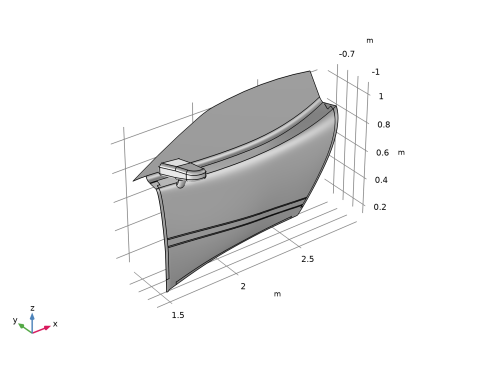
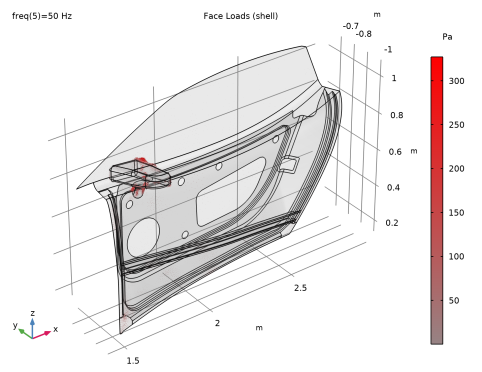
Figure 1: Car-door geometry with applied loads at 50 Hz. The highest magnitude is in the area around the side mirror attachment.
The forces are added directly from the LES solution of the complete car. Since the car door coordinates are the same in both components, no coordinate transformation of the forces is needed. The forces are mapped from one component to the other using an extrusion coupling operator. This reduces the size of the mesh and makes the simulation leaner and more efficient. The mapped time-dependent forces are transformed to the frequency domain using a Fast Fourier Transform (FFT).
Results and Discussion
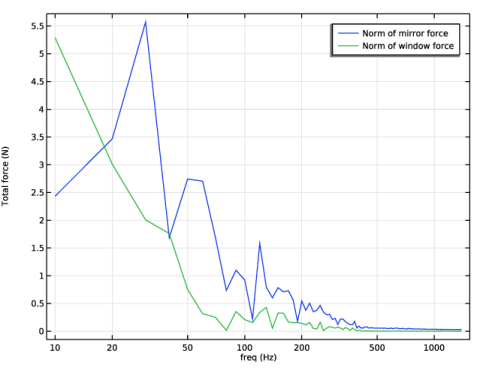
Figure 2 shows the integrated total fluid force on the window and side mirror as a function of frequency. It is clear that the forces on both window and mirror are largest at the low end of the frequency range, which results in a rumbling sound and possibly leads to fatigue problems if care is not taken in the design.
Figure 2: Integrated total force magnitude on the window and side mirror as a function of frequency.
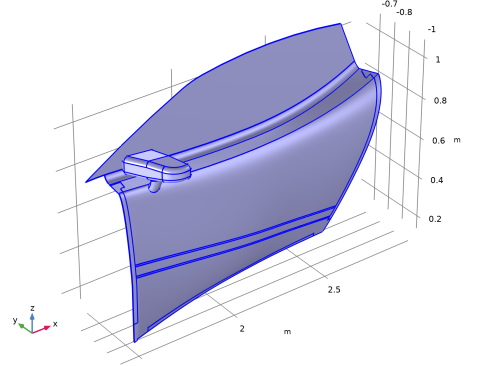
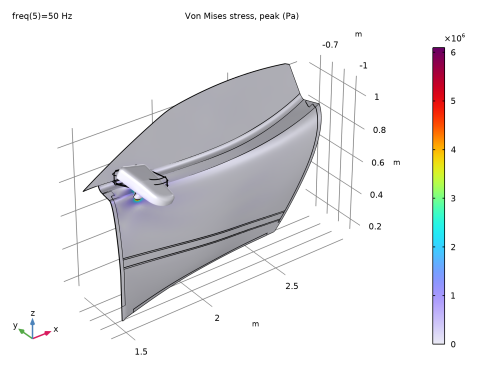
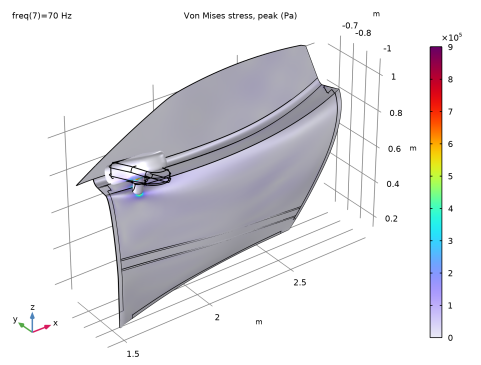
Figure 3 shows the von Mises stress on the door surface at 50 Hz. There is a concentration of stress at the attachment of the side mirror. This indicates that the area may need reinforcement.
Figure 3: von Mises stress at the surface of the car door at 50 Hz. Notice the stress concentration around the area where the side mirror is attached to the door.
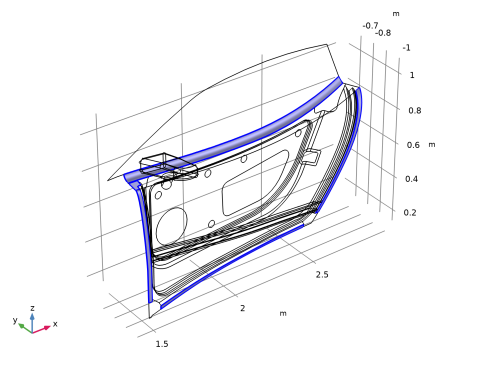
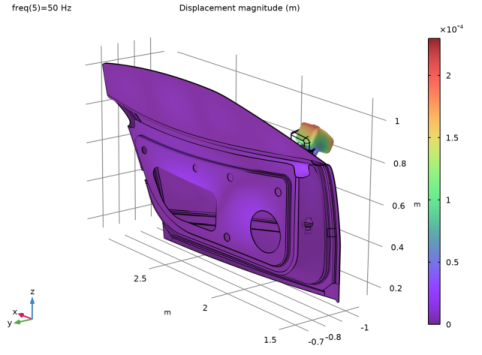
Figure 4 and Figure 5 show the displacement field on the inside door panel at 50 Hz and the large displacement of the mirror at 70 Hz, respectively. Note that the displacement is exaggerated for visual reasons. The real deformation is in the range of millimeters at these frequencies.
Figure 4: Displacement field on the inner side of the door at 50 Hz. The rather large displacement might be due to a resonance in the panels.
Figure 5: Displacement of the side mirror and outer side of the car door at 70 Hz, which is close to the peak in window forces as shown in Figure 2.
Application Library path: CFD_Module/Fluid-Structure_Interaction/sports_car_fsi
Modeling Instructions
From the File menu, choose Open.
From the Application Libraries root, browse to the folder CFD_Module/Single-Phase_Flow and double-click the file sports_car.mph.
Results
Potential flow
1
In the Model Builder window, under Results click Potential flow.
2
In the Potential flow toolbar, click  Plot.
Component 1 (comp1)
In the Model Builder window, expand the Component 1 (comp1) node.
Definitions
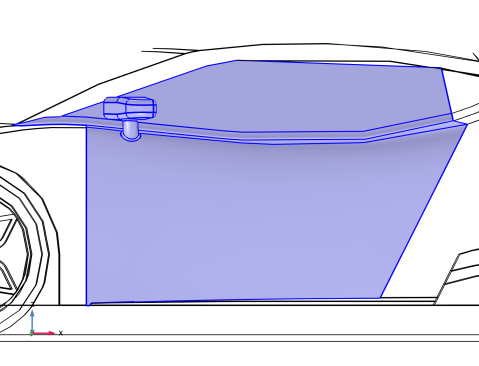
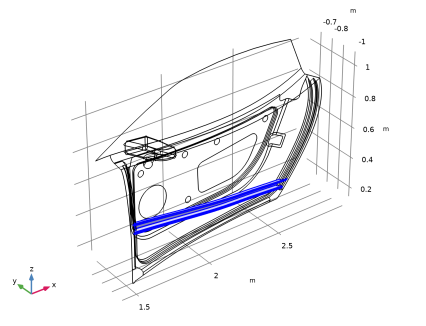
This model is based on the precomputed solution from the Sports Car model. The door geometry in that model consists only of the external surfaces. A more realistic car door geometry is imported in this model, and the forces from the Sports Car model are mapped to the new geometry by the use of an extrusion coupling operator. The extrusion operator is added in the following steps.
General Extrusion 1 (genext1)
1
In the Model Builder window, expand the Component 1 (comp1) > Definitions node.
2
Right-click Definitions and choose Nonlocal Couplings > General Extrusion.
3
Click in the Graphics window and then press Ctrl+A to select all domains.
4
In the Settings window for General Extrusion, locate the Source Selection section.
5
From the Geometric entity level list, choose Boundary.
6
From the Selection list, choose General Extrusion.
7
Click to expand the Advanced section. From the Mesh search method list, choose Closest point.
Add Component
In the Model Builder window, right-click the root node and choose Add Component > 3D.
Geometry 2
1
In the Settings window for Geometry, locate the Advanced section.
2
From the Geometry representation list, choose CAD kernel.
3
Select the Design Module Boolean operations checkbox.
Add the sequence for the car door geometry. All selections needed for the physics are already defined in the model.
4
In the Geometry toolbar, click Insert Sequence and choose Insert Sequence.
5
6
In the Insert Sequence dialog, select Geometry 2 in the Select geometry sequence to insert list.
7
The geometry sequence only refers to a specific section of the geometry sequence from the Sports Car model. Activate Fill11 to build the door sequence.
Geometry 1
In the Model Builder window, expand the Component 1 (comp1) > Geometry 1 node.
Fillet 11 (fil11)
1
In the Model Builder window, expand the Component 1 (comp1) > Geometry 1 > Mirror node, then click Fillet 11 (fil11).
2
In the Settings window for Fillet, click  Build Selected.
Geometry 2
Virtual Operations
1
In the Model Builder window, under Component 2 (comp2) > Geometry 2 click Virtual Operations.
2
In the Geometry toolbar, click  Build All.
Disable the analysis of the geometry as the remaining small geometric details can be kept.
3
In the Model Builder window, click Geometry 2.
4
In the Settings window for Geometry, locate the Cleanup section.
5
Clear the Automatic detection of small details checkbox.
Add Material
1
In the Materials toolbar, click  Add Material to open the Add Material window.
2
Go to the Add Material window.
3
In the tree, select Built-in > Aluminum 3003-H18.
4
Click the Add to Component button in the window toolbar.
5
In the tree, select Built-in > Glass (quartz).
6
Click the Add to Component button in the window toolbar.
7
In the Materials toolbar, click  Add Material to close the Add Material window.
Materials
Glass (quartz) (mat3)
1
In the Settings window for Material, locate the Geometric Entity Selection section.
2
From the Selection list, choose Window Boundary.
To make the model slightly more efficient, it is convenient to map the surface stresses from the fluid flow simulation onto a set of new variables. A weak form equation is added and solved for the extruded stresses on the car door. The time dependent stresses are Fourier transformed so that the following structural mechanics simulations can be performed in the frequency domain.
Disable the analysis of the geometry as the remaining small geometric details were taken into account in the precomputed simulation.
Geometry 1
1
In the Model Builder window, under Component 1 (comp1) click Geometry 1.
2
In the Settings window for Geometry, locate the Cleanup section.
3
Clear the Automatic detection of small details checkbox.
4
In the Geometry toolbar, click  Build All.
Component 2 (comp2)
In the Model Builder window, expand the Component 1 (comp1) > Materials node, then click Component 2 (comp2).
Add Physics
1
In the Home toolbar, click  Add Physics to open the Add Physics window.
2
Go to the Add Physics window.
3
In the tree, select Mathematics > PDE Interfaces > Lower Dimensions > Weak Form Boundary PDE (wb).
4
Find the Physics interfaces in study subsection. In the table, clear the Solve checkboxes for Study 1, Study 2, and Study 3.
5
Click the Add to Component 2 button in the window toolbar.
6
In the Home toolbar, click  Add Physics to close the Add Physics window.
Weak Form Boundary PDE (wb)
1
In the Settings window for Weak Form Boundary PDE, locate the Boundary Selection section.
2
Click  Clear Selection.
3
Click the  Wireframe Rendering button in the Graphics toolbar.
4
From the Selection list, choose External surfaces.
5
Locate the Units section. Click  Define Dependent Variable Unit.
6
In the Dependent variable quantity table, enter the following settings:
7
In the Source term quantity table, enter the following settings:
8
Click to expand the Discretization section. From the Element order list, choose Linear.
9
Click to expand the Dependent Variables section. In the Field name (Pa) text field, type Tstress.
10
In the Number of dependent variables text field, type 3.
11
In the Dependent variables (Pa) table, enter the following settings:
Weak Form PDE 1
1
In the Model Builder window, under Component 2 (comp2) > Weak Form Boundary PDE (wb) click Weak Form PDE 1.
2
In the Settings window for Weak Form PDE, locate the Weak Expressions section.
3
In the weak text-field array, type test(Tstress1)*(Tstress1-comp1.genext1(comp1.spf.T_tracx)) on the first row.
4
In the weak text-field array, type test(Tstress2)*(Tstress2-comp1.genext1(comp1.spf.T_tracy)) on the second row.
5
In the weak text-field array, type test(Tstress3)*(Tstress3-comp1.genext1(comp1.spf.T_tracz)) on the third row.
Add Study
1
In the Home toolbar, click  Add Study to open the Add Study window.
2
Go to the Add Study window.
3
Find the Physics interfaces in study subsection. In the table, clear the Solve checkboxes for LES RBVM (spf), Incompressible Potential Flow (ipf), and Turbulent Flow, k-ε 2 (spf2).
4
Find the Studies subsection. In the Select Study tree, select General Studies > Time Dependent.
5
Click the Add Study button in the window toolbar.
6
In the Home toolbar, click  Add Study to close the Add Study window.
Study 4
Step 1: Time Dependent
1
In the Settings window for Time Dependent, locate the Study Settings section.
2
In the Output times text field, type range(0.6,0.002,0.7).
3
Click to expand the Values of Dependent Variables section. Find the Values of variables not solved for subsection. From the Settings list, choose User controlled.
4
From the Method list, choose Solution.
5
From the Study list, choose Study 3, Time Dependent.
6
From the Time (s) list, choose From list.
7
In the Time (s) list, choose 0.6 s (2), 0.602 s, 0.604 s, 0.606 s, 0.608 s, 0.61 s, 0.612 s, 0.614 s, 0.616 s, 0.618 s, 0.62 s, 0.622 s, 0.624 s, 0.626 s, 0.628 s, 0.63 s, 0.632 s, 0.634 s, 0.636 s, 0.638 s, 0.64 s, 0.642 s, 0.644 s, 0.646 s, 0.648 s, 0.65 s, 0.652 s, 0.654 s, 0.656 s, 0.658 s, 0.66 s, 0.662 s, 0.664 s, 0.666 s, 0.668 s, 0.67 s, 0.672 s, 0.674 s, 0.676 s, 0.678 s, 0.68 s, 0.682 s, 0.684 s, 0.686 s, 0.688 s, 0.69 s, 0.692 s, 0.694 s, 0.696 s, 0.698 s, and 0.7 s.
8
Click to expand the Store in Output section. In the table, enter the following settings:
Step 2: Time to Frequency FFT
1
In the Study toolbar, click  More Study Steps and choose Frequency Domain > Time to Frequency FFT.
2
In the Settings window for Time to Frequency FFT, locate the Study Settings section.
3
In the Start time text field, type 0.6.
4
In the End time text field, type 0.7.
5
In the Maximum output frequency text field, type 1400.
6
Click to expand the Mesh Selection section. In the table, enter the following settings:
7
Click to expand the Store in Output section. In the table, enter the following settings:
Solution 4 (sol4)
1
In the Study toolbar, click  Show Default Solver.
Modify the solver settings so that the time stepping is performed for the exact same points in time as in the solution of the fluid dynamics simulation, and set the nonlinear solver to take only one iteration per time step.
2
In the Model Builder window, expand the Solution 4 (sol4) node, then click Time-Dependent Solver 1.
3
In the Settings window for Time-Dependent Solver, click to expand the Time Stepping section.
4
From the Steps taken by solver list, choose Manual.
5
In the Time step text field, type .002.
6
Locate the General section. From the Times to store list, choose Steps taken by solver.
7
In the Model Builder window, expand the Study 4 > Solver Configurations > Solution 4 (sol4) > Time-Dependent Solver 1 node, then click Fully Coupled 1.
8
In the Settings window for Fully Coupled, click to expand the Method and Termination section.
9
From the Jacobian update list, choose Once per time step.
10
From the Termination technique list, choose Iterations.
Proceed to define the integration operators and variables needed to evaluate the norm of the fluid forces on the window and mirror.
Definitions (comp2)
Integration 2 (intop2)
1
In the Definitions toolbar, click  Nonlocal Couplings and choose Integration.
2
In the Settings window for Integration, locate the Source Selection section.
3
From the Geometric entity level list, choose Boundary.
4
From the Selection list, choose Window Boundary.
Integration 3 (intop3)
1
In the Definitions toolbar, click  Nonlocal Couplings and choose Integration.
2
In the Settings window for Integration, locate the Source Selection section.
3
From the Geometric entity level list, choose Boundary.
4
From the Selection list, choose Mirror Boundaries.
Variables 2
1
In the Model Builder window, right-click Definitions and choose Variables.
2
In the Settings window for Variables, locate the Variables section.
3
Refine the mesh to have a better resolution that fits the needs of the structural mechanics simulations.
Mesh 3
1
In the Model Builder window, expand the Component 2 (comp2) > Mesh 3 node, then click Mesh 3.
2
In the Settings window for Mesh, locate the Sequence Type section.
3
From the list, choose User-controlled mesh.
Size
1
In the Model Builder window, under Component 2 (comp2) > Mesh 3 click Size.
2
In the Settings window for Size, locate the Element Size section.
3
From the Calibrate for list, choose Fluid dynamics.
4
From the Predefined list, choose Fine.
Free Triangular 1
1
In the Model Builder window, click Free Triangular 1.
2
In the Settings window for Free Triangular, locate the Boundary Selection section.
3
From the Geometric entity level list, choose Entire geometry.
4
Click  Build All.
Study 4
In the Study toolbar, click  Compute.
Results
1D Plot Group 14
1
In the Results toolbar, click  1D Plot Group.
2
In the Settings window for 1D Plot Group, locate the Data section.
3
From the Dataset list, choose Study 4/Solution 4 (5) (sol4).
Global 1
1
Right-click 1D Plot Group 14 and choose Global.
2
In the Settings window for Global, click Add Expression in the upper-right corner of the y-Axis Data section. From the menu, choose Component 2 (comp2) > Definitions > Variables > F_mirror - Norm of mirror force - N.
3
Click Add Expression in the upper-right corner of the y-Axis Data section. From the menu, choose Component 2 (comp2) > Definitions > Variables > F_window - Norm of window force - N.
4
In the 1D Plot Group 14 toolbar, click  Plot.
Force on window and mirror
Select all frequencies except from the DC-component, 0 Hz.
1
In the Model Builder window, click 1D Plot Group 14.
2
In the Settings window for 1D Plot Group, locate the Data section.
3
From the Parameter selection (freq) list, choose From list.
4
In the Parameter values (freq (Hz)) list, choose 10, 20, 30, 40, 50, 60, 70, 80, 90, 100, 110, 120, 130, 140, 150, 160, 170, 180, 190, 200, 210, 220, 230, 240, 250, 260, 270, 280, 290, 300, 310, 320, 330, 340, 350, 360, 370, 380, 390, 400, 410, 420, 430, 440, 450, 460, 470, 480, 490, 500, 510, 520, 530, 540, 550, 560, 570, 580, 590, 600, 610, 620, 630, 640, 650, 660, 670, 680, 690, 700, 710, 720, 730, 740, 750, 760, 770, 780, 790, 800, 810, 820, 830, 840, 850, 860, 870, 880, 890, 900, 910, 920, 930, 940, 950, 960, 970, 980, 990, 1000, 1010, 1020, 1030, 1040, 1050, 1060, 1070, 1080, 1090, 1100, 1110, 1120, 1130, 1140, 1150, 1160, 1170, 1180, 1190, 1200, 1210, 1220, 1230, 1240, 1250, 1260, 1270, 1280, 1290, 1300, 1310, 1320, 1330, 1340, 1350, 1360, 1370, 1380, and 1390.
5
Locate the Plot Settings section.
6
Select the y-axis label checkbox. In the associated text field, type Total force (N).
7
In the 1D Plot Group 14 toolbar, click  Plot.
8
Locate the Axis section. Select the x-axis log scale checkbox.
9
In the Label text field, type Force on window and mirror.
You can now clear the solution from Studies 1-3, to make the file size smaller. The results needed for the structural mechanics analysis have already been mapped to new variables.
Study 3
In the Model Builder window, expand the Study 3 node.
Solution 3 (sol3)
1
In the Model Builder window, expand the Study 3 > Solver Configurations node.
2
Right-click Solution 3 (sol3) and choose Clear.
Study 2
In the Model Builder window, expand the Study 2 node.
Solver Configurations
In the Model Builder window, expand the Study 2 > Solver Configurations node.
Solution 2 (sol2)
1
In the Model Builder window, expand the Study 2 > Solver Configurations > Solution 2 (sol2) node.
2
Right-click Solution 2 (sol2) and choose Clear.
Study 1
In the Model Builder window, expand the Study 1 node.
Solution 1 (sol1)
1
In the Model Builder window, expand the Study 1 > Solver Configurations node.
2
Right-click Solution 1 (sol1) and choose Clear.
Look at the plot for the extruded force components to verify that the transform is working.
Results
Weak Form Boundary PDE
1
In the Model Builder window, under Results click Weak Form Boundary PDE.
2
In the Settings window for 3D Plot Group, locate the Data section.
3
From the Parameter value (freq (Hz)) list, choose 60.
4
In the Weak Form Boundary PDE toolbar, click  Plot.
Add a structural mechanics interface to the car door structure. The car door is modeled as surfaces, thus, using a shell interface is convenient in this context. The shell is assumed to be thin, relative to the size of the car door.
Add Physics
1
In the Home toolbar, click  Add Physics to open the Add Physics window.
2
Go to the Add Physics window.
3
In the tree, select Structural Mechanics > Shell (shell).
4
Find the Physics interfaces in study subsection. In the table, clear the Solve checkboxes for Study 1, Study 2, Study 3, and Study 4.
5
Click the Add to Component 2 button in the window toolbar.
6
In the Home toolbar, click  Add Physics to close the Add Physics window.
Shell (shell)
Add the structural mechanics material parameters for glass.
Materials
Glass (quartz) (mat3)
1
In the Model Builder window, under Component 2 (comp2) > Materials click Glass (quartz) (mat3).
2
In the Settings window for Material, locate the Material Contents section.
3
Shell (shell)
Linear Elastic Material 1
In the Model Builder window, under Component 2 (comp2) > Shell (shell) click Linear Elastic Material 1.
Damping 1
1
In the Physics toolbar, click  Attributes and choose Damping.
2
In the Settings window for Damping, locate the Damping Settings section.
3
From the Damping type list, choose Isotropic loss factor.
4
From the ηs list, choose User defined. In the associated text field, type 0.03.
Thickness and Offset 1
1
In the Model Builder window, under Component 2 (comp2) > Shell (shell) click Thickness and Offset 1.
2
In the Settings window for Thickness and Offset, locate the Thickness and Offset section.
3
In the d0 text field, type 1.2[mm].
Thickness and Offset 2
1
In the Physics toolbar, click  Boundaries and choose Thickness and Offset.
2
In the Settings window for Thickness and Offset, locate the Boundary Selection section.
3
From the Selection list, choose Window Boundary.
4
Locate the Thickness and Offset section. In the d0 text field, type 3[mm].
Thickness and Offset 3
1
In the Physics toolbar, click  Boundaries and choose Thickness and Offset.
2
In the Settings window for Thickness and Offset, locate the Boundary Selection section.
3
From the Selection list, choose Thickness and Offset Selection.
4
Locate the Thickness and Offset section. In the d0 text field, type 2.4[mm].
Thickness and Offset 4
1
In the Physics toolbar, click  Boundaries and choose Thickness and Offset.
2
In the Settings window for Thickness and Offset, locate the Boundary Selection section.
3
From the Selection list, choose Beam.
4
Locate the Thickness and Offset section. In the d0 text field, type 1.8[mm].
Fixed Constraint 1
1
In the Physics toolbar, click  Edges and choose Fixed Constraint.
2
In the Settings window for Fixed Constraint, locate the Edge Selection section.
3
From the Selection list, choose Fixed Constraint Selection.
Spring Foundation 1
1
In the Physics toolbar, click  Boundaries and choose Spring Foundation.
2
In the Settings window for Spring Foundation, locate the Boundary Selection section.
3
From the Selection list, choose Spring Foundation Selection.
4
Locate the Spring section. In the kA text field, type 2e9.
Spring Foundation 2
1
In the Physics toolbar, click  Edges and choose Spring Foundation.
2
3
In the Settings window for Spring Foundation, locate the Spring section.
4
In the kL text field, type 2e7.
Face Load 1
1
In the Physics toolbar, click  Boundaries and choose Face Load.
2
In the Settings window for Face Load, locate the Boundary Selection section.
3
From the Selection list, choose External surfaces.
By using the withsol() and setval()-operators one can extract the solution from any dataset at the desired frequency as expressions within the physics interface. Here we use the previously defined Tstress-variables as boundary loads. Remember to add the flag for frequency perturbation, this will mark the load as a sinusoidal load.
4
Locate the Force section. Specify the fA vector as
5
Right-click Face Load 1 and choose Harmonic Perturbation.
Add Study
1
In the Home toolbar, click  Add Study to open the Add Study window.
2
Go to the Add Study window.
3
Find the Physics interfaces in study subsection. In the table, clear the Solve checkboxes for LES RBVM (spf), Incompressible Potential Flow (ipf), Turbulent Flow, k-ε 2 (spf2), and Weak Form Boundary PDE (wb).
4
Find the Studies subsection. In the Select Study tree, select Preset Studies for Selected Physics Interfaces > Frequency Domain, Modal.
5
Click the Add Study button in the window toolbar.
6
In the Home toolbar, click  Add Study to close the Add Study window.
Study 5
Step 1: Eigenfrequency
1
In the Settings window for Eigenfrequency, locate the Study Settings section.
2
Select the Desired number of eigenfrequencies checkbox. In the associated text field, type 50.
3
Locate the Physics and Variables Selection section. Select the Modify model configuration for study step checkbox.
4
In the tree, select Component 2 (comp2) > Shell (shell) > Linear Elastic Material 1 > Damping 1.
5
6
Click to expand the Store in Output section. In the table, enter the following settings:
Step 2: Frequency Domain, Modal
1
In the Model Builder window, click Step 2: Frequency Domain, Modal.
2
In the Settings window for Frequency Domain, Modal, locate the Study Settings section.
3
In the Frequencies text field, type range(10,10,1390).
4
Click to expand the Mesh Selection section. In the table, enter the following settings:
5
Click to expand the Store in Output section. In the table, enter the following settings:
Solution 6 (sol6)
In the Study toolbar, click  Show Default Solver.
Step 1: Eigenfrequency
1
In the Model Builder window, under Study 5 click Step 1: Eigenfrequency.
2
In the Settings window for Eigenfrequency, click to expand the Mesh Selection section.
3
Step 2: Frequency Domain, Modal
1
In the Model Builder window, click Step 2: Frequency Domain, Modal.
2
In the Settings window for Frequency Domain, Modal, locate the Mesh Selection section.
3
4
In the Study toolbar, click  Compute.
Results
Stress (shell)
1
In the Stress (shell) toolbar, click  Plot.
2
In the Settings window for 3D Plot Group, locate the Data section.
3
From the Parameter value (freq (Hz)) list, choose 50.
4
In the Stress (shell) toolbar, click  Plot.
Result Templates
1
In the Results toolbar, click  Result Templates to open the Result Templates window.
2
Go to the Result Templates window.
3
In the tree, select Study 5/Solution 6 (9) (sol6) > Shell > Displacement (shell).
4
Click the Add Result Template button in the window toolbar.
5
In the Results toolbar, click  Result Templates to close the Result Templates window.
Results
Displacement (shell)
1
In the Settings window for 3D Plot Group, locate the Data section.
2
From the Parameter value (freq (Hz)) list, choose 50.
3
Locate the Plot Settings section. From the View list, choose New view to create a dedicated view for this plot that you can adjust independently.
4
In the Displacement (shell) toolbar, click  Plot.
Result Templates
1
In the Results toolbar, click  Result Templates to open the Result Templates window.
2
Go to the Result Templates window.
3
In the tree, select Study 5/Solution 6 (9) (sol6) > Shell > Applied Loads (shell) > Face Loads (shell).
4
Click the Add Result Template button in the window toolbar.
5
In the Results toolbar, click  Result Templates to close the Result Templates window.
Results
Face Loads (shell)
1
In the Settings window for 3D Plot Group, locate the Data section.
2
From the Parameter value (freq (Hz)) list, choose 50.
3
Locate the Plot Settings section. From the View list, choose New view.
4
In the Face Loads (shell) toolbar, click  Plot.