
|
|
|



|
1
|
|
2
|
In the Select Physics tree, select Fluid Flow > Single-Phase Flow > Turbulent Flow > Turbulent Flow, Elliptic Blending R-ε (spf).
|
|
3
|
Click Add.
|
|
4
|
Click Add.
|
|
5
|
Click
 Study. Study. |
|
6
|
In the Select Study tree, select Preset Studies for Selected Physics Interfaces > Stationary with Initialization.
|
|
7
|
Click
 Done. Done. |
|
1
|
|
2
|
|
3
|
Click
 Load from File. Load from File. |
|
4
|
Browse to the model’s Application Libraries folder and double-click the file rotating_turbulent_channel_parameters_1.txt.
|
|
1
|
|
2
|
|
3
|
Click
 Load from File. Load from File. |
|
4
|
Browse to the model’s Application Libraries folder and double-click the file rotating_turbulent_channel_parameters_2.txt.
|
|
1
|
|
2
|
|
3
|
|
4
|
|
5
|
|
6
|
|
7
|
Locate the Selections of Resulting Entities section. Find the Cumulative selection subsection. Click New.
|
|
8
|
|
9
|
Click OK.
|
|
1
|
|
2
|
|
3
|
|
4
|
|
5
|
|
6
|
|
7
|
|
8
|
|
1
|
|
2
|
|
3
|
|
4
|
|
5
|
|
6
|
|
1
|
|
2
|
|
3
|
|
4
|
|
5
|
|
1
|
|
2
|
|
3
|
|
4
|
|
1
|
|
2
|
|
3
|
|
4
|
|
1
|
|
2
|
|
3
|
|
4
|
|
5
|
Click OK.
|
|
1
|
|
2
|
Go to the Add Material window.
|
|
3
|
|
4
|
Click the Add to Component button in the window toolbar.
|
|
5
|
|
1
|
In the Settings window for Turbulent Flow, Elliptic Blending R-ε, locate the Domain Selection section.
|
|
2
|
|
3
|
|
4
|
Select the Use reduced pressure checkbox.
|
|
1
|
In the Model Builder window, under Component 1 (comp1) > Turbulent Flow, Elliptic Blending R-ε (spf) click Fluid Properties 1.
|
|
2
|
|
3
|
|
4
|
|
1
|
|
2
|
|
3
|
Specify the u vector as
|
|
1
|
|
3
|
|
4
|
|
5
|
In the
 text field, type rho_i*U_i*H*1[m]. text field, type rho_i*U_i*H*1[m]. |
|
1
|
|
1
|
|
2
|
|
3
|
|
1
|
|
2
|
|
3
|
|
4
|
|
1
|
In the Model Builder window, expand the Domain Point Probe 1 node, then click Point Probe Expression 1 (ppb1).
|
|
2
|
|
3
|
|
1
|
In the Model Builder window, under Component 1 (comp1) > Definitions right-click Domain Point Probe 1 and choose Duplicate.
|
|
2
|
|
3
|
|
1
|
In the Model Builder window, expand the Domain Point Probe 2 node, then click Point Probe Expression 1 (ppb2).
|
|
2
|
|
3
|
|
1
|
|
2
|
|
3
|
|
4
|
|
1
|
|
3
|
|
4
|
|
1
|
|
3
|
|
4
|
|
5
|
|
6
|
|
7
|
Select the Symmetric distribution checkbox.
|
|
8
|
Click
 Build All. Build All. |
|
1
|
|
2
|
In the Settings window for Wall Distance Initialization, locate the Physics and Variables Selection section.
|
|
3
|
In the Solve for column of the table, under Component 1 (comp1), clear the checkbox for Turbulent Flow, Elliptic Blending R-ε 2 (spf2).
|
|
1
|
|
2
|
|
3
|
In the Solve for column of the table, under Component 1 (comp1), clear the checkbox for Turbulent Flow, Elliptic Blending R-ε 2 (spf2).
|
|
4
|
|
5
|
Click
 Add. Add. |
|
1
|
|
2
|
In the Model Builder window, expand the Solution 1 (sol1) node, then click Compile Equations: Wall Distance Initialization.
|
|
3
|
|
4
|
|
5
|
|
6
|
|
7
|
Click OK.
|
|
8
|
|
1
|
In the Model Builder window, under Component 1 (comp1) click Turbulent Flow, Elliptic Blending R-ε 2 (spf2).
|
|
2
|
In the Settings window for Turbulent Flow, Elliptic Blending R-ε, locate the Domain Selection section.
|
|
3
|
|
4
|
|
5
|
Select the Use reduced pressure checkbox.
|
|
1
|
In the Model Builder window, under Component 1 (comp1) > Turbulent Flow, Elliptic Blending R-ε 2 (spf2) click Fluid Properties 1.
|
|
2
|
|
3
|
|
4
|
|
1
|
|
2
|
|
3
|
Specify the u vector as
|
|
1
|
|
2
|
|
3
|
|
1
|
|
3
|
|
4
|
Click the Velocity field button.
|
|
5
|
|
6
|
|
7
|
|
8
|
|
9
|
|
1
|
|
3
|
|
4
|
|
5
|
Select the Normal flow checkbox.
|
|
1
|
|
2
|
|
3
|
|
1
|
|
2
|
|
3
|
|
4
|
|
5
|
|
6
|
Select the Symmetric distribution checkbox.
|
|
1
|
|
2
|
|
3
|
|
4
|
|
1
|
|
3
|
|
4
|
|
5
|
|
1
|
|
2
|
|
3
|
|
5
|
|
6
|
|
7
|
Click the Custom button.
|
|
8
|
Locate the Element Size Parameters section.
|
|
9
|
|
10
|
|
1
|
|
3
|
|
4
|
|
5
|
|
1
|
|
3
|
|
4
|
|
5
|
|
1
|
|
2
|
|
3
|
|
4
|
|
1
|
|
2
|
|
3
|
Click
 Clear Selection. Clear Selection. |
|
5
|
|
6
|
|
7
|
|
1
|
|
2
|
|
3
|
Click
 Clear Selection. Clear Selection. |
|
5
|
|
6
|
Click
 Build All. Build All. |
|
1
|
|
2
|
Go to the Add Study window.
|
|
3
|
Find the Studies subsection. In the Select Study tree, select Preset Studies for Selected Physics Interfaces > Stationary with Initialization.
|
|
4
|
Click the Add Study button in the window toolbar.
|
|
5
|
|
1
|
In the Settings window for Wall Distance Initialization, locate the Physics and Variables Selection section.
|
|
2
|
In the Solve for column of the table, under Component 1 (comp1), clear the checkbox for Turbulent Flow, Elliptic Blending R-ε (spf).
|
|
1
|
|
2
|
|
3
|
|
4
|
Locate the Physics and Variables Selection section. In the Solve for column of the table, under Component 1 (comp1), clear the checkbox for Turbulent Flow, Elliptic Blending R-ε (spf).
|
|
5
|
|
1
|
|
2
|
In the Model Builder window, expand the Solution 3 (sol3) node, then click Compile Equations: Wall Distance Initialization.
|
|
3
|
|
4
|
|
5
|
|
6
|
|
7
|
Click OK.
|
|
8
|
In the Model Builder window, expand the Study 2 > Solver Configurations > Solution 3 (sol3) > Stationary Solver 2 node, then click Segregated 1.
|
|
9
|
|
10
|
|
11
|
|
12
|
|
1
|
|
2
|
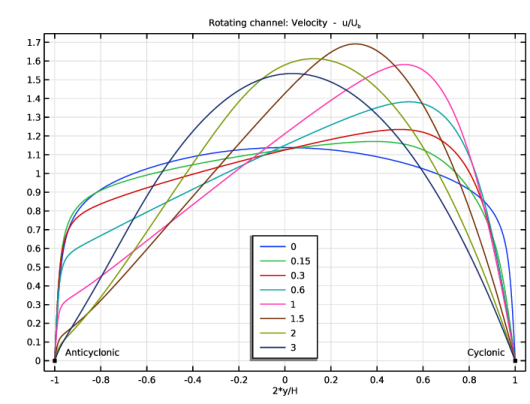
In the Settings window for 1D Plot Group, type Rotating channel: velocity profiles in the Label text field.
|
|
3
|
|
4
|
|
5
|
|
6
|
|
7
|
Locate the Plot Settings section.
|
|
8
|
|
9
|
Select the y-axis label checkbox.
|
|
10
|
|
1
|
|
3
|
|
4
|
|
5
|
|
6
|
|
7
|
|
8
|
|
1
|
|
2
|
|
3
|
|
4
|
|
5
|
|
1
|
|
2
|
|
3
|
|
4
|
|
5
|
|
1
|
|
2
|
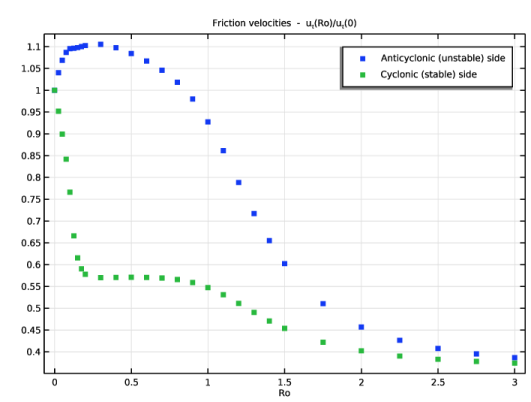
In the Settings window for 1D Plot Group, type Rotating channel: friction velocities in the Label text field.
|
|
3
|
|
4
|
|
5
|
Locate the Plot Settings section.
|
|
6
|
|
7
|
Select the y-axis label checkbox.
|
|
1
|
|
2
|
|
4
|
Click to expand the Coloring and Style section. Find the Line style subsection. From the Line list, choose None.
|
|
5
|
|
6
|
|
1
|
|
2
|
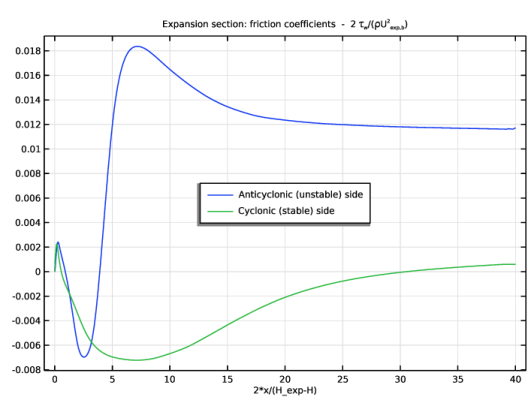
In the Settings window for 1D Plot Group, type Expanded section: friction coefficients in the Label text field.
|
|
3
|
|
4
|
|
5
|
In the Title text area, type Expansion section: friction coefficients - 2 \tau<sub>w</sub>/(\rho U<sup>2</sup><sub>exp,b</sub>).
|
|
6
|
Locate the Plot Settings section.
|
|
7
|
|
8
|
Select the y-axis label checkbox.
|
|
9
|
|
1
|
|
3
|
|
4
|
|
5
|
|
6
|
|
7
|
|
8
|
|
1
|
|
2
|
|
3
|
|
4
|
|
6
|
Locate the Legends section. In the table, enter the following settings:
|
|
1
|
|
2
|
|
3
|
|
4
|
|
5
|
|
6
|
|
1
|
|
2
|
|
3
|
|
4
|
|
5
|
|
1
|
|
2
|
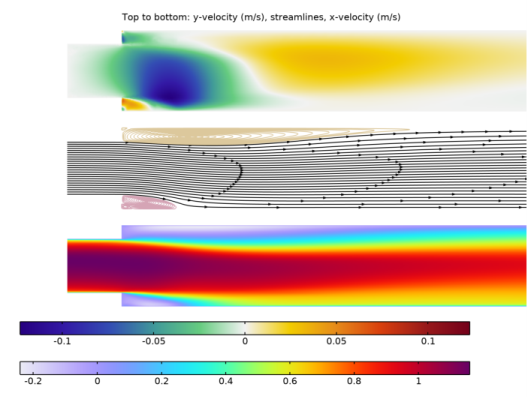
In the Settings window for 2D Plot Group, type Velocity and streamlines (spf2) in the Label text field.
|
|
3
|
|
4
|
|
5
|
|
6
|
|
7
|
|
8
|
|
9
|
|
10
|
|
11
|
|
1
|
|
2
|
|
3
|
|
4
|
|
5
|
|
6
|
|
7
|
|
8
|
|
9
|
|
1
|
|
2
|
|
3
|
|
4
|
|
5
|
|
7
|
Locate the Coloring and Style section. Find the Point style subsection. From the Type list, choose Arrow.
|
|
8
|
|
9
|
|
10
|
|
11
|
|
1
|
|
2
|
|
3
|
|
4
|
|
5
|
Locate the Coloring and Style section. Find the Point style subsection. From the Type list, choose None.
|
|
6
|
|
7
|
|
8
|
Click Define custom colors.
|
|
10
|
Click Add to custom colors.
|
|
11
|
|
1
|
|
2
|
|
3
|
|
4
|
|
6
|
Click Add to custom colors.
|
|
7
|
|
1
|
|
2
|
|
3
|
|
4
|
|
5
|
|
6
|
|
7
|
|
8
|
|
1
|
|
2
|
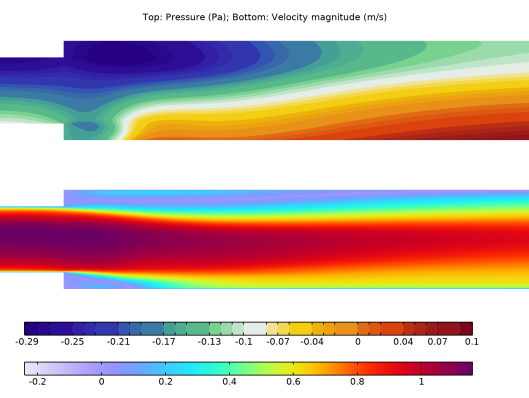
In the Settings window for 2D Plot Group, type Pressure and velocity (spf2) in the Label text field.
|
|
3
|
|
4
|
|
5
|
|
6
|
|
7
|
|
8
|
|
9
|
|
10
|
|
11
|
|
1
|
|
2
|
|
3
|
|
4
|
|
1
|
|
2
|
|
3
|
|
4
|
|
5
|
|
6
|
|
7
|
|
8
|
|
9
|
|
1
|
|
2
|
|
3
|
|
4
|
|
5
|
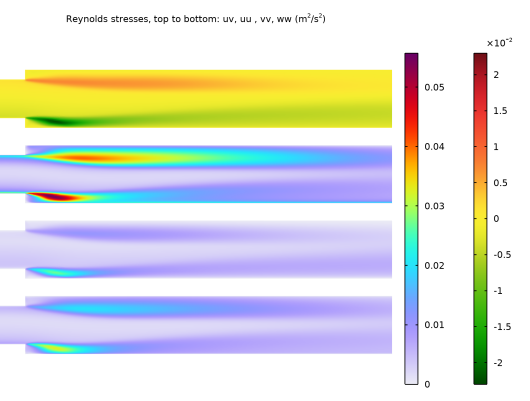
In the Title text area, type Reynolds stresses, top to bottom: uv, uu , vv, ww (m<sup>2</sup>/s<sup>2</sup>).
|
|
6
|
Clear the Parameter indicator text field.
|
|
7
|
|
8
|
|
9
|
|
1
|
|
2
|
|
3
|
|
4
|
|
1
|
|
2
|
|
3
|
|
4
|
|
1
|
|
2
|
|
3
|
|
1
|
In the Model Builder window, under Results > Reynolds stresses right-click Surface 1 and choose Duplicate.
|
|
2
|
|
3
|
|
4
|
|
5
|
|
6
|
|
7
|
|
8
|


