
|
|
|





|
10-7 m/s
|
||
|
7.5·10-3 kg/s
|
||
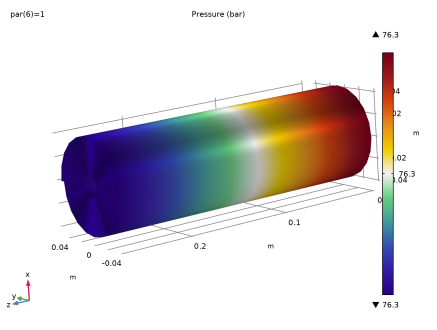
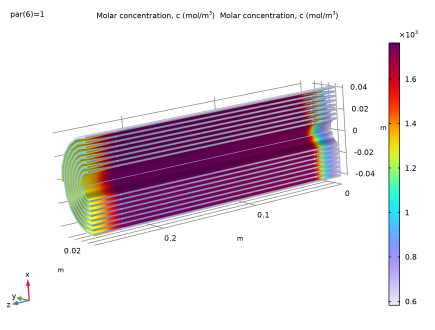
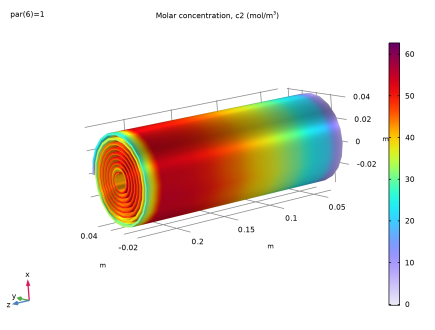
|
1
|
|
2
|
In the Select Physics tree, select Fluid Flow > Porous Media and Subsurface Flow > Free and Porous Media Flow, Darcy.
|
|
3
|
Click Add.
|
|
4
|
|
5
|
Click Add.
|
|
6
|
In the Select Physics tree, select Chemical Species Transport > Transport of Diluted Species in Porous Media (tds).
|
|
7
|
Click Add.
|
|
8
|
Click
 Study. Study. |
|
9
|
|
10
|
Click
 Done. Done. |
|
1
|
|
2
|
|
3
|
|
4
|
|
5
|
|
6
|
|
1
|
|
2
|
|
3
|
Select the Keep input objects checkbox.
|
|
4
|
Select the object pc1 only.
|
|
5
|
|
6
|
|
1
|
Right-click Component 1 (comp1) > Geometry 1 > Work Plane 1 (wp1) > Plane Geometry > Thicken 1 (thi1) and choose Duplicate.
|
|
2
|
|
3
|
|
4
|
|
1
|
In the Model Builder window, under Component 1 (comp1) > Geometry 1 right-click Work Plane 1 (wp1) and choose Extrude.
|
|
2
|
|
1
|
|
2
|
|
3
|
|
1
|
|
2
|
Select the object ext1 only.
|
|
3
|
|
4
|
|
1
|
|
2
|
Click
 Build All. Build All. |
|
1
|
|
2
|
|
3
|
Click
 Load from File. Load from File. |
|
4
|
Browse to the model’s Application Libraries folder and double-click the file reverse_osmosis_desalination_parameters.txt.
|
|
1
|
In the Model Builder window, under Component 1 (comp1) right-click Materials and choose Blank Material.
|
|
2
|
|
1
|
|
3
|
|
4
|
Click
 Create Selection. Create Selection. |
|
5
|
|
6
|
Click OK.
|
|
1
|
|
2
|
|
3
|
|
4
|
Click
 Create Selection. Create Selection. |
|
5
|
|
6
|
Click OK.
|
|
7
|
|
8
|
From the list, choose Mass flow.
|
|
9
|
|
1
|
|
2
|
|
3
|
|
4
|
Click
 Create Selection. Create Selection. |
|
5
|
|
6
|
Click OK.
|
|
7
|
|
8
|
From the list, choose Mass flow.
|
|
9
|
|
1
|
|
3
|
|
4
|
|
5
|
|
1
|
|
3
|
|
4
|
Click
 Create Selection. Create Selection. |
|
5
|
|
6
|
Click OK.
|
|
7
|
|
8
|
In the Show More Options dialog, in the tree, select the checkbox for the node Physics > Advanced Physics Options.
|
|
9
|
Click OK.
|
|
10
|
|
11
|
|
12
|
|
13
|
Select the Compute boundary fluxes checkbox.
|
|
1
|
|
3
|
|
4
|
Click
 Create Selection. Create Selection. |
|
5
|
|
6
|
Click OK.
|
|
1
|
In the Model Builder window, under Component 1 (comp1) > Multiphysics click Free and Porous Media Flow Coupling 1 (nsd1).
|
|
2
|
In the Settings window for Free and Porous Media Flow Coupling, locate the Boundary Selection section.
|
|
3
|
Click
 Create Selection. Create Selection. |
|
4
|
|
5
|
Click OK.
|
|
6
|
In the Settings window for Free and Porous Media Flow Coupling, locate the Coupling Settings section.
|
|
7
|
Select the Include pressure jump across free-porous boundary checkbox.
|
|
8
|
|
1
|
|
2
|
|
3
|
|
4
|
|
5
|
Click to expand the Advanced Settings section. From the Material balance form list, choose Conservative.
|
|
1
|
In the Model Builder window, under Component 1 (comp1) > Transport of Diluted Species (tds) click Fluid 1.
|
|
2
|
|
3
|
|
4
|
|
1
|
|
2
|
|
3
|
|
4
|
|
1
|
|
2
|
|
3
|
Select the Include checkbox.
|
|
1
|
|
2
|
|
3
|
|
1
|
|
2
|
|
3
|
|
4
|
|
5
|
|
6
|
|
1
|
In the Model Builder window, under Component 1 (comp1) click Transport of Diluted Species in Porous Media 2 (tds2).
|
|
2
|
In the Settings window for Transport of Diluted Species in Porous Media, locate the Domain Selection section.
|
|
3
|
|
4
|
Click to expand the Advanced Settings section. From the Material balance form list, choose Conservative.
|
|
1
|
In the Model Builder window, under Component 1 (comp1) > Transport of Diluted Species in Porous Media 2 (tds2) > Porous Medium 1 click Fluid 1.
|
|
2
|
|
3
|
|
4
|
|
1
|
In the Model Builder window, under Component 1 (comp1) > Transport of Diluted Species in Porous Media 2 (tds2) click No Flux 1.
|
|
2
|
|
3
|
Select the Include checkbox.
|
|
1
|
|
2
|
|
3
|
|
1
|
|
2
|
|
3
|
|
4
|
|
5
|
|
6
|
|
1
|
|
2
|
|
3
|
|
1
|
|
3
|
|
4
|
|
5
|
|
6
|
|
7
|
Select the Symmetric distribution checkbox.
|
|
1
|
|
2
|
|
3
|
|
1
|
|
1
|
|
2
|
|
3
|
|
1
|
|
2
|
|
3
|
|
1
|
|
1
|
|
3
|
|
4
|
|
1
|
|
1
|
|
2
|
|
3
|
|
1
|
|
2
|
|
3
|
|
1
|
|
2
|
|
3
|
|
1
|
|
2
|
|
3
|
|
4
|
Click
 Build All. Build All. |
|
1
|
|
2
|
|
3
|
Select the Auxiliary sweep checkbox.
|
|
4
|
Click
 Add. Add. |
|
6
|
|
7
|
|
1
|
|
2
|
|
3
|
In the Model Builder window, expand the Study 1 > Solver Configurations > Solution 1 (sol1) > Stationary Solver 1 node.
|
|
4
|
Right-click Study 1 > Solver Configurations > Solution 1 (sol1) > Stationary Solver 1 and choose Fully Coupled.
|
|
5
|
In the Model Builder window, expand the Study 1 > Solver Configurations > Solution 1 (sol1) > Dependent Variables 1 node, then click Concentration (comp1.c).
|
|
6
|
|
7
|
|
8
|
|
9
|
In the Model Builder window, under Study 1 > Solver Configurations > Solution 1 (sol1) > Dependent Variables 1 click Concentration (comp1.c2).
|
|
10
|
|
11
|
|
12
|
|
13
|
In the Model Builder window, under Study 1 > Solver Configurations > Solution 1 (sol1) > Dependent Variables 1 click Pressure Lagrange Multiplier (comp1.dl.pb_lm).
|
|
14
|
|
15
|
|
16
|
|
17
|
In the Model Builder window, under Study 1 > Solver Configurations > Solution 1 (sol1) > Dependent Variables 1 click Pressure (comp1.p).
|
|
18
|
|
19
|
|
20
|
|
21
|
In the Model Builder window, under Study 1 > Solver Configurations > Solution 1 (sol1) > Dependent Variables 1 click Pressure (comp1.p2).
|
|
22
|
|
23
|
|
24
|
|
25
|
In the Model Builder window, under Study 1 > Solver Configurations > Solution 1 (sol1) > Dependent Variables 1 click Velocity Field (comp1.u).
|
|
26
|
|
27
|
|
28
|
In the Model Builder window, under Study 1 > Solver Configurations > Solution 1 (sol1) > Dependent Variables 1 click Pressure from mass flow rate (comp1.spf.inl1.Pmf).
|
|
29
|
|
30
|
|
31
|
|
32
|
|
1
|
|
2
|
|
3
|
Clear the Plot dataset edges checkbox.
|
|
4
|
|
1
|
|
2
|
|
3
|
|
4
|
|
5
|
|
6
|
|
1
|
|
2
|
|
3
|
Clear the Plot dataset edges checkbox.
|
|
1
|
|
2
|
|
3
|
|
4
|
|
5
|
|
1
|
|
2
|
|
3
|
Clear the Plot dataset edges checkbox.
|
|
1
|
|
2
|
|
3
|
|
4
|
|
1
|
|
2
|
|
3
|
|
4
|
|
5
|
|
6
|
|
7
|
|
1
|
|
2
|
|
3
|
Clear the Plot dataset edges checkbox.
|
|
4
|
|
1
|
|
2
|
|
3
|
|
4
|
Click OK.
|
|
5
|
|
6
|
Clear the Plot dataset edges checkbox.
|
|
1
|
|
2
|
|
3
|
|
4
|
|
5
|
Locate the Coloring and Style section. Find the Line style subsection. From the Type list, choose Tube.
|
|
1
|
|
2
|
|
3
|
|
1
|
|
2
|
In the Settings window for Streamline, click Replace Expression in the upper-right corner of the Expression section. From the menu, choose Component 1 (comp1) > Darcy’s Law > Velocity and pressure > dl.u,dl.v,dl.w - Total Darcy velocity field.
|
|
3
|
Locate the Streamline Positioning section. From the Positioning list, choose Starting-point controlled.
|
|
4
|
Locate the Coloring and Style section. Find the Line style subsection. From the Type list, choose Tube.
|
|
1
|
|
2
|
|
3
|
|
4
|
|
1
|
|
2
|
|
3
|
|
4
|
|
1
|
|
2
|
|
3
|
|
4
|
|
5
|
|
6
|
|
7
|
|
8
|
|
1
|
|
2
|
|
3
|
|
4
|
Click Add Expression in the upper-right corner of the Expressions section. From the menu, choose Component 1 (comp1) > Laminar Flow > Auxiliary variables > spf.inl1.massFlowRate - Outward mass flow rate across feature selection - kg/s.
|
|
5
|
Locate the Expressions section. In the table, enter the following settings:
|
|
6
|
Click Add Expression in the upper-right corner of the Expressions section. From the menu, choose Component 1 (comp1) > Laminar Flow > Auxiliary variables > spf.out1.massFlowRate - Outward mass flow rate across feature selection - kg/s.
|
|
7
|
Locate the Expressions section. In the table, enter the following settings:
|
|
8
|
Click Add Expression in the upper-right corner of the Expressions section. From the menu, choose Component 1 (comp1) > Darcy’s Law > Mass flow > dl.pr1.Mflow - Mass flow - kg/s.
|
|
9
|
Locate the Expressions section. In the table, enter the following settings:
|
|
10
|
Click
 Evaluate. Evaluate. |
|
1
|
|
2
|
|
3
|
|
4
|
Click Add Expression in the upper-right corner of the Expressions section. From the menu, choose Component 1 (comp1) > Transport of Diluted Species > Inflow 1 > tds.in1.nmflow_c - Normal molar flow rate - mol/s.
|
|
5
|
Locate the Expressions section. In the table, enter the following settings:
|
|
6
|
Click Add Expression in the upper-right corner of the Expressions section. From the menu, choose Component 1 (comp1) > Transport of Diluted Species > Outflow 1 > tds.out1.nmflow_c - Normal molar flow rate - mol/s.
|
|
7
|
Locate the Expressions section. In the table, enter the following settings:
|
|
8
|
Click Add Expression in the upper-right corner of the Expressions section. From the menu, choose Component 1 (comp1) > Transport of Diluted Species in Porous Media 2 > Outflow 1 > tds2.out1.nmflow_c2 - Normal molar flow rate - mol/s.
|
|
9
|
Locate the Expressions section. In the table, enter the following settings:
|
|
10
|
|
1
|
|
2
|
|
3
|
|
4
|
Click Add Expression in the upper-right corner of the Expressions section. From the menu, choose Component 1 (comp1) > Transport of Diluted Species > Inflow 1 > tds.in1.c0_avg_c - Average concentration - mol/m³.
|
|
5
|
Click Add Expression in the upper-right corner of the Expressions section. From the menu, choose Component 1 (comp1) > Transport of Diluted Species > Outflow 1 > tds.out1.c0_avg_c - Average concentration - mol/m³.
|
|
6
|
Click Add Expression in the upper-right corner of the Expressions section. From the menu, choose Component 1 (comp1) > Transport of Diluted Species in Porous Media 2 > Outflow 1 > tds2.out1.c0_avg_c2 - Average concentration - mol/m³.
|
|
7
|
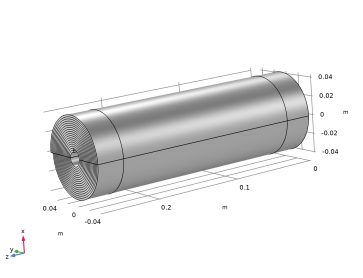


 next to
 next to


 next to

 next to