
PDF

Transonic Flow over the ONERA M6 Wing
Introduction
The present example demonstrates how to set up the classical external-flow problem of solving for the high-speed, compressible, turbulent flow over the ONERA M6 wing. The example originates from experiments performed in the 1970s (Ref. 1), which were designed to be used in the validation of simulation codes. The problem involves finding a steady-state solution of the flow field around the 3D, swept wing geometry for different flow speeds and angles of attack. However, the present example looks at transonic flow speeds and a moderately high angle of attack, leading to the formation of weak shocks on the upper surface of the wing. The High Mach Number Flow, Spalart–Allmaras interface is set-up to solve for the flow of air, while assuming ideal gas conditions. The validation of the numerical solution is performed by the comparison of the computed surface values of the nondimensional coefficient of pressure, Cp, with the experimental values at various cross-sections along the span of the wing.
Model Definition
Geometry
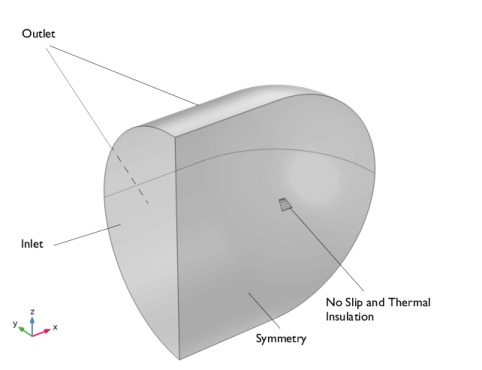
The geometry involves an enclosure around the wing large enough such that far-field conditions for the inlet and outlet boundaries may be imposed suitably. The enclosing boundary is placed at a distance of 10C0 from the wing, where C0 is the chord length at the base of the wing; see Figure 1. The geometry of the wing, imported as a CAD file, is obtained from Ref. 2. In this case, a sharp trailing edge is created (as opposed to a blunt trailing edge used in the experiments), which is suitable for numerical simulations (see Ref. 3).
Physics Interface Settings
The High Mach Number Flow interface and Spalart–Allmaras turbulence model with automatic wall treatment model the flow of air under ideal gas conditions. Additionally the Sutherland’s law accounts for the dependency of thermal conductivity k and dynamic viscosity μ on temperature.
Initial and Boundary Conditions
The initial condition corresponds to a pressure of 1 atm. The inlet Mach number is incremented in stages using the auxiliary sweep functionality available in the Stationary study step. The Mach number is computed as MstepM, where, the value of the parameter Mstep for the first auxiliary sweep is taken to be 0.25 and incremented up to a value of 1. Here, the desired far-field Mach number, M, is taken to be 0.84. The no slip wall condition and thermal insulation conditions are applied to the wing surface. The characteristics-based inflow condition is specified at the inlet boundary. The hybrid flow condition with a static pressure of 1 atm is applied at the outflow boundary. Also, a symmetry condition is applied to minimize the number of degrees of freedom of the problem.
Figure 1: A schematic of the geometry and boundary conditions of the problem.
Meshing
The meshing process begins with a swept surface mesh on the wing from a suitable predefined distribution of mesh nodes on the wing’s profile. A free triangular mesh is applied for the wing tip surface. As a final step, a volume mesh is populated in the domain with a suitable spatial resolution and element growth rate.
sTudy
The study contains a Wall Distance Initialization step followed by the Stationary step. The Stationary step involves an aforementioned auxiliary sweep of the parameter Mstep in order to increment the far-field Mach number to the desired value.
Results and Discussion
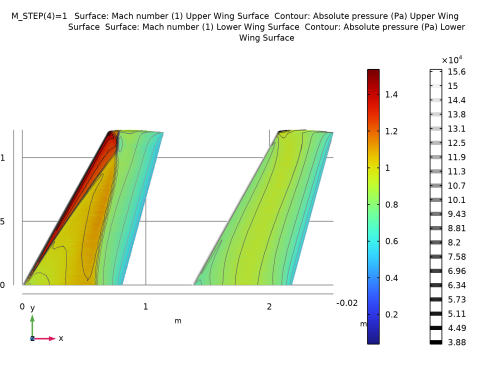
The steady-state solution on the wing is visualized through the surface plot of the Mach number with contours of pressure as shown in Figure 2. A merging of two weak shocks along the span of the wing is noticeable.
Figure 2: Surface plots of Mach number with contours of absolute pressure. The upper and lower surfaces of the wing are shown in the left and the right plots, respectively.
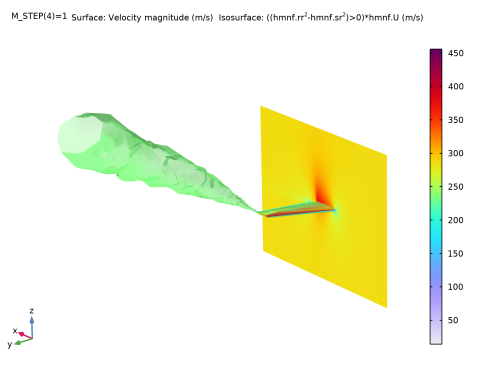
The vorticity generated as a consequence of pressure (and velocity) difference between the upper and the lower surfaces of the wing at the wing tip is clearly visible in Figure 3 which plots an isosurface of the Q-criterion. All surfaces, including the aforementioned isosurface, plot the fluid velocity.
Figure 3: An isosurface of the Q-criterion shows the vortex emerging from the wing tip. All surfaces, including the aforementioned isosurface, plot the fluid velocity.
The validation of the simulations is provided by the comparison with the experiments of the coefficient of pressure, given by the expression
(1)
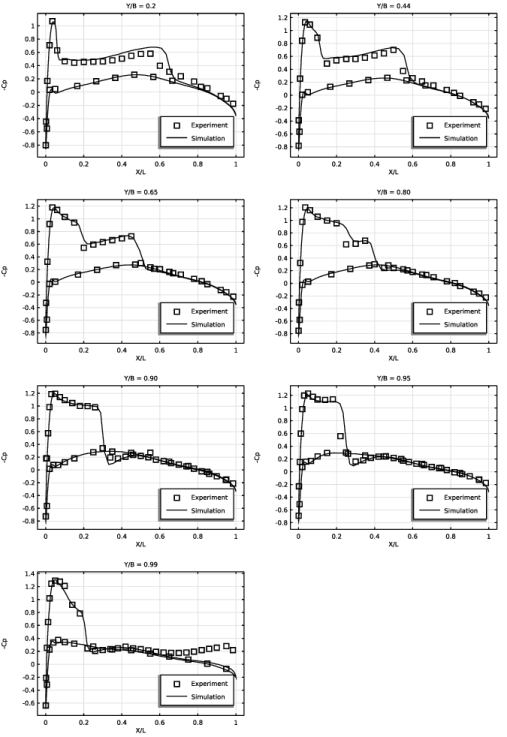
where p is the pressure, γ is the ratio of specific heats of the fluid, and the subscript signifies far-field values. Figure 4, which shows the comparison at both the top and bottom edges of the wing and at several locations along its span, indicates a good correlation between the experiment and the simulation results. The location of the shocks and the magnitude of the jumps in the pressure coefficient are captured accurately.
Figure 4: A comparison of Cp values at different locations along the wing span.
References
1. V. Schmitt and F. Charpin, “Pressure Distributions on the ONERA-M6-Wing at Transonic Mach Numbers,” Experimental Data Base for Computer Program Assessment, report of the Fluid Dynamics Panel Working Group 04, AGARD AR 138, May 1979.
2. NASA Langley Research Center Turbulence Modeling Resource, 3D ONERA M6 Wing Validation Case, turbmodels.larc.nasa.gov/onerawingnumerics_val.html.
3. J. Mayeur, A. Dumont, D. Destarac, and V. Gleize, “RANS simulations on TMR test cases and M6 wing with the Onera elsA flow solver,” 54th AIAA Aerospace Sciences Meeting, pp. 2015–1745, 2015.
Application Library path: CFD_Module/High_Mach_Number_Flow/onera_m6_wing
Modeling Instructions
From the File menu, choose New.
New
In the New window, click  Blank Model.
Add Component
In the Home toolbar, click  Add Component and choose 3D.
Geometry 1
Set the geometry representation to use the CAD Kernel. Import the geometry from the prepared geometry sequence. Refer to the end of the documentation on instructions to create the geometry sequence.
1
In the Settings window for Geometry, locate the Advanced section.
2
From the Geometry representation list, choose CAD kernel.
3
In the Geometry toolbar, click Insert Sequence and choose Insert Sequence.
4
5
In the Geometry toolbar, click  Build All.
Disable the analysis of the geometry as the remaining small geometric details are needed.
6
Locate the Cleanup section. Clear the Automatic detection of small details checkbox.
7
Click the  Zoom Extents button in the Graphics toolbar.
Global Definitions
Parameters 2
1
In the Home toolbar, click  Parameters and choose Add > Parameters.
2
In the Settings window for Parameters, locate the Parameters section.
3
Add Material
1
In the Materials toolbar, click  Add Material to open the Add Material window.
2
Go to the Add Material window.
3
In the tree, select Built-in > Air.
4
Right-click and choose Add to Component 1 (comp1).
5
In the Materials toolbar, click  Add Material to close the Add Material window.
Definitions
Prepare explicit surface and edge selections to help in applying boundary conditions, generating the mesh and plotting the results.
Top and bottom surfaces of the wing
1
In the Definitions toolbar, click  Explicit.
2
In the Settings window for Explicit, type Top and bottom surfaces of the wing in the Label text field.
3
Locate the Input Entities section. From the Geometric entity level list, choose Boundary.
4
Click  Paste Selection.
5
In the Paste Selection dialog, type 5-20 in the Selection text field.
6
Trailing edge surfaces of the wing
1
In the Definitions toolbar, click  Explicit.
2
In the Settings window for Explicit, type Trailing edge surfaces of the wing in the Label text field.
3
Locate the Input Entities section. From the Geometric entity level list, choose Boundary.
4
Click  Paste Selection.
5
In the Paste Selection dialog, type 25-40 in the Selection text field.
6
Tip surfaces of the wing
1
In the Definitions toolbar, click  Explicit.
2
In the Settings window for Explicit, type Tip surfaces of the wing in the Label text field.
3
Locate the Input Entities section. From the Geometric entity level list, choose Boundary.
4
Click  Paste Selection.
5
In the Paste Selection dialog, type 21-24, 41, 42 in the Selection text field.
6
All surfaces of the wing
1
In the Definitions toolbar, click  Union.
2
In the Settings window for Union, type All surfaces of the wing in the Label text field.
3
Locate the Geometric Entity Level section. From the Level list, choose Boundary.
4
Locate the Input Entities section. Under Selections to add, click  Add.
5
In the Add dialog, in the Selections to add list, choose Top and bottom surfaces of the wing, Trailing edge surfaces of the wing, and Tip surfaces of the wing.
6
Edges of the wing at Y/B = 0.20
1
In the Definitions toolbar, click  Explicit.
2
In the Settings window for Explicit, type Edges of the wing at Y/B = 0.20 in the Label text field.
3
Locate the Input Entities section. From the Geometric entity level list, choose Edge.
4
Click  Paste Selection.
5
In the Paste Selection dialog, type 11, 12, 44, 46 in the Selection text field.
6
Edges of the wing at Y/B = 0.44
1
In the Definitions toolbar, click  Explicit.
2
In the Settings window for Explicit, type Edges of the wing at Y/B = 0.44 in the Label text field.
3
Locate the Input Entities section. From the Geometric entity level list, choose Edge.
4
Click  Paste Selection.
5
In the Paste Selection dialog, type 14, 15, 49, 51 in the Selection text field.
6
Edges of the wing at Y/B = 0.65
1
In the Definitions toolbar, click  Explicit.
2
In the Settings window for Explicit, type Edges of the wing at Y/B = 0.65 in the Label text field.
3
Locate the Input Entities section. From the Geometric entity level list, choose Edge.
4
Click  Paste Selection.
5
In the Paste Selection dialog, type 17, 18, 54, 56 in the Selection text field.
6
Edges of the wing at Y/B = 0.80
1
In the Definitions toolbar, click  Explicit.
2
In the Settings window for Explicit, type Edges of the wing at Y/B = 0.80 in the Label text field.
3
Locate the Input Entities section. From the Geometric entity level list, choose Edge.
4
Click  Paste Selection.
5
In the Paste Selection dialog, type 20, 21, 59, 61 in the Selection text field.
6
Edges of the wing at Y/B = 0.90
1
In the Definitions toolbar, click  Explicit.
2
In the Settings window for Explicit, type Edges of the wing at Y/B = 0.90 in the Label text field.
3
Locate the Input Entities section. From the Geometric entity level list, choose Edge.
4
Click  Paste Selection.
5
In the Paste Selection dialog, type 23, 24, 64, 66 in the Selection text field.
6
Edges of the wing at Y/B = 0.95
1
In the Definitions toolbar, click  Explicit.
2
In the Settings window for Explicit, type Edges of the wing at Y/B = 0.95 in the Label text field.
3
Locate the Input Entities section. From the Geometric entity level list, choose Edge.
4
Click  Paste Selection.
5
In the Paste Selection dialog, type 26, 27, 69, 71 in the Selection text field.
6
Edges of the wing at Y/B = 0.99
1
In the Definitions toolbar, click  Explicit.
2
In the Settings window for Explicit, type Edges of the wing at Y/B = 0.99 in the Label text field.
3
Locate the Input Entities section. From the Geometric entity level list, choose Edge.
4
Click  Paste Selection.
5
In the Paste Selection dialog, type 29, 30, 74, 76 in the Selection text field.
6
Mesh 1
Generate a suitable surface mesh for the wing, followed by an appropriate volume mesh for the computational domain.
1
In the Model Builder window, under Component 1 (comp1) click Mesh 1.
2
In the Settings window for Mesh, locate the Sequence Type section.
3
From the list, choose User-controlled mesh.
Edge 1
Create an edge mesh with appropriate node distribution.
1
In the Mesh toolbar, click  More Generators and choose Edge.
2
In the Settings window for Edge, locate the Edge Selection section.
3
Click  Paste Selection.
4
In the Paste Selection dialog, type 8, 9, 11, 12, 14, 15, 17, 18, 20, 21, 23, 24, 26, 27, 29, 30 in the Selection text field.
5
Distribution 1
1
Right-click Edge 1 and choose Distribution.
2
In the Settings window for Distribution, locate the Distribution section.
3
From the Distribution type list, choose Predefined.
4
In the Number of elements text field, type 100.
5
In the Element ratio text field, type 20.
6
From the Growth rate list, choose Exponential.
7
Select the Symmetric distribution checkbox.
Edge 2
1
In the Mesh toolbar, click  More Generators and choose Edge.
2
In the Settings window for Edge, locate the Edge Selection section.
3
Click  Paste Selection.
4
In the Paste Selection dialog, type 39, 41, 44, 46, 49, 51, 54, 56, 59, 61, 64, 66, 69, 71, 74, 76, 80, 82, 83 in the Selection text field.
5
Distribution 1
1
Right-click Edge 2 and choose Distribution.
2
In the Settings window for Distribution, locate the Distribution section.
3
In the Number of elements text field, type 4.
Mapped 1
Create a surface mesh, which preserves the curvature of the wing profile, using the mapped mesh functionality.
1
In the Mesh toolbar, click  More Generators and choose Mapped.
2
In the Settings window for Mapped, locate the Boundary Selection section.
3
Click  Paste Selection.
4
In the Paste Selection dialog, type 5-18, 25-40 in the Selection text field.
5
Size 1
1
Right-click Mapped 1 and choose Size.
2
In the Settings window for Size, locate the Element Size section.
3
From the Calibrate for list, choose Fluid dynamics.
4
From the Predefined list, choose Extremely fine.
5
Click the Custom button.
6
Locate the Element Size Parameters section.
7
Select the Maximum element size checkbox. In the associated text field, type 4e-3.
8
Select the Minimum element size checkbox. In the associated text field, type 4e-3.
Convert 1
Create a surface mesh with triangular elements at the wing tip and the trailing edge. This ensures good element quality in the volume mesh generated in the next step.
1
In the Mesh toolbar, click  Modify and choose Convert.
2
In the Settings window for Convert, locate the Geometric Entity Selection section.
3
From the Geometric entity level list, choose Boundary.
4
Click  Paste Selection.
5
In the Paste Selection dialog, type 39, 40 in the Selection text field.
6
7
In the Settings window for Convert, locate the Element Split Method section.
8
From the Element split method list, choose Insert centerpoints.
Convert 2
1
In the Mesh toolbar, click  Modify and choose Convert.
2
In the Settings window for Convert, locate the Geometric Entity Selection section.
3
From the Geometric entity level list, choose Boundary.
4
Click  Paste Selection.
5
In the Paste Selection dialog, type 25-38 in the Selection text field.
6
Free Triangular 1
1
In the Mesh toolbar, click  More Generators and choose Free Triangular.
2
In the Settings window for Free Triangular, locate the Boundary Selection section.
3
Click  Paste Selection.
4
In the Paste Selection dialog, type 19-24, 41, 42 in the Selection text field.
5
Size 1
1
Right-click Free Triangular 1 and choose Size.
2
In the Settings window for Size, locate the Element Size section.
3
From the Calibrate for list, choose Fluid dynamics.
4
From the Predefined list, choose Extremely fine.
5
Click the Custom button.
6
Locate the Element Size Parameters section.
7
Select the Maximum element size checkbox. In the associated text field, type 4e-3.
8
Select the Minimum element size checkbox. In the associated text field, type 1e-3.
Size
As a final step in meshing, generate the volume mesh.
1
In the Model Builder window, under Component 1 (comp1) > Mesh 1 click Size.
2
In the Settings window for Size, locate the Element Size section.
3
From the Calibrate for list, choose Fluid dynamics.
4
From the Predefined list, choose Coarse.
5
Click the Custom button.
6
Locate the Element Size Parameters section. In the Maximum element size text field, type 4.
7
In the Minimum element size text field, type 1e-3.
8
In the Maximum element growth rate text field, type 1.1.
Free Tetrahedral 1
1
In the Model Builder window, click Free Tetrahedral 1.
2
Drag and drop below Free Triangular 1.
3
In the Model Builder window, right-click Mesh 1 and choose Build All.
Add Physics
1
In the Home toolbar, click  Add Physics to open the Add Physics window.
2
Go to the Add Physics window.
3
In the tree, select Fluid Flow > High Mach Number Flow > Turbulent Flow > High Mach Number Flow, Spalart–Allmaras (hmnf).
4
Click the Add to Component 1 button in the window toolbar.
5
In the Home toolbar, click  Add Physics to close the Add Physics window.
High Mach Number Flow, Spalart–Allmaras (hmnf)
Initial Values 1
1
In the Model Builder window, under Component 1 (comp1) > High Mach Number Flow, Spalart–Allmaras (hmnf) click Initial Values 1.
2
In the Settings window for Initial Values, locate the Initial Values section.
3
Specify the u vector as
Symmetry 1
1
In the Physics toolbar, click  Boundaries and choose Symmetry.
2
In the Settings window for Symmetry, locate the Boundary Selection section.
3
Click  Paste Selection.
4
In the Paste Selection dialog, type 2 in the Selection text field.
5
Inlet 1
1
In the Physics toolbar, click  Boundaries and choose Inlet.
2
In the Settings window for Inlet, locate the Boundary Selection section.
3
Click  Paste Selection.
4
In the Paste Selection dialog, type 1 in the Selection text field.
5
6
In the Settings window for Inlet, locate the Flow Properties section.
7
In the T0,stat text field, type 293.15[K].
8
In the Ma0 text field, type M_INF*M_STEP.
Outlet 1
1
In the Physics toolbar, click  Boundaries and choose Outlet.
2
In the Settings window for Outlet, locate the Boundary Selection section.
3
Click  Paste Selection.
4
In the Paste Selection dialog, type 3-4 in the Selection text field.
5
Add Study
1
In the Home toolbar, click  Add Study to open the Add Study window.
2
Go to the Add Study window.
3
Find the Studies subsection. In the Select Study tree, select Preset Studies for Selected Physics Interfaces > Stationary with Initialization.
4
Click the Add Study button in the window toolbar.
5
In the Home toolbar, click  Add Study to close the Add Study window.
Study 1
Step 2: Stationary
1
In the Model Builder window, click Step 2: Stationary.
2
In the Settings window for Stationary, click to expand the Study Extensions section.
3
Select the Auxiliary sweep checkbox.
4
5
The parameter M_STEP is used to sequentially increase the far-field Mach number values to the requisite transonic flow regime.
6
In the Model Builder window, click Study 1.
7
In the Settings window for Study, locate the Study Settings section.
8
Clear the Generate default plots checkbox.
9
In the Study toolbar, click  Compute.
Results
Table 2
Import tabulated experimental results.
1
In the Model Builder window, expand the Results node.
2
Right-click Results > Tables and choose Table.
Experimental Cp values along the top edge of the wing at Y/B = 0.20
1
In the Settings window for Table, type Experimental Cp values along the top edge of the wing at Y/B = 0.20 in the Label text field.
2
Locate the Data section. Click  Import.
3
Table 3
In the Results toolbar, click  Table.
Experimental Cp values along the bottom edge of the wing at Y/B = 0.20
1
In the Model Builder window, under Results > Tables click Table 2.
2
In the Settings window for Table, type Experimental Cp values along the bottom edge of the wing at Y/B = 0.20 in the Label text field.
3
Locate the Data section. Click  Import.
4
Table 4
In the Results toolbar, click  Table.
Experimental Cp values along the top edge of the wing at Y/B = 0.44
1
In the Model Builder window, under Results > Tables click Table 3.
2
In the Settings window for Table, type Experimental Cp values along the top edge of the wing at Y/B = 0.44 in the Label text field.
3
Locate the Data section. Click  Import.
4
Table 5
In the Results toolbar, click  Table.
Experimental Cp values along the bottom edge of the wing at Y/B = 0.44
1
In the Model Builder window, under Results > Tables click Table 4.
2
In the Settings window for Table, type Experimental Cp values along the bottom edge of the wing at Y/B = 0.44 in the Label text field.
3
Locate the Data section. Click  Import.
4
Table 6
In the Results toolbar, click  Table.
Experimental Cp values along the top edge of the wing at Y/B = 0.65
1
In the Model Builder window, under Results > Tables click Table 5.
2
In the Settings window for Table, type Experimental Cp values along the top edge of the wing at Y/B = 0.65 in the Label text field.
3
Locate the Data section. Click  Import.
4
Table 7
In the Results toolbar, click  Table.
Experimental Cp values along the bottom edge of the wing at Y/B = 0.65
1
In the Model Builder window, under Results > Tables click Table 6.
2
In the Settings window for Table, type Experimental Cp values along the bottom edge of the wing at Y/B = 0.65 in the Label text field.
3
Locate the Data section. Click  Import.
4
Table 8
In the Results toolbar, click  Table.
Experimental Cp values along the top edge of the wing at Y/B = 0.80
1
In the Model Builder window, under Results > Tables click Table 7.
2
In the Settings window for Table, type Experimental Cp values along the top edge of the wing at Y/B = 0.80 in the Label text field.
3
Locate the Data section. Click  Import.
4
Table 9
In the Results toolbar, click  Table.
Experimental Cp values along the bottom edge of the wing at Y/B = 0.80
1
In the Model Builder window, under Results > Tables click Table 8.
2
In the Settings window for Table, type Experimental Cp values along the bottom edge of the wing at Y/B = 0.80 in the Label text field.
3
Locate the Data section. Click  Import.
4
Table 10
In the Results toolbar, click  Table.
Experimental Cp values along the top edge of the wing at Y/B = 0.90
1
In the Model Builder window, under Results > Tables click Table 9.
2
In the Settings window for Table, type Experimental Cp values along the top edge of the wing at Y/B = 0.90 in the Label text field.
3
Locate the Data section. Click  Import.
4
Table 11
In the Results toolbar, click  Table.
Experimental Cp values along the bottom edge of the wing at Y/B = 0.90
1
In the Model Builder window, under Results > Tables click Table 10.
2
In the Settings window for Table, type Experimental Cp values along the bottom edge of the wing at Y/B = 0.90 in the Label text field.
3
Locate the Data section. Click  Import.
4
Table 12
In the Results toolbar, click  Table.
Experimental Cp values along the top edge of the wing at Y/B = 0.95
1
In the Model Builder window, under Results > Tables click Table 11.
2
In the Settings window for Table, type Experimental Cp values along the top edge of the wing at Y/B = 0.95 in the Label text field.
3
Locate the Data section. Click  Import.
4
Table 13
In the Results toolbar, click  Table.
Experimental Cp values along the bottom edge of the wing at Y/B = 0.95
1
In the Model Builder window, under Results > Tables click Table 12.
2
In the Settings window for Table, type Experimental Cp values along the bottom edge of the wing at Y/B = 0.95 in the Label text field.
3
Locate the Data section. Click  Import.
4
Table 14
In the Results toolbar, click  Table.
Experimental Cp values along the top edge of the wing at Y/B = 0.99
1
In the Model Builder window, under Results > Tables click Table 13.
2
In the Settings window for Table, type Experimental Cp values along the top edge of the wing at Y/B = 0.99 in the Label text field.
3
Locate the Data section. Click  Import.
4
Table 15
In the Results toolbar, click  Table.
Experimental Cp values along the bottom edge of the wing at Y/B = 0.99
1
In the Model Builder window, under Results > Tables click Table 14.
2
In the Settings window for Table, type Experimental Cp values along the bottom edge of the wing at Y/B = 0.99 in the Label text field.
3
Locate the Data section. Click  Import.
4
Cp values at Y/B = 0.20
Plot Cp values from experiment and simulation.
1
In the Results toolbar, click  1D Plot Group.
2
In the Settings window for 1D Plot Group, type Cp values at Y/B = 0.20 in the Label text field.
3
Locate the Data section. From the Parameter selection (M_STEP) list, choose Last.
4
Click to expand the Title section. From the Title type list, choose Manual.
5
In the Title text area, type Y/B = 0.2.
6
Locate the Plot Settings section.
7
Select the x-axis label checkbox. In the associated text field, type X/L.
8
Select the y-axis label checkbox. In the associated text field, type -Cp.
9
Locate the Legend section. From the Position list, choose Lower right.
Table Graph 1
1
Right-click Cp values at Y/B = 0.20 and choose Table Graph.
2
In the Settings window for Table Graph, locate the Coloring and Style section.
3
Find the Line style subsection. From the Line list, choose None.
4
From the Color list, choose Black.
5
Find the Line markers subsection. From the Marker list, choose Square.
6
Click to expand the Legends section. Select the Show legends checkbox.
7
From the Legends list, choose Manual.
8
Table Graph 2
1
Right-click Table Graph 1 and choose Duplicate.
2
In the Settings window for Table Graph, locate the Data section.
3
From the Table list, choose Experimental Cp values along the bottom edge of the wing at Y/B = 0.20.
4
Locate the Coloring and Style section. Find the Line markers subsection. From the Marker list, choose Square.
5
Locate the Legends section. Clear the Show legends checkbox.
Line Graph 1
1
In the Model Builder window, right-click Cp values at Y/B = 0.20 and choose Line Graph.
2
In the Settings window for Line Graph, locate the Selection section.
3
From the Selection list, choose Edges of the wing at Y/B = 0.20.
4
Locate the y-Axis Data section. In the Expression text field, type (1[atm] - hmnf.pA)/(0.5*hmnf.gamma*M_INF^2*1[atm]).
5
Locate the x-Axis Data section. From the Parameter list, choose Expression.
Normalize the position in the x direction with respect to the local chord length of the wing.
6
In the Expression text field, type (x-0.13793[m])/(0.87646[m]-0.13793[m]).
7
Click to expand the Coloring and Style section. From the Color list, choose Black.
8
Click to expand the Legends section. Select the Show legends checkbox.
9
From the Legends list, choose Manual.
10
Cp values at Y/B = 0.20
Similarly, reproduce the Cp plots at other sections along the wing span.
Cp values at Y/B = 0.44
1
In the Model Builder window, right-click Cp values at Y/B = 0.20 and choose Duplicate.
2
In the Settings window for 1D Plot Group, type Cp values at Y/B = 0.44 in the Label text field.
3
Locate the Title section. In the Title text area, type Y/B = 0.44.
Table Graph 1
1
In the Model Builder window, expand the Cp values at Y/B = 0.44 node, then click Table Graph 1.
2
In the Settings window for Table Graph, locate the Data section.
3
From the Table list, choose Experimental Cp values along the top edge of the wing at Y/B = 0.44.
Table Graph 2
1
In the Model Builder window, click Table Graph 2.
2
In the Settings window for Table Graph, locate the Data section.
3
From the Table list, choose Experimental Cp values along the bottom edge of the wing at Y/B = 0.44.
Line Graph 1
1
In the Model Builder window, click Line Graph 1.
2
In the Settings window for Line Graph, locate the Selection section.
3
From the Selection list, choose Edges of the wing at Y/B = 0.44.
4
Locate the x-Axis Data section. In the Expression text field, type (x-0.30346[m])/(0.95700[m]-0.30346[m]).
Cp values at Y/B = 0.65
1
In the Model Builder window, right-click Cp values at Y/B = 0.44 and choose Duplicate.
2
In the Settings window for 1D Plot Group, type Cp values at Y/B = 0.65 in the Label text field.
3
Locate the Title section. In the Title text area, type Y/B = 0.65.
Table Graph 1
1
In the Model Builder window, expand the Cp values at Y/B = 0.65 node, then click Table Graph 1.
2
In the Settings window for Table Graph, locate the Data section.
3
From the Table list, choose Experimental Cp values along the top edge of the wing at Y/B = 0.65.
Table Graph 2
1
In the Model Builder window, click Table Graph 2.
2
In the Settings window for Table Graph, locate the Data section.
3
From the Table list, choose Experimental Cp values along the bottom edge of the wing at Y/B = 0.65.
Line Graph 1
1
In the Model Builder window, click Line Graph 1.
2
In the Settings window for Line Graph, locate the Selection section.
3
From the Selection list, choose Edges of the wing at Y/B = 0.65.
4
Locate the x-Axis Data section. In the Expression text field, type (x-0.44829[m])/(1.0275[m]-0.44829[m]).
Cp values at Y/B = 0.80
1
In the Model Builder window, right-click Cp values at Y/B = 0.65 and choose Duplicate.
2
In the Settings window for 1D Plot Group, type Cp values at Y/B = 0.80 in the Label text field.
3
Locate the Title section. In the Title text area, type Y/B = 0.80.
Table Graph 1
1
In the Model Builder window, expand the Cp values at Y/B = 0.80 node, then click Table Graph 1.
2
In the Settings window for Table Graph, locate the Data section.
3
From the Table list, choose Experimental Cp values along the top edge of the wing at Y/B = 0.80.
Table Graph 2
1
In the Model Builder window, click Table Graph 2.
2
In the Settings window for Table Graph, locate the Data section.
3
From the Table list, choose Experimental Cp values along the bottom edge of the wing at Y/B = 0.80.
Line Graph 1
1
In the Model Builder window, click Line Graph 1.
2
In the Settings window for Line Graph, locate the Selection section.
3
From the Selection list, choose Edges of the wing at Y/B = 0.80.
4
Locate the x-Axis Data section. In the Expression text field, type (x-0.55174[m])/(1.0778[m]-0.55174[m]).
Cp values at Y/B = 0.90
1
In the Model Builder window, right-click Cp values at Y/B = 0.80 and choose Duplicate.
2
In the Settings window for 1D Plot Group, type Cp values at Y/B = 0.90 in the Label text field.
3
Locate the Title section. In the Title text area, type Y/B = 0.90.
Table Graph 1
1
In the Model Builder window, expand the Cp values at Y/B = 0.90 node, then click Table Graph 1.
2
In the Settings window for Table Graph, locate the Data section.
3
From the Table list, choose Experimental Cp values along the top edge of the wing at Y/B = 0.90.
Table Graph 2
1
In the Model Builder window, click Table Graph 2.
2
In the Settings window for Table Graph, locate the Data section.
3
From the Table list, choose Experimental Cp values along the bottom edge of the wing at Y/B = 0.90.
Line Graph 1
1
In the Model Builder window, click Line Graph 1.
2
In the Settings window for Line Graph, locate the Selection section.
3
From the Selection list, choose Edges of the wing at Y/B = 0.90.
4
Locate the x-Axis Data section. In the Expression text field, type (x-0.62070[m])/(1.1114[m]-0.62070[m]).
Cp values at Y/B = 0.95
1
In the Model Builder window, right-click Cp values at Y/B = 0.90 and choose Duplicate.
2
In the Settings window for 1D Plot Group, type Cp values at Y/B = 0.95 in the Label text field.
3
Locate the Title section. In the Title text area, type Y/B = 0.95.
Table Graph 1
1
In the Model Builder window, expand the Cp values at Y/B = 0.95 node, then click Table Graph 1.
2
In the Settings window for Table Graph, locate the Data section.
3
From the Table list, choose Experimental Cp values along the top edge of the wing at Y/B = 0.95.
Table Graph 2
1
In the Model Builder window, click Table Graph 2.
2
In the Settings window for Table Graph, locate the Data section.
3
From the Table list, choose Experimental Cp values along the bottom edge of the wing at Y/B = 0.95.
Line Graph 1
1
In the Model Builder window, click Line Graph 1.
2
In the Settings window for Line Graph, locate the Selection section.
3
From the Selection list, choose Edges of the wing at Y/B = 0.95.
4
Locate the x-Axis Data section. In the Expression text field, type (x-0.65519[m])/(1.1282[m]-0.65519[m]).
Cp values at Y/B = 0.99
1
In the Model Builder window, right-click Cp values at Y/B = 0.95 and choose Duplicate.
2
In the Settings window for 1D Plot Group, type Cp values at Y/B = 0.99 in the Label text field.
3
Locate the Title section. In the Title text area, type Y/B = 0.99.
Table Graph 1
1
In the Model Builder window, expand the Cp values at Y/B = 0.99 node, then click Table Graph 1.
2
In the Settings window for Table Graph, locate the Data section.
3
From the Table list, choose Experimental Cp values along the top edge of the wing at Y/B = 0.99.
Table Graph 2
1
In the Model Builder window, click Table Graph 2.
2
In the Settings window for Table Graph, locate the Data section.
3
From the Table list, choose Experimental Cp values along the bottom edge of the wing at Y/B = 0.99.
Line Graph 1
1
In the Model Builder window, click Line Graph 1.
2
In the Settings window for Line Graph, locate the Selection section.
3
From the Selection list, choose Edges of the wing at Y/B = 0.99.
4
Locate the x-Axis Data section. In the Expression text field, type (x-0.68277[m])/(1.1416[m]-0.68277[m]).
Mach Number and Pressure
1
In the Results toolbar, click  3D Plot Group.
2
In the Settings window for 3D Plot Group, type Mach Number and Pressure in the Label text field.
3
Locate the Plot Settings section. From the View list, choose New view.
4
In the Mach Number and Pressure toolbar, click  Plot.
Surface 1
1
Right-click Mach Number and Pressure and choose Surface.
2
In the Settings window for Surface, locate the Expression section.
3
In the Expression text field, type hmnf.Ma.
4
Click to expand the Title section. From the Title type list, choose Custom.
5
Find the User subsection. In the Suffix text field, type Upper Wing Surface.
Selection 1
1
Right-click Surface 1 and choose Selection.
2
In the Settings window for Selection, locate the Selection section.
3
Click  Paste Selection.
4
In the Paste Selection dialog, type 6, 8, 10, 12, 14, 16, 18, 20, 22, 24, 26, 28, 30, 32, 34, 36, 38, 40, 42 in the Selection text field.
5
Mach Number and Pressure
1
In the Model Builder window, under Results click Mach Number and Pressure.
2
In the Settings window for 3D Plot Group, click to expand the Plot Array section.
3
From the Array type list, choose Linear.
4
In the Relative padding text field, type 0.2.
5
Locate the Plot Settings section. Clear the Plot dataset edges checkbox.
Contour 1
1
Right-click Mach Number and Pressure and choose Contour.
2
In the Settings window for Contour, locate the Expression section.
3
In the Expression text field, type hmnf.pA.
4
Click to expand the Title section. From the Title type list, choose Custom.
5
Find the User subsection. In the Suffix text field, type Upper Wing Surface.
6
Locate the Coloring and Style section. From the Coloring list, choose Gradient.
7
Click to expand the Plot Array section. Select the Manual indexing checkbox.
Selection 1
1
Right-click Contour 1 and choose Selection.
2
In the Settings window for Selection, locate the Selection section.
3
Click  Paste Selection.
4
In the Paste Selection dialog, type 6, 8, 10, 12, 14, 16, 18, 20, 22, 24, 26, 28, 30, 32, 34, 36, 38, 40, 42 in the Selection text field.
5
Mach Number and Pressure
1
In the Model Builder window, under Results click Mach Number and Pressure.
2
In the Mach Number and Pressure toolbar, click  Plot.
3
Click the  Go to XY View button in the Graphics toolbar.
4
Click the  Orthographic Projection button in the Graphics toolbar.
Surface 2
1
In the Model Builder window, under Results > Mach Number and Pressure right-click Surface 1 and choose Duplicate.
2
In the Settings window for Surface, locate the Title section.
3
Find the User subsection. In the Suffix text field, type Lower Wing Surface.
4
Click to expand the Inherit Style section. From the Plot list, choose Surface 1.
5
Click to expand the Plot Array section.
Selection 1
1
In the Model Builder window, expand the Surface 2 node, then click Selection 1.
2
In the Settings window for Selection, locate the Selection section.
3
Click  Clear Selection.
4
Click  Paste Selection.
5
In the Paste Selection dialog, type 5, 7, 9, 11, 13, 15, 17, 19, 21, 23, 25, 27, 29, 31, 33, 35, 37, 39, 41 in the Selection text field.
6
Contour 2
1
In the Model Builder window, under Results > Mach Number and Pressure right-click Contour 1 and choose Duplicate.
2
In the Settings window for Contour, locate the Title section.
3
Find the User subsection. In the Suffix text field, type Lower Wing Surface.
4
Click to expand the Inherit Style section. From the Plot list, choose Contour 1.
5
Locate the Plot Array section. In the Index text field, type 1.
6
Locate the Coloring and Style section. Clear the Color legend checkbox.
Selection 1
1
In the Model Builder window, expand the Contour 2 node, then click Selection 1.
2
In the Settings window for Selection, locate the Selection section.
3
Click  Clear Selection.
4
Click  Paste Selection.
5
In the Paste Selection dialog, type 5, 7, 9, 11, 13, 15, 17, 19, 21, 23, 25, 27, 29, 31, 33, 35, 37, 39, 41 in the Selection text field.
6
Mach Number and Pressure
1
In the Model Builder window, under Results click Mach Number and Pressure.
2
In the Mach Number and Pressure toolbar, click  Plot.
3
Click the  Zoom Extents button in the Graphics toolbar.
Wing Tip Vortex
1
In the Results toolbar, click  3D Plot Group.
2
In the Settings window for 3D Plot Group, type Wing Tip Vortex in the Label text field.
3
Locate the Plot Settings section. Clear the Plot dataset edges checkbox.
Surface 1
1
Right-click Wing Tip Vortex and choose Surface.
2
In the Settings window for Surface, locate the Coloring and Style section.
3
From the Color table list, choose Prism.
Filter 1
1
Right-click Surface 1 and choose Filter.
2
In the Settings window for Filter, locate the Element Selection section.
3
In the Logical expression for inclusion text field, type (x>-2*C0) && (x<3*C0) && (y<B+2*C0) && (z>-2*C0) && (z<2*C0).
Isosurface 1
1
In the Model Builder window, right-click Wing Tip Vortex and choose Isosurface.
2
In the Settings window for Isosurface, locate the Expression section.
3
In the Expression text field, type ((hmnf.rr^2-hmnf.sr^2)>0)*hmnf.U.
4
Locate the Levels section. In the Total levels text field, type 1.
5
Locate the Coloring and Style section. From the Color table list, choose Prism.
6
Clear the Color legend checkbox.
Transparency 1
1
Right-click Isosurface 1 and choose Transparency.
2
In the Settings window for Transparency, locate the Transparency section.
3
Find the Fresnel transmittance subsection. In the Fresnel transmittance text field, type 0.5.
Material Appearance 1
1
In the Model Builder window, right-click Isosurface 1 and choose Material Appearance.
2
In the Settings window for Material Appearance, locate the Color section.
3
Select the Use the plot’s color checkbox.
4
Click the  Zoom Extents button in the Graphics toolbar.
Wing Tip Vortex
1
In the Model Builder window, under Results click Wing Tip Vortex.
2
In the Settings window for 3D Plot Group, locate the Plot Settings section.
3
From the View list, choose View 3D 14.
4
In the Wing Tip Vortex toolbar, click  Plot.
Geometry Modeling Instructions
Follow these steps below to generate the geometry.
From the File menu, choose New.
New
In the New window, click  Model Wizard.
Model Wizard
1
In the Model Wizard window, click  3D.
2
Global Definitions
Parameters 1
1
In the Model Builder window, under Global Definitions click Parameters 1.
2
In the Settings window for Parameters, locate the Parameters section.
3
Geometry 1
1
In the Model Builder window, under Component 1 (comp1) click Geometry 1.
2
In the Settings window for Geometry, locate the Advanced section.
3
From the Geometry representation list, choose CAD kernel.
Work Plane 1 (wp1)
1
In the Geometry toolbar, click  Work Plane.
2
In the Settings window for Work Plane, click  Go to Plane Geometry.
3
Locate the Plane Definition section. From the Plane list, choose xz-plane.
Work Plane 1 (wp1) > Plane Geometry
In the Model Builder window, click Plane Geometry.
Work Plane 1 (wp1) > Circle 1 (c1)
1
In the Work Plane toolbar, click  Circle.
2
In the Settings window for Circle, locate the Size and Shape section.
3
In the Radius text field, type D.
4
In the Sector angle text field, type 180.
5
Locate the Position section. In the xw text field, type -C0/2.
6
Locate the Rotation Angle section. In the Rotation text field, type -90.
Revolve 1 (rev1)
1
In the Model Builder window, under Component 1 (comp1) > Geometry 1 right-click Work Plane 1 (wp1) and choose Revolve.
2
In the Settings window for Revolve, locate the Revolution Angles section.
3
Click the Angles button.
4
In the End angle text field, type 90.
5
Locate the Revolution Axis section. Find the Point on the revolution axis subsection. In the xw text field, type -C0/2.
Work Plane 2 (wp2)
1
In the Geometry toolbar, click  Work Plane.
2
In the Settings window for Work Plane, click  Go to Plane Geometry.
3
Locate the Plane Definition section. From the Plane list, choose yz-plane.
4
In the x-coordinate text field, type -D.
Work Plane 2 (wp2) > Plane Geometry
In the Model Builder window, click Plane Geometry.
Work Plane 2 (wp2) > Circle 1 (c1)
1
In the Work Plane toolbar, click  Circle.
2
In the Settings window for Circle, locate the Size and Shape section.
3
In the Radius text field, type D.
4
In the Sector angle text field, type 180.
5
Locate the Rotation Angle section. In the Rotation text field, type -90.
Extrude 1 (ext1)
1
In the Model Builder window, under Component 1 (comp1) > Geometry 1 right-click Work Plane 2 (wp2) and choose Extrude.
2
In the Settings window for Extrude, locate the Distances section.
3
Import 1 (imp1)
1
In the Geometry toolbar, click  Import.
2
In the Settings window for Import, locate the Source section.
3
Click  Browse.
4
5
Work Plane 3 (wp3)
1
In the Geometry toolbar, click  Work Plane.
2
In the Settings window for Work Plane, click  Go to Plane Geometry.
3
Locate the Plane Definition section. From the Plane list, choose xz-plane.
Work Plane 3 (wp3) > Plane Geometry
In the Model Builder window, click Plane Geometry.
Work Plane 3 (wp3) > Circle 1 (c1)
1
In the Work Plane toolbar, click  Circle.
2
In the Settings window for Circle, locate the Size and Shape section.
3
In the Radius text field, type D.
4
In the Sector angle text field, type 180.
5
Locate the Position section. In the xw text field, type -C0/2.
6
Locate the Rotation Angle section. In the Rotation text field, type -90.
Convert to Solid 1 (csol1)
1
In the Model Builder window, right-click Geometry 1 and choose Conversions > Convert to Solid.
2
In the Settings window for Convert to Solid, locate the Input section.
3
Click the  Paste Selection button for Input objects.
4
In the Paste Selection dialog, type imp1, wp3 in the Selection text field.
5
Rotate 1 (rot1)
1
In the Geometry toolbar, click  Transforms and choose Rotate.
2
In the Settings window for Rotate, locate the Input section.
3
Click the  Paste Selection button for Input objects.
4
In the Paste Selection dialog, type csol1 in the Selection text field.
5
6
In the Settings window for Rotate, locate the Rotation section.
7
From the Axis type list, choose y-axis.
8
In the Angle text field, type ALPHA.
Difference 1 (dif1)
1
In the Geometry toolbar, click  Booleans and Partitions and choose Difference.
2
In the Settings window for Difference, locate the Difference section.
3
Click the  Paste Selection button for Objects to add.
4
In the Paste Selection dialog, type rev1 in the Selection text field.
5
6
In the Settings window for Difference, locate the Difference section.
7
Click the  Paste Selection button for Objects to subtract.
8
In the Paste Selection dialog, type rot1 in the Selection text field.
9
Work Plane 4 (wp4)
1
In the Geometry toolbar, click  Work Plane.
2
In the Settings window for Work Plane, click  Go to Plane Geometry.
3
Locate the Plane Definition section. From the Plane list, choose xz-plane.
4
In the y-coordinate text field, type YbyB_1*B.
Work Plane 4 (wp4) > Plane Geometry
In the Model Builder window, click Plane Geometry.
Work Plane 4 (wp4) > Rectangle 1 (r1)
1
In the Work Plane toolbar, click  Rectangle.
2
In the Settings window for Rectangle, locate the Size and Shape section.
3
In the Width text field, type 1.5.
4
In the Height text field, type 0.5.
5
Locate the Position section. In the yw text field, type -0.25.
Intersection 1 (int1)
1
In the Model Builder window, right-click Geometry 1 and choose Booleans and Partitions > Intersection.
2
In the Settings window for Intersection, locate the Intersection section.
3
Click the  Paste Selection button for Input objects.
4
In the Paste Selection dialog, type dif1, wp4 in the Selection text field.
5
6
In the Settings window for Intersection, locate the Intersection section.
7
Select the Keep input objects checkbox.
Work Plane 5 (wp5)
1
In the Model Builder window, under Component 1 (comp1) > Geometry 1 right-click Work Plane 4 (wp4) and choose Duplicate.
2
In the Model Builder window, click Work Plane 5 (wp5).
3
In the Settings window for Work Plane, click  Go to Plane Geometry.
4
Locate the Plane Definition section. In the y-coordinate text field, type YbyB_2*B.
Intersection 2 (int2)
1
In the Geometry toolbar, click  Booleans and Partitions and choose Intersection.
2
In the Settings window for Intersection, locate the Intersection section.
3
Click the  Paste Selection button for Input objects.
4
In the Paste Selection dialog, type dif1, wp5 in the Selection text field.
5
6
In the Settings window for Intersection, locate the Intersection section.
7
Select the Keep input objects checkbox.
Work Plane 6 (wp6)
1
In the Model Builder window, under Component 1 (comp1) > Geometry 1 right-click Work Plane 5 (wp5) and choose Duplicate.
2
In the Model Builder window, click Work Plane 6 (wp6).
3
In the Settings window for Work Plane, click  Go to Plane Geometry.
4
Locate the Plane Definition section. In the y-coordinate text field, type YbyB_3*B.
Intersection 3 (int3)
1
In the Geometry toolbar, click  Booleans and Partitions and choose Intersection.
2
In the Settings window for Intersection, locate the Intersection section.
3
Click the  Paste Selection button for Input objects.
4
In the Paste Selection dialog, type dif1, wp6 in the Selection text field.
5
6
In the Settings window for Intersection, locate the Intersection section.
7
Select the Keep input objects checkbox.
Work Plane 7 (wp7)
1
In the Model Builder window, under Component 1 (comp1) > Geometry 1 right-click Work Plane 6 (wp6) and choose Duplicate.
2
In the Model Builder window, click Work Plane 7 (wp7).
3
In the Settings window for Work Plane, click  Go to Plane Geometry.
4
Locate the Plane Definition section. In the y-coordinate text field, type YbyB_4*B.
Intersection 4 (int4)
1
In the Geometry toolbar, click  Booleans and Partitions and choose Intersection.
2
In the Settings window for Intersection, locate the Intersection section.
3
Click the  Paste Selection button for Input objects.
4
In the Paste Selection dialog, type dif1, wp7 in the Selection text field.
5
6
In the Settings window for Intersection, locate the Intersection section.
7
Select the Keep input objects checkbox.
Work Plane 8 (wp8)
1
In the Model Builder window, under Component 1 (comp1) > Geometry 1 right-click Work Plane 7 (wp7) and choose Duplicate.
2
In the Model Builder window, click Work Plane 8 (wp8).
3
In the Settings window for Work Plane, click  Go to Plane Geometry.
4
Locate the Plane Definition section. In the y-coordinate text field, type YbyB_5*B.
Intersection 5 (int5)
1
In the Geometry toolbar, click  Booleans and Partitions and choose Intersection.
2
In the Settings window for Intersection, locate the Intersection section.
3
Click the  Paste Selection button for Input objects.
4
In the Paste Selection dialog, type dif1, wp8 in the Selection text field.
5
6
In the Settings window for Intersection, locate the Intersection section.
7
Select the Keep input objects checkbox.
Work Plane 9 (wp9)
1
In the Model Builder window, under Component 1 (comp1) > Geometry 1 right-click Work Plane 8 (wp8) and choose Duplicate.
2
In the Model Builder window, click Work Plane 9 (wp9).
3
In the Settings window for Work Plane, click  Go to Plane Geometry.
4
Locate the Plane Definition section. In the y-coordinate text field, type YbyB_6*B.
Intersection 6 (int6)
1
In the Geometry toolbar, click  Booleans and Partitions and choose Intersection.
2
In the Settings window for Intersection, locate the Intersection section.
3
Click the  Paste Selection button for Input objects.
4
In the Paste Selection dialog, type dif1, wp9 in the Selection text field.
5
6
In the Settings window for Intersection, locate the Intersection section.
7
Select the Keep input objects checkbox.
Work Plane 10 (wp10)
1
In the Model Builder window, under Component 1 (comp1) > Geometry 1 right-click Work Plane 9 (wp9) and choose Duplicate.
2
In the Model Builder window, click Work Plane 10 (wp10).
3
In the Settings window for Work Plane, click  Go to Plane Geometry.
4
Locate the Plane Definition section. In the y-coordinate text field, type YbyB_7*B.
Intersection 7 (int7)
1
In the Geometry toolbar, click  Booleans and Partitions and choose Intersection.
2
In the Settings window for Intersection, locate the Intersection section.
3
Click the  Paste Selection button for Input objects.
4
In the Paste Selection dialog, type dif1, wp10 in the Selection text field.
5
6
In the Settings window for Intersection, locate the Intersection section.
7
Select the Keep input objects checkbox.
Form Union (fin)
1
In the Model Builder window, click Form Union (fin).
2
In the Settings window for Form Union/Assembly, click  Build Selected.
Ignore Faces 1 (igf1)
1
In the Geometry toolbar, click  Virtual Operations and choose Ignore Faces.
2
In the Settings window for Ignore Faces, locate the Input section.
3
Click the  Paste Selection button for Faces to ignore.
4
In the Paste Selection dialog, type 6 in the Selection text field.
5
Ignore Faces 2 (igf2)
1
In the Geometry toolbar, click  Virtual Operations and choose Ignore Faces.
2
In the Settings window for Ignore Faces, locate the Input section.
3
Click the  Paste Selection button for Faces to ignore.
4
In the Paste Selection dialog, type 7-13 in the Selection text field.
5
Ignore Edges 1 (ige1)
1
In the Geometry toolbar, click  Virtual Operations and choose Ignore Edges.
2
In the Settings window for Ignore Edges, locate the Input section.
3
Click the  Paste Selection button for Edges to ignore.
4
In the Paste Selection dialog, type 5 in the Selection text field.
5
Ignore Faces 3 (igf3)
1
In the Geometry toolbar, click  Virtual Operations and choose Ignore Faces.
2
In the Settings window for Ignore Faces, locate the Input section.
3
Click the  Paste Selection button for Faces to ignore.
4
In the Paste Selection dialog, type 9, 12, 15, 18, 21, 24, 27 in the Selection text field.
5
6
In the Settings window for Ignore Faces, locate the Input section.
7
Clear the Ignore adjacent edges and vertices checkbox.
8
In the Geometry toolbar, click  Build All.