PDF

Tsunami Runup onto a Complex 3D Beach, Monai Valley
Introduction
On July 12, 1993, an earthquake with a magnitude of 7.8 occurred in the Sea of Japan, 55 km from the island of Hokkaido and 75 km north of the small island of Okushiri. Several tsunamis caused extensive damage on both islands, and the effects of the earthquake were also noticed along the Russian Pacific coast and the east coast of South Korea. In Japan, it produced the worst tsunami-related death toll in fifty years, with estimated 30 m runup heights and currents of the order of 10–18 m/s in the island of Okushiri. The extreme tsunami runup mark was discovered at the tip of a very narrow gully within a small cove at Monai.
This example is an established benchmark case that models a 1/400 scaled laboratory experiment of the tsunami runup in the Monai Valley in Japan; see Ref. 1 and Ref. 2. The experiment used a 205 m long, 6 m deep, and 3.4 m wide tank. The benchmark focuses on a region near the shoreline for which detailed experimental data is available. The tank is initially filled with still water, and a known incident wave is imposed at one of the boundaries. The wave makes the shoreline move back and forth, washing over the small island in the middle of the domain and completely covering it for rather long periods.
Model Definition
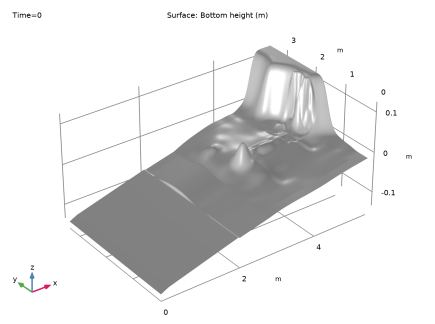
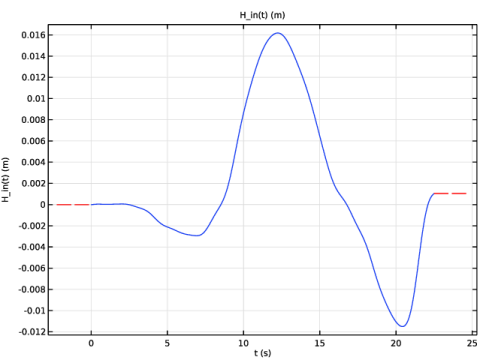
This model considers small rectangular region of the experimental tank that is 5.448 m long and 3.402 m wide. The incoming wave is fed into the domain using Inlet feature on the left boundary where water depth is prescribed as a leading depression N-wave (LDN) with a 2.5 mm leading depression and a 1.6 cm crest behind it. The inlet velocity is extrapolated from the solution in the domain. The other boundaries are modeled as reflective walls. Both the total height at the inlet and bottom topography are available as text files in the National Oceanic and Atmospheric Administration (NOAA) website, Ref. 3, in the benchmark case “Tsunami runup onto a complex three-dimensional beach; Monai valley”. The bottom height and profile of the incoming wave are plotted in Figure 1 and Figure 2, respectively.
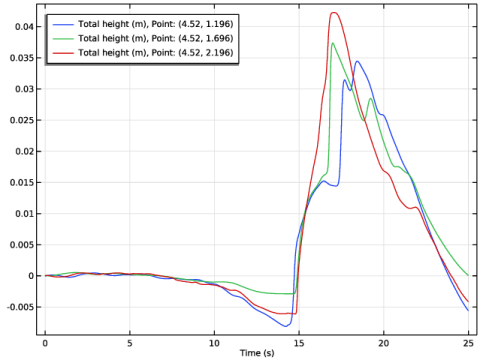
In the experiment the water level was monitored at three points (x = 4.52 m and y = 1.169 m, y = 1.669 m, and y = 2.169 m). Three Domain Point Probes are added in the model to track the evolution of the water level at these points.
Figure 1: Bottom topography.
Figure 2: Incoming wave profile.
Results and Discussion
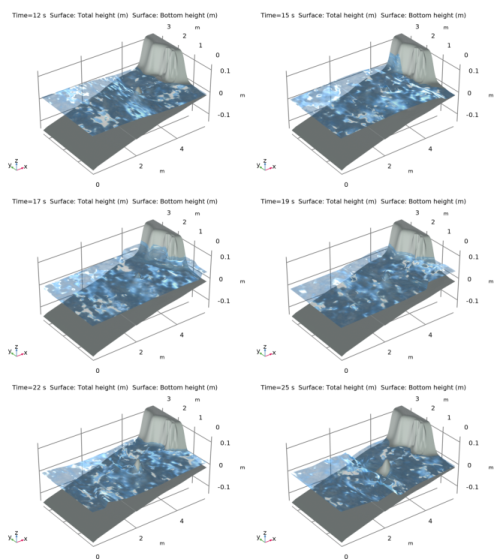
The contours of water level at different times are shown in Figure 3. At t = 12 s the shoreline is moving backward due to the depression wave. Later, the high wave reaches the highest point in the shoreline and becomes reflected. At t = 19 s the flood wave has covered the small island in the middle and is moving backward. The island becomes visible again at t = 22 s.
Figure 3: Water level surface at t = 12 s, 15 s, 17 s, 19 s, 22 s, and 25 s.
The water level at the three domain probe points is depicted in Figure 4. At all three points it first slowly reduces due to the depression wave and then increases in two sudden jumps: approximately at t = 15 s, when the high wave comes, and approximately at t = 17 s due to the reflected wave. The three points see the waves at different times due to the irregularities of the bottom. The results agree with the measured values presented in Ref. 3.
Figure 4: Water level at three different points.
References
1. C.E. Synolakis and others, “Standards, criteria, and procedures for NOAA evaluation of tsunami numerical models,” NOAA Tech. Memo., OAR PMEL-135, NOAA/Pacific Marine Environmental Laboratory, Seattle, WA, 2007.
2. C.E. Synolakis and others, “Validation and verification of tsunami numerical models,” Pure Appl. Geophys., vol. 165, pp. 2197–2228, 2008.
3. NOAA, “Benchmark methods for tsunami model validation and verification,” July 2020, nctr.pmel.noaa.gov/benchmark/.
Application Library path: CFD_Module/Shallow_Water_Equations/monai_runup
Modeling Instructions
From the File menu, choose New.
New
In the New window, click  Model Wizard.
Model Wizard
1
In the Model Wizard window, click  2D.
2
In the Select Physics tree, select Fluid Flow > Shallow Water Equations > Shallow Water Equations, Time Explicit (swe).
3
Click Add.
4
Click  Study.
5
In the Select Study tree, select Preset Studies for Selected Physics Interfaces > Time Dependent.
6
Geometry 1
Rectangle 1 (r1)
1
In the Geometry toolbar, click  Rectangle.
2
In the Settings window for Rectangle, locate the Size and Shape section.
3
In the Width text field, type 5.448.
4
In the Height text field, type 3.402.
Definitions
Import the bottom topography and the profile of the incoming wave from text files.
Inverse of Bottom Topography
1
In the Home toolbar, click  Functions and choose Local > Interpolation.
2
In the Settings window for Interpolation, type Inverse of Bottom Topography in the Label text field.
3
Locate the Definition section. From the Data source list, choose File.
4
Click  Browse.
5
6
Click  Import.
7
Select the Use spatial coordinates as arguments checkbox.
8
Locate the Data Column Settings section. In the table, click to select the cell at row number 3 and column number 1.
9
In the Name text field, type zB.
10
In the Unit text field, type m.
Incoming Wave Profile
1
In the Definitions toolbar, click  Interpolation.
2
In the Settings window for Interpolation, type Incoming Wave Profile in the Label text field.
3
Locate the Definition section. From the Data source list, choose File.
4
Click  Browse.
5
6
Click  Import.
7
In the Function name text field, type H_in.
8
Locate the Units section. In the Argument table, enter the following settings:
9
In the Function table, enter the following settings:
10
Probe (x,y)=(4.52,1.196)
1
In the Definitions toolbar, click  Probes and choose Domain Point Probe.
2
In the Settings window for Domain Point Probe, locate the Point Selection section.
3
In row Coordinates, set x to 4.52[m].
4
In row Coordinates, set y to 1.196[m].
5
In the Label text field, type Probe (x,y)=(4.52,1.196).
Point Probe Expression 1 (ppb1)
1
In the Model Builder window, expand the Probe (x,y)=(4.52,1.196) node, then click Point Probe Expression 1 (ppb1).
2
In the Settings window for Point Probe Expression, click Replace Expression in the upper-right corner of the Expression section. From the menu, choose Component 1 (comp1) > Shallow Water Equations, Time Explicit > swe.H - Total height - m.
Probe (x,y)=(4.52,1.696)
1
In the Model Builder window, right-click Probe (x,y)=(4.52,1.196) and choose Duplicate.
2
In the Settings window for Domain Point Probe, type Probe (x,y)=(4.52,1.696) in the Label text field.
3
Locate the Point Selection section. In row Coordinates, set y to 1.696[m].
Probe (x,y)=(4.52,2.196)
1
Right-click Probe (x,y)=(4.52,1.696) and choose Duplicate.
2
In the Settings window for Domain Point Probe, type Probe (x,y)=(4.52,2.196) in the Label text field.
3
Locate the Point Selection section. In row Coordinates, set y to 2.196[m].
Shallow Water Equations, Time Explicit (swe)
Domain Properties 1
1
In the Model Builder window, under Component 1 (comp1) > Shallow Water Equations, Time Explicit (swe) click Domain Properties 1.
2
In the Settings window for Domain Properties, locate the Bottom Topography section.
3
In the hB text field, type -zB.
Initial Values 1
1
In the Model Builder window, click Initial Values 1.
2
In the Settings window for Initial Values, locate the Initial Values section.
3
From the Water depth list, choose Specify total height.
Inlet 1
1
In the Physics toolbar, click  Boundaries and choose Inlet.
2
3
In the Settings window for Inlet, locate the Flow Properties section.
4
From the Water depth list, choose Specify total height.
5
In the H0 text field, type H_in(t).
6
From the Velocity list, choose From domain values.
Mesh 1
In the Model Builder window, under Component 1 (comp1) right-click Mesh 1 and choose Edit Physics-Induced Sequence.
Size
1
In the Model Builder window, under Component 1 (comp1) > Mesh 1 click Size.
2
In the Settings window for Size, locate the Element Size section.
3
Click the Custom button.
4
Locate the Element Size Parameters section. In the Maximum element size text field, type 0.01.
Free Triangular 1
In the Model Builder window, right-click Free Triangular 1 and choose Delete.
Mapped 1
1
In the Mesh toolbar, click  Mapped.
2
In the Model Builder window, right-click Mesh 1 and choose Build All.
Study 1
Step 2: Time Dependent
1
In the Model Builder window, under Study 1 click Step 2: Time Dependent.
2
In the Settings window for Time Dependent, locate the Study Settings section.
3
In the Output times text field, type range(0,1,10) range(10.25,0.25,25).
4
In the Study toolbar, click  Get Initial Value.
Results
Total Height (swe)
In the Model Builder window, expand the Total Height (swe) node.
Height Expression 1
1
In the Model Builder window, expand the Results > Total Height (swe) > Total Height node, then click Height Expression 1.
2
In the Settings window for Height Expression, locate the Axis section.
3
Select the Scale factor checkbox. In the associated text field, type 10.
4
Clear the Show height axis checkbox.
Filter 1
1
In the Model Builder window, right-click Total Height and choose Filter.
2
In the Settings window for Filter, locate the Element Selection section.
3
In the Logical expression for inclusion text field, type h>1e-4[m].
4
From the Element nodes to fulfill expression list, choose All.
Probe Plot Group 1
1
In the Model Builder window, under Results click Probe Plot Group 1.
2
In the Settings window for 1D Plot Group, locate the Legend section.
3
From the Position list, choose Upper left.
Study 1
In the Study toolbar, click  Compute.
Results
Total Height (swe)
1
In the Settings window for 2D Plot Group, locate the Data section.
2
From the Time (s) list, choose 25.
3
In the Total Height (swe) toolbar, click  Plot.