PDF

Smoke from an Incense Stick — Visualizing the Laminar to Turbulent Transition in Natural Convection
Introduction
This example considers natural convection of air above a smoldering incense stick. In reality, this kind of flow often shows a transition from laminar to turbulent, which is nicely visualized by the smoke produced by the slow burning of the incense. The aim of this model is to simulate this transition and to illustrate it by reproducing the shape of the smoke plume. To be able to capture the transition to turbulence, the model uses the Nonisothermal Flow, LES RBVM interface. For the visualization of the flow, the Particle Tracing for Fluid Flow interface is used.
Note: This model requires both the CFD Module and the Particle Tracing Module.
Model Definition
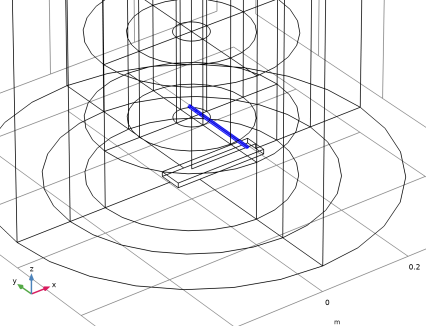
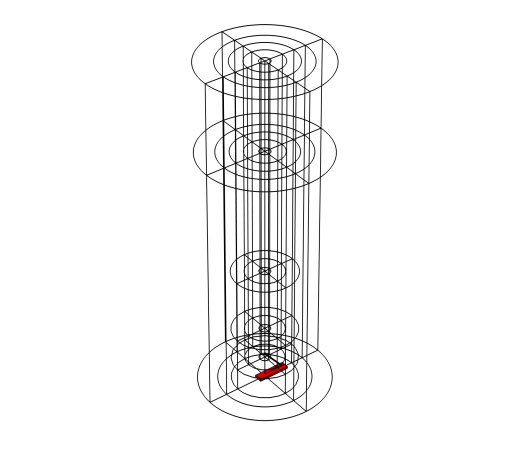
The flow domain is a cylinder with a diameter of 40 cm and a height of 185 cm. At the bottom of the cylinder, a rectangular holder (20-by-5-by-1 cm) and an incense stick (diameter 0.5 cm and length 20 cm) are located. The model geometry includes a number of cylindrical domains that allow for a better control of the mesh. See Figure 1 for a graphic representation of the geometry.
In the literature, peak temperatures in smoldering materials of around 500–700°C are reported (see Ref. 1). Here it is assumed that the tip of the incense stick (2 cm long) has an average temperature of 520°C. In an open environment, the combustion process in and the air flow around the incense stick will be influenced by variations in the incense composition, nearby moving objects, nearby heat sources, and so on. To get a lifelike smoke plume from the simulation, (some of) these disturbances need to be included in the model. In the present case, a more realistic plume shape is created by assuming a nonconstant burning rate, which is modeled by random fluctuations of the tip temperature:
(1)
Here, the random function has a uniform distribution with mean 0 and range 2. The simulated time interval is 10 seconds.
The Nonisothermal Flow, LES RBVM interface is set up to treat the flow as incompressible and to use the Boussinesq approximation to compute the buoyancy forces for the natural convection. The density and viscosity of the flowing air are taken from the Air material from COMSOL Multiphysics’ material library. Initially, the air is at rest and the temperature is equal to the ambient temperature of 20°C.
The smoke particles are assumed to be small and light enough to almost immediately adopt the velocity of the surrounding air. This means that the particle inertia can be neglected, allowing for a massless formulation of the particle dynamics, which in turn generally allows for larger time steps in the time-dependent solver. The particles are released each 0.01 second in a 11-by-11 grid on a patch of 1 cm2 that is located approximately 13 mm above the tip of the incense stick.
Figure 1: Wireframe rendering of the complete geometry including the domains for controlling the mesh. The incense stick and holder are indicated in red.
Results and Discussion
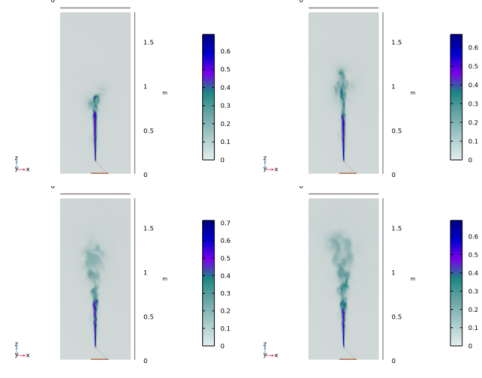
In Figure 2, slice plots in the xz-plane of the velocity magnitude are shown for t = 4 s, t = 6 s, t = 8 s, and t = 10 s, respectively. The velocity magnitude is highest just above the tip of the incense stick, with a maximum value of approximately 0.7 m/s. From these plots it is clearly seen that the air flow is initially laminar as it rises from the incense stick, and that at a distance of 40 to 50 cm above the stick it develops into a turbulent flow. As time progresses, the turbulent part of the flow grows and spreads upward and sideways.
Figure 2: Slice plots in the center xz-plane of the velocity magnitude for t = 4 s (top left), t = 6 s (top right), t = 8 s (bottom left), and t = 10 s (bottom right).
In Figure 3, the particle positions are plotted at different moments in time. The plot shows, as expected, the same pattern as the velocity plots: first, right above the hot tip, the particles travel upward in more or less straight lines, following the laminar part of the air flow. Then, at a certain height above the tip of the incense stick, the flow becomes unstable and transitions to a less organized pattern, spreading the smoke plume horizontally. The height at which the flow becomes unstable is seen to be quite constant in time.
.
Figure 3: The shape of the smoke plume visualized by the particle positions after (from left to right) t = 2 s, t = 4 s, t = 6 s, t = 8 s, and t = 10 s, respectively.
Reference
1. G. Rein, “Smouldering Combustion Phenomena in Science and Technology,” Int. Rev. Chem. Eng., vol. 1, pp. 3–18, 2009.
Application Library path: CFD_Module/Nonisothermal_Flow/incense_stick
Modeling Instructions
From the File menu, choose New.
New
In the New window, click  Model Wizard.
Model Wizard
1
In the Model Wizard window, click  3D.
2
In the Select Physics tree, select Fluid Flow > Nonisothermal Flow > Large Eddy Simulation > LES RBVM.
3
Click Add.
4
In the Select Physics tree, select Fluid Flow > Particle Tracing > Particle Tracing for Fluid Flow (fpt).
5
Click Add.
6
Click  Study.
7
In the Select Study tree, select General Studies > Time Dependent.
8
Definitions
Random 1 (rn1)
1
In the Model Builder window, expand the Component 1 (comp1) > Definitions node.
2
Right-click Definitions and choose Functions > Random.
3
In the Settings window for Random, locate the Parameters section.
4
In the Range text field, type 2.
5
Select the Use random seed checkbox.
6
In the Random seed text field, type 11301.
Analytic 1 (an1)
1
In the Definitions toolbar, click  Analytic.
2
In the Settings window for Analytic, locate the Definition section.
3
In the Expression text field, type rn1(floor(x)).
Geometry 1
The computational domain is essentially a cylinder. However, to be able to control the mesh size in various parts of the domain, the geometry will be built as a number of concentric cylinders, varying in location and height. This is achieved by revolving a plane geometry, consisting of rectangles, around the z-axis.
Work Plane 1 (wp1)
1
In the Geometry toolbar, click  Work Plane.
2
In the Settings window for Work Plane, locate the Plane Definition section.
3
From the Plane list, choose xz-plane.
Work Plane 1 (wp1) > Plane Geometry
In the Model Builder window, click Plane Geometry.
Work Plane 1 (wp1) > Rectangle 1 (r1)
1
In the Work Plane toolbar, click  Rectangle.
2
In the Settings window for Rectangle, locate the Size and Shape section.
3
In the Width text field, type 0.4.
4
In the Height text field, type 1.85.
5
Click to expand the Layers section. Select the Layers to the right checkbox.
6
Clear the Layers on bottom checkbox.
7
Work Plane 1 (wp1) > Rectangle 2 (r2)
1
In the Work Plane toolbar, click  Rectangle.
2
In the Settings window for Rectangle, locate the Size and Shape section.
3
In the Width text field, type 0.4.
4
In the Height text field, type 1.35.
Work Plane 1 (wp1) > Rectangle 3 (r3)
1
In the Work Plane toolbar, click  Rectangle.
2
In the Settings window for Rectangle, locate the Size and Shape section.
3
In the Width text field, type 0.2.
4
In the Height text field, type 0.53.
5
Locate the Position section. In the yw text field, type 0.12.
6
Locate the Layers section. In the table, enter the following settings:
Work Plane 1 (wp1) > Rectangle 4 (r4)
1
In the Work Plane toolbar, click  Rectangle.
2
In the Settings window for Rectangle, locate the Size and Shape section.
3
In the Width text field, type 0.2.
4
In the Height text field, type 1.73.
5
Locate the Position section. In the yw text field, type 0.12.
6
Locate the Layers section. Select the Layers to the right checkbox.
7
Clear the Layers on bottom checkbox.
8
Revolve 1 (rev1)
In the Model Builder window, right-click Geometry 1 and choose Revolve.
Cylinder 1 (cyl1)
1
In the Geometry toolbar, click  Cylinder.
2
In the Settings window for Cylinder, locate the Size and Shape section.
3
In the Radius text field, type 0.25e-2.
4
In the Height text field, type 0.2.
5
Locate the Position section. In the x text field, type -0.005.
6
In the z text field, type 0.145.
7
Locate the Axis section. From the Axis type list, choose Cartesian.
8
In the x text field, type 1.
9
In the z text field, type -1.
10
Click to expand the Layers section. Select the Layers on bottom checkbox.
11
Clear the Layers on side checkbox.
12
Block 1 (blk1)
1
In the Geometry toolbar, click  Block.
2
In the Settings window for Block, locate the Size and Shape section.
3
In the Width text field, type 0.2.
4
In the Depth text field, type 0.05.
5
In the Height text field, type 0.01.
6
Locate the Position section. In the x text field, type -0.05.
7
In the y text field, type -0.025.
Difference 1 (dif1)
1
In the Geometry toolbar, click  Booleans and Partitions and choose Difference.
2
3
In the Settings window for Difference, locate the Difference section.
4
Click to select the  Activate Selection toggle button for Objects to subtract.
5
Select the objects blk1 and cyl1 only.
Add Material
1
In the Materials toolbar, click  Add Material to open the Add Material window.
2
Go to the Add Material window.
3
In the tree, select Built-in > Air.
4
Click the Add to Component button in the window toolbar.
5
In the Materials toolbar, click  Add Material to close the Add Material window.
LES RBVM (spf)
1
In the Settings window for LES RBVM, locate the Physical Model section.
2
Select the Include gravity checkbox.
3
Select the Use reduced pressure checkbox.
Outlet 1
1
In the Physics toolbar, click  Boundaries and choose Outlet.
2
3
In the Settings window for Outlet, locate the Boundary Selection section.
4
Click  Create Selection.
5
In the Create Selection dialog, type Top in the Selection name text field.
6
Open Boundary 1
1
In the Physics toolbar, click  Boundaries and choose Open Boundary.
2
3
In the Settings window for Open Boundary, locate the Boundary Selection section.
4
Click  Create Selection.
5
In the Create Selection dialog, type Sides in the Selection name text field.
6
Heat Transfer in Fluids (ht)
Temperature 1
1
In the Physics toolbar, click  Boundaries and choose Temperature.
2
3
In the Settings window for Temperature, locate the Boundary Selection section.
4
Click  Create Selection.
5
In the Create Selection dialog, type Tip in the Selection name text field.
6
7
In the Settings window for Temperature, locate the Temperature section.
8
In the T0 text field, type 293.15[K]+500[K]+50[K]*an1(t).
Open Boundary 1
1
In the Physics toolbar, click  Boundaries and choose Open Boundary.
2
In the Settings window for Open Boundary, locate the Boundary Selection section.
3
From the Selection list, choose Sides.
Outflow 1
1
In the Physics toolbar, click  Boundaries and choose Outflow.
2
In the Settings window for Outflow, locate the Boundary Selection section.
3
From the Selection list, choose Top.
Particle Tracing for Fluid Flow (fpt)
1
In the Model Builder window, under Component 1 (comp1) click Particle Tracing for Fluid Flow (fpt).
2
In the Settings window for Particle Tracing for Fluid Flow, locate the Particle Release and Propagation section.
3
From the Formulation list, choose Massless.
Wall 1
1
In the Model Builder window, under Component 1 (comp1) > Particle Tracing for Fluid Flow (fpt) click Wall 1.
2
In the Settings window for Wall, locate the Wall Condition section.
3
From the Wall condition list, choose Disappear.
Particle Properties 1
1
In the Model Builder window, click Particle Properties 1.
2
In the Settings window for Particle Properties, locate the Particle Properties section.
3
Specify the v vector as
Release from Grid 1
1
In the Physics toolbar, click  Global and choose Release from Grid.
2
In the Settings window for Release from Grid, locate the Release Times section.
3
In the Release times text field, type range(0,0.01,10).
4
Locate the Initial Coordinates section. In the qx,0 text field, type range(-0.005,0.001,0.005).
5
In the qy,0 text field, type range(-0.005,0.001,0.005).
6
In the qz,0 text field, type 0.16.
Multiphysics
Nonisothermal Flow 1 (nitf1)
1
In the Model Builder window, under Component 1 (comp1) > Multiphysics click Nonisothermal Flow 1 (nitf1).
2
In the Settings window for Nonisothermal Flow, locate the Material Properties section.
3
Select the Boussinesq approximation checkbox.
Mesh 1
Set up the mesh so that it is finest in an area above the tip of the incense stick, extending upward. This is the area where the flow is expected to develop from laminar to turbulent and where an accurate air velocity is needed. In the remaining parts of the geometry, a much courser mesh can be used for increased efficiency.
Free Tetrahedral 1
In the Mesh toolbar, click  Free Tetrahedral.
Size
1
In the Model Builder window, click Size.
2
In the Settings window for Size, locate the Element Size section.
3
Click the Custom button.
4
Locate the Element Size Parameters section. In the Minimum element size text field, type 0.002.
Free Tetrahedral 1
1
In the Model Builder window, click Free Tetrahedral 1.
2
In the Settings window for Free Tetrahedral, locate the Domain Selection section.
3
From the Geometric entity level list, choose Domain.
4
Size 1
1
Right-click Free Tetrahedral 1 and choose Size.
2
In the Settings window for Size, locate the Element Size section.
3
From the Calibrate for list, choose Fluid dynamics.
4
From the Predefined list, choose Extra fine.
Mapped 1
1
In the Mesh toolbar, click  More Generators and choose Mapped.
2
Distribution 1
1
Right-click Mapped 1 and choose Distribution.
2
3
In the Settings window for Distribution, locate the Distribution section.
4
In the Number of elements text field, type 1.
Swept 1
1
In the Mesh toolbar, click  Swept.
2
In the Settings window for Swept, locate the Domain Selection section.
3
From the Geometric entity level list, choose Domain.
4
Swept 2
1
In the Mesh toolbar, click  Swept.
2
In the Settings window for Swept, locate the Domain Selection section.
3
From the Geometric entity level list, choose Domain.
4
Distribution 1
1
Right-click Swept 2 and choose Distribution.
2
In the Settings window for Distribution, locate the Distribution section.
3
In the Number of elements text field, type 20.
Free Tetrahedral 2
In the Mesh toolbar, click  Free Tetrahedral.
Boundary Layers 1
In the Mesh toolbar, click  Boundary Layers.
Boundary Layer Properties
1
In the Model Builder window, click Boundary Layer Properties.
2
3
In the Settings window for Boundary Layer Properties, locate the Layers section.
4
In the Number of layers text field, type 2.
5
In the Thickness adjustment factor text field, type 5.
6
Click  Build All.
LES requires an adequate resolution of the convective time scale. This puts a constraint on the time steps taken by the solver: Δt < h/(2U), where Δt is the time step, h the mesh size in the streamline direction, and U the velocity magnitude. The following instructions are meant to give an indication of h in the important part of the domain, that is, in the area where the air velocities are expected to be the highest and where the transition from laminar to turbulent flow is taking place.
Results
Mesh 1
1
In the Model Builder window, expand the Results node.
2
Right-click Results > Datasets and choose Mesh.
Volume Minimum 1
1
In the Results toolbar, click  More Derived Values and choose Minimum > Volume Minimum.
2
3
In the Settings window for Volume Minimum, locate the Expressions section.
4
5
Click  Evaluate.
The evaluated minimum mesh size should be approximately equal to 0.0065 m. In addition, the maximum air velocities are expected to be around 0.6 to 0.7 m/s. Therefore, a reasonable time-step size for the LES is 0.005 s. The simulation is split over two studies. The first study computes the flow and temperature fields, and the second computes the particle trajectories. Since the particle tracing will be expected to take time steps of the same order of magnitude, the solver in the first study for the flow is set to store the velocity field every 0.005 s, and the steps taken by the solver is set to strict to ensure that the maximum time step is also 0.005 s. Storing the solution for this many time steps takes a large amount of disk space. Since the particle tracing only needs the air velocity as input, the required disk space can be reduced by storing only the air velocity, thus not storing the pressure and temperature fields. The following instructions set up the solver in the first study according to these considerations.
Study 1
Step 1: Time Dependent
1
In the Model Builder window, under Study 1 click Step 1: Time Dependent.
2
In the Settings window for Time Dependent, locate the Study Settings section.
3
In the Output times text field, type range(0,0.005,10).
4
Locate the Physics and Variables Selection section. In the Solve for column of the table, under Component 1 (comp1), clear the checkbox for Particle Tracing for Fluid Flow (fpt).
5
In the Model Builder window, click Study 1.
6
In the Settings window for Study, locate the Study Settings section.
7
Clear the Generate default plots checkbox, as the results will be discarded for this study.
Solution 1 (sol1)
1
In the Study toolbar, click  Show Default Solver.
2
In the Model Builder window, expand the Solution 1 (sol1) node, then click Dependent Variables 1.
3
In the Settings window for Dependent Variables, locate the General section.
4
From the Defined by study step list, choose User defined.
5
In the Model Builder window, expand the Study 1 > Solver Configurations > Solution 1 (sol1) > Dependent Variables 1 node, then click Pressure (comp1.p).
6
In the Settings window for Field, locate the General section.
7
From the Store in output list, choose None.
8
In the Model Builder window, under Study 1 > Solver Configurations > Solution 1 (sol1) > Dependent Variables 1 click Particle Position (comp1.qfpt).
9
In the Settings window for Field, locate the General section.
10
From the Store in output list, choose None.
11
In the Model Builder window, under Study 1 > Solver Configurations > Solution 1 (sol1) > Dependent Variables 1 click Temperature (comp1.T).
12
In the Settings window for Field, locate the General section.
13
From the Store in output list, choose None.
14
In the Model Builder window, under Study 1 > Solver Configurations > Solution 1 (sol1) click Time-Dependent Solver 1.
15
In the Settings window for Time-Dependent Solver, click to expand the Time Stepping section.
16
From the Steps taken by solver list, choose Strict.
17
Select the Initial step checkbox. In the associated text field, type 0.0001.
To further reduce the required disk space, instruct the solver not to store the reaction forces and time derivatives.
18
Click to expand the Time Stepping section. From the Maximum step constraint list, choose Automatic.
Use automatic time-stepping to speed up the simulation.
19
Click to expand the Output section. Clear the Store reaction forces checkbox.
20
Clear the Store the first time derivative checkbox.
21
In the Study toolbar, click  Compute.
The following instructions add a second study for the particle tracing. This study uses the stored results of the first study. Only the particle positions are stored, and in order to make it possible to produce an animation of the smoke plume with 25 frames per second, they are stored every 0.04 s.
Add Study
1
In the Home toolbar, click  Add Study to open the Add Study window.
2
Go to the Add Study window.
3
Find the Studies subsection. In the Select Study tree, select General Studies > Time Dependent.
4
Click the Add Study button in the window toolbar.
5
In the Home toolbar, click  Add Study to close the Add Study window.
Study 2
Step 1: Time Dependent
1
In the Settings window for Time Dependent, locate the Study Settings section.
2
In the Output times text field, type range(0,0.04,10).
3
Locate the Physics and Variables Selection section. In the Solve for column of the table, under Component 1 (comp1), clear the checkboxes for LES RBVM (spf) and Heat Transfer in Fluids (ht).
4
In the Solve for column of the table, under Component 1 (comp1) > Multiphysics, clear the checkbox for Nonisothermal Flow 1 (nitf1).
5
Click to expand the Values of Dependent Variables section. Find the Values of variables not solved for subsection. From the Settings list, choose User controlled.
6
From the Method list, choose Solution.
7
From the Study list, choose Study 1, Time Dependent.
8
From the Time (s) list, choose Automatic (all solutions).
9
In the Model Builder window, click Study 2.
10
In the Settings window for Study, locate the Study Settings section.
11
Clear the Generate default plots checkbox, because the desired plots can be added later using the Result Templates.
Solution 2 (sol2)
1
In the Study toolbar, click  Show Default Solver.
2
In the Model Builder window, expand the Solution 2 (sol2) node, then click Dependent Variables 1.
3
In the Settings window for Dependent Variables, locate the General section.
4
From the Defined by study step list, choose User defined.
5
In the Model Builder window, expand the Study 2 > Solver Configurations > Solution 2 (sol2) > Dependent Variables 1 node, then click Pressure (comp1.p).
6
In the Settings window for Field, locate the General section.
7
From the Store in output list, choose None.
8
In the Model Builder window, under Study 2 > Solver Configurations > Solution 2 (sol2) > Dependent Variables 1 click Temperature (comp1.T).
9
In the Settings window for Field, locate the General section.
10
From the Store in output list, choose None.
11
In the Model Builder window, under Study 2 > Solver Configurations > Solution 2 (sol2) click Time-Dependent Solver 1.
12
In the Settings window for Time-Dependent Solver, locate the Output section.
13
Clear the Store reaction forces checkbox.
14
Clear the Store the first time derivative checkbox.
15
In the Study toolbar, click  Compute.
Now that the particle positions have been computed, you can optionally discard the results of the first study in order to reduce disk usage; the stored air velocity fields computed in the first study take up several GBs of disk space. Note that the velocity field is still stored in the solution of the second study since the Store in output checkbox was not cleared for this field. However, the second study only stores the solution every 0.04 s instead of every 0.005 s. The next instruction will remove the solution of the first study from the model.
Study 1
1
Click  Clear Solutions.
2
In the Model Builder window, click Study 1.
3
Click Yes to confirm.
The following instructions reproduce the figures shown in the Results and Discussion section.
Result Templates
1
In the Results toolbar, click  Result Templates to open the Result Templates window.
2
Go to the Result Templates window.
3
In the tree, select Study 2/Solution 2 (sol2) > LES RBVM > Velocity (spf).
4
Click the Add Result Template button in the window toolbar.
5
In the Results toolbar, click  Result Templates to close the Result Templates window.
Results
Multislice 1
1
In the Model Builder window, expand the Velocity (spf) node, then click Multislice 1.
2
In the Settings window for Multislice, locate the Multiplane Data section.
3
Find the x-planes subsection. In the Planes text field, type 0.
4
Find the z-planes subsection. In the Planes text field, type 0.
5
Locate the Coloring and Style section. From the Color table list, choose AuroraAustralisDark.
Surface 1
1
In the Model Builder window, right-click Velocity (spf) and choose Surface.
2
In the Settings window for Surface, locate the Expression section.
3
In the Expression text field, type 1.
4
Locate the Coloring and Style section. From the Coloring list, choose Uniform.
5
From the Color list, choose Custom.
6
7
Click Define custom colors.
8
9
Click Add to custom colors.
10
Click Show color palette only or OK on the cross-platform desktop.
Selection 1
1
Right-click Surface 1 and choose Selection.
2
Click the  Wireframe Rendering button in the Graphics toolbar.
3
In the Settings window for Selection, locate the Selection section.
4
Click  Paste Selection.
5
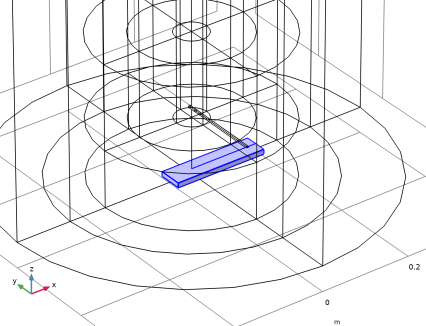
In the Paste Selection dialog, type 61-64, 189, 190 in the Selection text field.
6
7
Click the  Zoom to Selection button in the Graphics toolbar  and zoom out a little bit to get a better view.
Surface 2
1
In the Model Builder window, under Results > Velocity (spf) right-click Surface 1 and choose Duplicate.
2
In the Settings window for Surface, locate the Coloring and Style section.
3
From the Color list, choose Gray.
Selection 1
1
In the Model Builder window, expand the Surface 2 node, then click Selection 1.
2
In the Settings window for Selection, locate the Selection section.
3
Click  Clear Selection.
4
Click  Paste Selection.
5
In the Paste Selection dialog, type 83 84 85 86 87 172 173 174 175 176 177 178 179 in the Selection text field.
6
Velocity (spf)
1
In the Model Builder window, under Results click Velocity (spf).
2
In the Settings window for 3D Plot Group, locate the Plot Settings section.
3
Clear the Plot dataset edges checkbox.
4
Click to expand the Title section. From the Title type list, choose None.
5
Locate the Data section. From the Time (s) list, choose 4.
6
In the Velocity (spf) toolbar, click  Plot.
7
Click the  Go to XZ View button in the Graphics toolbar.
8
Click the  Zoom Extents button in the Graphics toolbar.
This reproduces the first slice plot in Figure 2. Choose the times t = 6 s, t = 8 s, and t = 10 s to reproduce the other plots in Figure 2.
Result Templates
1
In the Results toolbar, click  Result Templates to open the Result Templates window.
2
Go to the Result Templates window.
3
In the tree, select Study 2/Solution 2 (sol2) > Particle Tracing for Fluid Flow > Particle Trajectories (fpt).
4
Click the Add Result Template button in the window toolbar.
5
In the Results toolbar, click  Result Templates to close the Result Templates window.
Results
Particle Trajectories over Time
1
In the Settings window for 3D Plot Group, type Particle Trajectories over Time in the Label text field.
2
Locate the Data section. From the Time (s) list, choose 2.
3
Locate the Plot Settings section. Clear the Plot dataset edges checkbox.
4
Locate the Title section. From the Title type list, choose None.
5
Click to expand the Plot Array section. From the Array type list, choose Linear.
6
In the Relative padding text field, type 0.
7
In the Model Builder window, expand the Particle Trajectories over Time node.
Color Expression 1
1
In the Model Builder window, expand the Results > Particle Trajectories over Time > Particle Trajectories 1 node.
2
Right-click Color Expression 1 and choose Delete.
Particle Trajectories 1
1
In the Settings window for Particle Trajectories, locate the Coloring and Style section.
2
Find the Point style subsection.
3
Select the Radius scale factor checkbox. In the associated text field, type 2.
4
From the Color list, choose Gray.
Transparency 1
1
Right-click Particle Trajectories 1 and choose Transparency.
2
In the Settings window for Transparency, locate the Transparency section.
3
Find the Transparency subsection. Set the Transparency value to 0.8.
4
In the Graphics window toolbar, clicknext to  Scene Light, then choose Ambient Occlusion.
5
Click the  Show Grid button in the Graphics toolbar.
6
Click the  Show Axis Orientation button in the Graphics toolbar.
Particle Trajectories 2
1
Right-click Particle Trajectories 1 and choose Duplicate.
2
In the Settings window for Particle Trajectories, locate the Data section.
3
From the Dataset list, choose Particle 1.
4
From the Time (s) list, choose 4.
Repeat duplicating the Surface nodes and adjust the times to plot the particle positions at t = 2 s, t = 4 s, t = 6 s, t = 8 s, and t = 10 s, as in Figure 3.
Velocity (spf)
The last steps of the instructions create the plot that is used as the model thumbnail.
Particle Trajectories
1
In the Model Builder window, right-click Velocity (spf) and choose Duplicate.
2
In the Settings window for 3D Plot Group, type Particle Trajectories in the Label text field.
Multislice 1
1
In the Model Builder window, expand the Particle Trajectories node.
2
Right-click Multislice 1 and choose Delete.
Particle Trajectories
In the Model Builder window, under Results click Particle Trajectories.
Particle Trajectories 1
1
In the Particle Trajectories toolbar, click  More Plots and choose Particle Trajectories.
2
In the Settings window for Particle Trajectories, locate the Data section.
3
From the Dataset list, choose Particle 1.
4
Locate the Coloring and Style section. Find the Line style subsection. From the Type list, choose None.
5
Find the Point style subsection. From the Type list, choose Point.
6
From the Color list, choose Gray.
Transparency 1
1
Right-click Particle Trajectories 1 and choose Transparency.
2
In the Settings window for Transparency, locate the Transparency section.
3
Find the Transparency subsection. Set the Transparency value to 0.8.
4
Click the  Go to Default View button in the Graphics toolbar.
To use this plot to create an animation, proceed as follows:
Animation 1
1
In the Particle Trajectories toolbar, click  Animation and choose File.
2
Enter a filename or click Browse to navigate the file system.
Then, in order to ensure that all stored solutions are used and that the animation plays at the correct speed, do the following before exporting the animation in the desired format:
3
In the Settings window for Animation, locate the Output section.
4
In the Frames per second text field, type 25.
5
Locate the Frames section. From the Frame selection list, choose All.
6
Click Export in the settings toolbar.