PDF

Flow in a Hydrocyclone
Introduction
Cyclones are used in a variety of applications ranging from the mining industry to vacuum cleaners (Ref. 1). In the pulp and paper industry, hydrocyclones are used for contaminant removal, pulp thickening and fiber fractionation. Most cyclones do not contain any moving parts, hence the flow is driven exclusively by the applied pressure drops between the inlet(s) and the two outlets. The forward stream in the process is referred to as the accept flow, whereas the discarded stream is referred to as the reject flow. Depending on the application, the accept outlet could either be the overflow located at the base of the cone, near the inlet(s), or the underflow near the apex of the cone. The former configuration is used for removal of heavy (compared to the carrier fluid) contaminants, whereas the latter is used for removal of light contaminants and in thickening processes. In fractionation processes the definition of accept and reject is more or less a matter of convenience since both streams are applied forward in the system.
Model Definition
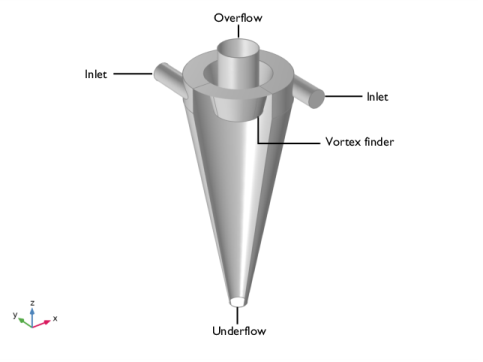
The model geometry used in this application is shown in Figure 1.
Figure 1: Model geometry showing the inlets, overflow (here the accept outlet), and underflow (the reject outlet).
Two circular inlets are tangentially attached to the annular inlet chamber, which is separated from the overflow by a wall called the “vortex finder”. This design creates a strong swirl in the incoming flow. From the annular inlet chamber, the flow enters a conical chamber where the separation takes place. The conical shape preserves the angular momentum and stabilizes the vortex core — the central region of the swirl motion characterized by nearly solid-body rotation. A portion of the flow is effluxed through the underflow near the apex of the conical separation chamber, and the rest exits through the overflow.
The flow in a hydrocyclone is characterized by a very strong swirl, which makes it difficult to simulate using an isotropic turbulence model. It is imperative that the swirl flow is accurately captured in order to assess the separation efficiency for various particles. The streamlines essentially follow the azimuthal direction whereas mixing of momentum by turbulent fluctuations takes place in the radial direction, which happens to be very close to the wall-normal direction in the major part of the hydrocyclone. This makes the v2-f turbulence model a good candidate for the prevailing flow conditions.
Stationary operating conditions corresponding to those of heavy contaminant removal are studied in this application. The flowing medium is pure water at 20ºC. The hydrocyclone is assumed to be pressurized and is hence operating without an air core. Initial values were chosen as zero velocity, zero pressure, and default values for the turbulence variables. No-slip conditions with automatic wall treatment were applied on all the walls. At the two inlets the velocity is set to 5 m/s, and the turbulence conditions to default (medium turbulent intensity and geometry based turbulence length scale). We also prescribe that 5% of the inlet flow exits through the underflow by specifying a uniform velocity profile. A constant pressure condition is applied at the overflow. The outlet conditions can be made more self-consistent by adding outlet chambers, corresponding to the system geometry, at both ends.
Results and Discussion
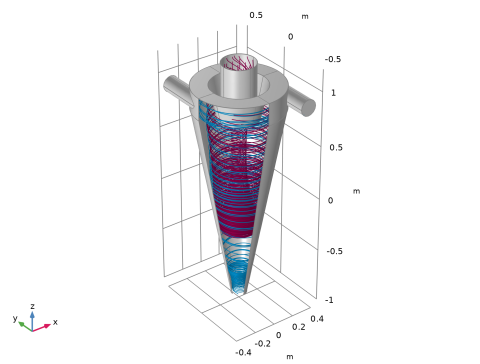
Figure 2 shows the streamlines for the swirling flow in the hydrocyclone.
Figure 2: Streamlines for the overflow (burgundy) and underflow (teal).
The streamlines describe the typical flow field encountered in hydrocyclone applications. From the inlet chamber, the flow is diverted toward the underflow. In our case, 95% of the incoming flow should be reversed and exit through the overflow. This is illustrated by the burgundy streamlines in the core. The remainder (teal) almost sticks to the wall and exits through the underflow.
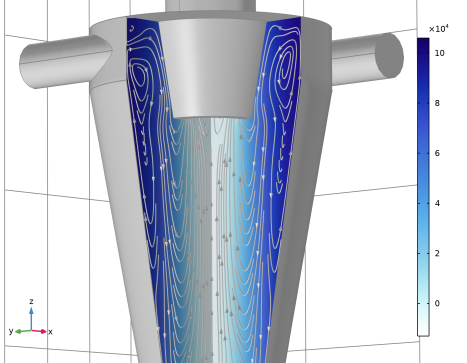
The pressure drop and in-plane streamlines on two orthogonal cut planes through the hydrocyclone are displayed in Figure 3.
Figure 3: Pressure drop and in-plane streamlines in the xz- and yz-planes.
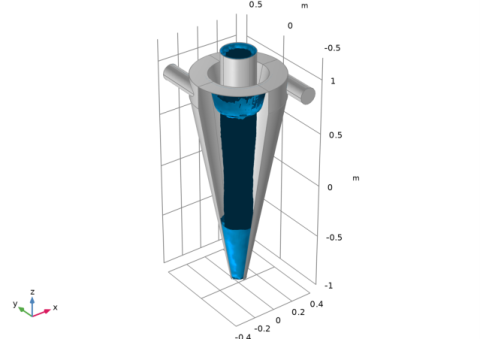
The two jets mix in the inlet chamber, resulting in azimuthal pressure variations on the vortex core. For certain hydrocyclone designs, this may cause the vortex core to destabilize resulting in poor separation performance. The optimal number and design of the inlet pipes as well as the design of the inlet chamber is still an active research field. The pressure drop between the inlets and outlets is of the order 100 kPa. Figure 4 shows a contour surface displaying a vertical (stable) vortex core. The swirl flow in the hydrocyclone can be divided into an outer region, described by a semi-free vortex, and an inner region of nearly solid body rotation.
Figure 4: Contour surface of the vortex core.
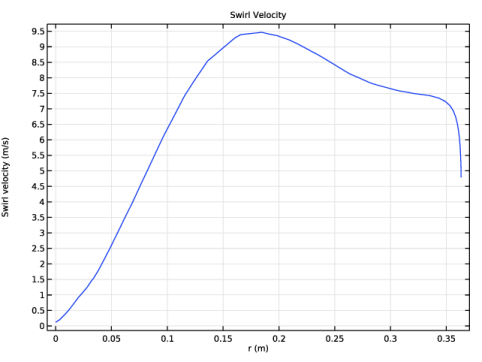
The graph in Figure 5 shows the azimuthal velocity component as a function of the radius at a vertical position 10 cm below the vortex finder. The inner core of nearly solid-body rotation is clearly distinguishable from the outer semi-free vortex.
Figure 5: Azimuthal (swirl) velocity versus radius 10 cm below the vortex finder.
Notes About the COMSOL Implementation
The mesh is deliberately made relatively coarse to reduce the computational time for this tutorial model. If the maximum size of the elements is reduced by thirty percent, the maximum swirl velocity in Figure 5 reaches 12 m/s. Particle-tracking can be added to the model to illustrate the separation of heavy and light fractions.
Reference
1. D.Bradley, “The Hydrocyclone, 1st Edition, International Series of Monographs in Chemical Engineering,” Pergamon, 1965.
Application Library path: CFD_Module/Single-Phase_Flow/hydrocyclone
Modeling Instructions
From the File menu, choose New.
New
In the New window, click  Model Wizard.
Model Wizard
1
In the Model Wizard window, click  3D.
2
In the Select Physics tree, select Fluid Flow > Single-Phase Flow > Turbulent Flow > Turbulent Flow, v2-f (spf).
3
Click Add.
4
Click  Study.
5
In the Select Study tree, select Preset Studies for Selected Physics Interfaces > Stationary with Initialization.
6
Global Definitions
Parameters 1
1
In the Model Builder window, under Global Definitions click Parameters 1.
2
In the Settings window for Parameters, locate the Parameters section.
3
Mesh 1
The mesh will be imported from file and used directly for the simulations.
Import 1
1
In the Mesh toolbar, click  Import.
2
In the Settings window for Import, locate the Import section.
3
Click  Browse.
4
5
Click  Import.
Add Material
1
In the Home toolbar, click  Add Material to open the Add Material window.
2
Go to the Add Material window.
3
In the tree, select Built-in > Water, liquid.
4
Click the Add to Component button in the window toolbar.
5
In the Home toolbar, click  Add Material to close the Add Material window.
Turbulent Flow, v2-f (spf)
Inlet 1
1
In the Physics toolbar, click  Boundaries and choose Inlet.
2
3
In the Settings window for Inlet, locate the Velocity section.
4
In the U0 text field, type u_in.
The fully developed flow condition could be used as well to give a computed flow field for the inlet parameters. However, by doing so, the computing time would increase slightly. Thus, an analytic expression is used for the inlet parameters.
Outlet 1
1
In the Physics toolbar, click  Boundaries and choose Outlet.
2
3
In the Settings window for Outlet, locate the Boundary Condition section.
4
5
Locate the Velocity section. In the U0 text field, type u_out.
Outlet 2
1
In the Physics toolbar, click  Boundaries and choose Outlet.
2
3
In the Settings window for Outlet, locate the Pressure Conditions section.
4
Select the Normal flow checkbox.
5
Clear the Suppress backflow checkbox.
Study 1
1
In the Model Builder window, click Study 1.
2
In the Settings window for Study, locate the Study Settings section.
3
Clear the Generate default plots checkbox, because the plots are created from scratch.
4
In the Study toolbar, click  Compute.
Results
First, create a new surface dataset needed to produce Figure 2, Figure 3, and Figure 5.
Surface 1
1
In the Model Builder window, expand the Results node.
2
Right-click Results > Datasets and choose Surface.
3
In the Settings window for Surface, locate the Selection section.
4
Click  Paste Selection.
5
In the Paste Selection dialog, type 2, 4-17, 22-27, 32-42 in the Selection text field.
6
Result Templates
1
In the Results toolbar, click  Result Templates to open the Result Templates window.
2
Go to the Result Templates window.
3
In the tree, select Study 1/Solution 1 (sol1) > Turbulent Flow, v2-f > Velocity Streamlines (spf).
4
Click the Add Result Template button in the window toolbar.
5
In the Results toolbar, click  Result Templates to close the Result Templates window.
Results
Velocity Streamlines (spf)
In the Model Builder window, expand the Velocity Streamlines (spf) node.
Color Expression 1
1
In the Model Builder window, expand the Results > Velocity Streamlines (spf) > Streamline 1 node.
2
Right-click Color Expression 1 and choose Delete.
Streamline 1
1
In the Settings window for Streamline, locate the Data section.
2
From the Dataset list, choose Study 1/Solution 1 (sol1).
3
Locate the Streamline Positioning section. In the Number text field, type 10.
4
5
Locate the Coloring and Style section. Find the Line style subsection. From the Type list, choose Tube.
6
In the Tube radius expression text field, type 0.0025.
7
Select the Radius scale factor checkbox.
8
Find the Point style subsection. From the Color list, choose Custom.
9
10
Click Define custom colors.
11
12
Click Add to custom colors.
13
Click Show color palette only or OK on the cross-platform desktop.
Streamline 2
1
Right-click Results > Velocity Streamlines (spf) > Streamline 1 and choose Duplicate.
2
In the Settings window for Streamline, locate the Selection section.
3
Click  Clear Selection.
4
5
Locate the Streamline Positioning section. In the Number text field, type 2.
6
Locate the Coloring and Style section. Click Define custom colors.
7
8
Click Add to custom colors.
9
Click Show color palette only or OK on the cross-platform desktop.
Surface 1
1
In the Model Builder window, right-click Velocity Streamlines (spf) and choose Surface.
2
In the Settings window for Surface, locate the Expression section.
3
In the Expression text field, type 1.
4
Locate the Coloring and Style section. From the Coloring list, choose Uniform.
5
From the Color list, choose Gray.
Use the previously created Surface dataset for the entire plot group to suppress the surfaces and edges that would otherwise obstruct the view into the hydrocyclone.
Velocity Streamlines (spf)
1
In the Model Builder window, click Velocity Streamlines (spf).
2
In the Settings window for 3D Plot Group, locate the Data section.
3
From the Dataset list, choose Surface 1.
4
Click to expand the Title section. From the Title type list, choose None.
5
Locate the Plot Settings section. From the Color list, choose Custom.
6
Click Define custom colors.
7
8
Click Add to custom colors.
9
Click Show color palette only or OK on the cross-platform desktop.
10
In the Velocity Streamlines (spf) toolbar, click  Plot.
11
Click the  Zoom Extents button in the Graphics toolbar.
The following steps reproduce Figure 3.
Cut Plane 1
In the Results toolbar, click  Cut Plane.
Cut Plane 2
1
In the Results toolbar, click  Cut Plane.
2
In the Settings window for Cut Plane, locate the Plane Data section.
3
From the Plane list, choose xz-planes.
Pressure
1
Right-click Velocity Streamlines (spf) and choose Duplicate.
2
In the Settings window for 3D Plot Group, type Pressure in the Label text field.
3
In the Model Builder window, expand the Pressure node.
Streamline 1, Streamline 2
1
In the Model Builder window, under Results > Pressure, Ctrl-click to select Streamline 1 and Streamline 2.
2
Since the exact same setup will be used in a third plot as well, duplicate this one now before proceeding with the pressure plot.
Pressure 1
In the Model Builder window, right-click Pressure and choose Duplicate.
Surface 2
1
Right-click Pressure and choose Surface.
2
In the Settings window for Surface, locate the Data section.
3
From the Dataset list, choose Cut Plane 1.
4
Locate the Expression section. In the Expression text field, type p.
5
Click to expand the Range section. Select the Manual color range checkbox.
6
In the Minimum text field, type -13000.
7
In the Maximum text field, type 106000.
8
Locate the Coloring and Style section. From the Color table list, choose Kyanite.
Surface 3
1
Right-click Surface 2 and choose Duplicate.
2
In the Settings window for Surface, locate the Data section.
3
From the Dataset list, choose Cut Plane 2.
4
Click to expand the Inherit Style section. From the Plot list, choose Surface 2.
Pressure
In the Model Builder window, click Pressure.
Streamline Surface 1
1
In the Pressure toolbar, click  More Plots and choose Streamline Surface.
2
In the Settings window for Streamline Surface, locate the Data section.
3
From the Dataset list, choose Cut Plane 1.
4
Locate the Expression section. In the x-component text field, type 0.
5
Locate the Streamline Positioning section. From the Positioning list, choose Magnitude controlled.
6
In the Minimum density level text field, type 8.4.
7
In the Maximum density level text field, type 10.
8
Locate the Coloring and Style section. Find the Line style subsection. From the Type list, choose Tube.
9
In the Tube radius expression text field, type 0.002.
10
Select the Radius scale factor checkbox.
11
Find the Point style subsection. From the Color list, choose Gray.
12
From the Type list, choose Arrow.
Streamline Surface 2
1
Right-click Streamline Surface 1 and choose Duplicate.
2
In the Settings window for Streamline Surface, locate the Data section.
3
From the Dataset list, choose Cut Plane 2.
4
Locate the Expression section. In the x-component text field, type u.
5
In the y-component text field, type 0.
Pressure
1
In the Model Builder window, click Pressure.
2
In the Pressure toolbar, click  Plot.
Zoom in to get a closer view of the streamlines.
The following steps reproduce Figure 4.
Vortex Core
1
In the Model Builder window, under Results click Pressure 1.
2
In the Settings window for 3D Plot Group, type Vortex Core in the Label text field.
Isosurface 1
1
Right-click Vortex Core and choose Isosurface.
2
In the Settings window for Isosurface, locate the Data section.
3
From the Dataset list, choose Study 1/Solution 1 (sol1).
4
Click Replace Expression in the upper-right corner of the Expression section. From the menu, choose Component 1 (comp1) > Turbulent Flow, v2-f > Velocity and pressure > Vorticity field - 1/s > spf.vorticityz - Vorticity field, z-component.
5
Locate the Levels section. From the Entry method list, choose Levels.
6
In the Levels text field, type 90.
7
Select the Interactive checkbox.
Depending on the boundary conditions, the value may need to be adjusted by sliding the interactive bar. This visualizes the vortex core in Figure 4.
8
Locate the Coloring and Style section. From the Coloring list, choose Uniform.
9
From the Color list, choose Custom.
10
11
Click Define custom colors.
12
13
Click Add to custom colors.
14
Click Show color palette only or OK on the cross-platform desktop.
15
Clear the Color legend checkbox.
Vortex Core
1
In the Model Builder window, click Vortex Core.
2
In the Vortex Core toolbar, click  Plot.
3
Click the  Zoom Extents button in the Graphics toolbar.
The following steps reproduce Figure 5. Start with creating a Cut Line dataset in radial direction.
Cut Line 3D 1
1
In the Results toolbar, click  Cut Line 3D.
2
In the Settings window for Cut Line 3D, locate the Line Data section.
3
In row Point 1, set x to -0.5.
4
In row Point 2, set x to 0.
5
In row Point 1, set z to 0.6.
6
In row Point 2, set z to 0.6.
Swirl Velocity
1
In the Results toolbar, click  1D Plot Group.
2
In the Settings window for 1D Plot Group, type Swirl Velocity in the Label text field.
3
Click to expand the Title section. From the Title type list, choose Manual.
4
In the Title text area, type Swirl Velocity.
5
Locate the Plot Settings section.
6
Select the x-axis label checkbox. In the associated text field, type r (m).
7
Select the y-axis label checkbox. In the associated text field, type Swirl velocity (m/s).
Line Graph 1
In the Swirl Velocity toolbar, click  Line Graph.
Swirl Velocity
1
In the Model Builder window, click Swirl Velocity.
2
Locate the Data section. From the Dataset list, choose Cut Line 3D 1.
Line Graph 1
1
In the Model Builder window, click Line Graph 1.
2
In the Settings window for Line Graph, locate the y-Axis Data section.
3
In the Expression text field, type (x*v-y*u)/sqrt(x^2+y^2+eps).
4
Locate the x-Axis Data section. From the Parameter list, choose Expression.
5
In the Expression text field, type -x.
6
In the Swirl Velocity toolbar, click  Plot.
7
Click the  Zoom Extents button in the Graphics toolbar.