
|
|
|
|
54 μm
|
|







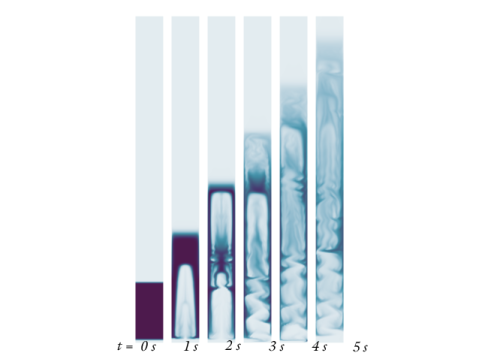
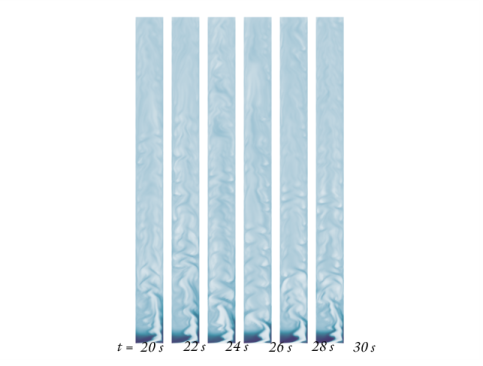
|
1
|
|
2
|
In the Select Physics tree, select Fluid Flow > Multiphase Flow > Euler–Euler Model > Euler–Euler Model, Laminar Flow (ee).
|
|
3
|
Click Add.
|
|
4
|
Click
 Study. Study. |
|
5
|
|
6
|
Click
 Done. Done. |
|
1
|
|
2
|
|
3
|
Click
 Load from File. Load from File. |
|
4
|
Browse to the model’s Application Libraries folder and double-click the file fluidized_bed_parameters.txt.
|
|
1
|
|
2
|
|
3
|
|
4
|
|
5
|
|
1
|
|
2
|
|
3
|
|
4
|
|
5
|
|
1
|
|
2
|
|
3
|
|
4
|
|
1
|
|
2
|
|
3
|
|
4
|
|
5
|
|
6
|
|
1
|
|
2
|
|
3
|
|
4
|
|
1
|
|
2
|
|
3
|
|
4
|
|
5
|
|
1
|
|
2
|
|
3
|
|
4
|
|
5
|
Click
 Update. Update. |
|
6
|
|
1
|
|
2
|
|
3
|
Select the Lock axis checkbox.
|
|
1
|
|
2
|
|
3
|
|
4
|
|
5
|
|
6
|
|
7
|
|
8
|
|
9
|
Click
 Update. Update. |
|
10
|
|
1
|
|
2
|
|
3
|
|
4
|
|
5
|
Click
 Plot to view the step function. Plot to view the step function. |
|
1
|
|
2
|
|
3
|
|
4
|
|
5
|
|
6
|
|
1
|
|
2
|
|
3
|
|
4
|
|
5
|
|
6
|
Click
 Plot. Plot. |
|
1
|
|
2
|
|
3
|
|
1
|
|
2
|
|
3
|
|
1
|
|
2
|
|
1
|
|
2
|
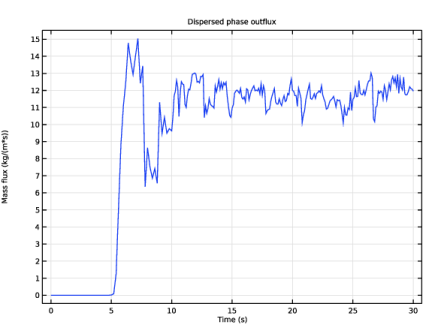
In the Settings window for Global Variable Probe, type Global Variable Probe: Dispersed phase outflux in the Label text field.
|
|
3
|
|
1
|
In the Model Builder window, under Component 1 (comp1) > Euler–Euler Model, Laminar Flow (ee) click Phase Properties 1.
|
|
2
|
|
3
|
|
4
|
|
5
|
Locate the Dispersed Phase Properties section. From the ρd list, choose User defined. In the associated text field, type rhod.
|
|
6
|
|
7
|
|
8
|
|
9
|
|
10
|
Locate the Solid Pressure Model section. From the Solid pressure model list, choose User-defined modulus of elasticity.
|
|
11
|
|
1
|
|
2
|
|
3
|
|
1
|
|
2
|
|
3
|
|
4
|
|
5
|
|
6
|
Click OK.
|
|
7
|
|
8
|
In the Settings window for Euler–Euler Model, Laminar Flow, click to expand the Consistent Stabilization section.
|
|
9
|
Clear the Use dynamic subgrid time scale checkbox.
|
|
10
|
Select the Limit small time steps effect on stabilization time scale checkbox.
|
|
1
|
|
3
|
|
4
|
|
5
|
|
6
|
|
1
|
|
3
|
|
4
|
|
1
|
|
2
|
|
3
|
|
4
|
|
1
|
|
3
|
In the Settings window for Inlet, in the Graphics window toolbar, click
 next to next to  Go to Default View, then choose Go to View 2. Go to Default View, then choose Go to View 2.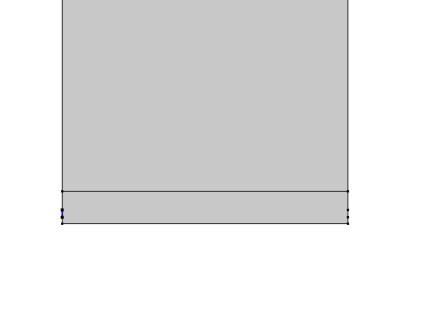 |
|
4
|
Locate the Two-Phase Inlet Type section. From the Two-phase inlet type list, choose Dispersed phase.
|
|
5
|
Locate the Continuous Phase Boundary Condition section. From the Continuous phase boundary condition list, choose Slip.
|
|
6
|
|
7
|
|
8
|
In the
 text field, type max(intopL(ee.rhod*phid*udy),0)/injH. text field, type max(intopL(ee.rhod*phid*udy),0)/injH. |
|
1
|
|
3
|
|
4
|
|
5
|
Locate the Continuous Phase Boundary Condition section. From the Continuous phase boundary condition list, choose Slip.
|
|
6
|
|
7
|
|
8
|
In the
 text field, type max(intopR(ee.rhod*phid*udy),0)/injH. text field, type max(intopR(ee.rhod*phid*udy),0)/injH. |
|
1
|
|
2
|
Click in the Graphics window and then press Ctrl+A to select all domains.
|
|
3
|
|
4
|
|
1
|
|
3
|
|
4
|
|
5
|
Locate the Dispersed Phase Boundary Condition section. From the Dispersed velocity boundary condition list, choose Slip.
|
|
6
|
|
1
|
|
2
|
|
3
|
|
1
|
|
3
|
|
4
|
|
1
|
|
3
|
|
4
|
|
1
|
|
3
|
|
4
|
|
1
|
|
3
|
|
4
|
|
5
|
|
6
|
|
7
|
Select the Symmetric distribution checkbox.
|
|
1
|
|
3
|
|
4
|
|
5
|
|
6
|
|
1
|
|
3
|
|
4
|
|
5
|
|
6
|
Select the Reverse direction checkbox.
|
|
7
|
Click
 Build All. Build All. |
|
1
|
|
2
|
|
3
|
|
4
|
|
1
|
|
2
|
Clear the Plot dataset edges checkbox.
|
|
1
|
|
2
|
|
3
|
Select the Plot checkbox to monitor the velocity field throughout the computation.
|
|
1
|
In the Model Builder window, expand the Study 1 > Solver Configurations > Solution 1 (sol1) > Dependent Variables 1 node, then click Velocity Field, Continuous Phase (comp1.uc).
|
|
2
|
|
3
|
|
4
|
|
5
|
|
6
|
|
7
|
|
8
|
|
9
|
Click
 Run. Run. |
|
1
|
|
2
|
|
3
|
Clear the Plot dataset edges checkbox.
|
|
4
|
|
1
|
In the Model Builder window, expand the Continuous Phase Volume Fraction (ee) node, then click Surface 1.
|
|
2
|
|
3
|
|
4
|
|
5
|
|
6
|
Click to expand the Range section. Locate the Coloring and Style section. Clear the Color legend checkbox.
|
|
1
|
|
2
|
|
3
|
|
4
|
|
1
|
|
2
|
|
3
|
|
1
|
|
2
|
|
3
|
|
1
|
|
2
|
|
3
|
|
1
|
|
2
|
|
3
|
|
4
|
|
5
|
|
1
|
In the Model Builder window, right-click Continuous Phase Volume Fraction (ee) and choose Duplicate.
|
|
2
|
In the Settings window for 2D Plot Group, type Dispersed Phase Volume Fraction at Steady-State in the Label text field.
|
|
3
|
|
1
|
In the Model Builder window, expand the Dispersed Phase Volume Fraction at Steady-State node, then click Surface 1.
|
|
2
|
|
3
|
|
1
|
|
2
|
|
3
|
|
1
|
|
2
|
|
3
|
|
1
|
|
2
|
|
3
|
|
1
|
|
2
|
|
3
|
|
1
|
|
2
|
|
3
|
|
4
|
|
5
|
|
1
|
|
2
|
|
3
|
|
4
|
|
5
|
Locate the Plot Settings section.
|
|
6
|
|
1
|
|
2
|
|
4
|
|
5
|
|
1
|
|
2
|
|
3
|
|
4
|
|
5
|
Clear the Bounded by points checkbox.
|
|
1
|
|
2
|
|
3
|
|
4
|
|
1
|
|
2
|
|
3
|
|
4
|
|
1
|
|
2
|
|
3
|
|
4
|
|
5
|
|
6
|
|
7
|
|
8
|
|
9
|
|
1
|
|
2
|
|
3
|
|
4
|
Locate the Legends section. In the table, enter the following settings:
|
|
1
|
|
2
|
|
3
|
|
4
|
Locate the Legends section. In the table, enter the following settings:
|
|
1
|
|
2
|
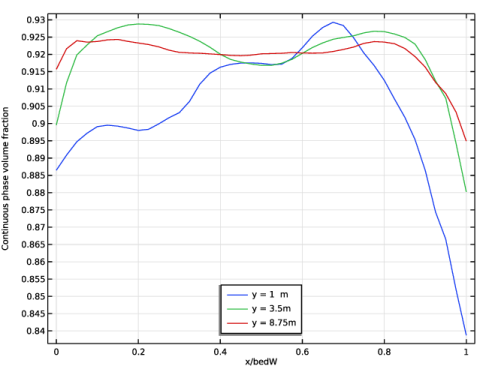
In the Settings window for 1D Plot Group, type Averaged Continuous Phase Volume Fraction in the Label text field.
|
|
3
|
|
4
|
Locate the Plot Settings section.
|
|
5
|
|
6
|
Select the y-axis label checkbox. In the associated text field, type Continuous phase volume fraction.
|
|
7
|
|
8
|
|
1
|
|
2
|
|
3
|
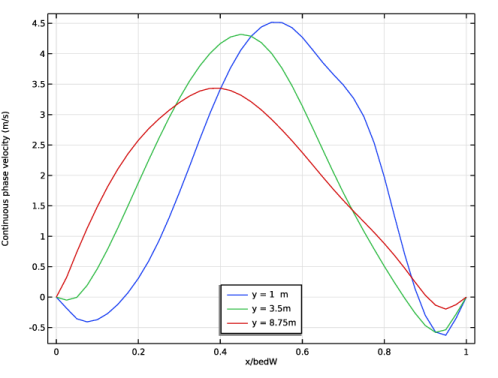
In the Settings window for 1D Plot Group, type Averaged Continuous Phase Velocity in the Label text field.
|
|
4
|
Locate the Plot Settings section. In the y-axis label text field, type Continuous phase velocity (m/s).
|
|
1
|
|
2
|
|
3
|
|
1
|
|
2
|
|
3
|
|
1
|
|
2
|
|
3
|
|
4
|



 next to




 next to


