
PDF

Turbulent 3D Flow Past a Cylinder
Introduction
This model studies the difference between the SST and SST-SAS (Scale Adaptive Simulation) turbulence models for flow around a cylinder.
Fluid flow past a cylinder is a common test case for computational fluid dynamics. As the Reynolds number increases, the flow transitions from laminar to turbulent with a cascade of vortexes in the downstream wake of the cylinder. A common method to handle the flow instabilities that occur is to use some kind of turbulence model that effectively increases the viscosity in regions where such small vortexes would occur, without resolving the turbulence structures in detail. The Reynolds-averaged Navier–Stokes models (RANS) constitute a family of such turbulence models that allow a quite accurate representation of the general turbulent flow by smoothing out the smaller structures. Another family of turbulence models, large eddy simulations (LES), uses a different approach and is capable of resolving the vortexes to a larger extent at the cost of a finer mesh and a stricter criterion for the time stepping.
The SST-SAS model introduces the von Kármán length scale, through an extra source contribution in the equation for the turbulence-specific dissipation rate. This makes it possible for SST-SAS to resolve smaller turbulence structures than the original SST model, while still being in the same family of RANS models. The advantage is a more detailed resolution of the turbulence structures on the same mesh in transient simulations.
The von Kármán length scale is given by the equation
(1)
As can be seen, the expression for the von Kármán length scale includes the second derivatives of the velocity field. The additional source term for the specific dissipation rate can be expressed as
where ρ is the density, ξSAS, κ, CSAS, and σSAS are model parameters, and L is the turbulence length scale.
This model compares the resolved turbulence scales in two time-dependent simulations with the SST and SST-SAS models. It also investigates the frequency of vortex shedding from the cylinder by evaluating the integral of the lift force on the cylinder.
The frequency of shedding has been experimentally determined as a function of the Strouhal number, defined as
where f is the shedding frequency. The Strouhal number depends on the Reynolds number and is approximately 0.21 around Re = 4000.
Model Definition
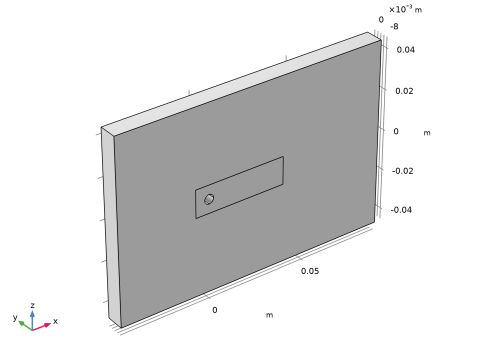
The geometry consists of a cylinder of diameter D and length 2D with the axis parallel to the y-axis, and placed at (0, 0, 0). The surrounding box is 30D long and 20D high to avoid any influence of the external boundaries. A smaller box of height 3D and width 10D is placed around the cylinder to define a domain with a refined mesh. The geometry is shown in Figure 1.
Figure 1: Geometry of the cylinder with the mesh refinement box.
The inlet Mach number is set to 0.05 and the outlet gauge pressure is set to 0 Pa. A periodic condition is used on the sides orthogonal to the cylinder.
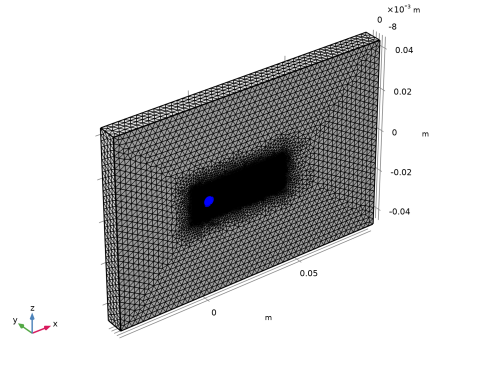
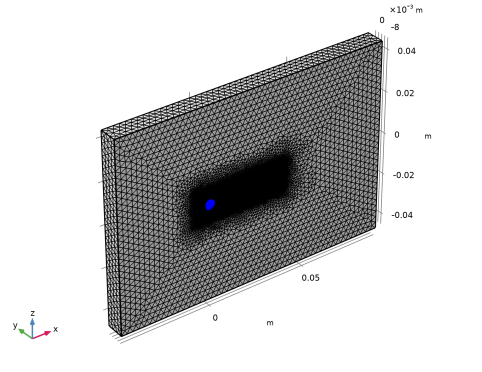
First, a stationary study is run with the SST model on a coarse mesh to give good initial values for the transient simulations. Subsequently, two studies are run on a finer mesh with the SST and SST-SAS models in order to compare the two models. The mesh size downstream of the cylinder is chosen to be D/15 to be able to resolve some of the turbulence structures. The mesh can be seen in Figure 2. Crosswind diffusion stabilization is turned off for both studies to further enhance the transversal turbulent flow structures.
Figure 2: Mesh for the time-dependent studies. The mesh is refined around the cylinder walls and downstream to give a more detailed representation of the turbulence structures.
Results and Discussion
Figure 3 shows the Q-criterion plot for the last time step computed with the SST turbulence model.
Figure 3: Visualization of the Q-criterion for the SST turbulence model. Note that the shed vortexes have a two-dimensional form.
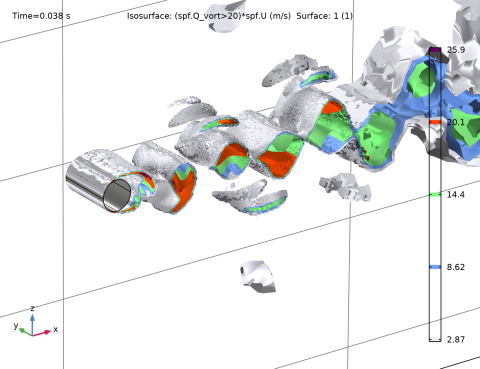
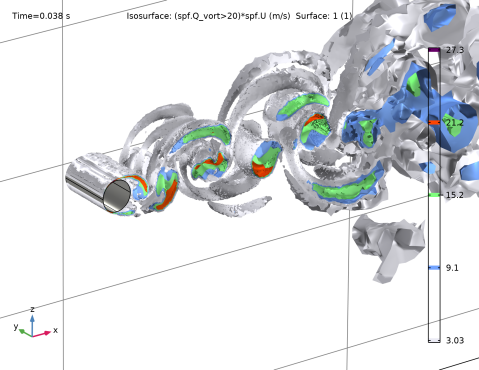
Figure 4 shows a similar plot for the SST-SAS model. Note the difference in the transversal structures, which is more pronounced in the SST-SAS model due to the scale-adaptive contributions in the specific-dissipation-rate equation.
Figure 4: Visualization of the Q-criterion for the SST-SAS turbulence model. Note the more pronounced three-dimensional turbulence structures.
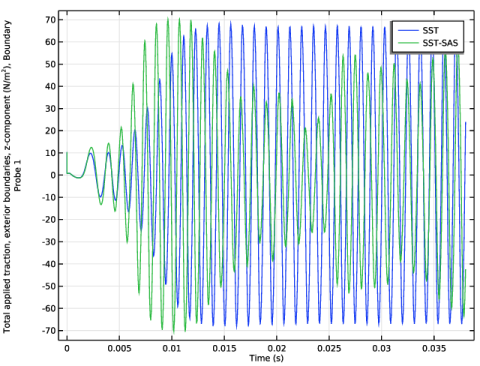
Figure 5 shows the time-dependent integrated z-component of the forces on the cylinder for the two different models. Note the difference in the periods.
Figure 5: Time-dependent lift forces on the cylinder for the SST and SST-SAS models. Note the differences in startup behavior and frequency.
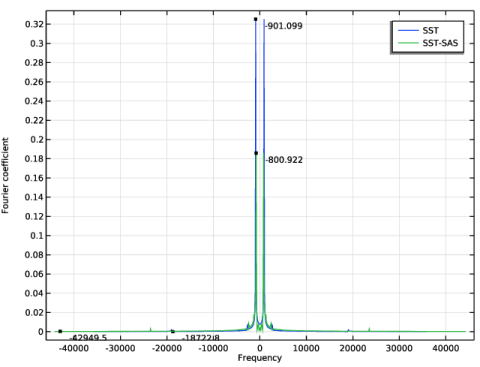
Figure 6 shows the Fourier-transformed results.
Figure 6: Discrete Fourier Transform (DFT) of the time-dependent lift forces exerted on the cylinder. A window from 0.013 s to 0.043 s has been used to remove the frequency distribution during the initial transient before stable shedding occurs.
The SST-SAS model result lies close to the value calculated from the Strouhal number, which is in the vicinity of 800 Hz.
Reference
1. F.R. Menter, A. Garbaruk, P. Smirnov, D. Cokljat, and F. Mathey, “Progress in Hybrid RANS-LES Modelling: Papers Contributed to the 3rd Symposium on Hybrid RANS-LES Methods, Gdansk, Poland, June 2009,” pp. 235–246, Springer, 2010.
Application Library path: CFD_Module/Single-Phase_Flow/cylinder_flow_turbulent
Modeling Instructions
From the File menu, choose New.
New
In the New window, click  Model Wizard.
Model Wizard
1
In the Model Wizard window, click  3D.
2
In the Select Physics tree, select Fluid Flow > Single-Phase Flow > Turbulent Flow > Turbulent Flow, SST (spf).
3
Click Add.
4
Click  Study.
5
In the Select Study tree, select Preset Studies for Selected Physics Interfaces > Stationary with Initialization.
6
Add the model parameters to the global parameters list.
Global Definitions
Parameters 1
1
In the Model Builder window, under Global Definitions click Parameters 1.
2
In the Settings window for Parameters, locate the Parameters section.
3
Create the geometry of a cylinder enclosed in a box.
Geometry 1
Work Plane 1 (wp1)
1
In the Geometry toolbar, click  Work Plane.
2
In the Settings window for Work Plane, locate the Plane Definition section.
3
From the Plane list, choose xz-plane.
Work Plane 1 (wp1) > Plane Geometry
In the Model Builder window, click Plane Geometry.
Work Plane 1 (wp1) > Circle 1 (c1)
1
In the Work Plane toolbar, click  Circle.
2
In the Settings window for Circle, locate the Size and Shape section.
3
In the Radius text field, type D/2.
Work Plane 1 (wp1) > Rectangle 1 (r1)
1
In the Work Plane toolbar, click  Rectangle.
2
In the Settings window for Rectangle, locate the Size and Shape section.
3
In the Width text field, type 30*D.
4
In the Height text field, type 20*D.
5
Locate the Position section. In the xw text field, type -10*D.
6
In the yw text field, type -10*D.
Work Plane 1 (wp1) > Rectangle 2 (r2)
1
In the Work Plane toolbar, click  Rectangle.
2
In the Settings window for Rectangle, locate the Size and Shape section.
3
In the Width text field, type 10*D.
4
In the Height text field, type 3*D.
5
Locate the Position section. In the xw text field, type -1.5*D.
6
In the yw text field, type -1.5*D.
7
In the Work Plane toolbar, click  Build All.
Work Plane 1 (wp1) > Difference 1 (dif1)
1
In the Work Plane toolbar, click  Booleans and Partitions and choose Difference.
2
Select the objects r1 and r2 only.
3
In the Settings window for Difference, locate the Difference section.
4
Click to select the  Activate Selection toggle button for Objects to subtract.
5
6
In the Work Plane toolbar, click  Build All.
Extrude 1 (ext1)
1
In the Model Builder window, under Component 1 (comp1) > Geometry 1 right-click Work Plane 1 (wp1) and choose Extrude.
2
In the Settings window for Extrude, locate the Distances section.
3
4
Click  Build Selected.
Form Union (fin)
1
In the Model Builder window, click Form Union (fin).
2
In the Settings window for Form Union/Assembly, click  Build Selected.
Mesh Control Domains 1 (mcd1)
1
In the Geometry toolbar, click  Virtual Operations and choose Mesh Control Domains.
2
On the object fin, select Domain 2 only.
3
In the Geometry toolbar, click  Build All.
Add a blank material and use the density and viscosity from the previously defined parameters.
Materials
Fluid
1
In the Model Builder window, under Component 1 (comp1) right-click Materials and choose Blank Material.
2
In the Settings window for Material, type Fluid in the Label text field.
3
Locate the Material Contents section. In the table, enter the following settings:
Define the boundary conditions for the flow.
Turbulent Flow, SST (spf)
Inlet 1
1
In the Physics toolbar, click  Boundaries and choose Inlet.
2
3
In the Settings window for Inlet, locate the Velocity section.
4
In the U0 text field, type Uin.
5
Locate the Turbulence Conditions section. From the LT list, choose User defined.
6
Outlet 1
1
In the Physics toolbar, click  Boundaries and choose Outlet.
2
Wall 2
1
In the Physics toolbar, click  Boundaries and choose Wall.
2
3
In the Settings window for Wall, locate the Boundary Condition section.
4
From the Wall condition list, choose Slip.
Periodic Flow Condition 1
1
In the Physics toolbar, click  Boundaries and choose Periodic Flow Condition.
2
Change the mesh settings to coarser and run a stationary solution just to get good initial values for the transient models. A coarse mesh leads to some inherent diffusion that stabilizes the solution. With this mesh the flow pattern is clearly not resolved, but for such problems, a stationary solution will not exist when using a properly refined mesh.
Mesh 1
1
In the Model Builder window, under Component 1 (comp1) click Mesh 1.
2
In the Settings window for Mesh, locate the Physics-Controlled Mesh section.
3
From the Element size list, choose Coarser.
Study 1
In the Study toolbar, click  Compute.
Add a boundary probe that integrates the z-component of the fluid forces exerted on the cylinder. This will make it possible to analyze the vortex-shedding frequency. The advantage of using a probe here is that the integral will be saved in each time step. Hence, you get a good resolution of the desired curve without having to store the results in the entire mesh for each time step.
Definitions
Boundary Probe 1 (bnd1)
1
In the Definitions toolbar, click  Probes and choose Boundary Probe.
2
In the Settings window for Boundary Probe, locate the Source Selection section.
3
Click  Clear Selection.
4
Click the  Select Box button in the Graphics toolbar.
5
6
Locate the Expression section. In the Expression text field, type spf.T_tracz.
7
Click to expand the Table and Window Settings section. From the Output table list, choose New table.
8
Click  Add Table.
To improve the accuracy of the SST and the SST-SAS turbulence models, disable Crosswind diffusion stabilization in the physics interface and enable the Limit small time steps effect on stabilization time scale.
Turbulent Flow, SST (spf)
1
Click the  Show More Options button in the Model Builder toolbar.
2
In the Show More Options dialog, select Physics > Stabilization in the tree.
3
4
5
In the Model Builder window, under Component 1 (comp1) click Turbulent Flow, SST (spf).
6
In the Settings window for Turbulent Flow, SST, click to expand the Consistent Stabilization section.
7
Find the Navier–Stokes equations subsection. Clear the Crosswind diffusion checkbox.
8
Clear the Use dynamic subgrid time scale checkbox.
9
Select the Limit small time steps effect on stabilization time scale checkbox.
Add a new mesh and change the default settings so that the boundary layers are better resolved, and make a finer mesh downstream of the cylinder.
Mesh 2
1
In the Mesh toolbar, click Add Mesh and choose Add Mesh.
2
In the Settings window for Mesh, locate the Sequence Type section.
3
From the list, choose User-controlled mesh.
Size
1
In the Model Builder window, under Component 1 (comp1) > Meshes > Mesh 2 click Size.
2
In the Settings window for Size, locate the Element Size Parameters section.
3
In the Maximum element size text field, type 0.006.
4
Locate the Element Size section. Click the Predefined button.
5
From the Predefined list, choose Coarse.
6
Locate the Element Size Parameters section. In the Maximum element size text field, type 0.006.
Size 1
1
In the Model Builder window, click Size 1.
2
In the Settings window for Size, locate the Element Size section.
3
Click the Predefined button.
4
From the Predefined list, choose Coarse.
Size 2
1
In the Model Builder window, click Size 2.
2
In the Settings window for Size, locate the Geometric Entity Selection section.
3
From the Geometric entity level list, choose Domain.
4
5
Locate the Element Size Parameters section. In the Maximum element size text field, type D/15.
6
Clear the Minimum element size checkbox.
7
Clear the Maximum element growth rate checkbox.
8
Clear the Curvature factor checkbox.
9
Clear the Resolution of narrow regions checkbox.
Boundary Layer Properties 1
1
In the Model Builder window, expand the Boundary Layers 1 node, then click Boundary Layer Properties 1.
2
In the Settings window for Boundary Layer Properties, locate the Layers section.
3
In the Number of layers text field, type 12.
4
In the Thickness adjustment factor text field, type 1.05.
5
Click  Build All.
Add Study
1
In the Home toolbar, click  Windows and choose Add Study.
2
Go to the Add Study window.
3
Find the Studies subsection. In the Select Study tree, select Preset Studies for Selected Physics Interfaces > Time Dependent with Initialization.
4
Click the Add Study button in the window toolbar.
5
In the Home toolbar, click  Add Study to close the Add Study window.
Study 2
Solution 3 (sol3)
1
In the Model Builder window, expand the Study 2 node.
2
Right-click Study 2 and choose Show Default Solver.
Step 1: Wall Distance Initialization
1
In the Model Builder window, expand the Solution 3 (sol3) node, then click Study 2 > Step 1: Wall Distance Initialization.
2
In the Settings window for Wall Distance Initialization, click to expand the Values of Dependent Variables section.
3
Find the Values of variables not solved for subsection. From the Settings list, choose User controlled.
4
From the Method list, choose Solution.
5
From the Study list, choose Study 1, Stationary.
Step 2: Time Dependent
1
In the Model Builder window, click Step 2: Time Dependent.
2
In the Settings window for Time Dependent, locate the Study Settings section.
3
In the Output times text field, type range(0,5e-3,10e-3) range(13e-3,5e-3,40e-3).
4
In the Study toolbar, click  Compute.
Create a plot of the Q-criterion to visualize the turbulent structures.
Results
Q-criterion
1
In the Results toolbar, click  3D Plot Group.
2
In the Settings window for 3D Plot Group, locate the Data section.
3
From the Dataset list, choose Study 2/Solution 3 (sol3).
4
In the Label text field, type Q-criterion.
Isosurface 1
1
Right-click Q-criterion and choose Isosurface.
Set the threshold for the Q-criterion to Q>20 to isolate the downstream wake structures and avoid plot contamination from the inlet.
2
In the Settings window for Isosurface, locate the Expression section.
3
In the Expression text field, type (spf.Q_vort>20)*spf.U.
4
Locate the Coloring and Style section. From the Color table list, choose Prism.
5
In the Q-criterion toolbar, click  Plot.
Surface 1
1
In the Model Builder window, right-click Q-criterion and choose Surface.
2
In the Settings window for Surface, locate the Expression section.
3
In the Expression text field, type 1.
Material Appearance 1
1
Right-click Surface 1 and choose Material Appearance.
2
In the Settings window for Material Appearance, locate the Appearance section.
3
From the Appearance list, choose Custom.
4
From the Material type list, choose Steel.
Selection 1
1
In the Model Builder window, right-click Surface 1 and choose Selection.
2
Click the  Select Box button in the Graphics toolbar.
3
4
In the Q-criterion toolbar, click  Plot.
Enable the Include scale-adaptive simulations option in the turbulent flow interface to activate the SST-SAS model.
Turbulent Flow, SST (spf)
1
In the Model Builder window, under Component 1 (comp1) click Turbulent Flow, SST (spf).
2
In the Settings window for Turbulent Flow, SST, locate the Turbulence section.
3
Select the Include scale-adaptive simulations checkbox.
Add another probe table for the SST-SAS study. This makes it easier to compare the results afterward.
Definitions
Boundary Probe 1 (bnd1)
1
In the Model Builder window, under Component 1 (comp1) > Definitions click Boundary Probe 1 (bnd1).
2
In the Settings window for Boundary Probe, click to expand the Table and Window Settings section.
3
Click  Add Table.
Add Study
1
In the Home toolbar, click  Windows and choose Add Study.
2
Go to the Add Study window.
3
Find the Studies subsection. In the Select Study tree, select Preset Studies for Selected Physics Interfaces > Time Dependent with Initialization.
4
Click the Add Study button in the window toolbar.
5
In the Home toolbar, click  Add Study to close the Add Study window.
Study 3
Solution 5 (sol5)
1
In the Study toolbar, click  Show Default Solver.
2
In the Model Builder window, collapse the Solution 5 (sol5) node.
Step 1: Wall Distance Initialization
1
In the Model Builder window, expand the Solution 5 (sol5) node, then click Study 3 > Step 1: Wall Distance Initialization.
2
In the Settings window for Wall Distance Initialization, click to expand the Values of Dependent Variables section.
3
Find the Values of variables not solved for subsection. From the Settings list, choose User controlled.
4
From the Method list, choose Solution.
5
From the Study list, choose Study 1, Stationary.
Step 2: Time Dependent
1
In the Model Builder window, click Step 2: Time Dependent.
2
In the Settings window for Time Dependent, locate the Study Settings section.
3
In the Output times text field, type range(0,5e-3,10e-3) range(13e-3,5e-3,40e-3).
4
In the Study toolbar, click  Compute.
Results
Q-criterion 1
1
In the Model Builder window, right-click Q-criterion and choose Duplicate.
2
In the Settings window for 3D Plot Group, locate the Data section.
3
From the Dataset list, choose Probe Solution 5 (sol5).
4
In the Q-criterion 1 toolbar, click  Plot.
Inspect the probe plot to see the time-dependent vertical forces acting on the cylinder.
Probe Table Graph 1
1
In the Model Builder window, expand the Probe Plot Group 4 node, then click Probe Table Graph 1.
2
In the Settings window for Table Graph, click to expand the Legends section.
3
From the Legends list, choose Manual.
4
Probe Table Graph 2
1
In the Model Builder window, click Probe Table Graph 2.
2
In the Settings window for Table Graph, locate the Legends section.
3
From the Legends list, choose Manual.
4
Duplicate the probe plot and perform a DFT to analyze the frequency of the vortex-shedding. Since the vortex shedding is a bit unstable to begin with, remove the first part of the data series by manually setting the x-axis.
Probe Plot Group FFT
1
In the Model Builder window, right-click Probe Plot Group 4 and choose Duplicate.
2
In the Settings window for 1D Plot Group, type Probe Plot Group FFT in the Label text field.
Probe Table Graph 1
1
In the Model Builder window, expand the Probe Plot Group FFT node, then click Probe Table Graph 1.
2
In the Settings window for Table Graph, locate the Data section.
3
From the Transformation list, choose Discrete Fourier transform.
4
In the Model Builder window, click Probe Table Graph 1.
5
Click to expand the Preprocessing section. Find the x-axis column subsection. From the Range list, choose Manual.
6
In the x minimum text field, type 0.1.
7
In the x minimum text field, type 0.013.
8
In the x maximum text field, type 0.023.
9
In the Probe Plot Group FFT toolbar, click  Plot.
Probe Table Graph 2
1
In the Model Builder window, click Probe Table Graph 2.
2
In the Settings window for Table Graph, locate the Data section.
3
From the Transformation list, choose Discrete Fourier transform.
4
In the Probe Plot Group FFT toolbar, click  Plot.
5
In the Model Builder window, click Probe Table Graph 2.
6
Click to expand the Preprocessing section. Find the x-axis column subsection. From the Range list, choose Manual.
7
In the x minimum text field, type 0.1.
8
In the x minimum text field, type 0.013.
9
In the x maximum text field, type 0.023.
10
In the Probe Plot Group FFT toolbar, click  Plot.
Graph Marker 1
1
In the Model Builder window, right-click Probe Table Graph 1 and choose Graph Marker.
2
In the Settings window for Graph Marker, locate the Text Format section.
3
Clear the Show y-coordinate checkbox.
4
Select the Show x-coordinate checkbox.
Graph Marker 2
Right-click Graph Marker 1 and choose Duplicate.
1
Drag and drop Graph Marker 2 on Probe Table Graph 2.
2
In the Probe Plot Group FFT toolbar, click  Plot.