

PDF

Unsteady 3D Flow Past a Cylinder
Introduction
Fluid flow past a cylinder is a common test case in computational fluid dynamics. The flow pattern is characterized by the Reynolds number which is defined as
where ρ is the density, Umean is the mean velocity of the free stream, D is the cylinder diameter, and μ is the dynamic viscosity.
The flow patterns around a cylinder in a free stream for different Reynolds numbers are shown in Ref. 1. At Re below 5, the flow remains attached to the cylinder. For Re between 5 and 15, steady wake vortices start forming on the downstream side of the cylinder. The wake becomes unsteady and forms a laminar vortex street for Re between 40 and 150.
Flow around a cylinder in a channel is even more complicated due to the effect of wall boundaries. Computer simulations of this problem at the intermediate Re regime (between 40 and 150) are challenging since they need to be 3D and time-dependent.
In this verification model, a benchmark problem of unsteady, incompressible 3D flow past a cylinder for Re = 100 during a period of 8 seconds is considered. The lift and drag coefficients are computed and are compared with those in Ref. 2.
Model Definition
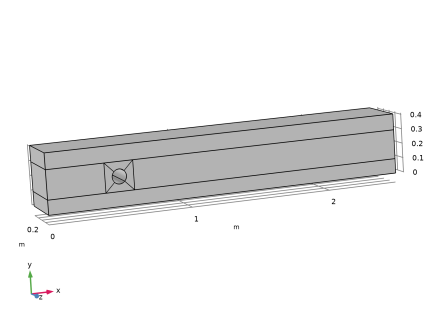
The geometry is a cylinder of radius R with the axis parallel to the z-axis, and placed at (xc, yc, 0), inside the box [0L] × [0H] × [0H]. Figure 1 shows the geometry corresponding to R = 0.05 m , L = 2.5 m, H = 0.5 m, and xc = 0.5 m, yc = 0.2 m.
The fluid to be considered is incompressible and Newtonian with a kinematic viscosity of 103 m2/s. The inflow velocity profile varies in time according to:
(1)
The lift and drag coefficients CD and CL are computed as functions of time,
(2)
where FD and FL are the drag and lift forces, and A is the projected area, A = 2RH.
Figure 1: The geometry is a cylinder placed inside a box.
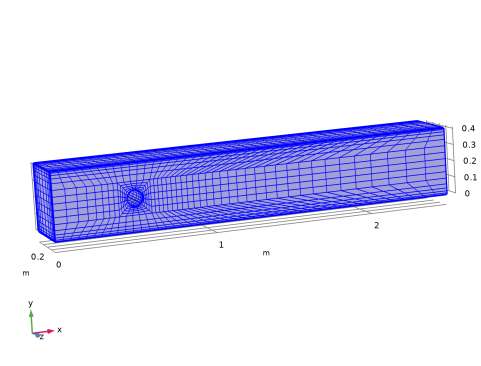
The simulation is performed with a relatively coarse mesh with 7200 hexahedral elements shown in Figure 2. P2+P2 shape functions are chosen for the velocity and pressure to allow for better conservation and higher accuracy compared to P2+P1 and P1+P1. The generalized alpha method with automatic time stepping is chosen since it has less damping than the BDF method.
Figure 2: The relatively coarse mesh, with 7200 hexahedral elements, used in the simulation.
Results and Discussion
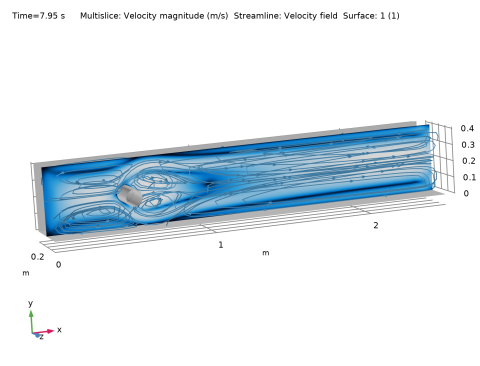
Figure 3 shows the flow pattern at t = 7.95 s, the last saved time before the inflow velocity returns to zero.
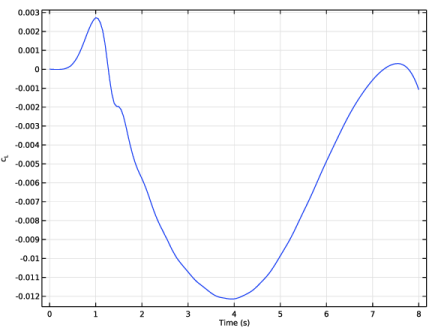
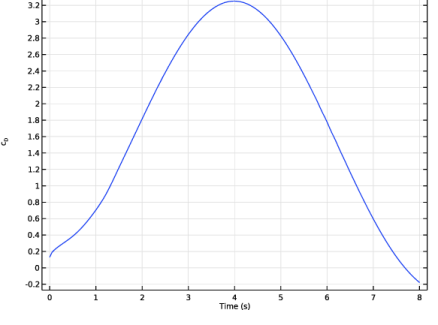
The lift and drag coefficients versus time are shown in Figure 4 and Figure 5 respectively. They capture the general shape of those published Ref. 1 quite well. Note that the nonzero drag at t = 0 s is due to the initial acceleration at the inlet boundary.
In order to verify the results, the L2 norm is computed for the lift and drag coefficients over the entire solved time-span. The results are consistent with those published Ref. 2. The relative error in lift is around 12% and the relative error in drag is approximately 1.2%.
When the mesh size is reduced by a factor of 2, resulting in 57,600 elements, the computational time increases by a factor of 8 but the agreement with the current simulation is still excellent.
Figure 3: Computed velocity field at t = 7.95 s.
Figure 4: Lift coefficient versus time.
Figure 5: Drag coefficient versus time.
Notes About the COMSOL Implementation
The space discretization P2+P2 coupled with the generalized alpha time discretization works efficiently for this application. P2+P2 elements allow for a coarser mesh, better conservation, and more accuracy compared to P2+P1 and P1+P1 elements. The generalized alpha method has less damping than the BDF method. Automatic time-stepping works well and relatively large time steps can be used, and thus less computational time is needed compared to Ref. 2.
References
1. M. Van Dyke, An album of fluid motion, the Parabolic Press, ISBN 0-915760-03-7, 1982.
2. E. Bayraktar, O. Mierka, and S. Turek, “Benchmark Computation of 3D Laminar Flow Around a Cylinder with CFX, OpenFOAM and FeatFlow,” IJCSE, vol. 7, no. 3, pp. 253–266, 2012.
Application Library path: CFD_Module/Verification_Examples/cylinder_flow_3d_periodic
Modeling Instructions
From the File menu, choose New.
New
In the New window, click  Model Wizard.
Model Wizard
1
In the Model Wizard window, click  3D.
2
In the Select Physics tree, select Fluid Flow > Single-Phase Flow > Laminar Flow (spf).
3
Click Add.
4
Click  Study.
5
In the Select Study tree, select General Studies > Time Dependent.
6
Global Definitions
Parameters 1
1
In the Model Builder window, under Global Definitions click Parameters 1.
2
In the Settings window for Parameters, locate the Parameters section.
3
Geometry 1
First, create the box [0,  L]×[0,  H]×[0,  H].
Block 1 (blk1)
1
In the Geometry toolbar, click  Block.
2
In the Settings window for Block, locate the Size and Shape section.
3
In the Width text field, type L.
4
In the Depth text field, type H.
5
In the Height text field, type H.
6
Click to expand the Layers section. In the table, enter the following settings:
7
Find the Layer position subsection. Select the Front checkbox.
8
Clear the Bottom checkbox.
The extra layers are used later to set up the mesh.
Cylinder 1 (cyl1)
1
In the Geometry toolbar, click  Cylinder.
2
In the Settings window for Cylinder, locate the Size and Shape section.
3
In the Radius text field, type R.
4
In the Height text field, type H.
5
Locate the Position section. In the x text field, type xc.
6
In the y text field, type yc.
7
Locate the Rotation Angle section. In the Rotation text field, type 45.
Next, create a smaller box around the cylinder. This box will be used later on in the meshing sequence.
Block 2 (blk2)
1
In the Geometry toolbar, click  Block.
2
In the Settings window for Block, locate the Size and Shape section.
3
In the Width text field, type 4*R.
4
In the Depth text field, type 4*R.
5
In the Height text field, type H.
6
Locate the Position section. In the x text field, type xc-2*R.
7
In the y text field, type yc-2*R.
8
In the Geometry toolbar, click  Build All.
The following operations divide the flow domain into a number of subdomains. This way, a coarser mesh can be used far from the cylinder.
Line Segment 1 (ls1)
1
In the Geometry toolbar, click  More Primitives and choose Line Segment.
2
On the object cyl1, select Point 2 only.
3
In the Settings window for Line Segment, locate the Endpoint section.
4
Click to select the  Activate Selection toggle button for End vertex.
5
On the object blk2, select Point 5 only.
Line Segment 2 (ls2)
1
In the Geometry toolbar, click  More Primitives and choose Line Segment.
2
On the object cyl1, select Point 6 only.
3
In the Settings window for Line Segment, locate the Endpoint section.
4
Click to select the  Activate Selection toggle button for End vertex.
5
On the object blk2, select Point 7 only.
Line Segment 3 (ls3)
1
In the Geometry toolbar, click  More Primitives and choose Line Segment.
2
On the object cyl1, select Point 8 only.
3
In the Settings window for Line Segment, locate the Endpoint section.
4
Click to select the  Activate Selection toggle button for End vertex.
5
On the object blk2, select Point 8 only.
Line Segment 4 (ls4)
1
In the Geometry toolbar, click  More Primitives and choose Line Segment.
2
On the object cyl1, select Point 4 only.
3
In the Settings window for Line Segment, locate the Endpoint section.
4
Click to select the  Activate Selection toggle button for End vertex.
5
On the object blk2, select Point 6 only.
6
Click  Build All Objects.
7
Click the  Wireframe Rendering button in the Graphics toolbar, and rotate the geometry to get a better view.
Now, create the final computational domain with a hollow cylinder.
Difference 1 (dif1)
1
In the Geometry toolbar, click  Booleans and Partitions and choose Difference.
2
Select the objects blk1 and blk2 only.
3
In the Settings window for Difference, locate the Difference section.
4
Click to select the  Activate Selection toggle button for Objects to subtract.
5
6
In the Geometry toolbar, click  Build All.
7
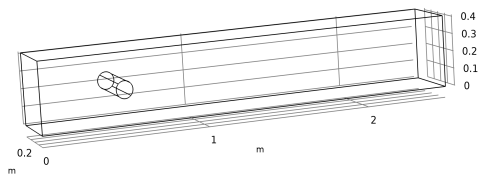
Click the  Wireframe Rendering button in the Graphics toolbar. The geometry looks as follows.
8
In the Model Builder window, click Geometry 1.
The extra entities are only there to help control the mesh. They are not used in any other part of the simulation. So, assign them as mesh control entities. That way, they will only show up under the Mesh node.
Mesh Control Domains 1 (mcd1)
1
In the Geometry toolbar, click  Virtual Operations and choose Mesh Control Domains.
2
On the object fin, select Domains 2, 4, and 5 only.
Mesh Control Edges 1 (mce1)
1
In the Geometry toolbar, click  Virtual Operations and choose Mesh Control Edges.
2
On the object mcd1, select Edges 9, 10, 22, and 24 only.
3
In the Geometry toolbar, click  Build All.
Create a selection for the cylinder. This will be useful later for evaluating the drag and lift coefficients.
Definitions
Cylinder
1
In the Definitions toolbar, click  Explicit.
2
In the Settings window for Explicit, locate the Input Entities section.
3
From the Geometric entity level list, choose Boundary.
4
Select the Group by continuous tangent checkbox.
5
6
In the Label text field, type Cylinder.
Laminar Flow (spf)
1
Click the  Show More Options button in the Model Builder toolbar.
2
In the Show More Options dialog, in the tree, select the checkbox for the node Physics > Stabilization.
3
4
In the Model Builder window, under Component 1 (comp1) click Laminar Flow (spf).
5
In the Settings window for Laminar Flow, click to expand the Consistent Stabilization section.
6
Find the Navier–Stokes equations subsection. Clear the Crosswind diffusion checkbox.
7
Click to expand the Discretization section. From the Discretization of fluids list, choose P2+P2. P2+P2 is used because it is more conservative and more accurate than P2+P1 and P1+P1.
Fluid Properties 1
1
In the Model Builder window, under Component 1 (comp1) > Laminar Flow (spf) click Fluid Properties 1.
2
In the Settings window for Fluid Properties, locate the Fluid Properties section.
3
From the ρ list, choose User defined. In the associated text field, type rho.
4
From the μ list, choose User defined. In the associated text field, type mu.
Inlet 1
1
In the Physics toolbar, click  Boundaries and choose Inlet.
2
3
In the Settings window for Inlet, locate the Velocity section.
4
In the U0 text field, type 36*U_mean*z*y*(H-y)*(H-z)/H^4*sin(pi*t/8[s]), which corresponds to Equation 1.
Outlet 1
1
In the Physics toolbar, click  Boundaries and choose Outlet.
2
Definitions
Before continuing with the mesh, add variables to compute the drag and lift coefficient according to Equation 2. Start by defining an integration operator over the cylinder.
Integration 1 (intop1)
1
In the Definitions toolbar, click  Nonlocal Couplings and choose Integration.
2
In the Settings window for Integration, locate the Source Selection section.
3
From the Geometric entity level list, choose Boundary.
4
From the Selection list, choose Cylinder.
Now, use this operator for the definition of the drag and lift coefficients.
Variables 1
1
In the Model Builder window, right-click Definitions and choose Variables.
2
In the Settings window for Variables, locate the Variables section.
3
The reference values are available in a text file.
Interpolation: Reference Lift Coefficient
1
In the Definitions toolbar, click  Interpolation.
2
In the Settings window for Interpolation, type Interpolation: Reference Lift Coefficient in the Label text field.
3
Locate the Definition section. In the Function name text field, type c_L_ref.
4
From the Data source list, choose File.
5
Click  Browse.
6
7
Locate the Data Column Settings section. In the table, click to select the cell at row number 1 and column number 1.
8
In the Unit text field, type s.
Interpolation: Reference Drag Coefficient
1
In the Definitions toolbar, click  Interpolation.
2
In the Settings window for Interpolation, type Interpolation: Reference Drag Coefficient in the Label text field.
3
Locate the Definition section. In the Function name text field, type c_D_ref.
4
From the Data source list, choose File.
5
Click  Browse.
6
7
Locate the Data Column Settings section. In the table, click to select the cell at row number 1 and column number 1.
8
In the Unit text field, type s.
Mesh 1
Use advanced operations such as Map and Sweep to create a hexahedral mesh.
Mapped 1
In the Mesh toolbar, click  More Generators and choose Mapped.
Size
1
In the Model Builder window, click Size.
2
In the Settings window for Size, locate the Element Size section.
3
From the Calibrate for list, choose Fluid dynamics.
4
From the Predefined list, choose Coarse.
Mapped 1
1
In the Model Builder window, click Mapped 1.
2
Distribution 1
1
Right-click Mapped 1 and choose Distribution.
2
Distribution 2
1
Right-click Mapped 1 and choose Distribution.
2
3
In the Settings window for Distribution, locate the Distribution section.
4
From the Distribution type list, choose Predefined.
5
In the Element ratio text field, type 2.
6
From the Growth rate list, choose Exponential.
Distribution 3
1
Right-click Mapped 1 and choose Distribution.
2
3
In the Settings window for Distribution, locate the Distribution section.
4
From the Distribution type list, choose Predefined.
5
In the Element ratio text field, type 2.
6
From the Growth rate list, choose Exponential.
7
Click  Build Selected.
Mapped 2
1
In the Mesh toolbar, click  More Generators and choose Mapped.
2
Distribution 1
1
Right-click Mapped 2 and choose Distribution.
2
Distribution 2
1
In the Model Builder window, right-click Mapped 2 and choose Distribution.
2
3
In the Settings window for Distribution, locate the Distribution section.
4
From the Distribution type list, choose Predefined.
5
In the Number of elements text field, type 8.
6
In the Element ratio text field, type 3.
7
From the Growth rate list, choose Exponential.
8
Select the Reverse direction checkbox.
Distribution 3
1
Right-click Mapped 2 and choose Distribution.
2
3
In the Settings window for Distribution, locate the Distribution section.
4
From the Distribution type list, choose Predefined.
5
In the Number of elements text field, type 30.
6
In the Element ratio text field, type 6.
7
From the Growth rate list, choose Exponential.
8
Click  Build Selected.
Mapped 3
1
In the Mesh toolbar, click  More Generators and choose Mapped.
2
Distribution 1
1
Right-click Mapped 3 and choose Distribution.
2
3
In the Settings window for Distribution, locate the Distribution section.
4
From the Distribution type list, choose Predefined.
5
In the Element ratio text field, type 4.
6
From the Growth rate list, choose Exponential.
Distribution 2
1
In the Model Builder window, right-click Mapped 3 and choose Distribution.
2
3
In the Settings window for Distribution, locate the Distribution section.
4
From the Distribution type list, choose Predefined.
5
In the Element ratio text field, type 4.
6
From the Growth rate list, choose Exponential.
Distribution 3
1
Right-click Mapped 3 and choose Distribution.
2
3
In the Settings window for Distribution, locate the Distribution section.
4
From the Distribution type list, choose Predefined.
5
In the Number of elements text field, type 43.
6
In the Element ratio text field, type 1.6.
7
From the Growth rate list, choose Exponential.
8
Click  Build Selected.
Swept 1
In the Mesh toolbar, click  Swept.
Distribution 1
1
Right-click Swept 1 and choose Distribution.
2
In the Settings window for Distribution, locate the Distribution section.
3
From the Distribution type list, choose Predefined.
4
In the Number of elements text field, type 10.
5
In the Element ratio text field, type 4.
6
From the Growth rate list, choose Exponential.
7
Select the Symmetric distribution checkbox.
8
Click  Build All.
The mesh in Figure 2 has now been generated.
Study 1
Step 1: Time Dependent
1
In the Model Builder window, under Study 1 click Step 1: Time Dependent.
2
In the Settings window for Time Dependent, locate the Study Settings section.
3
In the Output times text field, type range(0,0.05,8).
4
From the Tolerance list, choose User controlled.
5
In the Relative tolerance text field, type 0.001.
Solution 1 (sol1)
Choose the generalized alpha method for the time stepping. It has less damping than the BDF.
1
In the Study toolbar, click  Show Default Solver.
2
In the Model Builder window, expand the Solution 1 (sol1) node.
3
In the Model Builder window, under Study 1 > Solver Configurations > Solution 1 (sol1) click Time-Dependent Solver 1.
4
In the Settings window for Time-Dependent Solver, click to expand the Time Stepping section.
5
From the Method list, choose Generalized alpha.
6
Select the Initial step checkbox. In the associated text field, type 0.01.
7
From the Maximum step constraint list, choose Constant.
8
In the Study toolbar, click  Compute.
First, evaluate the drag and lift coefficients.
Results
Global Evaluation: Lift and Drag Coefficients
1
In the Results toolbar, click  Global Evaluation.
2
In the Settings window for Global Evaluation, type Global Evaluation: Lift and Drag Coefficients in the Label text field.
3
Locate the Expressions section. In the table, enter the following settings:
4
Click  Evaluate.
Table 1: Lift and Drag Coefficients
1
In the Model Builder window, expand the Results > Tables node, then click Table 1.
2
In the Settings window for Table, type Table 1: Lift and Drag Coefficients in the Label text field.
Table 1: Lift and Drag Coefficients
1
Go to the Table 1: Lift and Drag Coefficients window.
2
Click the Table Graph button in the window toolbar.
Results
Table Graph 1
1
In the Settings window for Table Graph, locate the Data section.
2
From the Plot columns list, choose Manual.
3
In the Columns list box, select Lift coefficient (1).
Lift coefficient
1
In the Model Builder window, under Results click 1D Plot Group 3.
2
In the Settings window for 1D Plot Group, type Lift coefficient in the Label text field.
3
Locate the Plot Settings section.
4
Select the y-axis label checkbox. In the associated text field, type c<sub>L</sub>.
5
In the Lift coefficient toolbar, click  Plot. Compare with Figure 4.
Drag coefficient
1
Right-click Lift coefficient and choose Duplicate.
2
In the Model Builder window, click Lift coefficient 1.
3
In the Settings window for 1D Plot Group, locate the Plot Settings section.
4
In the y-axis label text field, type c<sub>D</sub>.
5
In the Label text field, type Drag coefficient.
Table Graph 1
1
In the Model Builder window, click Table Graph 1.
2
In the Settings window for Table Graph, locate the Data section.
3
In the Columns list box, select Drag coefficient (1).
4
In the Drag coefficient toolbar, click  Plot. Compare with Figure 5.
Continue with computing the maximum and minimum values.
Global Evaluation: Maximum Lift and Drag Coefficients
1
In the Model Builder window, right-click Global Evaluation: Lift and Drag Coefficients and choose Duplicate.
2
In the Settings window for Global Evaluation, type Global Evaluation: Maximum Lift and Drag Coefficients in the Label text field.
3
Locate the Data Series Operation section. From the Transformation list, choose Maximum.
4
Clicknext to  Evaluate, then choose New Table.
The maximum lift and drag coefficients are about cL,max= 0.00273 and cD,max= 3.2511.
Global Evaluation: Minimum Lift and Drag Coefficients
1
Right-click Global Evaluation: Maximum Lift and Drag Coefficients and choose Duplicate.
2
In the Settings window for Global Evaluation, type Global Evaluation: Minimum Lift and Drag Coefficients in the Label text field.
3
Locate the Data Series Operation section. From the Transformation list, choose Minimum.
4
Clicknext to  Evaluate, then choose New Table.
The minimum lift and drag coefficients are about cL,min= -0.0121 and cD,min= -0.1784.
Table 2: Maximum Lift and Drag Coefficients
1
In the Model Builder window, under Results > Tables click Table 2.
2
In the Settings window for Table, type Table 2: Maximum Lift and Drag Coefficients in the Label text field.
Table 3: Minimum Lift and Drag Coefficients
1
In the Model Builder window, click Table 3.
2
In the Settings window for Table, type Table 3: Minimum Lift and Drag Coefficients in the Label text field.
Calculate the relative L2 error of the Lift and Drag Coefficients over time using the ratio of the L2 norms of the error and reference values.
Global Evaluation: Relative error (L2)
1
In the Results toolbar, click  Global Evaluation.
2
In the Settings window for Global Evaluation, locate the Expressions section.
3
4
Locate the Data section. From the Time selection list, choose Last.
5
Clicknext to  Evaluate, then choose New Table.
6
In the Label text field, type Global Evaluation: Relative error (L2).
Table 4: Relative Error (L2)
1
In the Model Builder window, under Results > Tables click Table 4.
2
In the Settings window for Table, type Table 4: Relative Error (L2) in the Label text field.
The values are consistent with the values in the paper.
Now, visualize the velocity field as shown in Figure 3.
Velocity (spf)
1
In the Model Builder window, under Results click Velocity (spf).
2
In the Settings window for 3D Plot Group, locate the Color Legend section.
3
Clear the Show legends checkbox.
4
Locate the Plot Settings section. Clear the Plot dataset edges checkbox.
5
Locate the Data section. From the Time (s) list, choose 7.95. Since the inlet velocity vanishes at the final time step, the solution at t=7.95s is chosen for a better visualization of the streamlines.
Multislice 1
To see the flow pattern clearly, choose to plot the velocity parallel to the xy plane.
1
In the Model Builder window, expand the Velocity (spf) node, then click Multislice 1.
2
In the Settings window for Multislice, locate the Multiplane Data section.
3
Find the x-planes subsection. In the Planes text field, type 0.
4
Find the y-planes subsection. In the Planes text field, type 0.
5
Locate the Coloring and Style section. From the Color table list, choose JupiterAuroraBorealis.
Streamline 1
Add streamlines with arrows.
1
In the Model Builder window, right-click Velocity (spf) and choose Streamline.
2
In the Settings window for Streamline, locate the Streamline Positioning section.
3
From the Positioning list, choose Uniform density.
4
In the Density level text field, type 8.7.
5
Locate the Coloring and Style section. Find the Line style subsection. From the Type list, choose Tube.
6
Select the Radius scale factor checkbox. In the associated text field, type 0.0025.
7
Find the Point style subsection. From the Type list, choose Arrow.
8
From the Color list, choose Custom.
9
10
Click Define custom colors.
11
12
Click Add to custom colors.
13
Click Show color palette only or OK on the cross-platform desktop.
Surface 1
1
Right-click Velocity (spf) and choose Surface.
2
In the Settings window for Surface, locate the Expression section.
3
In the Expression text field, type 1.
4
Locate the Coloring and Style section. From the Coloring list, choose Uniform.
5
From the Color list, choose Gray.
Selection 1
1
Right-click Surface 1 and choose Selection.
2
In the Settings window for Selection, locate the Selection section.
3
From the Selection list, choose Cylinder, and add the bottom and back boundaries. This corresponds to:
4
5
In the Velocity (spf) toolbar, click  Plot.