|
|
|
|
•
|
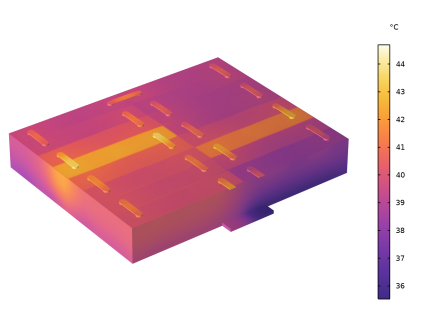
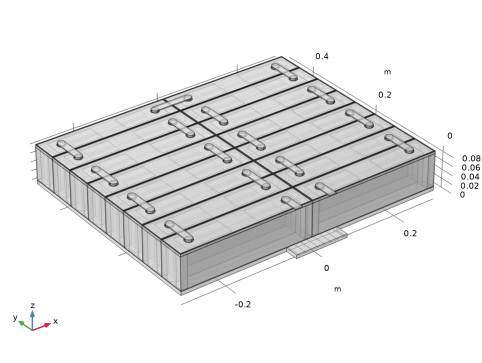
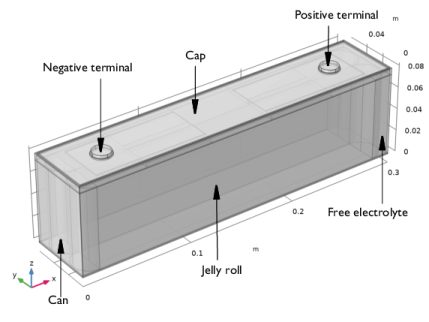
Figure 2 shows a single prismatic battery cell consisting of two jelly rolls. The different components of the single prismatic battery cell are discussed in detail in the Application Libraries example Cooling of a Prismatic Battery.
|
|
•
|
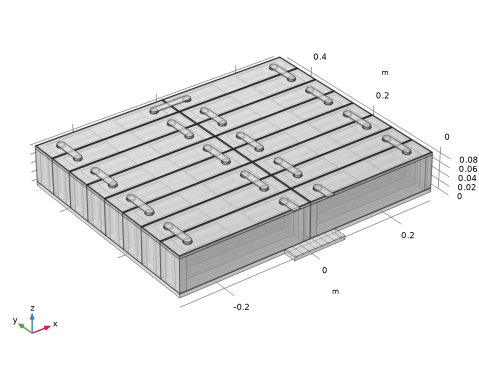
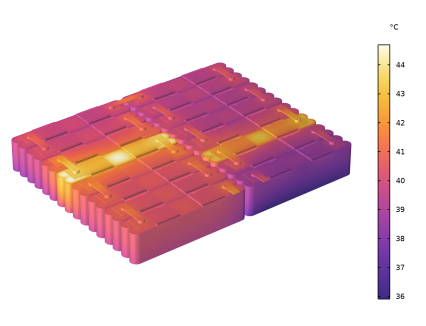
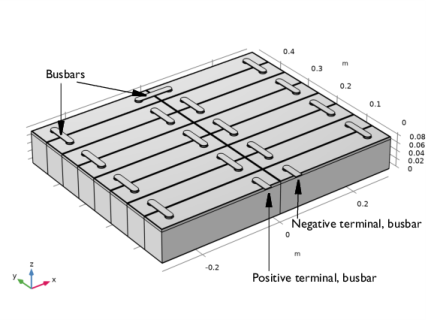
Figure 3 shows 16 prismatic battery cells connected by busbars.
|
|
•
|
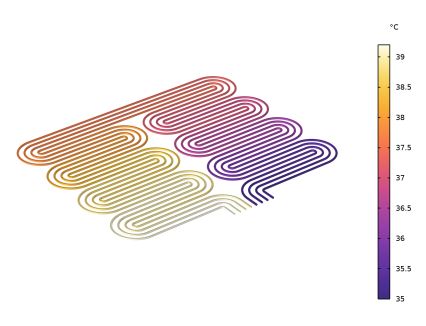
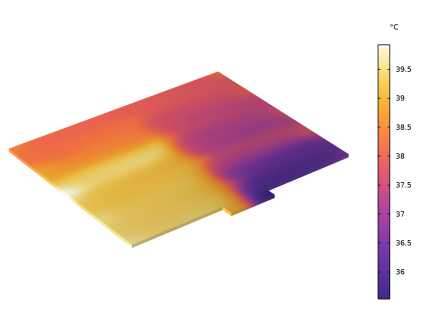
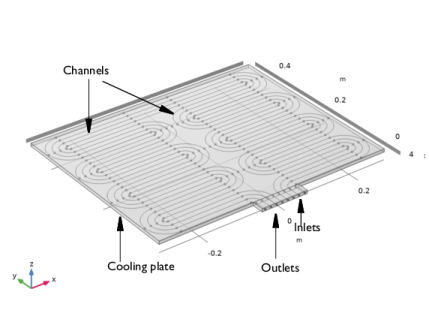
Figure 4 shows the cooling plate with channels.
|
|
•
|
Cooling plate (Aluminum)
|
|
•
|
Liquid in channels (Water)
|
|
•
|
Busbars (Copper)
|
|
•
|
Cell can (Aluminum)
|
|
•
|
Cap (Aluminum)
|
|
•
|
Spacer (Acrylic plastic)
|
|
•
|
Seal (Acrylic plastic)
|
|
•
|
|
•
|
|
•
|
Free electrolyte (user-defined Electrolyte material)
|
|
•
|
|
1
|
|
2
|
|
3
|
Click Add.
|
|
4
|
|
5
|
Click Add.
|
|
6
|
|
7
|
Click Add.
|
|
8
|
|
9
|
Click Add.
|
|
10
|
Click
 Study. Study. |
|
11
|
|
12
|
Click
 Done. Done. |
|
1
|
|
2
|
Browse to the model’s Application Libraries folder and double-click the file prismatic_battery_pack_cooling_geom_sequence.mph.
|
|
3
|
|
4
|
|
5
|
|
6
|
|
7
|
|
8
|
|
9
|
|
10
|
|
1
|
|
2
|
|
1
|
|
2
|
|
3
|
|
4
|
Browse to the model’s Application Libraries folder and double-click the file prismatic_battery_cooling_physics_parameters.txt.
|
|
5
|
Click
 Load from File. Load from File. |
|
6
|
Browse to the model’s Application Libraries folder and double-click the file prismatic_battery_pack_cooling_physics_parameters.txt.
|
|
1
|
|
2
|
Go to the Add Material window.
|
|
3
|
|
4
|
Right-click and choose Add to Global Materials.
|
|
5
|
|
6
|
Right-click and choose Add to Global Materials.
|
|
7
|
|
1
|
In the Model Builder window, under Component 1 (comp1) right-click Definitions and choose Variables.
|
|
2
|
|
3
|
Click
 Load from File. Load from File. |
|
4
|
Browse to the model’s Application Libraries folder and double-click the file prismatic_battery_pack_cooling_physics_variables.txt.
|
|
1
|
|
2
|
|
3
|
|
1
|
|
2
|
|
3
|
|
4
|
|
5
|
Select the Specify battery properties from materials checkbox.
|
|
6
|
|
1
|
|
2
|
|
3
|
|
1
|
|
2
|
|
3
|
|
1
|
|
2
|
In the Settings window for Voltage Losses, locate the Concentration Overpotential, Negative section.
|
|
3
|
Select the Include concentration overpotential, negative checkbox.
|
|
4
|
Locate the Concentration Overpotential, Positive section. Select the Include concentration overpotential, positive checkbox.
|
|
1
|
In the Model Builder window, under Component 1 (comp1) > Battery Pack (bp) click Current Conductors.
|
|
2
|
|
3
|
|
1
|
|
2
|
|
3
|
|
1
|
|
2
|
|
3
|
|
4
|
|
1
|
In the Model Builder window, under Component 1 (comp1) > Battery Pack (bp) click Negative Connectors.
|
|
2
|
|
3
|
From the Selection list, choose Negative Foils - Jelly Roll Boundaries (Battery Cell 1) (Batteries and Busbars).
|
|
1
|
|
2
|
|
3
|
From the Selection list, choose Positive Foils - Jelly Roll Boundaries (Battery Cell 1) (Batteries and Busbars).
|
|
1
|
|
2
|
|
3
|
|
1
|
|
2
|
|
3
|
From the list, choose Square.
|
|
4
|
|
1
|
|
2
|
|
3
|
|
4
|
|
1
|
|
2
|
|
3
|
|
4
|
|
1
|
In the Model Builder window, under Component 1 (comp1) > Heat Transfer in Pipes (htp) click Heat Transfer 1.
|
|
2
|
|
3
|
|
1
|
|
2
|
|
3
|
From the list, choose Square.
|
|
4
|
|
1
|
|
2
|
|
3
|
|
1
|
|
2
|
|
3
|
|
1
|
|
2
|
|
3
|
|
1
|
|
2
|
|
3
|
|
1
|
|
2
|
|
3
|
|
1
|
In the Model Builder window, under Component 1 (comp1) > Heat Transfer in Solids (ht) click Initial Values 1.
|
|
2
|
|
3
|
|
1
|
|
2
|
|
3
|
|
1
|
|
2
|
|
3
|
|
4
|
Locate the Battery Layers section. From the Layer configuration list, choose Flat-sided oval (prismatic).
|
|
5
|
|
6
|
|
7
|
|
8
|
|
1
|
|
2
|
|
3
|
From the Selection list, choose Jelly Roll Rectangular Blocks (Battery Cell 1) (Batteries and Busbars).
|
|
4
|
|
1
|
|
2
|
|
3
|
|
4
|
|
5
|
|
6
|
|
1
|
Go to the Add Material window.
|
|
2
|
|
3
|
Click the Add to Component button in the window toolbar.
|
|
1
|
|
2
|
|
3
|
|
1
|
Go to the Add Material window.
|
|
2
|
|
3
|
Click the Add to Component button in the window toolbar.
|
|
1
|
|
2
|
|
1
|
Go to the Add Material window.
|
|
2
|
|
3
|
Click the Add to Component button in the window toolbar.
|
|
1
|
|
2
|
|
1
|
Go to the Add Material window.
|
|
2
|
|
3
|
Click the Add to Component button in the window toolbar.
|
|
4
|
|
1
|
|
2
|
|
1
|
|
2
|
|
3
|
Locate the Geometric Entity Selection section. From the Selection list, choose Free Electrolyte (Battery Cell 1) (Batteries and Busbars).
|
|
4
|
Locate the Material Contents section. In the table, enter the following settings:
|
|
1
|
|
2
|
In the Settings window for Porous Material, type Porous Material - Homogenized Negative Foils in the Label text field.
|
|
3
|
Locate the Geometric Entity Selection section. From the Selection list, choose Negative Foils (Battery Cell 1) (Batteries and Busbars).
|
|
1
|
|
2
|
|
3
|
|
1
|
In the Model Builder window, right-click Porous Material - Homogenized Negative Foils (pmat1) and choose Solid.
|
|
2
|
|
3
|
|
4
|
|
1
|
|
2
|
|
1
|
|
2
|
In the Settings window for Porous Material, type Porous Material - Homogenized Positive Foils in the Label text field.
|
|
3
|
Locate the Geometric Entity Selection section. From the Selection list, choose Positive Foils (Battery Cell 1) (Batteries and Busbars).
|
|
1
|
|
2
|
|
3
|
|
1
|
In the Model Builder window, right-click Porous Material - Homogenized Positive Foils (pmat2) and choose Solid.
|
|
2
|
|
3
|
|
4
|
|
1
|
|
2
|
|
1
|
|
2
|
|
3
|
Locate the Geometric Entity Selection section. From the Selection list, choose Jelly Roll (Battery Cell 1) (Batteries and Busbars).
|
|
4
|
Locate the Material Contents section. In the table, enter the following settings:
|
|
1
|
|
2
|
|
3
|
|
4
|
Locate the Material Contents section. In the table, enter the following settings:
|
|
1
|
|
2
|
|
3
|
|
1
|
|
2
|
In the Settings window for Global Variable Probe, type Global Variable Probe: E_cell average in the Label text field.
|
|
3
|
|
4
|
|
1
|
|
2
|
In the Settings window for Global Variable Probe, type Global Variable Probe: E_cell maximum in the Label text field.
|
|
3
|
|
4
|
|
1
|
|
2
|
In the Settings window for Global Variable Probe, type Global Variable Probe: E_cell minimum in the Label text field.
|
|
3
|
|
4
|
|
1
|
|
2
|
|
3
|
From the list, choose User-controlled mesh.
|
|
4
|
|
1
|
|
2
|
|
3
|
|
4
|
|
1
|
|
2
|
|
3
|
|
4
|
|
5
|
|
6
|
Locate the Element Size Parameters section.
|
|
7
|
|
8
|
Click
 Build Selected. Build Selected. |
|
1
|
|
2
|
|
3
|
|
4
|
|
1
|
|
2
|
|
3
|
|
4
|
|
5
|
|
6
|
Locate the Element Size Parameters section.
|
|
7
|
|
8
|
Click
 Build Selected. Build Selected. |
|
1
|
|
2
|
|
3
|
|
4
|
From the Selection list, choose Battery Upper Sweep Domains (Battery Cell 1) (Batteries and Busbars).
|
|
1
|
|
2
|
|
3
|
Click the Custom button.
|
|
4
|
Locate the Element Size Parameters section.
|
|
5
|
|
6
|
Click
 Build Selected. Build Selected. |
|
1
|
|
2
|
|
3
|
|
4
|
From the Selection list, choose Battery Other Free Tet Domains (Battery Cell 1) (Batteries and Busbars).
|
|
5
|
Click
 Build Selected. Build Selected. |
|
1
|
|
2
|
|
3
|
|
4
|
From the Selection list, choose Extrude - Jelly Roll and Can (Battery Cell 1) (Batteries and Busbars).
|
|
1
|
|
2
|
|
3
|
From the Selection list, choose Extrude - Jelly Roll and Can (Battery Cell 1) (Batteries and Busbars).
|
|
4
|
Click
 Build Selected. Build Selected. |
|
1
|
|
2
|
|
3
|
|
1
|
|
2
|
|
3
|
In the Solve for column of the table, under Component 1 (comp1), clear the checkboxes for Heat Transfer in Pipes (htp) and Heat Transfer in Solids (ht).
|
|
4
|
In the Solve for column of the table, under Component 1 (comp1) > Multiphysics, clear the checkboxes for Pipe Wall Heat Transfer 1 (pwhtc1) and Electrochemical Heating 1 (ech1).
|
|
1
|
|
2
|
|
3
|
In the Solve for column of the table, under Component 1 (comp1), clear the checkbox for Pipe Flow (pfl).
|
|
4
|
|
5
|
|
6
|
|
1
|
|
2
|
|
3
|
Click
 Add Physical Quantity. Add Physical Quantity. |
|
4
|
|
5
|
Click OK.
|
|
6
|
|
7
|
Click
 Add Physical Quantity. Add Physical Quantity. |
|
8
|
|
9
|
Click OK.
|
|
10
|
|
12
|
Click
 Apply. Apply. |
|
1
|
|
2
|
|
3
|
Locate the Plot Settings section.
|
|
4
|
|
5
|
|
1
|
In the Model Builder window, expand the Jelly Roll Voltage Probe node, then click Probe Table Graph 1.
|
|
2
|
|
3
|
|
5
|
|
1
|
|
2
|
In the Settings window for 3D Plot Group, type Electric Potential - Current Conductors and Busbars in the Label text field.
|
|
3
|
|
4
|
|
5
|
|
6
|
|
7
|
|
8
|
|
9
|
|
10
|
|
1
|
|
2
|
|
3
|
|
4
|
|
5
|
|
1
|
|
2
|
|
1
|
|
2
|
In the Settings window for Arrow Line, click Replace Expression in the upper-right corner of the Expression section. From the menu, choose Component 1 (comp1) > Pipe Flow > pfl.vX,pfl.vY,pfl.vZ - Velocity.
|
|
3
|
|
4
|
|
5
|
|
1
|
|
2
|
|
3
|
|
1
|
|
2
|
|
3
|
|
1
|
|
2
|
|
3
|
|
4
|
|
5
|
|
6
|
|
7
|
|
1
|
|
2
|
|
3
|
|
4
|
|
5
|
|
6
|
|
7
|
|
1
|
|
2
|
In the Settings window for 3D Plot Group, type Temperature - Jelly Roll, Current Conductors and Busbars in the Label text field.
|
|
1
|
In the Model Builder window, expand the Temperature - Jelly Roll, Current Conductors and Busbars node.
|
|
2
|
|
3
|
|
4
|
|
1
|
|
2
|
In the Model Builder window, under Results click Temperature - Jelly Roll, Current Conductors and Busbars.
|
|
3
|
|
1
|
|
2
|
|
3
|
|
1
|
In the Model Builder window, expand the Results > Temperature - Cooling Plate > Volume 1 node, then click Selection 1.
|
|
2
|
|
3
|
|
1
|
|
2
|
|
3
|