PDF

Battery Electrode with a
Particle Size Distribution
Introduction
In many lithium-ion battery models, an extra (pseudo) dimension is introduced in the porous electrodes to define the diffusion of intercalated lithium on the electrode particle scale. Mathematically this is achieved by associating every point in the porous electrode of the base dimension with a local geometric entity, representing an electrode particle, in which the concentration field of intercalated lithium is defined and solved for. In the classical Newman (P2D) model, all electrode particles are assumed spherical, and the intercalated lithium concentration field is hence defined on a one-dimensional extra dimension, assuming spherical symmetry. In the Lithium-Ion Battery Interface, concentration fields on 1D extra dimensions using either spherical, cylindrical or planar symmetry can be defined automatically in any space dimension of the base geometry by the Particle Intercalation node, which is active by default as a subnode to the Porous Electrode, Highly Conductive Porous Electrode, or Additional Electrode Material nodes.
Battery electrodes featuring large heterogeneities in terms of particle sizes may sometimes not be adequately described by homogenized models using one single particle size only. The most straight-forward way to model the effect of multiple particle sizes, is to add multiple Additional Porous Electrode material nodes to a model. This approach may however become tedious, and computationally inefficient when modeling a large ensemble of different particle sizes. As an alternative to adding multiple instances of the Additional Porous Electrode material node, this tutorial demonstrates how to instead deploy a user-defined Extra Dimension to define the solid phase diffusion of intercalated lithium for a range of particle sizes.
The distribution of particle sizes in the electrode is added to the model in the form of a histogram.
Model Definition
Base Dimension Model
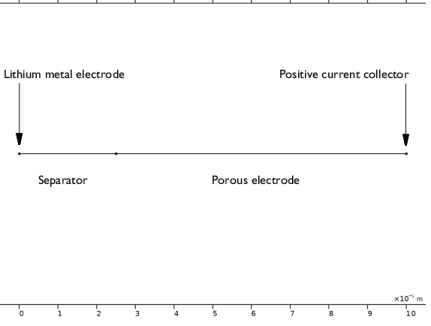
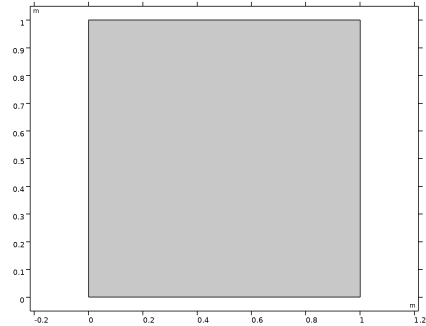
Figure 1 shows the base geometry of the battery cell model. The base geometry is defined in 1D as a half cell consisting of one positive porous nickel–manganese–cobalt (NMC) electrode and one separator domain, with a lithium metal counter electrode defined on the exterior boundary of the separator domain.
The charge and mass balances in the base dimension are defined and solved for the following three dependent variables:
The electrode phase potential, ϕs (V) (only in the porous electrode domain)
Figure 1: Model base geometry.
Extra Dimension Model
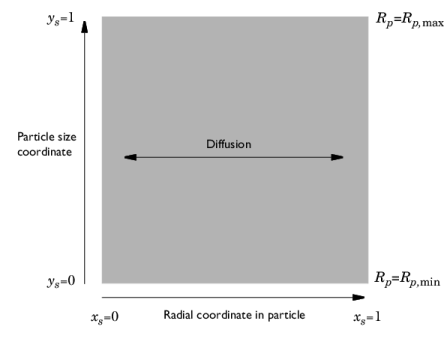
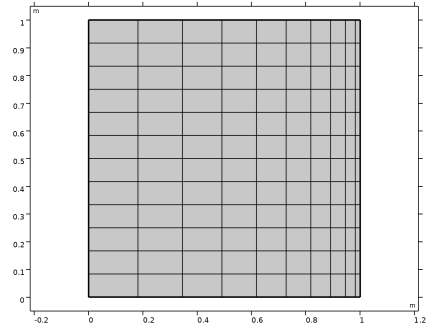
Figure 2 shows the extra dimension model, which is attached to the porous electrode domain in the base model geometry. The extra dimension model is formulated to solve for the concentration cs (mol/m3) on a 2D unit square (xs, ys), where xs represents a dimensionless radial coordinate and ys is used to define a ys-dependent particle radius, Rp, ranging between the minimum and maximum particle radii, Rp,min and Rp,max, respectively.
Figure 2: Extra dimension geometry.
A mass balance is defined, based on diffusion in the xs direction, according to
where Ds is the diffusion coefficient for intercalated lithium, with the boundary conditions
at the center of the particles (xs = 0) and
at the surface of the particles (xs = 1).
The local current density, iloc, is typically a function both of the concentration in the extra dimension (at xs = 1) as well as the three base dimension variables.
Note that for a non-particle-size-distribution case, the above equations would be identical. The only difference would be that the extra dimension domain would be formulated in 1D with the spatial coordinate xs only, instead of the (xs, ys) unit square.
The ys coordinate is used to define the range of particle sizes. Using a linear mapping relation, the particle radius is defined as
(For the non-particle-size-distribution case, Rp is a constant).
As a result of Rp varying with ys, the concentration along the particle surface will become nonuniform in the ys direction as the particles are dynamically charged or discharged, which in turn means that the local current density will also vary along the particle surface (xs = 1):
Particle Size Histogram and Coupling to the Base Dimension
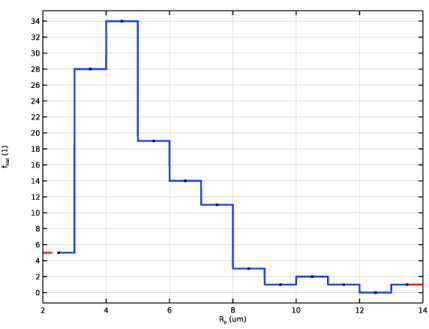
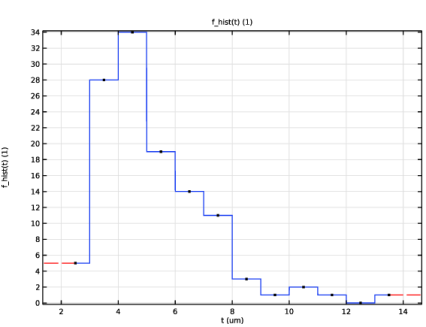
The extra dimension model described in the previous section defines the dynamic behavior of the intercalated concentration of lithium for a range of particle sizes. A frequency distribution function, fhist(Rp), defines the statistical occurrences of the different particle sizes in the porous electrode. The function couples the local current density, iloc, on the individual particle surfaces to the volumetric current density, iv, which is used for defining the mass and charge source and sink terms in the base model.
Figure 3 shows the frequency distribution function between the minimum and maximum radius values Rp,min = μm and Rp,max = 14 μm. The data for the frequency function is taken from Ref. 1.
Figure 3: Particle size histogram defining the frequency distribution function fhist(Rp) in the model.
The volumetric current density is calculated by multiplying the active volume fraction of the electrode, εs, with the integral of the total current of the particle ensemble as defined by fhist, divided by the corresponding total volume of the ensemble:
Simulations
The tutorial model runs two simulations for a 30 min discharge at 10 A/m2, followed by a 2.5 h relaxation period. The first simulation uses a non-particle-distribution model using the built-in extra dimension formulation in the Particle Intercalation node. The second simulation runs the same charge-relaxation pulse, but with a particle size distribution according to Figure 3.
Results and Discussion
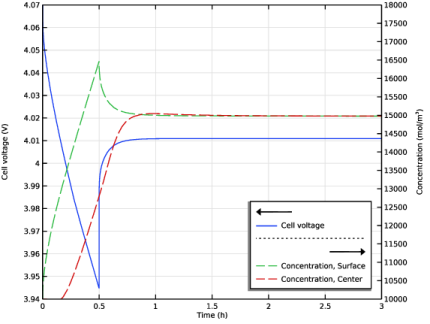
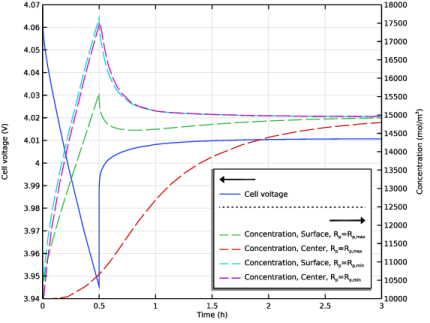
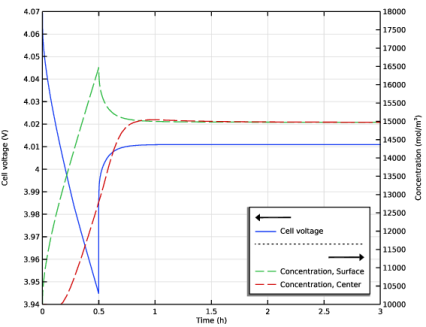
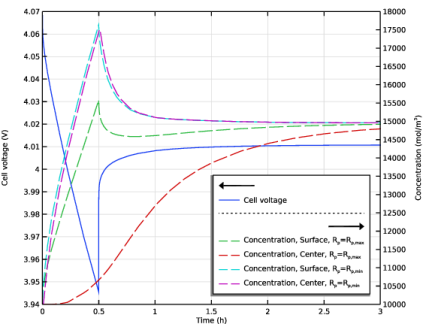
Figure 4 shows the cell voltages as well as the surface and center particle concentrations at the separator-electrode boundary for the non-particle-size-distribution case during the current pulse and the following relaxation. Figure 5 shows the voltage dynamics for the particle-size-distribution case, and the corresponding surface and center concentrations for the largest and smallest particles in the ensemble.
Figure 4: Cell voltage (left-hand axis) and surface and center concentrations in the electrode particles at the separator-porous electrode boundary (right-hand axis) for the non-particle-size-distribution case.
Figure 5: Cell voltage (left-hand axis) and surface and center concentrations in the electrode particles at the separator-porous electrode boundary for both the largest and smallest particles (right-hand axis) when including a particle size distribution.
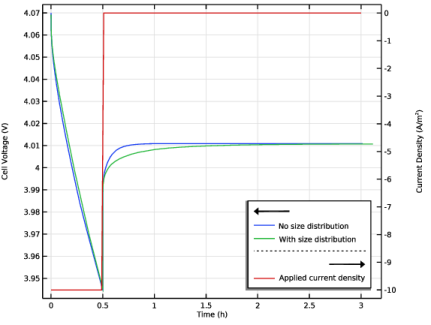
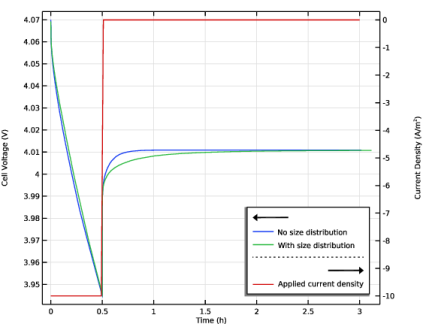
Figure 6 compares the voltage dynamics of the two cases. As can be seen, the voltage curves are fairly similar during the 30 min load, but differ significantly during the following relaxation period.
Figure 6: Cell current density and corresponding voltage response.
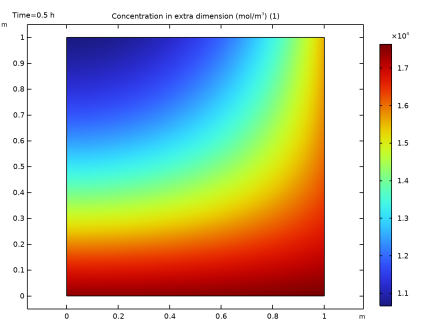
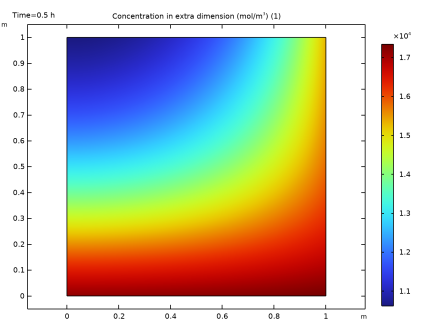
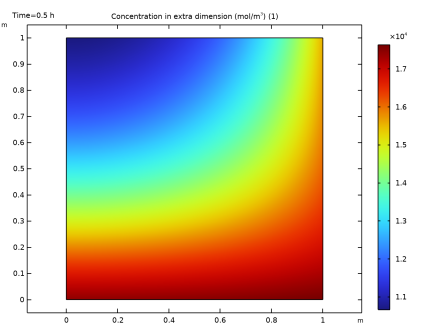
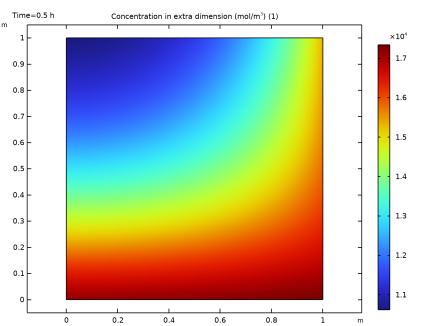
Finally, the concentration field in the extra dimension at the end of the current pulse at the electrode-separator and the electrode current-collector boundaries is displayed in Figure 7 and Figure 8. A more uniform concentration profile is seen in the xs direction for the smallest particles (ys = 0) than for the largest particles (ys = 1).
Only small differences can be seen between Figure 7 and Figure 8. This indicates that most mass transport limitations are associated to the transport within the particles (especially the larger ones) rather than along the thickness of the porous electrode.
Figure 7: Concentration field in the extra dimension (xs, ys) at the separator-porous electrode boundary at the end of the current pulse.
Figure 8: Concentration field in the extra dimension (xs, ys) at the external current collector-porous electrode boundary at the end of the current pulse.
Notes About the COMSOL Implementation
A State Variables node is used to compute some help variables integrated from the particle histogram. By setting Update to Only initialization, this computation only needs to be performed once during the simulation.
Reference
1. C-H. Chen, F.B. Planella, K. O’Regan, D. Gastol, W.D. Widanage, and E. Kendrick, “Development of Experimental Techniques for Parameterization of Multi-scale Lithium-ion Battery Models,” J. Electrochem. Soc., vol. 167, 080534, 2020.
Application Library path: Battery_Design_Module/Lithium-Ion_Batteries,_Performance/particle_size_distribution
Modeling Instructions
From the File menu, choose New.
New
In the New window, click  Model Wizard.
Model Wizard
1
In the Model Wizard window, click  1D.
2
In the Select Physics tree, select Electrochemistry > Batteries > Lithium-Ion Battery (liion).
3
Click Add.
4
Click  Study.
5
In the Select Study tree, select General Studies > Time Dependent.
6
Global Definitions
Parameters 1
1
In the Model Builder window, under Global Definitions click Parameters 1.
2
In the Settings window for Parameters, locate the Parameters section.
3
Click  Load from File.
4
Interpolation - Particle Radius Histogram
Import the particle size histogram from a text file into an interpolation polynomial as follows:
1
In the Home toolbar, click  Functions and choose Global > Interpolation.
2
In the Settings window for Interpolation, type Interpolation - Particle Radius Histogram in the Label text field.
3
Locate the Definition section. In the Function name text field, type f_hist.
4
Click  Load from File.
5
6
Locate the Interpolation and Extrapolation section. From the Interpolation list, choose Nearest neighbor.
7
Locate the Units section. In the Function table, enter the following settings:
8
In the Argument table, enter the following settings:
9
Add some state variables that calculate certain integrated properties from the histogram data as follows:
10
Click the  Show More Options button in the Model Builder toolbar.
11
In the Show More Options dialog, select General > Variable Utilities in the tree.
12
13
State Variables - Particle Measures From Histogram
1
In the Home toolbar, click  Equation Contributions and choose Global > State Variables.
2
In the Settings window for State Variables, type State Variables - Particle Measures From Histogram in the Label text field.
3
Locate the State Components section. In the table, enter the following settings:
4
From the Update list, choose Only initialization.
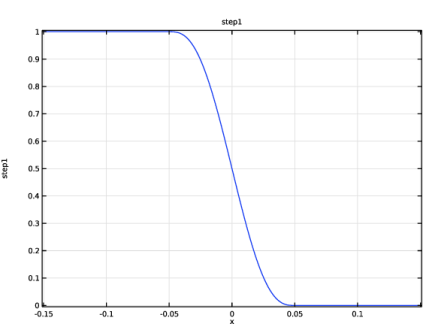
Step 1 (step1)
Add a step function to define the battery current pulse as follows:
1
In the Home toolbar, click  Functions and choose Global > Step.
2
In the Settings window for Step, locate the Parameters section.
3
In the From text field, type 1.
4
In the To text field, type 0.
5
Variables 1
Add a number of global variables as follows.
1
In the Model Builder window, right-click Global Definitions and choose Variables.
2
In the Settings window for Variables, locate the Variables section.
3
Click  Load from File.
4
After import, make sure all variable expressions are colored black, otherwise some state variable or function definition is missing.
Geometry 1
Now proceed to set up the battery model for the non-particle-size-distribution case.
Interval 1 (i1)
1
In the Model Builder window, under Component 1 (comp1) right-click Geometry 1 and choose Interval.
2
In the Settings window for Interval, locate the Interval section.
3
From the Specify list, choose Interval lengths.
4
5
In the Home toolbar, click  Build All.
6
In the Model Builder window, click Geometry 1.
Add Material
1
In the Materials toolbar, click  Add Material to open the Add Material window.
2
Go to the Add Material window.
3
In the tree, select Battery > Electrodes > Lithium Metal, Li (Negative, Li-ion Battery).
4
Right-click and choose Add to Component 1 (comp1).
5
In the tree, select Battery > Electrodes > NMC 111, LiNi0.33Mn0.33Co0.33O2 (Positive, Li-ion Battery).
6
Right-click and choose Add to Component 1 (comp1).
7
In the tree, select Battery > Electrolytes > LiPF6 in 3:7 EC:EMC (Liquid, Li-ion Battery).
8
Right-click and choose Add to Component 1 (comp1).
9
In the Materials toolbar, click  Add Material to close the Add Material window.
Materials
Lithium Metal, Li (Negative, Li-ion Battery) (mat1)
1
In the Settings window for Material, locate the Geometric Entity Selection section.
2
From the Geometric entity level list, choose Boundary.
3
NMC 111, LiNi0.33Mn0.33Co0.33O2 (Positive, Li-ion Battery) (mat2)
1
In the Model Builder window, click NMC 111, LiNi0.33Mn0.33Co0.33O2 (Positive, Li-ion Battery) (mat2).
2
LiPF6 in 3:7 EC:EMC (Liquid, Li-ion Battery) (mat3)
1
In the Model Builder window, click LiPF6 in 3:7 EC:EMC (Liquid, Li-ion Battery) (mat3).
2
Lithium-Ion Battery (liion)
Separator 1
1
In the Model Builder window, under Component 1 (comp1) > Lithium-Ion Battery (liion) click Separator 1.
2
In the Settings window for Separator, locate the Porous Matrix Properties section.
3
In the εl text field, type epsl_sep.
Electrode Surface - Lithium Metal
1
In the Physics toolbar, click  Boundaries and choose Electrode Surface.
2
In the Settings window for Electrode Surface, type Electrode Surface - Lithium Metal in the Label text field.
3
Porous Electrode - No Particle Size Distribution
1
In the Physics toolbar, click  Domains and choose Porous Electrode.
2
In the Settings window for Porous Electrode, type Porous Electrode - No Particle Size Distribution in the Label text field.
3
4
Locate the Electrolyte Properties section. From the Electrolyte material list, choose LiPF6 in 3:7 EC:EMC (Liquid, Li-ion Battery) (mat3).
5
Locate the Electrode Properties section. In the σs text field, type sigmas_pos.
6
Locate the Porous Matrix Properties section. In the εs text field, type epss_pos.
7
In the εl text field, type epsl_pos.
Particle Intercalation 1
1
In the Model Builder window, click Particle Intercalation 1.
2
In the Settings window for Particle Intercalation, locate the Species Settings section.
3
In the cs,init text field, type cs_init.
4
Locate the Particle Transport Properties section. In the rp text field, type Rp_no_distr.
Porous Electrode Reaction 1
1
In the Model Builder window, click Porous Electrode Reaction 1.
2
In the Settings window for Porous Electrode Reaction, locate the Electrode Kinetics section.
3
In the i0,ref(T) text field, type i0_ref_no_distr.
4
Locate the Active Specific Surface Area section. From the Active specific surface area list, choose User defined. In the av text field, type Av_no_distr.
Electrode Current Density 1
1
In the Physics toolbar, click  Boundaries and choose Electrode Current Density.
2
3
In the Settings window for Electrode Current Density, locate the Electrode Current Density section.
4
In the in,s text field, type i_app.
Initial Values 1
1
In the Model Builder window, click Initial Values 1.
2
In the Settings window for Initial Values, locate the Initial Values section.
3
In the phis text field, type 4[V].
Study 1 - No Particle Size Distribution
1
In the Model Builder window, click Study 1.
2
In the Settings window for Study, type Study 1 - No Particle Size Distribution in the Label text field.
3
Locate the Study Settings section. Clear the Generate default plots checkbox.
Step 1: Time Dependent
1
In the Model Builder window, under Study 1 - No Particle Size Distribution click Step 1: Time Dependent.
2
In the Settings window for Time Dependent, locate the Study Settings section.
3
From the Time unit list, choose h.
4
In the Output times text field, type range(0,0.5,3).
Definitions (comp1)
Before solving, add some probes as follows:
Point Probe 1 (point1)
1
In the Definitions toolbar, click  Probes and choose Point Probe.
2
In the Settings window for Point Probe, type E_cell_no_distr in the Variable name text field.
3
Locate the Source Selection section. Click  Clear Selection.
4
5
Click Replace Expression in the upper-right corner of the Expression section. From the menu, choose Component 1 (comp1) > Lithium-Ion Battery > phis - Electric potential - V.
6
Locate the Expression section.
7
Select the Description checkbox. In the associated text field, type Cell voltage.
8
Click to expand the Table and Window Settings section. Click  Add Table.
9
Click  Add Plot Window.
Point Probe 2 (point2)
1
In the Definitions toolbar, click  Probes and choose Point Probe.
2
In the Settings window for Point Probe, type cs_surface_no_distr in the Variable name text field.
3
Locate the Source Selection section. Click  Clear Selection.
4
5
Click Replace Expression in the upper-right corner of the Expression section. From the menu, choose Component 1 (comp1) > Lithium-Ion Battery > Particle intercalation > liion.cs_surface - Insertion particle concentration, surface - mol/m³.
6
Locate the Expression section.
7
Select the Description checkbox. In the associated text field, type Concentration, Surface.
8
Locate the Table and Window Settings section. Click  Add Table.
9
From the Plot window list, choose Probe Plot 2.
Point Probe 3 (point3)
1
Right-click Point Probe 2 (cs_surface_no_distr) and choose Duplicate.
2
In the Settings window for Point Probe, type cs_center_no_distr in the Variable name text field.
3
Click Replace Expression in the upper-right corner of the Expression section. From the menu, choose Component 1 (comp1) > Lithium-Ion Battery > Particle intercalation > liion.cs_center - Insertion particle concentration, center - mol/m³.
4
Locate the Expression section. In the Description text field, type Concentration, Center.
Study 1 - No Particle Size Distribution
In the Study toolbar, click  Compute.
Results
Probe Plot - Study 1
Polish the probe plot as follows:
1
In the Model Builder window, under Results click Probe Plot Group 1.
2
In the Settings window for 1D Plot Group, type Probe Plot - Study 1 in the Label text field.
3
Locate the Title section. From the Title type list, choose None.
4
Locate the Plot Settings section. Select the Two y-axes checkbox.
5
In the table, select the Plot on secondary y-axis checkbox for Probe Table Graph 2.
6
Select the y-axis label checkbox. In the associated text field, type Cell voltage (V).
7
Select the Secondary y-axis label checkbox. In the associated text field, type Concentration (mol/m<sup>3</sup>).
8
Locate the Axis section. Select the Manual axis limits checkbox.
9
In the x minimum text field, type 0.
10
In the x maximum text field, type 3.
11
In the y minimum text field, type 3.94.
12
In the y maximum text field, type 4.07.
13
In the Secondary y minimum text field, type 10000.
14
In the Secondary y maximum text field, type 18000.
15
Locate the Legend section. From the Position list, choose Lower right.
Probe Table Graph 1
1
In the Model Builder window, expand the Probe Plot - Study 1 node, then click Probe Table Graph 1.
2
In the Settings window for Table Graph, click to expand the Legends section.
3
From the Legends list, choose Manual.
4
Probe Table Graph 2
1
In the Model Builder window, click Probe Table Graph 2.
2
In the Settings window for Table Graph, locate the Coloring and Style section.
3
Find the Line style subsection. From the Line list, choose Dashed.
4
Locate the Legends section. From the Legends list, choose Manual.
5
6
In the Probe Plot - Study 1 toolbar, click  Plot.
Global Definitions
We now proceed the second part of the tutorial, where an Extra Dimension is added to handle the particle-size distribution.
Add Component
In the Model Builder window, right-click Global Definitions and choose 2D.
Extra Dimension 1 (xdim1)
Name the spatial independent coordinates in the extra dimension xs and ys as follows:
1
In the Settings window for Extra Dimension, locate the Frames section.
2
Find the Spatial frame coordinates subsection. In the table, enter the following settings:
Geometry 2
Now draw the geometry in the extra dimension.
Square 1 (sq1)
1
In the Geometry toolbar, click  Square.
2
Click  Build All.
3
Click the  Zoom Extents button in the Graphics toolbar.
4
In the Model Builder window, click Geometry 2.
Mesh 2
Define the mesh in the extra dimension as follows:
Mapped 1
In the Mesh toolbar, click  Mapped.
Distribution 1
1
Right-click Mapped 1 and choose Distribution.
2
3
In the Settings window for Distribution, locate the Distribution section.
4
In the Number of elements text field, type 12.
Distribution 2
Set up the mesh to have a finer resolution toward the surface of the particles as follows:
1
In the Model Builder window, right-click Mapped 1 and choose Distribution.
2
3
In the Settings window for Distribution, locate the Distribution section.
4
From the Distribution type list, choose Predefined.
5
In the Number of elements text field, type 10.
6
In the Element ratio text field, type 10.
7
In the Model Builder window, right-click Mesh 2 and choose Build All.
Definitions (xdim1)
Add a number of integration operators on the extra dimension. These will be used to compute the total current of the whole particle ensemble, and to evaluate the solution in some specific points.
Integration over Extra Dimension - xdint_surf
1
In the Model Builder window, expand the Global Definitions > Extra Dimension 1 (xdim1) > Definitions node.
2
Right-click Global Definitions > Extra Dimension 1 (xdim1) > Definitions > Extra Dimensions and choose Integration over Extra Dimension.
3
In the Settings window for Integration over Extra Dimension, type Integration over Extra Dimension - xdint_surf in the Label text field.
4
Locate the Operator Name section. In the Operator name text field, type xdint_surf.
5
Locate the Source Selection section. From the Geometric entity level list, choose Boundary.
6
Integration over Extra Dimension - xdint_surf_Rmax
1
Right-click Extra Dimensions and choose Integration over Extra Dimension.
2
In the Settings window for Integration over Extra Dimension, type Integration over Extra Dimension - xdint_surf_Rmax in the Label text field.
3
Locate the Operator Name section. In the Operator name text field, type xdint_surf_Rmax.
4
Locate the Source Selection section. From the Geometric entity level list, choose Point.
5
Integration over Extra Dimension - xdint_surf_Rmin
1
Right-click Extra Dimensions and choose Integration over Extra Dimension.
2
In the Settings window for Integration over Extra Dimension, type Integration over Extra Dimension - xdint_surf_Rmin in the Label text field.
3
Locate the Operator Name section. In the Operator name text field, type xdint_surf_Rmin.
4
Locate the Source Selection section. From the Geometric entity level list, choose Point.
5
Integration over Extra Dimension - xdint_center_Rmax
1
Right-click Extra Dimensions and choose Integration over Extra Dimension.
2
In the Settings window for Integration over Extra Dimension, type Integration over Extra Dimension - xdint_center_Rmax in the Label text field.
3
Locate the Operator Name section. In the Operator name text field, type xdint_center_Rmax.
4
Locate the Source Selection section. From the Geometric entity level list, choose Point.
5
Integration over Extra Dimension - xdint_center_Rmin
1
Right-click Extra Dimensions and choose Integration over Extra Dimension.
2
In the Settings window for Integration over Extra Dimension, type Integration over Extra Dimension - xdint_center_Rmin in the Label text field.
3
Locate the Operator Name section. In the Operator name text field, type xdint_center_Rmin.
4
Locate the Source Selection section. From the Geometric entity level list, choose Point.
5
Extra Dimension 1 (xdim1)
In the Model Builder window, collapse the Global Definitions > Extra Dimension 1 (xdim1) node.
Definitions (comp1)
Before an extra dimension can be used in physics, it must be attached on a selection in the base geometry.
Attached Dimensions 1
1
In the Model Builder window, under Component 1 (comp1) right-click Definitions and choose Extra Dimensions > Attached Dimensions.
2
In the Settings window for Attached Dimensions, locate the Geometric Entity Selection section.
3
From the Geometric entity level list, choose Domain.
4
5
Locate the Attached Dimensions section. Under Extra dimensions to attach, click  Add.
6
In the Add dialog, select Extra Dimension 1 (xdim1) in the Extra dimensions to attach list.
7
Variables - Particle Domain in Extra Dimension
Now add some variable expressions related to the extra dimension.
1
Right-click Definitions and choose Variables.
2
In the Settings window for Variables, type Variables - Particle Domain in Extra Dimension in the Label text field.
3
Locate the Geometric Entity Selection section. From the Geometric entity level list, choose Domain.
4
5
From the Extra dimension attachment list, choose Attached Dimensions 1.
The particle radius depends linearly on the ys spatial variable as follows:
6
Locate the Variables section. In the table, enter the following settings:
Variables - Particle Surface in Extra Dimension
1
Right-click Definitions and choose Variables.
2
In the Settings window for Variables, type Variables - Particle Surface in Extra Dimension in the Label text field.
3
Locate the Geometric Entity Selection section. From the Geometric entity level list, choose Domain.
4
5
From the Extra dimension attachment list, choose Attached Dimensions 1.
6
From the Geometric entity level list, choose Boundary.
7
8
Locate the Variables section. Click  Load from File.
9
Some expressions will render warnings, indicating missing variable definitions. This is expected at this stage.
Variables - Porous Electrode Domain
1
Right-click Definitions and choose Variables.
2
In the Settings window for Variables, type Variables - Porous Electrode Domain in the Label text field.
3
Locate the Variables section. In the table, enter the following settings:
4
Click the  Show More Options button in the Model Builder toolbar.
5
In the Show More Options dialog, select Physics > Equation Contributions in the tree.
6
In the tree, select the checkbox for the node Physics > Equation Contributions.
7
Lithium-Ion Battery (liion)
Define the particle concentration diffusion in the particles by the use of two weak contribution nodes. The first contribution defines the mass balance on the extra dimension domain. The second contribution defines the lithium flux on the particle surface boundaries.
Weak Contribution - Domain Equation in Extra Dimension
1
In the Physics toolbar, click  Domains and choose Weak Contribution.
2
In the Settings window for Weak Contribution, type Weak Contribution - Domain Equation in Extra Dimension in the Label text field.
3
4
Locate the Domain Selection section. From the Extra dimension attachment list, choose Attached Dimensions 1.
5
From the Selection list, choose All domains.
6
Locate the Weak Contribution section. In the Weak expression text field, type xs^2*(-Rp^2*test(cs)*d(cs,TIME)-d(cs,xs)*Ds*test(d(cs,xs)[m^2])).
The expression you just typed in indicates an unknown variable cs. Define the dependent variable cs, representing the solid lithium concentration in the particles, as follows:
Auxiliary Dependent Variable - cs
1
In the Physics toolbar, click  Attributes and choose Auxiliary Dependent Variable.
2
In the Settings window for Auxiliary Dependent Variable, type Auxiliary Dependent Variable - cs in the Label text field.
3
Locate the Domain Selection section. From the Extra dimension attachment list, choose Attached Dimensions 1.
4
From the Selection list, choose All domains.
5
Locate the Auxiliary Dependent Variable section. In the Field variable name text field, type cs.
6
In the Initial value text field, type cs_init.
Weak Contribution - Domain Equation in Extra Dimension
The expression in the Weak expressionedit field should now be colored black. You may also go back to the three Variables nodes you defined before in Component 1 to check that these are now colored black, not indicating any missing variables or operators.
Weak Contribution - Boundary Condition in Extra Dimension
1
In the Physics toolbar, click  Domains and choose Weak Contribution.
2
In the Settings window for Weak Contribution, type Weak Contribution - Boundary Condition in Extra Dimension in the Label text field.
3
4
Locate the Domain Selection section. From the Extra dimension attachment list, choose Attached Dimensions 1.
5
From the Geometric entity level list, choose Boundary.
6
7
Locate the Weak Contribution section. In the Weak expression text field, type xs^2*(-iloc/F_const)*test(cs)*Rp.
Porous Electrode - No Particle Size Distribution
Define the porous electrode model for the particle size distribution as follows:
Porous Electrode - With Particle Size Distribution
1
In the Model Builder window, right-click Porous Electrode - No Particle Size Distribution and choose Duplicate.
2
In the Settings window for Porous Electrode, type Porous Electrode - With Particle Size Distribution in the Label text field.
By selecting Nonintercalating particles, the built-in framework for defining particle diffusion in particles of a single size is turned off.
3
Locate the Particle Properties section. From the list, choose Nonintercalating particles.
Porous Electrode Reaction 1
1
In the Model Builder window, expand the Porous Electrode - With Particle Size Distribution node, then click Porous Electrode Reaction 1.
2
In the Settings window for Porous Electrode Reaction, locate the Electrode Kinetics section.
3
From the iloc,expr list, choose User defined. In the associated text field, type iloc_distr.
4
Locate the Active Specific Surface Area section. In the av text field, type Av_distr.
Definitions (comp1)
Before solving, add a series of new probes related to the particle size distribution model.
Point Probe 4 (point4)
1
In the Definitions toolbar, click  Probes and choose Point Probe.
2
In the Settings window for Point Probe, type E_cell_distr in the Variable name text field.
3
Locate the Source Selection section. Click  Clear Selection.
4
5
Click Replace Expression in the upper-right corner of the Expression section. From the menu, choose Component 1 (comp1) > Lithium-Ion Battery > phis - Electric potential - V.
6
Locate the Expression section.
7
Select the Description checkbox. In the associated text field, type Cell voltage.
8
Locate the Table and Window Settings section. Click  Add Table.
9
Click  Add Plot Window.
Point Probe 5 (point5)
1
In the Definitions toolbar, click  Probes and choose Point Probe.
2
In the Settings window for Point Probe, type cs_surface_Rmax in the Variable name text field.
3
Locate the Source Selection section. Click  Clear Selection.
4
5
Locate the Expression section. In the Expression text field, type root.xdim1.xdint_surf_Rmax(cs).
6
Select the Description checkbox. In the associated text field, type Concentration, Surface, Largest Particles.
7
Locate the Table and Window Settings section. Click  Add Table.
8
From the Plot window list, choose Probe Plot 3.
Point Probe 6 (point6)
1
Right-click Point Probe 5 (cs_surface_Rmax) and choose Duplicate.
2
In the Settings window for Point Probe, type cs_center_Rmax in the Variable name text field.
3
Locate the Expression section. In the Expression text field, type root.xdim1.xdint_center_Rmax(cs).
4
In the Description text field, type Concentration, Center, Largest Particles.
Point Probe 7 (point7)
1
Right-click Point Probe 6 (cs_center_Rmax) and choose Duplicate.
2
In the Settings window for Point Probe, type cs_surface_Rmin in the Variable name text field.
3
Locate the Expression section. In the Expression text field, type root.xdim1.xdint_surf_Rmin(cs).
4
In the Description text field, type Concentration, Surface, Smallest Particles.
Point Probe 8 (point8)
1
Right-click Point Probe 7 (cs_surface_Rmin) and choose Duplicate.
2
In the Settings window for Point Probe, type cs_center_Rmin in the Variable name text field.
3
Locate the Expression section. In the Expression text field, type root.xdim1.xdint_center_Rmin(cs).
4
In the Description text field, type Concentration, Center, Smallest Particles.
Study 1 - No Particle Size Distribution
In the Model Builder window, collapse the Study 1 - No Particle Size Distribution node.
Add Study
1
In the Home toolbar, click  Add Study to open the Add Study window.
2
Go to the Add Study window.
3
Find the Studies subsection. In the Select Study tree, select General Studies > Time Dependent.
4
Click the Add Study button in the window toolbar.
5
In the Home toolbar, click  Add Study to close the Add Study window.
Study 2 - With Particle Size Distribution
In the Settings window for Study, type Study 2 - With Particle Size Distribution in the Label text field.
Step 1: Time Dependent
1
In the Model Builder window, under Study 2 - With Particle Size Distribution click Step 1: Time Dependent.
2
In the Settings window for Time Dependent, locate the Study Settings section.
3
From the Time unit list, choose h.
4
In the Output times text field, type range(0,0.5,3).
5
Click to expand the Results While Solving section. From the Probes list, choose Manual.
6
In the Probes list, choose Point Probe 1 (E_cell_no_distr), Point Probe 2 (cs_surface_no_distr), and Point Probe 3 (cs_center_no_distr).
7
Under Probes, click  Delete.
8
Locate the Physics and Variables Selection section. Select the Modify model configuration for study step checkbox.
9
In the tree, select Component 1 (comp1) > Lithium-Ion Battery (liion) > Porous Electrode - No Particle Size Distribution.
10
11
In the Model Builder window, click Study 2 - With Particle Size Distribution.
12
In the Settings window for Study, locate the Study Settings section.
13
Clear the Generate default plots checkbox.
14
In the Study toolbar, click  Compute.
Results
Probe Plot - Study 2
1
In the Model Builder window, under Results click Probe Plot Group 2.
2
In the Settings window for 1D Plot Group, type Probe Plot - Study 2 in the Label text field.
3
Locate the Title section. From the Title type list, choose None.
4
Locate the Plot Settings section. Select the Two y-axes checkbox.
5
In the table, select the Plot on secondary y-axis checkbox for Probe Table Graph 2.
6
Select the y-axis label checkbox. In the associated text field, type Cell voltage (V).
7
Select the Secondary y-axis label checkbox. In the associated text field, type Concentration (mol/m<sup>3</sup>).
8
Locate the Axis section. Select the Manual axis limits checkbox.
9
In the x minimum text field, type 0.
10
In the x maximum text field, type 3.
11
In the y minimum text field, type 3.94.
12
In the y maximum text field, type 4.07.
13
In the Secondary y minimum text field, type 10000.
14
In the Secondary y maximum text field, type 18000.
15
Locate the Legend section. From the Position list, choose Lower right.
Probe Table Graph 1
1
In the Model Builder window, expand the Probe Plot - Study 2 node, then click Probe Table Graph 1.
2
In the Settings window for Table Graph, locate the Legends section.
3
From the Legends list, choose Manual.
4
Probe Table Graph 2
1
In the Model Builder window, click Probe Table Graph 2.
2
In the Settings window for Table Graph, locate the Coloring and Style section.
3
Find the Line style subsection. From the Line list, choose Dashed.
4
Locate the Legends section. From the Legends list, choose Manual.
5
6
In the Probe Plot - Study 2 toolbar, click  Plot.
Potential Comparison
1
In the Results toolbar, click  1D Plot Group.
2
In the Settings window for 1D Plot Group, type Potential Comparison in the Label text field.
Probe Table Graph 1
In the Model Builder window, under Results > Probe Plot - Study 1 right-click Probe Table Graph 1 and choose Copy.
Probe Table Graph 1
In the Model Builder window, right-click Potential Comparison and choose Paste Table Graph.
In the Model Builder window, under Results > Probe Plot - Study 2 right-click Probe Table Graph 1 and choose Copy.
Probe Table Graph 1.1
In the Model Builder window, right-click Potential Comparison and choose Paste Table Graph.
Probe Table Graph 1
1
In the Settings window for Table Graph, locate the Legends section.
2
Probe Table Graph 1.1
1
In the Model Builder window, click Probe Table Graph 1.1.
2
In the Settings window for Table Graph, locate the Legends section.
3
Global 1
1
In the Model Builder window, right-click Potential Comparison and choose Global.
2
In the Settings window for Global, locate the Data section.
3
From the Dataset list, choose Study 2 - With Particle Size Distribution/Solution 2 (sol2).
4
From the Time selection list, choose Interpolated.
5
In the Times (h) text field, type range(0,0.01,3).
6
Locate the y-Axis Data section. In the table, enter the following settings:
Potential Comparison
1
In the Model Builder window, click Potential Comparison.
2
In the Settings window for 1D Plot Group, locate the Title section.
3
From the Title type list, choose None.
4
Locate the Plot Settings section. Select the Two y-axes checkbox.
5
In the table, select the Plot on secondary y-axis checkbox for Global 1.
6
Select the y-axis label checkbox. In the associated text field, type Cell Voltage (V).
7
Select the Secondary y-axis label checkbox. In the associated text field, type Current Density (A/m<sup>2</sup>).
8
Locate the Legend section. From the Position list, choose Lower right.
9
In the Potential Comparison toolbar, click  Plot.
Study 2 - With Particle Size Distribution/Solution 2 (sol2)
To create plots on the extra dimension, a new dataset needs to be created.
Study 2 - With Particle Size Distribution/Solution - xdim
1
In the Model Builder window, under Results > Datasets right-click Study 2 - With Particle Size Distribution/Solution 2 (sol2) and choose Duplicate.
2
In the Settings window for Solution, type Study 2 - With Particle Size Distribution/Solution - xdim in the Label text field.
3
Locate the Solution section. From the Component list, choose Extra Dimension 1 (xdim1).
Concentration Distribution in Particles Adjacent to Separator
1
In the Results toolbar, click  2D Plot Group.
2
In the Settings window for 2D Plot Group, type Concentration Distribution in Particles Adjacent to Separator in the Label text field.
3
Locate the Data section. From the Time (h) list, choose 0.5.
Surface 1
1
Right-click Concentration Distribution in Particles Adjacent to Separator and choose Surface.
2
In the Settings window for Surface, locate the Expression section.
3
In the Expression text field, type comp1.atxd1(L_sep+L_pos/1000,cs).
In the above expression, the atxd1 operator defines where in the base dimension the evaluation should be made.
4
Select the Description checkbox. In the associated text field, type Concentration in extra dimension (mol/m<sup>3</sup>).
5
In the Concentration Distribution in Particles Adjacent to Separator toolbar, click  Plot.
Concentration Distribution in Particles Adjacent to Current Collector
1
In the Model Builder window, right-click Concentration Distribution in Particles Adjacent to Separator and choose Duplicate.
2
In the Settings window for 2D Plot Group, type Concentration Distribution in Particles Adjacent to Current Collector in the Label text field.
Surface 1
1
In the Model Builder window, expand the Concentration Distribution in Particles Adjacent to Current Collector node, then click Surface 1.
2
In the Settings window for Surface, locate the Expression section.
3
In the Expression text field, type comp1.atxd1(L_sep+L_pos*0.999,cs).
4
In the Concentration Distribution in Particles Adjacent to Current Collector toolbar, click  Plot.
Study 1 - No Particle Size Distribution
Go back to the study for the no-particle-size-distribution case and turn off features related to the particle distribution. In this way, the old study can be recomputed at any time for the no-distribution case.
Step 1: Time Dependent
1
In the Model Builder window, under Study 1 - No Particle Size Distribution click Step 1: Time Dependent.
2
In the Settings window for Time Dependent, locate the Results While Solving section.
3
From the Probes list, choose Manual.
4
In the Probes list, choose Point Probe 4 (E_cell_distr), Point Probe 5 (cs_surface_Rmax), Point Probe 6 (cs_center_Rmax), Point Probe 7 (cs_surface_Rmin), and Point Probe 8 (cs_center_Rmin).
5
Under Probes, click  Delete.
6
Locate the Physics and Variables Selection section. Select the Modify model configuration for study step checkbox.
7
In the tree, select Component 1 (comp1) > Lithium-Ion Battery (liion) > Weak Contribution - Domain Equation in Extra Dimension.
8
9
In the tree, select Component 1 (comp1) > Lithium-Ion Battery (liion) > Weak Contribution - Boundary Condition in Extra Dimension.
10
11
In the tree, select Component 1 (comp1) > Lithium-Ion Battery (liion) > Porous Electrode - With Particle Size Distribution.
12