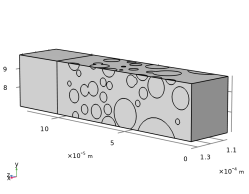
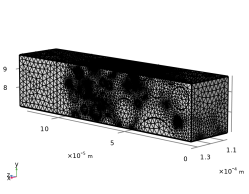
|
|
|
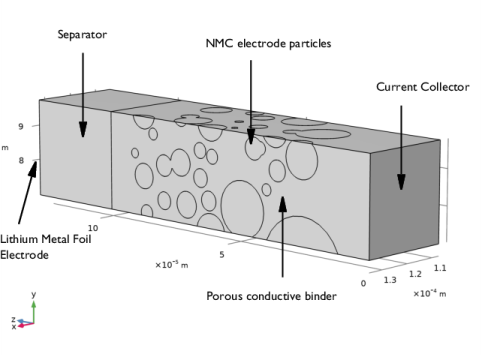
|
1
|
|
2
|
In the Application Libraries window, select Battery Design Module > Heterogeneous Models > nmc_electrode_geometry in the tree.
|
|
3
|
Click
 Open. Open. |
|
1
|
|
2
|
|
3
|
|
4
|
|
1
|
|
2
|
Go to the Add Physics window.
|
|
3
|
|
4
|
Click the Add to Component 1 button in the window toolbar.
|
|
5
|
|
6
|
Click the Add to Component 1 button in the window toolbar.
|
|
7
|
|
1
|
|
2
|
|
3
|
Click
 Load from File. Load from File. |
|
4
|
Browse to the model’s Application Libraries folder and double-click the file nmc_electrode_parameters.txt.
|
|
5
|
|
1
|
|
2
|
Go to the Add Material window.
|
|
3
|
|
4
|
Right-click and choose Add to Component 1 (comp1).
|
|
5
|
In the tree, select Battery > Electrodes > NMC 111, LiNi0.33Mn0.33Co0.33O2 (Positive, Li-ion Battery).
|
|
6
|
Right-click and choose Add to Component 1 (comp1).
|
|
7
|
|
8
|
Right-click and choose Add to Component 1 (comp1).
|
|
9
|
|
1
|
|
2
|
|
3
|
|
1
|
In the Model Builder window, click NMC 111, LiNi0.33Mn0.33Co0.33O2 (Positive, Li-ion Battery) (mat2).
|
|
2
|
|
3
|
|
1
|
|
2
|
|
3
|
|
1
|
|
2
|
|
3
|
|
4
|
Click to expand the Discretization section. Reduce the discretization to use linear elements for the battery interface. This will reduce the memory requirements for solving the model. Transport of Diluted species uses linear elements by default and does not need to be altered.
|
|
5
|
|
6
|
|
7
|
|
1
|
In the Model Builder window, under Component 1 (comp1) > Lithium-Ion Battery (liion) click Separator 1.
|
|
2
|
|
3
|
|
1
|
|
2
|
|
3
|
|
4
|
Locate the Electrolyte Properties section. From the Electrolyte material list, choose LiPF6 in 3:7 EC:EMC (Liquid, Li-ion Battery) (mat3).
|
|
5
|
|
6
|
|
7
|
|
8
|
Locate the Effective Transport Parameter Correction section. From the Electric conductivity list, choose No correction.
|
|
1
|
|
2
|
|
3
|
|
1
|
|
2
|
|
3
|
|
4
|
Locate the Material section. From the Material list, choose NMC 111, LiNi0.33Mn0.33Co0.33O2 (Positive, Li-ion Battery) (mat2).
|
|
5
|
Locate the Electrode Kinetics section. From the Kinetics expression type list, choose Lithium insertion.
|
|
6
|
|
1
|
|
2
|
|
3
|
|
1
|
|
2
|
|
3
|
|
1
|
|
2
|
|
3
|
|
4
|
|
5
|
|
1
|
|
2
|
|
3
|
|
1
|
|
2
|
|
3
|
|
4
|
|
1
|
In the Model Builder window, under Component 1 (comp1) > Transport of Diluted Species (tds) click Fluid 1.
|
|
2
|
|
3
|
|
4
|
|
1
|
|
2
|
|
3
|
|
1
|
|
2
|
|
3
|
|
1
|
In the Model Builder window, expand the Electrode Surface Coupling 1 node, then click Reaction Coefficients 1.
|
|
2
|
|
3
|
|
4
|
|
1
|
|
2
|
In the Settings window for Global Variable Probe, type Global Variable Probe - E cell in the Label text field.
|
|
3
|
|
4
|
|
1
|
|
2
|
|
3
|
From the list, choose User-controlled mesh.
|
|
1
|
|
2
|
|
3
|
|
4
|
|
5
|
|
1
|
|
2
|
Go to the Add Study window.
|
|
3
|
Find the Studies subsection. In the Select Study tree, select Preset Studies for Selected Physics Interfaces > Lithium-Ion Battery > Time Dependent with Initialization.
|
|
4
|
Click the Add Study button in the window toolbar.
|
|
5
|
|
1
|
In the Model Builder window, under Study 1 - Battery Discharge click Step 1: Current Distribution Initialization.
|
|
2
|
|
3
|
|
1
|
|
2
|
|
3
|
|
4
|
|
1
|
|
2
|
|
3
|
Right-click Study 1 - Battery Discharge > Solver Configurations > Solution 1 (sol1) > Time-Dependent Solver 1 and choose Stop Condition.
|
|
4
|
|
5
|
Click
 Add. Add. |
|
7
|
|
1
|
|
2
|
|
3
|
|
1
|
In the Model Builder window, expand the Study 1 - Battery Discharge > Solver Configurations > Solution 1 (sol1) > Time-Dependent Solver 1 > Segregated 1 node.
|
|
2
|
Right-click Study 1 - Battery Discharge > Solver Configurations > Solution 1 (sol1) > Time-Dependent Solver 1 > Segregated 1 and choose Segregated Step.
|
|
3
|
|
4
|
|
5
|
|
6
|
In the Model Builder window, under Study 1 - Battery Discharge > Solver Configurations > Solution 1 (sol1) > Time-Dependent Solver 1 > Segregated 1 click Segregated Step 3.
|
|
7
|
|
8
|
|
9
|
|
10
|
Click OK.
|
|
11
|
|
12
|
|
13
|
|
14
|
|
15
|
Clear the Generate default plots checkbox.
|
|
16
|
|
1
|
|
2
|
|
3
|
|
1
|
|
2
|
In the Settings window for 3D Plot Group, type Solid Lithium Concentration and Lithium Ion Flux in the Label text field.
|
|
3
|
|
4
|
|
1
|
|
2
|
|
3
|
|
4
|
|
1
|
In the Model Builder window, right-click Solid Lithium Concentration and Lithium Ion Flux and choose Streamline.
|
|
2
|
In the Settings window for Streamline, click Replace Expression in the upper-right corner of the Expression section. From the menu, choose Component 1 (comp1) > Lithium-Ion Battery > liion.Nposx,...,liion.Nposz - Positive ion flux.
|
|
3
|
|
4
|
|
5
|
Locate the Coloring and Style section. Find the Line style subsection. From the Type list, choose Tube.
|
|
1
|
|
2
|
|
3
|
|
4
|
|
5
|
|
6
|
|
1
|
In the Model Builder window, right-click Solid Lithium Concentration and Lithium Ion Flux and choose Surface.
|
|
2
|
|
3
|
|
4
|
|
5
|
|
6
|
|
1
|
|
3
|
|
4
|
|
1
|
In the Model Builder window, under Component 1 (comp1) > Lithium-Ion Battery (liion) click Electrode Current 1.
|
|
1
|
|
2
|
|
3
|
|
1
|
|
2
|
|
3
|
|
4
|
|
1
|
|
2
|
|
1
|
|
2
|
Go to the Add Study window.
|
|
3
|
|
4
|
Click the Add Study button in the window toolbar.
|
|
5
|
|
1
|
In the Study toolbar, click
 More Study Steps and choose Frequency Domain > Frequency-Domain Perturbation. More Study Steps and choose Frequency Domain > Frequency-Domain Perturbation. |
|
2
|
|
3
|
|
4
|
|
5
|
|
6
|
|
1
|
|
2
|
|
1
|
|
2
|
|
3
|
|
4
|
Browse to the model’s Application Libraries folder and double-click the file nmc_electrode_solid_mechanics_parameters.txt.
|
|
1
|
|
2
|
Go to the Add Physics window.
|
|
3
|
|
4
|
Click the Add to Component 1 button in the window toolbar.
|
|
5
|
|
1
|
|
2
|
|
3
|
|
4
|
|
1
|
|
2
|
In the Settings window for Linear Elastic Material, type Linear Elastic Material - Binder in the Label text field.
|
|
3
|
|
4
|
Locate the Linear Elastic Material section. From the E list, choose User defined. In the associated text field, type E_binder.
|
|
5
|
|
6
|
|
1
|
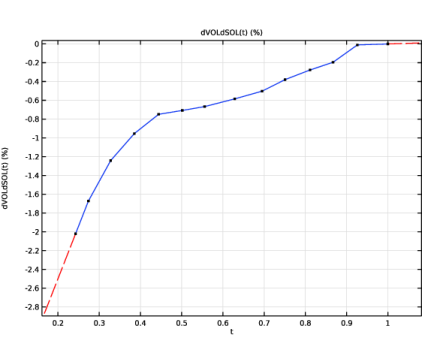
In the Model Builder window, expand the Component 1 (comp1) > Materials > NMC 111, LiNi0.33Mn0.33Co0.33O2 (Positive, Li-ion Battery) (mat2) > Intercalation strain (is) node, then click Interpolation 1 (dVOLdSOL).
|
|
2
|
|
1
|
In the Model Builder window, under Component 1 (comp1) > Solid Mechanics (solid) click Linear Elastic Material 3.
|
|
2
|
In the Settings window for Linear Elastic Material, type Linear Elastic Material - Particles in the Label text field.
|
|
3
|
|
4
|
Locate the Linear Elastic Material section. From the ρ list, choose User defined. In the associated text field, type rho_NMC.
|
|
1
|
|
2
|
|
3
|
|
1
|
|
2
|
|
3
|
|
1
|
|
2
|
Go to the Add Study window.
|
|
3
|
|
4
|
Click the Add Study button in the window toolbar.
|
|
5
|
|
1
|
|
2
|
|
1
|
|
2
|
|
3
|
Click
 Add. Add. |
|
5
|
|
1
|
|
2
|
|
3
|
Locate the Physics and Variables Selection section. In the Solve for column of the table, under Component 1 (comp1), clear the checkboxes for Lithium-Ion Battery (liion) and Transport of Diluted Species (tds).
|
|
4
|
Click to expand the Values of Dependent Variables section. Find the Values of variables not solved for subsection. From the Settings list, choose User controlled.
|
|
5
|
|
6
|
|
7
|
|
8
|
|
1
|
|
2
|
|
3
|
In the Model Builder window, expand the Study 3 - Solid Mechanics > Solver Configurations > Solution 4 (sol4) > Stationary Solver 1 node.
|
|
4
|
Right-click Study 3 - Solid Mechanics > Solver Configurations > Solution 4 (sol4) > Stationary Solver 1 > Suggested Iterative Solver (solid) and choose Enable.
|
|
5
|
|
1
|
|
2
|
|
3
|
Locate the Data section. From the Dataset list, choose Study 3 - Solid Mechanics/Parametric Solutions 1 (sol5).
|
|
4
|
|
5
|
|
1
|
|
2
|
|
3
|
|
4
|
|
5
|
|
1
|
|
2
|
|
3
|
|
4
|
|
1
|
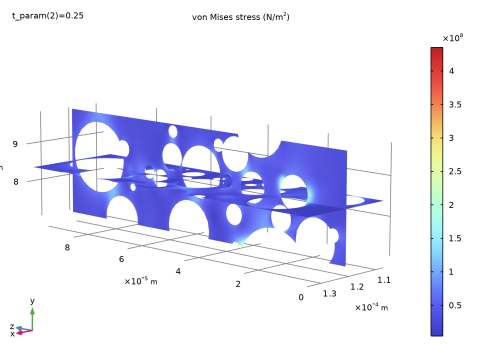
In the Model Builder window, under Results > Stress, Particles right-click Slice 1 and choose Duplicate.
|
|
2
|
|
3
|
|
4
|
|
5
|
|
6
|
|
7
|
|
8
|
|
1
|
|
2
|
|
1
|
|
2
|
|
3
|
|
1
|
In the Model Builder window, expand the Results > Stress, Binder > Slice 2 node, then click Selection 1.
|
|
2
|
|
3
|
|
4
|
|
5
|