PDF

1D Isothermal Sodium-Ion Battery
Introduction
The sodium-ion battery (SIB) is an alternative to the lithium-ion battery (LIB). The SIB chemistry uses sodium ions instead of lithium ions for electrolyte charge transport and as redox species in the electrode reactions, with the advantage of sodium ions being more abundant and with a potentially smaller environmental footprint then lithium ions.
SIBs typically exhibit lower energy densities that LIBs, and hence constitute a candidate for replacing LIBs mainly in stationary applications. The SIB chemistry has many similarities to the LIB chemistry, and can often be described by the same equations for charge and mass transport, electrode kinetics, and electrode particle intercalation.
This example demonstrates how to use the Lithium-Ion Battery interface for modeling a SIB. The geometry is in one dimension (1D) and the model is isothermal. The discharge of a SIB for four different rates is studied.
Model Definition
This example models the battery cross section in 1D, which implies that edge effects in the length and height of the battery are neglected. The example uses the following three domains:
The Lithium-Ion Battery interface, used for defining the model, accounts for:
Boundary Conditions
For the electronic current balance, a potential of 0 V is set on the negative terminal using the Electric Ground boundary node. At the positive terminal, an average current density is specified using the Electrode Current boundary node. The effect of contact resistances on both the negative and positive terminals are included. The inner boundaries facing the separator are insulating for electric currents.
For the ionic charge balance in the electrolyte, the terminal boundaries are insulating. Insulation boundary conditions also apply to the material balances at the terminal boundaries.
At the particle surface in the local particle model, the material flux is determined by the local electrochemical reaction rate.
battery chemistry and Material definitions
The battery model consists of the following materials:
Electrolyte: 1.0 M NaPF6 dissolved in EC:PC (0.5:0.5 w/w)
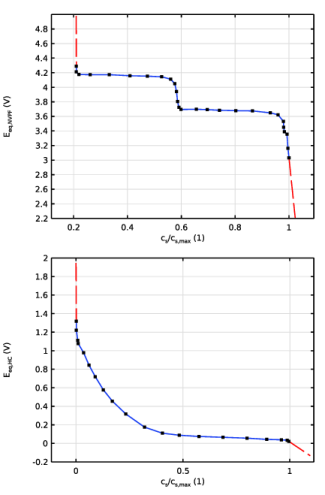
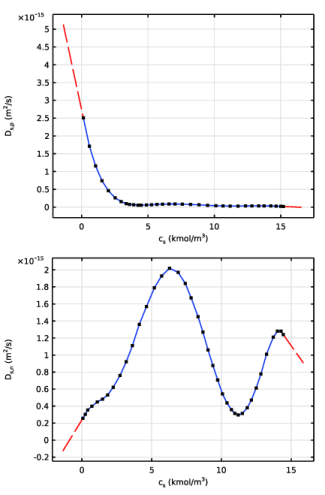
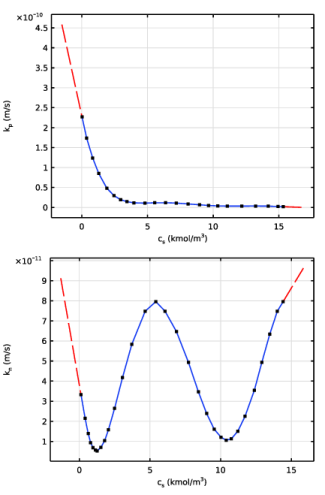
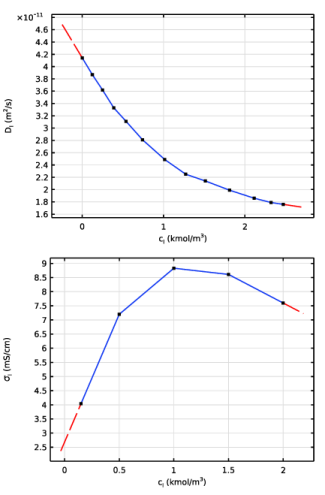
User-defined interpolation functions are used for the equilibrium potentials, intercalation diffusion coefficients, and kinetic rate constants of the positive and negative electrode materials, and for the electrolyte salt diffusivity and electrolyte conductivity.
For complete details on the material properties and data, see Ref. 1 and Ref. 2.
Figure 1 displays the equilibrium potentials for the positive and negative electrode materials as functions of the measured state of sodiation (SOS).
Figure 1: The equilibrium voltage of the positive electrode material (top) and the negative electrode material (bottom).
The model uses the following definition of the SOS:
Figure 2 displays the intercalation diffusion coefficients for the positive and negative electrode materials as functions of the solid concentration.
Figure 2: The intercalation diffusion coefficient of the positive electrode material (top) and the negative electrode material (bottom).
Figure 3 displays the kinetic rate constant for the positive and negative electrode materials as functions of the solid concentration.
Figure 3: The kinetic rate constant of the positive electrode material (top) and the negative electrode material (bottom).
Figure 4 displays the electrolyte salt diffusivity and electrolyte conductivity as functions of the electrolyte salt concentration.
Figure 4: The electrolyte salt diffusivity (top) and the electrolyte conductivity (bottom).
Results and Discussion
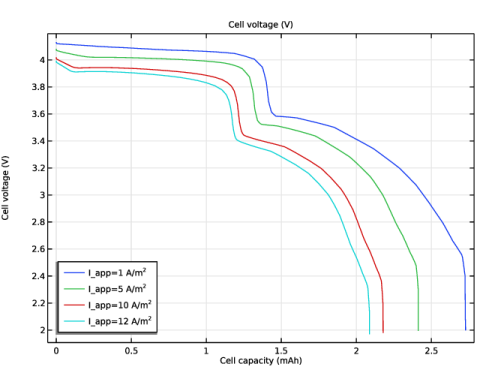
Figure 5 shows the cell potential plotted as a function of the cell capacity, for four different discharge rates (1, 5, 10, and 12 A/m2). This model defines end-of-discharge as the time when the cell voltage drops below 2 V.
Figure 5: Cell voltage versus cell capacity.
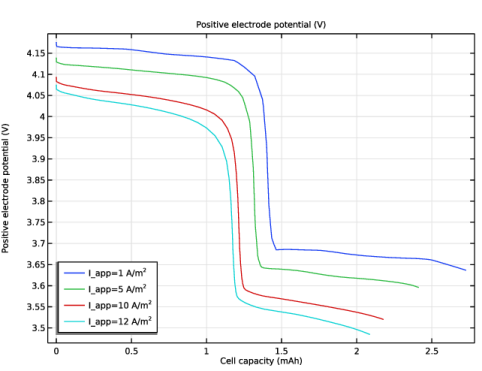
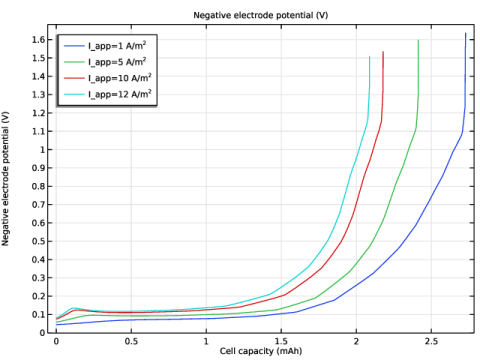
Figure 6 and Figure 7 show the positive electrode potential and negative electrode potential, respectively, plotted as a function of the cell capacity, for the different discharge rates.
Figure 6: Positive electrode potential versus cell capacity.
Figure 7: Negative electrode potential versus cell capacity.
References
1. K. Chayambuka and others, “Physics-based Modeling of Sodium-ion Batteries Part I: Experimental Parameter Determination,” Electrochim.Acta, vol. 404, pp. 139726–139742, 2022.
2. K. Chayambuka and others, “Physics-based Modeling of Sodium-ion Batteries Part II: Model and Validation,” Electrochim. Acta, vol. 404, pp. 139764–139781, 2022.
Application Library path: Battery_Design_Module/Batteries,_General/na_ion_battery_1d
Modeling Instructions
From the File menu, choose New.
New
In the New window, click  Model Wizard.
Model Wizard
1
In the Model Wizard window, click  1D.
2
In the Select Physics tree, select Electrochemistry > Batteries > Lithium-Ion Battery (liion).
3
Click Add.
4
Click  Study.
5
In the Select Study tree, select Preset Studies for Selected Physics Interfaces > Time Dependent with Initialization.
(The Time Dependent with Initialization study will perform a time-dependent simulation, using an initialization study step to calculate the initial potentials in the cell.)
6
Global Definitions
Parameters 1
Load the parameters for this model from a text file.
1
In the Model Builder window, under Global Definitions click Parameters 1.
2
In the Settings window for Parameters, locate the Parameters section.
3
Click  Load from File.
4
Geometry 1
The geometry contains three domains. Create the geometry by specifying the lengths of the domains.
Interval 1 (i1)
1
In the Model Builder window, under Component 1 (comp1) right-click Geometry 1 and choose Interval.
2
In the Settings window for Interval, locate the Interval section.
3
From the Specify list, choose Interval lengths.
4
5
Click  Build Selected.
Definitions
The model uses Na3V2(PO4)2F3 (NVPF) as the positive electrode material and hard carbon (HC) as the negative electrode material. 1M NaPF6 dissolved in EC:PC (0.5:0.5 w/w) is used as the electrolyte.
Interpolation functions are used for the equilibrium potentials, intercalation diffusion coefficients and kinetic rate constants of the positive and negative electrode material, and for the electrolyte salt diffusivity and electrolyte conductivity. Refer to Figure 1, Figure 2, Figure 3 and Figure 4.
Set up the interpolation functions by importing the data from text files.
Interpolation - Eeq_NVPF (Positive Electrode)
1
In the Definitions toolbar, click  Interpolation.
2
In the Settings window for Interpolation, type Interpolation - Eeq_NVPF (Positive Electrode) in the Label text field.
3
Locate the Definition section. In the Function name text field, type Eeq_NVPF.
4
Click  Load from File.
5
6
Locate the Interpolation and Extrapolation section. From the Extrapolation list, choose Linear.
7
Locate the Units section. In the Function table, enter the following settings:
8
In the Argument table, enter the following settings:
Interpolation - Eeq_HC (Negative Electrode)
1
In the Definitions toolbar, click  Interpolation.
2
In the Settings window for Interpolation, type Interpolation - Eeq_HC (Negative Electrode) in the Label text field.
3
Locate the Definition section. In the Function name text field, type Eeq_HC.
4
Click  Load from File.
5
6
Locate the Interpolation and Extrapolation section. From the Extrapolation list, choose Linear.
7
Locate the Units section. In the Function table, enter the following settings:
8
In the Argument table, enter the following settings:
Interpolation - Ds_p
1
In the Definitions toolbar, click  Interpolation.
2
In the Settings window for Interpolation, type Interpolation - Ds_p in the Label text field.
3
Locate the Definition section. In the Function name text field, type Ds_p.
4
Click  Load from File.
5
6
Locate the Interpolation and Extrapolation section. From the Extrapolation list, choose Linear.
7
Locate the Units section. In the Function table, enter the following settings:
8
In the Argument table, enter the following settings:
Interpolation - Ds_n
1
In the Definitions toolbar, click  Interpolation.
2
In the Settings window for Interpolation, type Interpolation - Ds_n in the Label text field.
3
Locate the Definition section. In the Function name text field, type Ds_n.
4
Click  Load from File.
5
6
Locate the Interpolation and Extrapolation section. From the Extrapolation list, choose Linear.
7
Locate the Units section. In the Function table, enter the following settings:
8
In the Argument table, enter the following settings:
Interpolation - k_p
1
In the Definitions toolbar, click  Interpolation.
2
In the Settings window for Interpolation, type Interpolation - k_p in the Label text field.
3
Locate the Definition section. In the Function name text field, type k_p.
4
Click  Load from File.
5
6
Locate the Interpolation and Extrapolation section. From the Extrapolation list, choose Linear.
7
Locate the Units section. In the Function table, enter the following settings:
8
In the Argument table, enter the following settings:
Interpolation - k_n
1
In the Definitions toolbar, click  Interpolation.
2
In the Settings window for Interpolation, type Interpolation - k_n in the Label text field.
3
Locate the Definition section. In the Function name text field, type k_n.
4
Click  Load from File.
5
6
Locate the Interpolation and Extrapolation section. From the Extrapolation list, choose Linear.
7
Locate the Units section. In the Function table, enter the following settings:
8
In the Argument table, enter the following settings:
Interpolation - Dl
1
In the Definitions toolbar, click  Interpolation.
2
In the Settings window for Interpolation, type Interpolation - Dl in the Label text field.
3
Locate the Definition section. In the Function name text field, type Dl.
4
Click  Load from File.
5
6
Locate the Interpolation and Extrapolation section. From the Extrapolation list, choose Linear.
7
Locate the Units section. In the Function table, enter the following settings:
8
In the Argument table, enter the following settings:
Interpolation - sigmal
1
In the Definitions toolbar, click  Interpolation.
2
In the Settings window for Interpolation, type Interpolation - sigmal in the Label text field.
3
Locate the Definition section. In the Function name text field, type sigmal.
4
Click  Load from File.
5
6
Locate the Interpolation and Extrapolation section. From the Extrapolation list, choose Linear.
7
Locate the Units section. In the Function table, enter the following settings:
8
In the Argument table, enter the following settings:
Integration 1 (intop1)
Next, define two integration coupling operators that will be used to set up some results-processing variables. The variables are imported from a text file.
1
In the Definitions toolbar, click  Nonlocal Couplings and choose Integration.
2
In the Settings window for Integration, type intop_ref_p in the Operator name text field.
3
Locate the Source Selection section. From the Geometric entity level list, choose Boundary.
4
Integration 2 (intop2)
1
In the Definitions toolbar, click  Nonlocal Couplings and choose Integration.
2
In the Settings window for Integration, type intop_ref_n in the Operator name text field.
3
Locate the Source Selection section. From the Geometric entity level list, choose Boundary.
4
Variables 1
1
In the Model Builder window, right-click Definitions and choose Variables.
2
In the Settings window for Variables, locate the Variables section.
3
Click  Load from File.
4
Sodium-Ion Battery
Set up the physics of the sodium-ion battery using the Lithium-Ion Battery Interface.
1
In the Model Builder window, under Component 1 (comp1) click Lithium-Ion Battery (liion).
2
In the Settings window for Lithium-Ion Battery, type Sodium-Ion Battery in the Label text field.
3
Locate the Cross-Sectional Area section. In the Ac text field, type Acc.
Separator 1
1
In the Model Builder window, under Component 1 (comp1) > Sodium-Ion Battery (liion) click Separator 1.
2
In the Settings window for Separator, locate the Electrolyte Properties section.
3
From the σl list, choose User defined. In the associated text field, type sigmal(cl).
4
From the Dl list, choose User defined. In the associated text field, type Dl(cl).
5
From the t+ list, choose User defined. In the associated text field, type tplus.
6
From the dlnf/dlncl list, choose User defined.
7
Locate the Porous Matrix Properties section. In the εl text field, type epsl_sep.
Porous Electrode 1
1
In the Physics toolbar, click  Domains and choose Porous Electrode.
2
3
In the Settings window for Porous Electrode, locate the Electrolyte Properties section.
4
From the σl list, choose User defined. In the associated text field, type sigmal(cl).
5
From the Dl list, choose User defined. In the associated text field, type Dl(cl).
6
From the t+ list, choose User defined. In the associated text field, type tplus.
7
From the dlnf/dlncl list, choose User defined.
8
Locate the Electrode Properties section. In the σs text field, type sigmaeff_n.
9
Locate the Porous Matrix Properties section. In the εs text field, type 1-epsf_n-epsl_n.
10
In the εl text field, type epsl_n.
11
Locate the Effective Transport Parameter Correction section. From the Electric conductivity list, choose No correction.
Particle Intercalation 1
1
In the Model Builder window, click Particle Intercalation 1.
2
In the Settings window for Particle Intercalation, locate the Species Settings section.
3
In the cs,init text field, type cs_0_n.
4
From the cs,max list, choose User defined. In the associated text field, type csmax_n.
5
Locate the Particle Transport Properties section. From the Ds list, choose User defined. In the associated text field, type Ds_n(liion.cs_pce1).
6
In the rp text field, type R_n.
7
Click to expand the Operational SOCs for Initial Cell Charge Distribution section. From the socmin list, choose User defined. From the socmax list, choose User defined.
Porous Electrode Reaction 1
1
In the Model Builder window, click Porous Electrode Reaction 1.
2
In the Settings window for Porous Electrode Reaction, locate the Equilibrium Potential section.
3
From the Eeq list, choose User defined. In the associated text field, type Eeq_HC(liion.cs_surface/csmax_n).
4
Locate the Electrode Kinetics section. From the Exchange current density type list, choose Rate constant.
5
In the k text field, type k_n(liion.cs_surface).
6
In the αa text field, type alpha.
7
In the αc text field, type 1-alpha.
8
In the cl,ref text field, type cl_ref.
9
Click to expand the Heat of Reaction section. From the list, choose User defined.
Porous Electrode 2
1
In the Physics toolbar, click  Domains and choose Porous Electrode.
2
3
In the Settings window for Porous Electrode, locate the Electrolyte Properties section.
4
From the σl list, choose User defined. In the associated text field, type sigmal(cl).
5
From the Dl list, choose User defined. In the associated text field, type Dl(cl).
6
From the t+ list, choose User defined. In the associated text field, type tplus.
7
From the dlnf/dlncl list, choose User defined.
8
Locate the Electrode Properties section. In the σs text field, type sigmaeff_p.
9
Locate the Porous Matrix Properties section. In the εs text field, type 1-epsf_p-epsl_p.
10
In the εl text field, type epsl_p.
11
Locate the Effective Transport Parameter Correction section. From the Electric conductivity list, choose No correction.
Particle Intercalation 1
1
In the Model Builder window, click Particle Intercalation 1.
2
In the Settings window for Particle Intercalation, locate the Species Settings section.
3
In the cs,init text field, type cs_0_p.
4
From the cs,max list, choose User defined. In the associated text field, type csmax_p.
5
Locate the Particle Transport Properties section. From the Ds list, choose User defined. In the associated text field, type Ds_p(liion.cs_pce2).
6
In the rp text field, type R_p.
7
Locate the Operational SOCs for Initial Cell Charge Distribution section. From the socmin list, choose User defined. From the socmax list, choose User defined.
Porous Electrode Reaction 1
1
In the Model Builder window, click Porous Electrode Reaction 1.
2
In the Settings window for Porous Electrode Reaction, locate the Equilibrium Potential section.
3
From the Eeq list, choose User defined. In the associated text field, type Eeq_NVPF(liion.cs_surface/csmax_p).
4
Locate the Electrode Kinetics section. From the Exchange current density type list, choose Rate constant.
5
In the k text field, type k_p(liion.cs_surface).
6
In the αa text field, type alpha.
7
In the αc text field, type 1-alpha.
8
In the cl,ref text field, type cl_ref.
9
Locate the Heat of Reaction section. From the list, choose User defined.
Electric Ground 1
Set up the boundary conditions. The negative terminal is grounded. Also include a contact resistance.
1
In the Physics toolbar, click  Boundaries and choose Electric Ground.
2
3
In the Settings window for Electric Ground, locate the Contact Resistance section.
4
Select the Include contact resistance checkbox.
5
In the Rc text field, type Rct_n.
Electrode Current 1
Set up a current at the positive terminal. Also include a contact resistance.
1
In the Physics toolbar, click  Boundaries and choose Electrode Current.
2
3
In the Settings window for Electrode Current, locate the Electrode Current section.
4
From the list, choose Average current density.
5
In the is,average text field, type -I_app.
6
In the ϕs,bnd,init text field, type 4.2[V].
7
Locate the Contact Resistance section. Select the Include contact resistance checkbox.
8
In the Rc text field, type Rct_p.
Initial Values 1
Set up the initial electrolyte concentration. The initial potentials in the cell are automatically calculated by the Current Distribution Initialization study step.
1
In the Model Builder window, click Initial Values 1.
2
In the Settings window for Initial Values, locate the Initial Values section.
3
In the cl text field, type cl_0.
Global Definitions
Default Model Inputs
Set up the temperature value used in the entire model.
1
In the Model Builder window, under Global Definitions click Default Model Inputs.
2
In the Settings window for Default Model Inputs, locate the Browse Model Inputs section.
3
In the tree, select General > Temperature (K) - minput.T.
4
Find the Expression for remaining selection subsection. In the Temperature text field, type T0.
Study 1
Set up a Parametric Sweep to study four different discharge rates.
Parametric Sweep
1
In the Study toolbar, click  Parametric Sweep.
2
In the Settings window for Parametric Sweep, locate the Study Settings section.
3
4
Step 2: Time Dependent
1
In the Model Builder window, click Step 2: Time Dependent.
2
In the Settings window for Time Dependent, locate the Study Settings section.
3
In the Output times text field, type range(0,0.1*T_dch, T_dch).
4
From the Tolerance list, choose User controlled.
5
In the Relative tolerance text field, type 0.0001.
Solution 1 (sol1)
1
In the Study toolbar, click  Show Default Solver.
2
In the Model Builder window, expand the Solution 1 (sol1) node, then click Time-Dependent Solver 1.
3
In the Settings window for Time-Dependent Solver, locate the General section.
4
From the Times to store list, choose Steps taken by solver.
5
In the Store every Nth step text field, type 5.
Add a Stop Condition to stop the solver if the cell voltage drops below 2.0 V.
6
Right-click Study 1 > Solver Configurations > Solution 1 (sol1) > Time-Dependent Solver 1 and choose Stop Condition.
7
In the Settings window for Stop Condition, locate the Stop Expressions section.
8
9
10
Locate the Output at Stop section. From the Add solution list, choose Step after stop.
11
Clear the Add information checkbox.
12
In the Study toolbar, click  Compute.
Results
Some plots are created by default. Additionally, add plots for the cell potential versus cell capacity (Figure 5), positive electrode potential versus cell capacity (Figure 6), and negative electrode potential versus cell capacity (Figure 7).
Average Electrode State of Charge (liion)
1
In the Model Builder window, under Results click Average Electrode State of Charge (liion).
2
In the Settings window for 1D Plot Group, locate the Legend section.
3
From the Position list, choose Middle right.
Cell Voltage vs. Cell Capacity
1
In the Results toolbar, click  1D Plot Group.
2
In the Settings window for 1D Plot Group, type Cell Voltage vs. Cell Capacity in the Label text field.
3
Locate the Data section. From the Dataset list, choose Study 1/Parametric Solutions 1 (sol3).
Global 1
1
Right-click Cell Voltage vs. Cell Capacity and choose Global.
2
In the Settings window for Global, locate the y-Axis Data section.
3
4
Click Replace Expression in the upper-right corner of the y-Axis Data section. From the menu, choose Component 1 (comp1) > Definitions > Variables > E_cell - Cell voltage - V.
5
Locate the x-Axis Data section. From the Parameter list, choose Expression.
6
In the Expression text field, type t*I_app*Acc.
7
From the Unit list, choose mAh.
8
Select the Description checkbox. In the associated text field, type Cell capacity.
9
Click to expand the Legends section. Find the Include subsection. Clear the Description checkbox.
Cell Voltage vs. Cell Capacity
1
In the Model Builder window, click Cell Voltage vs. Cell Capacity.
2
In the Settings window for 1D Plot Group, locate the Legend section.
3
From the Position list, choose Lower left.
4
In the Cell Voltage vs. Cell Capacity toolbar, click  Plot.
Positive Electrode Potential vs. Cell Capacity
1
Right-click Cell Voltage vs. Cell Capacity and choose Duplicate.
2
In the Settings window for 1D Plot Group, type Positive Electrode Potential vs. Cell Capacity in the Label text field.
Global 1
1
In the Model Builder window, expand the Positive Electrode Potential vs. Cell Capacity node, then click Global 1.
2
In the Settings window for Global, click Replace Expression in the upper-right corner of the y-Axis Data section. From the menu, choose Component 1 (comp1) > Definitions > Variables > E_pos - Positive electrode potential - V.
Positive Electrode Potential vs. Cell Capacity
1
In the Model Builder window, click Positive Electrode Potential vs. Cell Capacity.
2
In the Positive Electrode Potential vs. Cell Capacity toolbar, click  Plot.
Negative Electrode Potential vs. Cell Capacity
1
Right-click Positive Electrode Potential vs. Cell Capacity and choose Duplicate.
2
In the Settings window for 1D Plot Group, type Negative Electrode Potential vs. Cell Capacity in the Label text field.
Global 1
1
In the Model Builder window, expand the Negative Electrode Potential vs. Cell Capacity node, then click Global 1.
2
In the Settings window for Global, click Replace Expression in the upper-right corner of the y-Axis Data section. From the menu, choose Component 1 (comp1) > Definitions > Variables > E_neg - Negative electrode potential - V.
Negative Electrode Potential vs. Cell Capacity
1
In the Model Builder window, click Negative Electrode Potential vs. Cell Capacity.
2
In the Settings window for 1D Plot Group, locate the Legend section.
3
From the Position list, choose Upper left.
4
In the Negative Electrode Potential vs. Cell Capacity toolbar, click  Plot.