





PDF

Lithium-Sulfur Battery
Introduction
Lithium-sulfur (Li-S) batteries are used in niche applications with high demands for specific energy densities, which may be as high as 500–600 Wh/kg.
The chemistry is complex, with multiple polysulfide species participating in several charge transfer reactions. The chemistry also involves precipitation and dissolution of multiple solid species.
This example models discharge of a Li-S cell at two different discharge rates. The electrolyte charge and mass transport of a lithium salt and 6 polysulfides is included, as well as the precipitation-dissolution of solid octasulfur (S8) and lithium sulfide (Li2S) in the separator and positive electrode.
The model is based on a paper by Zhang and others (Ref. 1).
Model Definition
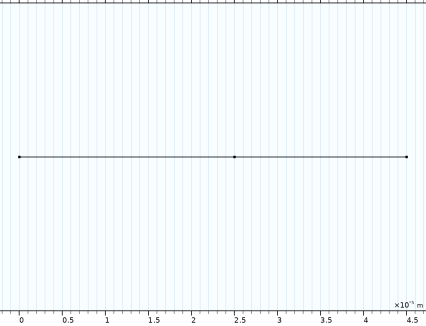
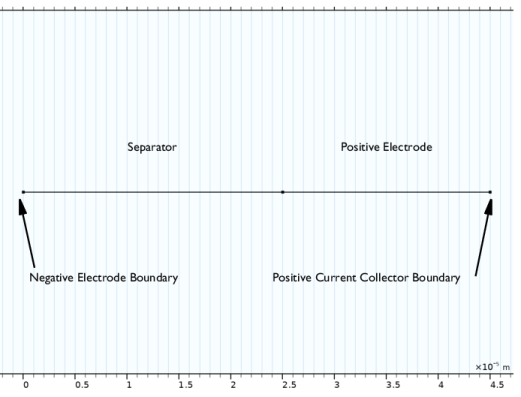
The 1D model geometry is shown in Figure 1. The separator and the positive (cathode during discharge) porous electrode are defined as domains in the geometry. The leftmost boundary represents the negative lithium metal electrode, and the rightmost boundary represents the positive metal current collector.
Figure 1: Model geometry.
The electrolyte mass and charge transport are modeled using the Nernst-Planck equations with electroneutrality.
The following five charge transfer reactions and six participating polysulfide species are considered in the positive electrode domain:
(1)
(2)
(3)
(4)
(5)
The charge transfer reactions are defined using the Nernst equation in combination with the Butler–Volmer equation, assuming the law of mass action.
In addition to the above six polysulfide species, also the species Li+ and A- are included in the electrolyte, where A- is the counter anion of the lithium salt. The same species are also present in the separator domain.
Two precipitation-dissolution (nonfaradaic) reactions involving the solid species S8 and Li2S are included in the model (in both the domains) according to
(6)
(7)
The model is solved for two different discharge rates: 0.2C and 1C.
Results and Discussion
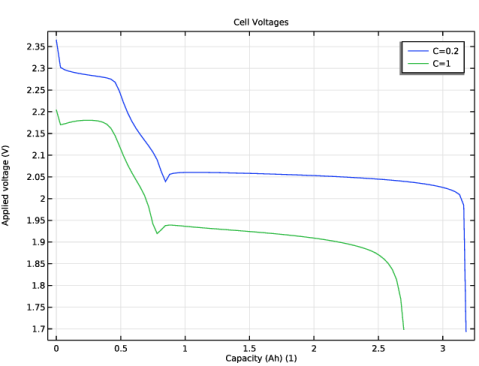
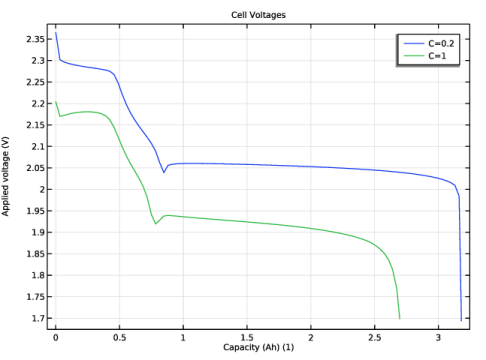
Figure 1 shows the cell voltages during a 0.2C and a 1C discharge. The voltage and capacity gets significantly lowered for the higher discharge rate.
Figure 2: Voltage discharge curves at 0.2C and 1C.
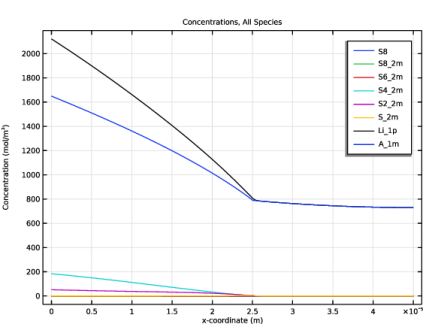
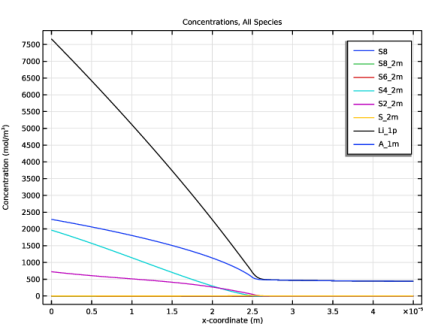
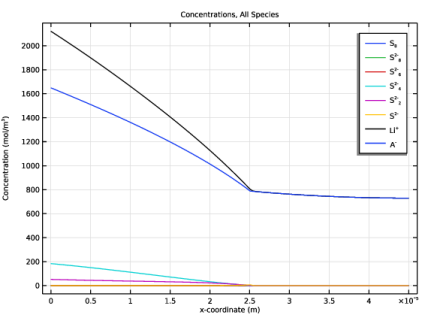
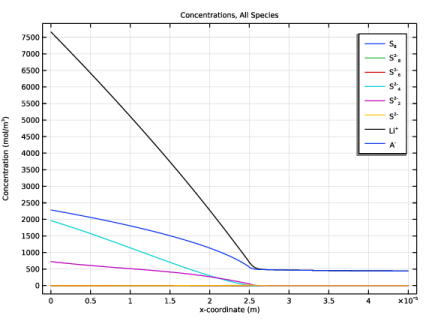
Figure 3 and Figure 4 show the concentration profiles in the cell at end of discharge at 0.2C and 1C, respectively. The amount of remaining polysulfide species correspond to the lowered capacity at 1C compared 0.2C that was seen in Figure 2.
Figure 3: Concentration of electrolyte species at end of discharge at 0.2C.
Figure 4: Concentration of electrolyte species at end of discharge at 1C.
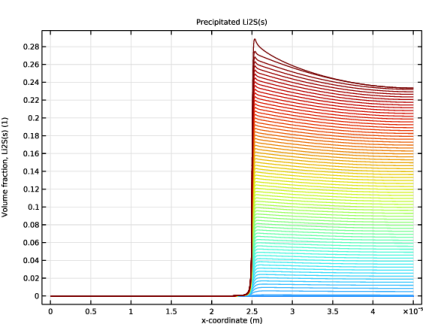
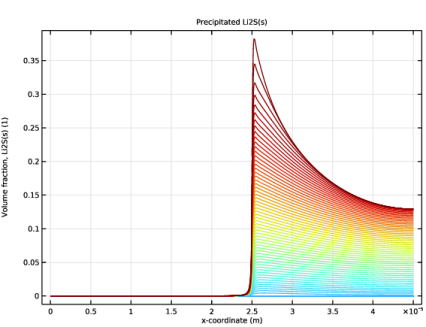
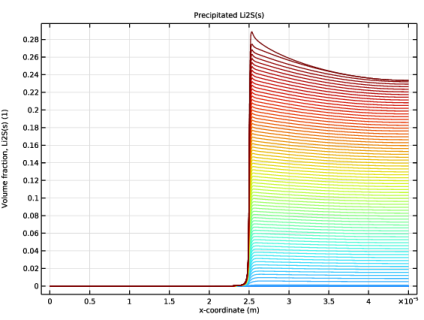
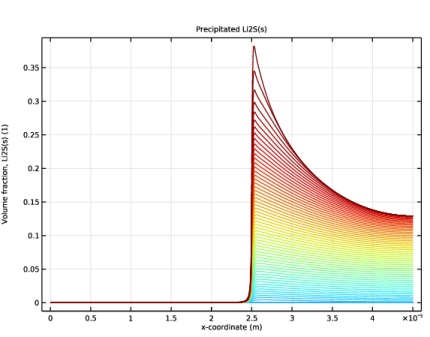
Finally, Figure 5 and Figure 6 show the volume fraction profiles of Li2S(s) during discharge at 0.2C and 1C, respectively. The 1C profiles are generally less uniform than the profiles at 0.2C, indicating a less uniform current distribution for the higher discharge rate.
Figure 5: Volume fraction profiles of Li2S(s) during discharge at 0.2C.
Figure 6: Volume fraction profiles of Li2S(s) during discharge at 1C.
Reference
1. T. Zhang, M. Marinescu, S. Walus, and G. Offer, “Modeling transport-limited discharge capacity of lithium-sulfur cells,” Electrochimica Acta, vol. 219, pp. 502–508, 2016.
Application Library path: Battery_Design_Module/Batteries,_General/lithium_sulfur
Modeling Instructions
From the File menu, choose New.
New
In the New window, click  Model Wizard.
Model Wizard
1
In the Model Wizard window, click  1D.
2
In the Select Physics tree, select Electrochemistry > Tertiary Current Distribution, Nernst–Planck > Tertiary, Electroneutrality (tcd).
3
Click Add.
4
In the Number of species text field, type 8.
Type in the names of the electrolyte concentration variables in the table as follows. (The solid S8(s) and Li2S(s) species will be added later.)
5
In the Concentrations (mol/m³) table, enter the following settings:
6
Click  Study.
7
In the Select Study tree, select Preset Studies for Selected Physics Interfaces > Time Dependent with Initialization.
8
Tertiary Current Distribution, Nernst–Planck (tcd)
The Nernst-Planck model assumes electroneutrality, and eliminates one of the concentration-dependent variables based on the electroneutrality condition. For this model it is suitable to select the A_1m (the electrolyte salt anion) as to be taken from electroneutrality since its concentration is relatively high in relation to the other species, and since it does not participate in any electrode reactions.
1
In the Model Builder window, under Component 1 (comp1) click Tertiary Current Distribution, Nernst–Planck (tcd).
2
In the Settings window for Tertiary Current Distribution, Nernst–Planck, locate the Electrolyte Charge Conservation section.
3
From the From electroneutrality list, choose A_1m.
Global Definitions
Parameters 1
Load the model parameters from a text file.
1
In the Model Builder window, under Global Definitions click Parameters 1.
2
In the Settings window for Parameters, locate the Parameters section.
3
Click  Load from File.
4
Geometry 1
Interval 1 (i1)
The geometry consists of two domains: the positive porous electrode and the separator. The negative electrode is modeled as a boundary condition and is not added as a domain at this point.
1
In the Model Builder window, under Component 1 (comp1) right-click Geometry 1 and choose Interval.
2
In the Settings window for Interval, locate the Interval section.
3
From the Specify list, choose Interval lengths.
4
5
Click  Build Selected.
Tertiary Current Distribution, Nernst–Planck (tcd)
1
In the Model Builder window, under Component 1 (comp1) click Tertiary Current Distribution, Nernst–Planck (tcd).
2
In the Settings window for Tertiary Current Distribution, Nernst–Planck, locate the Cross-Sectional Area section.
3
In the Ac text field, type A_cell.
Start setting up the physics for charge and mass transport in the separator.
Species Charges 1
1
In the Model Builder window, under Component 1 (comp1) > Tertiary Current Distribution, Nernst–Planck (tcd) click Species Charges 1.
2
In the Settings window for Species Charges, locate the Charge section.
3
In the zS82m text field, type -2.
4
In the zS62m text field, type -2.
5
In the zS42m text field, type -2.
6
In the zS22m text field, type -2.
7
In the zS2m text field, type -2.
8
In the zLi1p text field, type 1.
9
In the zA1m text field, type -1.
Separator 1
1
In the Physics toolbar, click  Domains and choose Separator.
2
3
In the Settings window for Separator, locate the Diffusion section.
4
In the DS8 text field, type D_S8.
5
In the DS82m text field, type D_S8_2m.
6
In the DS62m text field, type D_S6_2m.
7
In the DS42m text field, type D_S4_2m.
8
In the DS22m text field, type D_S2_2m.
9
In the DS2m text field, type D_S_2m.
10
In the DLi1p text field, type D_Li_1p.
11
In the DA1m text field, type D_A_1m.
12
Locate the Porous Matrix Properties section. In the εl text field, type epsl_sep_0.
Note that, by default, the diffusion coefficients will be corrected by a Bruggeman relation to account for the effect of the pore network.
Porous Electrode 1
Add similar settings for the positive electrode.
1
In the Physics toolbar, click  Domains and choose Porous Electrode.
2
3
In the Settings window for Porous Electrode, locate the Diffusion section.
4
In the DS8 text field, type D_S8.
5
In the DS82m text field, type D_S8_2m.
6
In the DS62m text field, type D_S6_2m.
7
In the DS42m text field, type D_S4_2m.
8
In the DS22m text field, type D_S2_2m.
9
In the DS2m text field, type D_S_2m.
10
In the DLi1p text field, type D_Li_1p.
11
In the DA1m text field, type D_A_1m.
12
Locate the Electrode Current Conduction section. From the σs list, choose User defined. In the associated text field, type sigma_s.
13
Locate the Porous Matrix Properties section. In the εs text field, type 1-epsl_pos_0.
14
In the εl text field, type epsl_pos_0.
For the electrode phase assume that the conductivity value entered is the effective conductivity and hence already accounts for the porous structure:
15
Locate the Effective Transport Parameter Correction section. From the Electric conductivity list, choose No correction.
Porous Electrode Reaction 1
Now start setting up the electrode kinetics. In total, there are five active electrode reactions in the porous electrode.
1
In the Model Builder window, click Porous Electrode Reaction 1.
2
In the Settings window for Porous Electrode Reaction, locate the Stoichiometric Coefficients section.
3
In the νS8 text field, type -1/2.
4
In the νS82m text field, type 1/2.
5
Locate the Equilibrium Potential section. In the Eeq,ref(T) text field, type Eeq_1_ref.
6
Click to expand the Reference Concentrations section. In the table, enter the following settings:
7
Locate the Electrode Kinetics section. In the i0,ref(T) text field, type i0_1_ref.
8
Locate the Active Specific Surface Area section. In the av text field, type Av_pos.
Porous Electrode 1
In the Model Builder window, click Porous Electrode 1.
Porous Electrode Reaction 2
1
In the Physics toolbar, click  Attributes and choose Porous Electrode Reaction.
2
In the Settings window for Porous Electrode Reaction, locate the Stoichiometric Coefficients section.
3
In the νS82m text field, type -3/2.
4
In the νS62m text field, type 2.
5
Locate the Equilibrium Potential section. In the Eeq,ref(T) text field, type Eeq_2_ref.
6
Locate the Reference Concentrations section. In the table, enter the following settings:
7
Locate the Electrode Kinetics section. In the i0,ref(T) text field, type i0_2_ref.
8
Locate the Active Specific Surface Area section. In the av text field, type Av_pos.
Porous Electrode 1
In the Model Builder window, click Porous Electrode 1.
Porous Electrode Reaction 3
1
In the Physics toolbar, click  Attributes and choose Porous Electrode Reaction.
2
In the Settings window for Porous Electrode Reaction, locate the Stoichiometric Coefficients section.
3
In the νS62m text field, type -1.
4
In the νS42m text field, type 3/2.
5
Locate the Equilibrium Potential section. In the Eeq,ref(T) text field, type Eeq_3_ref.
6
Locate the Reference Concentrations section. In the table, enter the following settings:
7
Locate the Electrode Kinetics section. In the i0,ref(T) text field, type i0_3_ref.
8
Locate the Active Specific Surface Area section. In the av text field, type Av_pos.
Porous Electrode 1
In the Model Builder window, click Porous Electrode 1.
Porous Electrode Reaction 4
1
In the Physics toolbar, click  Attributes and choose Porous Electrode Reaction.
2
In the Settings window for Porous Electrode Reaction, locate the Stoichiometric Coefficients section.
3
In the νS42m text field, type -1/2.
4
In the νS22m text field, type 1.
5
Locate the Equilibrium Potential section. In the Eeq,ref(T) text field, type Eeq_4_ref.
6
Locate the Reference Concentrations section. In the table, enter the following settings:
7
Locate the Electrode Kinetics section. In the i0,ref(T) text field, type i0_4_ref.
8
Locate the Active Specific Surface Area section. In the av text field, type Av_pos.
Porous Electrode 1
In the Model Builder window, click Porous Electrode 1.
Porous Electrode Reaction 5
1
In the Physics toolbar, click  Attributes and choose Porous Electrode Reaction.
2
In the Settings window for Porous Electrode Reaction, locate the Stoichiometric Coefficients section.
3
In the νS22m text field, type -1/2.
4
In the νS2m text field, type 1.
5
Locate the Equilibrium Potential section. In the Eeq,ref(T) text field, type Eeq_5_ref.
6
Locate the Reference Concentrations section. In the table, enter the following settings:
7
Locate the Electrode Kinetics section. In the i0,ref(T) text field, type i0_5_ref.
8
Locate the Active Specific Surface Area section. In the av text field, type Av_pos.
Separator 1
There are also two solid species in the model. Define these in the separator as follows:
1
In the Model Builder window, under Component 1 (comp1) > Tertiary Current Distribution, Nernst–Planck (tcd) click Separator 1.
2
In the Settings window for Separator, click to expand the Dissolving–Depositing Species section.
3
4
Add the settings for S8(s) in a second row in the table as follows:
5
6
Porous Electrode 1
The same solid species are also present in the electrode.
1
In the Model Builder window, click Porous Electrode 1.
2
In the Settings window for Porous Electrode, click to expand the Dissolving–Depositing Species section.
3
4
Also for the porous electrode, add the settings for S8(s) in a second row in the table:
5
6
Definitions
Now define the dissolution-precipitation rates of the solid species.
Variables - Separator
Import some variable expressions for the separator that define the volume fractions of the solid species. These expressions are based on the automatically defined concentration variables for each species set up in the Depositing-Dissolving Species section of the separator node.
1
In the Model Builder window, under Component 1 (comp1) right-click Definitions and choose Variables.
2
In the Settings window for Variables, type Variables - Separator in the Label text field.
3
Locate the Geometric Entity Selection section. From the Geometric entity level list, choose Domain.
4
5
Locate the Variables section. Click  Load from File.
6
Variables - Positive Electrode
1
In the Model Builder window, right-click Definitions and choose Variables.
2
In the Settings window for Variables, type Variables - Positive Electrode in the Label text field.
3
Locate the Geometric Entity Selection section. From the Geometric entity level list, choose Domain.
4
5
Locate the Variables section. Click  Load from File.
6
Note that an expression for the specific surface area, which depends on the local electrolyte volume fraction, is also present in the variables you just imported.
Variables - All Domains
1
Right-click Definitions and choose Variables.
2
In the Settings window for Variables, type Variables - All Domains in the Label text field.
3
Locate the Variables section. Click  Load from File.
4
The next step is to add these rate expressions as Nonfaradaic Reactions in each domain, together with initial values for the solid concentration variables.
Tertiary Current Distribution, Nernst–Planck (tcd)
Non-Faradaic Reactions - Li2S(s)
1
In the Model Builder window, under Component 1 (comp1) > Tertiary Current Distribution, Nernst–Planck (tcd) > Separator 1 click Nonfaradaic Reactions 1.
2
In the Settings window for Nonfaradaic Reactions, type Non-Faradaic Reactions - Li2S(s) in the Label text field.
Use the R_Li2S_s rate variable to set the rate for S_2m, Li_1p, and Li2S_s as follows:
3
Locate the Reaction Rate section. In the RS2m text field, type -R_Li2S_s/tcd.epsl.
4
In the RLi1p text field, type -2*R_Li2S_s/tcd.epsl.
5
In the Reaction rate for dissolving–depositing species table, enter the following settings:
Separator 1
In the Model Builder window, click Separator 1.
Non-Faradaic Reactions - S8(s)
1
In the Physics toolbar, click  Attributes and choose Nonfaradaic Reactions.
2
In the Settings window for Nonfaradaic Reactions, type Non-Faradaic Reactions - S8(s) in the Label text field.
Here, use the R_S8_s rate variable to set the rate for S8 and S8_s:
3
Locate the Reaction Rate section. In the RS8 text field, type -R_S8_s/tcd.epsl.
4
In the Reaction rate for dissolving–depositing species table, enter the following settings:
Separator 1
In the Model Builder window, click Separator 1.
Initial Values for Dissolving–Depositing Species 1
1
In the Physics toolbar, click  Attributes and choose Initial Values for Dissolving–Depositing Species.
2
In the Settings window for Initial Values for Dissolving–Depositing Species, locate the Initial Values for Dissolving–Depositing Species section.
3
Porous Electrode 1
In the Model Builder window, under Component 1 (comp1) > Tertiary Current Distribution, Nernst–Planck (tcd) click Porous Electrode 1.
Non-Faradaic Reactions - Li2S(s)
1
In the Physics toolbar, click  Attributes and choose Nonfaradaic Reactions.
2
In the Settings window for Nonfaradaic Reactions, type Non-Faradaic Reactions - Li2S(s) in the Label text field.
3
Locate the Reaction Rate section. In the RS2m text field, type -R_Li2S_s/tcd.epsl.
4
In the RLi1p text field, type -2*R_Li2S_s/tcd.epsl.
5
In the Reaction rate for dissolving–depositing species table, enter the following settings:
Porous Electrode 1
In the Model Builder window, click Porous Electrode 1.
Non-Faradaic Reactions - S8(s)
1
In the Physics toolbar, click  Attributes and choose Nonfaradaic Reactions.
2
In the Settings window for Nonfaradaic Reactions, type Non-Faradaic Reactions - S8(s) in the Label text field.
3
Locate the Reaction Rate section. In the RS8 text field, type -R_S8_s/tcd.epsl.
4
In the Reaction rate for dissolving–depositing species table, enter the following settings:
Porous Electrode 1
In the Model Builder window, click Porous Electrode 1.
Initial Values for Dissolving–Depositing Species 1
1
In the Physics toolbar, click  Attributes and choose Initial Values for Dissolving–Depositing Species.
2
In the Settings window for Initial Values for Dissolving–Depositing Species, locate the Initial Values for Dissolving–Depositing Species section.
3
Electrode Surface 1
Specify the negative electrode and electrode reaction (Li/Li+) as follows:
1
In the Physics toolbar, click  Boundaries and choose Electrode Surface.
2
This boundary is to be grounded, so the default voltage setting of 0 V does not need to be changed.
Electrode Reaction 1
1
In the Model Builder window, click Electrode Reaction 1.
2
In the Settings window for Electrode Reaction, locate the Stoichiometric Coefficients section.
3
In the νLi1p text field, type -1.
4
Locate the Equilibrium Potential section. In the Eeq,ref(T) text field, type Eeq_Li_ref.
5
Locate the Electrode Kinetics section. In the i0,ref(T) text field, type i0_Li_ref.
Load Cycle 1
1
In the Physics toolbar, click  Boundaries and choose Load Cycle.
2
3
In the Settings window for Load Cycle, locate the Load Type section.
4
5
Locate the Cycling Stop Condition section. From the list, choose Minimum voltage.
6
In the Emin text field, type 1.7[V].
7
Locate the Probes section. Select the Applied voltage checkbox.
The probe will plot the cell voltage while solving.
Definitions
Load Cycle Probe (tcd_lc1_volt)
1
In the Model Builder window, under Component 1 (comp1) > Definitions click Load Cycle Probe (tcd_lc1_volt).
2
In the Settings window for Global Variable Probe, locate the Expression section.
3
Select the Description checkbox. In the associated text field, type Cell voltage.
Tertiary Current Distribution, Nernst–Planck (tcd)
Load Cycle 1
In the Model Builder window, under Component 1 (comp1) > Tertiary Current Distribution, Nernst–Planck (tcd) click Load Cycle 1.
Current 1
1
In the Physics toolbar, click  Attributes and choose Current.
2
3
In the Settings window for Current, locate the Current section.
4
In the Iset text field, type -I_1C*C.
You will vary the parameter C later when solving the model to simulate different discharge rates.
Initial Values 1
Now set the initial concentrations for the electrolyte species.
1
In the Model Builder window, under Component 1 (comp1) > Tertiary Current Distribution, Nernst–Planck (tcd) click Initial Values 1.
2
In the Settings window for Initial Values, locate the Initial Values section.
3
In the S8 text field, type c_S8_ref.
4
In the S82m text field, type c_S8_2m_ref.
5
In the S62m text field, type c_S6_2m_ref.
6
In the S42m text field, type c_S4_2m_ref.
7
In the S22m text field, type c_S2_2m_ref.
8
In the S2m text field, type c_S_2m_ref.
9
In the Li1p text field, type c_Li_1p_ref.
10
In the phis text field, type Eeq_1_ref.
Mesh 1
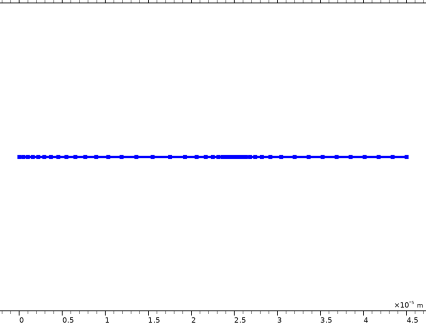
All the necessary physics settings are now completed. Due to steep gradients of the Li2S(s) species, this model needs a very well resolved mesh close to the separator-positive electrode boundary. Modify the default mesh as follows:
1
In the Model Builder window, under Component 1 (comp1) right-click Mesh 1 and choose Edit Physics-Induced Sequence.
Size 1
1
In the Model Builder window, right-click Edge 1 and choose Size.
2
In the Settings window for Size, locate the Geometric Entity Selection section.
3
From the Geometric entity level list, choose Boundary.
4
5
Locate the Element Size section. Click the Custom button.
6
Locate the Element Size Parameters section.
7
Select the Maximum element size checkbox. In the associated text field, type 1e-7.
Edge 1
Right-click Edge 1 and choose Build All.
Study 1
Next, set up the solver sequence. Add a parametric sweep to solve for a range of different C-rates.
Parametric Sweep
1
In the Study toolbar, click  Parametric Sweep.
2
In the Settings window for Parametric Sweep, locate the Study Settings section.
3
4
The above settings mean that the study will solve for two different current-density boundary conditions as defined in the Electrode Current Density node you added before.
Step 2: Time Dependent
Now set the times of the time-dependent solver. Use the C-parameter to solve for a range of time steps corresponding to a range from 100% to (minimum) 0% nominal state of charge.
1
In the Model Builder window, click Step 2: Time Dependent.
2
In the Settings window for Time Dependent, locate the Study Settings section.
3
From the Time unit list, choose h.
4
In the Output times text field, type range(0,0.01/C,1/C).
The model is now ready for solving. It will take about a minute to solve.
5
In the Study toolbar, click  Compute.
Modify the first default plot to show the cell voltage versus capacity.
Results
Cell Voltages
1
In the Model Builder window, under Results click Boundary Electrode Potential with Respect to Ground (tcd).
2
In the Settings window for 1D Plot Group, type Cell Voltages in the Label text field.
Global 1
1
In the Model Builder window, expand the Cell Voltages node, then click Global 1.
2
In the Settings window for Global, locate the x-Axis Data section.
3
From the Parameter list, choose Expression.
4
In the Expression text field, type t*C*I_1C/1[A*h].
5
Select the Description checkbox. In the associated text field, type Capacity (Ah).
6
Click to expand the Legends section. Select the Show legends checkbox.
7
Find the Include subsection. Clear the Description checkbox.
Cell Voltages
1
In the Model Builder window, click Cell Voltages.
2
In the Settings window for 1D Plot Group, click to expand the Title section.
3
From the Title type list, choose Label.
4
In the Cell Voltages toolbar, click  Plot.
Concentrations, All Species (tcd)
Now modify the default concentration plot to show only the last stored time and each C-rate separately.
1
In the Model Builder window, click Concentrations, All Species (tcd).
2
In the Settings window for 1D Plot Group, locate the Data section.
3
From the Time selection list, choose Last.
4
From the Parameter selection (C) list, choose From list.
5
In the Parameter values (C) list box, select 0.2.
6
In the Concentrations, All Species (tcd) toolbar, click  Plot.
7
In the Parameter values (C) list box, select 1.
8
In the Concentrations, All Species (tcd) toolbar, click  Plot.
The remaining S-species in the electrolyte at 1C correspond to the reduced capacity (compared to 0.2C) seen in the cell voltage plot.
Precipitated Li2S(s)
Finally, proceed as follows to plot the volume fraction of the precipitated Li2S(s) in the electrode. This plot is a good indicator of how uniform the current distribution in the electrode is:
1
In the Results toolbar, click  1D Plot Group.
2
In the Settings window for 1D Plot Group, type Precipitated Li2S(s) in the Label text field.
3
Locate the Title section. From the Title type list, choose Label.
Line Graph 1
1
Right-click Precipitated Li2S(s) and choose Line Graph.
2
In the Settings window for Line Graph, locate the Selection section.
3
From the Selection list, choose All domains.
4
Click Replace Expression in the upper-right corner of the y-Axis Data section. From the menu, choose Component 1 (comp1) > Definitions > Variables > eps_Li2S_s - Volume fraction, Li2S(s) - 1.
5
Locate the x-Axis Data section. From the Parameter list, choose Expression.
6
In the Expression text field, type x.
7
Click to expand the Legends section. Find the Prefix and suffix subsection. In the Prefix text field, type Li<sub>2</sub>S(s).
8
Click to expand the Coloring and Style section. From the Color list, choose Color table.
Precipitated Li2S(s)
1
In the Model Builder window, click Precipitated Li2S(s).
2
In the Settings window for 1D Plot Group, locate the Data section.
3
From the Dataset list, choose Study 1/Parametric Solutions 1 (sol3).
4
From the Parameter selection (C) list, choose From list.
5
In the Parameter values (C) list box, select 0.2.
6
In the Precipitated Li2S(s) toolbar, click  Plot.
7
In the Parameter values (C) list box, select 1.
8
In the Precipitated Li2S(s) toolbar, click  Plot.