
PDF

Power Losses in a Lithium-Ion Battery
Introduction
This tutorial analyzes the power losses in a lithium-ion battery during a Hybrid Pulse Power Characterization (HPPC) test. The model is a continuation of the Lithium-Ion Battery Rate Capability tutorial, where the total discharge energy was compared between an energy-optimized and a power-optimized battery.
Many physical battery properties affect the polarization and rate capability of a battery cell, for instance:
The power losses can typically be decreased by using thinner separator and electrode layers, higher porosities, and smaller active material particles. However, minimizing the power losses often results in a decreased capacity of the battery, since when using thinner or more porous electrodes, the relative amount of active electrode material in the cell decreases.
Figure 1: Selection of design parameters in a cell and their relation to power losses. Upward pointing arrows indicate increase, downward pointing decrease. For example, the power capability of a cell decreases with decreased porosity and increased particle size.
The choice of active materials is important as well. Some materials are able to transport intercalated lithium efficiently even at high current loads. Additionally, the electrolyte is also important; for example, polymer batteries are seldom used in high-power applications since these contain a nonliquid electrolyte with poor lithium-ion transport properties.
Model Definition
The model is set up in 1D for a graphite/NMC battery cell. A more detailed description of the model can be found in Lithium-Ion Battery Base Model in 1D.
This tutorial investigates the power losses in a battery subjected to a 10 A discharge pulse for 10 s, followed by a 20 s rest, followed by a 10 A charge for 10 s. The losses are analyzed both for an energy-optimized and a power-optimized cell, featuring positive-electrode thicknesses of 60 μm and 25 μm, respectively. The battery model is parameterized in such a way that when changing the positive-electrode thickness parameter, the negative-electrode layer thicknesses change correspondingly, as discussed in Lithium-Ion Battery Base Model in 1D. Both cells are assumed to fit into a 21700 canister of fixed volume, which means the active cell area, Acell, varies with the thickness parameter; again, see Lithium-Ion Battery Base Model in 1D.
A Load Cycle node is used to define a load cycle comprising a 10 A charge for 10 s, followed by a 20 s rest, followed by a 10 A discharge for 10 s. The initial state of charge is 50 s.
Computing Power Losses
The Lithium-Ion Battery interface automatically defines various power loss variables. These are derived locally in the model geometry from physical gradients and interfacial changes in the Gibbs free energy of the transported and reacting species (ions, intercalated lithium, and electrons) in the cell.
As an example, the local power loss due to electron conduction in a domain, ploss,s (W/m3) is defined as
(1)
where is is the electronic current vector (A/m2) and ϕs the electrode phase potential (V).
In addition to the current-conduction power loss defined above, power loss variables are also computed for:
How these are computed is documented in the theory chapter for the Lithium-Ion Battery interface. It should be noted that the power loss variables may sometimes be identical to the heat source variables (also computed automatically by the interface), but are generally not the same, since the heat source variables consider changes in enthalpy rather than the Gibbs free energy.
The interface also defines integrated power loss variables, which for this 1D example is computed as
(2)
for the total electron conduction loss.
Integrated total loss variables per model tree feature node (Porous Electrode, Separator, and so on) are also available.
Results and Discussion
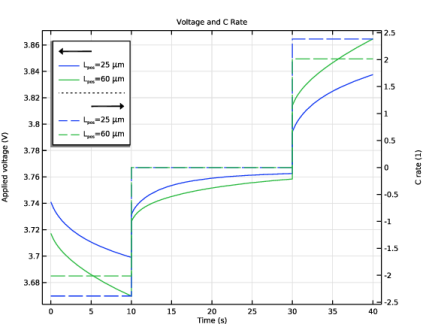
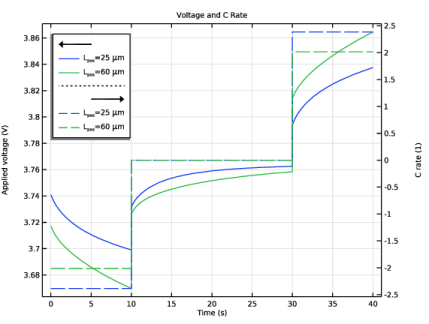
Figure 2 shows the cell voltage and corresponding C-rates for the two cell configurations. The C-rates are slightly higher for the power-optimized (positive electrode thickness of 25 μm) battery compared to the energy-optimized (positive electrode thickness of 60 μm) battery. The reason for this is that the total current and volume are fixed, in combination with the energy-optimized battery having a higher capacity. The polarization (voltage deviation from the rest voltage) is however still higher for the energy-optimized cell, despite the slightly lower C-rate.
Figure 2: Cell voltage and current C-rates versus time.
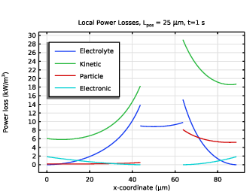
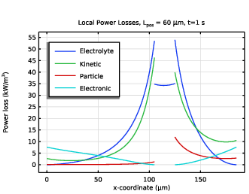
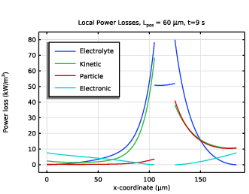
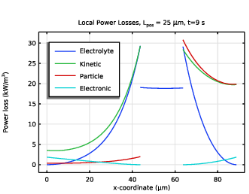
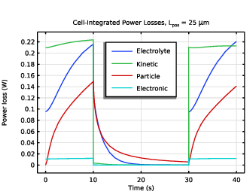
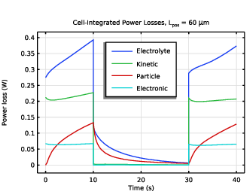
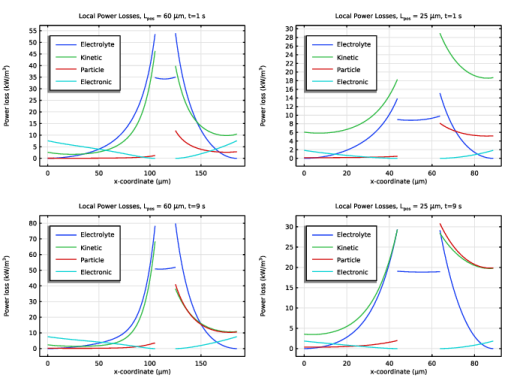
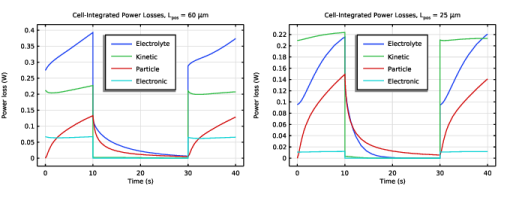
Figure 3 shows the local power losses in the energy-optimized cell (left) and the power-optimized cell (right) at 1 s (top) and 9 s (bottom) into the discharge pulse, whereas Figure 4 shows the corresponding power losses integrated over the whole cell during the course of the whole simulation. The power losses stemming from electron conduction are fairly small and both the distribution and magnitude of the losses stays more or less constant during each pulse. The kinetic activation losses also stay fairly constant during each pulse. When it comes the electrolyte transport and particle intercalation losses, however, these increase significantly during each pulse. This is related to the buildup of concentration gradients during each pulse. During the rest period (between t = 10 s and 30 s in Figure 4), the electrode and activation losses are close to zero, whereas the electrolyte and particle intercalation losses show a slow relaxation behavior as the concentration gradients get reduced. The power losses are generally higher for the energy-optimized cell, with the electrolyte transport-related losses being the main contributor, when integrated over all domains.
Figure 3: Local power losses stemming from electrolyte transport (blue lines), kinetic activation (green lines), particle intercalation transport (red lines) and electron conduction in the electrodes (cyan lines) in the energy-optimized cell (left) and the power-optimized cell (right) at 1 s (top) and 9 s (bottom) into the discharge pulse.
Figure 4: Cell-integrated power losses in the energy-optimized (left) and the power-optimized cell (right).
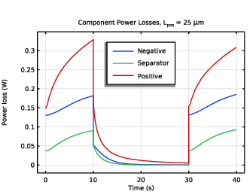
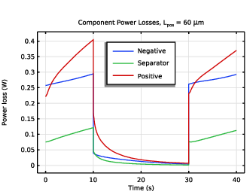
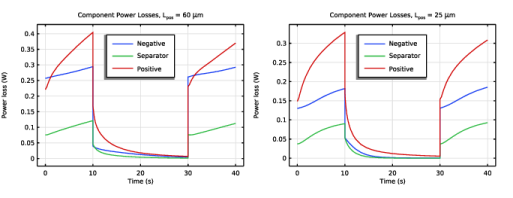
Figure 5 shows the power losses integrated separately over the negative electrode, the separator and the positive electrode. For this model, the power loss contributions from the two electrodes are dominating over the separator.
Figure 5: Power losses integrated per component; the negative electrode (blue lines), the separator (green lines) and the porous electrode (red lines) domains in the energy-optimized (left) and the power-optimized cell (right).
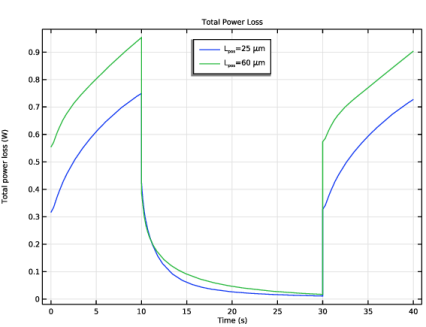
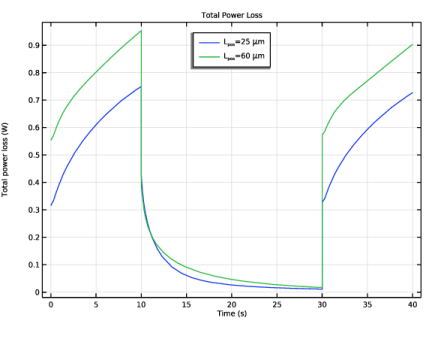
Finally, Figure 6 compares the total sum of all power losses for the energy and power-optimized cases.
Figure 6: Total power losses for the energy optimized (green line) and the power optimized (blue line) cell.
Reference
1. A. Nyman, T.G. Zavalis, R. Elger, M. Behm, and G. Lindbergh, “Analysis of the Polarization in Li-Ion Battery Cell by Numerical Simulations,” J. Electrochem. Soc., vol. 157, no. 11, pp. A1236–A1246, 2010.
Application Library path: Battery_Design_Module/Lithium-Ion_Batteries,_Performance/lib_power_losses
Modeling Instructions
Application Libraries
1
From the File menu, choose Application Libraries.
2
In the Application Libraries window, select Battery Design Module > Lithium-Ion Batteries, Performance > lib_base_model_1d in the tree.
3
In this tutorial we will perform an HPPC (hybrid pulse power characterization) test on the battery model you just loaded. The combined discharge–rest–charge load profile will be applied at 50% state of charge.
Global Definitions
Parameters 1
1
In the Model Builder window, under Global Definitions click Parameters 1.
2
In the Settings window for Parameters, locate the Parameters section.
3
Parameters - Pulse
Add a second group of parameters from a text file.
1
In the Home toolbar, click  Parameters and choose Add > Parameters.
2
In the Settings window for Parameters, type Parameters - Pulse in the Label text field.
3
Locate the Parameters section. Click  Load from File.
4
Lithium-Ion Battery (liion)
Load Cycle 1
1
In the Model Builder window, expand the Component 1 (comp1) > Lithium-Ion Battery (liion) node, then click Load Cycle 1.
2
In the Settings window for Load Cycle, locate the Continuation Conditions section.
3
Select the Use elapsed time only checkbox.
C Rate 1
1
In the Model Builder window, expand the Load Cycle 1 node.
2
Right-click C Rate 1 and choose Delete.
Current 1
1
In the Physics toolbar, click  Attributes and choose Current.
2
In the Settings window for Current, locate the Current section.
3
In the Iset text field, type -I_pulse.
4
Locate the Continuation Conditions section. Select the Elapsed time checkbox.
5
In the tmax text field, type t_pulse.
Lithium-Ion Battery (liion)
Load Cycle 1
In the Model Builder window, expand the Component 1 (comp1) > Definitions node, then click Component 1 (comp1) > Lithium-Ion Battery (liion) > Load Cycle 1.
Rest 1
1
In the Physics toolbar, click  Attributes and choose Rest.
2
In the Settings window for Rest, locate the Continuation Conditions section.
3
In the tmax text field, type t_rest.
Load Cycle 1
In the Model Builder window, click Load Cycle 1.
Current 2
1
In the Physics toolbar, click  Attributes and choose Current.
2
In the Settings window for Current, locate the Current section.
3
In the Iset text field, type I_pulse.
Porous Electrode - Negative
Proceed as follows to enable computation of the intercalation power losses in the electrode particles:
Particle Intercalation 1
1
In the Model Builder window, expand the Component 1 (comp1) > Lithium-Ion Battery (liion) > Porous Electrode - Negative node, then click Particle Intercalation 1.
2
In the Settings window for Particle Intercalation, locate the Material section.
3
From the Particle material list, choose Graphite, LixC6 MCMB (Negative, Li-ion Battery) (mat2).
4
Click to expand the Heat of Mixing and Power Losses section. Select the Define particle-resolved heat of mixing and power losses checkbox.
Particle Intercalation 1
1
In the Model Builder window, expand the Porous Electrode - Positive node, then click Particle Intercalation 1.
2
In the Settings window for Particle Intercalation, locate the Material section.
3
From the Particle material list, choose NMC 111, LiNi0.33Mn0.33Co0.33O2 (Positive, Li-ion Battery) (mat3).
4
Locate the Heat of Mixing and Power Losses section. Select the Define particle-resolved heat of mixing and power losses checkbox.
Study 1
Step 2: Time Dependent
Specify the initial and final time of the simulation in the times list.
1
In the Model Builder window, expand the Study 1 node, then click Step 2: Time Dependent.
2
In the Settings window for Time Dependent, locate the Study Settings section.
3
From the Time unit list, choose s.
4
In the Output times text field, type 0 2*t_pulse+t_rest.
Parametric Sweep
Add a parametric sweep varying the positive electrode thickness parameter. This will perform the HPPC simulation both for a power optimized and an energy-optimized battery. When varying the L_pos parameter, the negative electrode thickness is automatically updated based on the correlation defined in the Parameters 1 node.
1
In the Study toolbar, click  Parametric Sweep.
2
In the Settings window for Parametric Sweep, locate the Study Settings section.
3
4
Solution 1 (sol1)
Enable to store all steps taken by the time-dependent solver. This will produce smooth plots when visualizing the results.
1
In the Study toolbar, click  Show Default Solver.
2
In the Model Builder window, expand the Solution 1 (sol1) node, then click Time-Dependent Solver 1.
3
In the Settings window for Time-Dependent Solver, locate the General section.
4
From the Times to store list, choose Steps taken by solver.
5
In the Study toolbar, click  Compute.
Results
Voltage and C Rate
1
In the Results toolbar, click  1D Plot Group.
2
In the Settings window for 1D Plot Group, type Voltage and C Rate in the Label text field.
3
Locate the Data section. From the Dataset list, choose Study 1/Parametric Solutions 1 (sol3).
4
Click to expand the Title section. From the Title type list, choose Label.
Global 1
1
Right-click Voltage and C Rate and choose Global.
2
In the Settings window for Global, click Replace Expression in the upper-right corner of the y-Axis Data section. From the menu, choose Component 1 (comp1) > Lithium-Ion Battery > Load Cycle 1 > liion.lc1.E_app - Applied voltage - V.
3
Click to expand the Legends section. Find the Include subsection. Clear the Description checkbox.
4
Find the Prefix and suffix subsection. In the Prefix text field, type Voltage, .
5
Click to expand the Legends section. From the Legends list, choose Manual.
6
Global 2
1
In the Model Builder window, right-click Voltage and C Rate and choose Global.
2
In the Settings window for Global, click Replace Expression in the upper-right corner of the y-Axis Data section. From the menu, choose Component 1 (comp1) > Lithium-Ion Battery > Load Cycle 1 > liion.lc1.C_app - C rate - 1.
3
Click to expand the Coloring and Style section. From the Color list, choose Cycle (reset).
4
Find the Line style subsection. From the Line list, choose Dashed.
5
Locate the Legends section. Find the Include subsection. Clear the Description checkbox.
6
Find the Prefix and suffix subsection. In the Prefix text field, type C rate, .
7
From the Legends list, choose Manual.
8
Voltage and C Rate
1
In the Model Builder window, click Voltage and C Rate.
2
In the Settings window for 1D Plot Group, locate the Plot Settings section.
3
Select the Two y-axes checkbox.
4
In the table, select the Plot on secondary y-axis checkbox for Global 2.
5
Locate the Legend section. From the Position list, choose Upper left.
6
In the Voltage and C Rate toolbar, click  Plot.
Local Power Losses
1
In the Home toolbar, click  Add Plot Group and choose 1D Plot Group.
Create a plot of the local power losses as follows:
2
In the Settings window for 1D Plot Group, type Local Power Losses in the Label text field.
3
Locate the Data section. From the Dataset list, choose Study 1/Parametric Solutions 1 (sol3).
4
From the Parameter selection (L_pos) list, choose From list.
5
In the Parameter values (L_pos (um)) list box, select 25.
6
From the Time selection list, choose Interpolated.
7
In the Times (s) text field, type 1.
8
Click to expand the Title section. From the Title type list, choose Manual.
9
In the Title text area, type Local Power Losses, L<sub>pos</sub> = eval(L_pos*1e6) \mu m, t=eval(t) s.
Line Graph 1
1
Right-click Local Power Losses and choose Line Graph.
2
In the Settings window for Line Graph, locate the Selection section.
3
From the Selection list, choose All domains.
4
Click Replace Expression in the upper-right corner of the y-Axis Data section. From the menu, choose Component 1 (comp1) > Lithium-Ion Battery > Power losses > liion.p_loss_l - Electrolyte transport power loss - W/m³.
5
Locate the y-Axis Data section. From the Unit list, choose kW/m^3.
6
Select the Description checkbox. In the associated text field, type Electrolyte.
7
Locate the x-Axis Data section. From the Parameter list, choose Expression.
8
In the Expression text field, type x.
9
From the Unit list, choose µm.
10
Click to expand the Legends section. Select the Show legends checkbox.
11
Find the Include subsection. Clear the Solution checkbox.
12
Select the Description checkbox.
13
In the Local Power Losses toolbar, click  Plot.
Line Graph 2
1
Right-click Line Graph 1 and choose Duplicate.
2
In the Settings window for Line Graph, click Replace Expression in the upper-right corner of the y-Axis Data section. From the menu, choose Component 1 (comp1) > Lithium-Ion Battery > Power losses > liion.p_loss_act - Kinetic activation power loss - W/m³.
3
Locate the y-Axis Data section. In the Description text field, type Kinetic.
4
In the Local Power Losses toolbar, click  Plot.
Line Graph 3
1
Right-click Line Graph 2 and choose Duplicate.
2
In the Settings window for Line Graph, click Replace Expression in the upper-right corner of the y-Axis Data section. From the menu, choose Component 1 (comp1) > Lithium-Ion Battery > Power losses > liion.p_loss_inter - Particle intercalation transport power loss - W/m³.
3
Locate the y-Axis Data section. In the Description text field, type Particle.
4
In the Local Power Losses toolbar, click  Plot.
Line Graph 4
1
Right-click Line Graph 3 and choose Duplicate.
2
In the Settings window for Line Graph, click Replace Expression in the upper-right corner of the y-Axis Data section. From the menu, choose Component 1 (comp1) > Lithium-Ion Battery > Power losses > liion.p_loss_s - Electron conduction power loss - W/m³.
3
Locate the y-Axis Data section. In the Description text field, type Electronic.
4
In the Local Power Losses toolbar, click  Plot.
Local Power Losses
1
In the Model Builder window, click Local Power Losses.
2
In the Settings window for 1D Plot Group, locate the Plot Settings section.
3
Select the y-axis label checkbox. In the associated text field, type Power loss (kW/m<sup>3</sup>).
4
Locate the Legend section. From the Position list, choose Upper left.
5
In the Local Power Losses toolbar, click  Plot.
6
Locate the Data section. In the Parameter values (L_pos (um)) list box, select 60.
7
In the Local Power Losses toolbar, click  Plot.
8
In the Times (s) text field, type 9.
9
In the Local Power Losses toolbar, click  Plot.
10
In the Parameter values (L_pos (um)) list box, select 25.
11
In the Local Power Losses toolbar, click  Plot.
Cell-Integrated Power Losses
There are also corresponding predefined variables available that are integrated for all domains. To plot these cell-integrated variables, proceed as follows:
1
In the Results toolbar, click  1D Plot Group.
2
In the Settings window for 1D Plot Group, type Cell-Integrated Power Losses in the Label text field.
3
Locate the Data section. From the Dataset list, choose Study 1/Parametric Solutions 1 (sol3).
4
From the Parameter selection (L_pos) list, choose From list.
5
In the Parameter values (L_pos (um)) list box, select 25.
6
Locate the Title section. From the Title type list, choose Manual.
7
In the Title text area, type Cell-Integrated Power Losses, L<sub>pos</sub> = eval(L_pos*1e6) \mu m.
Global 1
1
Right-click Cell-Integrated Power Losses and choose Global.
2
In the Settings window for Global, click Replace Expression in the upper-right corner of the y-Axis Data section. From the menu, choose Component 1 (comp1) > Lithium-Ion Battery > Power losses > Cell integrated > liion.P_loss_l - Electrolyte transport power loss - W.
3
Locate the y-Axis Data section. In the table, enter the following settings:
4
Click to expand the Legends section. Find the Include subsection. Clear the Solution checkbox.
Global 2
1
Right-click Global 1 and choose Duplicate.
2
In the Settings window for Global, click Replace Expression in the upper-right corner of the y-Axis Data section. From the menu, choose Component 1 (comp1) > Lithium-Ion Battery > Power losses > Cell integrated > liion.P_loss_act - Kinetic activation power loss - W.
3
Locate the y-Axis Data section. In the table, enter the following settings:
4
In the Cell-Integrated Power Losses toolbar, click  Plot.
Global 3
1
Right-click Global 2 and choose Duplicate.
2
In the Settings window for Global, click Replace Expression in the upper-right corner of the y-Axis Data section. From the menu, choose Component 1 (comp1) > Lithium-Ion Battery > Power losses > Cell integrated > liion.P_loss_inter - Particle intercalation transport power loss - W.
3
Locate the y-Axis Data section. In the table, enter the following settings:
4
In the Cell-Integrated Power Losses toolbar, click  Plot.
Global 4
1
Right-click Global 3 and choose Duplicate.
2
In the Settings window for Global, click Replace Expression in the upper-right corner of the y-Axis Data section. From the menu, choose Component 1 (comp1) > Lithium-Ion Battery > Power losses > Cell integrated > liion.P_loss_s - Electron conduction power loss - W.
3
In the Cell-Integrated Power Losses toolbar, click  Plot.
4
Locate the y-Axis Data section. In the table, enter the following settings:
Cell-Integrated Power Losses
1
In the Model Builder window, click Cell-Integrated Power Losses.
2
In the Settings window for 1D Plot Group, locate the Plot Settings section.
3
Select the y-axis label checkbox. In the associated text field, type Power loss (W).
4
Locate the Legend section. From the Position list, choose Upper middle.
5
In the Cell-Integrated Power Losses toolbar, click  Plot.
6
Locate the Data section. In the Parameter values (L_pos (um)) list box, select 60.
Component Power Losses
1
In the Results toolbar, click  1D Plot Group.
Furthermore, there are integrated variables for the total losses of each domain node that you plot as follows:
2
In the Settings window for 1D Plot Group, type Component Power Losses in the Label text field.
3
Locate the Data section. From the Dataset list, choose Study 1/Parametric Solutions 1 (sol3).
4
From the Parameter selection (L_pos) list, choose From list.
5
In the Parameter values (L_pos (um)) list box, select 25.
6
Locate the Title section. From the Title type list, choose Manual.
7
In the Title text area, type Component Power Losses, L<sub>pos</sub> = eval(L_pos*1e6) \mu m.
Global 1
1
Right-click Component Power Losses and choose Global.
2
In the Settings window for Global, click Replace Expression in the upper-right corner of the y-Axis Data section. From the menu, choose Component 1 (comp1) > Lithium-Ion Battery > Power losses > Feature-node integrated > liion.pce1.P_loss - Total power loss - W.
3
Click to expand the Legends section. Select the Show legends checkbox.
4
From the Legends list, choose Manual.
5
Global 2
1
In the Model Builder window, right-click Component Power Losses and choose Global.
2
In the Settings window for Global, click Replace Expression in the upper-right corner of the y-Axis Data section. From the menu, choose Component 1 (comp1) > Lithium-Ion Battery > Power losses > Feature-node integrated > liion.sep1.P_loss - Total power loss - W.
3
Locate the Legends section. Select the Show legends checkbox.
4
From the Legends list, choose Manual.
5
6
In the Component Power Losses toolbar, click  Plot.
Global 3
1
Right-click Component Power Losses and choose Global.
2
In the Settings window for Global, click Replace Expression in the upper-right corner of the y-Axis Data section. From the menu, choose Component 1 (comp1) > Lithium-Ion Battery > Power losses > Feature-node integrated > liion.pce2.P_loss - Total power loss - W.
3
Locate the Legends section. From the Legends list, choose Manual.
4
5
Select the Show legends checkbox.
Component Power Losses
1
In the Model Builder window, click Component Power Losses.
2
In the Settings window for 1D Plot Group, locate the Plot Settings section.
3
Select the y-axis label checkbox. In the associated text field, type Power loss (W).
4
Locate the Legend section. From the Position list, choose Upper middle.
5
In the Component Power Losses toolbar, click  Plot.
6
Locate the Data section. In the Parameter values (L_pos (um)) list box, select 60.
Total Power Loss
1
In the Results toolbar, click  1D Plot Group.
Finally, plot the total of all power losses.
2
In the Settings window for 1D Plot Group, type Total Power Loss in the Label text field.
3
Locate the Data section. From the Dataset list, choose Study 1/Parametric Solutions 1 (sol3).
4
Locate the Title section. From the Title type list, choose Label.
Global 1
1
Right-click Total Power Loss and choose Global.
2
In the Settings window for Global, click Replace Expression in the upper-right corner of the y-Axis Data section. From the menu, choose Component 1 (comp1) > Lithium-Ion Battery > Power losses > Cell integrated > liion.P_loss - Total power loss - W.
3
Locate the Legends section. Find the Include subsection. Clear the Description checkbox.
4
From the Legends list, choose Manual.
5
Total Power Loss
1
In the Model Builder window, click Total Power Loss.
2
In the Settings window for 1D Plot Group, locate the Legend section.
3
From the Position list, choose Upper middle.
4
In the Total Power Loss toolbar, click  Plot.