|
|
|
|
•
|
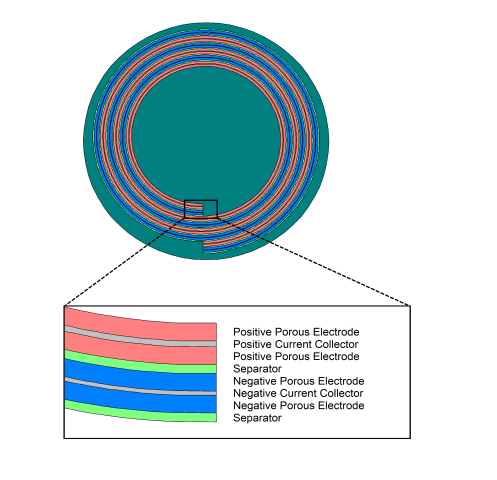
Two negative porous electrodes (60 μm thick)
|
|
•
|
Two positive porous electrodes (60 μm thick)
|
|
•
|
One negative current collector (14 μm thick)
|
|
•
|
One positive current collector (20 μm thick)
|
|
•
|
Two separator regions (30 μm thick)
|
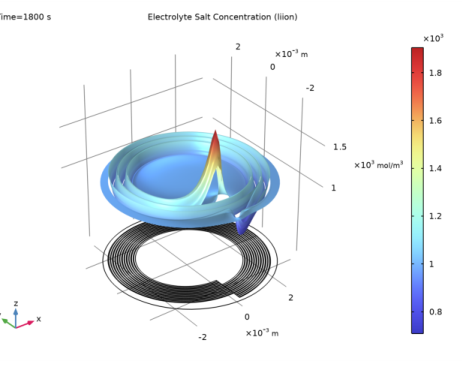
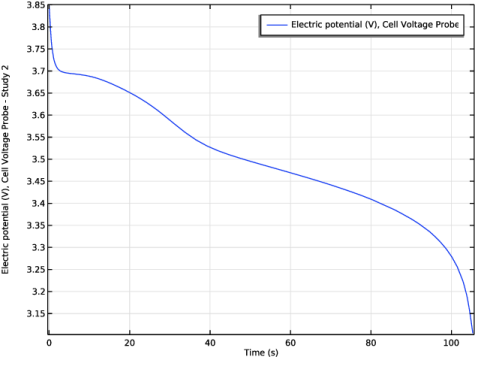
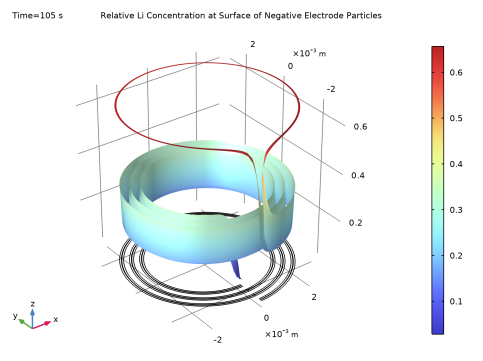
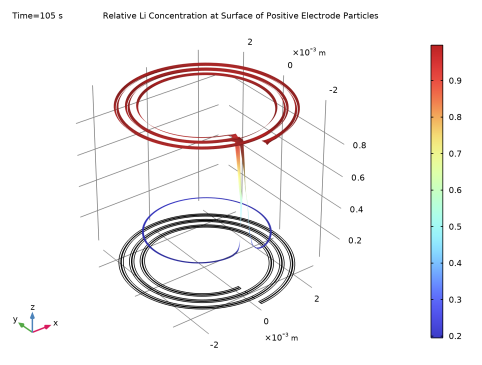
|
1
|
|
2
|
|
3
|
Click Add.
|
|
4
|
Click
 Study. Study. |
|
5
|
In the Select Study tree, select Preset Studies for Selected Physics Interfaces > Time Dependent with Initialization.
|
|
6
|
Click
 Done. Done. |
|
1
|
|
2
|
|
3
|
Click
 Load from File. Load from File. |
|
4
|
Browse to the model’s Application Libraries folder and double-click the file li_battery_spiral_2d_parameters.txt.
|
|
1
|
|
2
|
|
3
|
|
4
|
|
5
|
Locate the Units section. In the table, enter the following settings:
|
|
6
|
|
1
|
|
2
|
|
3
|
|
1
|
|
2
|
|
3
|
|
4
|
|
5
|
|
6
|
Click
 Build Selected. Build Selected. |
|
1
|
|
2
|
|
3
|
|
4
|
|
5
|
Click
 Build Selected. Build Selected. |
|
1
|
|
2
|
|
3
|
|
4
|
|
5
|
Click
 Build Selected. Build Selected. |
|
1
|
|
2
|
|
3
|
|
4
|
|
5
|
Click
 Build Selected. Build Selected. |
|
1
|
|
2
|
|
3
|
|
4
|
|
5
|
Click
 Build Selected. Build Selected. |
|
1
|
|
2
|
|
3
|
|
4
|
|
5
|
Click
 Build Selected. Build Selected. |
|
1
|
|
2
|
|
3
|
|
4
|
|
5
|
Click
 Build Selected. Build Selected. |
|
1
|
|
2
|
|
3
|
|
4
|
|
5
|
Click
 Build Selected. Build Selected. |
|
1
|
|
2
|
|
3
|
|
4
|
|
5
|
|
6
|
Click
 Build Selected. Build Selected. |
|
1
|
|
2
|
Click in the Graphics window and then press Ctrl+A to select all objects.
|
|
3
|
|
1
|
|
2
|
|
3
|
|
4
|
|
5
|
|
6
|
Click
 Build All Objects. Build All Objects. |
|
1
|
|
2
|
|
1
|
|
2
|
|
1
|
|
2
|
|
1
|
|
2
|
|
1
|
|
2
|
|
1
|
|
2
|
|
3
|
|
1
|
|
2
|
|
3
|
|
1
|
|
2
|
|
1
|
|
2
|
|
3
|
|
4
|
In the Add dialog, in the Selections to add list, choose Positive current collector, Negative current collector, Positive porous electrode, Negative porous electrode, and Electrolyte.
|
|
5
|
Click OK.
|
|
1
|
|
2
|
|
3
|
|
4
|
In the Add dialog, in the Selections to add list, choose Positive porous electrode, Negative porous electrode, Electrolyte, and Electrolyte outside.
|
|
5
|
Click OK.
|
|
1
|
|
2
|
Go to the Add Material window.
|
|
3
|
|
4
|
Click the Add to Component button in the window toolbar.
|
|
5
|
|
6
|
Click the Add to Component button in the window toolbar.
|
|
1
|
|
2
|
|
1
|
|
2
|
|
3
|
|
1
|
Go to the Add Material window.
|
|
2
|
In the tree, select Battery > Electrolytes > LiPF6 in 1:2 EC:DMC and p(VdF-HFP) (Polymer, Li-ion Battery).
|
|
3
|
Click the Add to Component button in the window toolbar.
|
|
4
|
|
5
|
Click the Add to Component button in the window toolbar.
|
|
6
|
|
7
|
Click the Add to Component button in the window toolbar.
|
|
8
|
|
1
|
|
2
|
|
1
|
In the Model Builder window, under Component 1 (comp1) > Lithium-Ion Battery (liion) click Separator 1.
|
|
2
|
|
3
|
|
1
|
|
2
|
|
3
|
|
4
|
|
5
|
|
6
|
|
1
|
|
2
|
|
3
|
|
4
|
|
5
|
|
6
|
|
1
|
|
2
|
|
3
|
|
4
|
|
5
|
|
6
|
|
1
|
|
2
|
|
3
|
|
4
|
|
5
|
|
6
|
|
1
|
|
2
|
|
3
|
|
4
|
|
5
|
|
6
|
|
1
|
|
2
|
|
3
|
|
4
|
|
5
|
|
6
|
|
1
|
|
2
|
|
3
|
|
1
|
|
2
|
|
3
|
|
1
|
|
2
|
|
3
|
|
1
|
|
2
|
In the Settings window for Electrode Current Density, type Electrode Current Density - 1C Discharge in the Label text field.
|
|
3
|
|
4
|
|
1
|
|
2
|
In the Settings window for Electrode Current Density, type Electrode Current Density - 10C Discharge in the Label text field.
|
|
3
|
|
4
|
|
5
|
|
6
|
|
7
|
|
8
|
|
1
|
|
1
|
|
2
|
|
3
|
|
1
|
|
1
|
|
2
|
|
3
|
|
1
|
|
1
|
|
2
|
|
3
|
|
1
|
|
1
|
|
2
|
|
3
|
|
1
|
|
1
|
|
2
|
|
3
|
|
4
|
In the Relative placement of vertices along edge text field, type 0 5e-5 10^range(-4,0.25,-2) range(2e-2,1e-2,0.98) (1-10^range(-2,-0.25,-4)) 0.99995 1.
|
|
1
|
|
2
|
|
3
|
|
4
|
|
1
|
|
2
|
|
1
|
|
2
|
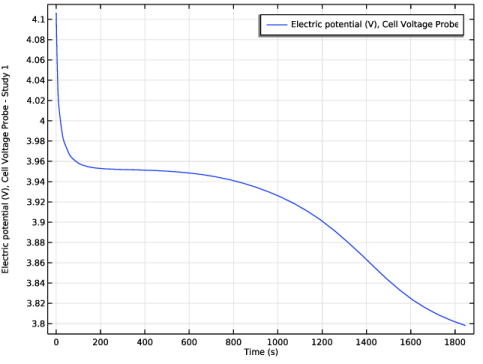
In the Settings window for Boundary Probe, type Cell Voltage Probe - Study 1 in the Label text field.
|
|
3
|
|
4
|
Click Replace Expression in the upper-right corner of the Expression section. From the menu, choose Component 1 (comp1) > Lithium-Ion Battery > phis - Electric potential - V.
|
|
1
|
|
2
|
|
3
|
|
4
|
Locate the Physics and Variables Selection section. Select the Modify model configuration for study step checkbox.
|
|
5
|
In the tree, select Component 1 (comp1) > Lithium-Ion Battery (liion) > Electrode Current Density - 10C Discharge.
|
|
6
|
Right-click and choose Disable.
|
|
7
|
|
8
|
|
9
|
|
1
|
|
2
|
|
3
|
|
1
|
|
2
|
|
3
|
|
1
|
|
2
|
|
3
|
|
1
|
|
2
|
|
3
|
|
4
|
|
1
|
|
2
|
|
3
|
|
4
|
|
1
|
|
2
|
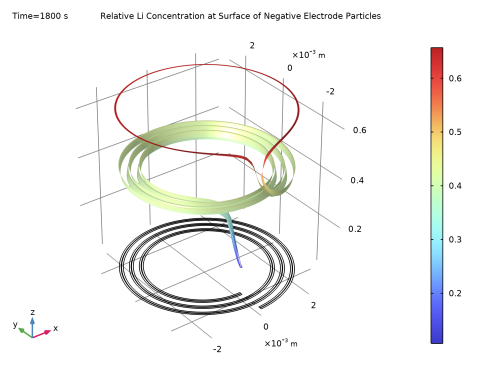
In the Settings window for 2D Plot Group, type Relative Li Concentration at Surface of Negative Electrode Particles in the Label text field.
|
|
3
|
|
4
|
Locate the Data section. From the Dataset list, choose Study 1 - 1 C Discharge/Solution 1 (4) (sol1).
|
|
1
|
Right-click Relative Li Concentration at Surface of Negative Electrode Particles and choose Surface.
|
|
2
|
In the Settings window for Surface, click Replace Expression in the upper-right corner of the Expression section. From the menu, choose Component 1 (comp1) > Lithium-Ion Battery > Particle intercalation > liion.socloc_surface - Particle surface state of charge - 1.
|
|
1
|
|
2
|
|
1
|
|
2
|
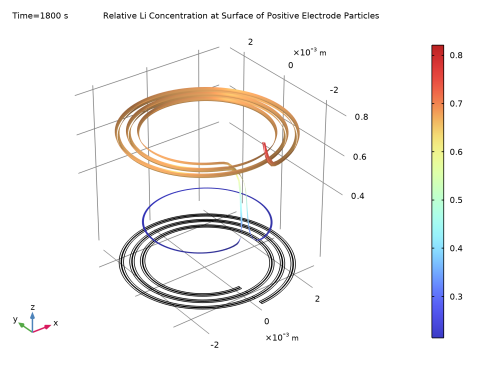
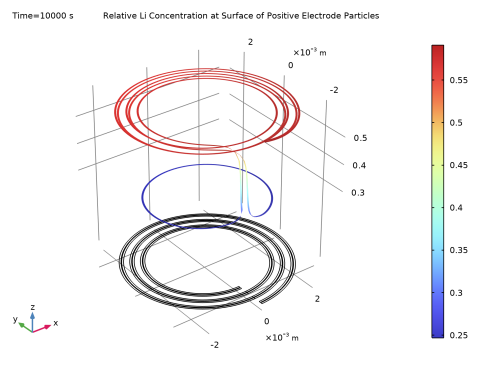
In the Settings window for 2D Plot Group, type Relative Li Concentration at Surface of Positive Electrode Particles in the Label text field.
|
|
3
|
Locate the Data section. From the Dataset list, choose Study 1 - 1 C Discharge/Solution 1 (5) (sol1).
|
|
4
|
|
1
|
Right-click Relative Li Concentration at Surface of Positive Electrode Particles and choose Surface.
|
|
2
|
In the Settings window for Surface, click Replace Expression in the upper-right corner of the Expression section. From the menu, choose Component 1 (comp1) > Lithium-Ion Battery > Particle intercalation > liion.socloc_surface - Particle surface state of charge - 1.
|
|
1
|
|
2
|
|
1
|
In the Model Builder window, under Component 1 (comp1) > Definitions click Cell Voltage Probe - Study 1 (bnd1).
|
|
2
|
|
1
|
Right-click Component 1 (comp1) > Definitions > Cell Voltage Probe - Study 1 (bnd1) and choose Duplicate.
|
|
2
|
In the Settings window for Boundary Probe, type Cell Voltage Probe - Study 2 in the Label text field.
|
|
3
|
|
4
|
|
1
|
|
2
|
Go to the Add Study window.
|
|
3
|
Find the Studies subsection. In the Select Study tree, select Preset Studies for Selected Physics Interfaces > Time Dependent with Initialization.
|
|
4
|
Click the Add Study button in the window toolbar.
|
|
5
|
|
1
|
|
2
|
|
3
|
|
4
|
|
5
|
|
6
|
Locate the Physics and Variables Selection section. Select the Modify model configuration for study step checkbox.
|
|
7
|
In the tree, select Component 1 (comp1) > Lithium-Ion Battery (liion) > Electrode Current Density - 1C Discharge.
|
|
8
|
Right-click and choose Disable.
|
|
9
|
|
10
|
|
11
|
|
12
|
|
1
|
|
2
|
|
1
|
|
2
|
|
3
|
|
4
|
|
5
|
|
1
|
In the Model Builder window, under Results > Datasets click Study 1 - 1 C Discharge/Solution 1 (4) (sol1).
|
|
2
|
|
3
|
|
1
|
In the Model Builder window, under Results > Datasets click Study 1 - 1 C Discharge/Solution 1 (5) (sol1).
|
|
2
|
|
3
|
|
1
|
In the Model Builder window, under Results click Relative Li Concentration at Surface of Negative Electrode Particles.
|
|
2
|
|
3
|
|
4
|
|
1
|
In the Model Builder window, click Relative Li Concentration at Surface of Positive Electrode Particles.
|
|
2
|
|
3
|
|
1
|
In the Model Builder window, under Component 1 (comp1) > Definitions right-click Cell Voltage Probe - Study 2 (bnd2) and choose Duplicate.
|
|
2
|
In the Settings window for Boundary Probe, type Cell Voltage Probe - Study 3 in the Label text field.
|
|
3
|
|
4
|
|
1
|
|
2
|
Go to the Add Study window.
|
|
3
|
|
4
|
Click the Add Study button in the window toolbar.
|
|
5
|
|
1
|
|
2
|
|
3
|
|
4
|
|
5
|
|
6
|
|
7
|
Locate the Physics and Variables Selection section. Select the Modify model configuration for study step checkbox.
|
|
8
|
In the tree, select Component 1 (comp1) > Lithium-Ion Battery (liion) > Electrode Current Density - 1C Discharge.
|
|
9
|
Right-click and choose Disable.
|
|
10
|
In the tree, select Component 1 (comp1) > Lithium-Ion Battery (liion) > Electrode Current Density - 10C Discharge.
|
|
11
|
Right-click and choose Disable.
|
|
12
|
Click to expand the Values of Dependent Variables section. Find the Initial values of variables solved for subsection. From the Settings list, choose User controlled.
|
|
13
|
|
14
|
|
15
|
|
16
|
In the Settings window for Study, type Study 3 - Relaxation after 1C Discharge in the Label text field.
|
|
17
|
|
18
|
|
1
|
In the Model Builder window, under Results > Datasets click Study 2 - 10 C Discharge/Solution 3 (4) (sol3).
|
|
2
|
|
3
|
|
1
|
In the Model Builder window, under Results > Datasets click Study 2 - 10 C Discharge/Solution 3 (5) (sol3).
|
|
2
|
|
3
|
|
1
|
In the Model Builder window, under Results click Electrode Potential with Respect to Ground (liion).
|
|
2
|
|
3
|
|
4
|
|
5
|
|
1
|
|
2
|
|
3
|
|
4
|
|
5
|
|
1
|
In the Model Builder window, click Relative Li Concentration at Surface of Negative Electrode Particles.
|
|
2
|
|
3
|
|
4
|
|
5
|
Click
 Plot. Plot. |
|
1
|
In the Model Builder window, click Relative Li Concentration at Surface of Positive Electrode Particles.
|
|
2
|
|
3
|
|
4
|
|
5
|