PDF

1D Isothermal Lithium-Ion Battery
Introduction
This example demonstrates the Lithium-Ion Battery interface for studying the discharge and charge of a lithium-ion battery for a given set of material properties. The geometry is in one dimension and the model is isothermal. Battery designers can use the model to investigate the influence of various design parameters such as the choice of materials, dimensions, and the particle sizes of the active materials — in this case, a carbon material in the negative electrode and lithium manganese oxide (LiMn2O4 spinel) in the positive electrode. You can also benefit from simulating battery performance under different operating conditions and in different devices, for example, cell phones or laptop computers.
The example treats a detailed model of a discharge-recharge cycle for a lithium-ion battery. The model is based on a study by J. Newman and others (Ref. 1).
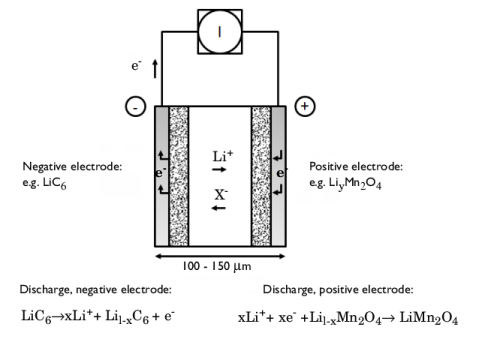
Figure 1: Cross section of a lithium-ion battery showing the electrochemical processes that occur during operation.
The model includes the following processes:
Model Definition
This example models the battery cross section in 1D, which implies that edge effects in the length and height of the battery are neglected. The example uses the following domains:
The ionic charge balances and material balances are modeled according to the equations for binary 1:1 electrolytes (Ref. 1). The material parameters for the electrolyte refer to a plasticized EC/DMC electrolyte residing in a polymer matrix, and the electrolyte volume fraction specified in the model hence refer to the sum of the liquid electrolyte and polymer matrix volume fractions.
The electric potential in the electron conducting phase, ϕs, is calculated using a charge balance based on Ohm’s law where the charge transfer reactions result in a source or sink term.
For the electrolyte phase of the porous electrodes, effective conductivities, σleff, are used that take porosity and tortuosity into account as given by the following expression:
where γ is the Bruggeman coefficient, using a value of 3.3. The diffusivity is treated similarly.
Fickian diffusion describes the transport in the spherical particles. The diffusion equation is expressed in spherical coordinates for the material balance of lithium in the particles.
Butler–Volmer electrode kinetics describes the local charge transfer current density in the electrodes. The Butler–Volmer expressions are introduced as source or sink terms in the charge balances and material balances.
Boundary Conditions
For the electronic current balance, a potential of 0 V is set on the negative electrode’s current collector/feeder boundary. At the positive electrode current collector/feeder, the current density is specified. In this model, the current density is cycled through a discharge, followed by an interval of zero current, and a final charging stage. The inner boundaries facing the separator are insulating for electric currents.
For the ionic charge balance in the electrolyte, the current collector/feeder boundaries are insulating. Insulation boundary conditions also apply to the material balances.
At the particle surface in the local particle model, the material flux is determined by the local electrochemical reaction rate.
Material Properties
The material properties are those of a typical lithium-ion battery. The electrolyte consists of 2 M LiPF6 salt in 1:2 EC:DMC (by volume) solvent and p(VDF-HFP). The electrode materials are carbon-based material for the negative electrode and LiyMn2O4 for the positive electrode.
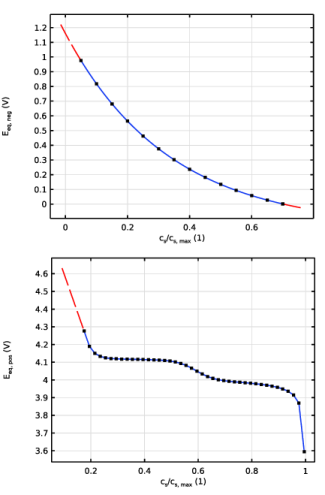
The electrolyte conductivity and the equilibrium potential of the negative and positive electrodes are composition dependent as given by experimentally measured data. This data is either taken from the Battery material library, or tabulated in interpolating functions in the model. The properties vary significantly during the charge and discharge phases due to the changes in composition.
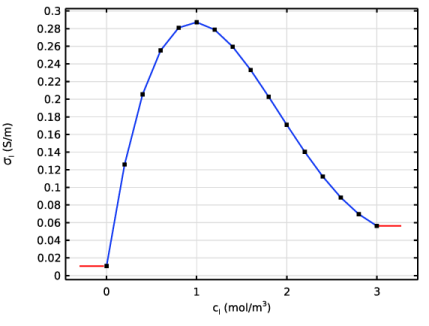
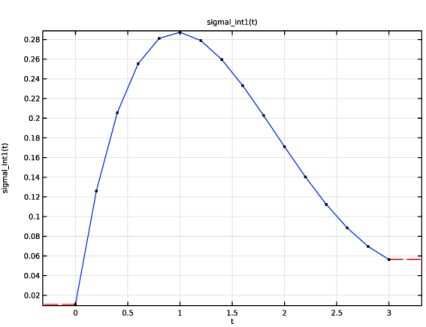
The model specifies the electrolyte conductivity according to the function in Figure 2.
Figure 2: The model specifies the ionic conductivity of the electrolyte using an interpolation function according to this behavior with concentration.
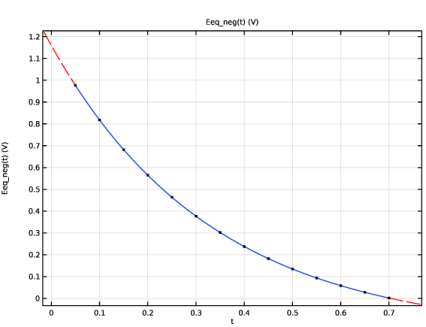
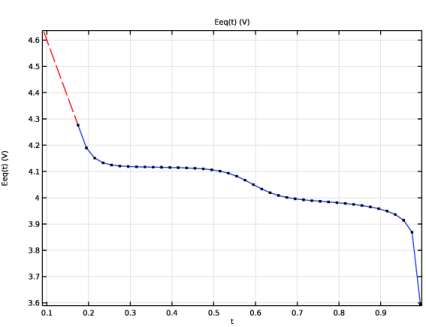
Figure 3 displays the equilibrium potentials for the negative and positive electrodes as functions of the measured state of charge (SOC).
Figure 3: The equilibrium voltage of the electrode materials.
The model uses the following definition of SOC:
The initial SOC-values for the positive and negative electrodes are 0.17 and 0.56, respectively, with the concentrations selected initially in the model. This corresponds to an open circuit cell voltage of approximately 4.22 V, which corresponds to a fully charged battery.
For complete details on the material properties and constants, see Ref. 1.
Results and Discussion
Discharge Curves
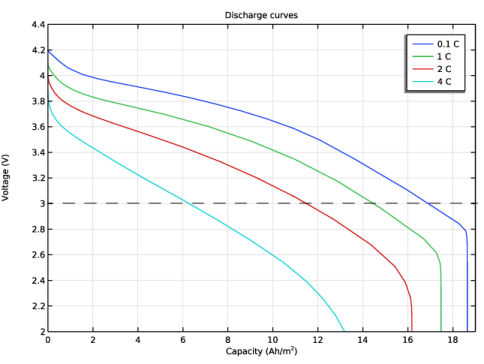
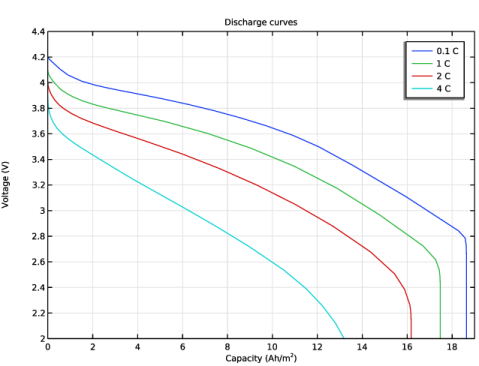
The battery is initially at a fully charged state. A first modeling approach is to simulate discharge at various current densities and then display the discharge curves. The results show the capacity of the battery at different discharge rates. The end-of-discharge is reached when the cell voltage drops below 3 V. The nominal discharge current density, corresponding to the 1C case below, is 17.5 A/m2. The 1C rate corresponds to a theoretical full discharge in one hour.
Figure 4: Discharge curves for various discharge rates. The dashed line marks the 3 V end-of-discharge limit for the cell.
Figure 4 shows that the maximum discharge capacity of 17.5 Ah/m2 is obtained for a current density of 1.75 A/m2 (0.1C). In comparison with the 0.1C case, the discharge capacity for the 3 V cutoff decreases slightly when applying a 1C discharge current, and even more for 2C and 4C. The discharge curves are identical to those presented in Ref. 1.
Discharge and Charge Cycle
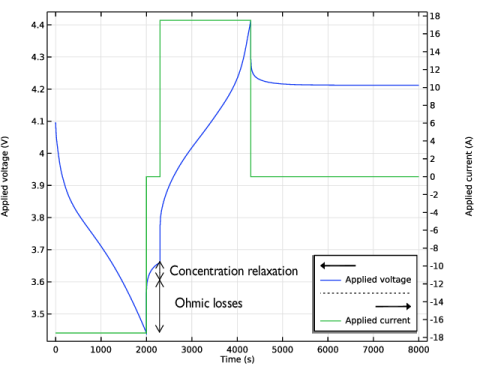
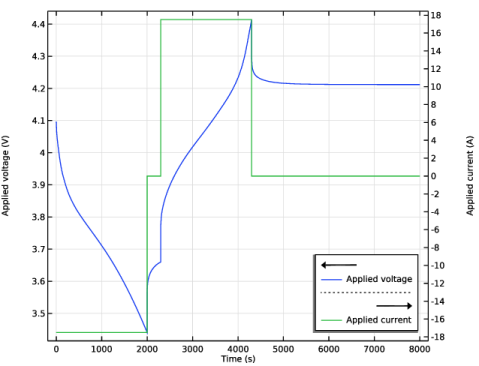
Figure 5 depicts the discharge-charge cycle applied in the next step of the simulation. The cycle applies 2000 s of discharge at nominal current density (case 1C above), 300 s at open circuit, then 2000 s of charge at nominal current density, and finally open-circuit conditions.
Figure 5: Cell voltage and current during the applied cycle.
During both discharge and charge, the cell voltage experiences ohmic losses of approximately 150 mV and a concentration overpotential of about 50 mV. These losses are clearly visible in the plot when the current is set to 0, where you can see an immediate relaxation of the voltage due to the relaxation of ohmic losses followed by a slower relaxation of the concentration overpotential.
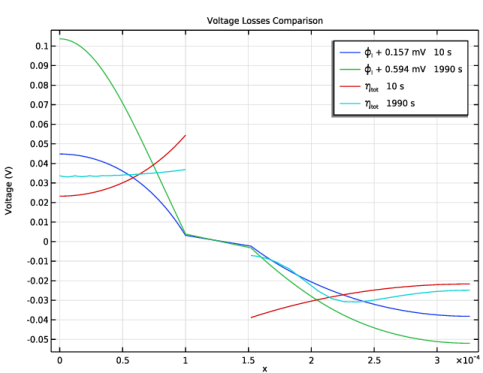
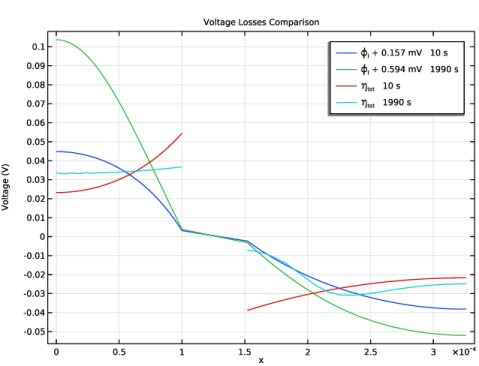
It is possible to visualize the contributions of the different losses to the total overpotential. You can plot the contribution as shown in Figure 6 using the following procedure:
1
2
Plot the electrolyte potential profile at the end of the discharge adding a bias of 594 mV, again in order to get the profile in the same scale as the overpotential.
3
All plots are within similar range of potential.
Figure 6: Voltage losses in the battery during discharge.
Figure 6 shows that the two main losses are due to the reaction overpotential and electrolyte resistance. The difference between electrolyte potential profiles initially and toward the end of the discharge stage indicates the influence of the concentration polarization; it is approximately half the magnitude of the two previous losses and is thus also important to consider. The figure does not include the electronic potential profile in the solid phase, but the simulations show that contributions from the ohmic losses in the electronic conductors are negligible.
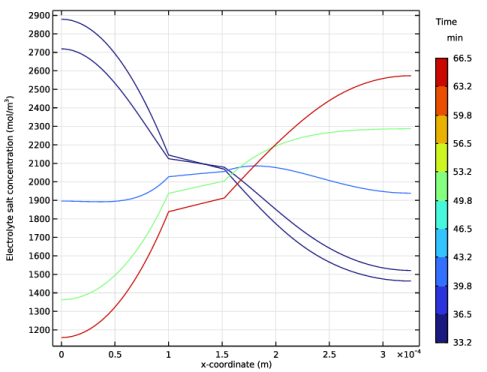
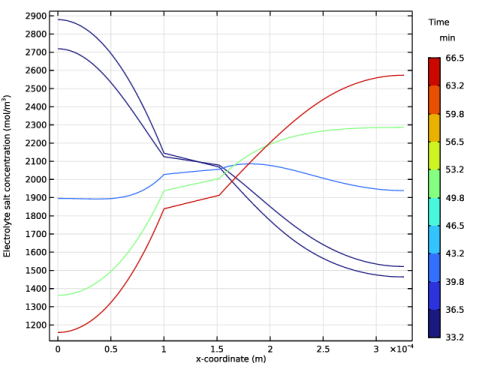
To further investigate the reason for the steep voltage decrease, you can plot the concentration profile in the electrolyte. Figure 7 depicts the profile at several stages during the discharge and charge cycle.
Figure 7: Electrolyte-phase concentration profiles at various times.
The cell experiences significant concentration polarization due to the low effective diffusion coefficient in the electrolyte, which in turn leads to variations in ionic conductivity and concentration overpotential.
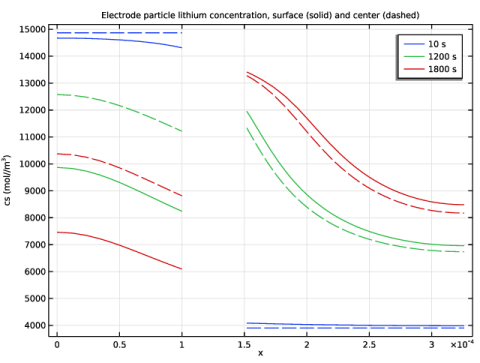
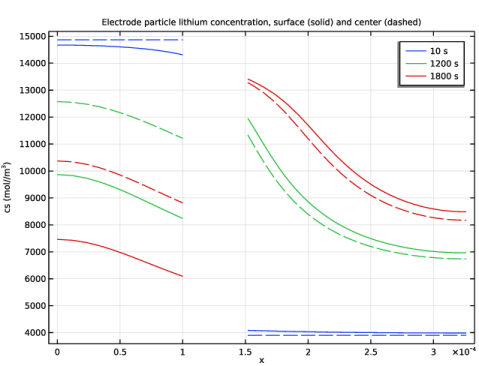
The concentration in the solid phase at the surface of the particles also affects the current density. Figure 8 depicts the distribution of the concentration in the solid-phase particles.
Figure 8: Concentration distribution of lithium in the solid particles during the discharge phase. (Dashed lines: Center of particles. Solid lines: Surface of particles.)
At 1800 s the concentration in the negative electrode varies considerably both along the electrode depth as well as in the particle direction. At the electrode boundary facing the negative current collector, the concentration varies from 10500 mol/m3 in the particle center to approximately 7500 mol/m3 at the surface, whereas at the negative electrode boundary facing the separator, the concentration varies from 9000 mol/m3 in the particle center to approximately 6000 mol/m3 at the surface. For the positive electrode, concentration gradients in the particle dimension are smaller, whereas the variation along the width is much more pronounced than for the negative electrode, with a surface concentration of approximately 13000 mol/m3 at the electrolyte interface and only 8500 mol/m3 at the positive current collector/feeder. This large variation arises due to the nonuniform current distribution, which in turn is caused mainly by the poor electrolyte conductivity (due to low porosity) but also by the concentration polarization.
As the surface concentration changes, the equilibrium voltage also varies, causing a lower reaction overpotential and a decrease in the local current density. This effect tends to even out the local charge transfer current density to some extent but results in a larger overall voltage loss in the battery.
Reference
1. M. Doyle, J. Newman, A.S. Gozdz, C.N. Schmutz, and J.M. Tarascon, “Comparison of Modeling Predictions with Experimental Data from Plastic Lithium Ion Cells,” J. Electrochem. Soc., vol. 143, no. 6, pp. 1890–1903, 1996.
Application Library path: Battery_Design_Module/Lithium-Ion_Batteries,_Performance/li_battery_1d
Modeling Instructions
From the File menu, choose New.
New
In the New window, click  Model Wizard.
Model Wizard
1
In the Model Wizard window, click  1D.
2
In the Select Physics tree, select Electrochemistry > Batteries > Lithium-Ion Battery (liion).
3
Click Add.
4
Click  Study.
5
In the Select Study tree, select Preset Studies for Selected Physics Interfaces > Time Dependent with Initialization.
(The Time Dependent with Initialization study will perform a time-dependent simulation, using an initialization study step to calculate the initial potentials in the cell.)
6
Global Definitions
Parameters 1
1
In the Model Builder window, under Global Definitions click Parameters 1.
2
In the Settings window for Parameters, locate the Parameters section.
3
Click  Load from File.
4
Geometry 1
The geometry contains three domains. Create the geometry by specifying the lengths of the domains.
Interval 1 (i1)
1
In the Model Builder window, under Component 1 (comp1) right-click Geometry 1 and choose Interval.
2
In the Settings window for Interval, locate the Interval section.
3
From the Specify list, choose Interval lengths.
4
5
Click  Build Selected.
Global Definitions
This model uses an interpolation function, imported from a text file, for the equilibrium potential of the negative electrode material.
Interpolation 1 (int1)
1
In the Home toolbar, click  Functions and choose Global > Interpolation.
2
In the Settings window for Interpolation, locate the Definition section.
3
From the Data source list, choose File.
4
Click  Browse.
5
6
Click  Import.
7
In the Function name text field, type Eeq_neg.
8
Locate the Interpolation and Extrapolation section. From the Interpolation list, choose Cubic spline.
9
From the Extrapolation list, choose Nearest function.
10
Locate the Units section. In the Function table, enter the following settings:
11
Materials
This model also uses battery materials available in the material library.
Add Material
Select LMO as the positive electrode material
1
In the Materials toolbar, click  Add Material to open the Add Material window.
2
Go to the Add Material window.
3
In the tree, select Battery > Electrodes > LMO, LiMn2O4 Spinel (Positive, Li-ion Battery).
4
Click the Add to Component button in the window toolbar.
Note: In the Materials node, cEeqref denotes the maximum lithium concentration in the active material.
Materials
LMO, LiMn2O4 Spinel (Positive, Li-ion Battery) (mat1)
1
2
In the Model Builder window, expand the LMO, LiMn2O4 Spinel (Positive, Li-ion Battery) (mat1) node.
Interpolation 1 (Eeq, Eeq_inv)
1
In the Model Builder window, expand the Component 1 (comp1) > Materials > LMO, LiMn2O4 Spinel (Positive, Li-ion Battery) (mat1) > Basic (def) node, then click Interpolation 1 (Eeq, Eeq_inv).
2
In the Settings window for Interpolation, click to expand the Plot Parameters section.
3
Clear the Include right extrapolation checkbox.
4
Add Material
Select LiPF6 in 1:2 EC:DMC and p(VdF-HFP) as the electrolyte.
1
Go to the Add Material window.
2
In the tree, select Battery > Electrolytes > LiPF6 in 1:2 EC:DMC and p(VdF-HFP) (Polymer, Li-ion Battery).
3
Click the Add to Component button in the window toolbar.
4
In the Materials toolbar, click  Add Material to close the Add Material window.
Materials
LiPF6 in 1:2 EC:DMC and p(VdF-HFP) (Polymer, Li-ion Battery) (mat2)
1
Click in the Graphics window and then press Ctrl+A to select all domains.
2
In the Model Builder window, expand the LiPF6 in 1:2 EC:DMC and p(VdF-HFP) (Polymer, Li-ion Battery) (mat2) node.
Interpolation 1 (sigmal_int1)
1
In the Model Builder window, expand the Component 1 (comp1) > Materials > LiPF6 in 1:2 EC:DMC and p(VdF-HFP) (Polymer, Li-ion Battery) (mat2) > Electrolyte conductivity (ionc) node, then click Interpolation 1 (sigmal_int1).
2
In the Settings window for Interpolation, click  Plot.
Lithium-Ion Battery (liion)
1
In the Model Builder window, under Component 1 (comp1) click Lithium-Ion Battery (liion).
2
In the Settings window for Lithium-Ion Battery, locate the Cross-Sectional Area section.
3
In the Ac text field, type A_cell.
Separator 1
1
In the Model Builder window, under Component 1 (comp1) > Lithium-Ion Battery (liion) click Separator 1.
2
In the Settings window for Separator, locate the Porous Matrix Properties section.
3
In the εl text field, type 1.
Porous Electrode 1
1
In the Physics toolbar, click  Domains and choose Porous Electrode.
2
3
In the Settings window for Porous Electrode, locate the Electrode Properties section.
4
In the σs text field, type Ks_neg.
5
Locate the Porous Matrix Properties section. In the εs text field, type epss_neg.
6
In the εl text field, type epsl_neg.
7
Locate the Effective Transport Parameter Correction section. From the Electrolyte conductivity list, choose User defined. In the fl text field, type epsl_neg^brugg.
8
From the Electric conductivity list, choose No correction.
9
From the Diffusion list, choose User defined. In the fDl text field, type epsl_neg^brugg.
Particle Intercalation 1
1
In the Model Builder window, click Particle Intercalation 1.
2
In the Settings window for Particle Intercalation, locate the Species Settings section.
3
In the cs,init text field, type cs0_neg.
4
From the cs,max list, choose User defined. In the associated text field, type csmax_neg.
5
Locate the Particle Transport Properties section. From the Ds list, choose User defined. In the associated text field, type Ds_neg.
6
In the rp text field, type rp_neg.
7
Click to expand the Operational SOCs for Initial Cell Charge Distribution section. From the socmin list, choose User defined. From the socmax list, choose User defined.
Porous Electrode Reaction 1
1
In the Model Builder window, click Porous Electrode Reaction 1.
2
In the Settings window for Porous Electrode Reaction, locate the Equilibrium Potential section.
3
From the Eeq list, choose User defined. In the associated text field, type Eeq_neg(liion.cs_surface/csmax_neg).
4
Locate the Electrode Kinetics section. From the Exchange current density type list, choose Rate constant.
5
In the k text field, type k_neg.
6
In the cl,ref text field, type cl_ref.
7
Click to expand the Heat of Reaction section. From the list, choose User defined.
Porous Electrode 2
1
In the Physics toolbar, click  Domains and choose Porous Electrode.
2
In the Materials node, the electrolyte material has been assigned to all domains. You hence need to set the electrode material selection manually, which in this case is LMO electrode material.
3
In the Settings window for Porous Electrode, locate the Electrode Properties section.
4
In the σs text field, type Ks_pos.
5
Locate the Porous Matrix Properties section. In the εl text field, type epsl_pos.
6
In the εs text field, type epss_pos.
7
Locate the Effective Transport Parameter Correction section. From the Electrolyte conductivity list, choose User defined. In the fl text field, type epsl_pos^brugg.
8
From the Electric conductivity list, choose No correction.
9
From the Diffusion list, choose User defined. In the fDl text field, type epsl_pos^brugg.
Particle Intercalation 1
1
In the Model Builder window, click Particle Intercalation 1.
2
In the Settings window for Particle Intercalation, locate the Material section.
3
From the Particle material list, choose LMO, LiMn2O4 Spinel (Positive, Li-ion Battery) (mat1).
4
Locate the Species Settings section. In the cs,init text field, type cs0_pos.
5
Locate the Particle Transport Properties section. From the Ds list, choose User defined. In the associated text field, type Ds_pos.
6
In the rp text field, type rp_pos.
Changing to quadratic elements in the particle dimension improves accuracy.
7
Click to expand the Particle Discretization section. In the Nord text field, type 2.
Porous Electrode Reaction 1
1
In the Model Builder window, click Porous Electrode Reaction 1.
2
In the Settings window for Porous Electrode Reaction, locate the Material section.
3
From the Material list, choose LMO, LiMn2O4 Spinel (Positive, Li-ion Battery) (mat1).
4
Locate the Electrode Kinetics section. From the Exchange current density type list, choose Rate constant.
5
In the k text field, type k_pos.
6
In the cl,ref text field, type cl_ref.
Electric Ground 1
1
In the Physics toolbar, click  Boundaries and choose Electric Ground.
2
Define a load cycle consisting of a discharge, a rest, a charge and a rest step as follows:
Load Cycle 1
1
In the Physics toolbar, click  Boundaries and choose Load Cycle.
2
3
In the Settings window for Load Cycle, locate the Load Type section.
4
5
Locate the Continuation Conditions section. Select the Use elapsed time only checkbox.
Using only elapsed time conditions will allow for implementing the load cycle using explicitly timed events, which is slightly more accurate.
Current 1
1
In the Physics toolbar, click  Attributes and choose Current.
2
In the Settings window for Current, locate the Current section.
3
In the Iset text field, type -I_1C.
4
Locate the Continuation Conditions section. Select the Elapsed time checkbox.
5
In the tmax text field, type t_disch.
Load Cycle 1
In the Model Builder window, click Load Cycle 1.
Rest 1
1
In the Physics toolbar, click  Attributes and choose Rest.
2
In the Settings window for Rest, locate the Continuation Conditions section.
3
In the tmax text field, type t_ocp.
Load Cycle 1
In the Model Builder window, click Load Cycle 1.
Current 2
1
In the Physics toolbar, click  Attributes and choose Current.
2
In the Settings window for Current, locate the Current section.
3
In the Iset text field, type I_1C.
4
Locate the Continuation Conditions section. Select the Elapsed time checkbox.
5
In the tmax text field, type t_charge.
Load Cycle 1
In the Model Builder window, click Load Cycle 1.
Rest 2
1
In the Physics toolbar, click  Attributes and choose Rest.
2
In the Settings window for Rest, locate the Continuation Conditions section.
3
Clear the Elapsed time checkbox.
By disabling all continuation conditions on the final step in the load cycle, the sequence will run only once. The length of the last rest step will be defined by the end simulation time set in the solver later.
Initial Values 1
1
In the Model Builder window, under Component 1 (comp1) > Lithium-Ion Battery (liion) click Initial Values 1.
2
In the Settings window for Initial Values, locate the Initial Values section.
3
In the cl text field, type cl_0.
Global Definitions
Default Model Inputs
Set up the temperature value used in the entire model.
1
In the Model Builder window, under Global Definitions click Default Model Inputs.
2
In the Settings window for Default Model Inputs, locate the Browse Model Inputs section.
3
In the tree, select General > Temperature (K) - minput.T.
4
Find the Expression for remaining selection subsection. In the Temperature text field, type T.
Study 1
First set up a study to investigate the defined discharge/charge cycle.
Step 2: Time Dependent
1
In the Model Builder window, under Study 1 click Step 2: Time Dependent.
2
In the Settings window for Time Dependent, locate the Study Settings section.
3
In the Output times text field, type range(0,10,8000).
4
In the Study toolbar, click  Compute.
Results
Boundary Electrode Potential with Respect to Ground (liion)
A number of plots are created by default. The first plot shows the electrode potential versus time on the boundary where you applied the current density condition. Since you grounded the other electrode, this equals the cell voltage.
1
In the Model Builder window, under Results click Boundary Electrode Potential with Respect to Ground (liion).
2
In the Settings window for 1D Plot Group, locate the Legend section.
3
From the Position list, choose Lower right.
4
In the Boundary Electrode Potential with Respect to Ground (liion) toolbar, click  Plot.
Voltage Losses Comparison
Now reproduce the rest of the plots in the model documentation for the discharge/charge cycle, starting with a plot for comparing the different voltage losses (Figure 6).
1
In the Results toolbar, click  1D Plot Group.
2
In the Settings window for 1D Plot Group, type Voltage Losses Comparison in the Label text field.
3
Locate the Data section. From the Dataset list, choose None.
4
Click to expand the Title section. From the Title type list, choose Label.
Line Graph 1
1
Right-click Voltage Losses Comparison and choose Line Graph.
2
In the Settings window for Line Graph, locate the Data section.
3
From the Dataset list, choose Study 1/Solution 1 (sol1).
4
From the Time selection list, choose From list.
5
In the Times (s) list box, select 10.
6
Locate the Selection section. From the Selection list, choose All domains.
7
Locate the y-Axis Data section. In the Expression text field, type phil+0.157.
8
Click to expand the Legends section. Select the Show legends checkbox.
9
From the Legends list, choose Evaluated.
10
In the Legend text field, type \phi<sub>l</sub> + 0.157 mV eval(t,s,4) s.
Line Graph 2
1
Right-click Line Graph 1 and choose Duplicate.
2
In the Settings window for Line Graph, locate the Data section.
3
In the Times (s) list box, select 1990.
4
Locate the y-Axis Data section. In the Expression text field, type phil+0.594.
5
Locate the Legends section. In the Legend text field, type \phi<sub>l</sub> + 0.594 mV eval(t,s,4) s.
Line Graph 3
1
Right-click Line Graph 2 and choose Duplicate.
2
In the Settings window for Line Graph, locate the Data section.
3
In the Times (s) list, choose 10 and 1990.
4
Locate the y-Axis Data section. In the Expression text field, type liion.eta_per1.
5
Locate the Legends section. In the Legend text field, type \eta<sub>tot</sub> eval(t,s,4) s.
Voltage Losses Comparison
1
In the Model Builder window, click Voltage Losses Comparison.
2
In the Settings window for 1D Plot Group, locate the Plot Settings section.
3
Select the x-axis label checkbox. In the associated text field, type x.
4
Select the y-axis label checkbox. In the associated text field, type Voltage (V).
5
In the Voltage Losses Comparison toolbar, click  Plot.
Electrolyte Salt Concentration (liion)
Inspect the default plot of the electrolyte concentration profile at various times during the discharge/charge cycle (Figure 7).
1
In the Model Builder window, click Electrolyte Salt Concentration (liion).
2
In the Settings window for 1D Plot Group, locate the Data section.
3
From the Time selection list, choose From list.
4
In the Times (s) list, choose 1990, 2090, 2500, 3000, and 3990.
Line Graph 1
1
In the Model Builder window, expand the Electrolyte Salt Concentration (liion) node, then click Line Graph 1.
2
In the Settings window for Line Graph, click to expand the Legends section.
Color Expression 1
1
In the Model Builder window, expand the Line Graph 1 node, then click Color Expression 1.
2
In the Settings window for Color Expression, locate the Coloring and Style section.
3
From the Color table list, choose Rainbow.
4
From the Color table type list, choose Discrete.
5
In the Electrolyte Salt Concentration (liion) toolbar, click  Plot.
1D Plot Group 8
The following instructions create a plot of the concentration profile within the particles in the electrodes (Figure 8).
1
In the Results toolbar, click  1D Plot Group.
2
In the Settings window for 1D Plot Group, locate the Data section.
3
From the Time selection list, choose From list.
4
In the Times (s) list, choose 10, 1200, and 1800.
5
Click to expand the Title section. From the Title type list, choose Manual.
6
In the Title text area, type Electrode particle lithium concentration, surface (solid) and center (dashed).
7
Locate the Plot Settings section.
8
Select the x-axis label checkbox. In the associated text field, type x.
9
Select the y-axis label checkbox. In the associated text field, type cs (mol//m<sup>3</sup>).
Line Graph 1
1
Right-click 1D Plot Group 8 and choose Line Graph.
2
In the Settings window for Line Graph, locate the Selection section.
3
From the Selection list, choose All domains.
4
Click Replace Expression in the upper-right corner of the y-Axis Data section. From the menu, choose Component 1 (comp1) > Lithium-Ion Battery > Particle intercalation > liion.cs_surface - Insertion particle concentration, surface - mol/m³.
5
Locate the Legends section. Select the Show legends checkbox.
Line Graph 2
1
In the Model Builder window, right-click 1D Plot Group 8 and choose Line Graph.
2
In the Settings window for Line Graph, locate the Selection section.
3
From the Selection list, choose All domains.
4
Click Replace Expression in the upper-right corner of the y-Axis Data section. From the menu, choose Component 1 (comp1) > Lithium-Ion Battery > Particle intercalation > liion.cs_center - Insertion particle concentration, center - mol/m³.
5
Click to expand the Coloring and Style section. Find the Line style subsection. From the Line list, choose Dashed.
6
From the Color list, choose Cycle (reset).
7
In the 1D Plot Group 8 toolbar, click  Plot.
8
Click the  Zoom Extents button in the Graphics toolbar.
Global Definitions
To reproduce the discharge curves in Figure 4, modify the problem formulation slightly to use a constant discharge current only, and then set up a parametric study that solves for four different discharge currents. Use a stop condition to stop the solver when the cell voltage drops below 2.0 V.
Parameters 1
Begin by adding a global current variable.
1
In the Model Builder window, under Global Definitions click Parameters 1.
2
In the Settings window for Parameters, locate the Parameters section.
3
Lithium-Ion Battery (liion)
Now add a second Load Cycle boundary condition node for use in a second study.
Load Cycle 2 - Study 2
1
In the Physics toolbar, click  Boundaries and choose Load Cycle.
2
In the Settings window for Load Cycle, type Load Cycle 2 - Study 2 in the Label text field.
3
4
Locate the Load Type section. From the list, choose Galvanostatic.
5
Locate the Cycling Stop Condition section. From the list, choose Minimum voltage.
6
In the Emin text field, type 2[V].
Current 1
1
In the Physics toolbar, click  Attributes and choose Current.
2
In the Settings window for Current, locate the Current section.
3
In the Iset text field, type -C*I_1C.
Load Cycle 1 - Study 1
1
In the Model Builder window, under Component 1 (comp1) > Lithium-Ion Battery (liion) click Load Cycle 1.
2
In the Settings window for Load Cycle, type Load Cycle 1 - Study 1 in the Label text field.
Add Study
1
In the Home toolbar, click  Add Study to open the Add Study window.
2
Go to the Add Study window.
3
Find the Studies subsection. In the Select Study tree, select Preset Studies for Selected Physics Interfaces > Time Dependent with Initialization.
4
Click the Add Study button in the window toolbar.
5
In the Home toolbar, click  Add Study to close the Add Study window.
Study 2
Disable the first Load Cycle node in this study.
Step 1: Current Distribution Initialization
1
In the Model Builder window, expand the Study 2 node, then click Step 1: Current Distribution Initialization.
2
In the Settings window for Current Distribution Initialization, locate the Physics and Variables Selection section.
3
Select the Modify model configuration for study step checkbox.
4
In the tree, select Component 1 (comp1) > Lithium-Ion Battery (liion) > Load Cycle 1 - Study 1.
5
Step 2: Time Dependent
1
In the Model Builder window, click Step 2: Time Dependent.
2
In the Settings window for Time Dependent, locate the Study Settings section.
3
In the Output times text field, type 0 4000/C.
4
Locate the Physics and Variables Selection section. Select the Modify model configuration for study step checkbox.
5
In the tree, select Component 1 (comp1) > Lithium-Ion Battery (liion) > Load Cycle 1 - Study 1.
6
Similarly, if you choose to run Study 1 again later, you need to disable the second Load Cycle node in that study.
Next, modify the default solver.
Parametric Sweep
1
In the Study toolbar, click  Parametric Sweep.
2
In the Settings window for Parametric Sweep, locate the Study Settings section.
3
4
Store the actual steps taken by the solver to make sure to capture any sudden steep voltage changes.
Solution 3 (sol3)
1
In the Study toolbar, click  Show Default Solver.
2
In the Model Builder window, expand the Solution 3 (sol3) node, then click Time-Dependent Solver 1.
3
In the Settings window for Time-Dependent Solver, locate the General section.
4
From the Times to store list, choose Steps taken by solver.
Store only every third time step. This reduces the size of the stored solution and the size of model file.
5
In the Store every Nth step text field, type 3.
6
In the Model Builder window, click Study 2.
7
In the Settings window for Study, locate the Study Settings section.
8
Clear the Generate default plots checkbox.
9
In the Study toolbar, click  Compute.
Results
You can now plot the discharge curves for the parametric study by performing the following steps (Figure 4):
1D Plot Group 9
1
In the Results toolbar, click  1D Plot Group.
2
In the Settings window for 1D Plot Group, locate the Data section.
3
From the Dataset list, choose Study 2/Parametric Solutions 1 (sol5).
This dataset contains the battery model solutions for the parametric sweep in Study 2.
Point Graph 1
1
Right-click 1D Plot Group 9 and choose Point Graph.
2
3
In the Settings window for Point Graph, click Replace Expression in the upper-right corner of the y-Axis Data section. From the menu, choose Component 1 (comp1) > Lithium-Ion Battery > phis - Electric potential - V.
4
Locate the x-Axis Data section. From the Parameter list, choose Expression.
To obtain the capacity along the horizontal axis, multiply the time in hours by the discharge current.
5
In the Expression text field, type (t[s]/1[h])*C*I_1C/A_cell.
6
Click to expand the Legends section. Select the Show legends checkbox.
7
From the Legends list, choose Evaluated.
8
In the Legend text field, type eval(C) C.
9
In the 1D Plot Group 9 toolbar, click  Plot.
1D Plot Group 9
Finish the plot by adding a title and axis labels and adjusting the axis ranges.
1
In the Model Builder window, click 1D Plot Group 9.
2
In the Settings window for 1D Plot Group, locate the Title section.
3
From the Title type list, choose Manual.
4
In the Title text area, type Discharge curves.
5
Locate the Plot Settings section.
6
Select the x-axis label checkbox. In the associated text field, type Capacity (Ah/m<sup>2</sup>).
7
Select the y-axis label checkbox. In the associated text field, type Voltage (V).
8
Locate the Axis section. Select the Manual axis limits checkbox.
9
In the x minimum text field, type 0.
10
In the x maximum text field, type 19.
11
In the y minimum text field, type 2.0.
12
In the y maximum text field, type 4.4.
13
In the 1D Plot Group 9 toolbar, click  Plot.