PDF

1D Isothermal Lithium–Air Battery
Introduction
Metal-air batteries have an especially high specific energy density. Lithium–air batteries have a theoretical energy density value of about 11,400 Wh/kg, which is nearly 10 times greater than lithium-ion batteries. Such an increase in capacity versus conventional lithium-ion batteries would be useful in many applications. However, there are many challenges in realizing a practical lithium-air battery.
A unit cell of a lithium–air battery typically consists of a thin lithium sheet as the negative electrode, a porous carbon electrode filled with oxygen/air as the positive electrode, and a separator material between the electrodes. The organic electrolyte used consists of a dissolved lithium salt in an aprotic solvent. The oxidation of lithium at the anode and reduction of oxygen at the cathode induces a current flow.
In this model example, discharge of a lithium–air battery (Ref. 1) is simulated using the Lithium-Ion Battery interface. The transport of oxygen (from external air) in the porous carbon electrode is modeled using the Transport of Diluted Species in Porous Media interface. The electrochemical reaction of oxygen reduction in the carbon electrode leads to changes in concentration of the reaction product and electrode porosity. In this example a performance analysis is done for a range of discharge current densities. A comparison of the oxygen concentration, porosity, and film thickness in the positive electrode at low and high discharge current densities is done to understand their effect on the cell voltage profiles. This model can be used for studying the performance of lithium–air batteries and for providing insights with regards to the cell design.
Model Definition
A 1D isothermal cell model for lithium–air battery is presented. Figure 1 shows the 1D model geometry. It consists of two domains: the separator and the positive porous carbon electrode filled with oxygen. The lithium metal negative electrode is modeled as a boundary. The unit cell is filled with an organic electrolyte solution.
Figure 1: 1D model geometry of a lithium–air unit cell.
Electrochemical reactions
The porous carbon electrode provides a site for the electrochemical reduction of oxygen. During operation, oxygen from the external air dissolves in the electrolyte, moves through the pores of the positive electrode and reacts with lithium ions at the active site. The reaction considered at the positive electrode is
(1)
The reaction product (Li2O2) in the positive electrode is insoluble in the organic electrolyte (beyond its solubility limit in the electrolyte) and deposits as a film on the active surface area in the porous electrode. The kinetic expression for the electrode reaction above is
(2)
where iloc is the local current density, n is the number of electrons transferred, η is the overpotential, ka is the anodic transfer coefficient, kc is the cathodic transfer coefficient, and ci is the concentration of species i at the active site.
The overpotential η for the reaction is calculated from the electrode potential (ϕs), the electrolyte potential (ϕl), the potential drop due to the particle film resistance (Δϕfilm), and the equilibrium potential of the reaction (Eeq), as follows.
(3)
The potential drop due to the particle film resistance is given as
(4)
where Rfilm is the electric resistivity across the Li2O2 film and εLi2O2 is the volume fraction of solid Li2O2.
The reaction considered in the negative electrode is
(5)
Lithium metal kinetics is used for this reaction at the negative electrode.
Physics setup
The Lithium-Ion Battery interface describes the following processes:
In the positive electrode, spherical nonintercalating particles with concentration dependent electrode kinetics are used in the Lithium-Ion Battery interface. The thin lithium sheet (negative electrode) is represented using the Electrode Surface node with lithium metal electrode kinetics. The Bruggeman correction is used for all the effective transport properties in the positive porous electrode and the separator.
The Transport of Diluted Species in Porous Media interface describes the mass transport of oxygen in the porous carbon positive electrode by diffusion, along with the consumption of oxygen due to the electrochemical reaction (Equation 1).
The change in the concentration of the reaction product (Li2O2) in the solution phase of the positive electrode is given as
(6)
where εl is the porosity and a is the active specific surface area, respectively, of the positive electrode, and cmax,Li2O2 is the solubility limit of Li2O2 dissolved in the electrolyte. Note that εl remains at the initial porosity value until the solubility limit of Li2O2 in the electrolyte is reached. The Domain ODEs and DAEs interface is used for modeling the changes in concentration of the reaction product in the solution phase of the positive electrode.
Beyond its solubility limit in the electrolyte, the reaction product (Li2O2) in the positive electrode deposits as a film on the active surface area. The change in the concentration of solid Li2O2, cs,Li2O2, in the positive electrode is given as
(7)
The porosity change due to solid Li2O2 deposition in the positive electrode is given as
(8)
where cs0,Li2O2, MWLi2O2, and ρLi2O2 are the initial concentration, molecular weight, and density of solid Li2O2 in the film, respectively. The Dissolving–Depositing Species section of the Porous Electrode node is used to solve for the changes in concentration of the solid reaction product and electrode porosity in the positive porous electrode.
The active specific surface area of the positive porous electrode is determined by the morphology and the dynamic change of porosity due to solid Li2O2 film formation. The effective local surface area per unit volume of the electrode is given by,
(9)
where εl,0 is the initial porosity and a0 is the initial active specific surface area, respectively, of the positive electrode. The value of 0.5 is related to the morphological shape of the solid Li2O2 reaction product.
Boundary conditions
The negative electrode (lithium metal) is set to a potential of 0 V (electric ground condition). At the positive electrode current collector boundary, a discharge current density is applied. A parametric study is performed for discharge current densities ranging from 0.05 mA/cm2 to 0.5 mA/cm2. The study includes a stop condition with a minimum voltage of 2.5 V.
Results and Discussion
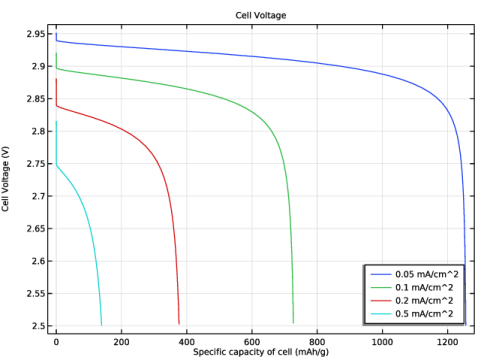
Figure 2 shows the cell voltage profiles plotted as a function of capacity for different values of the discharge current density. At higher current densities, the discharge voltage and cell capacity are lower, as expected.
Figure 2: Cell voltage profiles as a function of specific capacity of the cell for different values of the applied discharge current density.
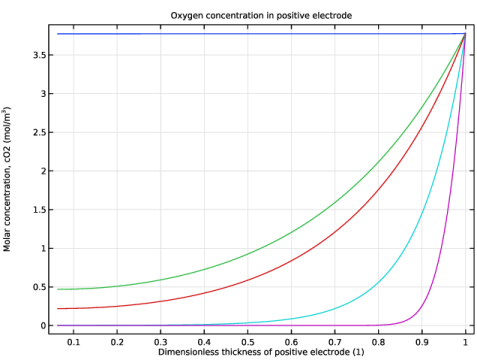
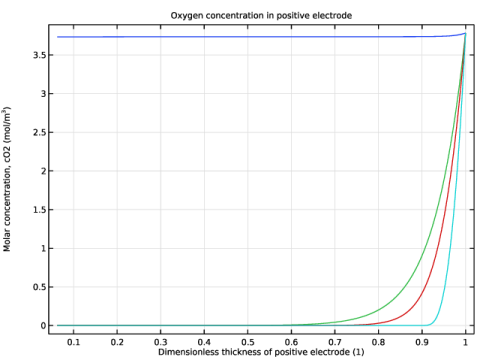
Figure 3 and Figure 4 show the oxygen concentration in the positive porous electrode at different times (discharge states of the battery), for a low and high value of the discharge current density, respectively. The decreased transport of oxygen in the positive electrode at high discharge currents, as seen in Figure 4, leads to the loss in capacity at high discharge rates. The electrochemical reaction of oxygen reduction is limited to regions close to the positive electrode/current collector edge, as the discharge rate increases.
Figure 3: Variation of oxygen concentration in the positive electrode at different times (discharge states of the battery), for a low value of the discharge current density.
Figure 4: Variation of oxygen concentration in the positive electrode at different times (discharge states of the battery), for a high value of the discharge current density.
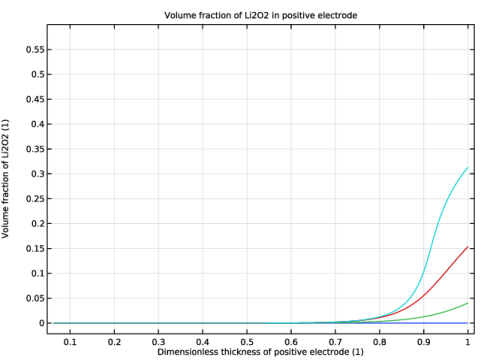
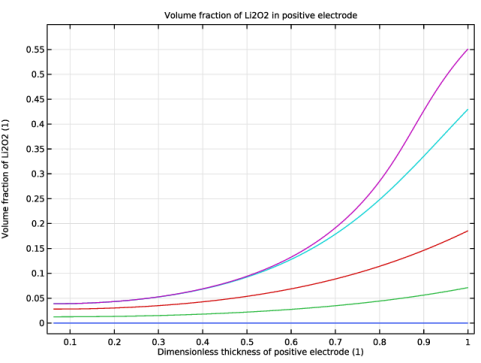
Figure 5 and Figure 6 similarly show the variation of the volume fraction of Li2O2 in the positive electrode at different times, for a low and high value of the discharge current density, respectively. At high discharge rates, the Li2O2 deposition on the active surface area of the porous carbon electrode is predominantly limited to regions close to the positive electrode/current collector edge, as seen in Figure 6.
Figure 5: Variation of volume fraction of Li2O2 in the positive electrode at different times (discharge states of the battery), for a low value of the discharge current density.
.
Figure 6: Variation of volume fraction of Li2O2 in the positive electrode at different times (discharge states of the battery), for a high value of the discharge current density.
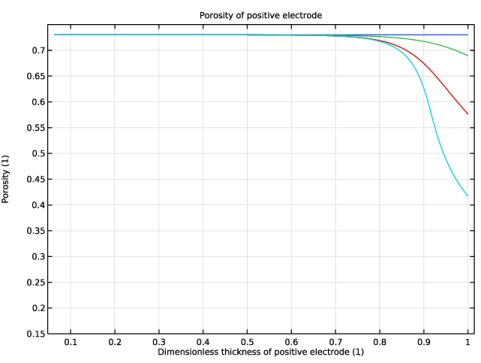
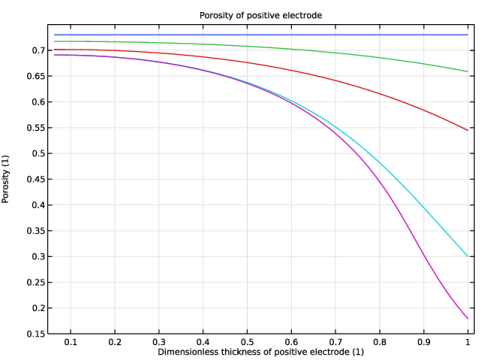
Figure 7 and Figure 8 similarly show the variation of porosity in the positive electrode at different times, for a low and high value of the discharge current density, respectively. The porosity of the porous carbon electrode decreases predominantly at regions close to the positive electrode/current collector edge at high discharge current densities, as seen in Figure 8. Incomplete utilization of the porous carbon electrode at high discharge rates leads to lower cell capacities at high rates as seen in Figure 2.
Figure 7: Variation of porosity in the positive electrode at different times (discharge states of the battery), for a low value of the discharge current density.
.
Figure 8: Variation of porosity in the positive electrode at different times (discharge states of the battery), for a high value of the discharge current density.
Reference
1. U. Sahapatsombut, H. Cheng, and K. Scott, “Modeling the micro-macro homogeneous cycling behavior of a lithium-air battery,” Journal of Power Sources, vol. 227, pp. 243–253, 2013.
Application Library path: Battery_Design_Module/Batteries,_General/li_air_battery_1d
Modeling Instructions
From the File menu, choose New.
New
In the New window, click  Model Wizard.
Model Wizard
1
In the Model Wizard window, click  1D.
Add a Lithium-Ion Battery interface, a Transport of Diluted Species in Porous Media interface, and Domain ODEs and DAEs interface. The Transport of Diluted Species in Porous Media interface is used for modeling the transport of oxygen (from external air) in the porous carbon electrode. The Domain ODEs and DAEs interface is used for modeling the changes in concentration of the reaction product in the solution phase of the positive electrode.
2
In the Select Physics tree, select Electrochemistry > Batteries > Lithium-Ion Battery (liion).
3
Click Add.
4
In the Electrolyte salt concentration (mol/m³) text field, type cLi.
5
In the Select Physics tree, select Chemical Species Transport > Transport of Diluted Species in Porous Media (tds).
6
Click Add.
7
In the Concentrations (mol/m³) table, enter the following settings:
8
In the Select Physics tree, select Mathematics > ODE and DAE Interfaces > Domain ODEs and DAEs (dode).
9
Click Add.
10
In the Dependent variables (1) table, enter the following settings:
11
Click  Select Dependent Variable Quantity.
12
In the Physical Quantity dialog, type concentration in the text field.
13
In the tree, select General > Concentration (mol/m^3).
14
15
In the Model Wizard window, click  Select Source Term Quantity.
16
In the Physical Quantity dialog, type reactionrate in the text field.
17
In the tree, select Transport > Reaction rate (mol/(m^3*s)).
18
19
In the Model Wizard window, click  Study.
20
In the Select Study tree, select General Studies > Time Dependent.
21
Global Definitions
Load model parameters from a text file.
Parameters 1
1
In the Model Builder window, under Global Definitions click Parameters 1.
2
In the Settings window for Parameters, locate the Parameters section.
3
Click  Load from File.
4
Geometry 1
The geometry contains two domains, the separator and the positive porous electrode. Create the geometry by specifying the coordinates of the boundaries.
Interval 1 (i1)
1
In the Model Builder window, under Component 1 (comp1) right-click Geometry 1 and choose Interval.
2
In the Settings window for Interval, locate the Interval section.
3
From the Specify list, choose Interval lengths.
4
5
In the Home toolbar, click  Build All.
Definitions
Load the model variables from a text file.
Variables 1
1
In the Definitions toolbar, click  Local Variables.
2
In the Settings window for Variables, locate the Geometric Entity Selection section.
3
From the Geometric entity level list, choose Domain.
4
5
Locate the Variables section. Click  Load from File.
6
Integration 1 (intop1)
A boundary integration variable can be used to access the cell voltage at the end terminal during the computation.
1
In the Definitions toolbar, click  Nonlocal Couplings and choose Integration.
2
In the Settings window for Integration, type EndTerminal in the Operator name text field.
3
Locate the Source Selection section. From the Geometric entity level list, choose Boundary.
4
Lithium-Ion Battery (liion)
Set up the physics in the battery interface starting with the separator and the positive porous electrode. The lithium metal negative electrode is modeled using the Electrode Surface condition with lithium metal electrode kinetics.
Separator 1
1
In the Model Builder window, under Component 1 (comp1) > Lithium-Ion Battery (liion) click Separator 1.
2
In the Settings window for Separator, locate the Electrolyte Properties section.
3
From the σl list, choose User defined. In the associated text field, type kappaLi.
4
From the Dl list, choose User defined. In the associated text field, type DLi.
5
From the t+ list, choose User defined. In the associated text field, type tplus.
6
From the dlnf/dlncl list, choose User defined. In the associated text field, type dlnfdlnc.
7
Locate the Porous Matrix Properties section. In the εl text field, type epsilonsep.
Porous Electrode 1
Set up the positive electrode parameters. Use Dissolving-Depositing Species formulation for modeling the change in porosity of the positive electrode.
1
In the Physics toolbar, click  Domains and choose Porous Electrode.
2
3
In the Settings window for Porous Electrode, locate the Electrolyte Properties section.
4
From the σl list, choose User defined. In the associated text field, type kappaLi.
5
From the Dl list, choose User defined. In the associated text field, type DLi.
6
From the t+ list, choose User defined. In the associated text field, type tplus.
7
From the dlnf/dlncl list, choose User defined. In the associated text field, type dlnfdlnc.
8
Locate the Electrode Properties section. In the σs text field, type Kpos.
9
Locate the Particle Properties section. From the list, choose Nonintercalating particles.
10
Locate the Porous Matrix Properties section. In the εs text field, type epsilons0.
11
In the εl text field, type epsilonl0.
12
Click to expand the Dissolving–Depositing Species section. Click  Add.
13
14
Clear the Add volume change to electrode volume fraction checkbox.
15
Click to expand the Film Resistance section. From the Film resistance list, choose Surface resistance.
16
In the Rfilm text field, type Rfilm*epsilonLi2O2.
Porous Electrode Reaction 1
Set up the porous electrode reaction parameters. Beyond its solubility limit in the electrolyte, the reaction product (Li2O2) in the positive electrode deposits as a film on the active surface area.
1
In the Model Builder window, click Porous Electrode Reaction 1.
2
In the Settings window for Porous Electrode Reaction, locate the Equilibrium Potential section.
3
From the Eeq list, choose User defined. In the associated text field, type Eeq.
4
Locate the Electrode Kinetics section. From the Kinetics expression type list, choose Concentration dependent kinetics.
5
In the i0 text field, type 1.
6
In the αa text field, type 0.5*n.
7
In the αc text field, type 0.5*n.
8
In the CR text field, type CRpos.
9
In the CO text field, type COpos.
10
Locate the Active Specific Surface Area section. From the Active specific surface area list, choose User defined. In the av text field, type apos.
11
Locate the Stoichiometric Coefficients section. In the n text field, type n.
12
In the νLi+ text field, type -2.
13
In the Stoichiometric coefficients for dissolving–depositing species: table, enter the following settings:
14
Click to expand the Heat of Reaction section. From the list, choose User defined.
Electrode Surface 1
1
In the Physics toolbar, click  Boundaries and choose Electrode Surface.
2
Electrode Reaction 1
1
In the Model Builder window, click Electrode Reaction 1.
2
In the Settings window for Electrode Reaction, locate the Equilibrium Potential section.
3
From the Eeq list, choose User defined. Locate the Electrode Kinetics section. In the i0,ref(T) text field, type i0refLi.
4
Click to expand the Heat of Reaction section. From the list, choose User defined.
Electrode Current Density 1
Set up a current density at the positive electrode.
1
In the Physics toolbar, click  Boundaries and choose Electrode Current Density.
2
3
In the Settings window for Electrode Current Density, locate the Electrode Current Density section.
4
In the in,s text field, type i_app.
Initial Values 1
It is important to provide appropriate initial values in the model.
1
In the Model Builder window, click Initial Values 1.
2
In the Settings window for Initial Values, locate the Initial Values section.
3
In the cLi text field, type cLi0.
4
In the phis text field, type Eeq.
Initial Values 2
1
In the Physics toolbar, click  Domains and choose Initial Values.
2
3
In the Settings window for Initial Values, locate the Initial Values section.
4
In the cLi text field, type cLi0.
Transport of Diluted Species in Porous Media (tds)
Set up the physics in the porous media transport interface. Mass transport of oxygen in the positive porous electrode is by diffusion only. Quadratic elements are used for oxygen concentration. Also, provide a concentration boundary condition at the positive electrode.
1
In the Model Builder window, under Component 1 (comp1) click Transport of Diluted Species in Porous Media (tds).
2
3
In the Settings window for Transport of Diluted Species in Porous Media, locate the Transport Mechanisms section.
4
Clear the Convection checkbox.
5
Click to expand the Discretization section. From the Concentration list, choose Quadratic.
Fluid 1
1
In the Model Builder window, expand the Porous Medium 1 node, then click Fluid 1.
2
In the Settings window for Fluid, locate the Diffusion section.
3
In the DF,cO2 text field, type DO2.
4
From the Effective diffusivity model list, choose Bruggeman model.
Porous Matrix 1
1
In the Model Builder window, click Porous Matrix 1.
2
In the Settings window for Porous Matrix, locate the Matrix Properties section.
3
From the εp list, choose User defined. In the associated text field, type liion.epsl.
Concentration 1
1
In the Physics toolbar, click  Boundaries and choose Concentration.
2
3
In the Settings window for Concentration, locate the Concentration section.
4
Select the Species cO2 checkbox.
5
In the c0,cO2 text field, type cO20.
Initial Values 1
Specify an initial value for oxygen concentration.
1
In the Model Builder window, click Initial Values 1.
2
In the Settings window for Initial Values, locate the Initial Values section.
3
In the cO2 text field, type cO20.
Porous Electrode Coupling 1
Add porous electrode coupling feature to model the consumption of oxygen due to the electrochemical reaction.
1
In the Physics toolbar, click  Domains and choose Porous Electrode Coupling.
2
Reaction Coefficients 1
1
In the Model Builder window, expand the Porous Electrode Coupling 1 node, then click Reaction Coefficients 1.
2
In the Settings window for Reaction Coefficients, locate the Reaction Current Source section.
3
From the iv list, choose Local current source, Porous Electrode Reaction 1 (liion/pce1/per1).
4
Locate the Stoichiometric Coefficients section. In the n text field, type n.
5
In the νcO2 text field, type -1.
Domain ODEs and DAEs: Concentration of Li2O2
Set up the physics to model the change in concentration of the reaction product (Li2O2) in the solution phase of the positive electrode, by specifying the appropriate source term. Lagrange (Quadratic) elements are used for concentration of the reaction product.
1
In the Model Builder window, under Component 1 (comp1) click Domain ODEs and DAEs (dode).
2
In the Settings window for Domain ODEs and DAEs, type Domain ODEs and DAEs: Concentration of Li2O2 in the Label text field.
3
4
Click to expand the Discretization section. From the Shape function type list, choose Lagrange.
Distributed ODE 1
1
In the Model Builder window, under Component 1 (comp1) > Domain ODEs and DAEs: Concentration of Li2O2 (dode) click Distributed ODE 1.
2
In the Settings window for Distributed ODE, locate the Source Term section.
3
In the f text field, type ((-liion.ivtot*1)/(2*F_const))*(cLi2O2<cmaxLi2O2).
Global Definitions
Default Model Inputs
Set up the temperature value used in the entire model.
1
In the Model Builder window, under Global Definitions click Default Model Inputs.
2
In the Settings window for Default Model Inputs, locate the Browse Model Inputs section.
3
In the tree, select General > Temperature (K) - minput.T.
4
Find the Expression for remaining selection subsection. In the Temperature text field, type T.
Mesh 1
Select a finer mesh for this model.
1
In the Model Builder window, under Component 1 (comp1) click Mesh 1.
2
In the Settings window for Mesh, locate the Physics-Controlled Mesh section.
3
From the Element size list, choose Finer.
4
Click  Build All.
Study 1
Set up a parametric study for a range of discharge current densities.
Parametric Sweep
1
In the Study toolbar, click  Parametric Sweep.
2
In the Settings window for Parametric Sweep, locate the Study Settings section.
3
4
Step 1: Time Dependent
1
In the Model Builder window, click Step 1: Time Dependent.
2
In the Settings window for Time Dependent, locate the Study Settings section.
3
In the Output times text field, type 0 1e7.
4
From the Tolerance list, choose User controlled.
5
In the Relative tolerance text field, type 1e-4.
Solution 1 (sol1)
1
In the Study toolbar, click  Show Default Solver.
Store the actual steps taken by the solver to make sure to capture any sudden steep voltage changes.
2
In the Model Builder window, expand the Solution 1 (sol1) node, then click Time-Dependent Solver 1.
3
In the Settings window for Time-Dependent Solver, locate the General section.
4
From the Times to store list, choose Steps taken by solver.
Store only every 3rd time step. This reduces the size of the stored solution and the size of model file.
5
In the Store every Nth step text field, type 3.
6
Right-click Study 1 > Solver Configurations > Solution 1 (sol1) > Time-Dependent Solver 1 and choose Stop Condition.
7
In the Settings window for Stop Condition, locate the Stop Expressions section.
8
9
10
Locate the Output at Stop section. Clear the Add information checkbox.
11
In the Model Builder window, click Study 1.
12
In the Settings window for Study, locate the Study Settings section.
13
Clear the Generate default plots checkbox.
14
In the Study toolbar, click  Compute.
Results
Cell Voltages for different iapp
First plot the cell voltage for the different discharge current densities (see Figure 2).
1
In the Results toolbar, click  1D Plot Group.
2
In the Settings window for 1D Plot Group, type Cell Voltages for different iapp in the Label text field.
3
Locate the Data section. From the Dataset list, choose Study 1/Parametric Solutions 1 (sol2).
Point Graph 1
1
Right-click Cell Voltages for different iapp and choose Point Graph.
2
3
In the Settings window for Point Graph, click Replace Expression in the upper-right corner of the y-Axis Data section. From the menu, choose Component 1 (comp1) > Lithium-Ion Battery > phis - Electric potential - V.
4
Locate the x-Axis Data section. From the Parameter list, choose Expression.
5
Click Replace Expression in the upper-right corner of the x-Axis Data section. From the menu, choose Component 1 (comp1) > Definitions > Variables > capacity - Specific capacity of cell - C/kg.
6
Click to expand the Legends section. Select the Show legends checkbox.
7
From the Legends list, choose Evaluated.
8
In the Legend text field, type eval(-i_app,mA/cm^2) mA/cm^2.
Cell Voltages for different iapp
1
In the Model Builder window, click Cell Voltages for different iapp.
2
In the Settings window for 1D Plot Group, locate the Plot Settings section.
3
Select the x-axis label checkbox. In the associated text field, type Specific capacity of cell (mAh/g).
4
Select the y-axis label checkbox. In the associated text field, type Cell Voltage (V).
5
Click to expand the Title section. From the Title type list, choose Manual.
6
In the Title text area, type Cell Voltage.
7
Locate the Legend section. From the Position list, choose Lower right.
8
In the Cell Voltages for different iapp toolbar, click  Plot.
Oxygen conc in positive electrode, iapp = 0.1mA/cm2
Next, plot the oxygen concentration in the positive electrode for a low and high value of the discharge current density (see Figure 3 and Figure 4).
1
In the Results toolbar, click  1D Plot Group.
2
In the Settings window for 1D Plot Group, type Oxygen conc in positive electrode, iapp = 0.1mA/cm2 in the Label text field.
3
Locate the Data section. From the Dataset list, choose Study 1/Parametric Solutions 1 (sol2).
4
From the Parameter selection (a) list, choose From list.
5
In the Parameter values (a) list box, select 2.
6
From the Time selection list, choose Interpolated.
7
In the Times (s) text field, type 1 2e5 5e5 1e6 1.15e6.
Line Graph 1
1
Right-click Oxygen conc in positive electrode, iapp = 0.1mA/cm2 and choose Line Graph.
2
3
In the Settings window for Line Graph, click Replace Expression in the upper-right corner of the y-Axis Data section. From the menu, choose Component 1 (comp1) > Transport of Diluted Species in Porous Media > Species cO2 > cO2 - Molar concentration, cO2 - mol/m³.
4
Locate the x-Axis Data section. From the Parameter list, choose Expression.
5
In the Expression text field, type x/(Lsep+Lpos).
6
Select the Description checkbox. In the associated text field, type Dimensionless thickness of positive electrode.
Oxygen conc in positive electrode, iapp = 0.1mA/cm2
1
In the Model Builder window, click Oxygen conc in positive electrode, iapp = 0.1mA/cm2.
2
In the Settings window for 1D Plot Group, locate the Title section.
3
From the Title type list, choose Manual.
4
In the Title text area, type Oxygen concentration in positive electrode.
5
In the Oxygen conc in positive electrode, iapp = 0.1mA/cm2 toolbar, click  Plot.
Oxygen conc in positive electrode, iapp = 0.5mA/cm2
1
Right-click Oxygen conc in positive electrode, iapp = 0.1mA/cm2 and choose Duplicate.
2
In the Settings window for 1D Plot Group, type Oxygen conc in positive electrode, iapp = 0.5mA/cm2 in the Label text field.
3
Locate the Data section. In the Parameter values (a) list box, select 10.
4
In the Parameter values (a) list box, select 10.
5
In the Times (s) text field, type 1 5e3 2e4 4e4.
6
In the Oxygen conc in positive electrode, iapp = 0.5mA/cm2 toolbar, click  Plot.
Volume fraction of Li2O2 in positive electrode, iapp = 0.1mA/cm2
Plot the volume fraction of Li2O2 in the positive electrode for a low and high value of the discharge current density (see Figure 5 and Figure 6), as follows.
1
In the Results toolbar, click  1D Plot Group.
2
In the Settings window for 1D Plot Group, type Volume fraction of Li2O2 in positive electrode, iapp = 0.1mA/cm2 in the Label text field.
3
Locate the Data section. From the Dataset list, choose Study 1/Parametric Solutions 1 (sol2).
4
From the Parameter selection (a) list, choose From list.
5
In the Parameter values (a) list box, select 2.
6
From the Time selection list, choose Interpolated.
7
In the Times (s) text field, type 1 2e5 5e5 1e6 1.15e6.
Line Graph 1
1
Right-click Volume fraction of Li2O2 in positive electrode, iapp = 0.1mA/cm2 and choose Line Graph.
2
3
In the Settings window for Line Graph, click Replace Expression in the upper-right corner of the y-Axis Data section. From the menu, choose Component 1 (comp1) > Definitions > Variables > epsilonLi2O2 - Volume fraction of Li2O2 - 1.
4
Locate the x-Axis Data section. From the Parameter list, choose Expression.
5
In the Expression text field, type x/(Lsep+Lpos).
6
Select the Description checkbox. In the associated text field, type Dimensionless thickness of positive electrode.
Volume fraction of Li2O2 in positive electrode, iapp = 0.1mA/cm2
1
In the Model Builder window, click Volume fraction of Li2O2 in positive electrode, iapp = 0.1mA/cm2.
2
In the Settings window for 1D Plot Group, locate the Title section.
3
From the Title type list, choose Manual.
4
In the Title text area, type Volume fraction of Li2O2 in positive electrode.
5
Locate the Axis section. Select the Manual axis limits checkbox.
6
In the y maximum text field, type 0.6.
7
In the Volume fraction of Li2O2 in positive electrode, iapp = 0.1mA/cm2 toolbar, click  Plot.
Volume fraction of Li2O2 in positive electrode, iapp = 0.5mA/cm2
1
Right-click Volume fraction of Li2O2 in positive electrode, iapp = 0.1mA/cm2 and choose Duplicate.
2
In the Settings window for 1D Plot Group, type Volume fraction of Li2O2 in positive electrode, iapp = 0.5mA/cm2 in the Label text field.
3
Locate the Data section. In the Parameter values (a) list box, select 10.
4
In the Times (s) text field, type 1 5e3 2e4 4e4.
5
In the Volume fraction of Li2O2 in positive electrode, iapp = 0.5mA/cm2 toolbar, click  Plot.
Porosity of positive electrode, iapp = 0.1mA/cm2
Plot the porosity in the positive electrode for a low and high value of the discharge current density (see Figure 7 and Figure 8), as follows.
1
In the Results toolbar, click  1D Plot Group.
2
In the Settings window for 1D Plot Group, type Porosity of positive electrode, iapp = 0.1mA/cm2 in the Label text field.
3
Locate the Data section. From the Dataset list, choose Study 1/Parametric Solutions 1 (sol2).
4
From the Parameter selection (a) list, choose From list.
5
In the Parameter values (a) list box, select 2.
6
From the Time selection list, choose Interpolated.
7
In the Times (s) text field, type 1 2e5 5e5 1e6 1.15e6.
Line Graph 1
1
Right-click Porosity of positive electrode, iapp = 0.1mA/cm2 and choose Line Graph.
2
3
In the Settings window for Line Graph, locate the y-Axis Data section.
4
In the Expression text field, type liion.epsl.
5
Select the Description checkbox. In the associated text field, type Porosity.
6
Locate the x-Axis Data section. From the Parameter list, choose Expression.
7
In the Expression text field, type x/(Lsep+Lpos).
8
Select the Description checkbox. In the associated text field, type Dimensionless thickness of positive electrode.
Porosity of positive electrode, iapp = 0.1mA/cm2
1
In the Model Builder window, click Porosity of positive electrode, iapp = 0.1mA/cm2.
2
In the Settings window for 1D Plot Group, locate the Title section.
3
From the Title type list, choose Manual.
4
In the Title text area, type Porosity of positive electrode.
5
Locate the Axis section. Select the Manual axis limits checkbox.
6
In the y minimum text field, type 0.15.
7
In the y maximum text field, type 0.75.
8
In the Porosity of positive electrode, iapp = 0.1mA/cm2 toolbar, click  Plot.
Porosity of positive electrode, iapp = 0.5mA/cm2
1
Right-click Porosity of positive electrode, iapp = 0.1mA/cm2 and choose Duplicate.
2
In the Settings window for 1D Plot Group, type Porosity of positive electrode, iapp = 0.5mA/cm2 in the Label text field.
3
Locate the Data section. In the Parameter values (a) list box, select 10.
4
In the Times (s) text field, type 1 5e3 2e4 4e4.
5
In the Porosity of positive electrode, iapp = 0.5mA/cm2 toolbar, click  Plot.