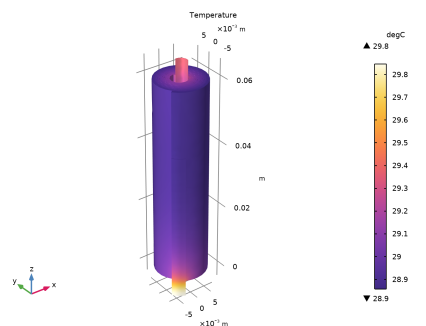
|
|
|
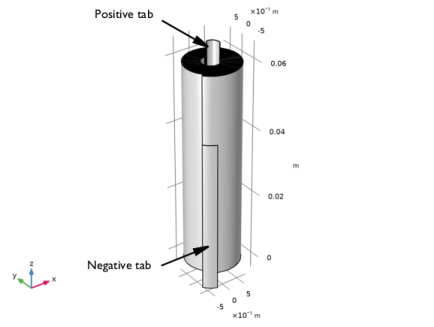
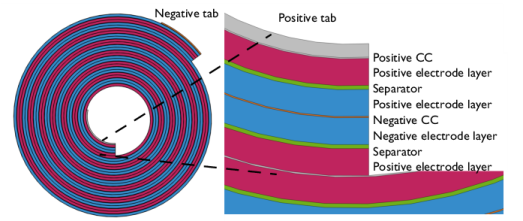
|
1
|
|
2
|
In the Select Physics tree, select Electrochemistry > Primary and Secondary Current Distribution > Secondary Current Distribution (cd).
|
|
3
|
Click Add.
|
|
4
|
Click
 Study. Study. |
|
5
|
|
6
|
Click
 Done. Done. |
|
1
|
|
2
|
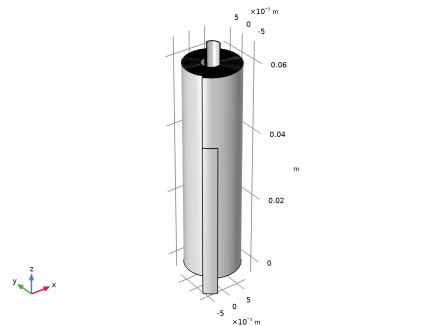
Browse to the model’s Application Libraries folder and double-click the file jelly_roll_geom_sequence.mph.
|
|
3
|
|
4
|
|
5
|
|
6
|
|
7
|
Clear the Automatic detection of small details checkbox.
|
|
8
|
|
1
|
|
2
|
|
1
|
|
2
|
|
3
|
|
4
|
Browse to the model’s Application Libraries folder and double-click the file jelly_roll_parameters.txt.
|
|
1
|
|
2
|
Go to the Add Material window.
|
|
3
|
|
4
|
Right-click and choose Add to Component 1 (comp1).
|
|
5
|
|
6
|
Right-click and choose Add to Component 1 (comp1).
|
|
7
|
|
8
|
Right-click and choose Add to Component 1 (comp1).
|
|
9
|
In the tree, select Battery > Electrodes > NMC 111, LiNi0.33Mn0.33Co0.33O2 (Positive, Li-ion Battery).
|
|
10
|
Right-click and choose Add to Component 1 (comp1).
|
|
11
|
|
12
|
Right-click and choose Add to Component 1 (comp1).
|
|
13
|
|
1
|
|
2
|
|
1
|
|
2
|
|
3
|
|
1
|
|
2
|
|
3
|
|
1
|
In the Model Builder window, click NMC 111, LiNi0.33Mn0.33Co0.33O2 (Positive, Li-ion Battery) (mat4).
|
|
2
|
|
3
|
|
1
|
|
2
|
|
3
|
|
1
|
|
2
|
|
3
|
|
1
|
In the Model Builder window, under Component 1 (comp1) > Secondary Current Distribution (cd) click Electrolyte 1.
|
|
2
|
|
3
|
|
1
|
|
2
|
|
3
|
|
1
|
|
2
|
|
3
|
|
4
|
Locate the Electrolyte Current Conduction section. From the σl list, choose User defined. In the associated text field, type sigmal_eff.
|
|
5
|
|
6
|
Locate the Electrode Current Conduction section. From the σs list, choose User defined. In the associated text field, type sigmas_eff.
|
|
7
|
|
1
|
|
2
|
|
3
|
|
4
|
|
5
|
|
1
|
|
2
|
|
3
|
|
1
|
|
2
|
|
3
|
|
4
|
|
1
|
|
2
|
|
1
|
|
2
|
|
3
|
|
4
|
|
5
|
|
6
|
Locate the Element Size Parameters section.
|
|
7
|
|
1
|
|
2
|
|
3
|
Click the Custom button.
|
|
4
|
|
5
|
|
1
|
|
2
|
|
3
|
|
4
|
Click
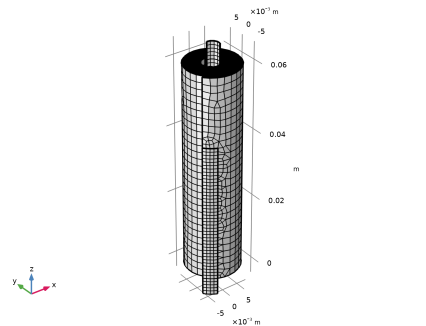
 Build Selected. Build Selected. |
|
1
|
|
2
|
|
3
|
|
4
|
|
1
|
|
2
|
|
3
|
|
1
|
|
2
|
|
3
|
|
4
|
|
1
|
|
2
|
|
3
|
Clear the Generate default plots checkbox.
|
|
4
|
|
1
|
|
2
|
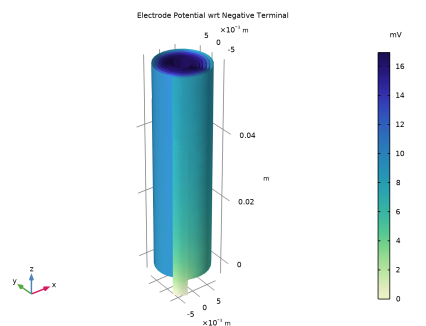
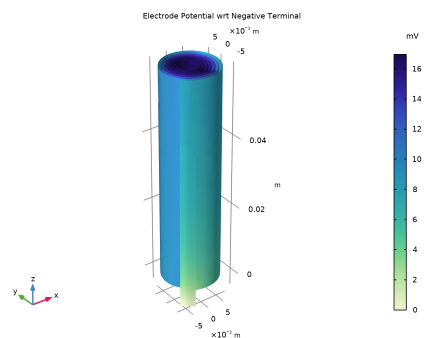
In the Settings window for 3D Plot Group, type Electrode Potential wrt Negative Terminal in the Label text field.
|
|
3
|
|
4
|
|
1
|
|
2
|
|
3
|
In the Settings window for Volume, click Replace Expression in the upper-right corner of the Expression section. From the menu, choose Component 1 (comp1) > Secondary Current Distribution > cd.phis - Electric potential - V.
|
|
4
|
|
5
|
|
1
|
|
2
|
|
3
|
|
4
|
|
5
|
|
6
|
|
1
|
|
2
|
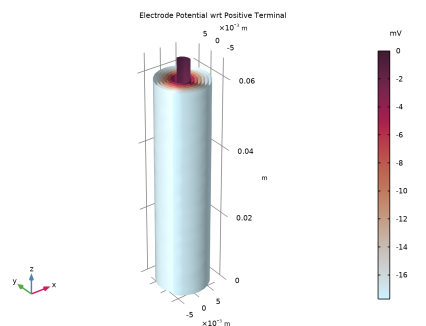
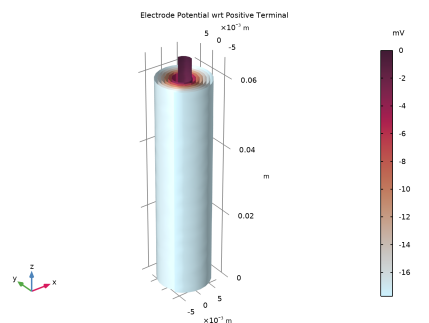
In the Settings window for 3D Plot Group, type Electrode Potential wrt Positive Terminal in the Label text field.
|
|
1
|
|
2
|
|
3
|
|
1
|
In the Model Builder window, expand the Results > Electrode Potential wrt Positive Terminal node, then click Volume 1.
|
|
2
|
In the Settings window for Volume, click Insert Expression (Ctrl+Space) in the upper-right corner of the Expression section. From the menu, choose Component 1 (comp1) > Secondary Current Distribution > cd.phis0_ec1 - Electric potential on boundary - V.
|
|
3
|
|
4
|
|
5
|
|
1
|
|
2
|
|
1
|
|
2
|
Go to the Add Physics window.
|
|
3
|
|
4
|
Click the Add to Component 1 button in the window toolbar.
|
|
5
|
|
1
|
|
2
|
|
1
|
|
2
|
|
3
|
|
1
|
|
2
|
|
3
|
|
4
|
|
5
|
|
6
|
|
1
|
In the Model Builder window, under Component 1 (comp1) > Materials click LiPF6 in 3:7 EC:EMC (Liquid, Li-ion Battery) (mat5).
|
|
2
|
|
1
|
|
2
|
|
1
|
|
2
|
|
3
|
|
1
|
|
2
|
|
3
|
In the Solve for column of the table, under Component 1 (comp1), select the checkbox for Secondary Current Distribution (cd).
|
|
4
|
In the Solve for column of the table, under Component 1 (comp1), clear the checkbox for Heat Transfer in Solids (ht).
|
|
1
|
|
2
|
|
3
|
In the Solve for column of the table, under Component 1 (comp1), clear the checkbox for Secondary Current Distribution (cd).
|
|
4
|
In the Solve for column of the table, under Component 1 (comp1), select the checkbox for Heat Transfer in Solids (ht).
|
|
1
|
|
2
|
Expand the Solution 1 (sol1) node.
|
|
3
|
In the Model Builder window, expand the Study 1 > Solver Configurations > Solution 1 (sol1) > Stationary Solver 2 node.
|
|
4
|
|
1
|
|
2
|
|
1
|
|
2
|
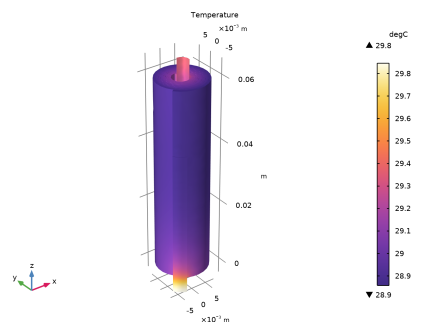
In the Settings window for Volume, click Replace Expression in the upper-right corner of the Expression section. From the menu, choose Component 1 (comp1) > Heat Transfer in Solids > Temperature > T - Temperature - K.
|
|
3
|
|
4
|
|
1
|
|
2
|
|
3
|
|
4
|
|
5
|
|
6
|
Select the Show units checkbox.
|
|
7
|