
PDF

Viscous Damping of a Microperforated
Plate in the Slip-Flow Regime
Introduction
The advances in the fabrication of micromechanical devices and transducers has reduced the dimensions of thermoviscous acoustic (microacoustic) systems to require the handling of high Knudsen’s numbers. The Knudsen number is high when the characteristic dimensions of a system becomes comparable to the mean free path of the gas molecules. This either occurs at low pressure where the mean free path becomes large or in systems with small geometric dimensions. In the slip-flow regime 0.001 < Kn < 0.1 the effects can be included by using the so-called slip-velocity boundary condition instead of the traditional no-slip boundary condition. At even higher Knudsen numbers it is necessary to use the Transitional Flow or Free Molecular Flow interface available in the Molecular Flow Module. However, these are not formulated for acoustic problems.
This tutorial model is of a perforated membrane/plate (also known as a micro perforated plate or MPP) backed by a vibrating structure. This is a typical configuration in, for example, a MEMS microphone. The vibrating structure is not modeled explicitly, but just assigned a vibration velocity. The vibrating structure creates a pressure field that squeezes air through the perforated membrane. In the system there are two main sources for viscous losses: viscous losses in the squeezing flow between the gap between the vibrating structure and perforated membrane, and the viscous losses from the flow through the holes in the perforates. In this model the optimal hole size, to achieve minimal resistive losses, is analyzed for a given gap height and a fixed porosity (area ratio) for the perforates. The results are compared to the analytical results by Homentcovschi and Miles in Ref. 1.
The model also investigates the importance of using a slip-velocity boundary condition instead of a no-slip boundary condition. A boundary condition with a slip velocity will lead to smaller gradients in the velocity field near boundaries and thus less damping. The optimal geometry is roughly the same for the two boundary conditions, however the magnitude of the resistive loss changes significantly.
Model Definition
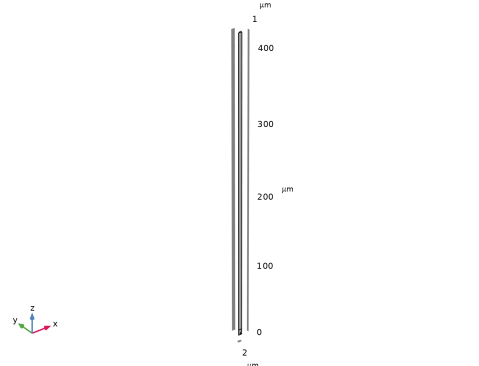
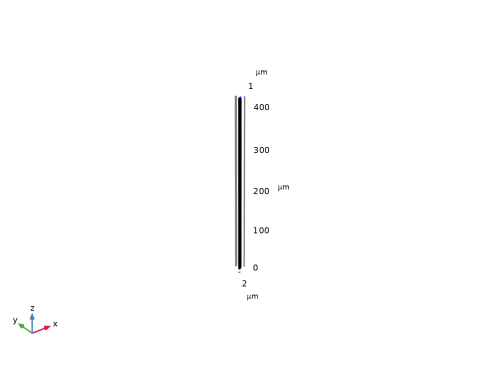
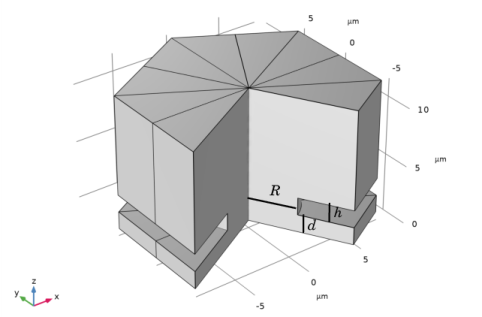
The model represents a hexagonal unit cell using symmetry planes, to only model one twelfth of the unit cell (see Figure 1). The model consists solely of an air domain described by the Thermoviscous Acoustics, Frequency Domain interface. The model consists of a vibrating surface placed d = 1.5 μm from the perforated membrane/plate, and on the other side the air domain ends in a Port using a Plane Wave. The port is placed at a distance equal to twice the thermal boundary layer thickness away from the perforated membrane. This is to ensure that generated entropy waves vanish and do not interact with the Port. The area of the hole is set to be 20% of the unit cell area. The geometry is defined by the distance between the vibrating surface and the perforated membrane = 1.5 μm, the thickness of the perforated membrane h = 1.0 μm, the area factor AR = 0.2, and the radius of the holes R. See Figure 1 for the geometry of the hexagonal unit cell. A parametric sweep is run over the radius R to find the optimal radius. The optimal radius is chosen to be the radius with lowest resistive loss (real part of the input impedance). The optimal radius is compared to the analytical results of Ref. 1. Here the optimal amount of holes per area for an incompressible gas is given as
(1)
The optimal radius is given by the hole density Nopt and the area factor AR as
(2)
For the parameters h = 1.0 μm, d = 1.5 μm, and AR = 0.2 the optimal radius is analytically given as Ropt = 2.3 μm. The model is run with both the Slip Wall boundary condition and the classical No Slip boundary condition (the No slip option of the Wall condition) to see the importance of including the slip velocity formulation at high Knudsen number.
Figure 1: Geometry of unit cell. There are three vertical symmetry planes to create a hexagonal unit cell. At acoustics is actuated by a vibration of the boundary at z = 0, and a port i placed at the top boundary. The perforated plate is assumed to be fixed.
Results and Discussion
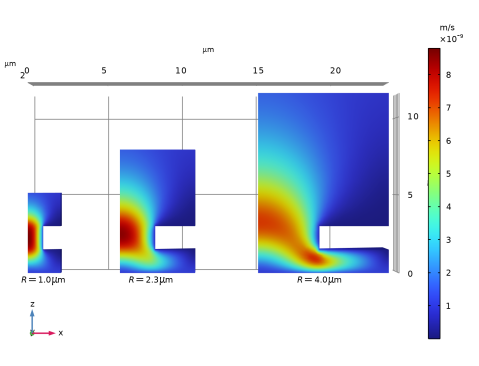
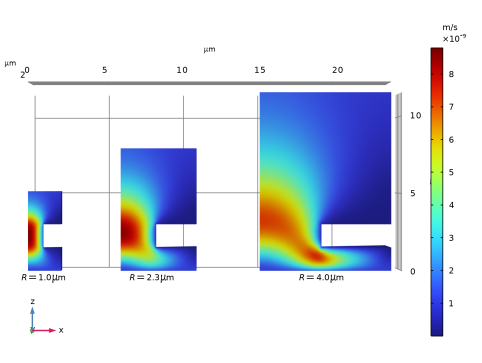
The model is run from radius R = 1.0 μm to R = 4.0 μm. The acoustic velocity with the Slip Wall boundary condition is shown in Figure 2 for three radii R. Since a fixed area factor AR is used the size of the unit cell increases with the radius R. At the large radius of R = 4.0 μm the largest velocity is between the membrane and perforated plate in the xy-plane, while for the smallest radius of R = 1 μm the highest velocity is located in the perforated holes and is in the z direction.
Figure 2: Acoustic velocity for R 1, 2.3, 4 μm the velocity profile consists of a horizontal squeezing flow between the two plates and a vertical flow through the holes in the perforated plate.
The input (specific) impedance is evaluated on the vibrating surface as
(3)
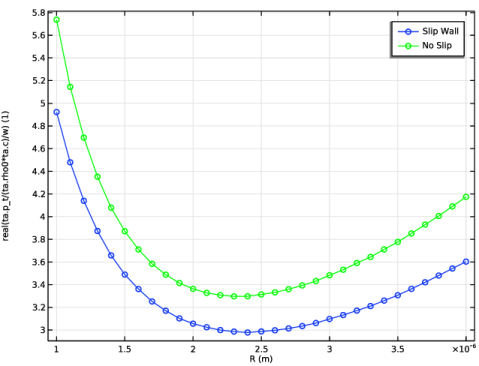
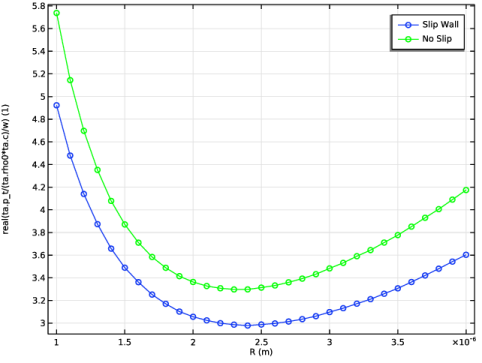
Where the integration area is the vibrating membrane at z = 0, A is the area of the integration surface, and w is the actuation velocity set to 1 nm/s. The impedance as a function of R can be seen in Figure 3 for both the Slip Wall boundary condition and the No Slip boundary condition. The location of the minimum impedance is in good agreement with the analytical prediction of Ropt = 2.3 μm.
Figure 3: The real part of the impedance as a function of the hole radius R. In blue the model with Slip Wall boundary conditions and in green the model with No Slip boundary conditions.
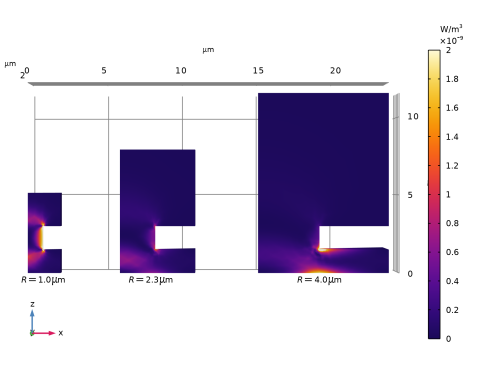
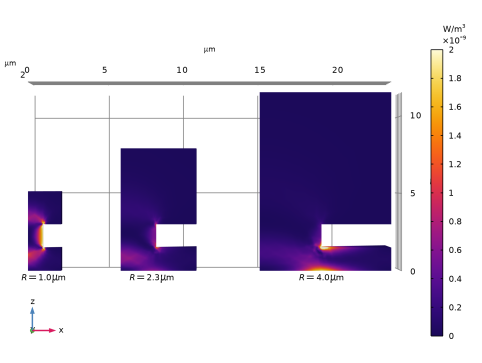
The dissipation is lowest around R = 2.3 μm. At smaller radii the dissipation is dominated by the viscous losses from the vertical flow through the holes of the perforated membrane and for larger radii the viscous losses is dominated by the horizontal squeezing flow between the two plates. In Figure 4 the total dissipation of the acoustic field is shown for the three different radii, this shows how the dissipation occurs at different locations in the model at large and small radii. The dissipation for = 1.0 μm is located near the vertical wall in the perforated holes, while the dissipation for R = 4.0 μm is largest between the two plates at the edge of the perforated holes. For R = 2.3 μm the losses is shared between the horizontal squeezing flow and the vertical flow through the holes, but also including losses beneath the hole where the flow changes from a horizontal to vertical flow.
Figure 4: Acoustic dissipation for R = 1, 2.3, 4 μm. The dissipation is either dominated by the horizontal squeezing flow or the vertical flow through the holes.
Notes About the COMSOL Implementation
The implementation uses the boundary condition Slip Wall, available in the thermoviscous acoustics interfaces, to model the slip velocity for high Knudsen numbers. The theoretical background for the boundary condition can be found in the documentation of the Slip Wall boundary condition found in the Acoustics Module User’s Guide.
Reference
1. D. Homentcovschi and R.N. Miles, “Viscous damping of perforated planar micromechanical structures,” Sensors and Actuators A: Physical, vol. 119, no. 2, pp. 544–552, 2005.
Application Library path: Acoustics_Module/Tutorials,_Thermoviscous_Acoustics/viscous_damping_mpp
Modeling Instructions
From the File menu, choose New.
New
In the New window, click  Model Wizard.
Model Wizard
1
In the Model Wizard window, click  3D.
2
In the Select Physics tree, select Acoustics > Thermoviscous Acoustics > Thermoviscous Acoustics, Frequency Domain (ta).
3
Click Add.
4
Click  Study.
5
In the Select Study tree, select General Studies > Frequency Domain.
6
Global Definitions
Parameters 1
1
In the Model Builder window, under Global Definitions click Parameters 1.
2
In the Settings window for Parameters, locate the Parameters section.
3
Click  Load from File.
4
Geometry 1
1
In the Model Builder window, expand the Component 1 (comp1) > Geometry 1 node, then click Geometry 1.
2
In the Settings window for Geometry, locate the Units section.
3
From the Length unit list, choose µm.
Work Plane 1 (wp1)
In the Geometry toolbar, click  Work Plane.
Work Plane 1 (wp1) > Plane Geometry
In the Model Builder window, click Plane Geometry.
Work Plane 1 (wp1) > Circle 1 (c1)
1
In the Work Plane toolbar, click  Circle.
2
In the Settings window for Circle, locate the Size and Shape section.
3
In the Radius text field, type R.
4
In the Sector angle text field, type 30.
Work Plane 1 (wp1) > Polygon 1 (pol1)
1
In the Work Plane toolbar, click  Polygon.
2
In the Settings window for Polygon, locate the Coordinates section.
3
Extrude 1 (ext1)
1
In the Model Builder window, under Component 1 (comp1) > Geometry 1 right-click Work Plane 1 (wp1) and choose Extrude.
2
In the Settings window for Extrude, locate the Distances section.
3
The Port needs to be placed twice the thermal boundary layer thickness away from the membrane for the entropy wave to vanish before interacting with the Port.
4
Click  Build All Objects.
5
Click the  Zoom Extents button in the Graphics toolbar.
Delete Entities 1 (del1)
1
In the Model Builder window, right-click Geometry 1 and choose Delete Entities.
2
In the Settings window for Delete Entities, locate the Entities or Objects to Delete section.
3
From the Geometric entity level list, choose Domain.
4
On the object ext1, select Domain 6 only.
Form Composite Domains 1 (cmd1)
1
In the Geometry toolbar, click  Virtual Operations and choose Form Composite Domains.
2
On the object fin, select Domains 1–3, 5, and 6 only.
Form Composite Domains 2 (cmd2)
1
In the Geometry toolbar, click  Virtual Operations and choose Form Composite Domains.
2
On the object cmd1, select Domains 2 and 3 only.
3
In the Geometry toolbar, click  Build All.
Having built the geometry, it can easily be modified as it is parameterized. Simply change the value of a dimension in the parameter list; this will update the geometry automatically.
Add Material
1
In the Home toolbar, click  Add Material to open the Add Material window.
2
Go to the Add Material window.
3
In the tree, select Built-in > Air.
4
Click the Add to Component button in the window toolbar.
5
In the Home toolbar, click  Add Material to close the Add Material window.
Thermoviscous Acoustics, Frequency Domain (ta)
Symmetry 1
1
In the Physics toolbar, click  Boundaries and choose Symmetry.
2
Three symmetry planes are used, creating a hexagonal unit cell.
Port 1
1
In the Physics toolbar, click  Boundaries and choose Port.
2
3
In the Settings window for Port, locate the Incident Mode Settings section.
4
From the Incident wave excitation at this port list, choose Off.
5
Locate the Port Properties section. From the Type of port list, choose Plane wave.
6
Locate the Port Geometry section. From the Ascale list, choose User defined.
7
The Multiplication Factor is set to 12 as the geometry is one twelfth of a hexagonal unit cell.
Isothermal 1
1
In the Physics toolbar, click  Boundaries and choose Isothermal.
2
Velocity 1
1
In the Physics toolbar, click  Boundaries and choose Velocity.
2
3
In the Settings window for Velocity, locate the Velocity section.
4
Select the Prescribed in x direction checkbox.
5
Select the Prescribed in y direction checkbox.
6
Select the Prescribed in z direction checkbox.
7
In the u0z text field, type 1[nm/s].
Slip Wall - Fixed
1
In the Physics toolbar, click  Boundaries and choose Slip Wall.
2
In the Settings window for Slip Wall, type Slip Wall - Fixed in the Label text field.
3
Slip Wall - Vibrating
1
In the Physics toolbar, click  Boundaries and choose Slip Wall.
2
In the Settings window for Slip Wall, type Slip Wall - Vibrating in the Label text field.
3
Locate the Mechanical section. From the Mechanical condition list, choose Moving wall.
4
Specify the uw vector as
5
The Isothermal and Velocity boundary conditions are overwritten by the Slip Wall boundary condition. They are used in the No Slip study step where the Slip Wall boundary condition is disabled.
Mesh 1
Free Tetrahedral 1
1
In the Mesh toolbar, click  Free Tetrahedral.
2
In the Settings window for Free Tetrahedral, locate the Domain Selection section.
3
From the Geometric entity level list, choose Domain.
4
Size 1
1
Right-click Free Tetrahedral 1 and choose Size.
2
In the Settings window for Size, locate the Geometric Entity Selection section.
3
From the Geometric entity level list, choose Boundary.
4
5
Locate the Element Size section. Click the Custom button.
6
Locate the Element Size Parameters section.
7
Select the Maximum element size checkbox. In the associated text field, type Hslit/3.
Size 2
1
In the Model Builder window, right-click Free Tetrahedral 1 and choose Size.
2
In the Settings window for Size, locate the Geometric Entity Selection section.
3
From the Geometric entity level list, choose Boundary.
4
5
Locate the Element Size section. Click the Custom button.
6
Locate the Element Size Parameters section.
7
Select the Maximum element size checkbox. In the associated text field, type R/8.
Size
1
In the Model Builder window, under Component 1 (comp1) > Mesh 1 click Size.
2
In the Settings window for Size, locate the Element Size section.
3
From the Predefined list, choose Extra fine.
Swept 1
1
In the Mesh toolbar, click  Swept.
2
In the Settings window for Swept, locate the Domain Selection section.
3
From the Geometric entity level list, choose Domain.
4
5
Click to expand the Source Faces section. Select Boundary 6 only.
6
Click to expand the Destination Faces section. Select Boundary 7 only.
7
Click  Build All.
Study - Slip Wall
1
In the Model Builder window, click Study 1.
2
In the Settings window for Study, type Study - Slip Wall in the Label text field.
Parametric Sweep
1
In the Study toolbar, click  Parametric Sweep.
2
In the Settings window for Parametric Sweep, locate the Study Settings section.
3
4
5
6
Click  Range.
7
In the Range dialog, type 1[µm] in the Start text field.
8
In the Step text field, type 0.1[µm].
9
In the Stop text field, type 4[µm].
10
Click Replace.
Step 1: Frequency Domain
1
In the Model Builder window, click Step 1: Frequency Domain.
2
In the Settings window for Frequency Domain, locate the Study Settings section.
3
In the Frequencies text field, type f0.
4
In the Study toolbar, click  Compute.
Add Study
1
In the Study toolbar, click  Add Study to open the Add Study window.
2
Go to the Add Study window.
3
Find the Studies subsection. In the Select Study tree, select General Studies > Frequency Domain.
4
Click the Add Study button in the window toolbar.
5
In the Study toolbar, click  Add Study to close the Add Study window.
Study - No Slip
In the Settings window for Study, type Study - No Slip in the Label text field.
Parametric Sweep
1
In the Study toolbar, click  Parametric Sweep.
2
In the Settings window for Parametric Sweep, locate the Study Settings section.
3
4
5
6
Click  Range.
7
In the Range dialog, type 1[µm] in the Start text field.
8
In the Step text field, type 0.1[µm].
9
In the Stop text field, type 4[µm].
10
Click Replace.
Step 1: Frequency Domain
1
In the Model Builder window, click Step 1: Frequency Domain.
2
In the Settings window for Frequency Domain, locate the Study Settings section.
3
In the Frequencies text field, type f0.
4
Locate the Physics and Variables Selection section. Select the Modify model configuration for study step checkbox.
5
In the tree, select Component 1 (comp1) > Thermoviscous Acoustics, Frequency Domain (ta) > Slip Wall - Fixed.
6
7
In the tree, select Component 1 (comp1) > Thermoviscous Acoustics, Frequency Domain (ta) > Slip Wall - Vibrating.
8
The two Slip Wall boundary conditions are disabled in the study step.
9
In the Study toolbar, click  Compute.
Results
Study - Slip Wall/Parametric Solutions 1 (sol2)
In the Model Builder window, expand the Results > Datasets node, then click Study - Slip Wall/Parametric Solutions 1 (sol2).
Selection
1
In the Results toolbar, click  Attributes and choose Selection.
2
In the Settings window for Selection, locate the Geometric Entity Selection section.
3
From the Geometric entity level list, choose Domain.
4
Study - No Slip/Parametric Solutions 2 (sol35)
In the Model Builder window, under Results > Datasets click Study - No Slip/Parametric Solutions 2 (sol35).
Selection
1
In the Results toolbar, click  Attributes and choose Selection.
2
In the Settings window for Selection, locate the Geometric Entity Selection section.
3
From the Geometric entity level list, choose Domain.
4
Evaluation Group - Slip wall
1
In the Results toolbar, click  Evaluation Group.
2
In the Settings window for Evaluation Group, locate the Data section.
3
From the Dataset list, choose Study - Slip Wall/Parametric Solutions 1 (sol2).
4
In the Label text field, type Evaluation Group - Slip wall.
Surface Average 1
1
Right-click Evaluation Group - Slip wall and choose Average > Surface Average.
2
3
In the Settings window for Surface Average, locate the Expressions section.
4
5
In the Evaluation Group - Slip wall toolbar, click  Evaluate.
Evaluation Group - No slip
1
In the Results toolbar, click  Evaluation Group.
2
In the Settings window for Evaluation Group, type Evaluation Group - No slip in the Label text field.
3
Locate the Data section. From the Dataset list, choose Study - No Slip/Parametric Solutions 2 (sol35).
Surface Average 1
1
Right-click Evaluation Group - No slip and choose Average > Surface Average.
2
3
In the Settings window for Surface Average, locate the Expressions section.
4
5
In the Evaluation Group - No slip toolbar, click  Evaluate.
Impedance vs. R
1
In the Home toolbar, click  Add Plot Group and choose 1D Plot Group.
2
In the Settings window for 1D Plot Group, type Impedance vs. R in the Label text field.
Table Graph 1
1
Right-click Impedance vs. R and choose Table Graph.
2
In the Settings window for Table Graph, locate the Data section.
3
From the Source list, choose Evaluation group.
4
From the x-axis data list, choose R (m).
5
From the Plot columns list, choose Manual.
6
In the Columns list box, select real(ta.p_t/(ta.rho0*ta.c)/w) (1).
7
Locate the Coloring and Style section. Find the Line markers subsection. From the Marker list, choose Circle.
8
Click to expand the Legends section. Select the Show legends checkbox.
9
From the Legends list, choose Manual.
10
Table Graph 2
1
In the Model Builder window, right-click Impedance vs. R and choose Table Graph.
2
In the Settings window for Table Graph, locate the Data section.
3
From the Source list, choose Evaluation group.
4
From the Evaluation group list, choose Evaluation Group - No slip.
5
From the x-axis data list, choose R (m).
6
From the Plot columns list, choose Manual.
7
In the Columns list box, select real(ta.p_t/(ta.rho0*ta.c)/w) (1).
8
Locate the Coloring and Style section. From the Color list, choose Green.
9
Find the Line markers subsection. From the Marker list, choose Circle.
10
Click to expand the Legends section. Select the Show legends checkbox.
11
From the Legends list, choose Manual.
12
13
In the Impedance vs. R toolbar, click  Plot.
Acoustic Velocity - Slip Wall
1
In the Results toolbar, click  3D Plot Group.
2
In the Settings window for 3D Plot Group, type Acoustic Velocity - Slip Wall in the Label text field.
3
Locate the Data section. From the Dataset list, choose Study - Slip Wall/Parametric Solutions 1 (sol2).
4
Locate the Plot Settings section. Clear the Plot dataset edges checkbox.
5
Locate the Color Legend section. Select the Show units checkbox.
6
Click to expand the Title section. From the Title type list, choose None.
Surface 1
1
Right-click Acoustic Velocity - Slip Wall and choose Surface.
2
In the Settings window for Surface, locate the Data section.
3
From the Dataset list, choose Study - Slip Wall/Parametric Solutions 1 (sol2).
4
From the Parameter value (R (m)) list, choose 1E-6.
5
Locate the Expression section. In the Expression text field, type ta.v_inst.
Surface 2
1
In the Model Builder window, right-click Acoustic Velocity - Slip Wall and choose Surface.
2
In the Settings window for Surface, locate the Data section.
3
From the Dataset list, choose Study - Slip Wall/Parametric Solutions 1 (sol2).
4
From the Parameter value (R (m)) list, choose 2.3E-6.
5
Locate the Expression section. In the Expression text field, type ta.v_inst.
6
Click to expand the Inherit Style section. From the Plot list, choose Surface 1.
Transformation 1
1
Right-click Surface 2 and choose Transformation.
2
In the Settings window for Transformation, locate the Transformation section.
3
In the X text field, type 6.
Surface 3
1
In the Model Builder window, under Results > Acoustic Velocity - Slip Wall right-click Surface 2 and choose Duplicate.
2
In the Settings window for Surface, locate the Data section.
3
From the Parameter value (R (m)) list, choose 4E-6.
Transformation 1
1
In the Model Builder window, expand the Surface 3 node, then click Transformation 1.
2
In the Settings window for Transformation, locate the Transformation section.
3
In the X text field, type 15.
Annotation R=1.0
1
In the Model Builder window, right-click Acoustic Velocity - Slip Wall and choose Annotation.
2
In the Settings window for Annotation, type Annotation R=1.0 in the Label text field.
3
Locate the Annotation section. Select the LaTeX markup checkbox.
4
In the Text text field, type $R=1.0\; \mathrm{\mu m}$.
5
Locate the Position section. In the X text field, type 1.
6
Locate the Coloring and Style section. From the Anchor point list, choose Upper middle.
7
Clear the Show point checkbox.
Annotation R=2.3
1
Right-click Annotation R=1.0 and choose Duplicate.
2
In the Settings window for Annotation, type Annotation R=2.3 in the Label text field.
3
Locate the Annotation section. In the Text text field, type $R=2.3\; \mathrm{\mu m}$.
4
Locate the Position section. In the X text field, type 8.
Annotation R=4.0
1
Right-click Annotation R=2.3 and choose Duplicate.
2
In the Settings window for Annotation, type Annotation R=4.0 in the Label text field.
3
Locate the Annotation section. In the Text text field, type $R=4.0\; \mathrm{\mu m}$.
4
Locate the Position section. In the X text field, type 19.
5
In the Acoustic Velocity - Slip Wall toolbar, click  Plot.
6
Click the  Zoom Extents button in the Graphics toolbar.
7
Click the  Go to XZ View button in the Graphics toolbar.
Dissipation - Slip Wall
1
In the Model Builder window, right-click Acoustic Velocity - Slip Wall and choose Duplicate.
2
In the Settings window for 3D Plot Group, type Dissipation - Slip Wall in the Label text field.
Surface 1
1
In the Model Builder window, expand the Dissipation - Slip Wall node, then click Surface 1.
2
In the Settings window for Surface, locate the Expression section.
3
In the Expression text field, type ta.diss_tot.
4
Click to expand the Range section. Select the Manual color range checkbox.
5
In the Maximum text field, type 2E-9.
6
In the Minimum text field, type 0.
7
Locate the Coloring and Style section. From the Color table list, choose HeatCamera.
8
Click the  Zoom Extents button in the Graphics toolbar.
Surface 2
1
In the Model Builder window, click Surface 2.
2
In the Settings window for Surface, locate the Expression section.
3
In the Expression text field, type ta.diss_tot.
Surface 3
1
In the Model Builder window, click Surface 3.
2
In the Settings window for Surface, locate the Expression section.
3
In the Expression text field, type ta.diss_tot.
4
In the Dissipation - Slip Wall toolbar, click  Plot.