PDF

Transverse Isotropic Porous Layer
Introduction
This tutorial investigates the acoustic properties of a porous layer made of glass wool. The porous material has transverse isotropic properties and is modeled with the full anisotropic poroelastic material model.
Model Definition
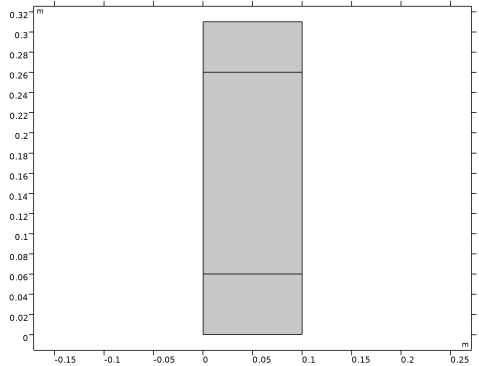
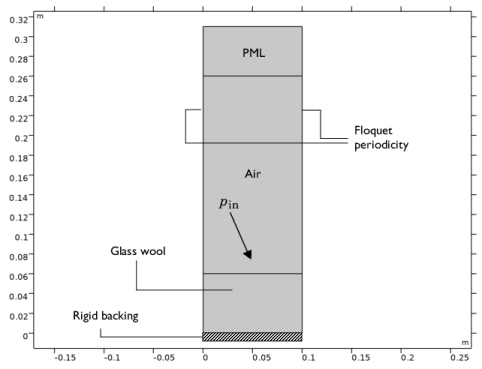
This model analyses the acoustic properties of a two-dimensional porous layer (see Figure 1); specifically, the surface impedance and absorption of the layer. The layer consists of glass wool which has transverse isotropic porous properties. The properties are thus anisotropic and are here modeled with the Anisotropic Poroelastic Material feature of the Poroelastic Waves interface. The results are compared with the isotropic case, as well as the experiential and transfer matrix based results of the same setup reported in P. Khurana and others (Ref. 1).
Figure 1: Model geometry and setup.
The model consists of an infinite rigidly backed porous sample of thickness 6 cm. The infinite characteristic of the model are included by using Floquet periodic conditions, following the same procedure as in the Porous Absorber tutorial. A plane wave is incident on the porous layer at angles varying from 0° (normal incidence) to 85°. The material properties used in the poroelastic material model are reported in Table 1 of Ref. 1. Note that for fibrous materials, such as the glass wool studied here, the Poisson’s ratio is close to 0. In this model, it is chosen as 0.01. This results in a Young’s modulus of about 2 times the shear modulus for an isotropic material. For the orthotropic material representation the Young’s moduli tensor components have been set to 100 kPa. The surface impedance and absorption results are nearly independent on the actual value. However, to avoid the generation of unphysical surface wave phenomena, the value should be realistic. For other model configurations where, for example, the porous material is vibrated, the exact material data should be known to get reliable results.
Results and Discussion
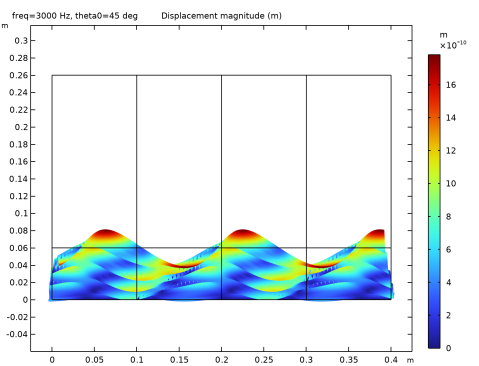
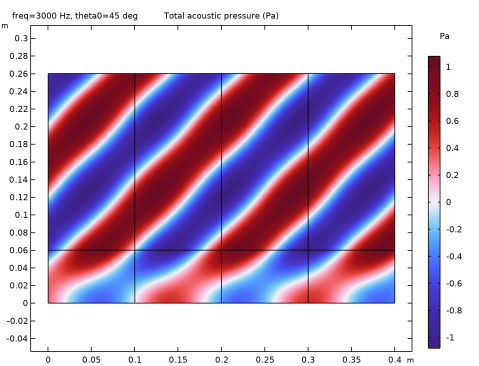
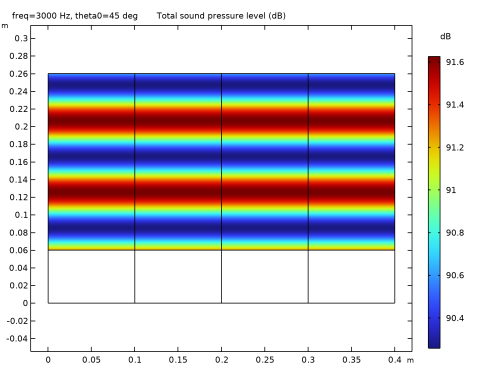
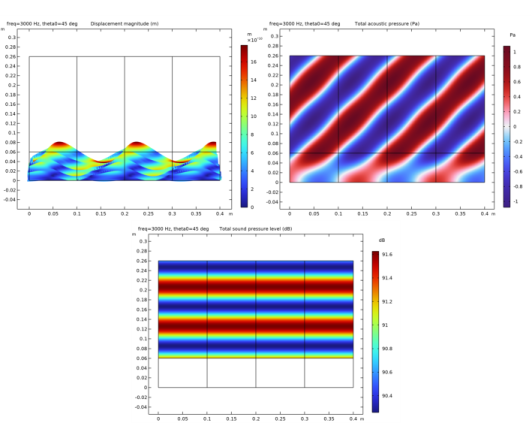
The displacement in the porous layer, the total acoustic pressure, and the sound pressure level is depicted, for an angle of incidence of 45° at 3000 Hz, in Figure 2.
Figure 2: Displacement, pressure, and sound pressure level in the porous layer.
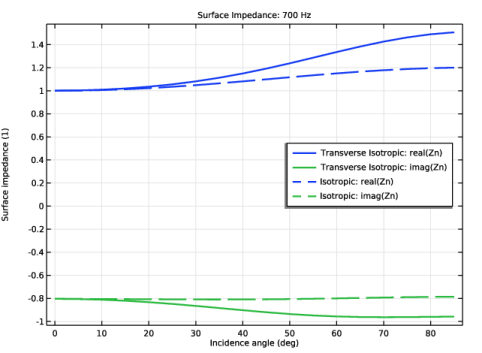
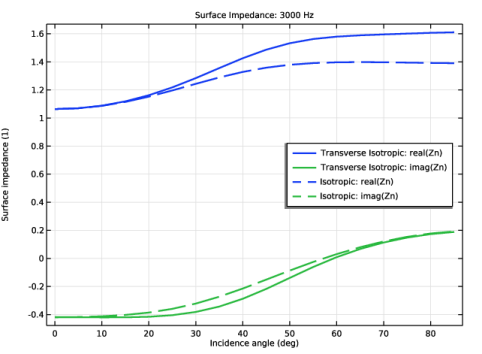
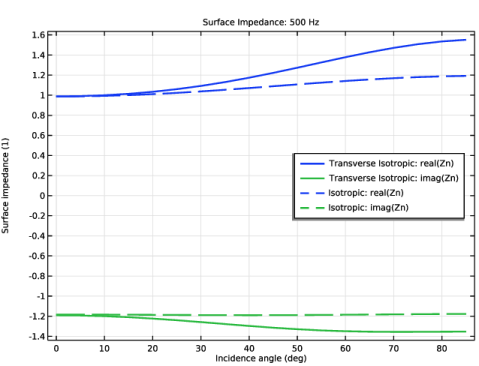
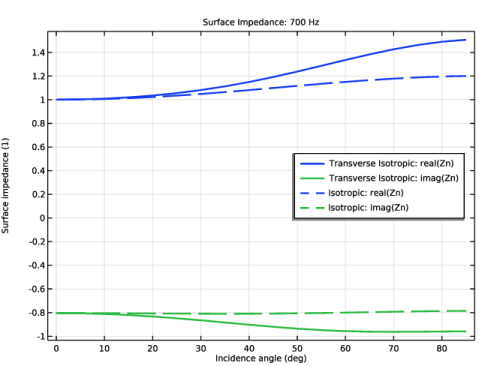
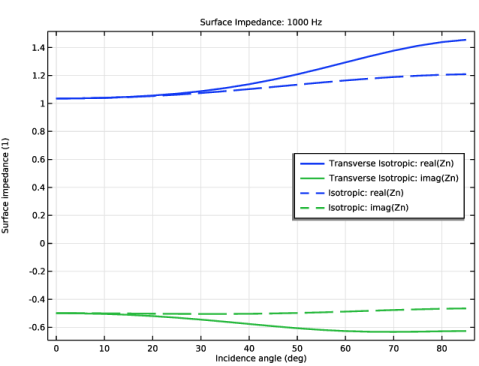
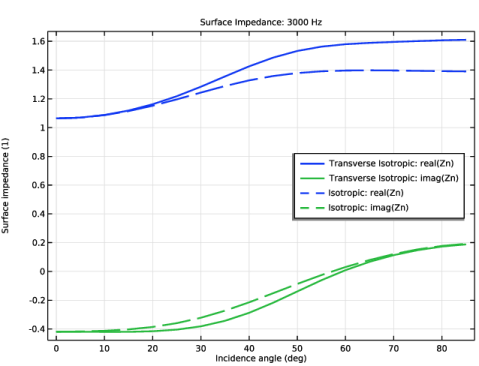
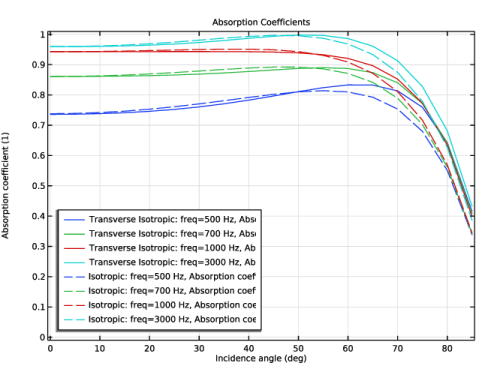
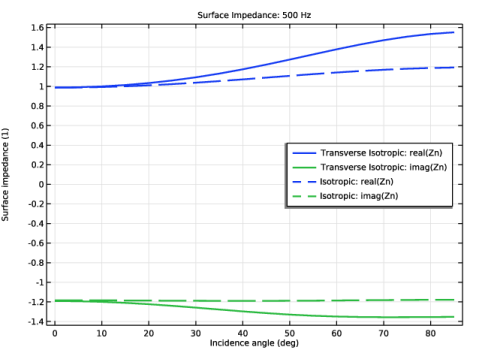
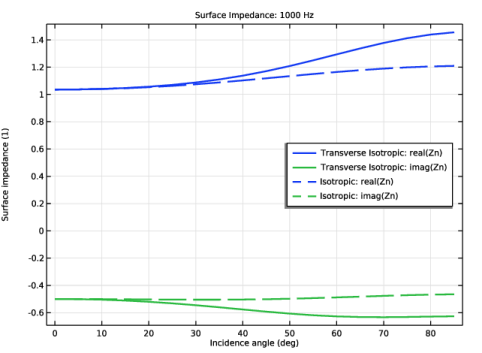
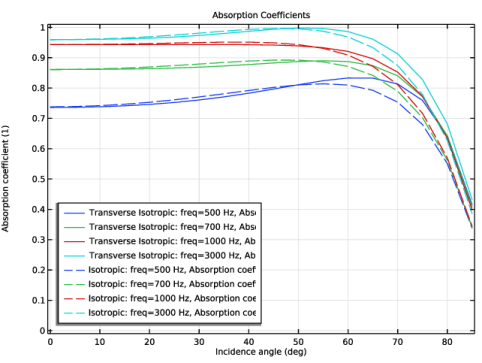
The real and imaginary part of the surface impedance of the layer is depicted in Figure 3, Figure 4, Figure 5, and Figure 6; for the frequencies of 500 Hz, 700 Hz, 1000 Hz, and 3000 Hz, respectively. Both the anisotropic and the isotropic results are depicted. This corresponds the results reported in Figure 2 in Ref. 1. Finally, the surface absorption of the porous layer is depicted as function of the angle of incidence in Figure 7.
Figure 3: Real and imaginary part of the surface impedance at 500 Hz.
Figure 4: Real and imaginary part of the surface impedance at 700 Hz.
Figure 5: Real and imaginary part of the surface impedance at 1000 Hz.
Figure 6: Real and imaginary part of the surface impedance at 3000 Hz.
Figure 7: Surface absorption coefficient as function of angle of incidence.
Reference
1. P. Khurana, L. Boeckx, W. Lauriks, P. Leclaire, O. Dazel, and J. F. Allard, “A description of transversely isotropic sound absorbing porous materials by transfer matrices,” J. Acoust. Soc. Am., vol. 125, no. 2, pp. 915–921, 2009.
Application Library path: Acoustics_Module/Building_and_Room_Acoustics/transverse_isotropic_porous_layer
Modeling Instructions
From the File menu, choose New.
New
In the New window, click  Model Wizard.
Model Wizard
1
In the Model Wizard window, click  2D.
2
In the Select Physics tree, select Acoustics > Elastic Waves > Poroelastic Waves (pelw).
3
Click Add.
4
In the Select Physics tree, select Acoustics > Pressure Acoustics > Pressure Acoustics, Frequency Domain (acpr).
5
Click Add.
6
Click  Study.
7
In the Select Study tree, select General Studies > Frequency Domain.
8
Global Definitions
Parameters 1
1
In the Model Builder window, under Global Definitions click Parameters 1.
2
In the Settings window for Parameters, locate the Parameters section.
3
Click  Load from File.
4
Geometry 1
Rectangle 1 (r1)
1
In the Geometry toolbar, click  Rectangle.
2
In the Settings window for Rectangle, locate the Size and Shape section.
3
In the Width text field, type W.
4
In the Height text field, type H+Hair+Hpml.
5
Click to expand the Layers section. In the table, enter the following settings:
6
Click  Build Selected.
7
Click the  Zoom Extents button in the Graphics toolbar.
Form Union (fin)
1
In the Model Builder window, click Form Union (fin).
2
In the Settings window for Form Union/Assembly, click  Build Selected.
Definitions
Variables 1
1
In the Model Builder window, under Component 1 (comp1) right-click Definitions and choose Variables.
2
In the Settings window for Variables, locate the Variables section.
3
Click the Load button. From the menu, choose Load from File.
4
Integration 1 (intop1)
1
In the Definitions toolbar, click  Nonlocal Couplings and choose Integration.
2
In the Settings window for Integration, type intop_pnt in the Operator name text field.
3
Locate the Source Selection section. From the Geometric entity level list, choose Point.
4
Average 1 (aveop1)
1
In the Definitions toolbar, click  Nonlocal Couplings and choose Average.
2
In the Settings window for Average, type aveop_bnd in the Operator name text field.
3
Locate the Source Selection section. From the Geometric entity level list, choose Boundary.
4
Integration 2 (intop2)
1
In the Definitions toolbar, click  Nonlocal Couplings and choose Integration.
2
In the Settings window for Integration, type intop_bnd in the Operator name text field.
3
Locate the Source Selection section. From the Geometric entity level list, choose Boundary.
4
Perfectly Matched Layer 1 (pml1)
1
In the Definitions toolbar, click  Perfectly Matched Layer.
2
3
In the Settings window for Perfectly Matched Layer, locate the Scaling section.
4
From the Physics list, choose Pressure Acoustics, Frequency Domain (acpr).
5
In the PML scaling factor text field, type 1/cos(theta0).
6
In the PML scaling curvature parameter text field, type 3.
Add Material
1
In the Home toolbar, click  Add Material to open the Add Material window.
2
Go to the Add Material window.
3
In the tree, select Built-in > Air.
4
Click the Add to Component button in the window toolbar.
5
In the Home toolbar, click  Add Material to close the Add Material window.
Poroelastic Waves (pelw)
Select Domain 1 only.
Poroelastic Material 1
1
In the Model Builder window, under Component 1 (comp1) > Poroelastic Waves (pelw) click Poroelastic Material 1.
2
In the Settings window for Poroelastic Material, locate the Porous Matrix Properties section.
3
From the Gd list, choose User defined. In the associated text field, type (50+7i)[kPa].
4
From the νd list, choose User defined. In the associated text field, type 0.01.
5
From the ρd list, choose User defined. In the associated text field, type 60[kg/m^3].
6
From the ηs list, choose User defined. From the εp list, choose User defined. In the associated text field, type 0.99.
7
From the Rf list, choose User defined. In the associated text field, type 17000[N*s/m^4].
8
From the τ list, choose User defined. In the associated text field, type 1.01.
9
From the Lv list, choose User defined. In the associated text field, type 140[um].
10
From the Lth list, choose User defined. In the associated text field, type 150[um].
Anisotropic Poroelastic Material 1
1
In the Physics toolbar, click  Domains and choose Anisotropic Poroelastic Material.
For fibrous materials, as the material modeled here, the Poisson’s ratio is close to 0 and thus the Young’s modulus is about two times the Shear modulus.
2
3
In the Settings window for Anisotropic Poroelastic Material, locate the Porous Matrix Properties section.
4
From the Porous model list, choose Drained matrix, orthotropic.
5
From the E list, choose User defined. Specify the associated vector as
6
From the G list, choose User defined. Specify the associated vector as
7
From the ν list, choose User defined. Specify the associated vector as
8
From the ρd list, choose User defined. In the associated text field, type 60[kg/m^3].
9
From the ηs list, choose User defined. From the εp list, choose User defined. In the associated text field, type 0.99.
10
From the [Rf]ij list, choose User defined. From the list, choose Diagonal.
11
Specify the [Rf]ij matrix as
12
From the [τ]ij list, choose User defined. In the associated text field, type 1.01.
13
From the [Lv]ij list, choose User defined. From the list, choose Diagonal.
14
Specify the [Lv]ij matrix as
15
From the Lth list, choose User defined. In the associated text field, type 150[um].
Fixed Constraint 1
1
In the Physics toolbar, click  Boundaries and choose Fixed Constraint.
2
Impervious Layer 2
1
In the Physics toolbar, click  Boundaries and choose Impervious Layer.
2
Periodic Condition 1
1
In the Physics toolbar, click  Boundaries and choose Periodic Condition.
2
3
In the Settings window for Periodic Condition, locate the Periodicity Settings section.
4
From the Type of periodicity list, choose Floquet periodicity.
5
Specify the kF vector as
Pressure Acoustics, Frequency Domain (acpr)
1
In the Model Builder window, under Component 1 (comp1) click Pressure Acoustics, Frequency Domain (acpr).
2
Background Pressure Field 1
1
In the Physics toolbar, click  Domains and choose Background Pressure Field.
2
3
In the Settings window for Background Pressure Field, locate the Background Pressure Field section.
4
In the p0 text field, type 1.
5
From the c list, choose From material.
6
Specify the ek vector as
7
Select the Calculate background and scattered field intensity checkbox.
8
From the ρ list, choose From material.
Periodic Condition 1
1
In the Physics toolbar, click  Boundaries and choose Periodic Condition.
2
3
In the Settings window for Periodic Condition, locate the Periodicity Settings section.
4
From the Type of periodicity list, choose Floquet periodicity.
5
Specify the kF vector as
Periodic Condition 2
1
In the Physics toolbar, click  Boundaries and choose Periodic Condition.
2
3
In the Settings window for Periodic Condition, locate the Periodicity Settings section.
4
From the Type of periodicity list, choose Floquet periodicity.
5
Specify the kF vector as
Multiphysics
Acoustic–Porous Boundary 1 (apb1)
1
In the Physics toolbar, click  Multiphysics Couplings and choose Boundary > Acoustic–Porous Boundary.
Proceed to set up the multiphysics coupling that couples the Pressure Acoustics, Frequency Domain (acpr) and the Poroelastic Waves (pelw).
2
Mesh 1
In this model, the mesh is set up manually. Proceed by directly adding the desired mesh component.
Mapped 1
In the Mesh toolbar, click  Mapped.
Size
1
In the Model Builder window, click Size.
2
In the Settings window for Size, locate the Element Size section.
3
Click the Custom button.
4
Locate the Element Size Parameters section. In the Maximum element size text field, type H/12.
5
In the Minimum element size text field, type H/12.
6
Click  Build All.
Study 1 - Transverse Isotropic
1
In the Model Builder window, click Study 1.
2
In the Settings window for Study, type Study 1 - Transverse Isotropic in the Label text field.
3
Locate the Study Settings section. Clear the Generate default plots checkbox.
Turn off the generation of default plots for each study. If turned on, all the default plots for each physics interface will be generated.
Step 1: Frequency Domain
1
In the Model Builder window, under Study 1 - Transverse Isotropic click Step 1: Frequency Domain.
2
In the Settings window for Frequency Domain, locate the Study Settings section.
3
In the Frequencies text field, type 500 700 1000 3000.
4
Click to expand the Study Extensions section. Select the Auxiliary sweep checkbox.
5
6
7
In the Study toolbar, click  Compute.
Add Study
1
In the Study toolbar, click  Add Study to open the Add Study window.
2
Go to the Add Study window.
3
Find the Studies subsection. In the Select Study tree, select General Studies > Frequency Domain.
4
Click the Add Study button in the window toolbar.
5
In the Study toolbar, click  Add Study to close the Add Study window.
Study 2 - Isotropic
1
In the Settings window for Study, type Study 2 - Isotropic in the Label text field.
2
Locate the Study Settings section. Clear the Generate default plots checkbox.
1
In the Model Builder window, under Study 2 - Isotropic click Step 1: Frequency Domain.
2
In the Settings window for Frequency Domain, locate the Study Settings section.
3
In the Frequencies text field, type 500 700 1000 3000.
4
Locate the Physics and Variables Selection section. Select the Modify model configuration for study step checkbox.
5
In the tree, select Component 1 (comp1) > Poroelastic Waves (pelw) > Anisotropic Poroelastic Material 1.
6
7
Locate the Study Extensions section. Select the Auxiliary sweep checkbox.
8
9
10
In the Study toolbar, click  Compute.
Results
1
In the Model Builder window, expand the Results node.
First, some extra datasets need to be defined to have a better overview of the 2D results: Displacement, Acoustic Pressure and Sound Pressure Level.
Array 2D 1
1
In the Model Builder window, expand the Results > Datasets node.
2
Right-click Results > Datasets and choose More 2D Datasets > Array 2D.
3
In the Settings window for Array 2D, locate the Array Size section.
4
In the X size text field, type 4.
5
Click to expand the Advanced section. Select the Floquet–Bloch periodicity checkbox.
6
Find the Wave vector subsection. In the X text field, type kx.
7
In the Y text field, type ky.
Selection
1
In the Results toolbar, click  Attributes and choose Selection.
2
In the Settings window for Selection, locate the Geometric Entity Selection section.
3
From the Geometric entity level list, choose Domain.
4
Array 2D 2
1
In the Model Builder window, under Results > Datasets right-click Array 2D 1 and choose Duplicate.
2
In the Settings window for Array 2D, locate the Data section.
3
From the Dataset list, choose Study 2 - Isotropic/Solution 2 (sol2).
Displacement (pelw)
1
In the Results toolbar, click  2D Plot Group.
2
In the Settings window for 2D Plot Group, type Displacement (pelw) in the Label text field.
3
Locate the Data section. From the Dataset list, choose Array 2D 1.
4
From the Parameter value (theta0 (deg)) list, choose 45.
5
Locate the Color Legend section. Select the Show units checkbox.
Surface 1
In the Displacement (pelw) toolbar, click  Surface.
Deformation 1
1
In the Displacement (pelw) toolbar, click  Deformation.
2
In the Settings window for Deformation, locate the Expression section.
3
In the x-component text field, type u.
4
In the y-component text field, type v.
5
In the Displacement (pelw) toolbar, click  Plot.
Acoustic Pressure (acpr)
1
In the Results toolbar, click  2D Plot Group.
2
In the Settings window for 2D Plot Group, type Acoustic Pressure (acpr) in the Label text field.
3
Locate the Data section. From the Dataset list, choose Array 2D 1.
4
From the Parameter value (theta0 (deg)) list, choose 45.
5
Locate the Color Legend section. Select the Show units checkbox.
Surface 1
1
In the Acoustic Pressure (acpr) toolbar, click  Surface.
2
In the Settings window for Surface, locate the Expression section.
3
In the Expression text field, type apb1.p_t.
4
Locate the Coloring and Style section. From the Color table list, choose Wave.
5
From the Scale list, choose Linear symmetric.
6
In the Acoustic Pressure (acpr) toolbar, click  Plot.
Sound Pressure Level (acpr)
1
In the Home toolbar, click  Add Plot Group and choose 2D Plot Group.
2
In the Settings window for 2D Plot Group, type Sound Pressure Level (acpr) in the Label text field.
3
Locate the Data section. From the Dataset list, choose Array 2D 1.
4
From the Parameter value (theta0 (deg)) list, choose 45.
5
Locate the Color Legend section. Select the Show units checkbox.
Surface 1
1
In the Sound Pressure Level (acpr) toolbar, click  Surface.
2
In the Settings window for Surface, locate the Expression section.
3
In the Expression text field, type acpr.Lp_t.
4
In the Sound Pressure Level (acpr) toolbar, click  Plot.
Surface Impedance: 500 Hz
1
In the Results toolbar, click  1D Plot Group.
2
In the Settings window for 1D Plot Group, type Surface Impedance: 500 Hz in the Label text field.
3
Locate the Data section. From the Parameter selection (freq) list, choose From list.
4
In the Parameter values (freq (Hz)) list box, select 500.
5
Click to expand the Title section. From the Title type list, choose Label.
6
Locate the Plot Settings section.
7
Select the x-axis label checkbox. In the associated text field, type Incidence angle (deg).
8
Select the y-axis label checkbox. In the associated text field, type Surface impedance (1).
9
Locate the Legend section. From the Position list, choose Middle right.
Global 1
1
In the Surface Impedance: 500 Hz toolbar, click  Global.
2
In the Settings window for Global, locate the y-Axis Data section.
3
4
Click to expand the Coloring and Style section. From the Width list, choose 2.
5
Click to expand the Legends section. Find the Include subsection. Clear the Solution checkbox.
6
Find the Prefix and suffix subsection. In the Prefix text field, type Transverse Isotropic: .
Surface Impedance: 500 Hz
In the Surface Impedance: 500 Hz toolbar, click  Global.
Global 2
1
In the Settings window for Global, locate the Data section.
2
From the Dataset list, choose Study 2 - Isotropic/Solution 2 (sol2).
3
From the Parameter selection (freq) list, choose From list.
4
In the Parameter values (freq (Hz)) list box, select 500.
5
Locate the y-Axis Data section. In the table, enter the following settings:
6
Locate the Coloring and Style section. Find the Line style subsection. From the Line list, choose Dashed.
7
From the Color list, choose Cycle (reset).
8
From the Width list, choose 2.
9
Locate the Legends section. Find the Include subsection. Clear the Solution checkbox.
10
Find the Prefix and suffix subsection. In the Prefix text field, type Isotropic: .
11
In the Surface Impedance: 500 Hz toolbar, click  Plot.
The surface impedance for both studies, isotropic and transverse isotropic, for 500 Hz should look like the following figure:
Surface Impedance: 700 Hz
1
In the Model Builder window, right-click Surface Impedance: 500 Hz and choose Duplicate.
2
In the Settings window for 1D Plot Group, type Surface Impedance: 700 Hz in the Label text field.
3
Locate the Data section. In the Parameter values (freq (Hz)) list box, select 700.
Global 2
1
In the Model Builder window, expand the Surface Impedance: 700 Hz node, then click Global 2.
2
In the Settings window for Global, locate the Data section.
3
In the Parameter values (freq (Hz)) list box, select 700.
4
In the Surface Impedance: 700 Hz toolbar, click  Plot.
The surface impedance for both studies, isotropic and transverse isotropic, for 700 Hz should look like the following figure:
Surface Impedance: 1000 Hz
1
In the Model Builder window, right-click Surface Impedance: 700 Hz and choose Duplicate.
2
In the Settings window for 1D Plot Group, type Surface Impedance: 1000 Hz in the Label text field.
3
Locate the Data section. In the Parameter values (freq (Hz)) list box, select 1000.
Global 2
1
In the Model Builder window, expand the Surface Impedance: 1000 Hz node, then click Global 2.
2
In the Settings window for Global, locate the Data section.
3
In the Parameter values (freq (Hz)) list box, select 1000.
4
In the Surface Impedance: 1000 Hz toolbar, click  Plot.
The surface impedance for both studies, isotropic and transverse isotropic, for 1000 Hz should look like the following figure:
Surface Impedance: 3000 Hz
1
In the Model Builder window, right-click Surface Impedance: 1000 Hz and choose Duplicate.
2
In the Settings window for 1D Plot Group, type Surface Impedance: 3000 Hz in the Label text field.
3
Locate the Data section. In the Parameter values (freq (Hz)) list box, select 3000.
Global 2
1
In the Model Builder window, expand the Surface Impedance: 3000 Hz node, then click Global 2.
2
In the Settings window for Global, locate the Data section.
3
In the Parameter values (freq (Hz)) list box, select 3000.
4
In the Surface Impedance: 3000 Hz toolbar, click  Plot.
The surface impedance for both studies, isotropic and transverse isotropic, for 3000 Hz should look like the following figure:
Absorption Coefficients
1
In the Home toolbar, click  Add Plot Group and choose 1D Plot Group.
2
In the Settings window for 1D Plot Group, type Absorption Coefficients in the Label text field.
3
Locate the Title section. From the Title type list, choose Label.
4
Locate the Plot Settings section.
5
Select the x-axis label checkbox. In the associated text field, type Incidence angle (deg).
6
Locate the Axis section. Select the Manual axis limits checkbox.
7
In the x minimum text field, type -0.5.
8
In the x maximum text field, type 85.5.
9
In the y minimum text field, type -0.01.
10
In the y maximum text field, type 1.01.
11
Locate the Legend section. From the Position list, choose Lower left.
Global 1
1
In the Absorption Coefficients toolbar, click  Global.
2
In the Settings window for Global, locate the y-Axis Data section.
3
4
Locate the Legends section. Find the Prefix and suffix subsection. In the Prefix text field, type Transverse Isotropic: .
Absorption Coefficients
In the Absorption Coefficients toolbar, click  Global.
Global 2
1
In the Settings window for Global, locate the Data section.
2
From the Dataset list, choose Study 2 - Isotropic/Solution 2 (sol2).
3
Locate the y-Axis Data section. In the table, enter the following settings:
4
Locate the Coloring and Style section. Find the Line style subsection. From the Line list, choose Dashed.
5
From the Color list, choose Cycle (reset).
6
Locate the Legends section. Find the Prefix and suffix subsection. In the Prefix text field, type Isotropic: .
7
In the Absorption Coefficients toolbar, click  Plot.
The absorption coefficients for both studies, isotropic and transverse isotropic, and for all four frequencies, 500 Hz, 700 Hz, 1000 Hz, and 3000 Hz, should look like the following figure: