|
|
|

|
1
|
|
2
|
In the Select Physics tree, select Acoustics > Pressure Acoustics > Pressure Acoustics, Boundary Elements (pabe).
|
|
3
|
Click Add.
|
|
4
|
In the Select Physics tree, select Structural Mechanics > Electromagnetics–Structure Interaction > Piezoelectricity > Piezoelectricity, Solid.
|
|
5
|
Click Add.
|
|
6
|
Click
 Study. Study. |
|
7
|
|
8
|
Click
 Done. Done. |
|
1
|
|
2
|
|
3
|
|
1
|
|
2
|
|
3
|
Click
 Load from File. Load from File. |
|
4
|
Browse to the model’s Application Libraries folder and double-click the file tonpilz_transducer_prestressed_parameters.txt.
|
|
1
|
|
2
|
|
3
|
|
4
|
Click
 Go to Plane Geometry. Go to Plane Geometry. |
|
1
|
|
2
|
|
3
|
|
4
|
|
5
|
|
6
|
|
1
|
|
2
|
|
3
|
|
4
|
|
5
|
|
6
|
|
7
|
Click to expand the Layers section. In the table, enter the following settings:
|
|
1
|
|
2
|
|
1
|
|
2
|
|
3
|
|
4
|
|
5
|
|
6
|
|
7
|
|
1
|
|
2
|
|
1
|
|
2
|
On the object uni1, select Boundaries 1, 2, and 8 only.
|
|
3
|
|
1
|
|
2
|
|
3
|
|
4
|
|
5
|
|
6
|
|
7
|
Click to expand the Layers section. In the table, enter the following settings:
|
|
1
|
|
2
|
Click in the Graphics window and then press Ctrl+A to select both objects.
|
|
3
|
|
4
|
|
1
|
|
2
|
|
3
|
On the object int1, select Domains 1 and 2 only.
|
|
1
|
|
2
|
|
3
|
On the object int1, select Domain 3 only.
|
|
4
|
|
5
|
|
6
|
|
7
|
Click OK.
|
|
1
|
|
2
|
|
3
|
On the object int1, select Domains 4 and 6 only.
|
|
1
|
|
2
|
|
3
|
On the object int1, select Domains 5 and 7 only.
|
|
1
|
|
2
|
|
3
|
|
4
|
|
5
|
On the object int1, select Boundaries 22, 23, 30, 31, 36, 37, 63, 67, 70, 90, 94, and 97 only.
|
|
1
|
|
2
|
|
3
|
|
4
|
On the object int1, select Boundaries 26, 27, 34, 35, 65, 69, 92, and 96 only.
|
|
1
|
|
2
|
|
3
|
|
4
|
On the object int1, select Boundaries 1–3, 8, 10, 56, 81, 111, and 113 only.
|
|
1
|
|
2
|
In the Settings window for Explicit Selection, type Spring Foundation Boundaries in the Label text field.
|
|
3
|
|
4
|
On the object int1, select Boundaries 14, 15, 59, and 104 only.
|
|
1
|
|
2
|
|
3
|
On the object int1, select Domains 4–7 only.
|
|
1
|
|
2
|
In the Part Libraries window, select Structural Mechanics Module > Bolts > simple_bolt_no_thread in the tree.
|
|
3
|
Click
 Add to Geometry. Add to Geometry. |
|
1
|
In the Model Builder window, under Component 1 (comp1) > Geometry 1 click Simple Bolt, No Thread 1 (pi1).
|
|
2
|
|
4
|
Locate the Position and Orientation of Output section. Find the Coordinate system in part subsection. From the Work plane in part list, choose Head inner plane (wp1).
|
|
5
|
|
6
|
Click to expand the Domain Selections section. In the table, enter the following settings:
|
|
7
|
Click to expand the Boundary Selections section. In the table, enter the following settings:
|
|
8
|
Click
 Build Selected. Build Selected. |
|
1
|
|
2
|
In the Settings window for Complement Selection, type Excluded BEM Boundaries in the Label text field.
|
|
3
|
|
4
|
|
5
|
|
6
|
Click OK.
|
|
1
|
|
2
|
|
3
|
|
4
|
Select the Create imprints checkbox.
|
|
5
|
|
1
|
|
2
|
|
3
|
|
4
|
On the object fin, select Boundaries 144, 145, 148, 153, 155, 156, 166, 176, 186, 189, 215, 219, 221, 225, 226, and 229 only.
|
|
1
|
|
2
|
|
3
|
|
4
|
On the object fin, select Boundaries 50–55, 62, 66, 91, 92, 102, 107, 126, 129, 130, and 133 only.
|
|
1
|
In the Model Builder window, expand the Component 1 (comp1) > Definitions node, then click Identity Boundary Pair 1 (ap1).
|
|
2
|
|
3
|
Select the Manual control of selections and pair type checkbox.
|
|
4
|
|
5
|
|
1
|
|
2
|
|
3
|
|
4
|
|
1
|
|
2
|
|
3
|
|
4
|
Click
 Paste Selection. Paste Selection. |
|
5
|
|
6
|
Click OK.
|
|
1
|
|
2
|
|
3
|
|
4
|
Click
 Paste Selection. Paste Selection. |
|
5
|
|
6
|
Click OK.
|
|
1
|
|
2
|
|
3
|
|
5
|
Locate the Interpolation and Extrapolation section. From the Interpolation list, choose Piecewise cubic.
|
|
6
|
|
7
|
In the Function table, enter the following settings:
|
|
1
|
|
2
|
|
3
|
|
5
|
Locate the Interpolation and Extrapolation section. From the Interpolation list, choose Piecewise cubic.
|
|
6
|
|
7
|
In the Function table, enter the following settings:
|
|
1
|
|
2
|
|
3
|
|
5
|
Locate the Interpolation and Extrapolation section. From the Interpolation list, choose Piecewise cubic.
|
|
6
|
|
7
|
In the Function table, enter the following settings:
|
|
1
|
|
2
|
|
3
|
Click
 Load from File. Load from File. |
|
4
|
Browse to the model’s Application Libraries folder and double-click the file tonpilz_transducer_prestressed_variables.txt.
|
|
1
|
|
2
|
Go to the Add Material window.
|
|
3
|
|
4
|
Right-click and choose Add to Component 1 (comp1).
|
|
5
|
|
6
|
Right-click and choose Add to Component 1 (comp1).
|
|
7
|
|
8
|
Right-click and choose Add to Component 1 (comp1).
|
|
9
|
|
10
|
Right-click and choose Add to Component 1 (comp1).
|
|
11
|
|
1
|
|
2
|
|
1
|
|
2
|
|
3
|
|
1
|
|
2
|
|
3
|
|
1
|
|
2
|
|
3
|
|
1
|
In the Model Builder window, under Component 1 (comp1) click Pressure Acoustics, Boundary Elements (pabe).
|
|
2
|
In the Settings window for Pressure Acoustics, Boundary Elements, locate the Domain Selection section.
|
|
3
|
|
4
|
Locate the Sound Pressure Level Settings section. From the Reference pressure for the sound pressure level list, choose Use reference pressure for water.
|
|
5
|
Click to expand the Symmetry/Infinite Boundary Condition section. From the Condition for the z = z0 plane list, choose Symmetric/Infinite sound hard boundary.
|
|
1
|
|
2
|
|
3
|
|
1
|
|
2
|
|
3
|
|
4
|
|
1
|
In the Model Builder window, under Component 1 (comp1) > Solid Mechanics (solid) click Piezoelectric Material 1.
|
|
2
|
|
3
|
|
1
|
|
2
|
|
3
|
|
1
|
|
2
|
|
3
|
|
1
|
In the Model Builder window, under Component 1 (comp1) > Solid Mechanics (solid) click Piezoelectric Material 2.
|
|
2
|
|
3
|
|
1
|
|
2
|
|
3
|
|
4
|
|
5
|
|
1
|
|
2
|
|
3
|
|
1
|
|
2
|
|
3
|
|
1
|
|
2
|
|
3
|
Click
 Add. Add. |
|
4
|
|
5
|
Click OK.
|
|
1
|
|
2
|
|
3
|
|
4
|
|
5
|
|
6
|
|
7
|
|
1
|
|
2
|
|
3
|
|
1
|
|
2
|
|
3
|
|
1
|
|
2
|
|
3
|
|
4
|
|
5
|
|
1
|
In the Physics toolbar, click
 Multiphysics Couplings and choose Boundary > Acoustic–Structure Boundary. Multiphysics Couplings and choose Boundary > Acoustic–Structure Boundary. |
|
2
|
|
3
|
|
1
|
In the Model Builder window, under Component 1 (comp1) > Materials click Lead Zirconate Titanate (PZT-4) (mat4).
|
|
2
|
In the Settings window for Material, type Lead Zirconate Titanate (PZT-4) (with Constitutive Model) in the Label text field.
|
|
3
|
Locate the Material Contents section. In the table, enter the following settings:
|
|
1
|
|
1
|
|
3
|
|
4
|
|
1
|
|
2
|
|
3
|
Click the Custom button.
|
|
4
|
|
5
|
|
6
|
|
7
|
Click
 Build All. Build All. |
|
1
|
|
2
|
|
3
|
|
1
|
|
2
|
|
3
|
|
4
|
|
1
|
|
2
|
|
1
|
In the Study toolbar, click
 More Study Steps and choose Frequency Domain > Frequency-Domain Perturbation. More Study Steps and choose Frequency Domain > Frequency-Domain Perturbation. |
|
2
|
|
3
|
|
4
|
|
5
|
Select the Include geometric nonlinearity checkbox.
|
|
1
|
|
2
|
|
3
|
Click
 Add. Add. |
|
5
|
|
6
|
|
7
|
Clear the Generate default plots checkbox.
|
|
8
|
|
1
|
|
2
|
|
3
|
|
4
|
|
5
|
Locate the Parameter Bounds section. Find the First parameter subsection. In the Minimum text field, type -50[mm].
|
|
6
|
|
7
|
|
8
|
|
9
|
|
10
|
|
11
|
|
12
|
|
13
|
Click
 Plot. Plot. |
|
1
|
|
2
|
In the Settings window for 3D Plot Group, type Static Stress from Pretension in the Label text field.
|
|
3
|
|
4
|
|
5
|
|
6
|
|
1
|
|
2
|
|
3
|
|
4
|
|
5
|
|
6
|
|
7
|
|
8
|
|
1
|
|
2
|
|
3
|
|
1
|
|
2
|
|
3
|
|
4
|
Locate the Scale section.
|
|
5
|
|
1
|
|
2
|
|
3
|
|
4
|
|
5
|
|
6
|
|
7
|
|
8
|
|
9
|
Clear the Color checkbox.
|
|
10
|
Clear the Color and data range checkbox.
|
|
1
|
|
1
|
|
2
|
|
3
|
In the Settings window for 3D Plot Group, type Static Deformation from Pretension in the Label text field.
|
|
1
|
|
2
|
|
3
|
|
4
|
|
5
|
|
6
|
|
1
|
|
2
|
|
3
|
|
4
|
|
5
|
|
6
|
|
7
|
|
1
|
|
2
|
|
3
|
|
4
|
|
5
|
|
6
|
|
7
|
|
8
|
|
1
|
|
2
|
|
3
|
|
4
|
|
5
|
|
6
|
|
7
|
|
8
|
|
9
|
|
1
|
|
2
|
|
3
|
|
4
|
|
5
|
|
6
|
|
7
|
|
1
|
|
2
|
|
3
|
|
4
|
|
1
|
|
2
|
|
3
|
|
4
|
|
5
|
|
6
|
|
1
|
|
2
|
|
3
|
|
4
|
|
1
|
|
2
|
|
3
|
|
4
|
|
5
|
|
6
|
|
1
|
|
2
|
|
3
|
|
1
|
|
2
|
|
3
|
|
4
|
|
1
|
|
2
|
|
3
|
|
1
|
|
2
|
|
3
|
|
4
|
|
1
|
|
2
|
|
3
|
|
4
|
|
1
|
In the Model Builder window, expand the Results > Dynamic Deformation > Line 1 node, then click Deformation 1.
|
|
2
|
|
3
|
|
1
|
|
2
|
|
3
|
|
4
|
|
5
|
|
6
|
|
7
|
Locate the Plot Settings section.
|
|
8
|
|
9
|
|
10
|
|
1
|
|
2
|
|
4
|
|
6
|
|
7
|
|
8
|
|
9
|
|
10
|
|
11
|
|
1
|
|
2
|
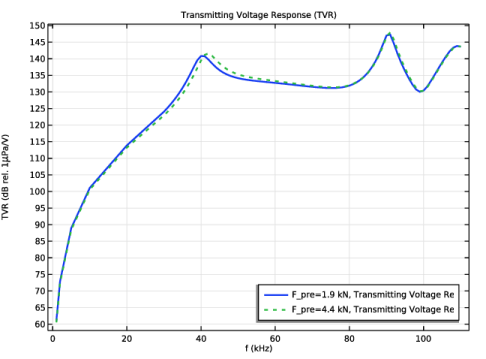
In the Settings window for 1D Plot Group, type Transmitting Voltage Response (TVR) in the Label text field.
|
|
3
|
|
4
|
|
5
|
|
1
|
In the Model Builder window, expand the Transmitting Voltage Response (TVR) node, then click Global 1.
|
|
2
|
In the Settings window for Global, click Replace Expression in the upper-right corner of the y-Axis Data section. From the menu, choose Component 1 (comp1) > Definitions > Variables > TVR - Transmitting Voltage Response (TVR).
|
|
3
|
|
4
|
|
1
|
|
2
|
|
3
|
|
1
|
|
2
|
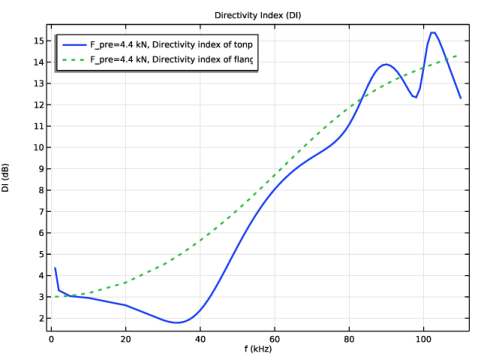
In the Settings window for Global, click Replace Expression in the upper-right corner of the y-Axis Data section. From the menu, choose Component 1 (comp1) > Definitions > Variables > DI - Directivity index of tonpilz transducer.
|
|
3
|
Click Add Expression in the upper-right corner of the y-Axis Data section. From the menu, choose Component 1 (comp1) > Definitions > Variables > DI_fl_pist - Directivity index of flanged piston.
|
|
4
|
|
5
|
|
1
|
|
2
|
|
3
|
|
4
|
|
5
|
|
1
|
|
2
|
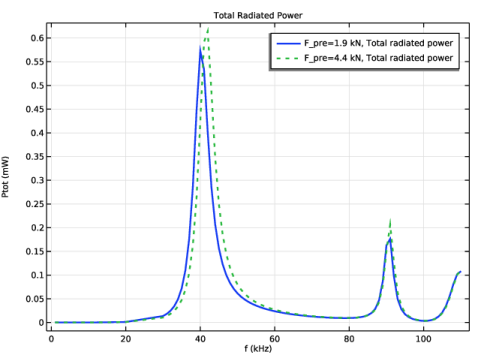
In the Settings window for Global, click Replace Expression in the upper-right corner of the y-Axis Data section. From the menu, choose Component 1 (comp1) > Definitions > Variables > Ptot - Total radiated power - W.
|
|
3
|
Locate the y-Axis Data section. In the table, enter the following settings:
|
|
4
|
|
1
|
|
2
|
|
3
|
|
4
|
|
5
|
|
6
|
|
1
|
|
2
|
|
4
|
|
1
|
|
2
|
|
3
|
Select the Plot on secondary y-axis checkbox.
|
|
4
|
Locate the y-Axis Data section. In the table, enter the following settings:
|
|
5
|
Locate the Coloring and Style section. Find the Line style subsection. From the Line list, choose Dotted.
|
|
6
|
|
7
|
|
1
|
|
2
|
|
3
|
|
4
|
|
1
|
|
2
|
|
3
|
|
4
|
Locate the Plot Settings section.
|
|
5
|
|
6
|
|
1
|
|
2
|
|
3
|
|
4
|
|
5
|
|
6
|
|
7
|
|
8
|
|
9
|
|
10
|
|
11
|
|
12
|
Select the Description checkbox.
|
|
13
|
|
14
|
|
1
|
|
2
|
|
3
|
|
1
|
|
2
|
|
3
|
|
4
|
|
1
|
|
2
|
|
3
|
Clear the Show point checkbox.
|
|
4
|
|
5
|