PDF

Submarine High-Frequency
Asymptotic Scattering
Introduction
The primary defense of a submarine lies in its capacity to remain hidden during operation. As radio waves are strongly absorbed by sea water, sound navigation and ranging, or SONAR, is one of the main methods used for the detection of submarines. SONAR systems are also used for underwater exploration as well as in the fishing industry.
Designers analyze the way acoustic waves are reflected in order to minimize the equivalent reflecting area of the submarine. This tutorial studies the scattering off the BeTTSi benchmark submarine (Benchmark Target Echo Strength Simulation).
This model uses the high-frequency approximation of the Pressure Acoustics, Asymptotic Scattering interface. The analysis is fast and a good approximation at high frequencies, where the wavelength is much smaller than the scattering object.
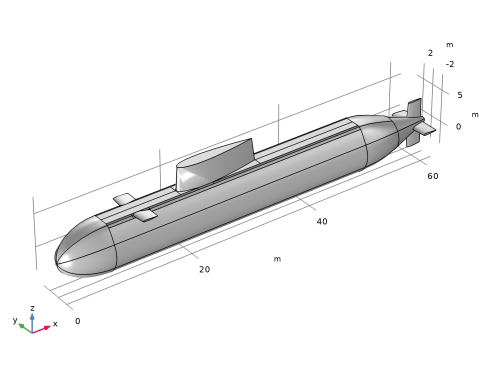
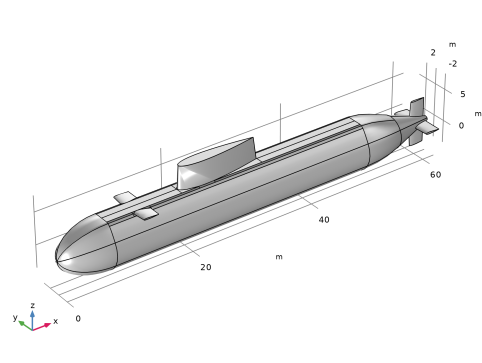
Figure 1: BeTSSi submarine geometry.
Model Definition
The target strength, or TS, is a measure of the area of a sonar target. In most submarines, reduction of the backscatter signal is achieved through the application of absorbing materials to the outer surfaces of the submarine. In this model, the target strength is computed for a single angle of incidence and frequency. The model can be readily extended with a sweep over frequencies and source locations.
The tutorial is based on the BeTTSi benchmark submarine (Benchmark Target Echo Strength Simulation) presented in Ref. 1 and Ref. 2. The geometry, shown in Figure 1, is also used and discussed in detail the Submarine Target Strength tutorial model in the Acoustics Module Application Library.
In the present tutorial, the scattering problem is solved with the Pressure Acoustics, Asymptotic Scattering physics interface. The interface relies on a high-frequency approximation where the sound field is assumed to be locally plane. This is valid as long as the wavelength is much smaller than the important geometry details as well as the radius of curvature of important surfaces. Reflections are treated analytically at surfaces and the radiated/scattered field is computed using the Kirchhoff–Helmholtz integral. This approach is also sometimes referred to as high-frequency BEM or HFB.
In this model, the surface properties of the submarine are defined through an angle dependent absorption coefficient α(θ). The angle dependency is included using the built-in variable paas.thetai. The absorption data is generic and is here given in an interpolation function. The absorption data can be based on measurements or computed using a submodel. An example of the submodel approach is given in the Application Gallery tutorial Anechoic Coating:
Results and Discussion
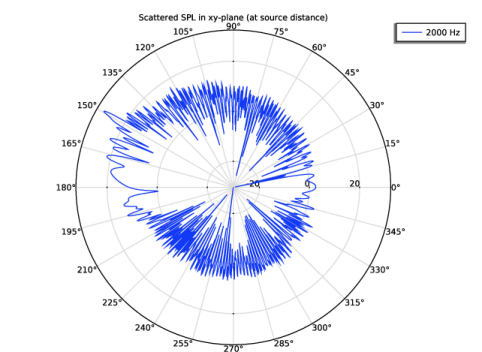
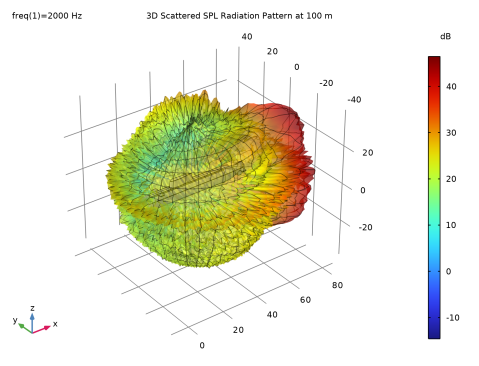
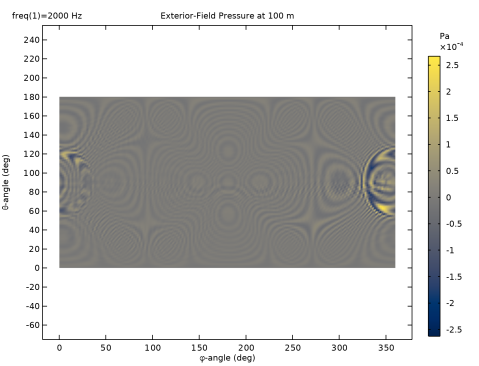
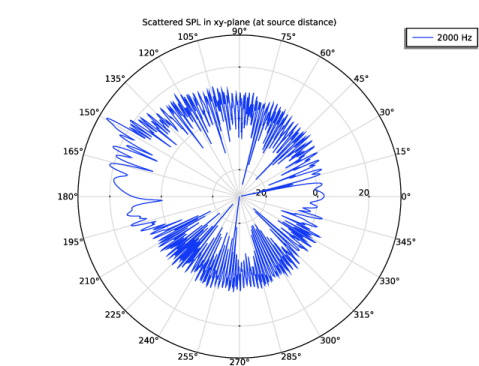
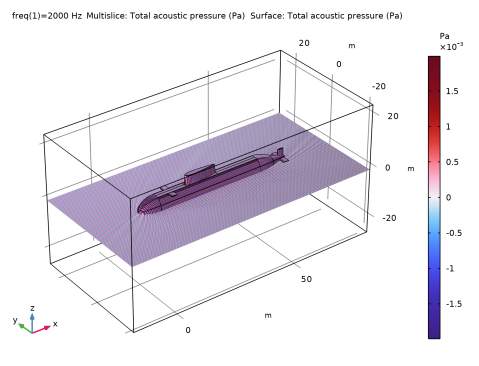
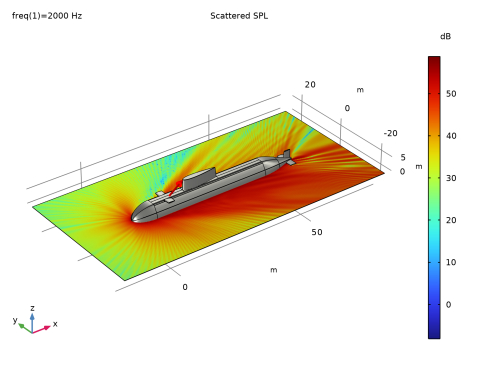
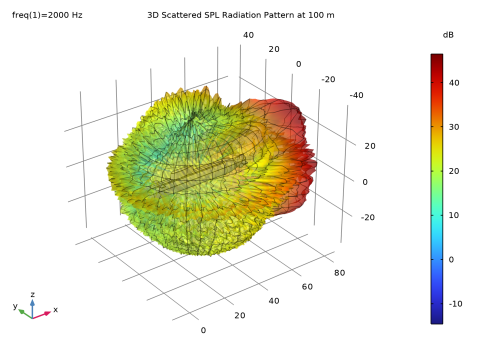
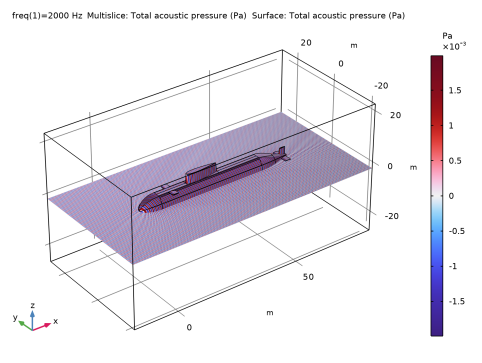
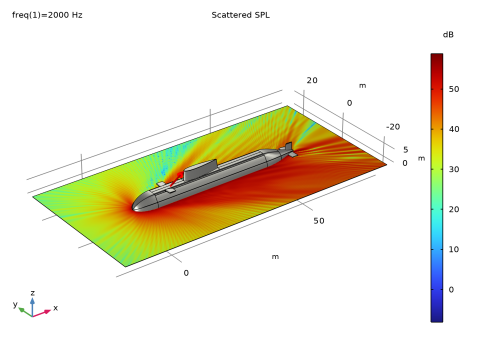
The full 3D radiation pattern, evaluated at 100 m is depicted in Figure 2. Notice the main lobe corresponding to the specular reflection on the main part of the submarine body. The corresponding radiation pattern in the xy-plane, evaluated at a source distance of 1000 m is depicted in Figure 3. The near-field total pressure and the near-field scattered sound pressure level is depicted in Figure 4 and Figure 7, respectively.
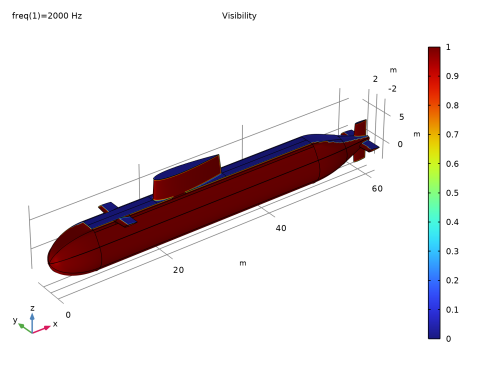
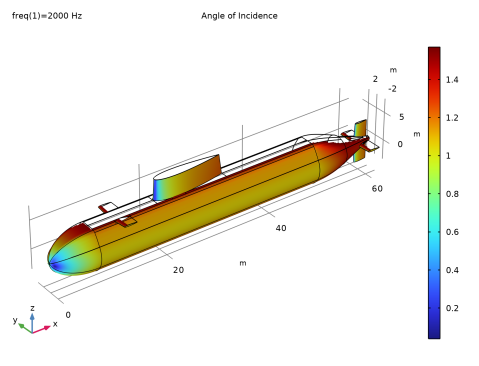
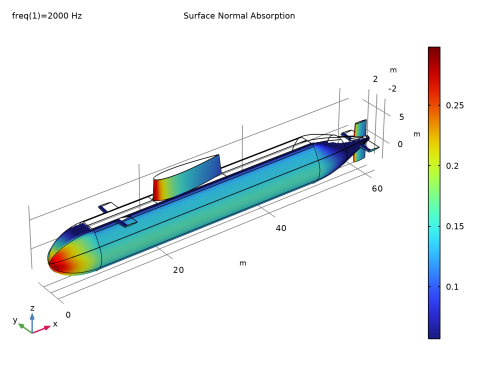
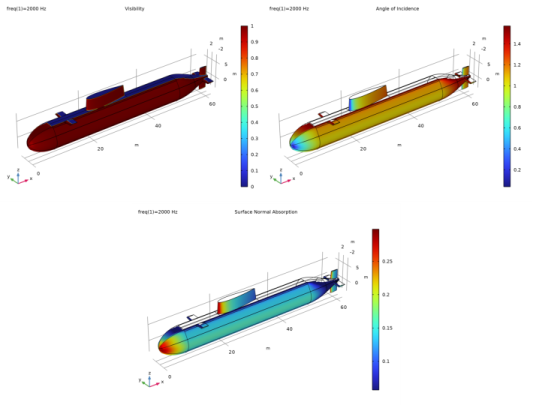
The asymptotic scattering approach relies on a visibility computation, that is, the portion of the scattering object surfaces that have a directly incident background field. The visibility for the current configuration is depicted in Figure 5 (top left). For the visible surfaces, the angle of incidence of the incident field as well as the corresponding absorption coefficient is depicted in the top right and the bottom figures, respectively.
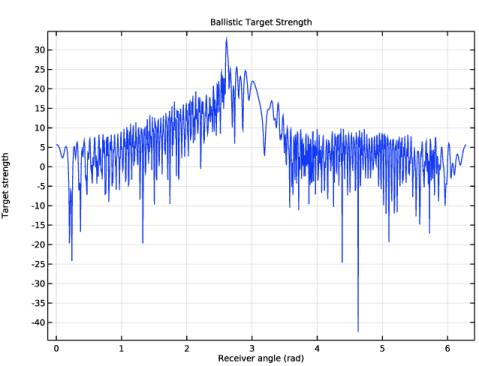
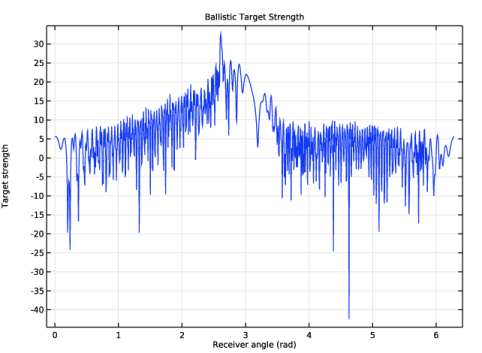
Finally, the ballistic target strength (TS) for the current configuration of source and scatterer is depicted in Figure 6.
Figure 2: Radiation pattern evaluated at 100 m from the submarine.
Figure 3: Radiation pattern in the xy-plane, evaluated at the source distance (1 km).
Figure 4: Total acoustic pressure (incident and scattered) evaluated at the submarine surface and in the z = 0 plane. The evaluation grid is slightly under resolving the pattern.
Figure 5: The surface visibility (top left); the angle of incidence of the incident acoustic field on the visible surfaces (top right); and the absorption including the angle dependency (bottom).
Figure 6: The plot shows the target strength TS.
Figure 7: The scattered SPL in the z = 0 plane in the region around the submarine.
Notes About the COMSOL Implementation
The walls (visible) of the scattering object can be characterized in terms of a reflection coefficient R (complex valued), a normal impedance Zn (complex valued), or an absorption coefficient α and phase. The reflection coefficient and the absorption coefficient can have a dependency on the angle of incidence using the built-in variable paas.theta. If multiple sources are defined, the variable will automatically take the differences into account. Variables also exist for the source defined by the individual background pressure field features, for example, for the first feature paas.bpf1.theta (using the item scope).
References
1. B. Nolte, I. Schäfer, C. de Jong, and L. Gilroy, “BeTSSi II benchmark on target strength simulation,” Proceedings of Forum Acusticum, 2014.
2. J.V. Venås and T. Kvamsdal, “Isogeometric boundary element method for acoustic scattering by a submarine,” Comp. Meth. Appl. Mech. Eng., vol. 359, p. 112670, 2020, doi.org/10.1016/j.cma.2019.112670.
Application Library path: Acoustics_Module/Underwater_Acoustics/submarine_asymptotic_scattering
Modeling Instructions
From the File menu, choose New.
New
In the New window, click  Model Wizard.
Model Wizard
1
In the Model Wizard window, click  3D.
2
In the Select Physics tree, select Acoustics > Pressure Acoustics > Pressure Acoustics, Asymptotic Scattering (paas).
3
Click Add.
4
Click  Study.
5
In the Select Study tree, select General Studies > Frequency Domain.
6
Global Definitions
Parameters 1
1
In the Model Builder window, under Global Definitions click Parameters 1.
2
In the Settings window for Parameters, locate the Parameters section.
3
Click  Load from File.
4
Interpolation 1 (int1)
1
In the Home toolbar, click  Functions and choose Global > Interpolation.
2
In the Settings window for Interpolation, locate the Definition section.
3
From the Data source list, choose File.
4
Click  Browse.
5
6
Click  Import.
7
In the Function name text field, type alpha.
8
Locate the Interpolation and Extrapolation section. From the Interpolation list, choose Cubic spline.
9
Locate the Units section. In the Function table, enter the following settings:
10
In the Argument table, enter the following settings:
Geometry 1
The model uses an external mphbin file with the geometry. The instructions for building the submarine geometry can be found in the Submarine Target Strength tutorial.
Import 1 (imp1)
1
In the Geometry toolbar, click  Import.
2
In the Settings window for Import, locate the Source section.
3
Click  Browse.
4
5
Click  Build All Objects.
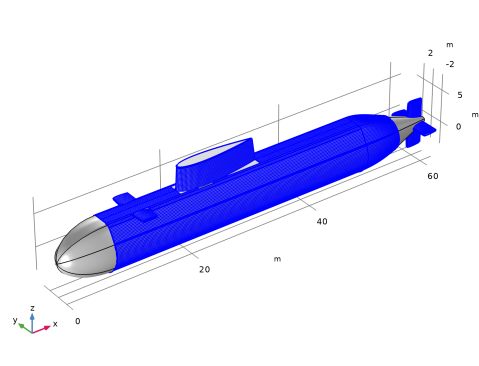
Use Virtual Operations to simplify the geometry for meshing.
Form Composite Faces 1 (cmf1)
1
In the Geometry toolbar, click  Virtual Operations and choose Form Composite Faces.
2
On the object fin, select Boundaries 1–10, 69–73, and 79–83 only.
3
In the Settings window for Form Composite Faces, click  Build Selected.
Form Composite Faces 2 (cmf2)
1
In the Geometry toolbar, click  Virtual Operations and choose Form Composite Faces.
2
On the object cmf1, select Boundaries 4–7, 13–16, 24–27, 49, 50, 62, 63, 65, 66, and 84–87 only.
3
In the Settings window for Form Composite Faces, click  Build Selected.
The geometry should look like this.
Disable the analysis of the geometry as the remaining small geometric details can be kept.
4
In the Model Builder window, click Geometry 1.
5
In the Settings window for Geometry, locate the Cleanup section.
6
Clear the Automatic detection of small details checkbox.
7
In the Geometry toolbar, click  Build All.
Definitions
Variables 1
1
In the Model Builder window, expand the Component 1 (comp1) > Definitions node.
2
Right-click Definitions and choose Variables.
3
In the Settings window for Variables, locate the Variables section.
4
Click  Load from File.
5
Average 1 (aveop1)
1
In the Definitions toolbar, click  Nonlocal Couplings and choose Average.
2
In the Settings window for Average, locate the Source Selection section.
3
From the Geometric entity level list, choose Boundary.
4
From the Selection list, choose All boundaries.
Add Material
1
In the Materials toolbar, click  Add Material to open the Add Material window.
2
Go to the Add Material window.
3
In the tree, select Built-in > Water, liquid.
4
Click the Add to Component button in the window toolbar.
5
In the Materials toolbar, click  Add Material to close the Add Material window.
Materials
Water, liquid (mat1)
1
In the Settings window for Material, locate the Geometric Entity Selection section.
2
From the Selection list, choose All voids.
Pressure Acoustics, Asymptotic Scattering (paas)
1
In the Model Builder window, under Component 1 (comp1) click Pressure Acoustics, Asymptotic Scattering (paas).
2
In the Settings window for Pressure Acoustics, Asymptotic Scattering, locate the Sound Pressure Level Settings section.
3
From the Reference pressure for the sound pressure level list, choose Use reference pressure for water.
Pressure Acoustics 1
1
In the Model Builder window, under Component 1 (comp1) > Pressure Acoustics, Asymptotic Scattering (paas) click Pressure Acoustics 1.
2
In the Settings window for Pressure Acoustics, locate the Pressure Acoustics Model section.
3
From the Fluid model list, choose Ocean attenuation.
Note that material properties cannot be space dependent when used in the Pressure Acoustics, Asymptotic Scattering interface.
Background Pressure Field 1
1
In the Model Builder window, click Background Pressure Field 1.
2
In the Settings window for Background Pressure Field, locate the Background Pressure Field section.
3
From the Pressure field type list, choose Spherical wave.
4
In the p0 text field, type p_ref.
5
Specify the x0 vector as
The boundary conditions applicable to the scattering object are added as Wall subfeatures to the Scattering Object. Modify the default Wall condition to include an angle dependent surface absorption.
Wall 1
1
In the Model Builder window, expand the Scattering Object 1 node, then click Wall 1.
2
In the Settings window for Wall, locate the Wall section.
3
From the Type list, choose Absorption coefficient.
4
In the αn text field, type alpha(paas.theta).
Note the use of the general paas.theta variable that defines the angle of incidence. When plotting the angle in postprocessing, the item scope of the Background Pressure Field has to be added (each background field defines its associated angle of incidence). This is shown when analyzing the results.
In this model, the mesh is set up manually. Proceed by directly adding the desired mesh component. Four elements per wavelength is adequate for the formulation in this model.
Mesh 1
As the scattering characteristics are largely influenced by the sail, rudder and bow plane, create a finer mesh around the leading edge of these surfaces. This is achieved by first meshing the necessary edges.
Edge 1
1
In the Mesh toolbar, click  More Generators and choose Edge.
2
Distribution 1
1
Right-click Edge 1 and choose Distribution.
2
In the Settings window for Distribution, locate the Distribution section.
3
In the Number of elements text field, type 18.
Size 1
1
In the Model Builder window, right-click Edge 1 and choose Size.
2
In the Settings window for Size, locate the Element Size section.
3
Click the Custom button.
4
Locate the Element Size Parameters section.
5
Select the Curvature factor checkbox. In the associated text field, type 0.2.
Size
1
In the Model Builder window, under Component 1 (comp1) > Mesh 1 click Size.
2
In the Settings window for Size, locate the Element Size section.
3
Click the Custom button.
4
Locate the Element Size Parameters section. In the Maximum element size text field, type lam0/4.
5
In the Minimum element size text field, type 50[mm].
Mapped 1
1
In the Mesh toolbar, click  More Generators and choose Mapped.
2
3
In the Settings window for Mapped, click  Build Selected.
Free Triangular 1
1
In the Mesh toolbar, click  More Generators and choose Free Triangular.
2
In the Settings window for Free Triangular, locate the Boundary Selection section.
3
From the Geometric entity level list, choose Remaining.
4
Click  Build All.
Finally, use the Adapt feature, from the Modifying Operations list, to get a more uniform triangular mesh at the front of the submarine.
Adapt 1
1
In the Mesh toolbar, click  Modify and choose Adapt.
2
In the Settings window for Adapt, locate the Geometric Entity Selection section.
3
From the Geometric entity level list, choose Boundary.
4
5
Locate the Adaptation section. In the Size expression text field, type lam0/4.
6
Click  Build All.
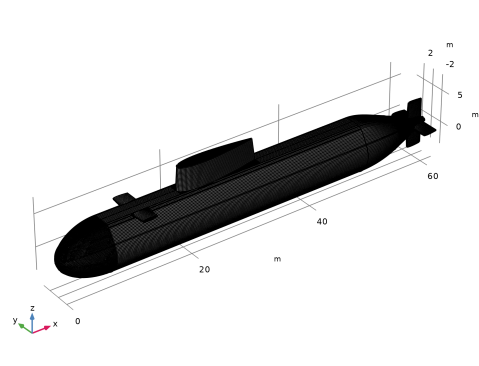
The mesh should look like this.
7
In the Model Builder window, click Mesh 1.
Study 1
Step 1: Frequency Domain
1
In the Model Builder window, under Study 1 click Step 1: Frequency Domain.
2
In the Settings window for Frequency Domain, locate the Study Settings section.
3
In the Frequencies text field, type f0.
4
In the Study toolbar, click  Compute.
Results
In Pressure Acoustics, Asymptotic Scattering models, the time consuming computations are not to solve the model. The actual solution time lies in evaluating the results in postprocessing (through the exterior field feature). To get information about the rendering/plotting time turn on the Plot Information Section. On each plot, an Information section will appear where the data is displayed (expand the section). This option applies to the whole COMSOL installation; if selected, the Plot Information Section will also appear in other models opened at a later stage.
1
Click the  Show More Options button in the Model Builder toolbar.
2
In the Show More Options dialog, select Results > Information Section in the tree.
3
In the tree, select the checkbox for the node Results > Information Section.
4
It can be useful to select the Only plot when requested option on the Results node when working with the plots, since the rendering times can be large. Also, on the Results node, turning on Save plot data is recommended; the plots will be saved rendered in the file.
5
In the Model Builder window, click Results.
6
In the Settings window for Results, locate the Update of Results section.
7
Select the Only plot when requested checkbox.
8
Locate the Save Data in the Model section. From the Save plot data list, choose On.
3D Scattered SPL Radiation Pattern at 100 m
Proceed by modifying the default plots, then add some additional plots.
1
In the Model Builder window, under Results click Exterior-Field Sound Pressure Level (paas).
2
In the Settings window for 3D Plot Group, type 3D Scattered SPL Radiation Pattern at 100 m in the Label text field.
3
Click to expand the Title section. From the Title type list, choose Label.
Radiation Pattern 1
1
In the Model Builder window, expand the 3D Scattered SPL Radiation Pattern at 100 m node, then click Radiation Pattern 1.
2
In the Settings window for Radiation Pattern, locate the Evaluation section.
3
Find the Angles subsection. In the Number of elevation angles text field, type 90.
4
In the Number of azimuth angles text field, type 180.
5
Find the Sphere subsection. From the Sphere list, choose Manual.
6
In the X text field, type L/2.
7
In the Radius text field, type 100[m].
8
Locate the Coloring and Style section. From the Grid list, choose Finer.
Transparency 1
Right-click Radiation Pattern 1 and choose Transparency.
Surface 1
1
In the Model Builder window, right-click 3D Scattered SPL Radiation Pattern at 100 m and choose Surface.
2
In the Settings window for Surface, locate the Expression section.
3
In the Expression text field, type 1.
4
Locate the Coloring and Style section. From the Coloring list, choose Uniform.
5
From the Color list, choose Gray.
Line 1
1
Right-click 3D Scattered SPL Radiation Pattern at 100 m and choose Line.
2
In the Settings window for Line, locate the Data section.
3
From the Dataset list, choose Study 1/Solution 1 (sol1).
4
Locate the Expression section. In the Expression text field, type 1.
5
Locate the Coloring and Style section. From the Coloring list, choose Uniform.
6
From the Color list, choose Black.
7
In the 3D Scattered SPL Radiation Pattern at 100 m toolbar, click  Plot.
8
Click the  Zoom Extents button in the Graphics toolbar.
Exterior-Field Pressure at 100 m
1
In the Model Builder window, under Results click Exterior-Field Pressure (paas).
2
In the Settings window for 2D Plot Group, type Exterior-Field Pressure at 100 m in the Label text field.
3
Click to expand the Title section. From the Title type list, choose Label.
Radiation Pattern 1
1
In the Model Builder window, expand the Exterior-Field Pressure at 100 m node, then click Radiation Pattern 1.
2
In the Settings window for Radiation Pattern, locate the Evaluation section.
3
Find the Angles subsection. In the Number of elevation angles text field, type 90.
4
In the Number of azimuth angles text field, type 180.
5
Find the Sphere subsection. From the Sphere list, choose Manual.
6
In the X text field, type L/2.
7
In the Radius text field, type 100[m].
8
In the Exterior-Field Pressure at 100 m toolbar, click  Plot.
9
Click the  Zoom Extents button in the Graphics toolbar.
Scattered SPL in xy-plane (at source distance)
1
In the Model Builder window, under Results click Exterior-Field Sound Pressure Level xy-plane (paas).
2
In the Settings window for Polar Plot Group, type Scattered SPL in xy-plane (at source distance) in the Label text field.
3
Click to expand the Title section. From the Title type list, choose Label.
Radiation Pattern 1
1
In the Model Builder window, expand the Scattered SPL in xy-plane (at source distance) node, then click Radiation Pattern 1.
2
In the Settings window for Radiation Pattern, locate the Evaluation section.
3
Find the Angles subsection. In the Number of angles text field, type 1800.
4
Find the Center subsection. In the x text field, type L/2.
5
Find the Evaluation distance subsection. In the Radius text field, type d_source.
6
Find the Reference direction subsection. In the x text field, type -1.
7
Click Preview Evaluation Plane.
The preview plot generated when clicking the Preview Evaluation Plane shows the orientation of the circle where the radiation pattern is visualized.
8
In the Evaluation Plane window, click the Zoom Extents button in the window toolbar.
1
In the Model Builder window, click Radiation Pattern 1.
2
In the Scattered SPL in xy-plane (at source distance) toolbar, click  Plot.
Grid 3D 1
1
In the Model Builder window, expand the Results > Datasets node, then click Grid 3D 1.
2
In the Settings window for Grid 3D, locate the Parameter Bounds section.
3
Find the First parameter subsection. In the Minimum text field, type -20.
4
In the Maximum text field, type 80.
5
Find the Second parameter subsection. In the Minimum text field, type -25.
6
In the Maximum text field, type 25.
7
Find the Third parameter subsection. In the Minimum text field, type -25.
8
In the Maximum text field, type 25.
9
Click to expand the Grid section. In the x resolution text field, type 400.
10
In the y resolution text field, type 200.
11
In the z resolution text field, type 2.
The grid resolution should in general be adequate to resolve the wave pattern (wavelength) in the plots. Here, the grid resolution is set to 2 in the z direction in order to reduce the overall grid points to evaluate. The plots only contain xy-plane cuts.
Multislice 1
1
In the Model Builder window, expand the Acoustic Pressure (paas) node, then click Multislice 1.
2
In the Settings window for Multislice, locate the Multiplane Data section.
3
Find the x-planes subsection. In the Planes text field, type 0.
4
Find the y-planes subsection. In the Planes text field, type 0.
5
In the Acoustic Pressure (paas) toolbar, click  Plot.
Visibility
1
In the Results toolbar, click  3D Plot Group.
2
In the Settings window for 3D Plot Group, type Visibility in the Label text field.
3
Click to expand the Title section. From the Title type list, choose Label.
Surface 1
1
Right-click Visibility and choose Surface.
2
In the Settings window for Surface, click Replace Expression in the upper-right corner of the Expression section. From the menu, choose Component 1 (comp1) > Pressure Acoustics, Asymptotic Scattering > Background Pressure Field 1 > paas.bpf1.visibility - Visibility - 1.
3
In the Visibility toolbar, click  Plot.
Angle of Incidence
1
In the Results toolbar, click  3D Plot Group.
2
In the Settings window for 3D Plot Group, type Angle of Incidence in the Label text field.
3
Locate the Title section. From the Title type list, choose Label.
Surface 1
1
Right-click Angle of Incidence and choose Surface.
2
In the Settings window for Surface, click Replace Expression in the upper-right corner of the Expression section. From the menu, choose Component 1 (comp1) > Pressure Acoustics, Asymptotic Scattering > Background Pressure Field 1 > paas.bpf1.theta - Incident angle - rad.
To only view the angle on the visible surfaces, replace the expression with the following.
3
Locate the Expression section. In the Expression text field, type if(paas.bpf1.visibility,paas.bpf1.theta,NaN).
4
In the Angle of Incidence toolbar, click  Plot.
Surface Normal Absorption
1
In the Results toolbar, click  3D Plot Group.
2
In the Settings window for 3D Plot Group, type Surface Normal Absorption in the Label text field.
3
Locate the Title section. From the Title type list, choose Label.
Surface 1
1
Right-click Surface Normal Absorption and choose Surface.
2
In the Settings window for Surface, locate the Expression section.
3
In the Expression text field, type if(paas.bpf1.visibility,alpha(paas.bpf1.theta),NaN).
4
In the Surface Normal Absorption toolbar, click  Plot.
Parametric Curve 3D 1
1
In the Results toolbar, click  More Datasets and choose Parametric Curve 3D.
2
In the Settings window for Parametric Curve 3D, locate the Parameter section.
3
In the Maximum text field, type 2*pi.
4
Locate the Expressions section. In the x text field, type -d_source*cos(s)+L/2.
5
In the y text field, type -d_source*sin(s).
6
Select the Only evaluate globally defined expressions checkbox.
Cut Plane 1
1
In the Results toolbar, click  Cut Plane.
2
In the Settings window for Cut Plane, locate the Data section.
3
From the Dataset list, choose Grid 3D 1.
4
Locate the Plane Data section. From the Plane list, choose xy-planes.
Ballistic Target Strength
1
In the Results toolbar, click  1D Plot Group.
2
In the Settings window for 1D Plot Group, type Ballistic Target Strength in the Label text field.
3
Locate the Data section. From the Dataset list, choose Parametric Curve 3D 1.
4
Click to expand the Title section. From the Title type list, choose Label.
Line Graph 1
1
Right-click Ballistic Target Strength and choose Line Graph.
2
In the Settings window for Line Graph, locate the y-Axis Data section.
3
In the Expression text field, type TS.
4
Locate the x-Axis Data section. From the Parameter list, choose Expression.
5
In the Expression text field, type s[rad].
6
Select the Description checkbox. In the associated text field, type Receiver angle.
7
In the Ballistic Target Strength toolbar, click  Plot.
Scattered SPL
1
In the Results toolbar, click  3D Plot Group.
2
In the Settings window for 3D Plot Group, type Scattered SPL in the Label text field.
3
Locate the Data section. From the Dataset list, choose Cut Plane 1.
4
Click to expand the Title section. From the Title type list, choose Label.
5
Locate the Color Legend section. Select the Show units checkbox.
Surface 1
1
Right-click Scattered SPL and choose Surface.
2
In the Settings window for Surface, locate the Expression section.
3
In the Expression text field, type paas.Lp_s.
Surface 2
1
In the Model Builder window, right-click Scattered SPL and choose Surface.
2
In the Settings window for Surface, locate the Data section.
3
From the Dataset list, choose Study 1/Solution 1 (sol1).
4
Locate the Expression section. In the Expression text field, type 1.
Material Appearance 1
1
Right-click Surface 2 and choose Material Appearance.
2
In the Settings window for Material Appearance, locate the Appearance section.
3
From the Appearance list, choose Custom.
4
From the Material type list, choose Steel.
Line 1
1
In the Model Builder window, right-click Scattered SPL and choose Line.
2
In the Settings window for Line, locate the Data section.
3
From the Dataset list, choose Study 1/Solution 1 (sol1).
4
Locate the Expression section. In the Expression text field, type 1.
5
Locate the Coloring and Style section. From the Coloring list, choose Uniform.
6
From the Color list, choose Black.
Scattered SPL
In the Model Builder window, click Scattered SPL.
Arrow Point 1
1
In the Scattered SPL toolbar, click  More Plots and choose Arrow Point.
2
In the Settings window for Arrow Point, locate the Data section.
3
From the Dataset list, choose Study 1/Solution 1 (sol1).
4
Locate the Expression section. In the X-component text field, type 10*cos(phi).
5
In the Y-component text field, type 10*sin(phi).
6
In the Z-component text field, type 0.
7
Locate the Coloring and Style section. From the Arrow base list, choose Head.
8
Select the Scale factor checkbox.
Selection 1
1
Right-click Arrow Point 1 and choose Selection.
2
3
In the Scattered SPL toolbar, click  Plot.