|
|
|

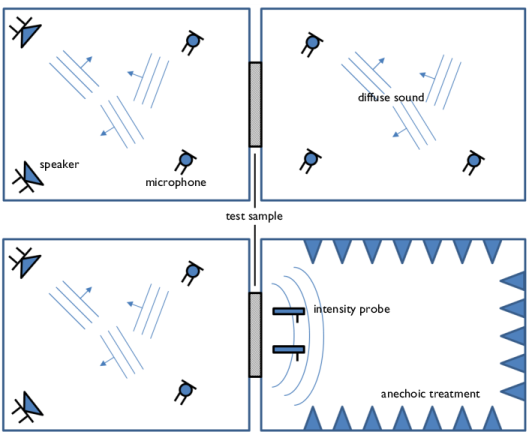











 term ensures that the field has a constant intensity for any choice of N. Because the plane waves are uncorrelated, the total mean square pressure in the source room is prms2 = |2px,room|2/2, with the term 2px,room accounting for the total diffuse field (positive and negative x directions). The theoretical limit for large N of the mean square pressure in the room (away from walls) is prms,th2 = |A|2/2.
 .
.
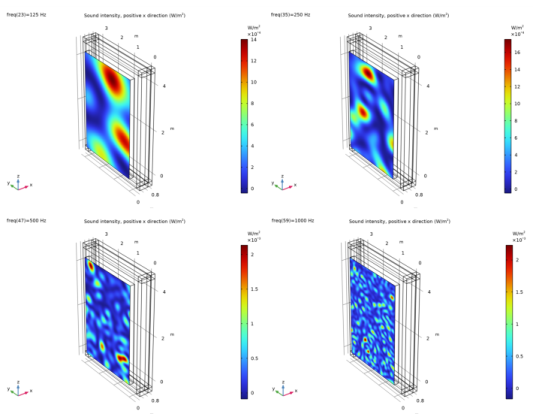


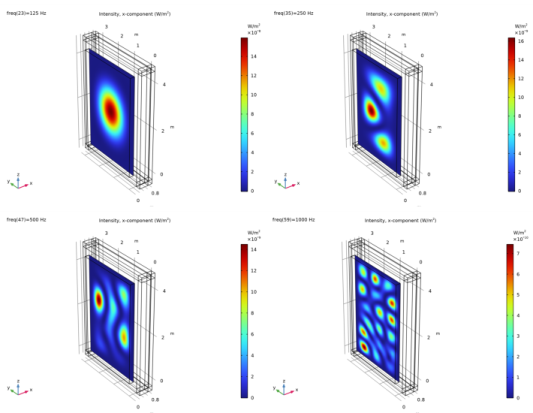
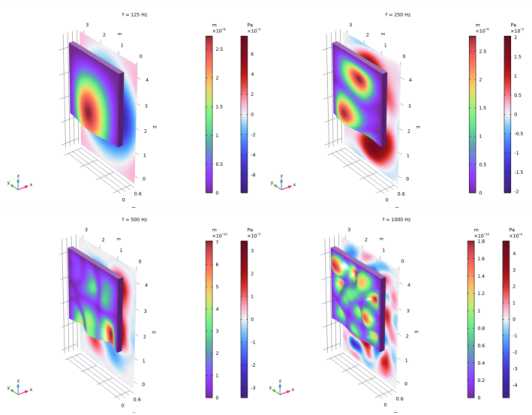
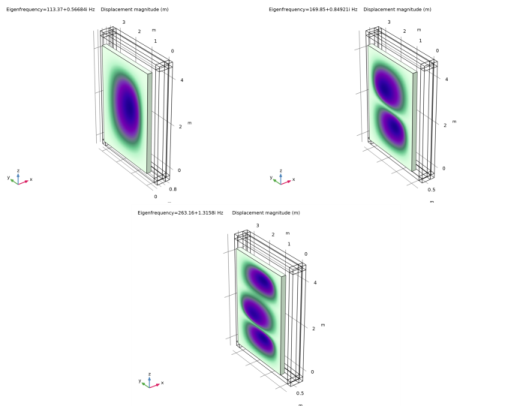
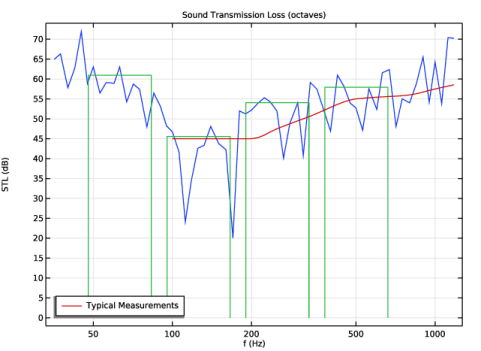
|
1
|
|
2
|
In the Select Physics tree, select Acoustics > Acoustic–Structure Interaction > Acoustic–Solid Interaction, Frequency Domain.
|
|
3
|
Click Add.
|
|
4
|
Click
 Study. Study. |
|
5
|
|
6
|
Click
 Done. Done. |
|
1
|
|
2
|
|
3
|
Click
 Load from File. Load from File. |
|
4
|
Browse to the model’s Application Libraries folder and double-click the file sound_transmission_loss_concrete_parameters.txt.
|
|
1
|
|
2
|
|
3
|
|
4
|
Click
 Browse. Browse. |
|
5
|
Browse to the model’s Application Libraries folder and double-click the file sound_transmission_loss_concrete_measurement_data.txt.
|
|
6
|
Locate the Data Column Settings section. In the table, click to select the cell at row number 2 and column number 1.
|
|
7
|
|
8
|
|
9
|
Locate the Interpolation and Extrapolation section. From the Interpolation list, choose Piecewise cubic.
|
|
10
|
|
11
|
In the Function table, enter the following settings:
|
|
1
|
|
2
|
|
3
|
|
4
|
|
5
|
|
1
|
|
2
|
|
3
|
|
4
|
|
5
|
|
6
|
|
7
|
|
8
|
|
9
|
Click to expand the Layers section. In the table, enter the following settings:
|
|
10
|
|
11
|
Select the Front checkbox.
|
|
12
|
Select the Back checkbox.
|
|
13
|
Select the Top checkbox.
|
|
14
|
|
1
|
In the Model Builder window, under Component 1 (comp1) click Pressure Acoustics, Frequency Domain (acpr).
|
|
1
|
|
2
|
|
3
|
Click
 Clear Selection. Clear Selection. |
|
1
|
|
2
|
In the Model Builder window, under Component 1 (comp1) > Multiphysics click Acoustic–Structure Boundary 1 (asb1).
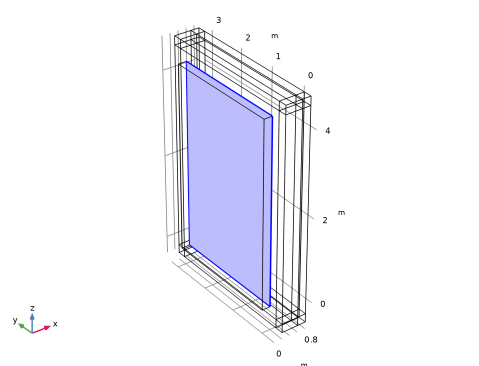 |
|
1
|
|
2
|
Go to the Add Material window.
|
|
3
|
|
4
|
Click the Add to Component button in the window toolbar.
|
|
5
|
|
1
|
In the Model Builder window, under Component 1 (comp1) right-click Materials and choose Blank Material.
|
|
2
|
|
4
|
Locate the Material Contents section. In the table, enter the following settings:
|
|
1
|
In the Model Builder window, under Component 1 (comp1) right-click Definitions and choose Variables.
|
|
2
|
|
3
|
|
4
|
Browse to the model’s Application Libraries folder and double-click the file sound_transmission_loss_concrete_variables_diffuse.txt.
|
|
1
|
|
2
|
|
3
|
|
4
|
Browse to the model’s Application Libraries folder and double-click the file sound_transmission_loss_concrete_variables_stl.txt.
|
|
1
|
|
2
|
|
3
|
|
4
|
|
1
|
|
2
|
|
3
|
|
4
|
|
5
|
|
1
|
|
2
|
|
3
|
|
4
|
|
5
|
|
1
|
|
2
|
|
3
|
|
1
|
|
2
|
|
3
|
|
1
|
|
2
|
In the Settings window for Explicit, type Save acoustic solution on boundaries in the Label text field.
|
|
3
|
|
1
|
|
2
|
In the Settings window for Explicit, type Save solid solution on boundaries in the Label text field.
|
|
3
|
|
1
|
|
3
|
|
4
|
|
1
|
|
2
|
|
3
|
|
1
|
|
2
|
|
1
|
|
1
|
|
3
|
|
4
|
|
5
|
|
1
|
|
1
|
|
2
|
|
3
|
Click the Custom button.
|
|
4
|
|
5
|
|
1
|
|
1
|
|
3
|
|
4
|
|
5
|
Click
 Build All. Build All. |
|
1
|
|
2
|
|
3
|
Click
 Clear Selection. Clear Selection. |
|
5
|
|
1
|
|
2
|
|
3
|
Click
 Clear Selection. Clear Selection. |
|
4
|
|
6
|
|
7
|
Click
 Build All. Build All. |
|
1
|
|
2
|
|
1
|
|
2
|
|
3
|
In the Model Builder window, expand the Study 1 - Frequency Analysis > Solver Configurations > Solution 1 (sol1) > Stationary Solver 1 node.
|
|
4
|
Right-click Study 1 - Frequency Analysis > Solver Configurations > Solution 1 (sol1) > Stationary Solver 1 > Suggested Iterative Solver (GMRES with GMG and Direct Precond.) (asb1) and choose Enable.
|
|
1
|
|
2
|
|
3
|
Click
 Range. Range. |
|
4
|
|
5
|
|
6
|
|
7
|
|
8
|
Click Replace.
|
|
9
|
|
11
|
|
12
|
|
13
|
Click OK.
|
|
14
|
|
16
|
|
17
|
|
18
|
Click OK.
|
|
19
|
|
1
|
|
2
|
|
3
|
|
4
|
Select the Only plot when requested checkbox.
|
|
1
|
|
2
|
|
3
|
Select the Show units checkbox.
|
|
1
|
|
2
|
|
3
|
|
1
|
|
2
|
|
1
|
|
2
|
|
3
|
|
1
|
|
2
|
|
3
|
|
4
|
|
5
|
|
1
|
|
3
|
|
1
|
|
2
|
|
1
|
|
2
|
|
3
|
|
1
|
|
2
|
|
3
|
Click to select the
 Activate Selection toggle button. Activate Selection toggle button. |
|
5
|
|
1
|
|
2
|
Go to the Result Templates window.
|
|
3
|
In the tree, select Study 1 - Frequency Analysis/Solution 1 (sol1) > Solid Mechanics > Displacement (solid).
|
|
4
|
Click the Add Result Template button in the window toolbar.
|
|
5
|
|
1
|
|
2
|
|
3
|
|
4
|
|
5
|
|
1
|
|
2
|
|
1
|
|
2
|
|
3
|
|
4
|
|
5
|
|
1
|
|
2
|
|
3
|
|
1
|
|
3
|
|
1
|
|
2
|
|
3
|
|
4
|
|
5
|
Locate the Plot Settings section.
|
|
6
|
|
7
|
|
8
|
|
1
|
|
2
|
|
3
|
|
4
|
|
5
|
|
6
|
|
7
|
|
1
|
|
2
|
|
3
|
|
4
|
|
1
|
|
2
|
|
3
|
|
4
|
|
5
|
From the Parameter values list select the frequencies from 100 Hz to 1180 Hz, where the measurements are valid.
|
|
6
|
Locate the y-Axis Data section. In the table, enter the following settings:
|
|
7
|
|
1
|
|
2
|
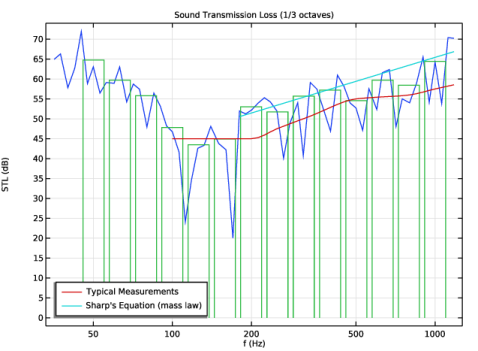
In the Settings window for 1D Plot Group, type STL: P_in/P_tr (1/3 octaves) in the Label text field.
|
|
3
|
|
1
|
In the Model Builder window, expand the STL: P_in/P_tr (1/3 octaves) node, then click Octave Band 2.
|
|
2
|
|
3
|
|
1
|
|
2
|
|
3
|
|
4
|
|
5
|
From the Parameter values list select the frequencies from 180 Hz to 1180 Hz, to plot Sharp’s equation here.
|
|
6
|
Locate the y-Axis Data section. In the table, enter the following settings:
|
|
7
|
|
1
|
|
2
|
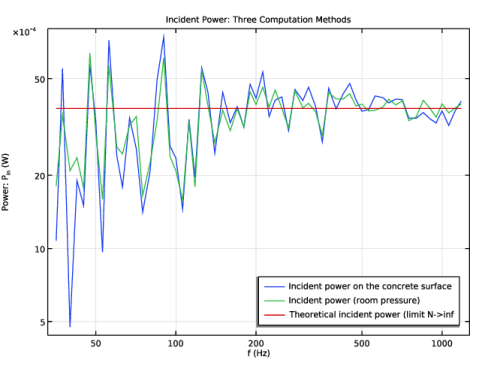
In the Settings window for 1D Plot Group, type Incident Power (three methods) in the Label text field.
|
|
3
|
Click to collapse the Title section. Click to expand the Title section. From the Title type list, choose Manual.
|
|
4
|
|
5
|
Locate the Plot Settings section.
|
|
6
|
|
7
|
|
8
|
|
9
|
Select the y-axis log scale checkbox.
|
|
10
|
|
1
|
|
2
|
|
4
|
|
1
|
|
2
|
Go to the Add Study window.
|
|
3
|
|
4
|
Find the Physics interfaces in study subsection. In the table, clear the Solve checkbox for Pressure Acoustics, Frequency Domain (acpr).
|
|
5
|
Find the Multiphysics couplings in study subsection. In the table, clear the Solve checkbox for Acoustic–Structure Boundary 1 (asb1).
|
|
6
|
Click the Add Study button in the window toolbar.
|
|
7
|
|
1
|
|
2
|
|
3
|
|
4
|
|
5
|
|
1
|
|
2
|
|
3
|
|
4
|
|
5
|
|
6
|
From the Save plot data list, choose On to avoid rerendering the STL curves when the model is opened again.
|










 next to