|
|
|


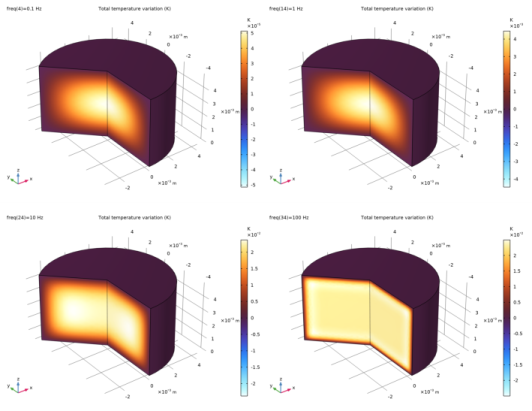

|
1
|
|
2
|
In the Select Physics tree, select Acoustics > Thermoviscous Acoustics > Thermoviscous Acoustics, Frequency Domain (ta).
|
|
3
|
Click Add.
|
|
4
|
Click
 Study. Study. |
|
5
|
|
6
|
Click
 Done. Done. |
|
1
|
|
2
|
|
3
|
|
4
|
Browse to the model’s Application Libraries folder and double-click the file pressure_reciprocity_calibration_coupler_parameters_physics.txt.
|
|
1
|
|
2
|
|
3
|
|
4
|
Browse to the model’s Application Libraries folder and double-click the file pressure_reciprocity_calibration_coupler_parameters_geometry.txt.
|
|
1
|
|
2
|
|
3
|
|
4
|
|
5
|
Click
 Build All Objects. Build All Objects. |
|
1
|
|
2
|
Go to the Add Material window.
|
|
3
|
|
4
|
Click the Add to Component button in the window toolbar.
|
|
5
|
|
1
|
|
1
|
Go to the Select System window.
|
|
2
|
|
3
|
Click the Next button in the window toolbar.
|
|
1
|
Go to the Select Species window.
|
|
2
|
Click the Next button in the window toolbar.
|
|
1
|
Go to the Select Thermodynamic Model window.
|
|
2
|
|
3
|
Click the Finish button in the window toolbar.
|
|
1
|
Go to the Select Species window.
|
|
2
|
Click the Next button in the window toolbar.
|
|
1
|
Go to the Select Properties window.
|
|
2
|
Click the Next button in the window toolbar.
|
|
1
|
Go to the Define Material window.
|
|
2
|
Click the Finish button in the window toolbar.
|
|
1
|
In the Model Builder window, under Component 1 (comp1) > Materials click Gas: Moist Air 1 (pp1mat1).
|
|
1
|
|
2
|
|
3
|
|
4
|
|
5
|
Browse to the model’s Application Libraries folder and double-click the file pressure_reciprocity_calibration_coupler_variables_material.txt.
|
|
1
|
|
2
|
In the Settings window for Variables, type Variables - Isothermal Limit (very low frequency) in the Label text field.
|
|
3
|
|
4
|
Browse to the model’s Application Libraries folder and double-click the file pressure_reciprocity_calibration_coupler_variables_isothermal.txt.
|
|
1
|
|
2
|
In the Settings window for Variables, type Variables - Transmission Line (high frequency) in the Label text field.
|
|
3
|
|
4
|
Browse to the model’s Application Libraries folder and double-click the file pressure_reciprocity_calibration_coupler_variables_transmission.txt.
|
|
1
|
|
2
|
In the Settings window for Variables, type Variables - Vincent et al. (low frequency) in the Label text field.
|
|
3
|
|
4
|
Browse to the model’s Application Libraries folder and double-click the file pressure_reciprocity_calibration_coupler_variables_vincent.txt.
|
|
1
|
|
2
|
|
3
|
|
1
|
|
2
|
|
3
|
|
1
|
|
2
|
|
3
|
|
5
|
|
1
|
|
2
|
|
3
|
|
4
|
Click
 Browse. Browse. |
|
5
|
Browse to the model’s Application Libraries folder and double-click the file pressure_reciprocity_calibration_coupler_bessel_zeros.txt.
|
|
6
|
Click
 Import. Import. |
|
7
|
|
8
|
Locate the Interpolation and Extrapolation section. From the Interpolation list, choose Nearest neighbor.
|
|
9
|
|
10
|
In the Function table, enter the following settings:
|
|
11
|
|
12
|
In the Show More Options dialog, in the tree, select the checkbox for the node Physics > Advanced Physics Options.
|
|
13
|
Click OK.
|
|
1
|
In the Model Builder window, under Component 1 (comp1) > Thermoviscous Acoustics, Frequency Domain (ta) click Thermoviscous Acoustics Model 1.
|
|
2
|
|
3
|
|
1
|
|
3
|
|
4
|
Select the Prescribed in r direction checkbox.
|
|
5
|
Select the Prescribed in z direction checkbox.
|
|
6
|
|
7
|
Click to expand the Excluded Points section. Select Point 3 only.
|
|
1
|
|
1
|
|
2
|
|
3
|
Click the Custom button.
|
|
4
|
|
5
|
|
1
|
|
2
|
|
3
|
|
5
|
|
6
|
Locate the Element Size Parameters section.
|
|
7
|
|
1
|
|
2
|
|
3
|
Clear the Smooth transition to interior mesh checkbox.
|
|
1
|
|
3
|
|
4
|
|
5
|
|
1
|
|
2
|
|
3
|
Clear the Smooth transition to interior mesh checkbox.
|
|
1
|
|
3
|
|
4
|
|
5
|
|
1
|
|
2
|
|
3
|
Clear the Smooth transition to interior mesh checkbox.
|
|
1
|
|
3
|
|
4
|
|
5
|
|
6
|
|
1
|
|
2
|
|
3
|
Clear the Smooth transition to interior mesh checkbox.
|
|
1
|
|
3
|
|
4
|
|
5
|
|
6
|
|
7
|
Click
 Build All. Build All. |
|
1
|
|
2
|
|
3
|
Click
 Range. Range. |
|
4
|
|
5
|
|
6
|
|
7
|
|
8
|
Click Replace.
|
|
9
|
|
1
|
|
2
|
|
1
|
|
2
|
|
3
|
|
4
|
|
1
|
|
2
|
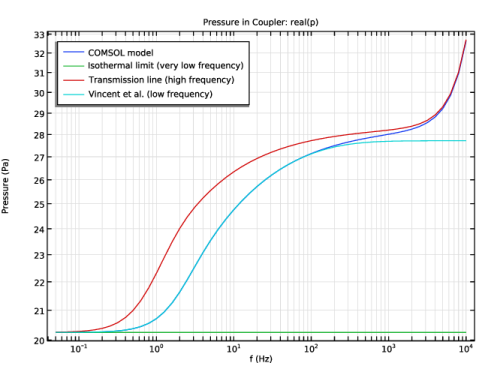
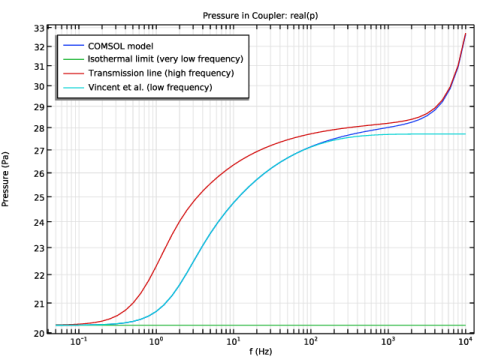
In the Settings window for 1D Plot Group, type Pressure in Coupler: real(p) in the Label text field.
|
|
3
|
|
4
|
Locate the Plot Settings section.
|
|
5
|
|
6
|
|
7
|
|
1
|
|
3
|
|
4
|
|
5
|
|
6
|
|
1
|
|
2
|
|
4
|
|
5
|
|
6
|
|
1
|
|
2
|
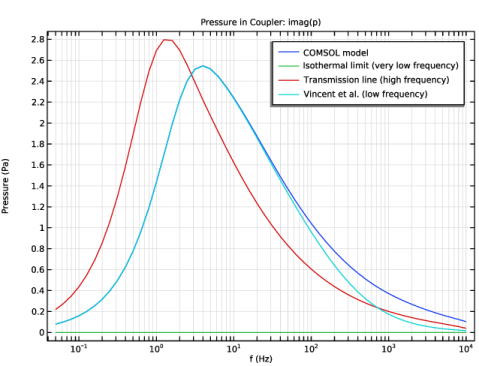
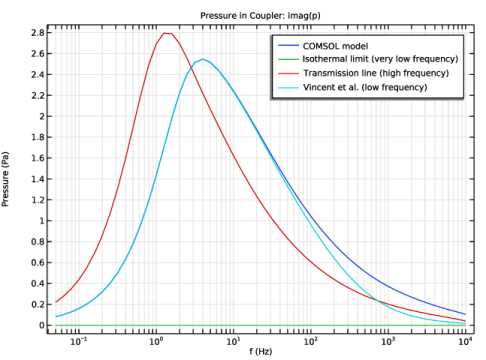
In the Settings window for 1D Plot Group, type Pressure in Coupler: imag(p) in the Label text field.
|
|
3
|
|
1
|
In the Model Builder window, expand the Pressure in Coupler: imag(p) node, then click Point Graph 1.
|
|
2
|
|
3
|
|
1
|
|
2
|
|
4
|
|
5
|
|
1
|
|
2
|
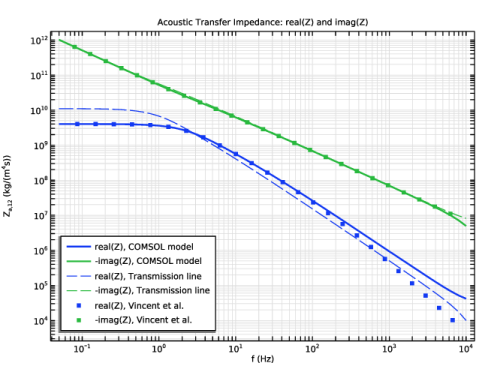
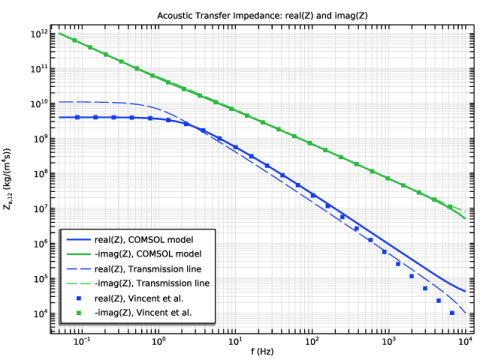
In the Settings window for 1D Plot Group, type Acoustic Transfer Impedance: real(Z) and imag(Z) in the Label text field.
|
|
3
|
|
4
|
Locate the Plot Settings section.
|
|
5
|
|
6
|
Select the y-axis label checkbox. In the associated text field, type Z<sub>a,12</sub> (kg/(m<sup>4</sup>s)).
|
|
7
|
|
8
|
Select the y-axis log scale checkbox.
|
|
9
|
|
1
|
|
2
|
|
4
|
|
1
|
In the Model Builder window, right-click Acoustic Transfer Impedance: real(Z) and imag(Z) and choose Global.
|
|
2
|
|
4
|
Locate the Coloring and Style section. Find the Line style subsection. From the Line list, choose Dashed.
|
|
5
|
|
1
|
|
2
|
|
4
|
Locate the Coloring and Style section. Find the Line style subsection. From the Line list, choose None.
|
|
5
|
|
6
|
|
7
|
|
8
|
|
9
|
|
1
|
|
2
|
|
3
|
|
4
|
|
5
|
|
1
|
|
2
|
|
3
|
|
4
|
|
5
|
|
6
|
Locate the Plot Settings section.
|
|
7
|
|
8
|
|
1
|
|
2
|
|
3
|
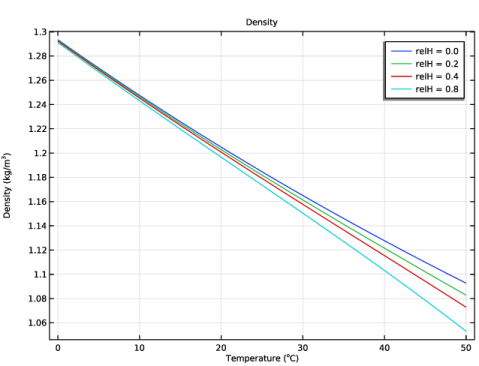
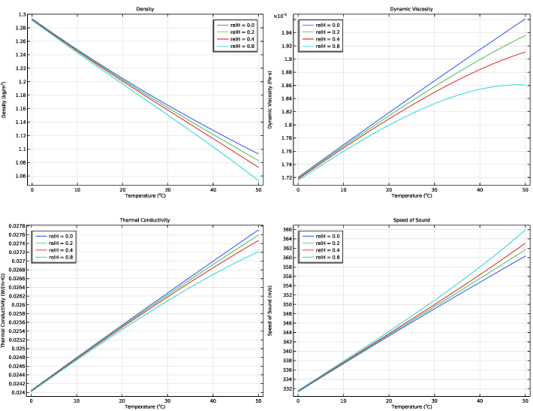
In the Expression text field, type subst(pp1mat1.def.rho,minput.T,Tg[K/m],minput.pA,p0,minput.phi,0).
|
|
4
|
|
5
|
|
7
|
|
1
|
|
2
|
|
3
|
In the Expression text field, type subst(pp1mat1.def.rho,minput.T,Tg[K/m],minput.pA,p0,minput.phi,0.2).
|
|
4
|
Locate the Legends section. In the table, enter the following settings:
|
|
5
|
|
1
|
|
2
|
|
3
|
In the Expression text field, type subst(pp1mat1.def.rho,minput.T,Tg[K/m],minput.pA,p0,minput.phi,0.4).
|
|
4
|
Locate the Legends section. In the table, enter the following settings:
|
|
5
|
|
1
|
|
2
|
|
3
|
In the Expression text field, type subst(pp1mat1.def.rho,minput.T,Tg[K/m],minput.pA,p0,minput.phi,0.8).
|
|
4
|
Locate the Legends section. In the table, enter the following settings:
|
|
5
|