PDF

Point Source in a 2D Jet: Radiation and Refraction of Sound Waves Through a 2D Shear Layer
Introduction
This is a benchmark model for the Linearized Euler interfaces in the Acoustics Module. The model is from the NASA workshop “Fourth Computational Aeroacoustics (CAA) Workshop on Benchmark Problems (2004).” The model solved here is problem 1 in category 4 on “Sound Transmission and Radiation”. The model results are compared with an analytical solution by Agarwal and others (see Ref. 1 and Ref. 2).
A point source is located in a narrow 2D jet of Mach 0.8. The model investigates the propagation of acoustic and nonacoustic waves in the flow, solving the linearized Euler equations in both the frequency and the time domain. Because of the nature of the background flow, radiation and refraction of the sound waves through the narrow 2D shear layer of the narrow jet, need to be captured accurately. The model also demonstrates how instability waves are suppressed in frequency domain models while they will grow and propagate in the time domain for the linearized Euler model.
Model Definition
A narrow Gaussian shaped point-like source S is located in a narrow jet, the background mean flow, u0 = (u0,v0), centered at the x-axis. A symmetry conditions is applied at y = 0. We have
(1)
where the subscript “j” stands for the jet properties. The details of the model definitions and constants are found in Ref. 2. The constants are defined in the model parameters under Global Definitions > Parameters 1 - Model and the source and jet variables are found in Definitions > Variables 1 - Flow Jet and Source.
The model is solved both in the frequency domain, with a given angular frequency of ω0 = 76 rad/s. In the time domain using a harmonics source as defined above. The linearized Euler equations describe the propagation of the compressible acoustic waves, but they also support non-acoustic waves/instabilities, that can propagate. In the frequency domain instability waves cannot be triggered as the system is forces at the given (real) frequency, and no waves can grow. This is not the case in the time domain as is also seen from the model results.
Results and Discussion
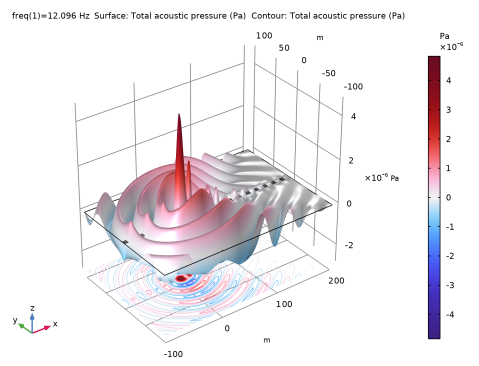
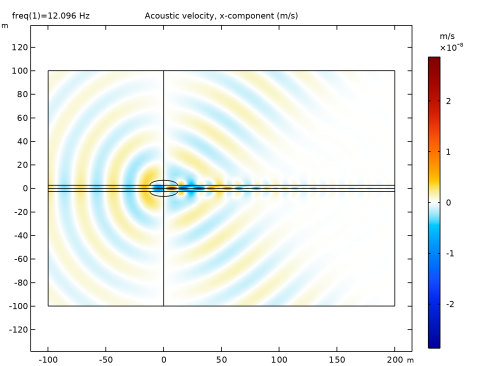
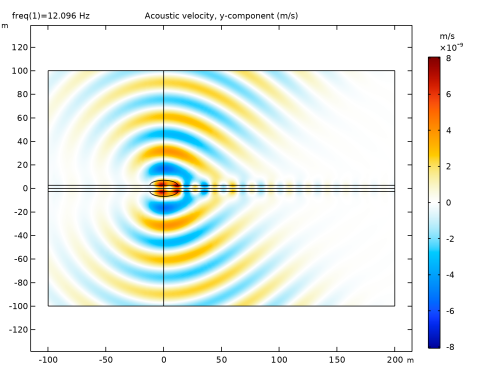
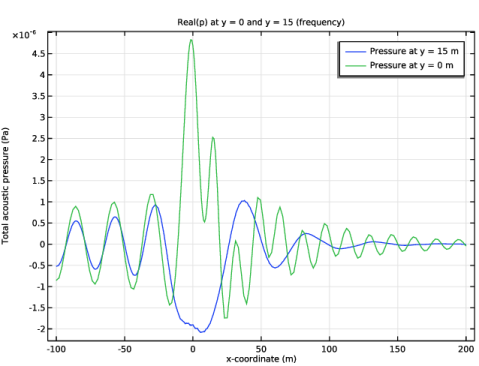
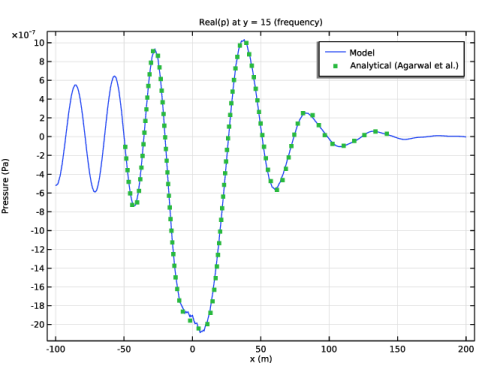
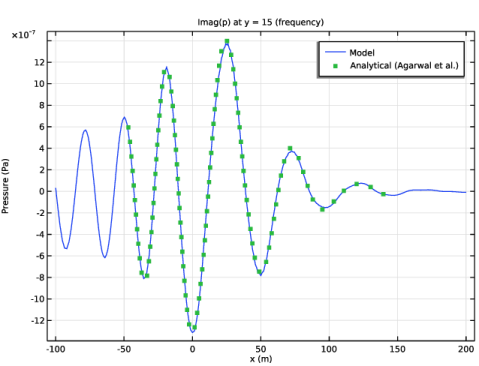
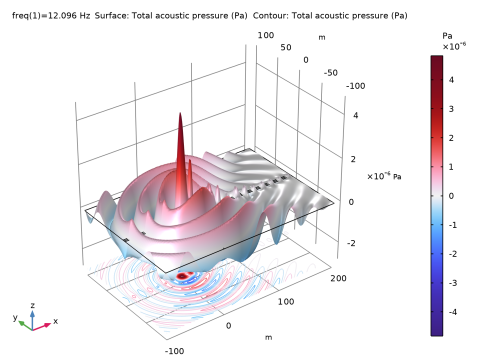
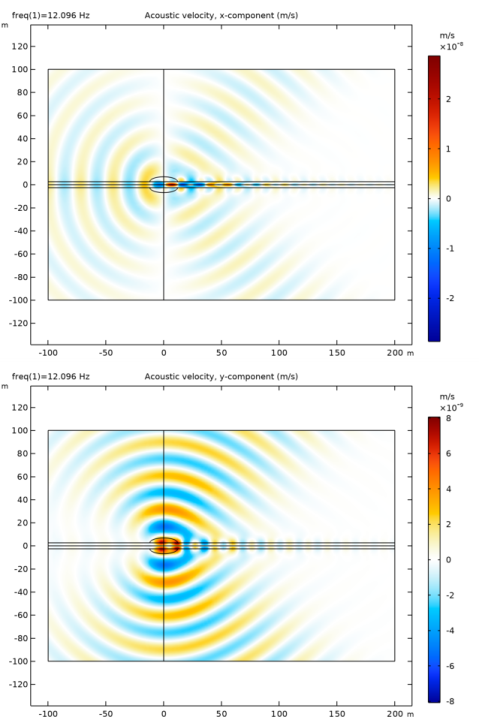
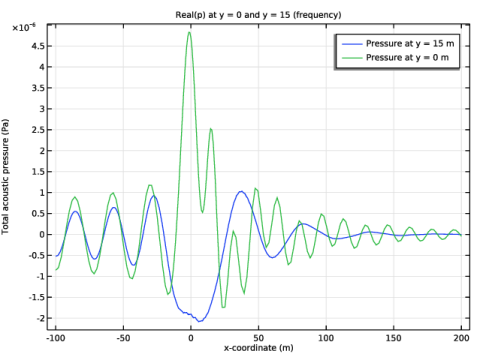
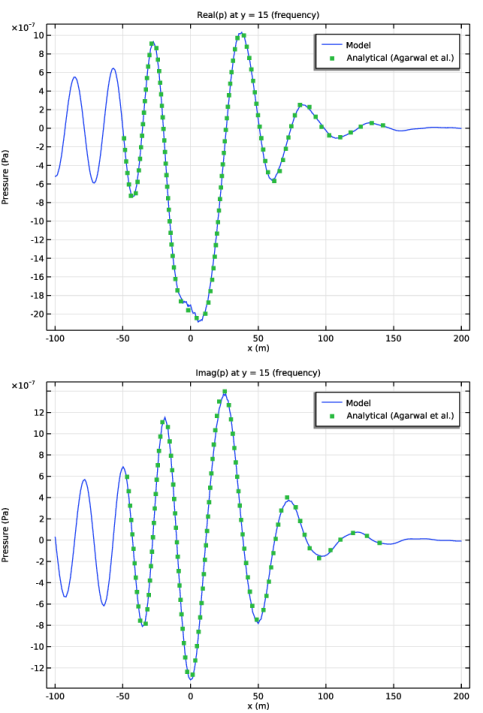
The acoustic pressure is depicted for the frequency domain model in Figure 1. The x and y-velocities (acoustic particle velocities) are depicted in Figure 2. Still for the frequency domain model, the pressure along the y =0 m and the y =15 m lines is depicted in Figure 3. In Figure 4 the results are compared to the analytical reference solution given in Ref. 1. The results show good agreement.
Figure 1: Pressure distribution in the frequency domain model. No instability waves are growing and convected by the jet.
Figure 2: Real part of the x-velocity (top) and y-velocity (bottom) for the frequency domain model.
Figure 3: Pressure (real part) along the lines y = 15 m and y = 0 m.
Figure 4: Real part (top) and imaginary part (bottom) of the pressure compared to the analytical solutions (frequency domain).
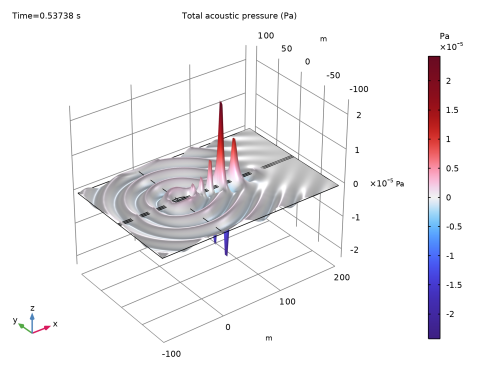
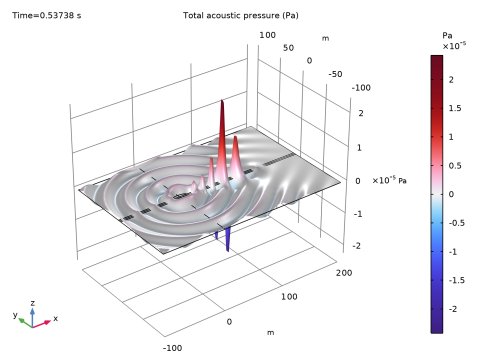
Figure 5: Pressure distribution at t = 0.537 s for the transient model. The instability is seen to grow and gets convected by the jet along the symmetry line.
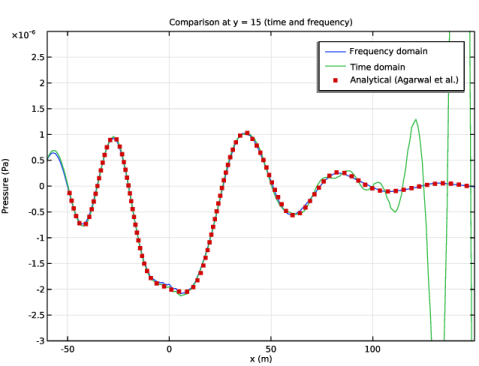
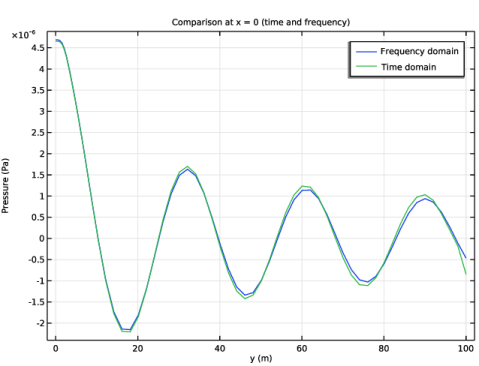
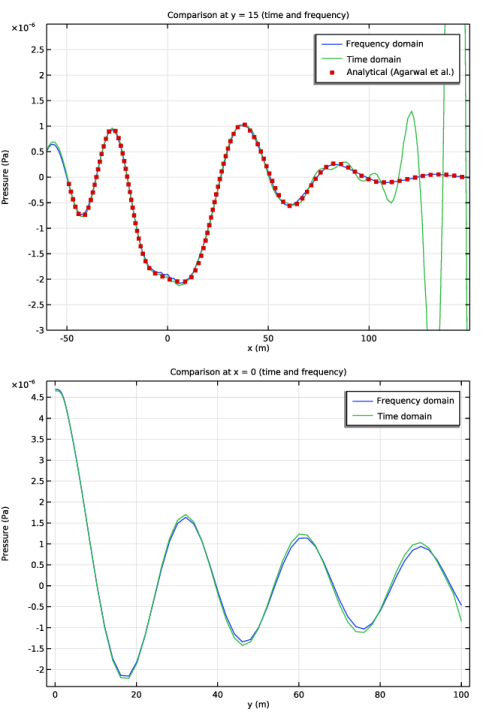
As opposed to the frequency domain, the time domain solutions, seen in Figure 5, shows the onset of a strong instability that moves at the convective speed of the jet (close to the symmetry plane at y = 0 m). See more time frames in the model. In Figure 6 the time domain solution and frequency domain solutions are compared to each other, and in one case also to the analytical solution. Downstream of the source, were the instability wave grows, the solutions cannot be compared (the graph is zoomed). The results show good agreement in the regions where no instability is propagating.
Figure 6: Comparison of the frequency domain (at the given phase), time domain, and analytical solution along the y = 15 m line (top) and the x = 0 m (bottom).
References
1. A. Agarwal, P.J. Morris, and R. Mani, “Calculation of Sound Propagation in Nonuniform Flows: Suppression of Instability Waves,” AIAA J., vol. 42, no. 1, pp. 80–88, 2004; doi.org/10.2514/1.619.
2. “Fourth Computational Aeroacoustics (CAA) Workshop on Benchmark Problems” NASA/CP—2004-212954.
Application Library path: Acoustics_Module/Aeroacoustics_and_Noise/point_source_2d_jet
Modeling Instructions
From the File menu, choose New.
New
In the New window, click  Model Wizard.
Model Wizard
1
In the Model Wizard window, click  2D.
2
In the Select Physics tree, select Acoustics > Aeroacoustics > Linearized Euler, Frequency Domain (lef).
3
Click Add.
4
In the Select Physics tree, select Acoustics > Aeroacoustics > Linearized Euler, Transient (let).
5
Click Add.
6
Click  Study.
7
In the Select Study tree, select Empty Study.
8
Global Definitions
Parameters 1 - Model
1
In the Model Builder window, under Global Definitions click Parameters 1.
2
In the Settings window for Parameters, locate the Parameters section.
3
Click  Load from File.
4
5
In the Label text field, type Parameters 1 - Model.
Parameters 2 - Geometry
1
In the Home toolbar, click  Parameters and choose Add > Parameters.
2
In the Settings window for Parameters, locate the Parameters section.
3
Click  Load from File.
4
5
In the Label text field, type Parameters 2 - Geometry.
Interpolation 1 (int1)
In the Home toolbar, click  Functions and choose Global > Interpolation.
Study 1
In the Model Builder window, collapse the Study 1 node.
Global Definitions
1
In the Model Builder window, under Global Definitions click Interpolation 1 (int1).
2
In the Settings window for Interpolation, locate the Definition section.
3
From the Data source list, choose File.
4
Click  Browse.
5
6
Locate the Data Column Settings section. In the table, click to select the cell at row number 1 and column number 3.
7
In the Unit text field, type m.
8
9
In the Name text field, type int_p_real.
10
In the Unit text field, type Pa.
11
12
In the Name text field, type int_p_imag.
13
In the Unit text field, type Pa.
14
15
Locate the Interpolation and Extrapolation section. From the Interpolation list, choose Piecewise cubic.
16
Locate the Definition section. Click  Import.
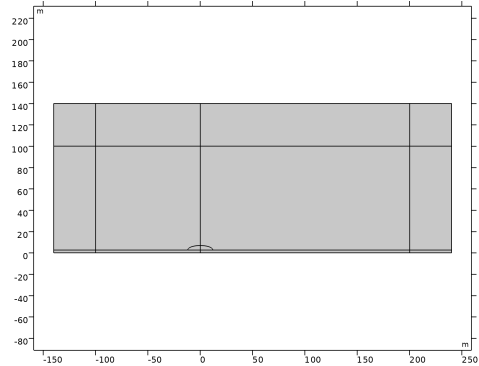
Proceed and create the geometry including domains for the PML and Absorbing Layer as well as domains used to set up a good mesh for the source and narrow jet.
Geometry 1
Rectangle 1 (r1)
1
In the Geometry toolbar, click  Rectangle.
2
In the Settings window for Rectangle, locate the Size and Shape section.
3
In the Width text field, type (Xmax-Xmin)+2*Lpml.
4
In the Height text field, type Ymax+Lpml.
5
Locate the Position section. In the x text field, type Xmin-Lpml.
6
Click to expand the Layers section. In the table, enter the following settings:
7
Select the Layers to the left checkbox.
8
Select the Layers to the right checkbox.
9
Clear the Layers on bottom checkbox.
10
Select the Layers on top checkbox.
11
Click  Build Selected.
12
Click the  Zoom Extents button in the Graphics toolbar.
Rectangle 2 (r2)
1
In the Geometry toolbar, click  Rectangle.
2
In the Settings window for Rectangle, locate the Size and Shape section.
3
In the Width text field, type Xmax.
4
In the Height text field, type Ymax+Lpml.
Rectangle 3 (r3)
1
In the Geometry toolbar, click  Rectangle.
2
In the Settings window for Rectangle, locate the Size and Shape section.
3
In the Width text field, type (Xmax-Xmin)+2*Lpml.
4
In the Height text field, type 2*b.
5
Locate the Position section. In the x text field, type Xmin-Lpml.
Ellipse 1 (e1)
1
In the Geometry toolbar, click  Ellipse.
2
In the Settings window for Ellipse, locate the Size and Shape section.
3
In the a-semiaxis text field, type 2*sqrt(1/Bx).
4
In the b-semiaxis text field, type 2*sqrt(1/By).
5
In the Sector angle text field, type 180.
6
Locate the Position section. In the y text field, type 2*b.
Form Union (fin)
1
In the Geometry toolbar, click  Build All.
2
In the Model Builder window, click Form Union (fin).
Add the air material.
Add Material from Library
In the Home toolbar, click  Windows and choose Add Material from Library.
Add Material
1
Go to the Add Material window.
2
In the tree, select Built-in > Air.
3
Click the Add to Component button in the window toolbar.
4
In the Home toolbar, click  Add Material to close the Add Material window.
Materials
Air (mat1)
Define selections and the Perfectly Matched Layer (PML) used in the frequency domain as well as the Absorbing Layer (AL) used in the time domain.
Definitions
PML and AL
1
In the Model Builder window, expand the Component 1 (comp1) > Definitions node.
2
Right-click Definitions and choose Selections > Explicit.
3
In the Settings window for Explicit, type PML and AL in the Label text field.
4
Symmetry
1
In the Definitions toolbar, click  Explicit.
2
In the Settings window for Explicit, type Symmetry in the Label text field.
3
Locate the Input Entities section. From the Geometric entity level list, choose Boundary.
4
Perfectly Matched Layer 1 (pml1)
1
In the Definitions toolbar, click  Perfectly Matched Layer.
2
In the Settings window for Perfectly Matched Layer, locate the Domain Selection section.
3
From the Selection list, choose PML and AL.
4
Locate the Scaling section. In the PML scaling curvature parameter text field, type 3.
Artificial Domains
Absorbing Layer 1 (ab1)
1
In the Definitions toolbar, click  Absorbing Layer.
2
In the Settings window for Absorbing Layer, locate the Domain Selection section.
3
From the Selection list, choose PML and AL.
Definitions
Variables 1 - Flow Jet and Source
1
In the Model Builder window, under Component 1 (comp1) right-click Definitions and choose Variables.
2
In the Settings window for Variables, locate the Variables section.
3
Click  Load from File.
4
5
In the Label text field, type Variables 1 - Flow Jet and Source.
6
Click the  Zoom Extents button in the Graphics toolbar.
Now, set up the physics, both the frequency domain and the time domain interfaces.
Linearized Euler, Frequency Domain (lef)
Linearized Euler Model 1
1
In the Model Builder window, under Component 1 (comp1) > Linearized Euler, Frequency Domain (lef) click Linearized Euler Model 1.
2
In the Settings window for Linearized Euler Model, locate the Model Input section.
3
In the p0 text field, type p0.
4
In the T0 text field, type T0.
5
Specify the u0 vector as
6
Locate the Fluid Properties section. From the ρ0 list, choose User defined. In the associated text field, type rho0.
Symmetry 1
1
In the Physics toolbar, click  Boundaries and choose Symmetry.
2
In the Settings window for Symmetry, locate the Boundary Selection section.
3
From the Selection list, choose Symmetry.
Domain Sources 1
1
In the Physics toolbar, click  Domains and choose Domain Sources.
2
3
In the Settings window for Domain Sources, locate the Domain Sources section.
4
In the prc text field, type S.
Linearized Euler, Transient (let)
1
In the Model Builder window, under Component 1 (comp1) click Linearized Euler, Transient (let).
2
In the Settings window for Linearized Euler, Transient, locate the Transient Solver Settings section.
3
In the fmax,sol text field, type f0.
Linearized Euler Model 1
1
In the Model Builder window, under Component 1 (comp1) > Linearized Euler, Transient (let) click Linearized Euler Model 1.
2
In the Settings window for Linearized Euler Model, locate the Model Input section.
3
In the p0 text field, type p0.
4
In the T0 text field, type T0.
5
Specify the u0 vector as
6
Locate the Fluid Properties section. From the ρ0 list, choose User defined. In the associated text field, type rho0.
Symmetry 1
1
In the Physics toolbar, click  Boundaries and choose Symmetry.
2
In the Settings window for Symmetry, locate the Boundary Selection section.
3
From the Selection list, choose Symmetry.
Domain Sources 1
1
In the Physics toolbar, click  Domains and choose Domain Sources.
2
3
In the Settings window for Domain Sources, locate the Domain Sources section.
4
In the prc text field, type S*cos(omega0*t).
Specific Acoustic Impedance (Isentropic) 1
1
In the Physics toolbar, click  Boundaries and choose Specific Acoustic Impedance (Isentropic).
2
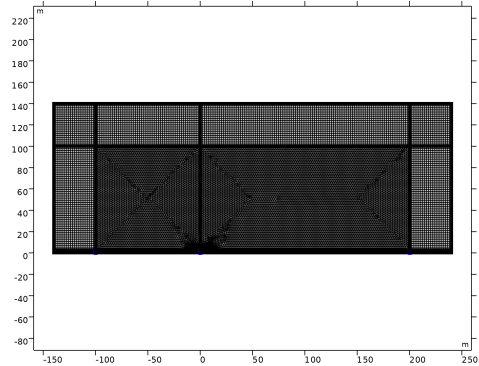
Proceed and create the mesh. Use a dense mesh resolution for the jet and source regions and a structured mesh for the PML/AL.
Mesh 1
Free Triangular 1
1
In the Mesh toolbar, click  Free Triangular.
2
In the Settings window for Free Triangular, locate the Domain Selection section.
3
From the Geometric entity level list, choose Domain.
4
Size
1
In the Model Builder window, click Size.
2
In the Settings window for Size, locate the Element Size section.
3
Click the Custom button.
4
Locate the Element Size Parameters section. In the Maximum element size text field, type lam0/20.
5
In the Minimum element size text field, type 0.1.
Size 1
1
In the Model Builder window, right-click Free Triangular 1 and choose Size.
2
In the Settings window for Size, locate the Geometric Entity Selection section.
3
Click  Clear Selection.
4
5
Locate the Element Size section. Click the Custom button.
6
Locate the Element Size Parameters section.
7
Select the Maximum element size checkbox. In the associated text field, type 0.8.
Mapped 1
1
In the Mesh toolbar, click  Mapped.
2
In the Settings window for Mapped, click to expand the Reduce Element Skewness section.
3
Select the Adjust edge mesh checkbox.
Distribution 1
1
Right-click Mapped 1 and choose Distribution.
2
3
In the Settings window for Distribution, click  Build All.
Now, solve the model first in the frequency domain, then in the time domain. Once solved, proceed and analyze the results.
Study 1
1
In the Model Builder window, click Study 1.
2
In the Settings window for Study, locate the Study Settings section.
3
Clear the Generate default plots checkbox.
Step 1: Frequency Domain
1
In the Study toolbar, click  Frequency Domain.
2
In the Settings window for Frequency Domain, locate the Study Settings section.
3
In the Frequencies text field, type f0.
4
Locate the Physics and Variables Selection section. Select the Modify model configuration for study step checkbox.
5
In the tree, select Component 1 (comp1) > Definitions > Artificial Domains > Absorbing Layer 1 (ab1).
6
Click  Disable.
7
In the Model Builder window, click Study 1.
8
In the Settings window for Study, type Study 1 - Frequency Domain in the Label text field.
9
In the Study toolbar, click  Compute.
Add Study
1
In the Home toolbar, click  Windows and choose Add Study.
2
Go to the Add Study window.
3
Find the Physics interfaces in study subsection. In the table, clear the Solve checkbox for Linearized Euler, Frequency Domain (lef).
4
Find the Studies subsection. In the Select Study tree, select General Studies > Time Dependent.
5
Click the Add Study button in the window toolbar.
6
In the Home toolbar, click  Add Study to close the Add Study window.
Study 2
Step 1: Time Dependent
1
In the Settings window for Time Dependent, locate the Study Settings section.
2
In the Output times text field, type range(0,Tperiod/10,Tend).
3
Locate the Physics and Variables Selection section. Select the Modify model configuration for study step checkbox.
4
In the tree, select Component 1 (comp1) > Definitions > Artificial Domains > Perfectly Matched Layer 1 (pml1).
5
Click  Disable.
6
In the Model Builder window, click Study 2.
7
In the Settings window for Study, locate the Study Settings section.
8
Clear the Generate default plots checkbox.
9
In the Label text field, type Study 2 - Time Domain.
10
In the Study toolbar, click  Compute.
Results
In the Model Builder window, expand the Results node.
Study 1 - Frequency Domain/Solution 1 (sol1)
In the Model Builder window, expand the Results > Datasets node, then click Study 1 - Frequency Domain/Solution 1 (sol1).
Selection
1
In the Results toolbar, click  Attributes and choose Selection.
2
In the Settings window for Selection, locate the Geometric Entity Selection section.
3
From the Geometric entity level list, choose Domain.
4
Study 2 - Time Domain/Solution 2 (sol2)
In the Model Builder window, under Results > Datasets click Study 2 - Time Domain/Solution 2 (sol2).
Selection
1
In the Results toolbar, click  Attributes and choose Selection.
2
In the Settings window for Selection, locate the Geometric Entity Selection section.
3
From the Geometric entity level list, choose Domain.
4
Mirror 2D - Frequency Domain
1
In the Results toolbar, click  More Datasets and choose Mirror 2D.
2
In the Settings window for Mirror 2D, locate the Axis Data section.
3
In row Point 2, set X to 1.
4
In row Point 2, set Y to 0.
5
In the Label text field, type Mirror 2D - Frequency Domain.
Mirror 2D - Time Domain
1
In the Results toolbar, click  More Datasets and choose Mirror 2D.
2
In the Settings window for Mirror 2D, locate the Data section.
3
From the Dataset list, choose Study 2 - Time Domain/Solution 2 (sol2).
4
Locate the Axis Data section. In row Point 2, set X to 1.
5
In row Point 2, set Y to 0.
6
In the Label text field, type Mirror 2D - Time Domain.
Cut Line 2D - y=15, Frequency Domain
1
In the Results toolbar, click  Cut Line 2D.
2
In the Settings window for Cut Line 2D, type Cut Line 2D - y=15, Frequency Domain in the Label text field.
3
Locate the Line Data section. In row Point 1, set X to Xmin.
4
In row Point 1, set Y to 15.
5
In row Point 2, set X to Xmax.
6
In row Point 2, set Y to 15.
Cut Line 2D - y=15, Time Domain
1
In the Results toolbar, click  Cut Line 2D.
2
In the Settings window for Cut Line 2D, type Cut Line 2D - y=15, Time Domain in the Label text field.
3
Locate the Data section. From the Dataset list, choose Study 2 - Time Domain/Solution 2 (sol2).
4
Locate the Line Data section. In row Point 1, set X to Xmin.
5
In row Point 1, set Y to 15.
6
In row Point 2, set X to Xmax.
7
In row Point 2, set Y to 15.
Cut Line 2D - Analytical
1
In the Results toolbar, click  Cut Line 2D.
2
In the Settings window for Cut Line 2D, type Cut Line 2D - Analytical in the Label text field.
3
Locate the Line Data section. In row Point 1, set X to -50.
4
In row Point 1, set Y to 15.
5
In row Point 2, set X to 150.
6
In row Point 2, set Y to 15.
Pressure (lef)
1
In the Results toolbar, click  2D Plot Group.
2
In the Settings window for 2D Plot Group, type Pressure (lef) in the Label text field.
3
Locate the Data section. From the Dataset list, choose Mirror 2D - Frequency Domain.
4
Locate the Color Legend section. Select the Show units checkbox.
Surface 1
1
Right-click Pressure (lef) and choose Surface.
2
In the Settings window for Surface, locate the Expression section.
3
In the Expression text field, type lef.p_t.
4
Locate the Coloring and Style section. From the Color table list, choose Wave.
5
From the Scale list, choose Linear symmetric.
6
In the Pressure (lef) toolbar, click  Plot.
Height Expression 1
Right-click Surface 1 and choose Height Expression.
Contour 1
1
In the Model Builder window, right-click Pressure (lef) and choose Contour.
2
In the Settings window for Contour, locate the Expression section.
3
In the Expression text field, type lef.p_t.
4
Locate the Coloring and Style section. From the Color table list, choose Wave.
5
From the Scale list, choose Linear symmetric.
6
Clear the Color legend checkbox.
Height Expression 1
1
Right-click Contour 1 and choose Height Expression.
2
In the Settings window for Height Expression, locate the Axis section.
3
Select the Scale factor checkbox. In the associated text field, type 1.
4
In the Offset text field, type -100.
5
Clear the Show height axis checkbox.
6
In the Pressure (lef) toolbar, click  Plot.
x-velocity (lef)
1
In the Results toolbar, click  2D Plot Group.
2
In the Settings window for 2D Plot Group, type x-velocity (lef) in the Label text field.
3
Locate the Data section. From the Dataset list, choose Mirror 2D - Frequency Domain.
4
Locate the Color Legend section. Select the Show units checkbox.
Surface 1
1
Right-click x-velocity (lef) and choose Surface.
2
In the Settings window for Surface, click Replace Expression in the upper-right corner of the Expression section. From the menu, choose Component 1 (comp1) > Linearized Euler, Frequency Domain > Acoustic fields > Acoustic velocity - m/s > u - Acoustic velocity, x-component.
3
Locate the Coloring and Style section. From the Color table list, choose Ranitomeya.
4
From the Scale list, choose Linear symmetric.
5
From the Color table transformation list, choose Nonlinear symmetric.
6
In the Color calibration parameter text field, type -1.
7
In the x-velocity (lef) toolbar, click  Plot.
y-velocity (lef)
1
In the Results toolbar, click  2D Plot Group.
2
In the Settings window for 2D Plot Group, type y-velocity (lef) in the Label text field.
3
Locate the Data section. From the Dataset list, choose Mirror 2D - Frequency Domain.
4
Locate the Color Legend section. Select the Show units checkbox.
Surface 1
1
Right-click y-velocity (lef) and choose Surface.
2
In the Settings window for Surface, locate the Expression section.
3
In the Expression text field, type v.
4
Locate the Coloring and Style section. From the Color table list, choose Ranitomeya.
5
From the Scale list, choose Linear symmetric.
6
In the y-velocity (lef) toolbar, click  Plot.
Real(p) at y = 0 and y = 15 (frequency)
1
In the Results toolbar, click  1D Plot Group.
2
In the Settings window for 1D Plot Group, type Real(p) at y = 0 and y = 15 (frequency) in the Label text field.
3
Click to expand the Title section. From the Title type list, choose Label.
Line Graph 1
1
Right-click Real(p) at y = 0 and y = 15 (frequency) and choose Line Graph.
2
In the Settings window for Line Graph, locate the Data section.
3
From the Dataset list, choose Cut Line 2D - y=15, Frequency Domain.
4
Locate the y-Axis Data section. In the Expression text field, type lef.p_t.
5
Locate the x-Axis Data section. From the Parameter list, choose Expression.
6
In the Expression text field, type x.
7
Click to expand the Legends section. Select the Show legends checkbox.
8
From the Legends list, choose Manual.
9
Line Graph 2
1
In the Model Builder window, right-click Real(p) at y = 0 and y = 15 (frequency) and choose Line Graph.
2
In the Settings window for Line Graph, locate the Selection section.
3
Click to select the  Activate Selection toggle button.
4
5
Locate the y-Axis Data section. In the Expression text field, type lef.p_t.
6
Locate the x-Axis Data section. From the Parameter list, choose Expression.
7
In the Expression text field, type x.
8
Click to expand the Legends section. Select the Show legends checkbox.
9
From the Legends list, choose Manual.
10
11
In the Real(p) at y = 0 and y = 15 (frequency) toolbar, click  Plot.
Real(p) at y = 15 (frequency)
1
In the Results toolbar, click  1D Plot Group.
2
In the Settings window for 1D Plot Group, type Real(p) at y = 15 (frequency) in the Label text field.
3
Click to expand the Title section. From the Title type list, choose Label.
4
Locate the Data section. From the Dataset list, choose Cut Line 2D - y=15, Frequency Domain.
5
Locate the Plot Settings section.
6
Select the x-axis label checkbox. In the associated text field, type x (m).
7
Select the y-axis label checkbox. In the associated text field, type Pressure (Pa).
Line Graph 1
1
Right-click Real(p) at y = 15 (frequency) and choose Line Graph.
2
In the Settings window for Line Graph, locate the y-Axis Data section.
3
In the Expression text field, type lef.p_t.
4
Locate the x-Axis Data section. From the Parameter list, choose Expression.
5
In the Expression text field, type x.
6
Click to expand the Legends section. Select the Show legends checkbox.
7
From the Legends list, choose Manual.
8
Line Graph 2
1
In the Model Builder window, right-click Real(p) at y = 15 (frequency) and choose Line Graph.
2
In the Settings window for Line Graph, locate the Data section.
3
From the Dataset list, choose Cut Line 2D - Analytical.
4
Locate the y-Axis Data section. In the Expression text field, type int_p_real(x).
5
Locate the x-Axis Data section. From the Parameter list, choose Expression.
6
In the Expression text field, type x.
7
Click to expand the Legends section. Select the Show legends checkbox.
8
From the Legends list, choose Manual.
9
10
Click to expand the Coloring and Style section. Find the Line style subsection. From the Line list, choose None.
11
Find the Line markers subsection. From the Marker list, choose Point.
12
From the Positioning list, choose Interpolated.
13
In the Number text field, type 100.
14
In the Real(p) at y = 15 (frequency) toolbar, click  Plot.
Imag(p) at y = 15 (frequency)
1
Right-click Real(p) at y = 15 (frequency) and choose Duplicate.
2
In the Settings window for 1D Plot Group, type Imag(p) at y = 15 (frequency) in the Label text field.
3
Click to expand the Title section. From the Title type list, choose Label.
Line Graph 1
1
In the Model Builder window, expand the Imag(p) at y = 15 (frequency) node, then click Line Graph 1.
2
In the Settings window for Line Graph, locate the y-Axis Data section.
3
In the Expression text field, type imag(lef.p_t).
Line Graph 2
1
In the Model Builder window, click Line Graph 2.
2
In the Settings window for Line Graph, locate the y-Axis Data section.
3
In the Expression text field, type int_p_imag(x).
4
In the Imag(p) at y = 15 (frequency) toolbar, click  Plot.
Pressure (let)
1
In the Results toolbar, click  2D Plot Group.
2
In the Settings window for 2D Plot Group, type Pressure (let) in the Label text field.
3
Locate the Data section. From the Dataset list, choose Mirror 2D - Time Domain.
4
Locate the Color Legend section. Select the Show units checkbox.
5
Locate the Data section. From the Time (s) list, choose 0.53738.
Surface 1
1
Right-click Pressure (let) and choose Surface.
2
In the Settings window for Surface, locate the Expression section.
3
In the Expression text field, type let.p_t.
4
Locate the Coloring and Style section. From the Color table list, choose Wave.
5
From the Scale list, choose Linear symmetric.
6
In the Pressure (let) toolbar, click  Plot.
Height Expression 1
1
In the Model Builder window, right-click Surface 1 and choose Height Expression.
2
In the Pressure (let) toolbar, click  Plot.
Comparison at y = 15 (time and frequency)
1
In the Results toolbar, click  1D Plot Group.
2
In the Settings window for 1D Plot Group, type Comparison at y = 15 (time and frequency) in the Label text field.
3
Locate the Data section. From the Dataset list, choose None.
4
Locate the Title section. From the Title type list, choose Label.
5
Locate the Plot Settings section.
6
Select the x-axis label checkbox. In the associated text field, type x (m).
7
Select the y-axis label checkbox. In the associated text field, type Pressure (Pa).
Line Graph 1
1
Right-click Comparison at y = 15 (time and frequency) and choose Line Graph.
2
In the Settings window for Line Graph, locate the Data section.
3
From the Dataset list, choose Cut Line 2D - y=15, Frequency Domain.
4
Locate the y-Axis Data section. In the Expression text field, type lef.p_t.
5
Locate the x-Axis Data section. From the Parameter list, choose Expression.
6
In the Expression text field, type x.
7
Click to expand the Legends section. Select the Show legends checkbox.
8
From the Legends list, choose Manual.
9
10
In the Comparison at y = 15 (time and frequency) toolbar, click  Plot.
Line Graph 2
1
In the Model Builder window, right-click Comparison at y = 15 (time and frequency) and choose Line Graph.
2
In the Settings window for Line Graph, locate the Data section.
3
From the Dataset list, choose Cut Line 2D - y=15, Time Domain.
4
From the Time selection list, choose Last.
5
Locate the y-Axis Data section. In the Expression text field, type let.p_t.
6
Locate the x-Axis Data section. From the Parameter list, choose Expression.
7
In the Expression text field, type x.
8
Click to expand the Legends section. Select the Show legends checkbox.
9
From the Legends list, choose Manual.
10
11
In the Comparison at y = 15 (time and frequency) toolbar, click  Plot.
Line Graph 3
1
Right-click Comparison at y = 15 (time and frequency) and choose Line Graph.
2
In the Settings window for Line Graph, locate the Data section.
3
From the Dataset list, choose Cut Line 2D - Analytical.
4
Locate the y-Axis Data section. In the Expression text field, type int_p_real(x).
5
Locate the x-Axis Data section. From the Parameter list, choose Expression.
6
In the Expression text field, type x.
7
Click to expand the Legends section. Select the Show legends checkbox.
8
From the Legends list, choose Manual.
9
10
Click to expand the Coloring and Style section. Find the Line style subsection. From the Line list, choose None.
11
Find the Line markers subsection. From the Marker list, choose Point.
12
From the Positioning list, choose Interpolated.
13
In the Number text field, type 100.
14
In the Comparison at y = 15 (time and frequency) toolbar, click  Plot.
Comparison at y = 15 (time and frequency)
1
In the Model Builder window, click Comparison at y = 15 (time and frequency).
2
In the Settings window for 1D Plot Group, locate the Axis section.
3
Select the Manual axis limits checkbox.
4
In the x minimum text field, type -60.
5
In the x maximum text field, type 150.
6
In the y minimum text field, type -3e-6.
7
In the y maximum text field, type 3e-6.
8
In the Comparison at y = 15 (time and frequency) toolbar, click  Plot.
Comparison at x = 0 (time and frequency)
1
In the Results toolbar, click  1D Plot Group.
2
In the Settings window for 1D Plot Group, type Comparison at x = 0 (time and frequency) in the Label text field.
3
Click to expand the Title section. From the Title type list, choose Label.
4
Locate the Plot Settings section.
5
Select the x-axis label checkbox. In the associated text field, type y (m).
6
Select the y-axis label checkbox. In the associated text field, type Pressure (Pa).
Line Graph 1
1
Right-click Comparison at x = 0 (time and frequency) and choose Line Graph.
2
In the Settings window for Line Graph, locate the Selection section.
3
Click to select the  Activate Selection toggle button.
4
5
Locate the y-Axis Data section. In the Expression text field, type lef.p_t.
6
Locate the x-Axis Data section. From the Parameter list, choose Expression.
7
In the Expression text field, type y.
8
Click to expand the Legends section. Select the Show legends checkbox.
9
From the Legends list, choose Manual.
10
Line Graph 2
1
In the Model Builder window, right-click Comparison at x = 0 (time and frequency) and choose Line Graph.
2
In the Settings window for Line Graph, locate the Data section.
3
From the Dataset list, choose Study 2 - Time Domain/Solution 2 (sol2).
4
From the Time selection list, choose Last.
5
6
Locate the y-Axis Data section. In the Expression text field, type let.p_t.
7
Locate the x-Axis Data section. From the Parameter list, choose Expression.
8
In the Expression text field, type y.
9
Click to expand the Legends section. Select the Show legends checkbox.
10
From the Legends list, choose Manual.
11
12
In the Comparison at x = 0 (time and frequency) toolbar, click  Plot.